

Quick Answer
In order to fix the ‘Bluetooth Not Pairing’ issue on Windows, start with simple solutions like resetting the Bluetooth connection, troubleshooting Bluetooth services using the command prompt, and updating Bluetooth drivers. The advanced methods include running the system troubleshooter, reinstalling Bluetooth devices, and scanning the system for corrupted files.
It’s great to have Bluetooth devices like speakers, keyboards, mice, etc., with you, but sometimes it can be difficult to connect them to your Windows laptop. Although these Bluetooth devices should connect automatically, sometimes you may encounter Bluetooth not pairing issues on your laptop.

In this article, we will show you some quick and proven tricks to solve the Bluetooth not pairing issue on your Windows device. We’ll show you both simple and advanced solutions to help you fix the problem as quickly as possible.
You can easily fix Bluetooth problems on your Windows laptop yourself. With a few simple measures, you can get your Bluetooth working again. If the basic solutions don’t work, you can try the advanced troubleshooting steps that we will present in this blog.
Table of Contents
Start with Some Basic Steps
Check Bluetooth
Most of the time, users forget to turn on Bluetooth on their pairing devices. Make sure you check this setting again. You can easily do this via the “Quick settings” menu. Simply press “Win + A” and check whether Bluetooth is switched on or not.

Reset Bluetooth Connection
Put your laptop into airplane mode for a few seconds, and then turn it off to reset the Bluetooth connection. If that doesn’t work, try restarting both your laptop and the device you want to pair. Also, make sure that the devices are within range of each other.

Troubleshoot Bluetooth Services
Bluetooth requires some background services to function correctly. You can troubleshoot these services from the command prompt.
Here’s how you can do it:
- Launch Command Prompt as an administrator.

- Run the following two commands:
SC config bthserv start=auto
This command sets the Bluetooth Support Service (bthserv) to start automatically with the system. The Bluetooth Support Service is responsible for managing all Bluetooth devices and their discovery, pairing, and connection processes on your computer. All devices with Bluetooth have this service running in the background.SC config bthHFSrv start=auto
This command sets the Bluetooth Handsfree Service (bthHFSrv) to start automatically with the system. The Bluetooth Handsfree Service enables the computer to support Bluetooth hands-free telephony. Not all devices have this process or functionality.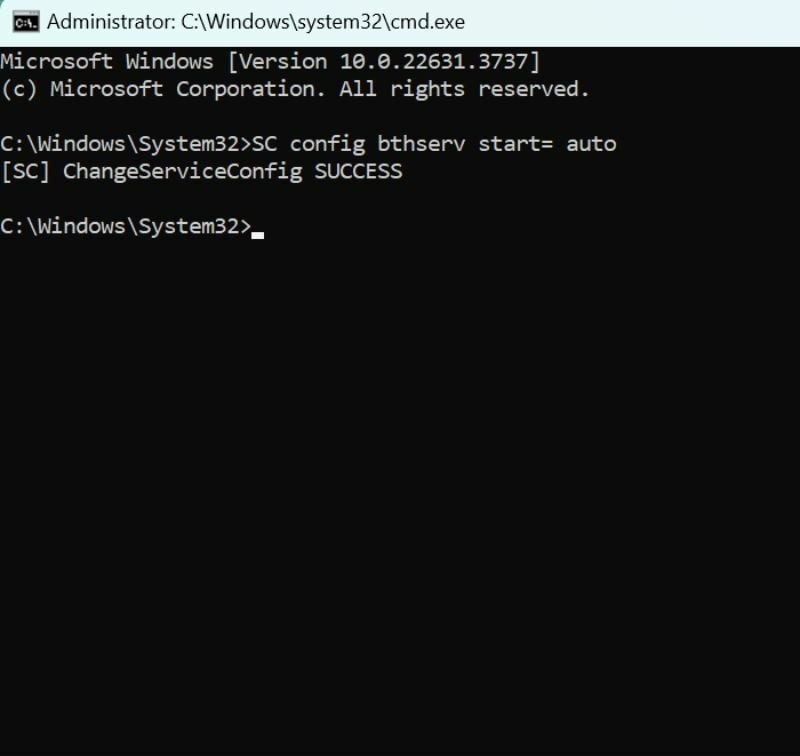
Update Bluetooth Device Driver
Outdated or faulty driver software can lead to problems with the Bluetooth connection. You can update the driver for your Bluetooth device either manually or automatically via the Device Manager.
Here’s how you can do it:
- Click on the Start button and search for Device Manager.

- Expand the Bluetooth branch and right-click on the adapter. Click on Update driver.

- Then select Search automatically for updated driver software. Follow the on-screen instructions and restart your device once the drivers are updated.

Also See: Bluetooth earphones need…a Disconnect button
Advanced Methods
If the above solutions don’t help, don’t worry! There are some advanced methods you can try to fix Bluetooth connection issues.
Run the System Troubleshooter
The easiest way to fix driver or software problems on your computer is to run System Troubleshooter. This tool can automatically detect and fix common driver issues, including Bluetooth connection problems.
Here’s how you can do it:
- Launch Command Prompt as an administrator.
- Run the following command: msdt.exe -id DeviceDiagnostic

- This command runs the Microsoft Support Diagnostic Tool (MSDT) with DeviceDiagnostic troubleshooter. It checks your system for any issues and resolves them if possible. You will get a list of issues present in your system related to drivers, and the troubleshooter will attempt to fix them automatically.

Reinstall the Bluetooth Device (For missing Bluetooth driver)
One of the most common reasons for Bluetooth malfunctions is a missing Bluetooth device in the device manager. This may be due to a corrupted driver, or you may have uninstalled it by mistake. In this case, you may not be able to find the Bluetooth button in your settings menu.
Here, you can find out how to fix this problem and reinstall a device driver.
- Click on the Start button and search for Device Manager.

There’s no Bluetooth driver on the device manager list of my Windows laptop. For this, I will have to check hidden devices or download a new driver. - Scroll down to find Bluetooth. If you don’t see a Bluetooth device in the device list, go to View and select Show Hidden Devices. Check if a Bluetooth device appeared after selecting Show Hidden Devices.

- If you can see the driver on the list, right-click on it and update the driver.
- If it still doesn’t appear on the list, you will need to download and install a new driver. Simply search for a Bluetooth driver based on your machine configuration. For example, if you have an HP (Intel) Windows 11 device, search for the HP Device Name (Intel) Bluetooth driver for Windows 11. Only download from the official site, and do not install any drivers from third-party sites that are hard to trust.

- Download and install the driver. Follow the on-screen instructions to complete the installation process. Once the new driver is installed, restart your computer and check if the issue is resolved.

Scan System for Corrupt Files
Sometimes, the problem with Bluetooth not pairing is not due to drivers but to corrupted system files. To check this, you can run a system check with the integrated Windows System File Checker tool.
Here’s how you can do it:
- Launch Command Prompt as an administrator.
- Run the following command: sfc /scannow

The process will take some time and will diagnose the system for any corrupt files. It will also resolve the issue if any corrupt files are found.
Fix Bluetooth Not Pairing Issue on Windows
So, that’s it! We hope this short and proven guide will help you troubleshoot and fix Bluetooth problems that can’t be paired. Let us know in the comments if these tips and tricks were helpful to you or if you know of any other methods that have worked for you, and share them in the comments.

