

Quick Answer
Samsung Pass is a free, built-in password manager on Galaxy devices. It makes storing and managing your login credentials easy and allows you to log in to apps and websites quickly and conveniently with just your biometrics. Samsung Pass has some advantages and disadvantages over third-party password managers.
Keeping your online accounts secure requires using strong and unique passwords. However, remembering and managing these passwords is challenging.
Samsung Pass simplifies this by allowing you to store all your login credentials in one place. In addition, it also lets you log in to apps and websites on your Galaxy phone conveniently using just your biometrics. Plus, there’s a little more you can do with it than third-party password managers.

Let’s explore Samsung Pass in detail and see what it can do and how you can use it on your Galaxy phone.
What Is Samsung Pass?
Samsung Pass is a free password manager of sorts available on all Galaxy devices, including phones, tablets, and laptops. You can use it to store your existing passwords (along with usernames or email addresses) or generate new ones.
Besides login credentials, Samsung Pass also lets you store sensitive information, such as addresses, payment methods (credit/debit cards, UPI IDs, etc.), and private notes.
All your information on Samsung Pass is protected by Samsung Knox. While Samsung doesn’t clearly explain how it does this, it says it encrypts your biometric information on Samsung Pass and saves it in the “Trust Zone,” a secure environment on Galaxy devices for keeping sensitive information.
Samsung Pass has been available as a separate app on Galaxy devices for the longest time. However, since 2022, Samsung has started giving users the option to integrate it into the Samsung Wallet app to access all information under one roof. As of the time of writing this, this seems to be optional, though, and you can decline the prompt to continue using Samsung Pass as a separate app on your device.
Who Is Samsung Pass For?
Anyone who has a Samsung Galaxy phone running on Android 7.0 or higher can use Samsung Pass. However, the service makes the most sense for someone rooted in the Samsung ecosystem because of its deep integration with Samsung’s devices and services, which enables a seamless experience.
For example, if you have multiple Samsung devices (phones, laptops, or tablets), Samsung Pass will be really useful to you, as it’ll keep all your login credentials synced across devices so you can access them on any device at any time.
Similarly, if you use Samsung Internet (browser) on your Galaxy device, Samsung Pass will allow you to log in to apps and websites with biometric authentication (fingerprint, face, or iris), saving you the hassle of entering usernames and passwords manually.
Or, if you use the Samsung Keyboard on your device, the integration with Samsung Pass will give you quick access to all your credentials, even on websites that don’t support the autofill functionality, so you can easily log in.
How to Set Up Samsung Pass on Your Galaxy Phone
Samsung Pass is easy enough to use. But you need to set it up first. Mind you, you need a Samsung account to use Samsung Pass, among other services. Go ahead and create a Samsung account if you don’t have one already.
Considering you haven’t integrated Samsung Pass into Samsung Wallet, you’ll have a separate app for Samsung Pass on your Galaxy device. In this case, you can follow these steps to set it up:
- Open Samsung Pass on your Galaxy phone.
- Hit Continue on the welcome screen to proceed.

- Log in to your Samsung account when prompted.
- Once logged in, scan your fingerprint to verify your identity.

- Finally, turn on the autofill functionality to quickly and conveniently fill in your private information in apps and websites when they request it. Tap the three-dot button on the home screen and select Settings. From here, toggle on the switch for the Autofill with Keyboard option.

If you’ve already integrated Samsung Pass into Samsung Wallet, you can access Samsung Pass inside the Wallet app. Simply open Wallet and set it up (if you haven’t already) by logging in with your Samsung account and verifying your identity using your fingerprint. Then, go to the All tab and scroll down to find the Samsung Pass section. After you’ve done this, any time you want to access Samsung Pass, you can do so from the Samsung Wallet app.

Once you’ve set up Samsung Pass, the next step is to set Samsung Pass as the default autofill service on your Galaxy device. Here’s how to do this:
- Open Settings.
- Scroll down and select General Management.

- Scroll down and tap on Passwords, Passkeys, and Autofill.

- Tap on Preferred Service.

- Select Samsung Pass.

- When prompted to confirm, hit OK.
With the basic setup complete, you can start adding your login credentials to Samsung Pass on your Galaxy phone like this:
- Tap on Apps/Websites and then hit the plus (+) button in the top corner to access the Add Sign-In Info page.
- On this page, tap on Set under Sign-In Location or App and choose the app or enter the address of the website for which you’re creating the entry.
- Tap on the User ID text field and enter your email address.
- Similarly, tap on the Password field and add the password associated with the user ID. If you’re creating an entry for a new login, tap the Create Strong Password button to generate a password and hit Use to use it.
- If you want to add a note to the entry, tap the Note field and type in your text.
- Finally, hit Save to save your details and create a login entry in Samsung Pass.
How to Use Samsung Pass to Log In to Apps and Websites on Your Galaxy Phone
Once you’ve populated Samsung Pass with all your login credentials, you can log in to your account on any app or website effortlessly with Samsung Pass using the following steps:
- Tap the Username, Email, or similar text field on the app or website you want to log in.
- You’ll see a pop-up suggesting your username, email, or equivalent for that service. Tap it.

- Samsung Pass will now ask you to verify your identity. Scan your fingerprint to do this, and it’ll automatically fill out the field.

- Repeat the same steps for filling the Password field, too.
Alternatively, if Samsung Pass can’t suggest login credentials for an app or website, it could be because you haven’t set up its entry correctly. You can edit the entry to fix this. Or you can set Samsung Pass to automatically fill in your login credentials on such apps or websites. It requires you to use the Samsung Keyboard on your Galaxy device, and here’s how to use it:
- Tap on the Username, Email, or similar text field to bring up the Samsung Keyboard.
- Tap the three-dot button in the upper-right corner of the keyboard and tap on Samsung Pass.
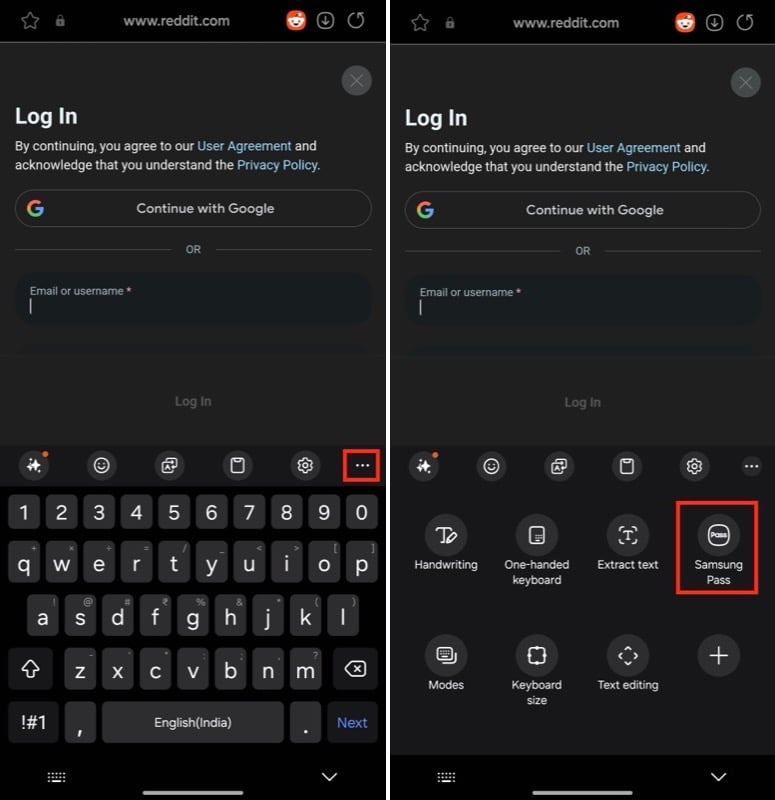
- Verify your identity by scanning your fingerprint, and Samsung Pass will show you all your saved login credentials.
- Tap on an entry to fill it.
- Repeat the same steps for entering passwords, too.
Lastly, once you’ve set up Samsung Pass on your Galaxy device, any time you enter your login credentials (username and password) on an app or website, Samsung Pass will give you a prompt asking you if you’d like to save them. Tap on Remember, and it’ll save the username and password to Samsung Pass. Hit Never to skip.

Samsung Pass is Good, but it Has Some Limitations
To summarise, here are the advantages of Samsung Pass:
- It stores your information in a secure environment on your device called “Trust Zone” and encrypts it with your biometrics (fingerprint, face, or iris).
- Stores not only login credentials but also sensitive information like addresses, payment methods, and private notes.
- Integrates well with other Samsung services like Samsung Internet and Keyboard, allowing easy access to credentials across the ecosystem.
- Straightforward setup process and intuitive interface for managing and using your information.
Samsung Pass is a good password manager for most Samsung device users, but it has some limitations.
- For one, Samsung Pass requires an active internet connection to work, so you can’t access your login credentials when you’re offline.
- Similarly, it can’t keep your login credentials synced if you use a Samsung phone with a non-Samsung laptop.
- Another limitation of the Samsung Pass app is that if you prefer a third-party web browser over Samsung Internet, Samsung Pass won’t help you log in to websites, so you’ll have to type in your credentials manually.
- Likewise, if you prefer a third-party keyboard app over Samsung Keyboard, you won’t be able to access all your credentials when an app or website fails to suggest the right login credentials.
If these Samsung Pass limitations bother you, you can use a third-party password manager instead.

