

Quick Answer
The easiest way to combine videos on iPhone is to use the iMovie app which comes pre-installed. But iMovie provides very limited editing options. Alternatively, you can use one of the many third-party apps like Splice, VN Video Editor, Kinemaster, etc. to merge videos while having greater control over the process.
It’s been possible to edit videos on an iPhone in the Photos app for quite some time. However, certain video editing operations, such as merging two or more videos, still aren’t possible within the Photos app and require you to use dedicated video editing apps.

But what apps should you use? Read on as we explore some of the best ways to combine videos on iPhone.
App | Description | Pros | Cons | Download |
|---|---|---|---|---|
iMovie | Free iOS app pre-installed on iPhones for merging videos. | - Free and built-in - Easy to use - Magic Movie mode is great for novice users | - Limited editing options | |
Splice | A popular iOS video editor offering advanced editing functionalities and a variety of effects and transitions. | - Clean and intuitive interface - Good selection of editing tools - AI compiler for quick video merging | - Free version only saves two projects at once - Requires a paid subscription for all features | |
VN Video Editor | Powerful video editing app with numerous editing tools, transitions, and filters. | - Powerful editing tools - Platform-specific frame ration picker - Array of music, filters, templates, and transitions - Automatic captions | - Ads - Feature set can be overwhelming for novice editors | |
Kinemaster | A popular video editing app with advanced editing functionalities and support for layers. | - Support for landscape editing - Handy video editing tools - Plug-in support - Decent selection of transitions | - Ads - Watermark on the free version - Requires a paid subscription for full features - Navigating the interface can be challenging initially | |
Filmora | Wondershare's Filmora offers a simple interface with a variety of effects, filters, and editing options. | - Easy-to-use interface - Impressive collection of effects, filters, and music - Ability to import media from online resources - Advanced editing features - HDR support | - Ads - Prominent watermark on the free version - Some basic features require a paid subscription |
Table of Contents
Combine Videos on iPhone Using iMovie
iMovie is one of the best ways to merge videos on your iPhone. It’s free to use and comes pre-installed with iOS, saving you the hassle of downloading it to your device to get started.
The app lets you merge clips on your iPhone in two ways. You can either import the clips you want to combine into the iMovie app and merge them yourself manually or use the app’s Magic Movie mode to create a movie out of your chosen clips automatically.

If you don’t have much experience editing videos, Magic Movie can get the job done within minutes. It’s quick and can generate usable videos, granted you’ve clipped and trimmed them out before importing them into iMovies either in Photos or some other video-editing app. However, with this mode, you can only control very few aspects of the video, like the soundtrack, filter, and text style.
On the other hand, if you’re an expert and want more control over the final result, the manual method will suit you better. Aside from the options the Magic Movie mode offers, this mode will also let you add text to your video, control transition effects between clips, and speed up, slow down, or freeze a part of a video clip, among other things.
Pros:
- Free and built-in
- Easy to use
- Magic Movie mode is great for novice users
Cons:
- Limited editing options
Merge Videos on iPhone Using Third-Party Apps
iMovie is great if all you want to do is combine two or more clips into a single video. However, it’s limited in terms of advanced editing functionalities and has a limited selection of effects and filters compared to third-party video editors.
If you feel the same, you can merge videos on your iPhone using any of the following third-party video editing apps.
Splice

Splice is a popular iOS video editor you can use to combine videos on your iPhone. Compared to iMovie, it gives you way more effects and transitions to choose from, in addition to a bunch of advanced editing functionalities that you can use to edit your videos–all while maintaining a clutter-free and easy-to-use interface.
Talking about merging videos with Splice, you can do it using AI or manually, just like iMovie. The AI compilator stitches your clips within seconds and adds a nice transition between them, along with a background track to go well with the video. Alternatively, you can import videos and manually stitch them together in Splice. With the manual method, Splice only joins the clips for you without applying any edits, so you choose the same based on your preference.
With either method, you can modify the transition effect, apply a filter, add text, or even edit the video as required at any time. Splice also lets you add sound effects and record and add voice-overs to your videos. Besides, the app packs some useful AI tools, available with an upgrade, which can simplify certain video-editing operations on the app.
Pros:
- Clean and intuitive interface
- Good selection of editing tools
- AI compilator for quick video merging
Cons:
- Free version only saves two projects at once
- Requires a paid subscription to use all features
Related Read: 4 Ways to Combine Photos on an Android Phone
VN Video Editor
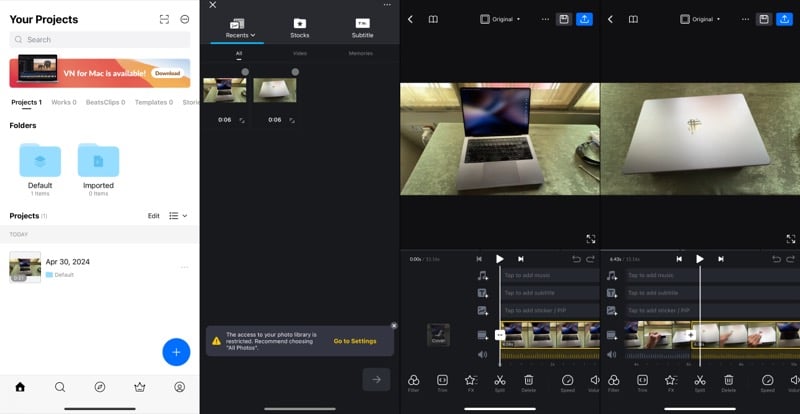
VN Video Editor is a really power video editing app for iOS. Aside from being rich in video editing tools, the app also packs lots of video transitions and filters to help you take your merged videos to the next level. What’s more, you get a wide range of templates for thumbnail creation, so you don’t have to look elsewhere.
Besides packing so many functionalities, the VN Video Editor still manages to keep things simple through its clean and well laid out interface. Once you import the video files to merge, the editor joins them together and presents you with all the tools required to edit the video. This includes the option to add background music, captions, and stickers. Plus, the editor also makes it easy to change the transition between clips and apply filters to add some visual flair.
One of the VN Video Editor features I like in particular is the ability to change frame ratios. This can come in handy when you’re creating videos for social media, as you can simply select the platform you plan to upload your video on, and the editor will make your video fit for it. Another thing I like about the app is that it lets you create folders for different projects, so you can keep all the media files related to a project in its own video folder. Sadly, though, it’s a paid feature.
Lastly, like other video merger apps on the list, the VN Video Editor also lets you edit the video before saving or uploading it. This includes everything from rotating, trimming, and splitting the video to changing video speed, reversing it, or freezing a part of it, among other things.
Pros:
- Powerful editing tools
- Platform-specific frame ration picker is excellent
- Array of music, filters, templates, and transitions
- Automatic captions
Cons:
- Ads
- Feature set can be overwhelming for novice editors
Kinemaster

Kinemaster is a popular video editing app for smartphones. It’s slightly more advanced than iMovie and offers a few extra effects and editing functionalities that can be useful to you while merging videos.
One of the highlights of Kinemaster is its interface. Loaded with editing options throughout its interface, the app can feel cluttered initially and may require you to spend a good few minutes to get yourself familiarized. But thankfully, it supports landscape orientation, which eases things a bit.
Once you’re familiar with the interface, it’s pretty easy to merge videos in Kinemaster. Simply create a blank project and set up its properties, like the aspect ratio, display mode, etc. Then, import the images, and it’ll create a timeline for you with your imported videos.
From here, you can tap the transition icon and select your preferred effect to apply it. You can then add background music or give a voiceover to your merged video. Plus, thanks to support for layers, you can get artistic and creative with your videos by adding text, stickers, and more.
Like with any other video editor, you can also edit and modify the video in Kinemaster using its many built-in tools.
Pros:
- Support for landscape editing
- Handy video editing tools
- Plug-in support
- Decent selection of transitions
Cons:
- Ads
- Watermark on the free version
- Requires a paid subscription to access the entire suite of features
- Navigating the interface can be a little harder initially
Filmora
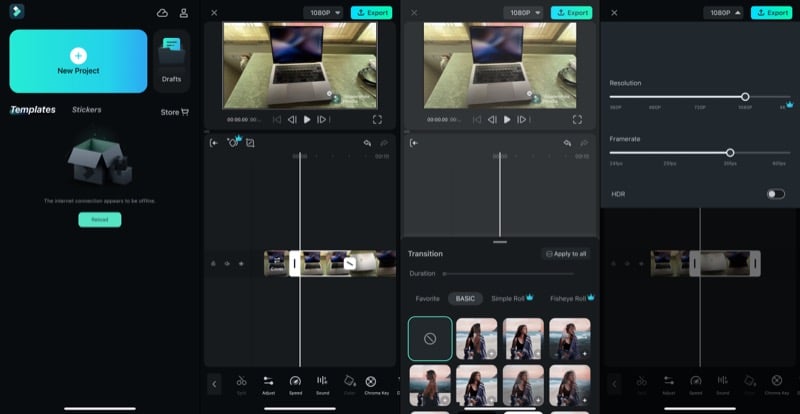
Wondershare’s Filmora is another app with a video merger tool that you can use to combine videos on your iPhone. The app has a simple interface with nicely laid-out buttons and editing options. What’s also nice is that you can split the screen area to your liking to adjust how much space you want to give to preview and controls.
Combining videos in Filmora involves a few simple steps. You start by importing the clips to merge, and the app stitches them together into a single clip. After this, you can tap on the transition button between clips and choose from a variety of transition effects on offer. Similarly, you have a bunch of filters available that you can apply to your video with a few simple taps.
Besides these edits, you can also add background music, subtitles, or stickers to your clips. Similarly, you can perform basic edits to make necessary changes. There’s even an option to import stock media from online resources, should you need it.
Compared to other editors on the list, Filmora offers a slew of options when it comes to effects, filters, and music. However, most of them require a paid subscription to the app.
Pros:
- Easy-to-use interface
- Impressive collection of effects, filters, and music
- Ability to import media from online resources
- Advanced editing features
- HDR support
Cons:
- Ads
- Prominent watermark on the free version
- Some basic features require a paid subscription
Choose the Right Video Merging App for Best Results
You can use any of the above video merger apps to combine videos on your iPhone. However, to get the job done effectively and efficiently, you need to choose a method that serves your requirements well.
So, as viable as the iMovie app may look in the first go, it may not be for you if you’re eyeing a more creative output. Similarly, the advanced options of the Splice or Kinemaster app may not be for you if you’re a novice video editor or simply want to stitch two videos together.

