

Quick Answer
To expand the ports on your computer, you can use USB hubs, docking stations, PCIe expansion cards (Desktop), or USB adapters. USB hubs are cost-effective, and is easy to add extra USB ports. Docking stations provide multiple ports and are best for fixed setups, USB adapters are a simple way to convert existing laptop ports. Finally, PCIe USB Expansion cards are perfect for desktops to add more USB Ports.
Many laptop brands have removed ports in favor of slim and lighter designs. The current-gen laptop offers limited ports which makes it inconvenient to connect multiple devices. Thanks to USB hubs, docking stations, and adapters, you can add more ports to your computer and connect more devices simultaneously. Each method has its advantages and disadvantages. Keep reading to pick the right method to expand your ports on your computer.

Table of Contents
How to Add USB Ports to Your Computer
Features | USB Hubs | Docking Stations | PCIe Expansion Cards | USB Adapters |
|---|---|---|---|---|
Description | A simple solution to expand USB ports. Hubs come in various sizes and configurations. | Supports multiple ports with its power source. The best option if you have a stable desktop setup | RAM expansion slot for your desktop computers. | Easiest way to convert and and more ports. |
The port you can add | USB Type-A, Type-C, HDMI, Ethernet, MicroSD, Audio Jacks | Enhanced USB, HDMI, Ethernet, audio, additional displays | USB, SATA, Ethernet, etc. | Additional USB, HDMI, VGA, Ethernet, |
Power Source | Powered or unpowered | Own power source supports higher power | Powered by the desktop’s power supply | Uses a laptop power source. |
Setup Complexity | Simple | Easy | Complex requires technical skill | Easy |
Cost | Low | High | Medium to high | Low |
Mobility | Highly portable | Low (not portable) | Not portable | Highly portable |
USB Hubs
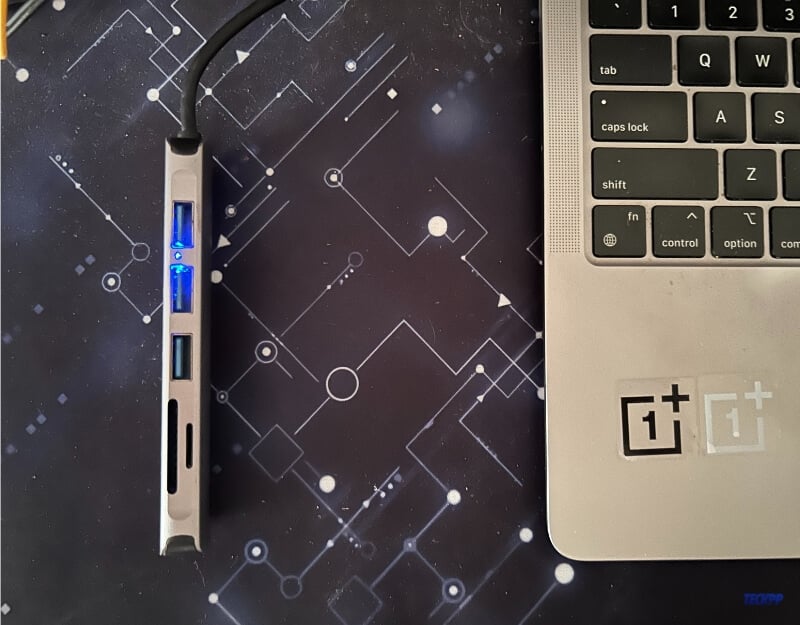
USB hubs are a great choice if you want to add more ports to your personal computer. You can connect the hub to one of the existing USB ports on your computer and increase the port limit. USB hubs come in different configurations and support different port options. They are easy to use and set up and do not require additional software.
What You Need To Know About USB Hubs
- USB hubs are cheaper, lighter, and more portable to carry around compared to other options.
- You can connect the USB hub to the existing port on your computer and connect more devices simultaneously.
- USB hubs come in various configurations and support port types such as USB Type-A, Type-C, Micro USB ports, HDMI ports, Ethernet ports, MicroSD card ports, Audio Jacks, and more.
Factors You Should Consider Before Choosing a USB Hub
- Look for the ports it supports: Look for the ports you want in the USB hub. The most common ports you will find on a USB hub are USB Type-A, Type-C, Micro USB ports, HDMI ports, Ethernet ports, MicroSD card ports, Audio Jacks, Power delivery, and more. If you are looking for USB ports, look for the hub that offers more USB ports.
- Power source: Look for the USB hub with the type of power source. Most USB hubs directly connect to the existing USB port on your computer, while few of them have their power source.
- Consider the connector type: Look for the connection type used to connect the USB hub to your computer. The most common USB connection types include USB Type-A (widely used), USB Type-C (found on MacBooks and newer PCs), Micro USB, and more. Choose the connector type that matches the port on your device.
Those are the important factors you should consider when choosing a USB hub. Suppose you are looking for a USB hub that meets specific needs. In that case, you can also consider several other factors, such as the USB version, the number of ports supported, build quality and design, charging capabilities, data transfer speeds, and more.
Best USB Hubs
Feature | ||||
|---|---|---|---|---|
Number of Ports | 4 USB 3.0 Ports | 8 Ports (including HDMI, USB-C, USB-A, SD Card slots) | Multiple ports, including USB-A, HDMI, USB-C PD | 4 USB 3.0 Ports |
Data Transfer Rate | Up to 5 Gbps | Up to 10 Gbps | Up to 5 Gbps | Up to 5 Gbps |
Special Features | Powered, Plug and Play | 100W Power Delivery, 4K 60Hz HDMI output, Ethernet, microSD/SD Card Reader | 4K HDMI Port, High-speed pass-through charging | Plug and Play, Ultra-Slim |
Compatibility | Supported on Mac OS, Windows, Chrome OS | MacBook, iPad Pro, XPS, and more with iPadOS and Windows compatibility | Supported on MacBook, iPad Pro | Wider compatibility supports devices including Xbox, PS5 |
Portability/Size | Compact and portable, 0.5 ft cable | Compact with a built-in cable for travel, slightly larger due to more ports | Ultra-thin with a long detachable cable and a right-angle plug for better cable management | Compact and ultra-slim, highly portable |
Connector Port Type | USB Type C | USB Type C | USB Type C | USB Type A |
Price (Can vary) | $14.99 | $49.99 | $39.99 | $9.99 |
Docking Stations
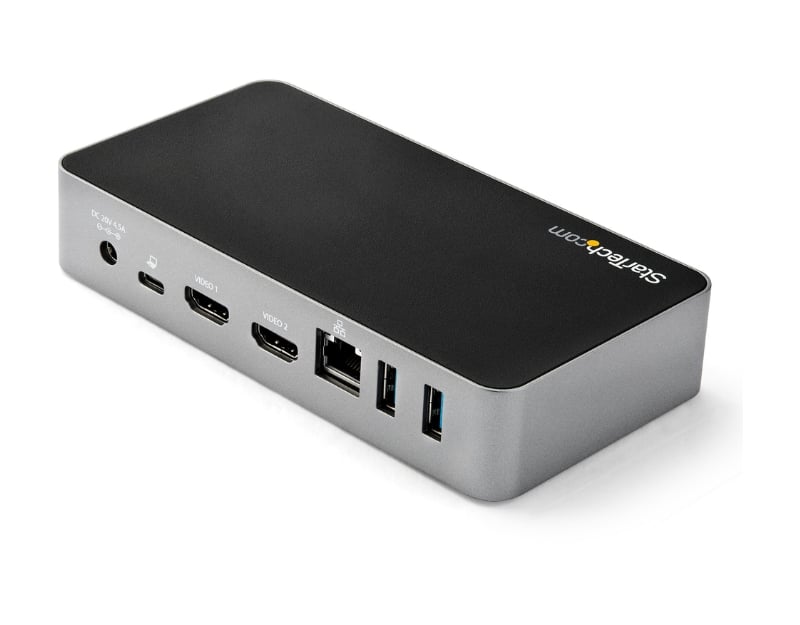
Docking stations are advanced versions of USB hubs that offer more ports. They are suitable for a workstation or stable desktop setups to add more ports. Similar to the hubs, you can use dock stations to add more ports to the computer. The docking station also comes with additional features like its own power source, better performance, and more.

What You Need to Know About the Docking Stations
- Docking stations are more expensive than USB hubs and require some additional setup.
- They offer more port options compared to USB hubs, provide better data transfer speeds, and come with their power source.
- Dock stations are not portable and are better suited for stable desktops. They offer better support for multiple displays, better transfer speeds, and improved network connections.
Factors You Should Consider Before Buying a Docking Station
- Compatibility: Ensure the docking station is compatible with your device. You can check the USB port’s availability, operating system compatibility, and dock station requirements.
- Port Availability: Check for the types and number of ports you need. If you want to add USB ports, consider a dock station with more USB ports.
- Power or unpowered: Some dock station has their external power supply, while some directly connect to the device port. If you want to connect multiple ports that require more power, consider a dock station with its own power source.
- Additional Features: Some docking stations offer extra features like integrated speakers, memory card slots, charging ports to power your laptop, and more. Look for the features that match your specific needs.
Best Docking Stations
Feature | ||||
|---|---|---|---|---|
Price | $284.00 | $59.99 | $299.00 | $399.99 |
Number of Ports | 14 ports | 14 ports | 13 ports | 8 ports |
USB Ports | 5 USB ports | 5 USB (3 USB A, 2 USB C) | Multiple USB A and C ports | 3 USB Type-C, 2 USB Type-A |
HDMI/Video Ports | 4 HDMI | 2 HDMI | Dual HDMI supports triple display | 1 HDMI, 1 DisplayPort |
Ethernet Port | Yes | Yes | Yes | Yes |
Power Delivery (Wattage) | 100 watts | Up to 87W | Over 130W Total Power Delivery | 100W |
Special Features | Quad display support | Dual monitor support | Dual host support, game console friendly | Speakerphone, noise-cancelling mics |
Type of Connector Port | USB Type C | USB Type C | USB Type C | USB Type C |
PCIe USB Expansion Cards (Desktop)
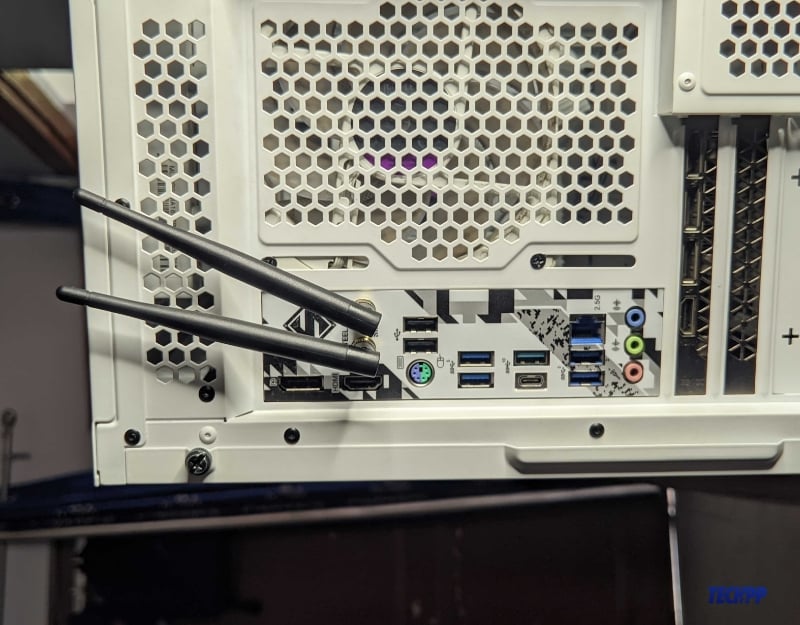
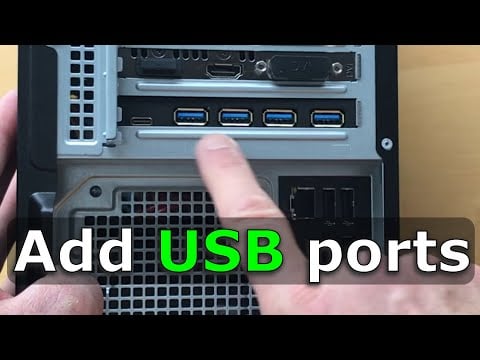
If you are using a desktop, you can add more USB ports using PCIe (PCI Express) expansion cards. You can also use hubs and docking stations to add more ports which are easier to set up, PCIe expansion slots offer better speeds and performance.
What You Should Know About PCIe Expansion Cards
- PCIe slots offer better performance compared to hubs and docking stations are they are directly linked to the motherboard.
- You can add PCIe expansion slots to any desktop and increase the port limit and it is a permanent solution unlike hubs or dock stations which can be easily removed.
- Adding a new PCie card might be a complex task compared to using hubs and dockstations.
Factors You Should Consider Before Using a PCIe Slot
- Compatibility with Motherboard: Ensure that your motherboard has a compatible PCIe slot (e.g., PCIe x1, x4, x8, x16) available for the expansion card.
- Number of Ports: Similar to USB hubs, consider how many additional USB ports you need. USB expansion cards can provide a range of ports. Also, check the USB version supported by the PCIe card.
Setting up PCIe slots might require some technical knowledge and familiarity with the desktop setup. There are plenty of USB expansion slot options available. Choose the one that fits your needs based on the desktop setup.
USB Adapters
Most laptops today use Thunderbolt or USB-C ports making it inconvenient to connect peripherals that use traditional USB ports to connect. In this case, you can use the USB adapters to convert the existing port into the port type you need. This method is generally cost-effective and easy to use.

What You Need To Know About USB Adapters:
- The USB adapters convert one type of port into another. For example, a USB-C to USB-A adapter allows devices with USB-C ports to connect to USB-A cables and peripherals.
- Similarly to a USB hub, a few adapters can also combine several types of ports, such as USB, HDMI, Ethernet, and SD card slots.
- Using USB adapters is the easiest way to add more ports and convert existing ports.
Factors You Should Consider Before Choosing a USB Adaptor
- Type of Port: Consider the port into which you want to convert the existing port. Here are some popular ports you might consider: USB to Ethernet Adapter, USB to HDMI Adapter, USB-C to USB-A Adapter, and more.
- Other Important Factors: Also consider other important factors that meet your specific requirements, such as data transfer speeds, support, and more.
Best USB Adapters
Feature | |||
|---|---|---|---|
Price | $12.99 | $18.36 | $12.25 |
Type | USB Type C to USB 3.0 Female | USB-C to USB-A | USB Type C to USB Type A |
Data Transfer Speed | Up to 5 Gbps | Up to 5 Gbps | Up to 5 Gbps |
Compatibility | MacBook Pro 2020, iPad Pro 2020, Samsung Notebook 9, Dell XPS, and more | Smartphones, tablets, laptops | iOS and iPadOS devices, Macs with USB-C or Thunderbolt 3 |
FAQs on Adding More USB Ports to Computers
Is it safe to use a third-party docking station with my laptop?
Using a third-party docking station for your laptop is safe. Still, there are a few things you should consider to ensure safety, such as compatibility, power delivery to ensure the docking station, and more.
How many devices can I connect to a single USB hub?
It depends on the USB hub's port availability. You can connect as many devices as the hub offers, but you might face slightly lower performance if the devices require a lot of power and computer resources, like file transferring, multiple external displays, and more.
Can I use a splitter to add more HDMI ports to my setup?
Yes, you can use an HDMI splitter to add more HDMI ports to your setup, however, you should note that HDMI splitters duplicate the signal to two or more HDMI outputs, if you want to connect multiple HDMI sources you can use the HDMI switch.
Are there wireless options for adding ports to my computer?
You can use wireless USB hubs, and Bluetooth adapters to add ports to your computer. However, using wireless options can have connection stability issues, lower speeds, and might bring latency, and these options are generally more expensive than wired.

