

Quick Answer
Google search operators are powerful commands that refine results using parameters like site:, intitle:, quotes, OR, filetype:, and date filters. With 35+ options, they help you find precise content, filter noise, and improve search accuracy despite AI Overviews and cluttered results.
Google Search has gone through major changes in the last couple of years. It announced AI Overviews, which directly show AI answers on top of search results. This further pushes down the blue links to the bottom and also prioritizes Reddit.
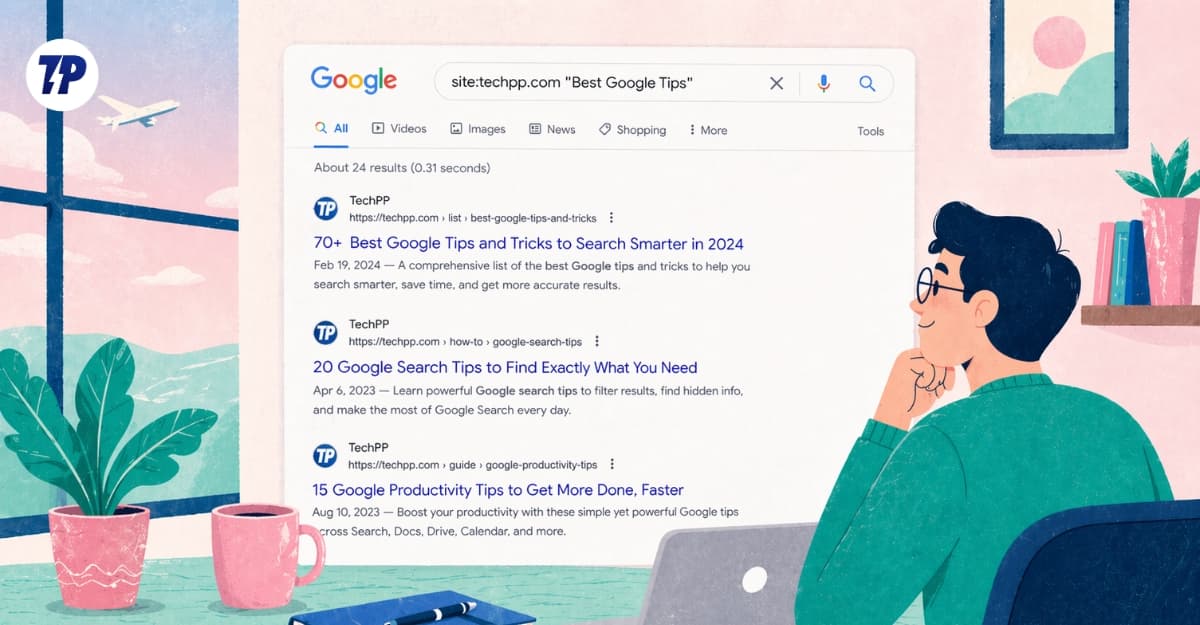
It is understandable that AI is changing Google Search, and Google is in a critical position to balance both. Google AI Overviews are useful, but the answers are not accurate all the time, and it’s hard to control them. AI answers will eventually get better as the models improve. For now, you cannot trust them blindly.
The other change is that for almost every Google search, you see Reddit threads on top of the search results. And it’s fine, because human content is more valuable than ever. Showing the Reddit community’s post on top is like showing the human content on top. But most Reddit threads shown in search results are out of date.
Because of this, search quality has degraded over time. Even though Google is trying hard to find the best results you are looking for, sometimes the search results are not what you want.
Fortunately, you can customize the Google search results. At the end of the day, Google is just a search engine trying to get what you want. And now you can request a specific set of results using a set of parameters.
Search parameters are not new; they have been available for a while, but not many people are aware of them. There are hundreds of combinations for these search parameters. It is hard to remember all of them. But trust me, when you start using them, they instantly enhance your search results. You can use combined parameters to get the results you’re looking for.
This guide focuses completely on these search parameters. After testing tens of them, here are 35+ search parameters we can use for Google Search to customize search results and find exactly what you are looking for.
Table of Contents
35+ Google Search Operators
To make it easy for you, I divided search operators into multiple categories. These include basic search operators that everyone should remember and can use daily, and also advanced operators for finding specific search results.
Let’s start with search operators that everyone should use and remember.
Before going, here is a quick tutorial on how to use Google Search parameters simply in the search box. Go to google.com and in the URL box enter your query. Ensure you follow the correct parameter structure for best results.
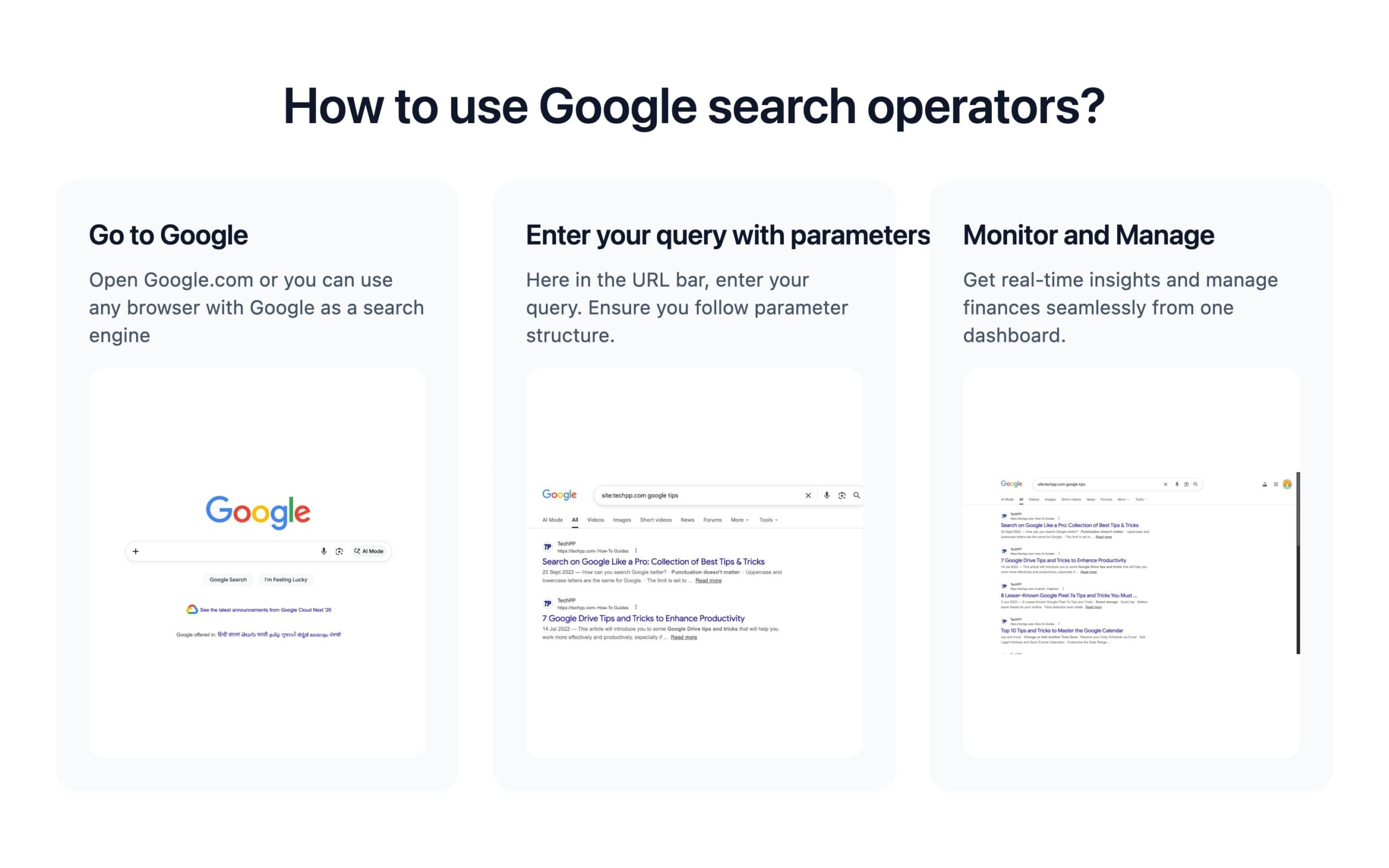
Find the Exact Content You Are Looking for Using These Search Parameters
Site:
Get results from a single specific site.
Example: site:techpp.com shows all pages from techpp.com only.

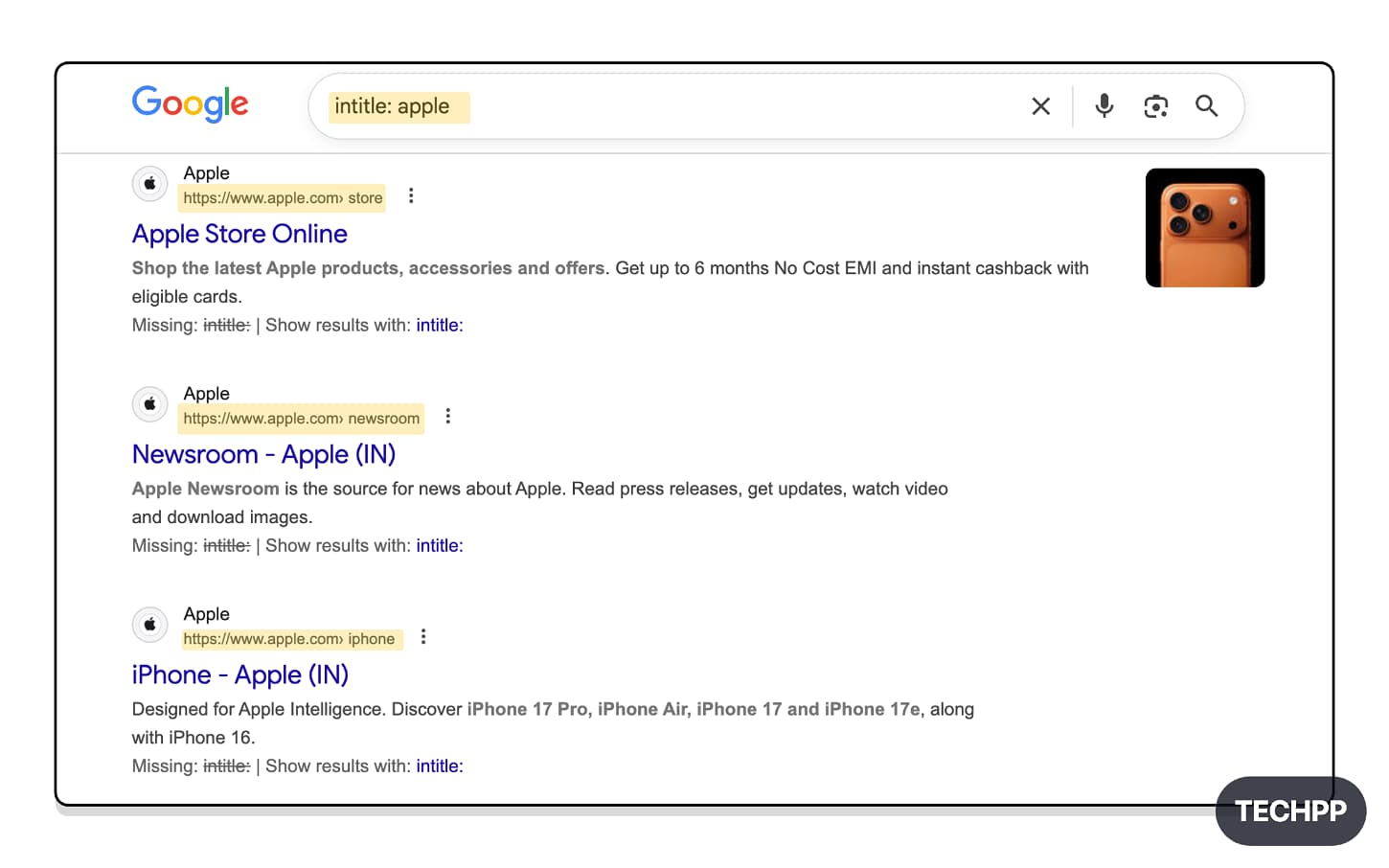
intitle:
Shows pages with the exact keyword in the page title.
For example, intitle: iPhone shows pages with the word iPhone in the title. It can be from any site.
allintitle:
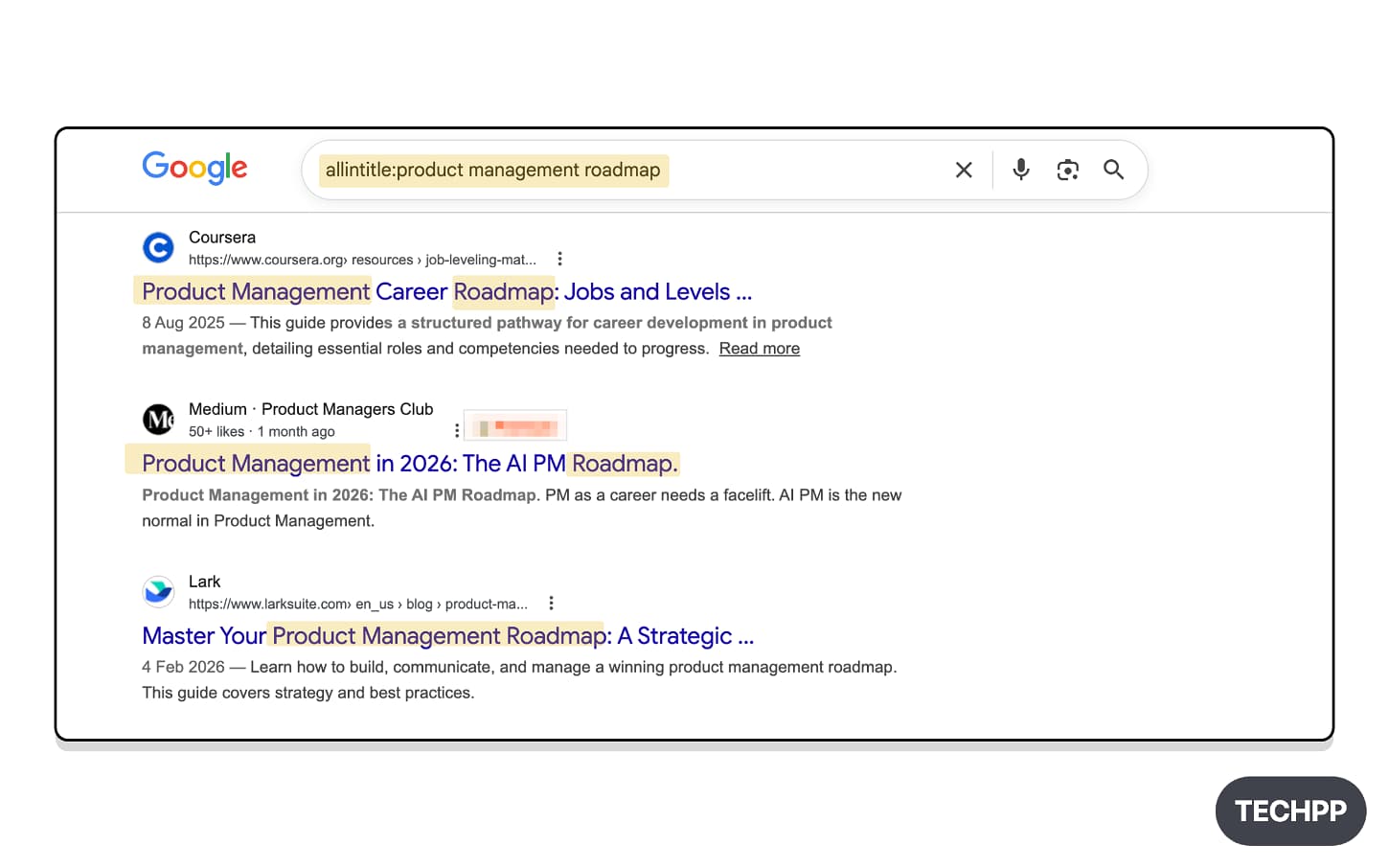
Gives Search results where all words appear in the page title. If you want multiple words to appear in the title itself, then this “allintitle” operator is the one you should use.
Example: allintitle: product management roadmap Show all search results with the product management roadmap words in the title. Please remember that these words appear anywhere in the title.
inurl:
Some sites use different titles to grab attention. But they mostly use exact words in their URL. And also, most sites (including Techpp) have categories in our URLs. So if you are looking for a specific category, then using is the best option for you. example: inurl: guides.
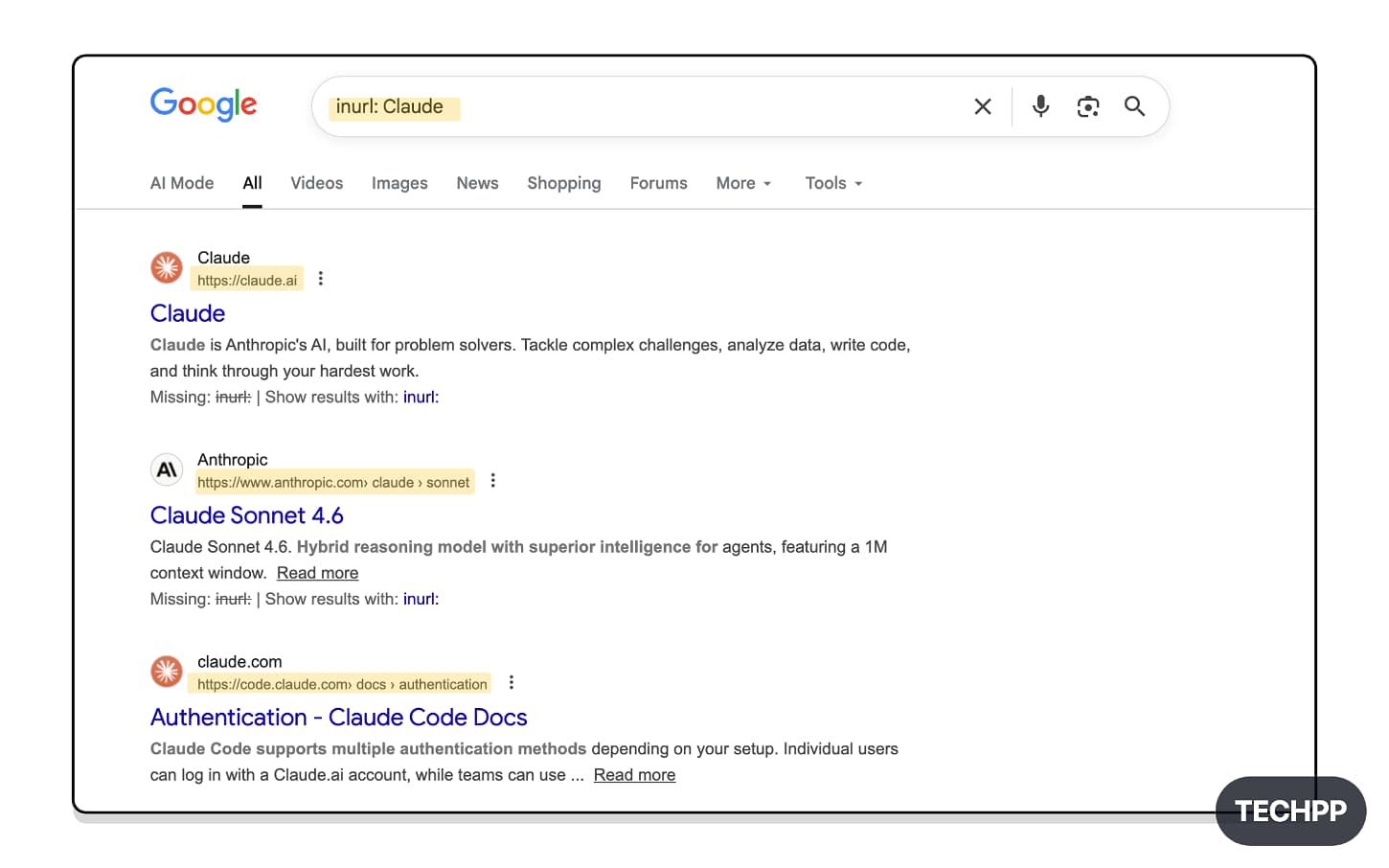
Example: inurl: Claude gives all results with the word Claude in the URL.
allinurl:
find results where all the words appear in the URL. If you are looking to search pages with multiple words you are looking for in the URL then this is the best option for you.
Example: allinurl: “tools for students” shows all the pages with these words in their URL.

intext:
Find pages that have exact text usage in their main content. for example: intext:iPhone 18 Pro colors. Best option if you are researching a specific topic and want deep search results.
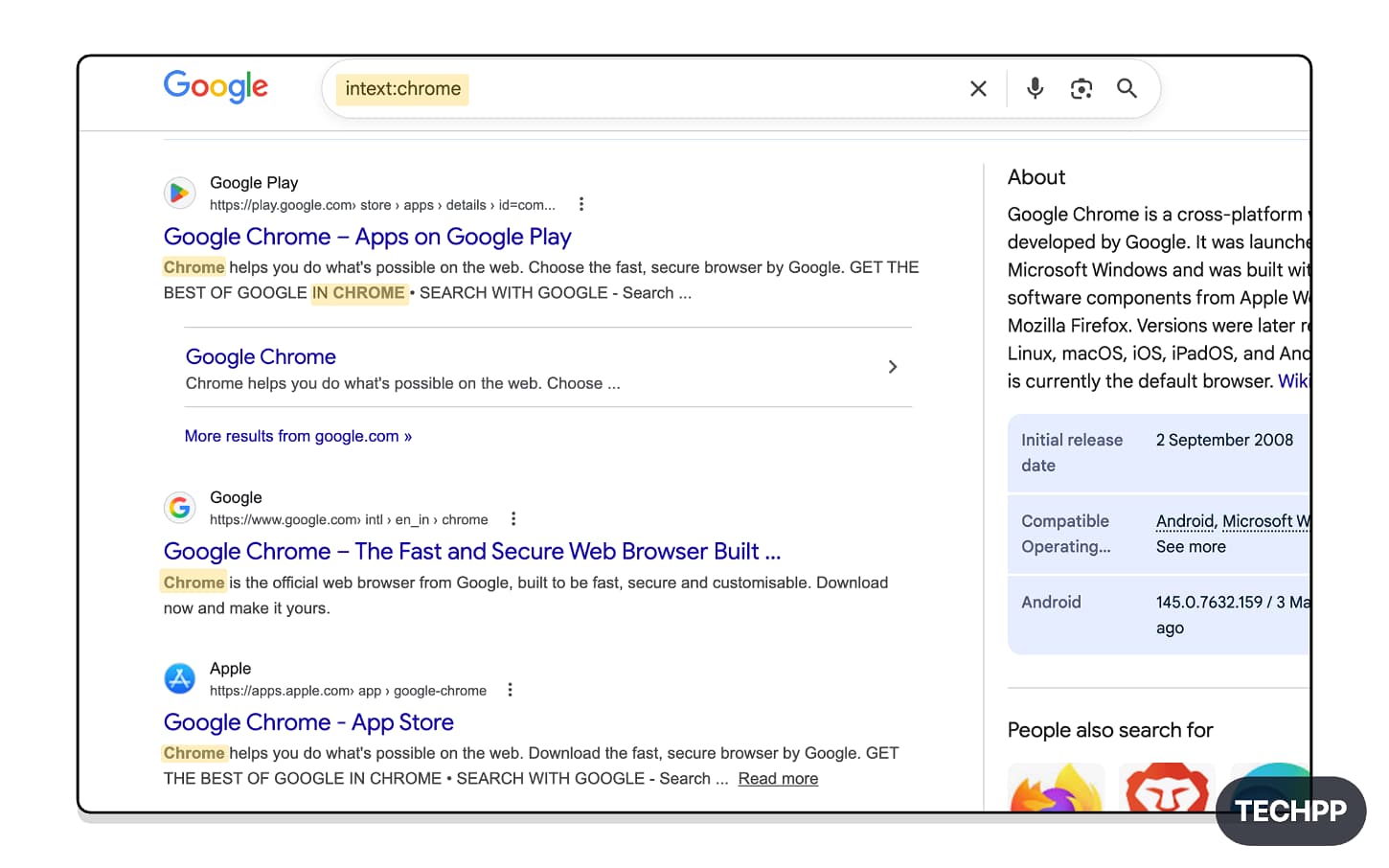
Example: intext: Chrome gives all pages with the Chrome word in their main text.
allintext:
Find pages where all the words appear in the page text. If you are looking for pages that contain multiple specific words in the text, you can use this search parameter.
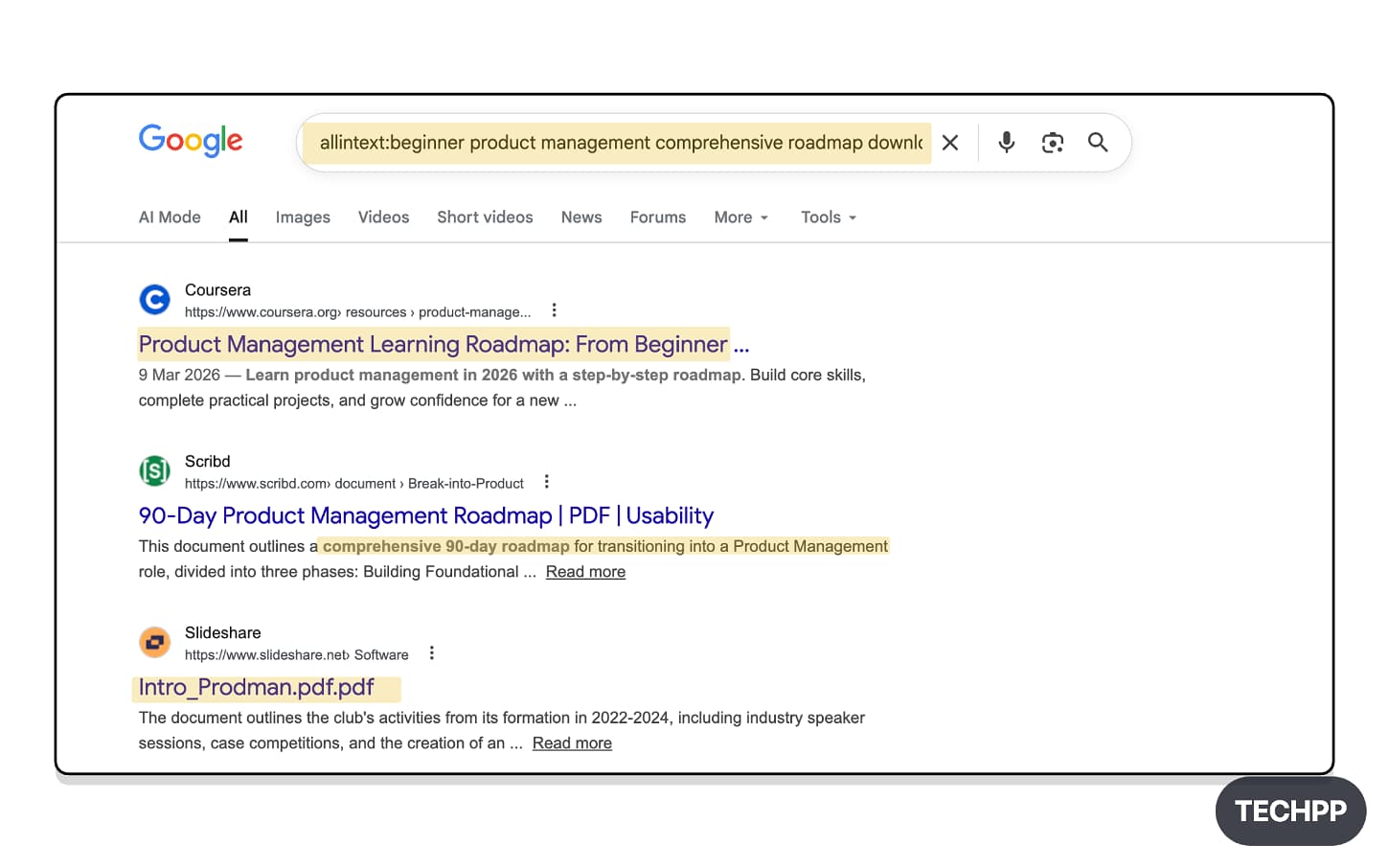
Example: allintext:beginner product management comprehensive roadmap download. It shows the pages that have these words in their main content.
related:
Find all the related sites using this. This is an excellent option if you want to do competitive research and are also looking for similar sites that cover the same topic.
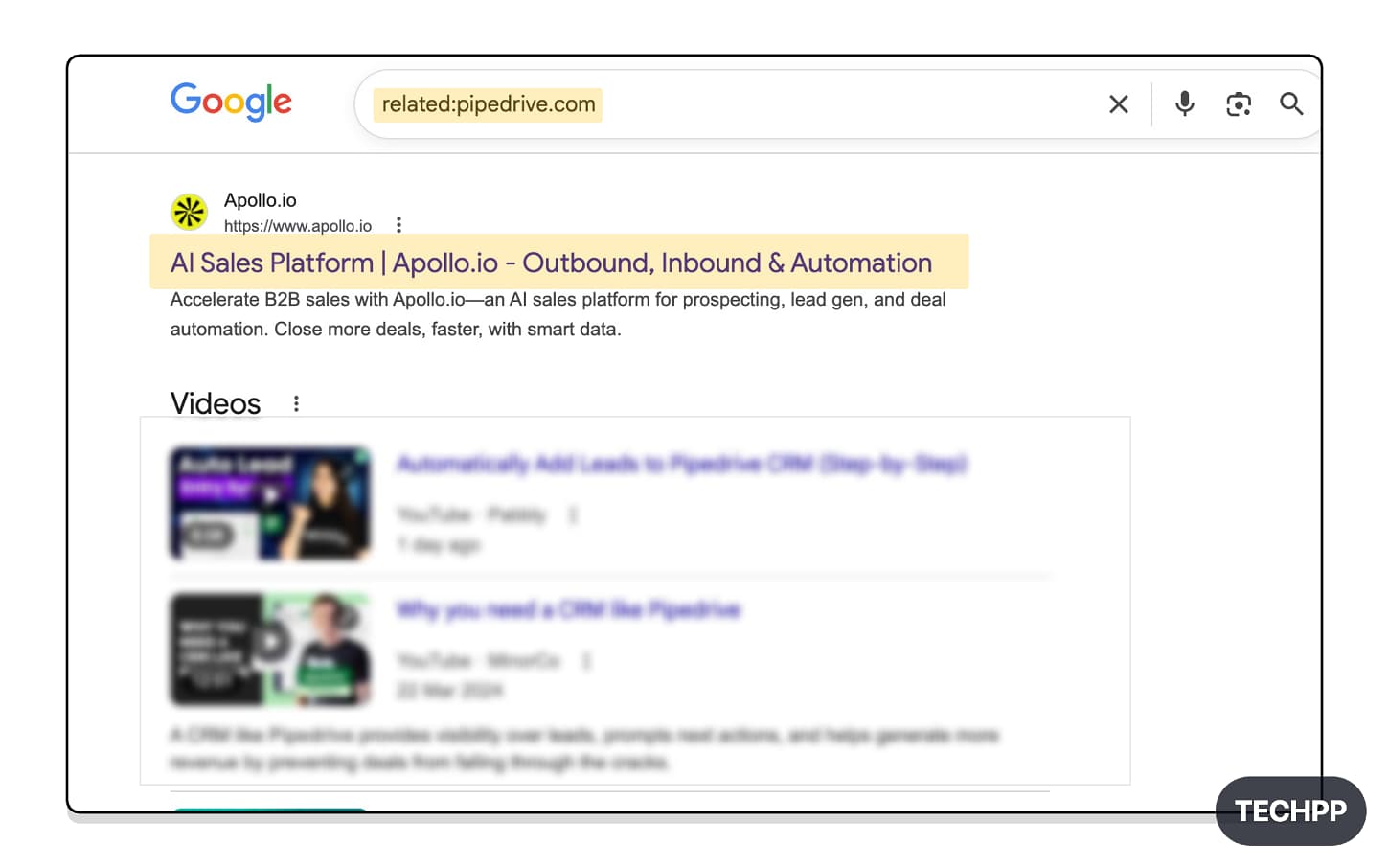
Example: Related:Pipedrive gives me all related pages and also competitors of Pipedrive
” “:
Find all search results that use the exact text you have searched for. You can insert the text in between the quotes. Example: “iPhone 18 Pro colors”
Example: “ChatGPT Pricing” gives me all pages with “ChatGPT Pricing” content in them.

– :
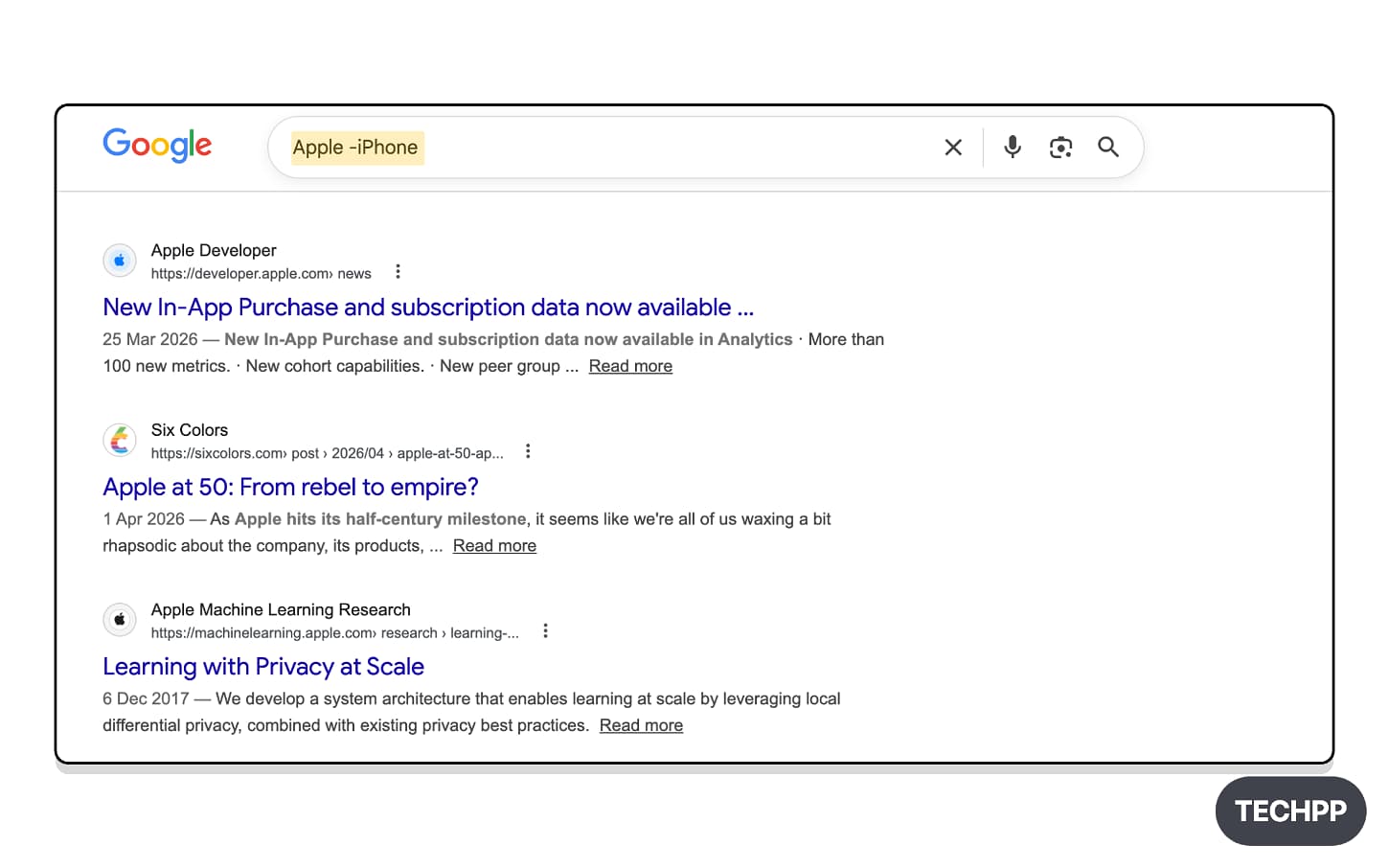
Remove results that contain specific words. With the search parameter, we can further narrow down the exact search results you are looking for by avoiding the ones you don’t want.
Example: Apple -iPhone, remove all Apple results without iPhone results.
OR:
Find results for either of them. Sometimes you need to search for results that contain either of the words you are searching for. In this case, it is very useful.
Example: Apple OR Google shows results for both Apple and Google. Remember OR is an operator, and it should be in capital letters.

*:
This can be used to fill in unknown words in the sentences you are looking for. Google tries to auto-fill and suggest the results you are looking for. It is not as accurate compared to others, but it still gets the job done.
Example: best * apps for students. If you are looking for the best student apps, you can use *, which groups Google results into different app types.

before:
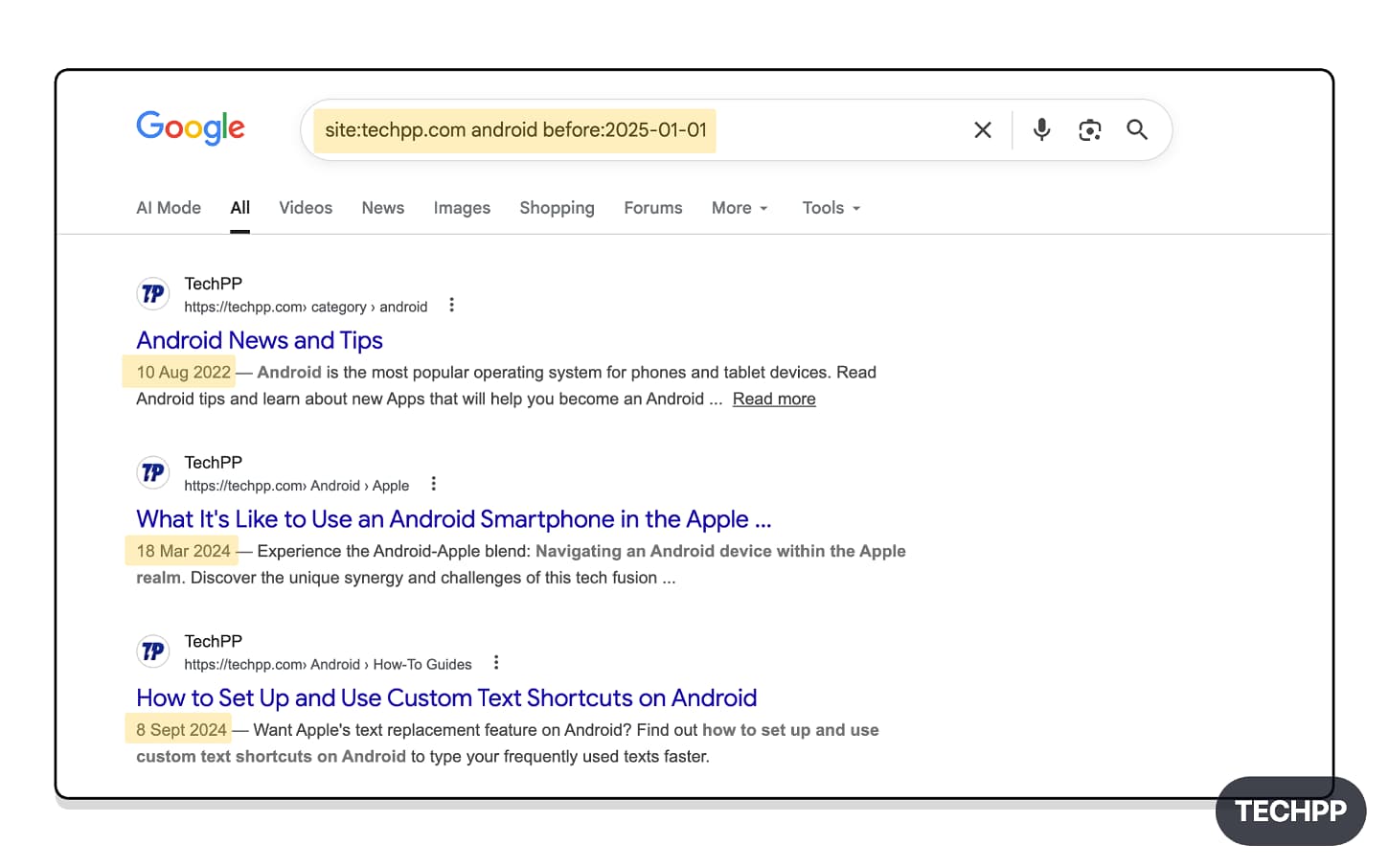
Find search results before a specific time frame. Using this, you can find the pages that were published before a specific date.
Example: site:techpp.com android before:2025-01-01. You can combine the date filter with other search parameters, mostly site and topic.
after:
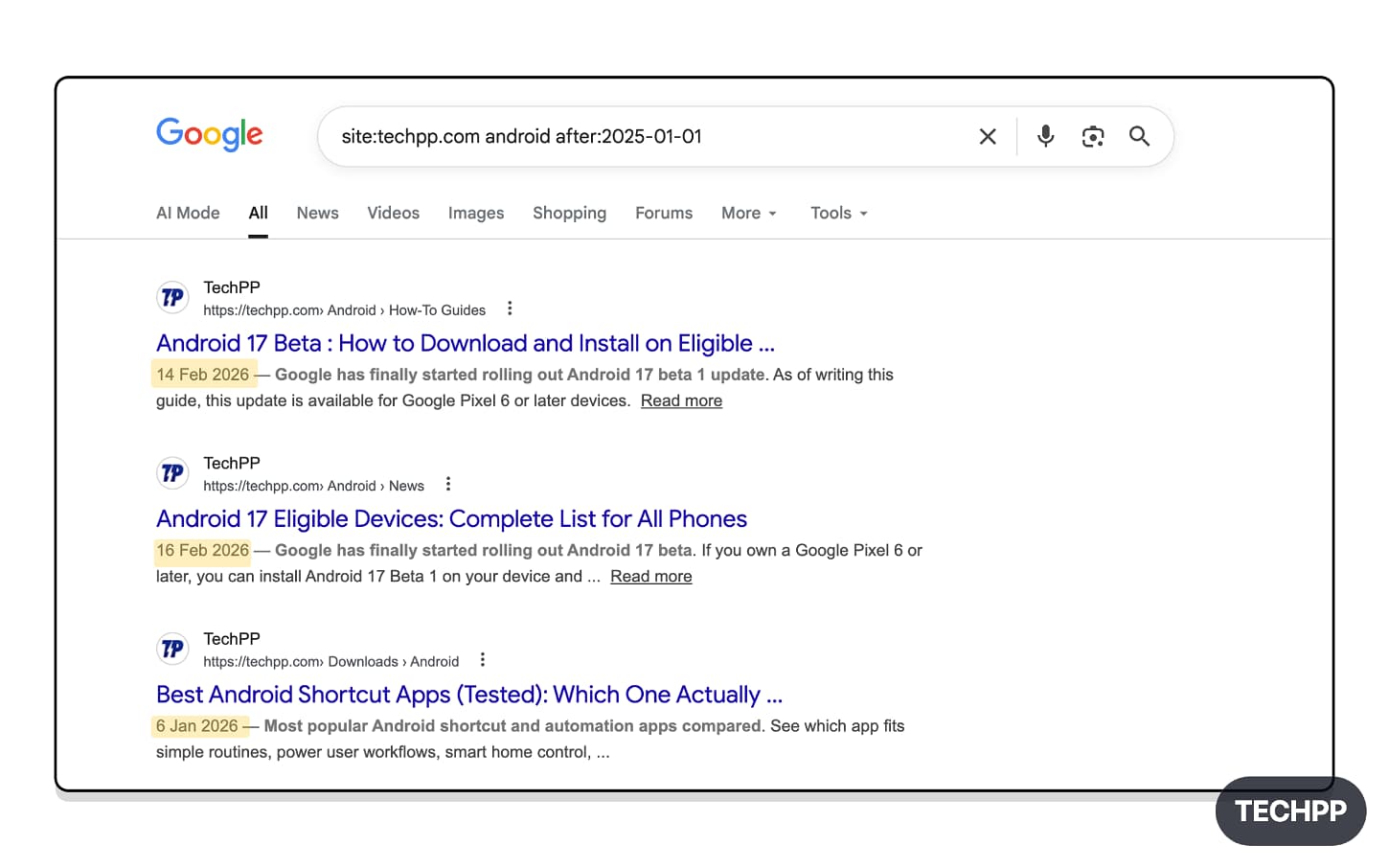
Find the pages after a specific date. It is a great option if you are looking for specific pages published after a specific date, or if you are looking for the latest results.
Example: site:techpp.com android after:2025-01-01 shows all pages that are published after 2025
after: date before:date:
Find pages between any date range.
Example: after:2025-01-01 before:2025-12-31: Give me all the search results that TechPP published in the year 2025.

AROUND(X):
Find pages where titles have two words next to each other. This is an excellent option if you want to combine two words and get results: for instance, keyword and date or keyword and month.
Example: Apple AROUND(1) event tells Google to search Apple and events side by side. Here, X represents the word gap between them. Example: apple AROUND(3) event shows a page with Apple and Event words with proximity of three words.

.. :
Find pages exactly between specific numbers. Best for finding listicle articles with numbered titles, and also great for filtering results using specific dates.
Example: site:amazon.in shoes 1000..2000 displays all the Amazon pages with the shoe product listing between 1000 and 2000.

Source:
Find all the latest news from a specific website. You can also specify the topic, and it brings all the news from the specific website, using it as a source.
Example: Android 17 Source: “Techpp” shows all Android 17 posts by Techpp.

Find Specific Pages
loc:
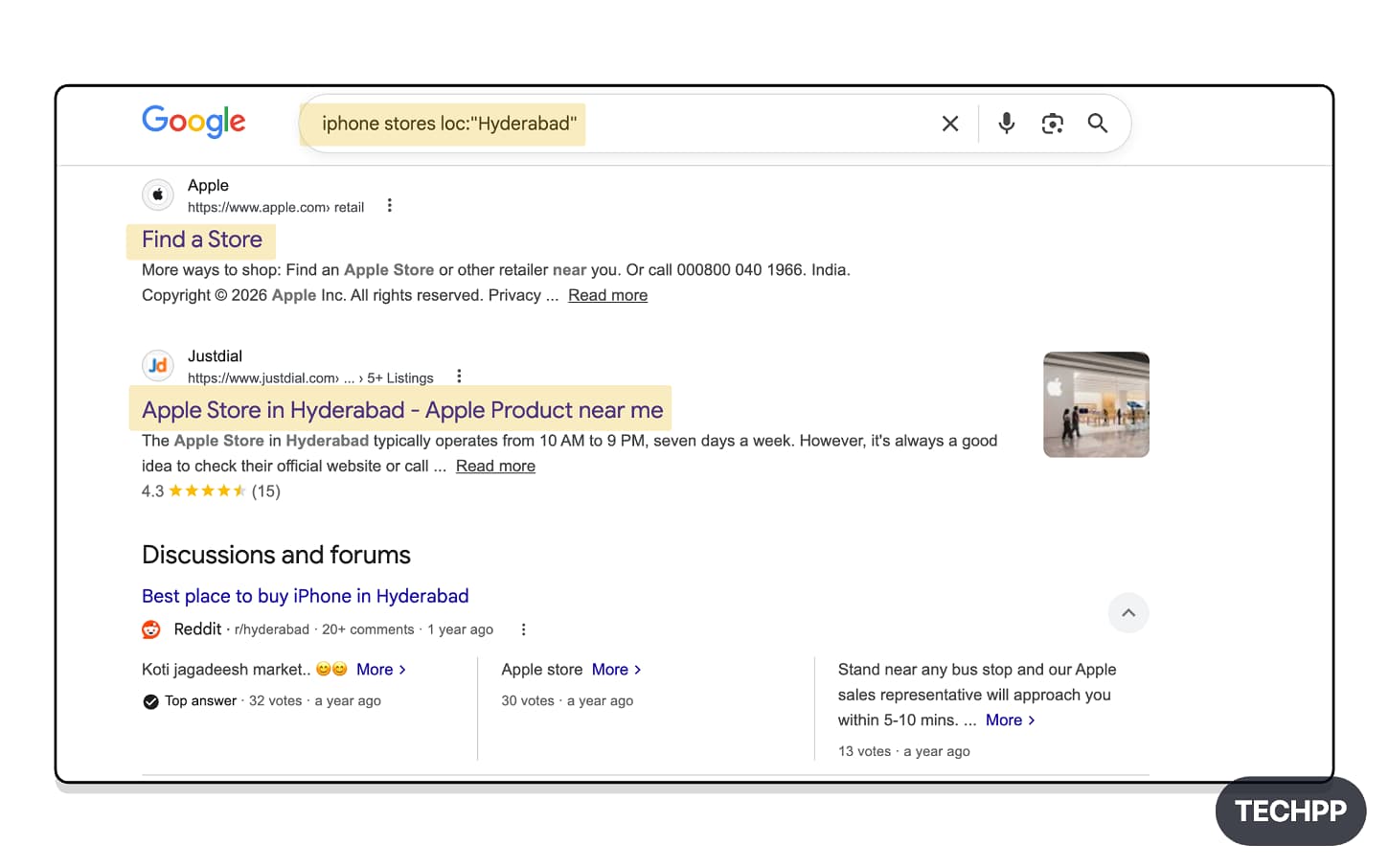
Find all results from a specific location. Useful if you are looking for local queries or doing travel research. Simply, you can use loc: “California” Google Stores.
Example: iPhone store loc: “California” shows all iPhone store locations in California.
location:
You can also use the location parameter to get all the news related to a specific location.
Example: News location:Bengaluru shows all the news related to Bengaluru.

Weather:
Find weather results from a specific location. If you have a local weather app, it automatically opens it and fetches the weather for that specific location.
For example, Weather: Delhi shows all the weather results for Delhi.

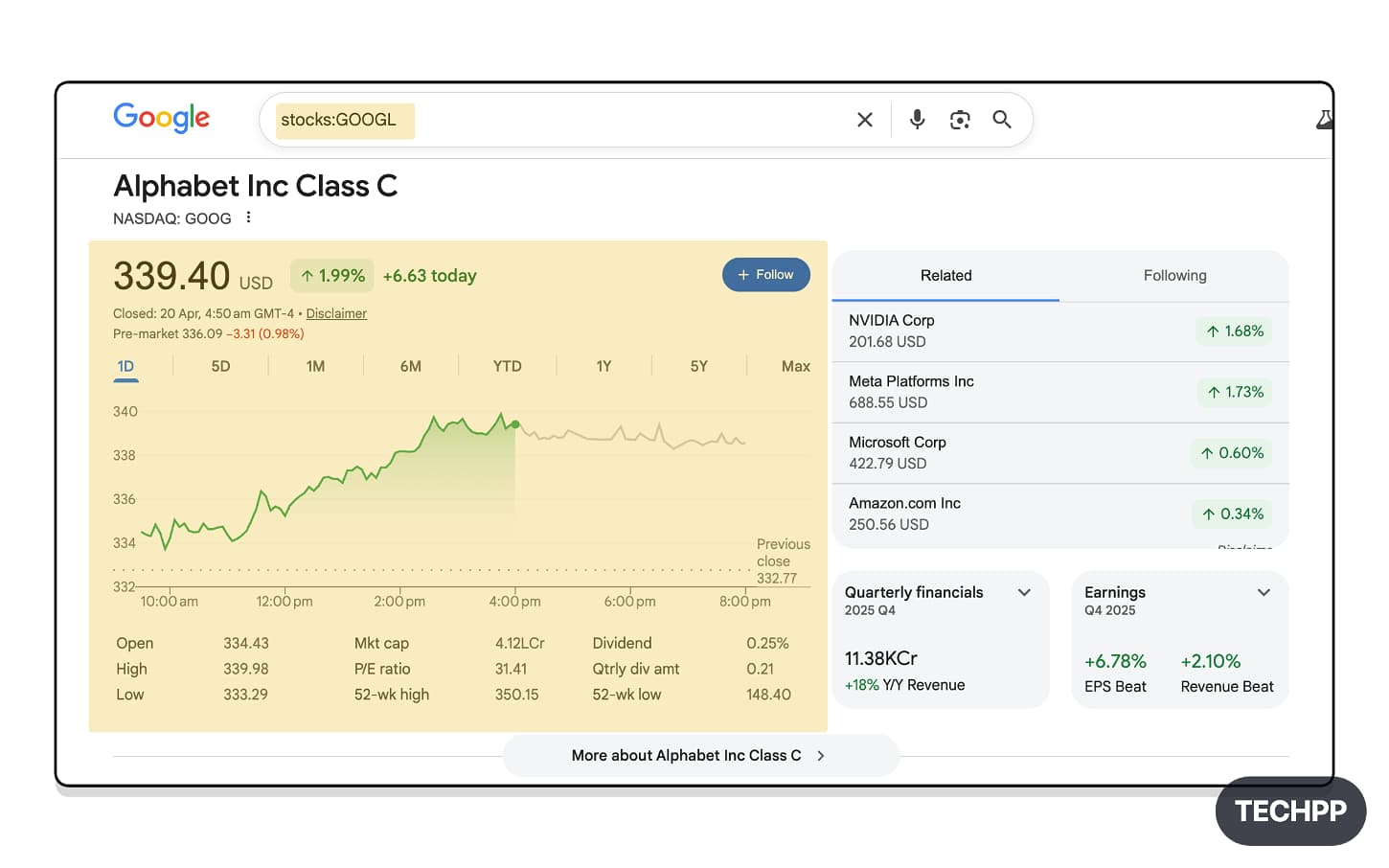
Stocks:
Find stock results for any company. Simply, you can use Stocks: Apple
Example: Stocks:GOOGL shows all the stock information pages related to Google only.
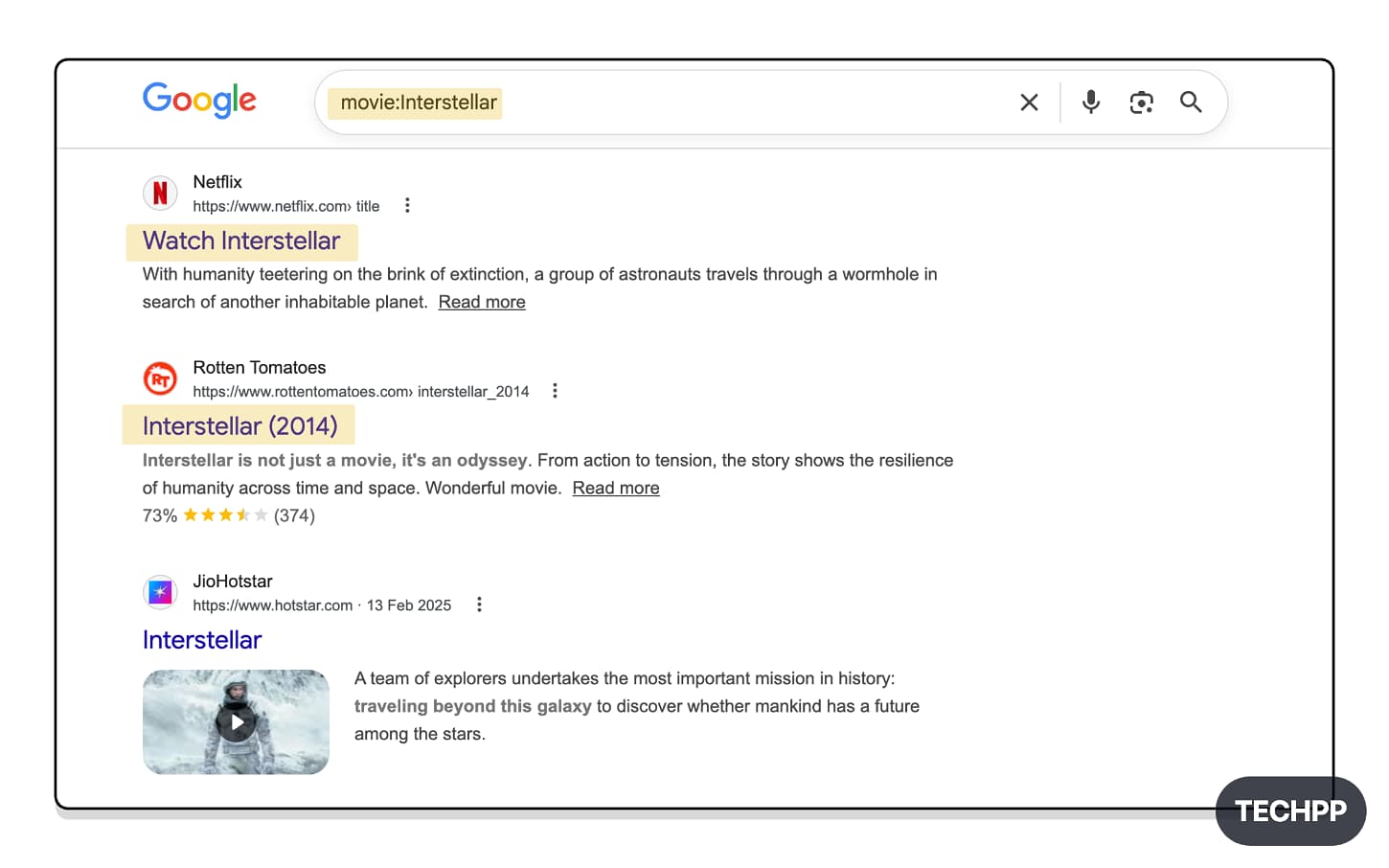
Movie:
Find pages related to any specific movie.
Example: movie: Interstellar. It shows all the pages related to the Interstellar movie
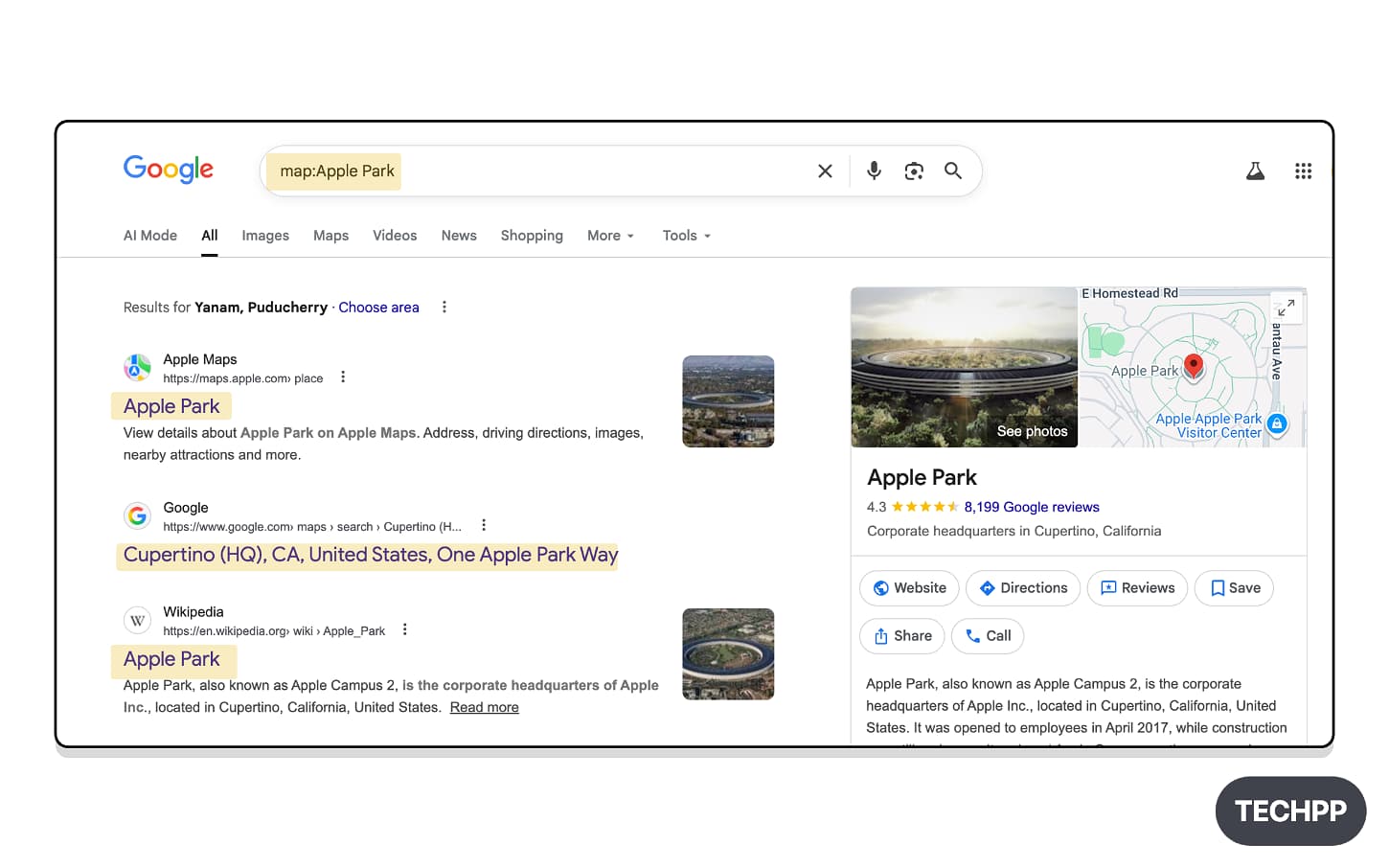
Map:
Shows map pages for your search query. If you are looking specifically for locations and places, use this search operator to get exact and relevant map results for the query.
Example: map: Apple Park, it shows pages related to Apple Park maps
Find specific file formats
Most people think Google only shows results for web pages. However, it can also directly show links for media files, including PDFs, images, documents, and much more.
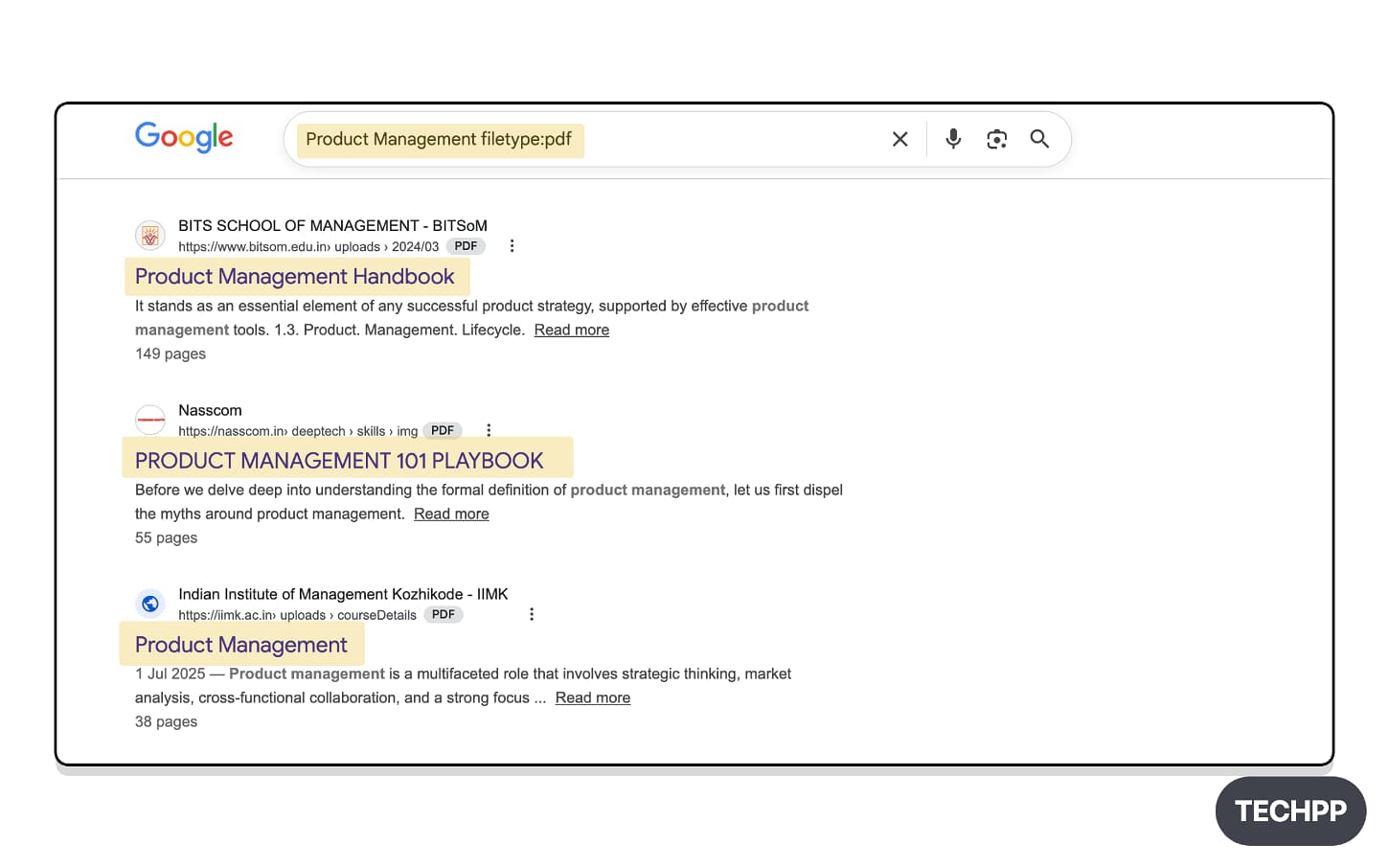
topic filetype:pdf:
Find all PDF files from a specific topic.
Example: For example, “product management filetype:pdf”. Google shows all results of product management PDF files.
topic filetype:ppt:
Not just PDF files, you can also find PPT files related to any topic.
Example: For example, “product management filetype:ppt”. It shows all the results of product management in PPT files.

topic filetype:doc:
You can also find documents using the search parameter. Simply change the file type to doc.
Example: For example, “product management filetype:doc”. Google shows all results of product management document files.

topic filetype:xls or filetype:xlsx:
Find all Excel files related to the same topic. Since Excel files use different formats, you can include the OR parameter in between to find the files using any variant.
Example: For example, “product management filetype:xls”. All Excel pages related to the product management topic appear.

Site:example.com topic filetype:pdf:
Find a specific file from a specific website. For instance, if there is a website that includes specific files, you can use the site parameter on the topic and the file type.
For example: site:techpp.com windows keyboard shortcuts filetype:pdf shows Techpp PDF files related to Windows shortcuts.

Site:brand.com product name filetype: pdf manual OR guide
Finds official guides and manuals for a specific product. Although Google is eliminating the middleman to directly show manuals from the brand, you can still use this parameter you can find original guides.
Example: site:sony.com PlayStation filetype: pdf. This search operator shows all PDF files related to PlayStation 5 from the Sony.com site.

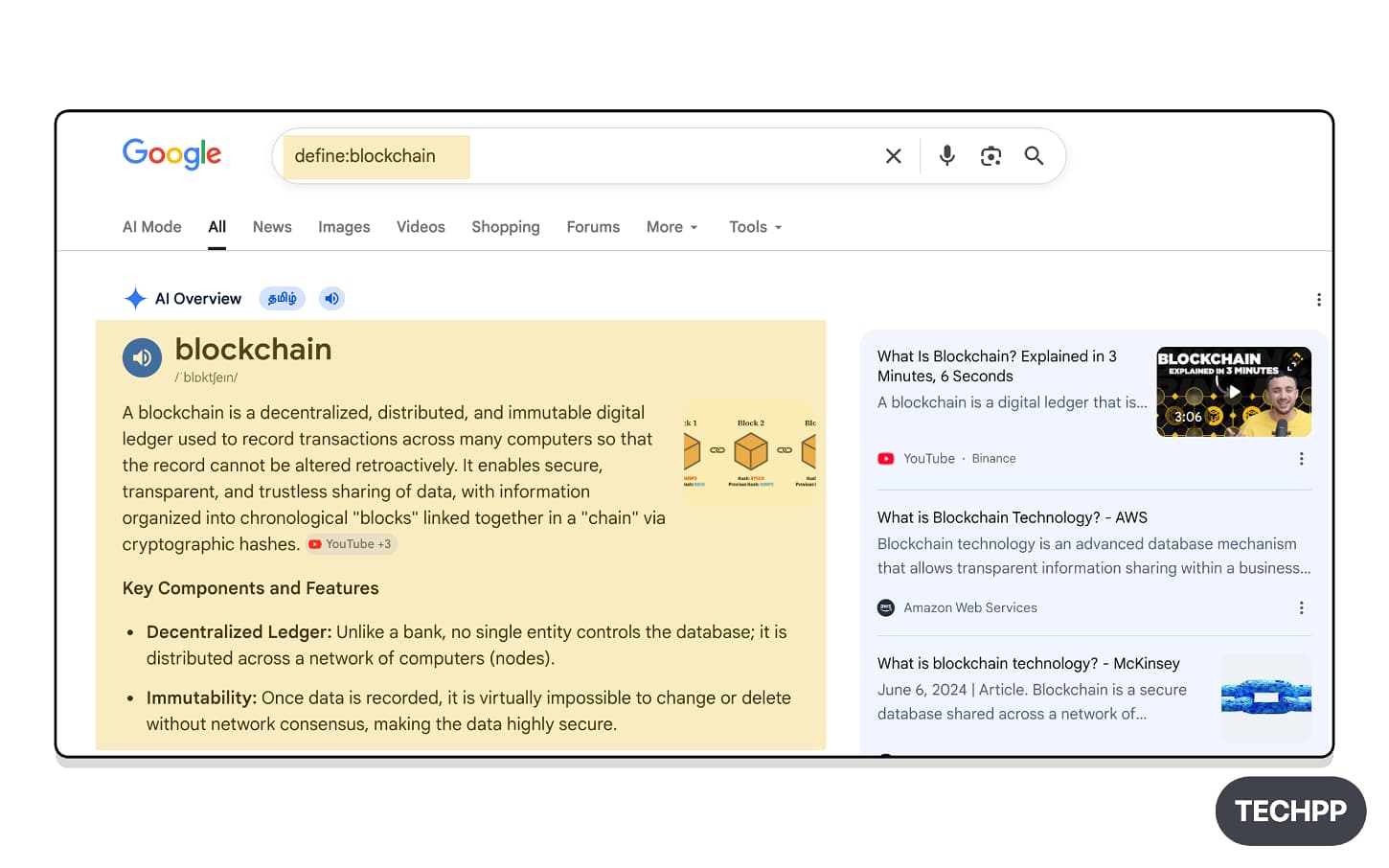
Define:
Quickly find the definition of a word. Since the Google “define:” search operators are already rolled out, using such parameter formats, the AI results in a definition format. This allows you to get your full definition along with the explanation.
Example: define “blockchain” shows the definition of the blockchain first.
Tools
in:
in : convert one unit into another: for instance, you can convert USD into rupees.
Example: “2 kg in pounds” shows direct search results of 2 kg in pounds.

inanchor:
It shows pages containing specific backlinks. This is best for SEO researchers who want to find which pages use specific backlinks.
Example: inanchor:techpp.com shows all the sites with techpp.com in their main content.

imagesize:
Find all the images in Google Search with a specific size.
Example: site:techpp.com imagesize:1200×675 shows all the images from TechPP.com with that specific size.

site:.edu or gov or org
Finds all the results from specific domain types. You can use .edu for educational sites, .gov for government sites, and .org for organizations.
Example: the cybersecurity guidelines site:. gov shows all pages related to cybersecurity guidelines from the government sources.

Use Google Search Operators to Get Better Results
Those are the 35+ best Google Search Operators. You can use them in your Google Search to enhance and find more relevant results. So you don’t need to worry about how we use them or even about outdated results. These parameters find exactly what you are looking for and, trust me, they are very accurate.
However, it’s hard to remember all of them. There are tens of them, and Google also adds new search operators and deprecates existing ones. If any of the search parameters are not working, then it means Google has deprecated the search operator.
But you don’t need to worry, since we update this post regularly, so you can find all the working parameters only. Also, to make it easy for you, we built a Google Search Operator tool, which you can use to create queries so you don’t need to remember every such operator.
Simply head over to techpp.app/tool/google-search-query-builder and enter your keywords and add search operators. You can find all the latest working search operators, which you can tap on and add to your search.
It also has Google Real-time Preview to see how the query is going to look on Google. When you are done, you can simply tap on Search, and you will be redirected to the Google Search results, similar to how you would do on a regular search. Here is how to use the tool in a detailed step-by-step process:
How to Use Our Google Query Builder
Step 1: Visit our Google Search Query Builder website using this URL: https://techpp.app/tool/google-search-query-builder

Step 2: On the left, you can see the sidebar where you can enter the primary keywords and add parameters.

Step 3: In the desktop view, you will find a dedicated sidebar. From here, you can add your primary keyword, which you use first to search and add parameters.
You can browse all parameters under the Add Parameter section. Once you have added the parameter, you can add its value. On the right, you will see the preview.
Tap on the Google Search to get the search results, or copy the query by tapping on the Copy Query button and paste it into Google.

Step 4: If you tap on the Google search, you will be redirected to the Google search results page with the query results.

FAQs on Google Search Operators
1. Why are some Google search operators not working for me?
Google tests new operators and deprecates existing ones. However, check if you are using the correct structure for your parameter, as results can sometimes vary depending on the query.
2. Can Google search operators remove AI Overviews from search results?
Google’s search results are dynamic. We cannot predict that parameters will remove Google AI Overviews. If your query is navigational or you are referring to a specific file structure, Google may not display the overviews. When I tested, Google didn’t display AI Overviews. However, it’s not guaranteed.
3. What should I do when Google shows very few results after using operators?
If you see fewer results, this might be due to the few pages available related to the topic you are searching for. You can modify it for better results.
4. Are Google search operators useful on mobile?
Google Search Operators work in the same way on mobile as on desktop. They are also very useful on mobile, since most of us use mobile devices. It is the best way to filter out and improve Google search results.
5. What is the safest way to use search operators without remembering all of them?
Use our Google search query builder tool. We designed the tool so that you don’t need to remember these search operators. You can simply visit our tool, enter the keyword, add parameters, search, and get results.

