

In Summary
- Employers often install monitoring software on their employees’ computers to track activities and ensure productivity and security.
- The legality of this practice depends on how the monitoring is conducted and whether it is mentioned in your contract.
- You can tell if your employer monitors a computer if it is company-issued and you notice unfamiliar programs or processes. This article will discuss other signs to monitor.
Do you want to know if your employer is monitoring your work laptop? Many companies today use monitoring software to track their employees’ activities, especially remote workers.

The primary reasons for this are to ensure productivity, as employees might use work hours for non-work-related activities, and to mitigate risks arising from employees’ actions. While some employers inform you about it in the contract, as they should, others do not.
Either way, being aware of such activities is important to avoid exposing your personal stuff. I’ll explain various methods to check if your employer monitors your work laptop and provide guidance on what to do if you’re being monitored illegally.
Table of Contents
Is It Legal for an Employer to Monitor Your Computer?
Yes, it’s legal for employers to monitor company-issued computers, but only if it’s stated in your contract.
If it’s not mentioned in your contract, then it’s not legal. Additionally, it’s illegal for employers to install monitoring software on your personal computer without your consent.
How do you know if your employer is monitoring your computer?
Your employers can monitor your work computer in different manners. This could be done by monitoring your internet activity if you’re connected to the company’s network, video surveillance, or even logging your computer activity.
Here are the signs you can look to check if your employer is monitoring your work computer:
Being Issued a Work Computer
If your employer provides you with a work computer, they will likely monitor your activities. Employers often set up backdoors on these computers to track various activities, such as how long you use the PC, the websites you visit, and other usage details.
Typically, the IT department manages work computers and has administrative access, allowing them to easily monitor your activity logs and file system.
Check for Unknown/Suspicious Programs
If you suspect your employer monitors your computer, check for any unknown programs. These could be monitoring tools installed to track your activity, conduct video surveillance, or record your uptime.
Check your list of installed applications and investigate any unfamiliar programs. There are so many monitoring tools; even Microsoft Teams can be used for monitoring. So, it’s important to research any unknown software you find thoroughly.
Unusual Background Processes
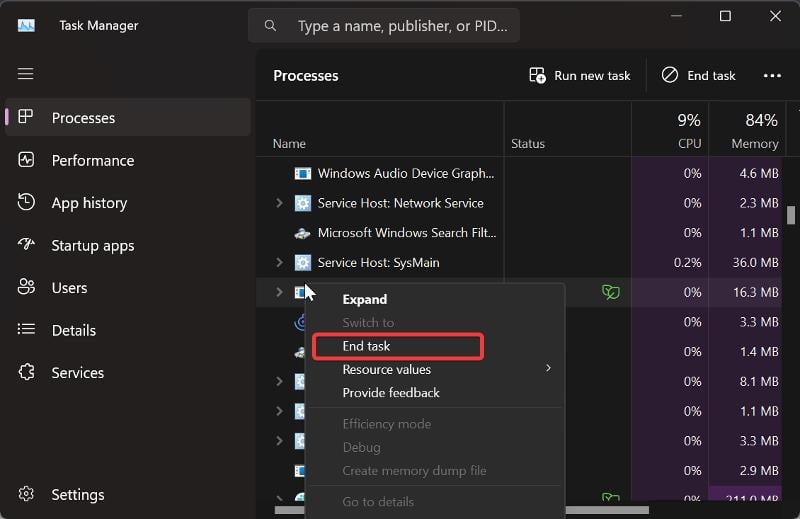
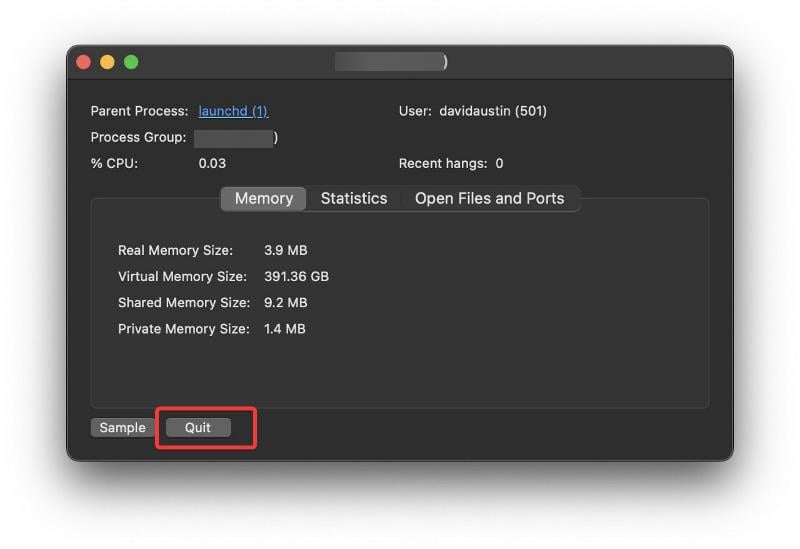
Another way to check if your employer monitors your work laptop is by checking for unusual background processes. On a Windows PC, you can do this using Task Manager, and on a Mac, use Activity Monitor.
Any unusual or non-Windows processes running on the computer could be recording your screen, logging your activity, or even accessing your webcam. You should close these processes.
For Windows computers, right-click the process and select End task.
For Macs, double-click the process and select Quit.
Elevated Network Activity
If your network activity increases significantly without you performing any network-intensive tasks, it may indicate that your work computer is uploading data in the background. If this happens frequently, be cautious about what you do on the computer, as your activities may be monitored.
Programs like Proxyman can help by showing you every network call the computer makes and all the data sent. This lets you quickly identify if something is tracking you and what information is being transmitted.
Check if Your Webcam Is On
If you notice that your webcam randomly turns on when you’re not using it, it could indicate that spyware controls your webcam. Someone, possibly from work if it’s a work-issued computer, may be trying to monitor you.
What Should I Do if I’m Being Monitored at Work
If multiple signs suggest that you are being monitored at work, it is likely that you are. Here are the actions I recommend you take:
1. Check Your Work Contract or Handbook
In some cases, computer monitoring information is mentioned in your work contract, and you may have overlooked it. This means your employer is within their rights to monitor your activities.
Hence, you should review your work contract or employee handbook to check if it mentions that your work computer will be monitored. If it is stated in your contract, you should avoid attempting to remove or tamper with its setup on your computer; doing so could put your job at risk.
2. Use Your Work Computer Only for Work
Regardless of whether computer monitoring is mentioned in your contract, treat your company-issued computer as if nothing on it is private. Use it solely for work and focus on your tasks.
You should avoid engaging in activities that could be seen as suspicious or a security risk, as these might lead to questioning from your employer. As long as you use the computer solely for work — shut it down after work — and switch to your personal computer for personal tasks, you need not worry about being monitored
3. Remove Monitoring Software
If you notice your employer is monitoring your personal computer and they did not obtain your consent before installing monitoring software, you can remove the software.
Here is how to uninstall an app on Windows:
1. Press Windows + I to open Settings on your computer.
2. Click on Apps and select Apps & features.
3. On the App list, navigate to the app you want to uninstall and tap on the three-dot icon in front of it.
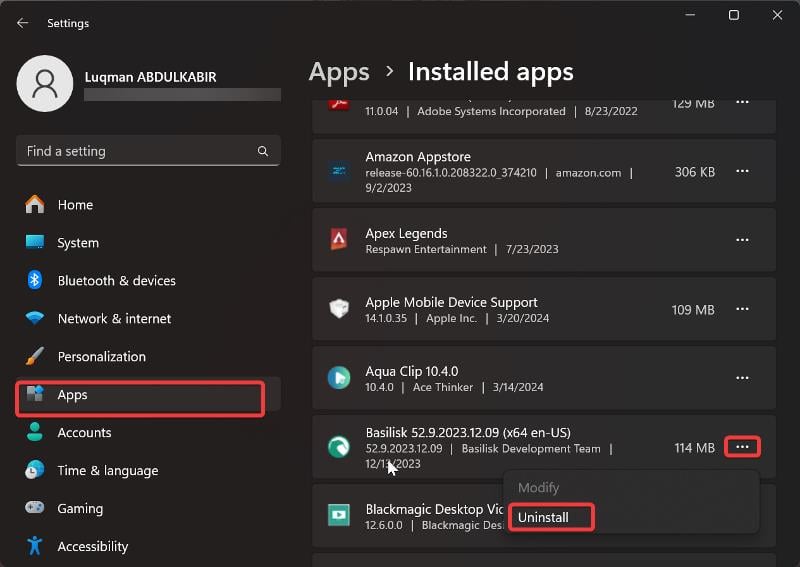
4. Now, click on Uninstall.
Here is how to uninstall an app on a Mac:
1. Click on the Finder icon in your Mac’s Dock.
2. Next, select Applications in the Finder sidebar.

3. Find the app you want to uninstall and drag it to the Trash icon in the Dock.
4. To completely remove the app, right-click the Trash icon in the Dock and select Empty Trash.
4. Use a Camera Shutter or Camera Lens Cover
In case your camera is being used to monitor you, you can turn off your webcam using the camera shutter that comes with the computer. Conversely, if your PC doesn’t come with a shutter, you can get a camera lens cover (like these on Amazon) and use it to cover your webcam.
5. Use an Anti-spyware Program
You can also run anti-spyware software on your computer to eliminate spyware processes that may be used to monitor your activities. You can use a program like Malwarebytes to scan your computer for spyware processes.
Final Thoughts
Essentially, your employer can monitor anything done on your work computer, and I have covered how to check if your employer is monitoring your computer. This is generally acceptable if they are transparent about it and if you use the computer only for work-related tasks during work hours. However, if you’re using your personal computer, you can follow the approaches outlined in the article or reset the PC — making sure to back up your data beforehand.
Further Reading:
- 4 Ways to Record Screen on a Mac
- How to Secure Your Gmail Account [2024]
- How to Disable the “Sign-In with Google” Prompt on Websites
- What to do if Your WhatsApp Account is Hacked

