

Quick Answer
Each company has a dedicated Data request page page. Visit that page, select the data you want to download, and submit the request. Depending on the data size and service, processing your request might take a couple of hours to days. Once the data is ready, you will be notified via email or the platform. You can download your data, including all the requested details.
You will be surprised to learn how much data is collected from you by all the popular services. Many companies claim that the data is being used to improve their services, but this is only sometimes true. Thanks to various laws and regulations, companies are now required to provide users with access to their personal information and allow them to download or transfer their information to other services.

As a result, many companies have started offering a separate service that lets you view the information they store and request and download a copy of your information stored on their servers.
The process varies between services; some services have common platforms to download the data, while others require a data download request and download your data. This guide will teach you how to download data from popular platforms such as Amazon, Google, Facebook, Instagram, Apple, and more.
Before that, here are a few things you should note: You can request all your data or select specific data types from the company’s different services. HTML and JSON are the two popular file formats these companies use to share data.
If you want to read your data, you can select the HTML format; if you analyze or transfer the data to other platforms, select JSON, as it is easy to store and transfer. Finally, the amount of data can vary depending on the size of your requested data and the selected range. Store the downloaded data securely. Anyone with access to your data file can view all your information.
Table of Contents
Download All Your Data Facebook, Google, Apple, and More
| Company | Link to Data Download Page |
| Meta Account Center | |
| Meta Account Center | |
| Download Google Takeout | |
| Apple | Request your data from Apple Data and Privacy |
| Amazon | Amazon Data Request page |
| Microsoft | Microsoft Privacy Dashboard |
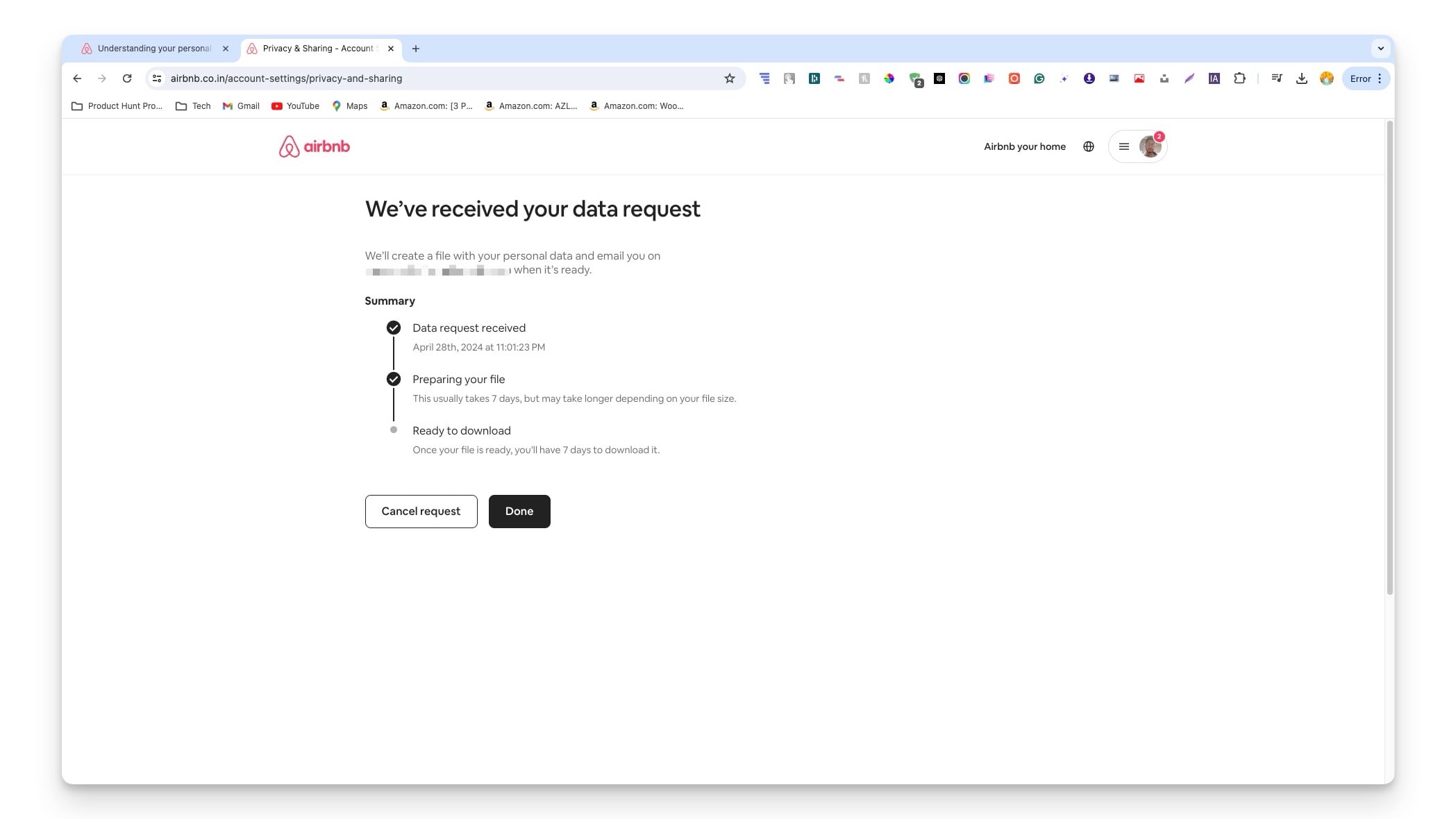
| Airbnb | Data Request page |
| Uber | Request your Uber data |
| Download it from the app | |
| X (formerly Twitter) | Download from the Settings |
| TikTok | Download from the App |
Download All Your Facebook Data
As a social media site, Facebook stores a lot of information about you and the content you upload to Facebook. The company is also known for its extensive data collection practices and is accused of collecting data from users without their content and share with third parties. All the data collected from Facebook will be stored on their website; you can access, delete, or download your information.
What Data Can You Download From Facebook
Category | Data Included |
|---|---|
Your Facebook Account | Activity, Posts, Photos tagged in, Groups, Comments |
Personal Information | Profile details, Connections, Friends, Followers, Supervisions |
Logged Information | Location, Search history, Interactions on Facebook |
Security and Login Info | Login activities, Security logs |
Apps and Websites | App usage, Website usage, App data, Website data |
Preferences and Settings | Feed preferences, Account settings |
Ads Information | Interactions with ads, Ad data |
How to Download Your Data From Facebook
You can download Facebook data from the Meta account center from the app or the website. Sign into your Facebook account on the web or the app and then from the settings, visit the Meta account center and access all your information.
- Step 1: Visit Facebook.com and log in to your Facebook account.
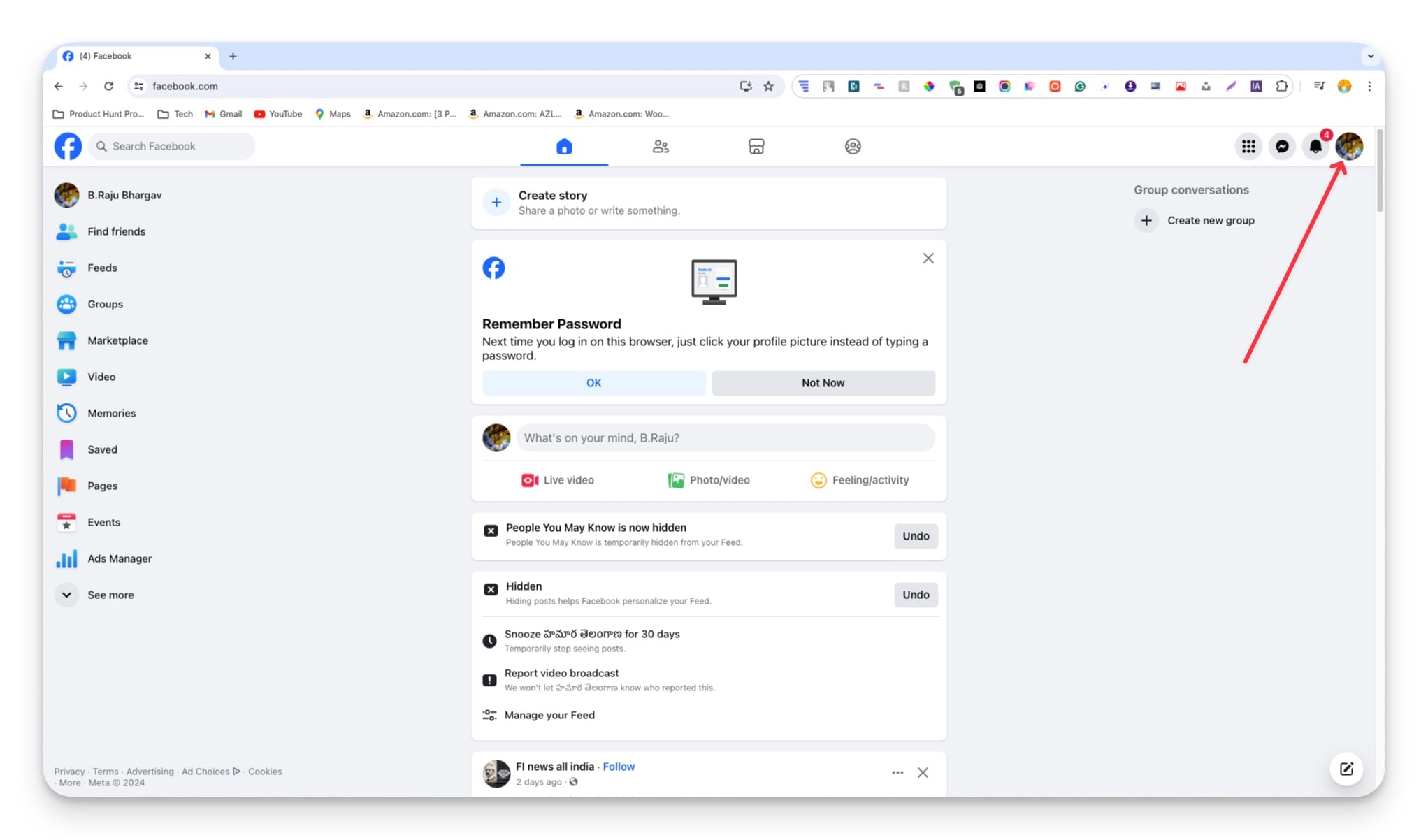
- Step 2: Tap on your profile picture and Click on the Settings & privacy.

- Step 3: Click on the Settings.

- Step 4: Click on Download your information from the sidebar under Your information section.
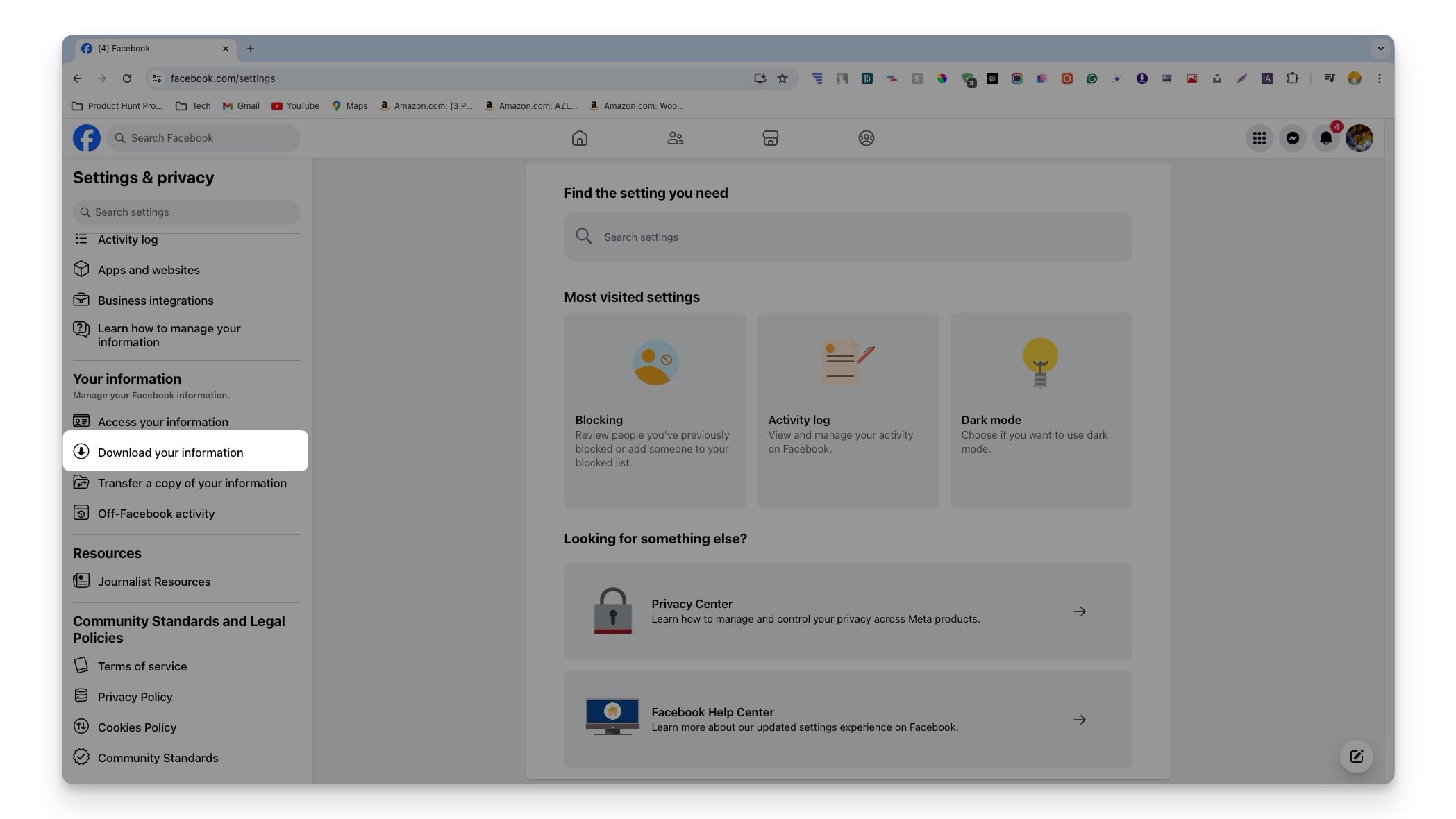
- Step 5: Click on the Continue.
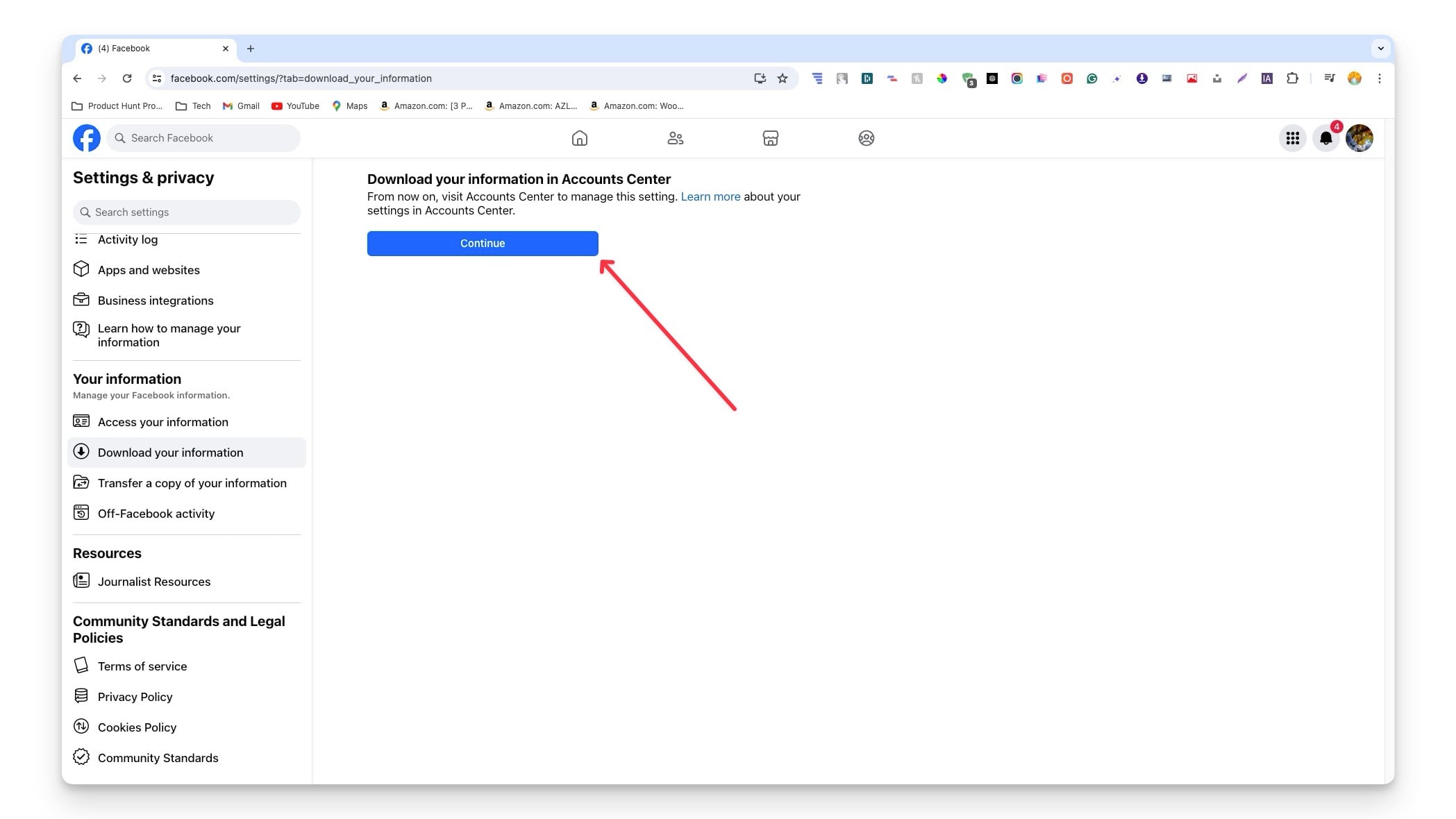
- Step 6: Click on the Download or Transfer information button.

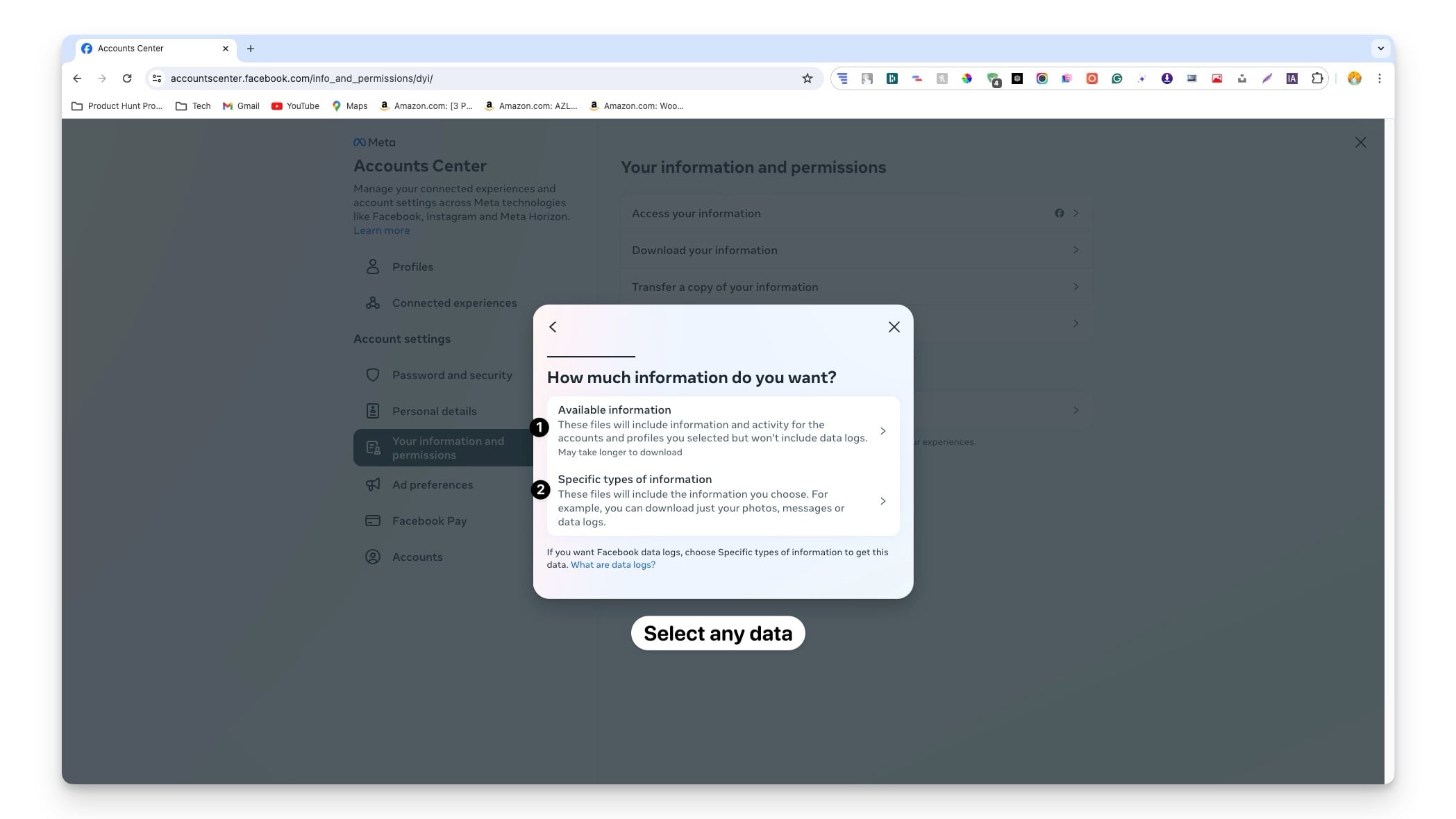
- Step 7: Select the data you want to download. You can download all your data or select a specific type of data such as your posts, messages, connection, and more.
- Step 8: Choose the location to download your data. You can download it onto your device or transfer it to third-party cloud services like Google Drive or Dropbox. You need to connect the third-party cloud storage service with Facebook to transfer the data.
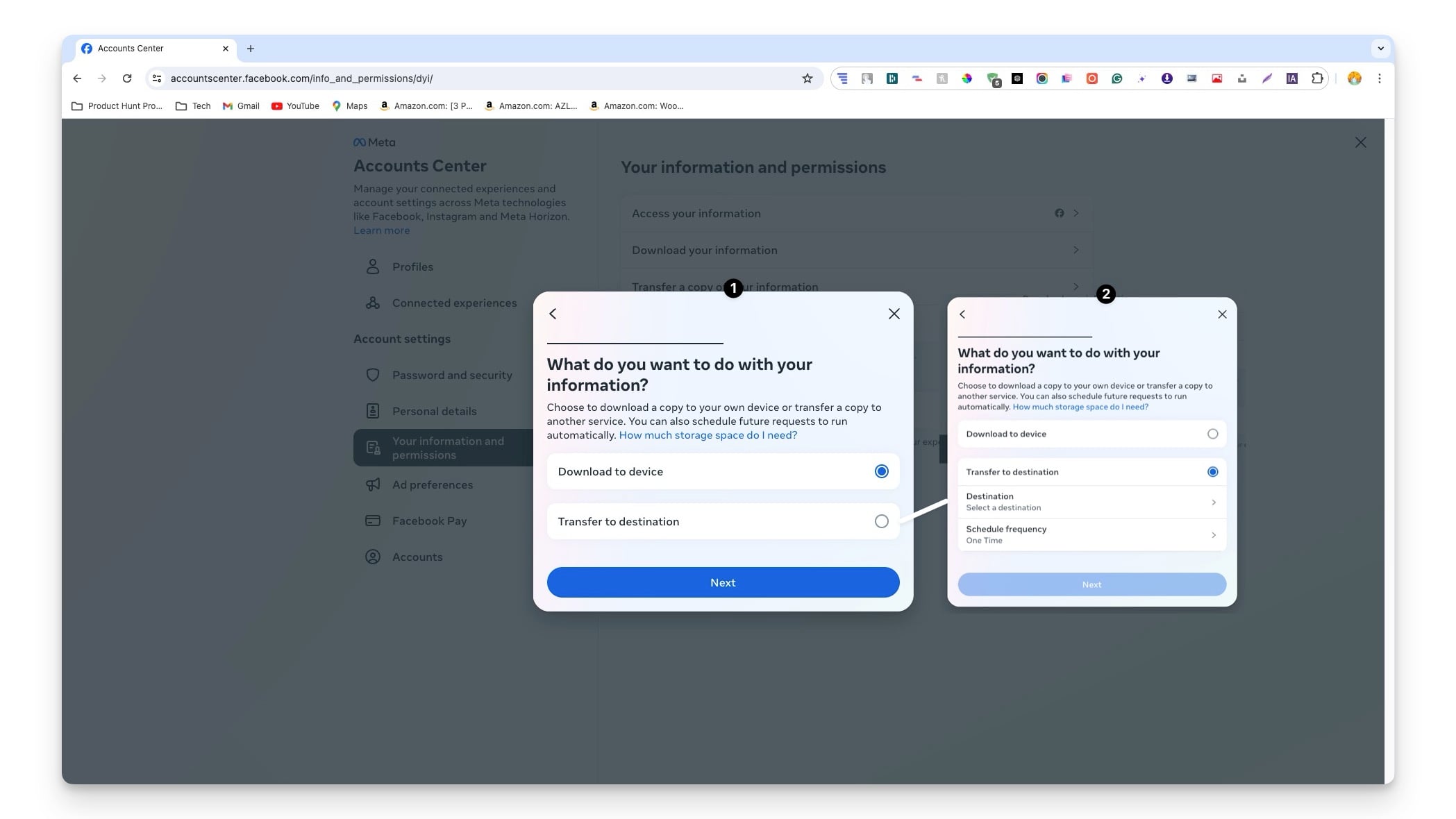
- Step 9: Select the date and the format (Supports HTML and JSON) and click on the Create file to download your Facebook data. Choose HTML format, if you want to read your data, and select JSON if you want to analyze want to migrate data to another platform.
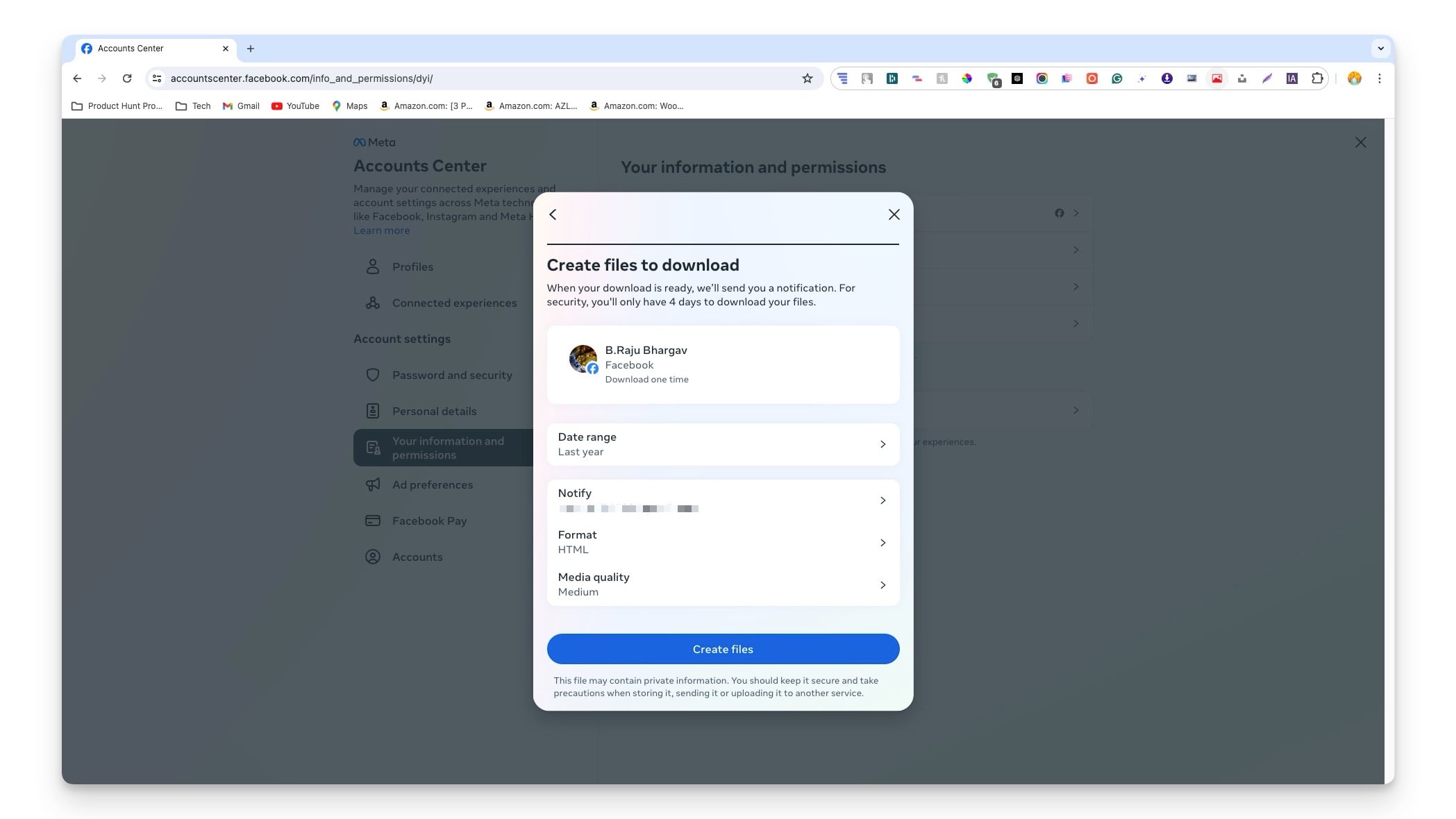
- Step 10: You will see a data download progress page. Once the request is processed a download button will appear you can start downloading your data.

Download Your Instagram Data
Instagram, also under the Meta platforms, stores a lot about you and the content you upload to the platform. Like Facebook, you can download your Instagram data from the Meta account center.
What Data Can You Download From Instagram
Category | Data Included |
|---|---|
Instagram Activity | Content created, Messages, Likes, Comments, Instagram Live, Events, Meta Spark, Monetization, Reports |
Personal Information | Profile details, Auto-fill info, Digital wallets, Device info, Loyalty accounts |
Connections | Contacts, Followers and following, List of people |
Logged Information | Location, Search history, Past Instagram Insights, Logs/Geodata |
Security and Login Info | Login and account creation activities, Security logs |
Apps and Websites | Information from apps and websites used off Instagram, App data, Website data |
Preferences | Media settings, Customization actions |
Settings | General account settings |
Ads Information | Interactions with Instagram ads and businesses, Ad data |
How to Download Your Instagram Data
- Step 1: Visit Instagram.com on your browser and log in with your account.
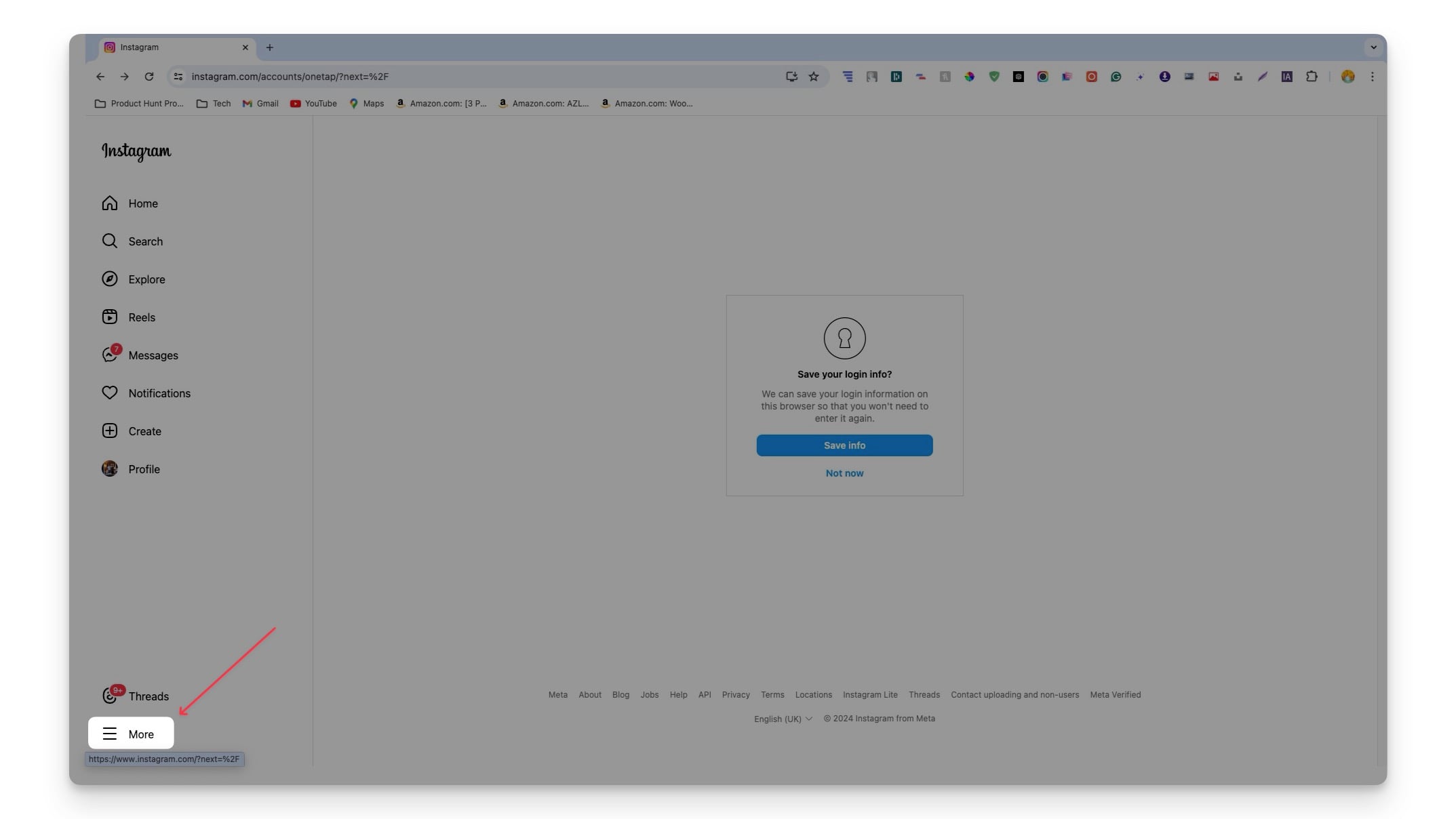
- Step 2: Click on the More located in the bottom left corner of the window.
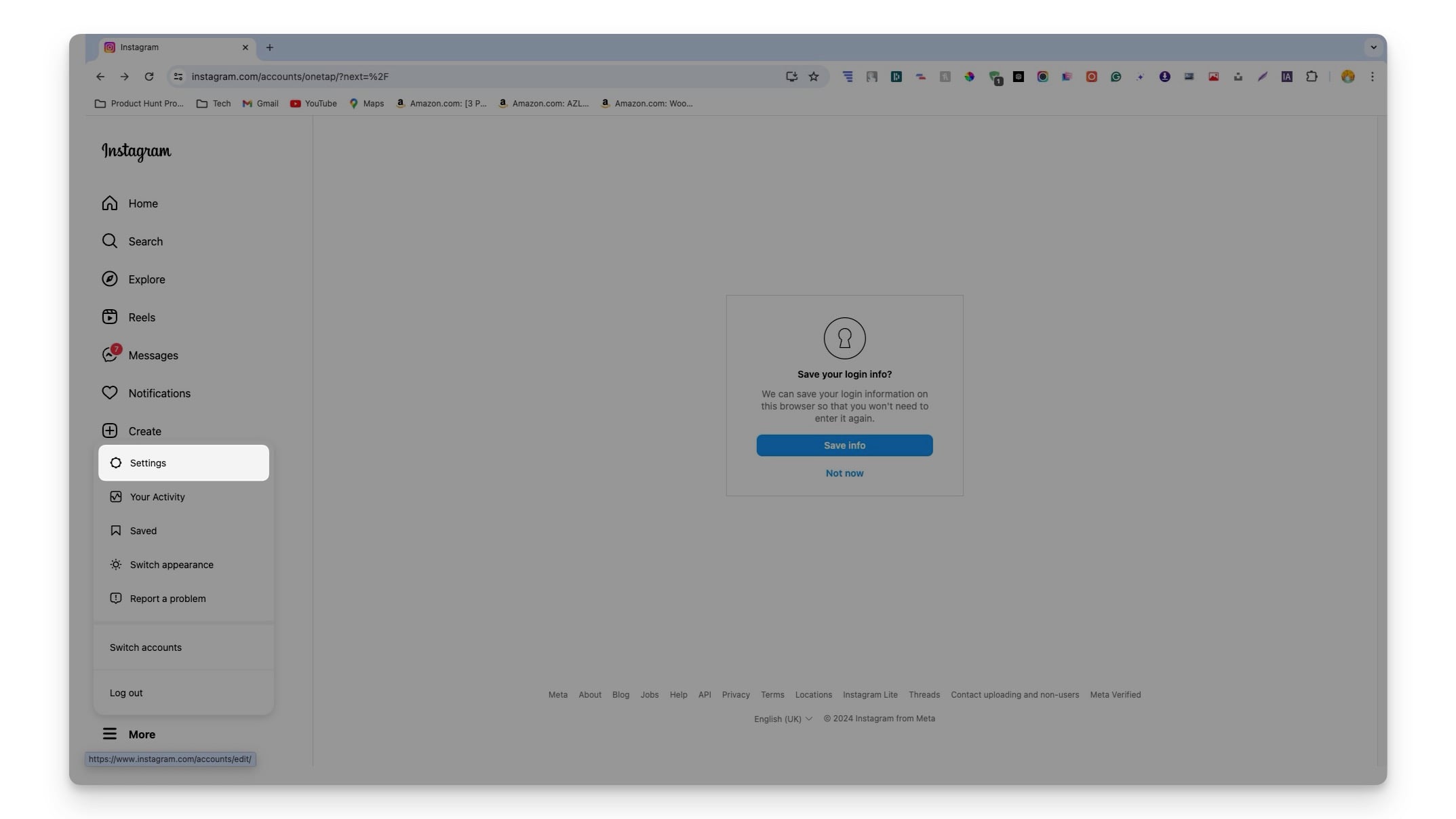
- Step 3: Click on the Settings.
- Step 4: Click on the Account center.

- Step 5: Tap on Your information and permissions and click on Download your information.
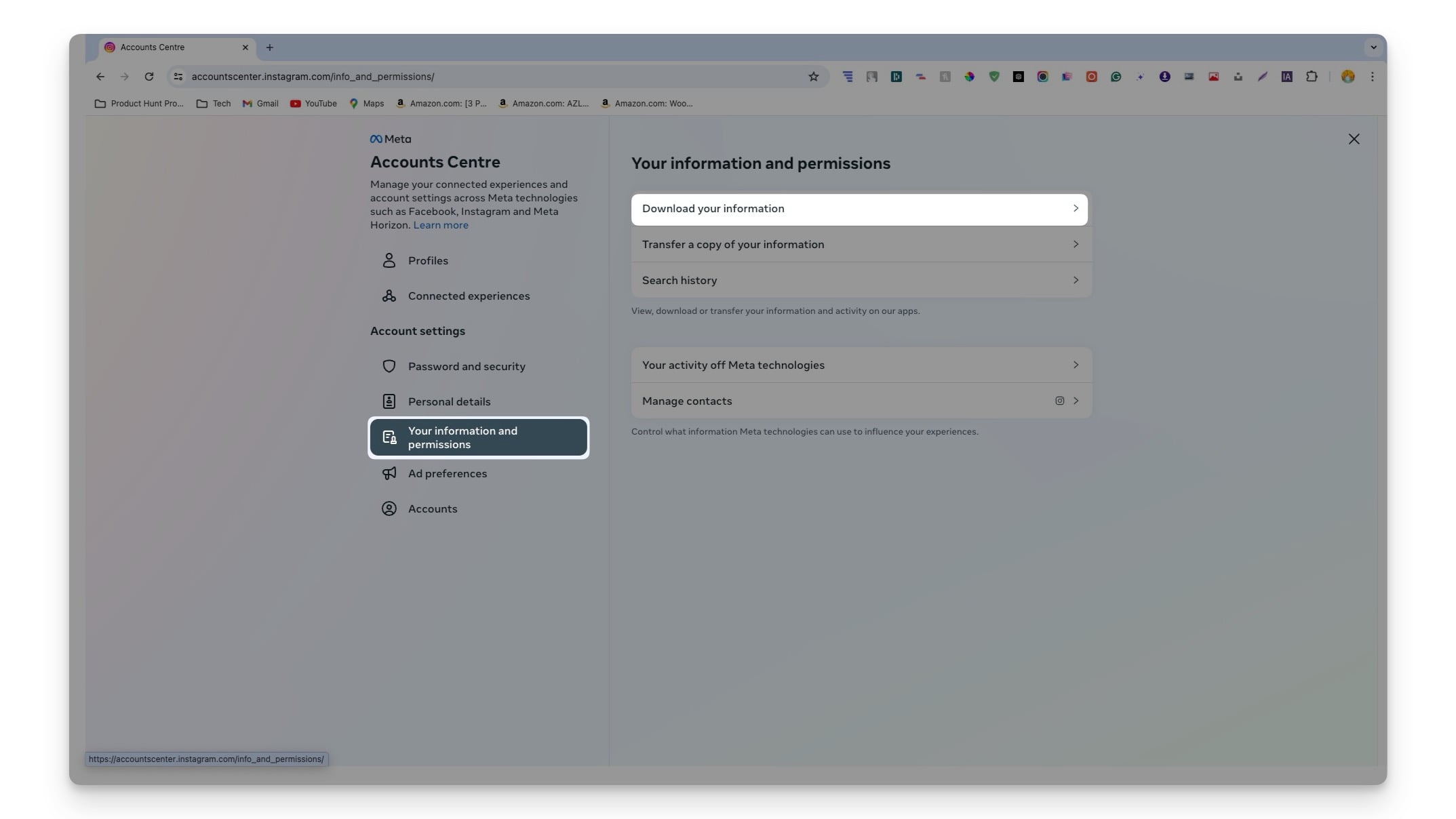
- Step 6: Similar to Facebook, select the data you want to download. You can request all your data or select specific data like likes, comments, messages, and more.

- Step 7: Now select the location where you want to store your data. You can download the data to your device or transfer it to third-party services like Google Drive, or Dropbox. You need to connect the third-party cloud service to the Instagram account to transfer your data.

- Step 8: Now select the data range, select the format you want, and click on the Create file.
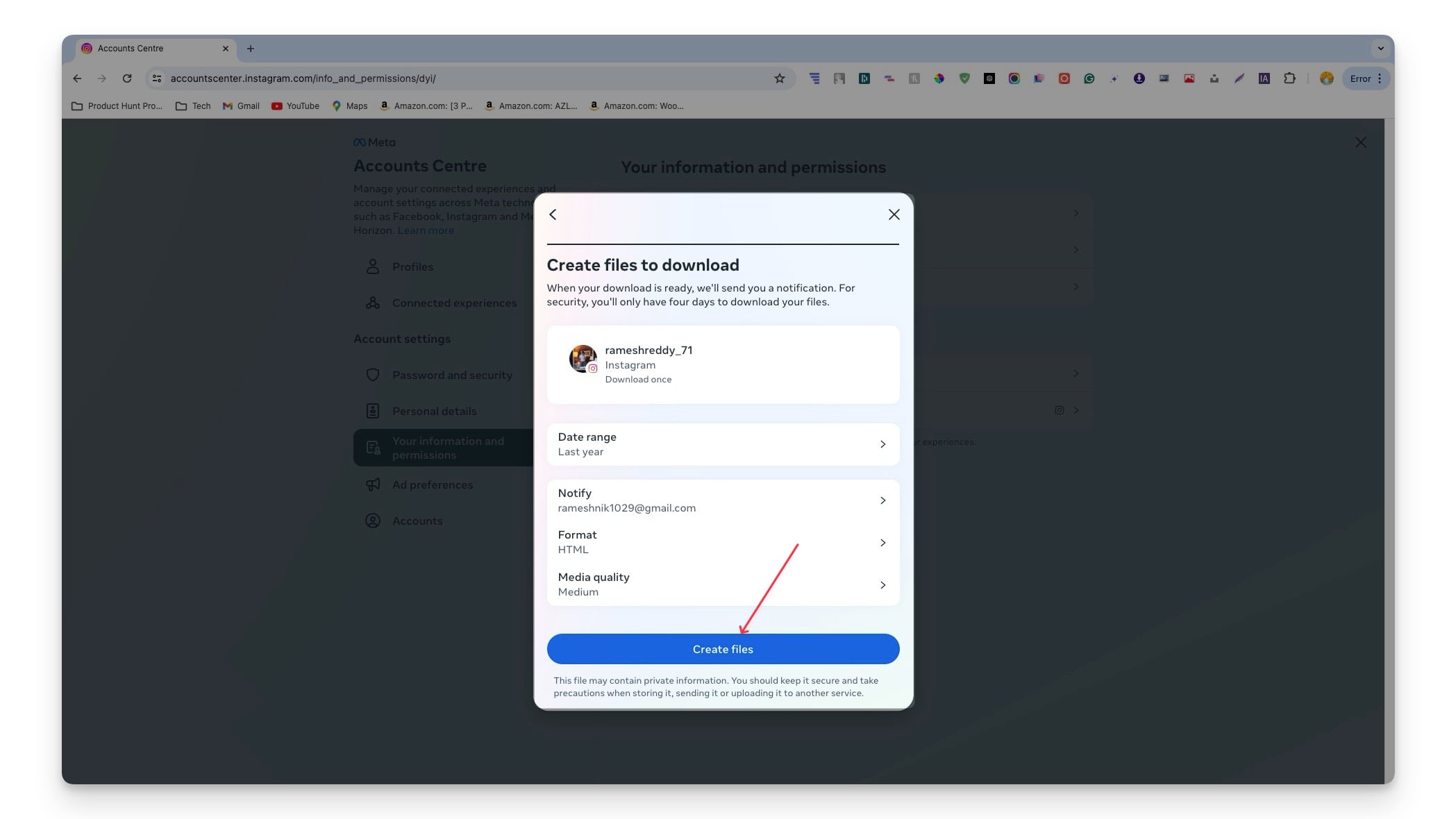
- Step 9: Your request will be processed, you can see your request status under the current activity. Once the request is approved you can download or transfer your Instagram data.

- Step 10: Depending on your data, your request will be processed within a day or several hours. You will receive an email confirmation. After successfully processing the request, you can download or transfer your Instagram information.
Download WhatsApp Data
WhatsApp, also part of Meta, has a different approach to downloading your data. Unlike downloading data from the Meta account center, you can download WhatsApp data securely from inside the app or on the web.
What Data Can You Download From WhatsApp
Category | Data Included |
|---|---|
Personal Information | Your name and phone number |
Contacts | The number of your contacts |
Profile Information | Your profile picture, The time you changed your profile picture, The time you changed your profile “About” section |
Device Information | The device you’re using, Your device type |
Usage Information | When you’ve been online |
Group Information | The groups you’ve joined |
Security Information | The numbers you’ve blocked, Your IP address, Your privacy settings |
How to Download Your WhatsApp Data
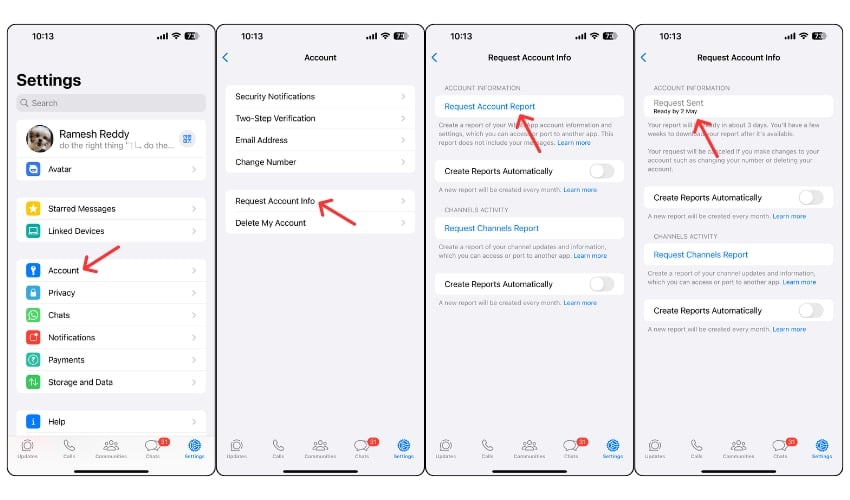
- Open Whatsapp and go to Settings
- Click on the Account
- Click on the Request Account Info
- Click on the Request Account Report
- It takes a maximum of three days to generate the report. Once the request is processed you can download the report.
- If you are looking to back up or export chats, follow the How to Backup WhatsApp guide to download and save your Chat data.
How to Download Google Data
Google has a lot of information about you. The company has a broad spectrum of services and products, including Google Search, YouTube, Google Maps, Android devices, and more, that are an integral part of our daily lives. You can download the data from Google using the Google Takeout service, which lets you download all your data or request specific types of data from a specific service.
What Data Can You Download From Google
Category | Data Included |
|---|---|
Access and Activity Logs | Google access log activity, Data about registration, and account activity |
Location Information | Location History |
Communication Data | Messages and attachments in your Gmail account |
Interaction Data | Ratings, reviews, comments, and other contributions to Google Search |
User Preferences | User notification configurations and topic subscriptions |
Personal Organization | Shopping lists, notes |
Media and Content | Data from other Google services such as Maps, YouTube, Podcasts |
Cloud Storage | Data from Google Drive |
Browser Data | Bookmarks, history, and other settings from Chrome |
How to Download Your Google Data
- Step 1: Visit https://takeout.google.com/ and sign in with your Google account.

- Step 2: Select the data you want to download and click on the Next step.
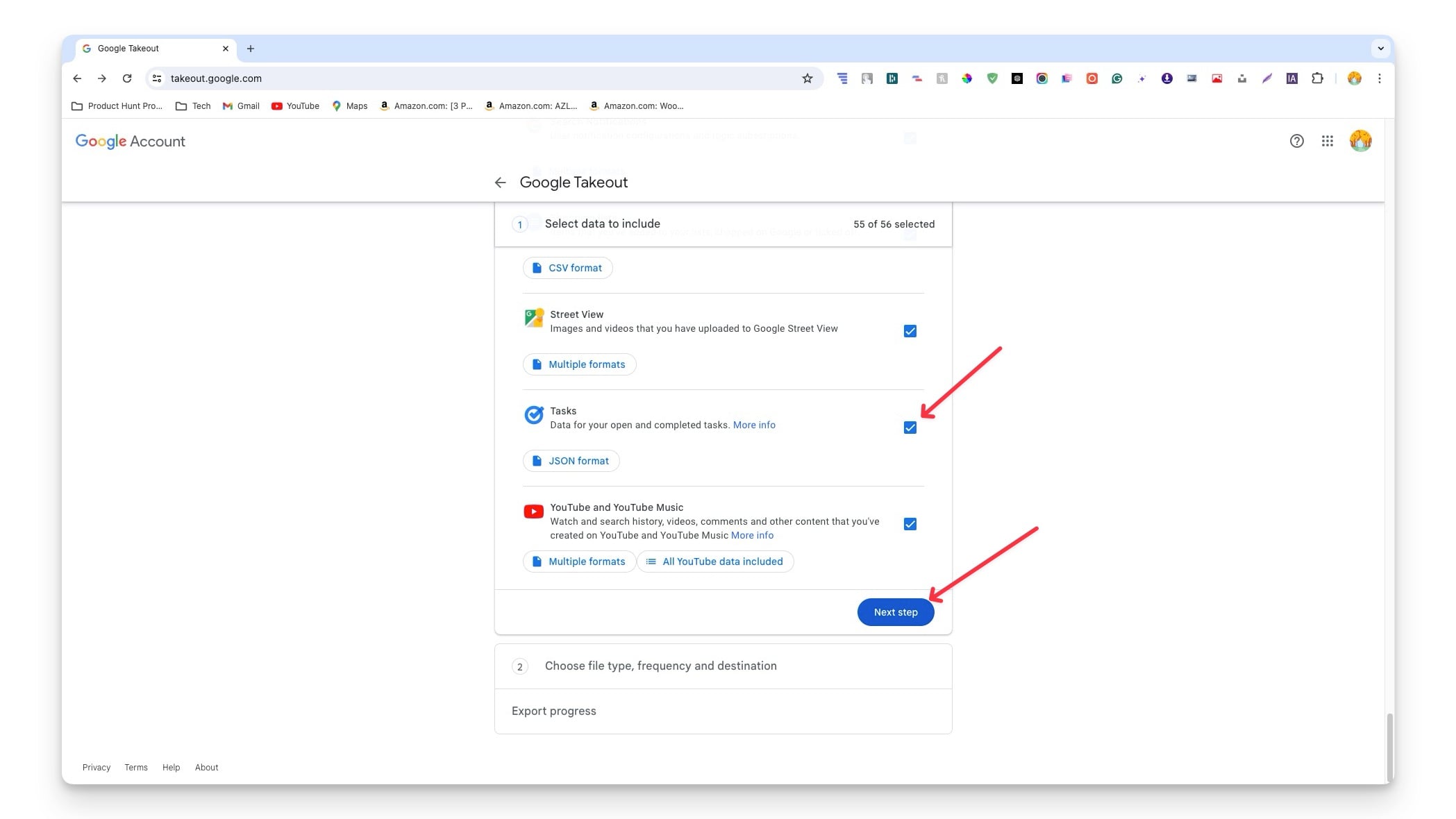
- Step 3: Choose the destination where your data wants to be transferred. You can get a download link to the email or transfer the data to Google Drive or third-party cloud services like Dropbox, One Drive, and Box.
- Step 4: After selecting the frequently you can export the data once or export the data every 2 months for 1 year finally select the format you want to export the data. It includes .zip and .tgz and select the zip file size you want. You can select a maximum of up to 10GB.
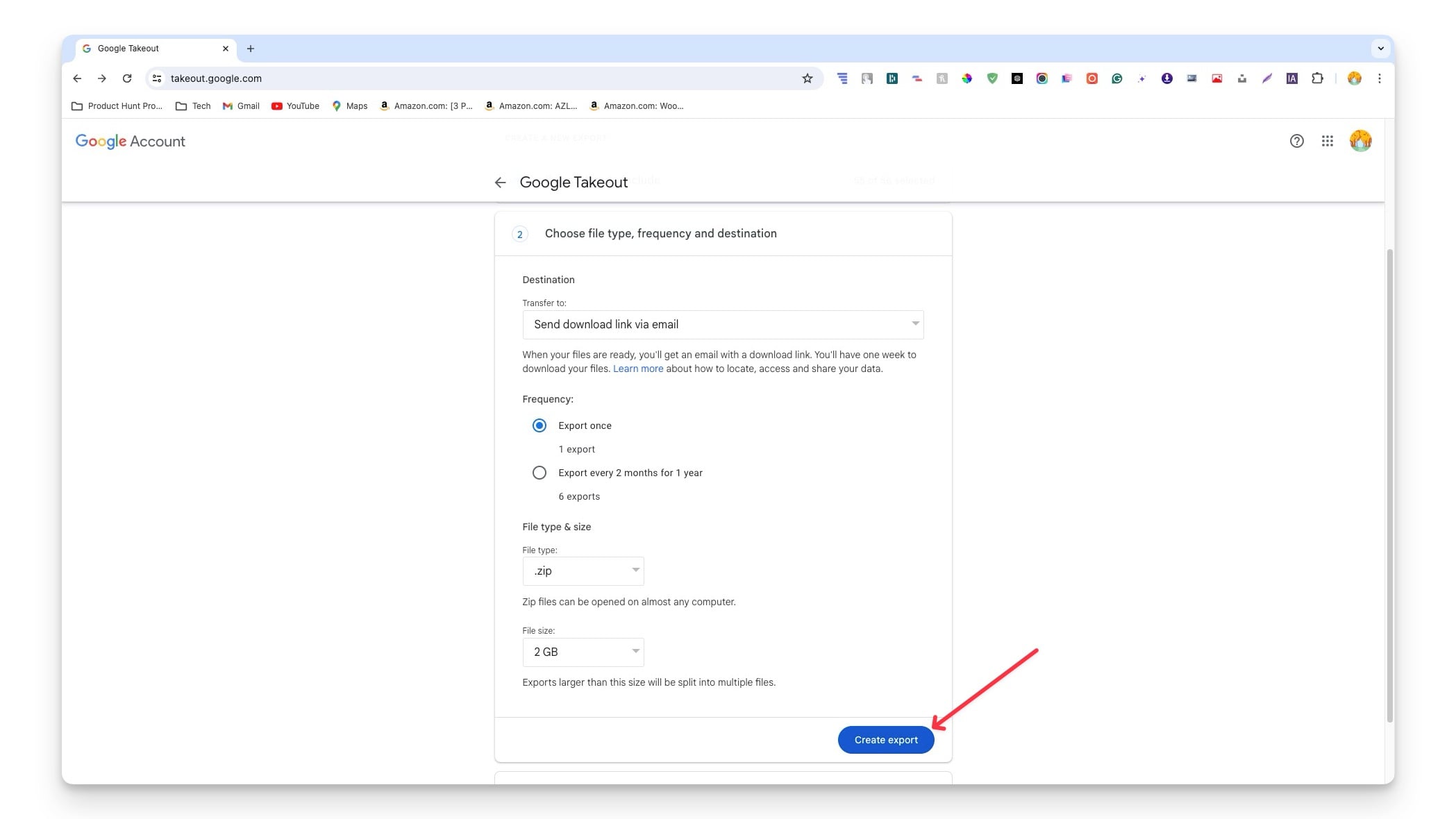
- Step 5: Click on the Create export to start exporting the data. You can see the export status

Click on the Create Export (The export button on the right) - Step 6: Depending on your data size it might take several hours to export your data. You will receive a confirmation email once your data is ready. In my case, it took 24 hours to export my data which consists of data from 55 Google products of size 84.5 GB. Depending on the file size, Google splits the data into several packages. You can click on the download to start downloading your Data.

Download Your Apple Data
Apple is known for its strong stance on privacy but also collects data to improve its services. The company also has its services and products that collect data. Like other companies, you can request the data download from Apple.
What Data Can You Download From Apple
Category | Data Included |
|---|---|
App Usage and Activity | App usage and activity, App install activity, Game Center activity |
Purchases and Transactions | App Store, iTunes Store, Apple Books, Apple Music, Apple Podcasts, Apple Store activity, Reservation history, Transaction history |
Personal Organization | Contacts, calendars, bookmarks |
Media Services | Apple Media Services information |
Support and Services | Data from Apple services such as AppleCare support history |
Cloud Storage and Content | iCloud photos, emails, iCloud drive files and documents |
How To Download Your Data From Apple
- Step 1: Visit https://privacy.apple.com/ and sign in with your Apple ID.

- Step 2: Click on the Request a copy of your data under Obtain a copy of your data

- Step 3: Select the Data you want to download. You can click on the Select all if you want to download all your data.

- Step 4: After selecting the data, scroll down and Click on the Continue.

- Step 5: Select the file size and click on Complete request.

- Step 6: Your request will be processed and you will receive an email confirmation once your request is processed. You can also check the status of your data from the data and privacy page.
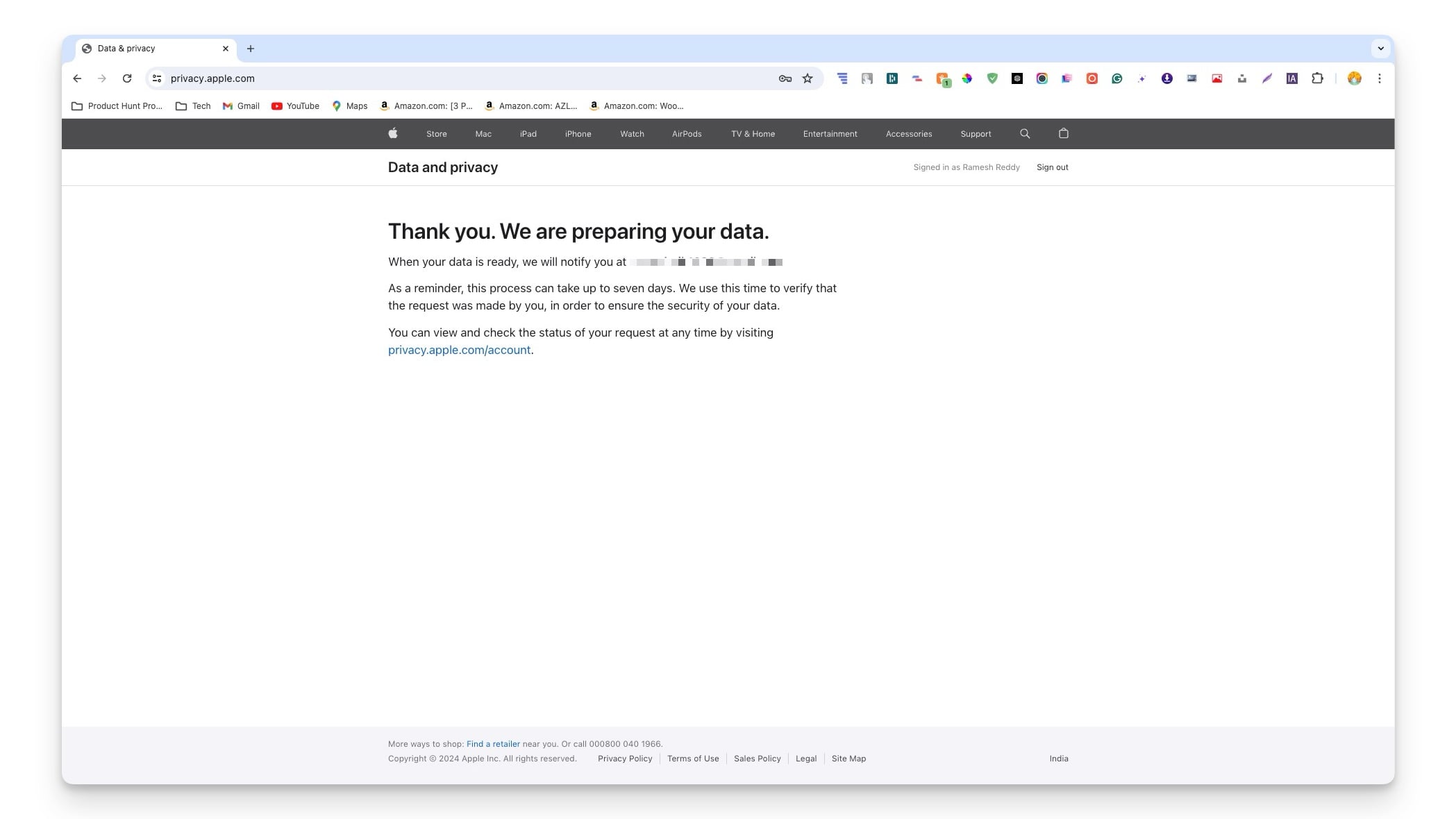
- Step 7: Compared to other services Apple took longer to process the data download request. For me, the data request is still in process after 24 hours.
Download Your X (Twitter) Data
X (formerly Twitter) lets you download a copy of your data, similar to other services. As a social media site, X stores all your personal information and activity on the platform. You can request the archive of your data and download it.
What Data Can You Download From X
Category | Data Included |
|---|---|
Account Basics | Username, email addresses, phone numbers, account creation details, birthday, profile location |
Account History | Login history, places visited while using X |
Devices and Apps | Browsers, mobile devices, apps connected to X account |
Account Activity | Accounts blocked or muted |
Interests and Ads Data | Interests inferred, tailored audiences, ad interactions |
Profile and Content | Profile information, posts, Direct Messages, Moments, media |
Connections | List of followers and following imported contacts |
Personal Preferences | Lists, interests, and demographic info |
Advertising Data | Ad data |
How to Download Your Data From X
- Step 1: Visit X.com on your browser and log in with your X account.
- Step 2: Click on More from the sidebar.

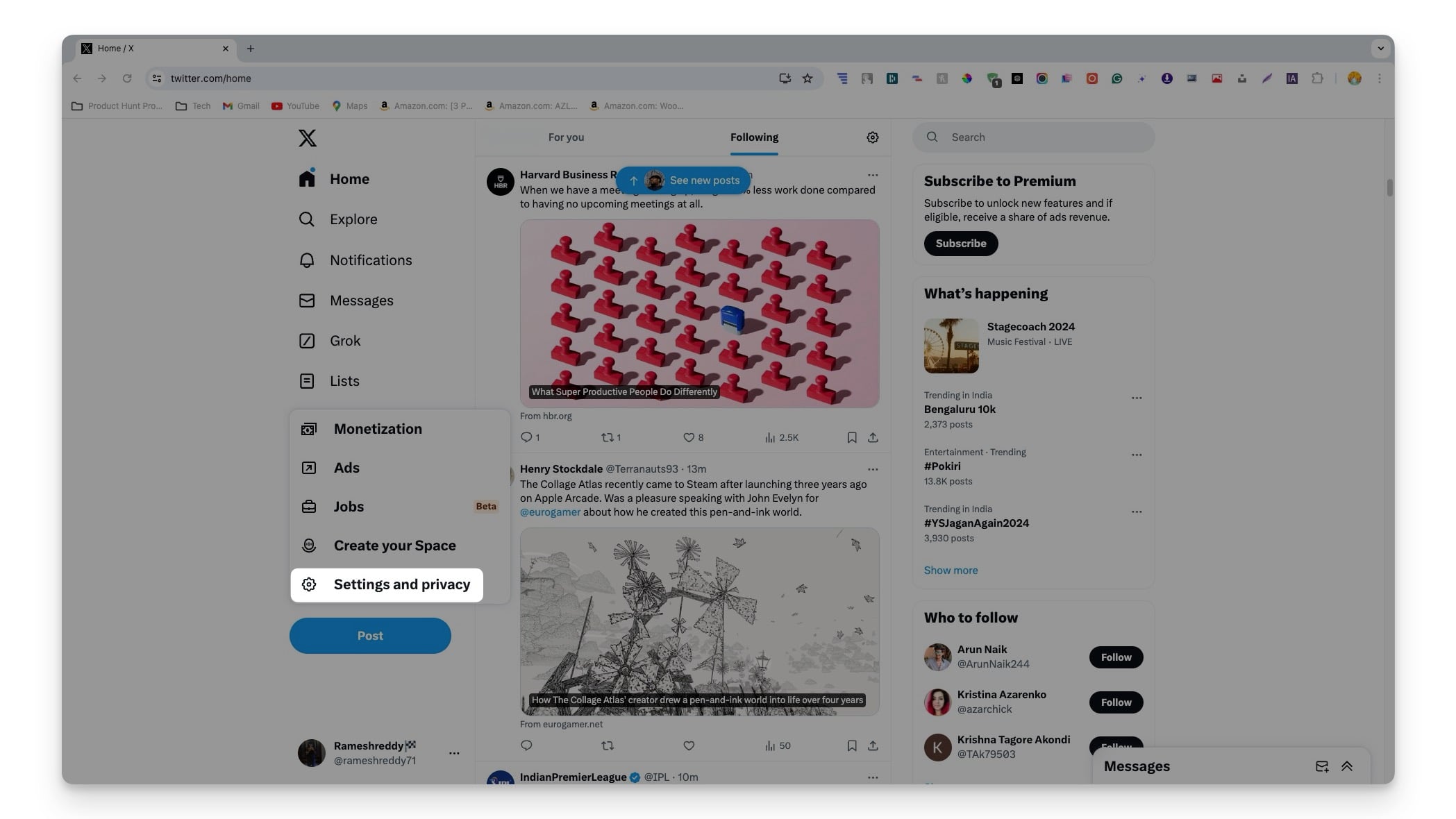
- Step 3: Click on Settings and Privacy.
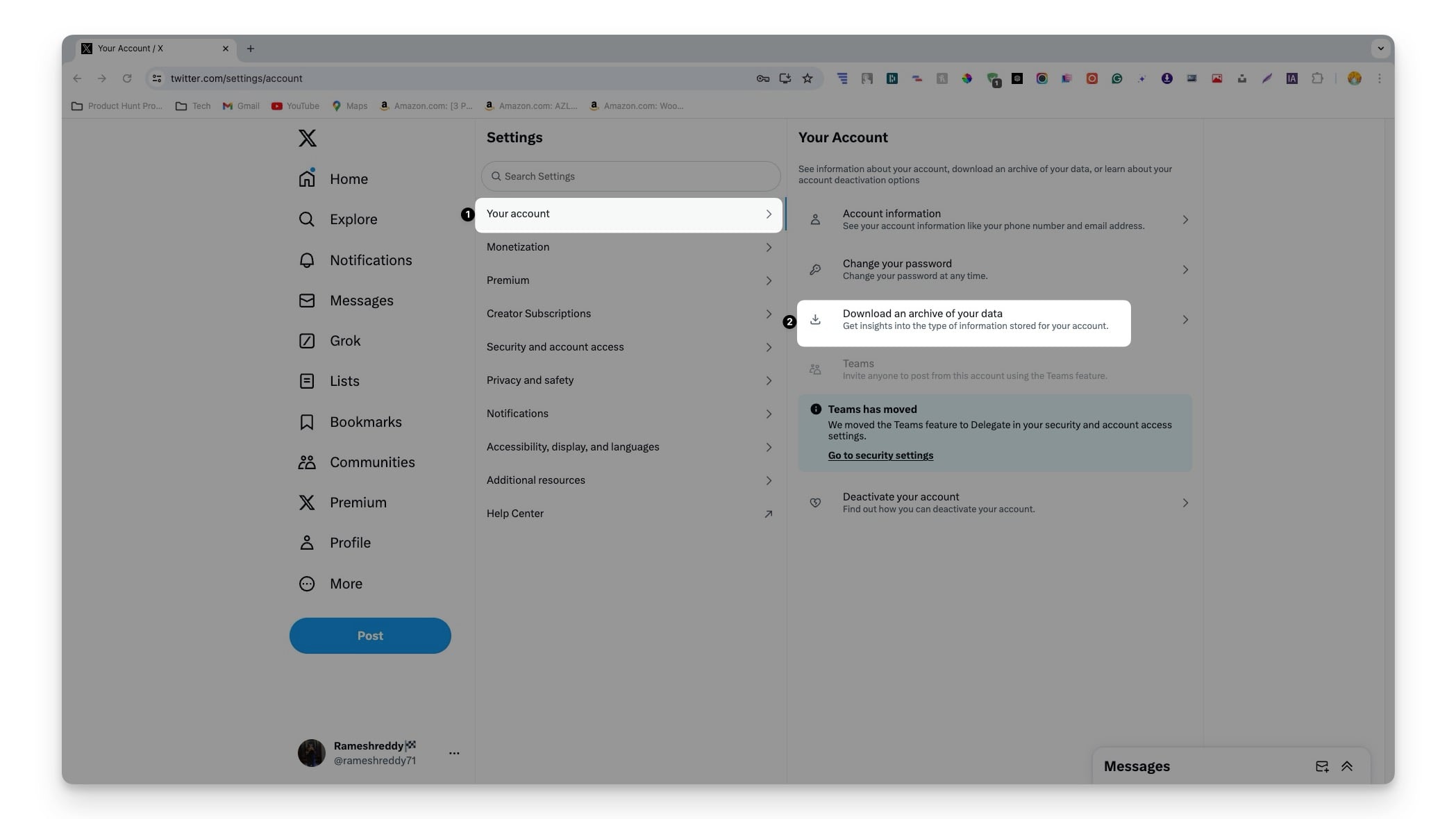
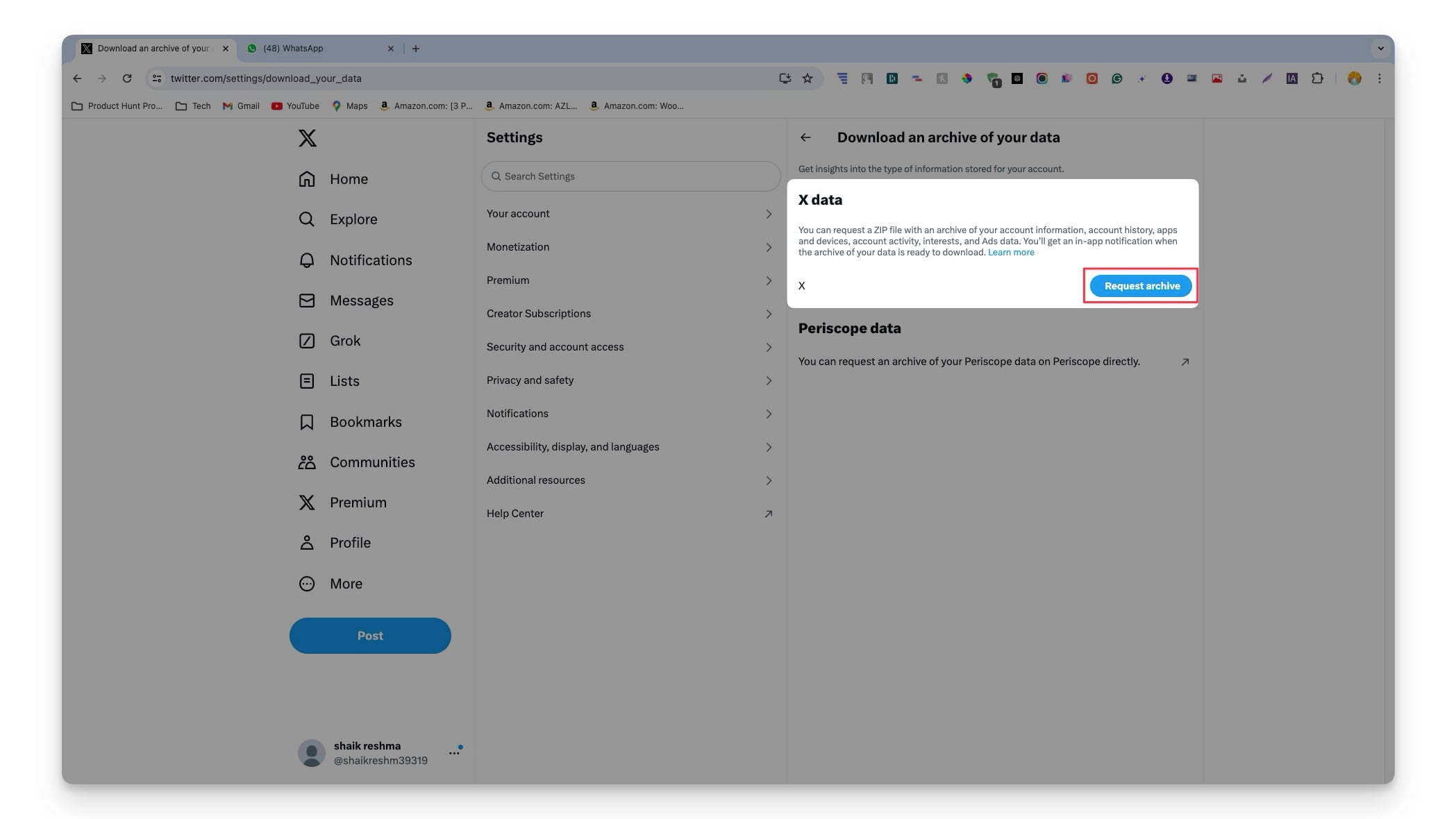
- Step 4: Click on ‘Your account’ and then tap on ‘Download an archive of your data‘ and complete the verification.
- Step 5: Now click on the Request archive. You will receive a confirmation mail when your data is ready and download the data.
Download Your TikTok Data
Like any other social media platform, TikTok stores your personal information and activity on the app. You can request data from the app and download your information.
What Data Can You Download From TikTok
Category | Data Included |
|---|---|
Account Information | Your username |
Interaction Data | Video history, comment history |
Settings | Privacy settings |
Additional Data | And more |
How to Download Your TikTok Data
- Step 1: Open the TikTok app on your smartphone and go to your profile tab.
- Step 2: Click on the menu on the top and select Settings and Privacy.
- Step 3: Now tap on the Account.

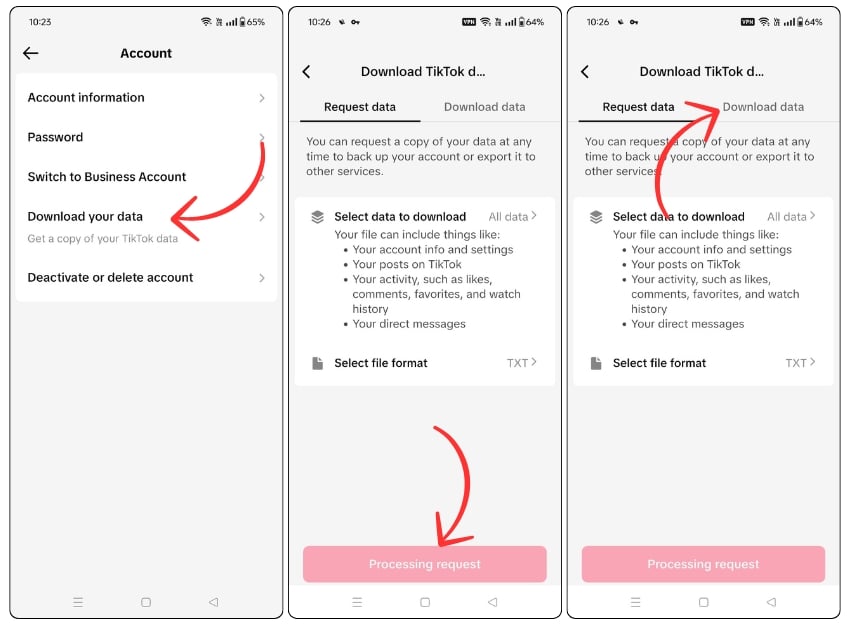
- Step 4: Click on the Download your data.
- Step 5: Select the data you want to download and select the format of the file format.
- Step 6: Once your request is processed go to the Download Data tab and download your TikTok data.
Download Your Microsoft Data
Microsoft collects user data from all its products and services. You can download your data from the privacy dashboard which lets you create an archive of all your data or request data from a specific service.
What Data Can You Download From Microsoft
Category | Data Included |
|---|---|
Activity History | Apps and services activity history, Voice history |
Digital Footprint | Search history, Browse history |
Media Interaction | Media activity history |
Location Data | Location History |
How to Download Your Data From Microsoft
- Step 1: Visit https://account.microsoft.com/ and sign in with your Microsoft account.
- Step 2: Click on the Privacy on the sidebar.

- Step 3: Now select the data you want to download.
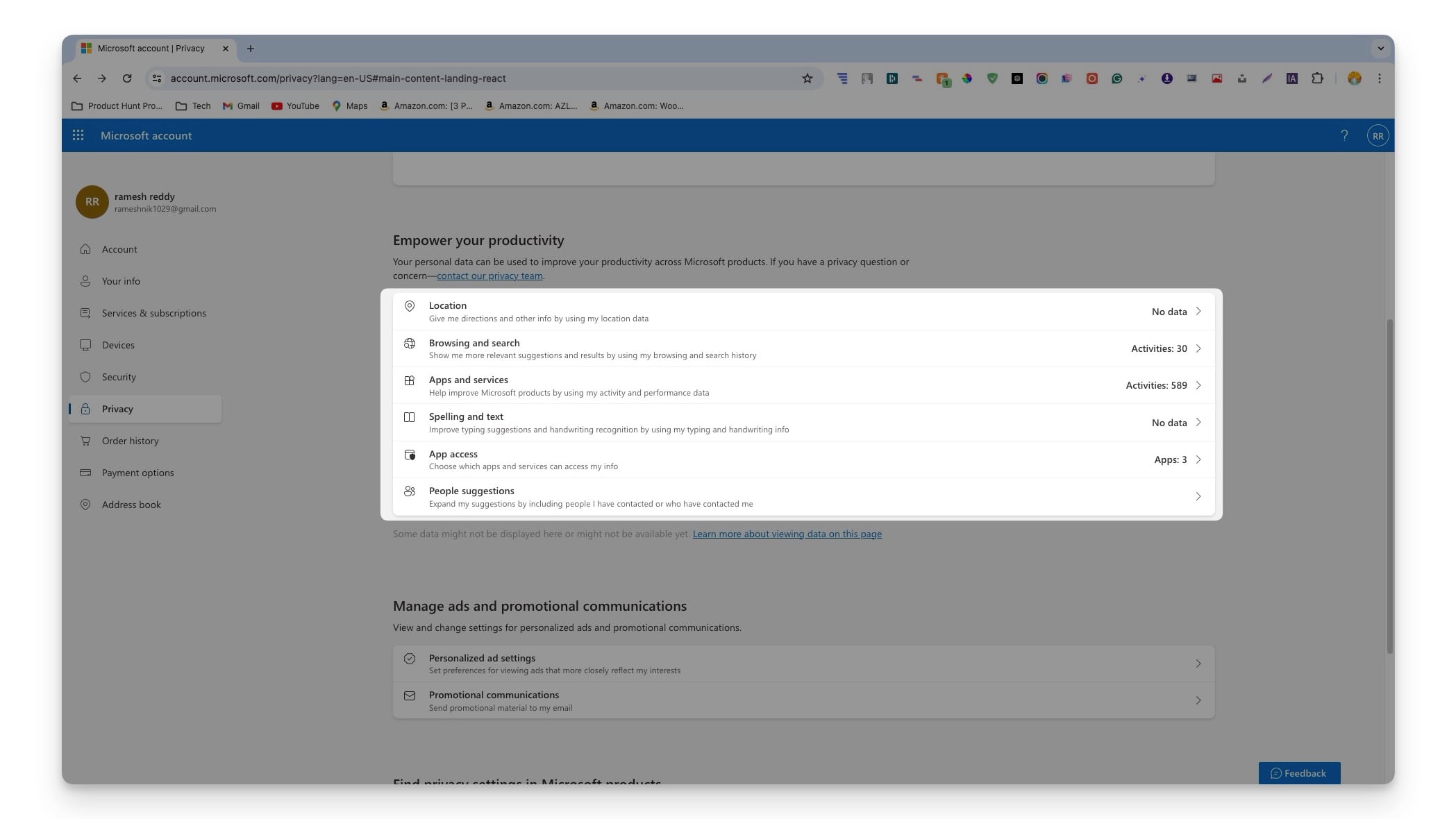
- Step 4: In this case, I want to download the apps and services data, to download click on the apps and services and scroll down, wait for the data to load, and click on the Download your data to start downloading.

- Step 5: You have to create an archive before downloading the data. Click on the Create archive.

- Step 6: Now again select the data you want to include and click on the Create an archive.

- Step 7: Click on download.

Download Your Amazon Data
Amazon stores all your information, including your order and purchase history. You can request the data and download from the data request page.
What Data Can You Download From Amazon
Category | Data Included |
|---|---|
Login and Security | Login and security information |
Personal Details | Address book, Payment information |
Shopping Activity | Order history, Lists |
Preferences | Communication preferences, Advertising preferences |
Digital Content and Devices | Digital content and devices |
Recommendations | Personal recommendations |
Web Activity | Browsing history |
How to Download Your Amazon Data
- Step 1: Visit the request data page and sign in with your Amazon account if you are not signed in.
- Step 2: Select the data you want to download from the drop-down menu. If you want to download all your data, scroll down select Request All your Data, and click on the submit request button.

- Step 3: You will receive an email with a link to download the data (Remember Amazon says the link will expire in 5 days. Check our email and accept the request.

Download Your Uber Data
Uber, a popular raid-hailing service, also stores user information and your activity on the app. You can request data from the Uber data request service and download your information.
What Data Can You Download From the Uber
Category | Data Included |
|---|---|
Account Information | Name, Email address, Mobile number, User rating, Date signed up, Referral codes |
Payment Information | Payment method details |
Communication | Sent messages between the user and the driver or delivery person |
Uber Eats Activity | Order history including merchant names, items ordered, prices, order time, and more |
How to Download Your Uber Data
- Step 1: Visit the Uber data request page and sign in with your Uber account.
- Step 2: Click on the Request Your Data. After successfully processing your data you will receive an email or a text message once your data is ready. you can download the data.

Download Your Airbnb Data
Airbnb has its data request tool that allows you to download all your information stored by the platform.
What Data Can You Download From Airbnb
Category | Data Included |
|---|---|
Profile Information | Legal Name, Gender, Date of birth, Email, Phone number |
Emergency Contacts | Emergency contacts |
Communication | Messages sent and received on the platform |
Search History | Search queries made including Airbnb listings and Experiences |
Reservations | Details of all past and current trip reservations |
Experiences | Details of past and current Airbnb Experiences |
Payment History | Details of payment transactions |
Additional Data | KYC information, Coupons and credits, Payment receipts, and more. |
How to Download Your Airbnb Data
- Step 1: Visit Airbnb.co.in and sign in with your account.
- Step 2: After signing in click on your profile picture and select Account.
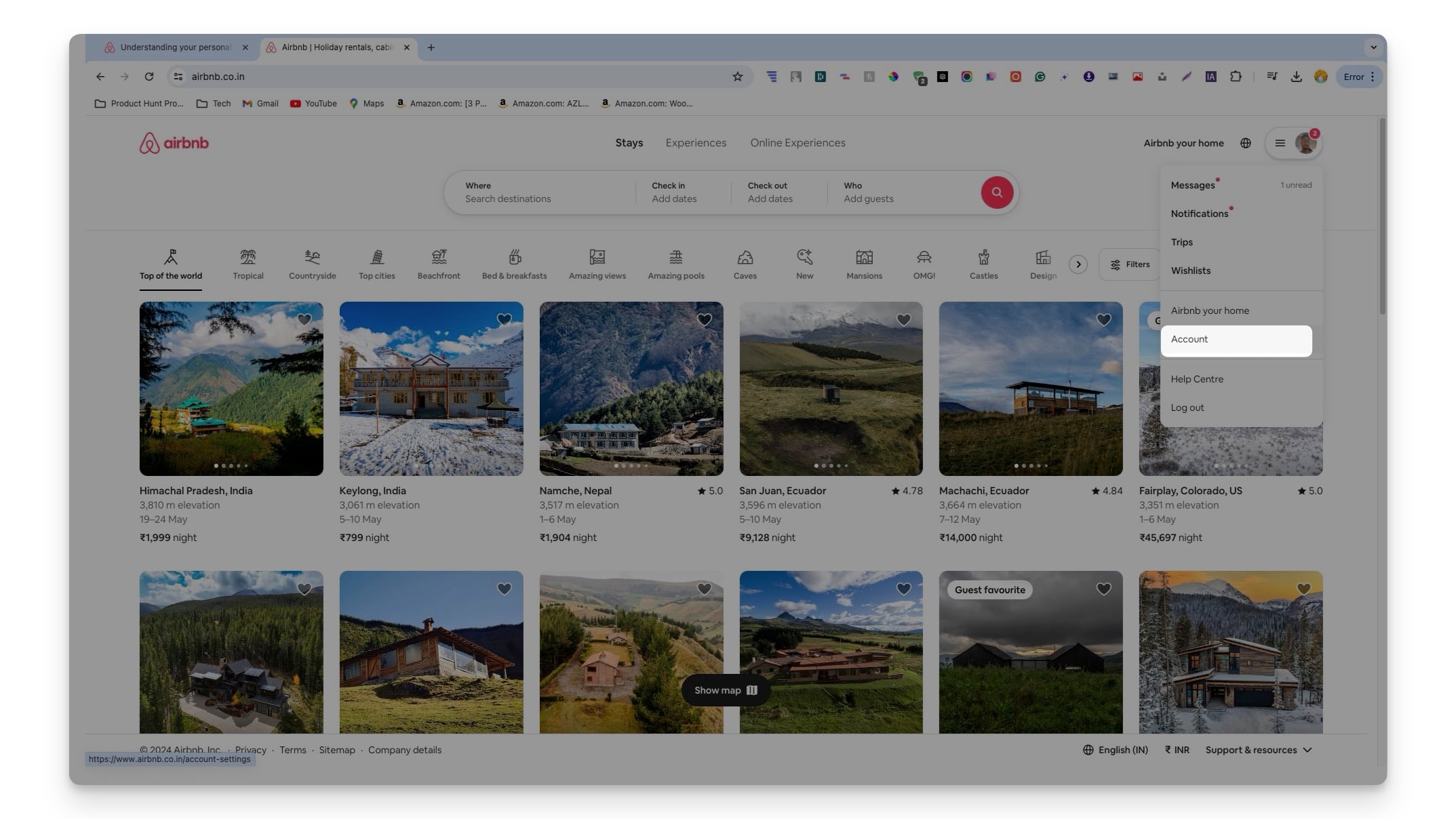
- Step 3: Click on the Privacy and Sharing settings.

- Step 4: Click on the Request Your Data.

- Step 5: Now select the data and the type you want and click on Request Data, enter the complete verification.

- Step 6: Finally click on Done to request your data.
FAQs on Downloading Your Online Data
Can I request data deletion after downloading it?
Yes, After downloading your data you can request data deletion. However, this process can be different for different services.
How to view HTML and JSON files on mobile?
Some file managers for mobile devices allow you to view HTML files directly. You can also use a web browser on your smartphone to view HTML files. Enter the local file path on the browser URL, you will be able to view the HTML data on the browser. For JSON files you can use a text editor that supports JSON file format. Popular apps include the JSON file opener app for Android and Jayson for iOS.

