

When we think of gaming on a PC or laptop, we aim to get our laptops with the best possible specifications available that also don’t dig a hole in our pockets. As far as gaming PCs are concerned, you try to assemble the best possible GPU and other equipment that will help run the game smoothly. The same is required for running resource-intensive programs and software. However, with Windows 11 and with Windows OS in general, you may run into issues, including latency issues or lagging problems, once in a while while playing heavy games and software. This is because Windows 11 ensures that even unnecessary components have their share of resources.

Thanks to an operating system called Atlas OS, you can now achieve better gaming performance, improved FPS, and lower latency. And the best part is, you don’t need to upgrade or install new hardware on your PC. A simple installation of the Atlas OS will do the job. You may be wondering how software can help get better FPS and reduce latency. Well, that’s what we will be discussing in this guide, and we will give you all the details that you need to know about Atlas OS and its advantages.
Table of Contents
What is Atlas OS?

Atlas OS is an open-sourced GPL-3.0 project and a custom version of Windows 10, installed as a layer over Windows 11, that offers optimized and improved gameplay and performance. This is highly promoted as the OS for gamers. The team behind Atlas OS claims that because of several tweaks to the Windows 10 OS, on which Atlas OS is built, they achieved great improvements over the traditional Windows 11 OS. You can experience higher framerates and lower latency as compared to stock Windows OS.
The Atlas OS team has removed most of the negatives of the stock Windows OS and made an OS that brings reduced system latency, lesser network latency, and lower input lag. Apart from improving the overall performance of your system, it also adds an extra layer of security to your PC, by getting rid of several of Microsoft’s tracking and preinstalled apps. There are a lot of tweaks that the Atlas OS team has done with the stock Windows OS to extract this many resources. Some of them are listed below:
- They customized the power scheme
- Reduced the amount of pre-installed programs and drivers
- Disable audio exclusive
- Disabled unwanted devices
- For PC, they have disabled the power saving mode
- Power-hungry security programs have been disabled
- Atlas OS automatically enables MSI mode on all devices
- Boot configuration has been optimized for improved performance
- Process scheduling has been optimized and made better
What are the advantages of the Atlas OS?
There are several advantages of Atlas OS over the stock Windows 11 OS, some of which are listed below:
- Performance improvements: As per Atlas OS, it reduced background CPU usage by 2-10% and also reduced RAM usage from 2.3GB to 1.2GB, resulting in overall improved performance of the OS.
- Highly optimized gaming performance: Thanks to background process restrictions, reduced RAM usage, and the ability to prioritize gaming, the Atlas OS provides enhanced frame rates, low latency, and improved UX while gameplay or using resource-intensive programs.
- Advanced security features: Atlas OS claims to give more control to the user over privacy and other security settings. It implements certain group policies to minimize data collection and remove tracking embedded in Windows apps.
- More space: The Atlas OS gets rid of Microsoft’s tracking programs and also removes all the pre-installed applications, commonly known as bloatware, giving a clean slate to the PC for better performance.
How to install Atlas OS on Windows 11?
To install Atlas OS, you must have the original Windows 11 version. Atlas OS doesn’t work with pirated versions of Windows 11. Moreover, you need to reinstall Windows 11, as Atlas OS requires a reinstallation of Windows 11 for optimal performance. So, you need to first download the Windows 11 ISO to your PC locally, then install it by following the steps mentioned in our dedicated guide.
After the reinstallation of Windows 11 is complete, follow the below steps to download Atlas OS:
- Open your favorite web browser and visit the Atlas OS official website.
- Download Atlas Playbook and AME Wizard Beta.
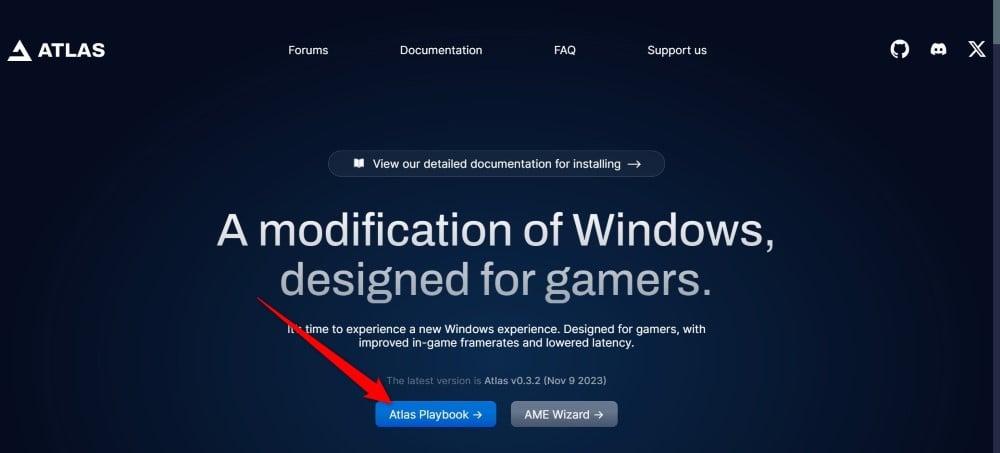
- Extract both ZIP files to any folder on your PC.
- Launch AME Wizard Beta.
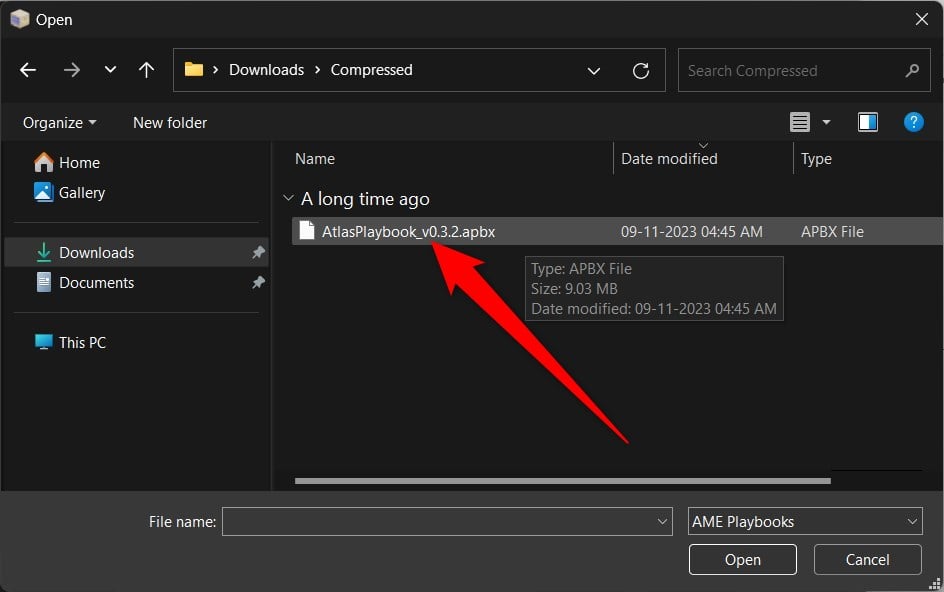
- Click on Drag the.abpx file to the load PlayBook button on the left pane.

- Choose the .apbx file, which in our case is AtlasPlaybook_v0.3.2.apbx. The file will take some time to load.
- You need to disable Windows Security to install Atlas OS. Simply click the Run action button.
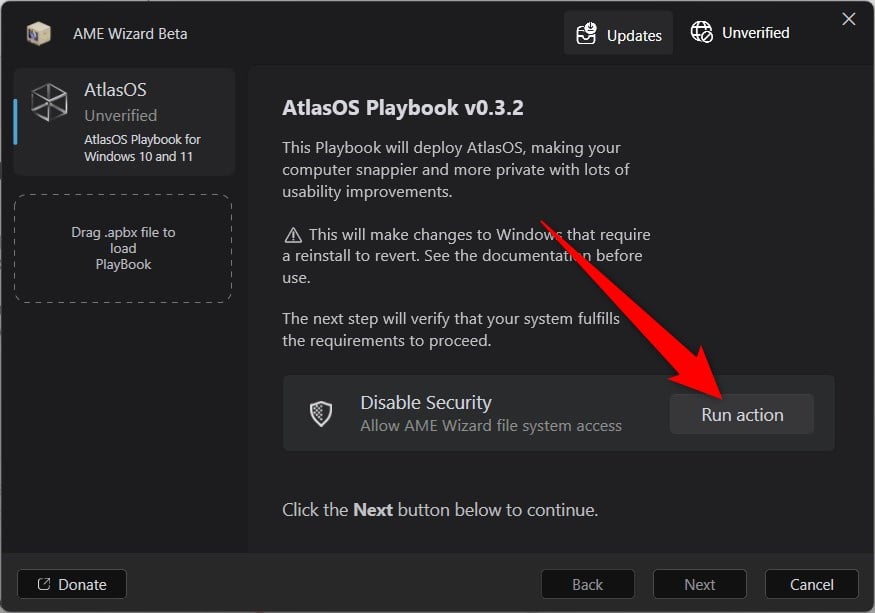
- Choose Open Windows Security.

- Toggle off all four options, i.e., Real-time protection, Cloud-delivered protection, Automatic sample submission, and Tamper Protection.

- Click on Next in the installation wizard.
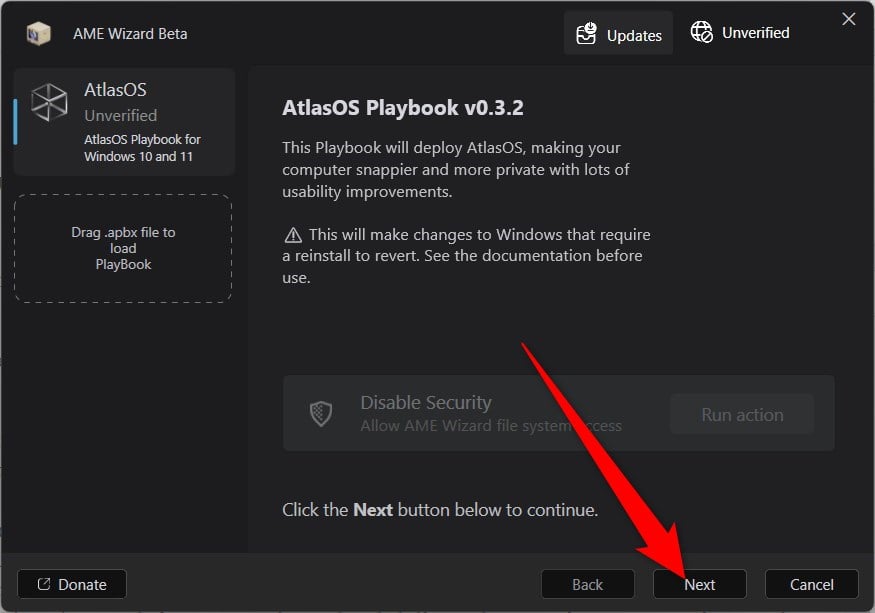
- The wizard will verify your Windows 11 activation and also check if the requirements are met or not. Click Next to continue.

- Accept the license agreements.
- Go through the configuration options and what they will do to your PC, then click Next.
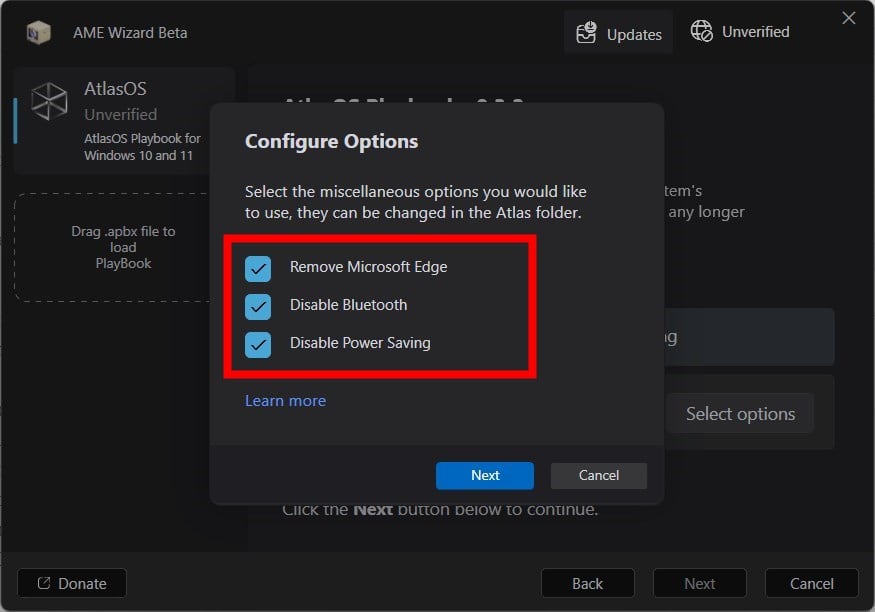
- You will be asked a few questions, like which web browser you would like to install and use as the default, etc. Choose each option carefully, and complete the installation process.
- After completion, Atlas OS will be installed on your PC. Now you are all set to tweak the performance of your PC and get optimal gaming performance out of it.
What are the different configurations that are available in Atlas OS?
The main idea of Atlas OS to achieve improved performance is to disable unnecessary system processes in Windows OS that botch the gameplay experience. Below, we have mentioned some of the configuration options that are disabled by default in Atlas OS, which you can enable by running the appropriate registry file.
Configurations
- Background Apps: Disabled by Atlas OS, can be enabled by running Background Apps.reg in the Background Apps folder and restart.
- Bluetooth: Disabled by Atlas OS to make the system more responsive. To enable it run the Enable Bluetooth.cmd file in the Bluetooth folder and restart.
- Troubleshooting: Atlas OS disables this, which can be enabled by running the Enable Troubleshooting.cmd file in the Diagnostics and Troubleshooting folder and restart.
- Driver Updates: Atlas OS during installation, gives you the option to either go for Automatic driver installation or Manual driver installation. You can choose the option to run the file and restart your PC for the changes to take effect.
- Game Mode: Game Mode is a Windows feature that aims to make the game smoother, but it often doesn’t produce the required result. Atlas OS disables this by default, which you can enable by running the Enable Game Mode.reg file.
Advanced configuration
- Affinity: Windows puts most drivers on Core 0 by default, which can be altered using Atlas OS to improve performance and latency.
- Boot configuration: Tweak the options very responsibly as you can mess things up or with the correct settings improve the pre-boot behavior.
- DSCP: You can enable Differentiated Services Code Point (DSCP) to manage network traffic and route data from specific applications, such as game or resource-intensive programs.
- NVIDIA Display Container: You can enable/disable NVIDIA Display Container to connect to a few NVIDIA IPs, aimed at people who barely touch and configure the NVIDIA Control Panel.
- Static IP: You can set up your network as a Static IP that will also help in the number of services required.
Optional tweaks
- Alt-Tab: You can choose between the old Windows 7 Alt-Tab menu or the new Windows 10 Alt-Tab menu.
- Delivery Optimization: Atlas OS disables the Delivery Optimization by default because although this can help speed up the updates, but it works in the background eating up resources. You can turn it on by running the Enable Delivery Optimization.reg file.
- File Explorer customization: By default, the File Explorer view is in Compact view mode. Besides, the OS also removes all folders from Quick Access, disables the Gallery, and doesn’t show removable drives in the sidebar.
- Lock screen: The lock screen is enabled by default in Atlas OS, which you can enable by running the Hide Lock Screen.reg file.
Security
- Mitigations: Atlas OS has several scripts and prompts that will help enable or disable mitigations within Windows. Windows uses these mitigations to address security issues of old computers, however, the performance of PCs can worsen because of these mitigations. If you wish to have max security then you can run the Enable All Mitigations.cmd inside the Mitigations folder, but this will reduce efficiency and you may also not be able to run certain trainers and mods.
- Defender: Atlas OS gives you granular control over Microsoft Defender. You can toggle the Defender scrips from the Defender folder by running the Toggle Defender.cmd to enable or disable Defender.
- Core isolation: Inside the Core Isolation (VBS) folder, Atlas OS gives you all the information about which core isolation is active, which features are available, and other shortcuts to core isolation. Do note that Core isolation is enabled by default in Windows 11, and it gives you the best protection, but at a cost of performance, which is why Atlas OS gives you all the information you need and lets you decide which one you want to enable or disable.
For a complete list of configurations that Atlas OS offers, you can check out the official website.
FAQs about Atlas OS
1. Is Atlas OS faster than Windows?
Because of reduced bloatware, restrictions on background apps, and other features (listed above), Atlas OS can squeeze out improved performance and latency compared to Windows 11. Moreover, without any unwanted apps and services, you will experience a more responsive Windows OS with a higher FPS while gaming and running resource-intensive programs.
2. Is Atlas OS for low-end PCs?
Thanks to its various features and impressive output, Atlas OS is a great choice for both low-end and high-end PC owners. Low-end PC users will experience a much smoother UI and performance, whereas high-end PC users will experience a more responsive, fast, and much higher FPS compared to the stock OS.
3. Is it safe to use Atlas OS?
Atlas OS is based on Windows and is an open-sourced project, the files of which are available on the public GitHub repository. In simple words, Atlas OS is a layer of Windows OS, minus unwanted programs, and scripts.
4. Is there an alternative to Atlas OS?
There are multiple other operating systems that you can try out and check to see if they give you optimal performance. For instance, there is Revi OS, which is much closer to stock, i.e., doesn’t remove many programs, and then there is Tiny 11, which could be a better alternative as it removes more apps and features.

