

Quick Answer
- Open the Instagram app, go to Settings > Account Center > Password and Security> Where You’re Logged In, select the account and devices, and click Logout.
Remember your password before logging out of your Instagram account; you will need it to log back in. Also, ensure your account is linked to a valid email or phone number in case you need to recover it.

Table of Contents
2 Ways to Log Out of Instagram on All Devices
Method | Steps |
|---|---|
Logging Out from Other Devices (Mobile) | 1. Open Instagram > Settings. 2. Account Center > Password and Security > Where you're logged in. 3. Select account > Devices > Logout. |
Logging Out from Other Devices (Desktop) | 1. Visit Instagram Account Center. 2. Password and Security > Where you're logged in. 3. Select account > Devices > Logout. |
Changing Password on Mobile | 1. Open Instagram > Profile > Settings. 2. Account Center > Password and Security > Change password. 3. Select account > Enter current and new passwords > Select "Log out of all devices" > Change password. |
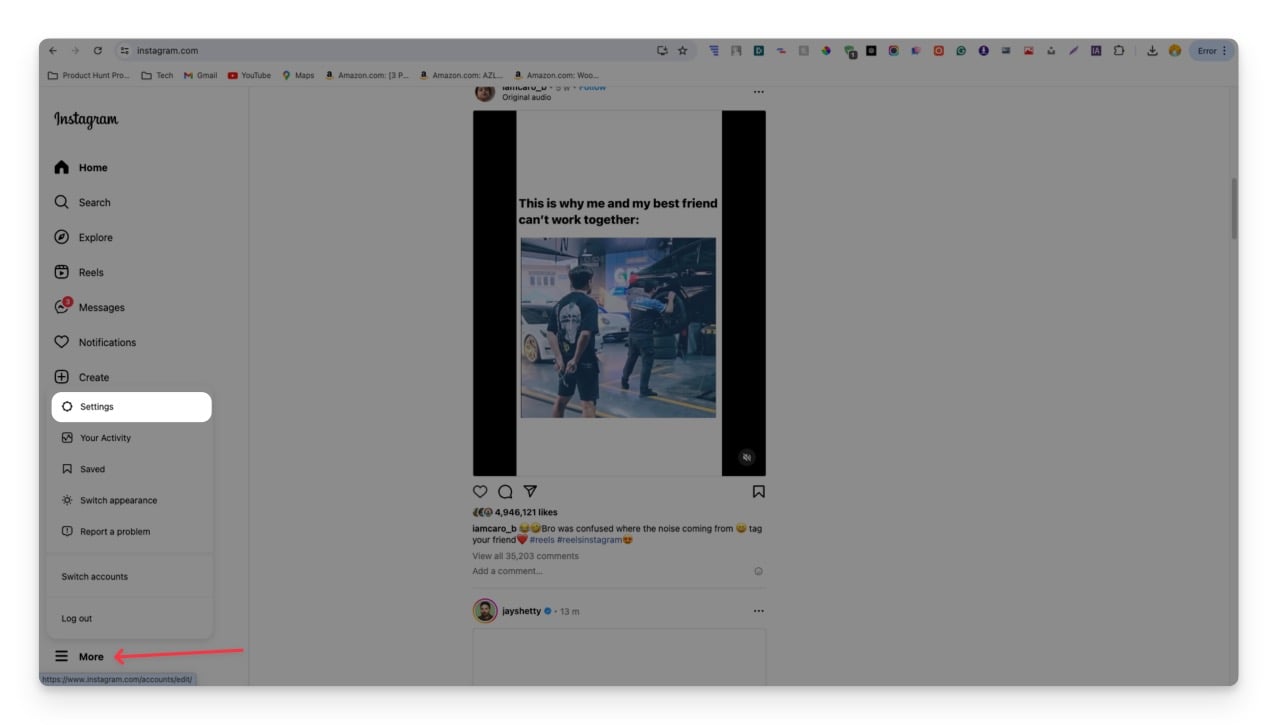
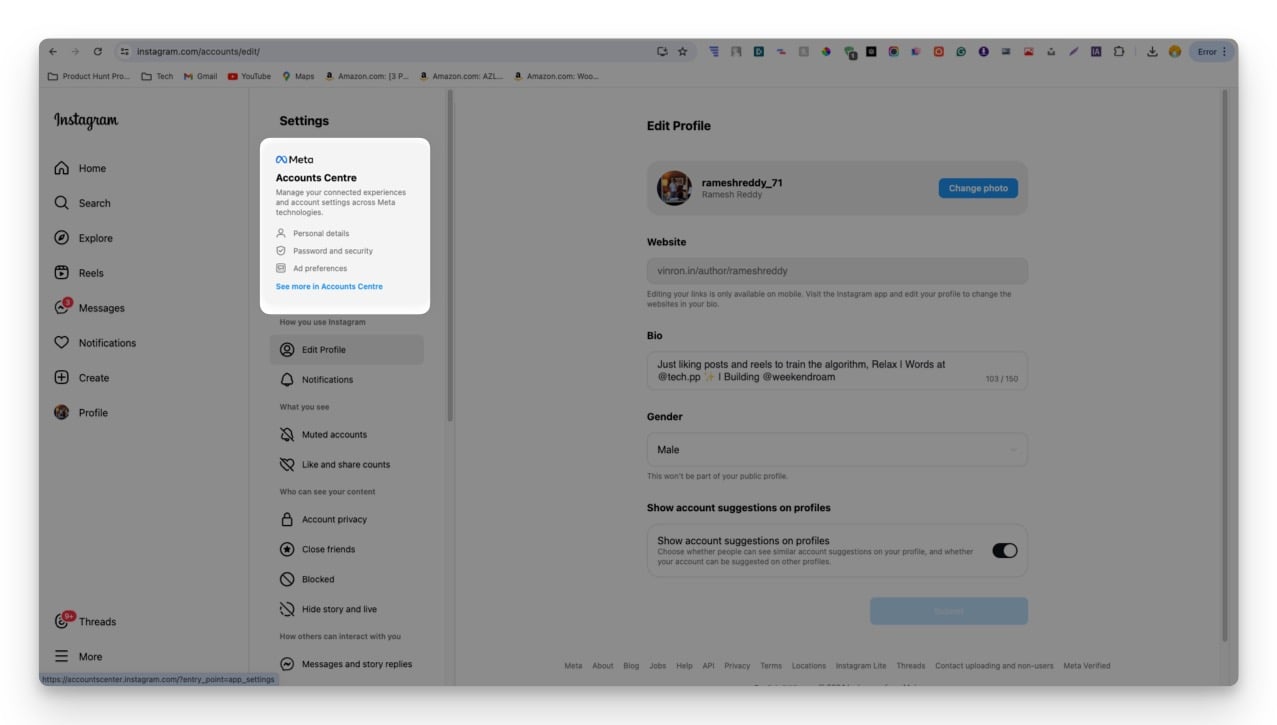
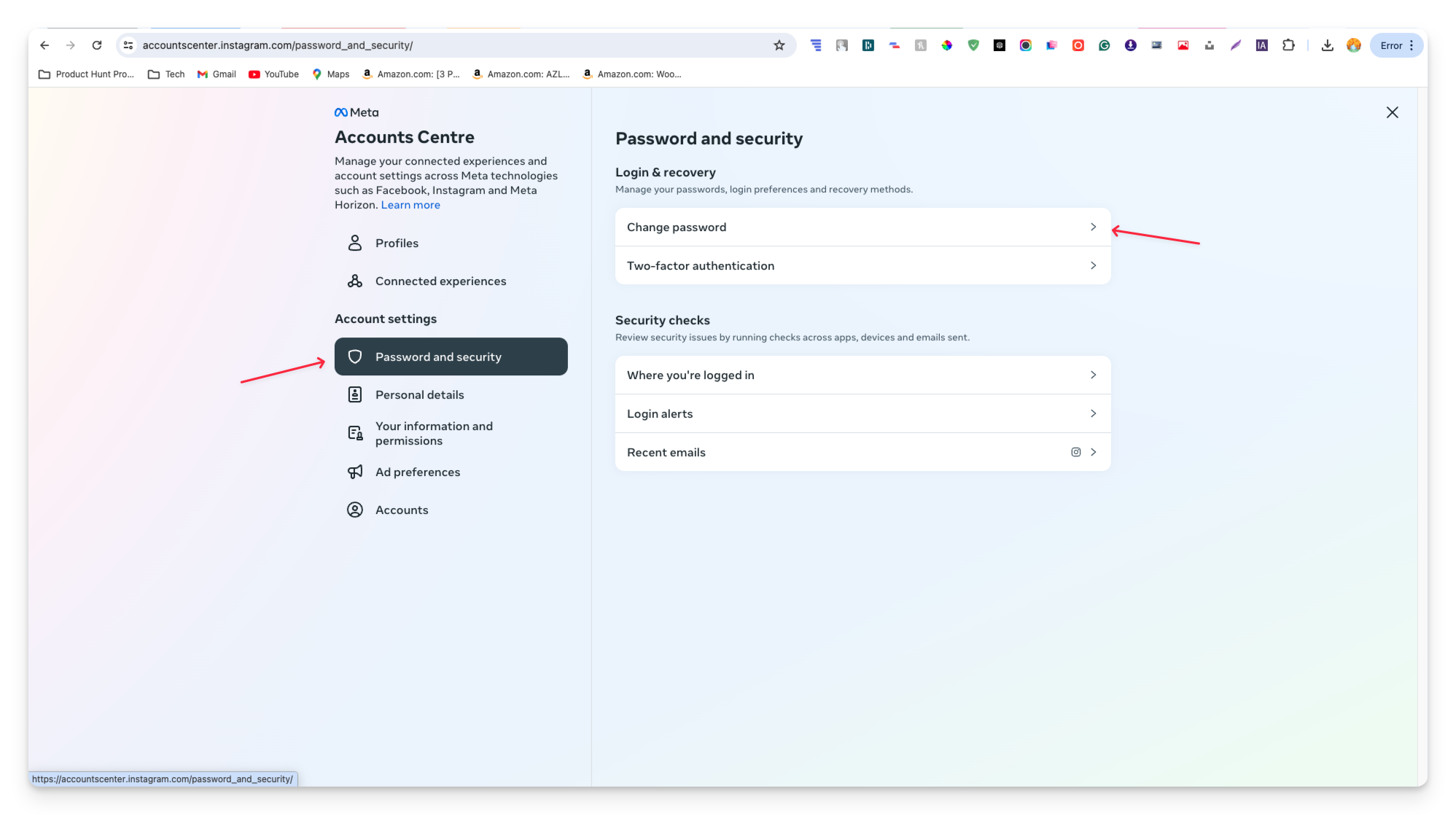
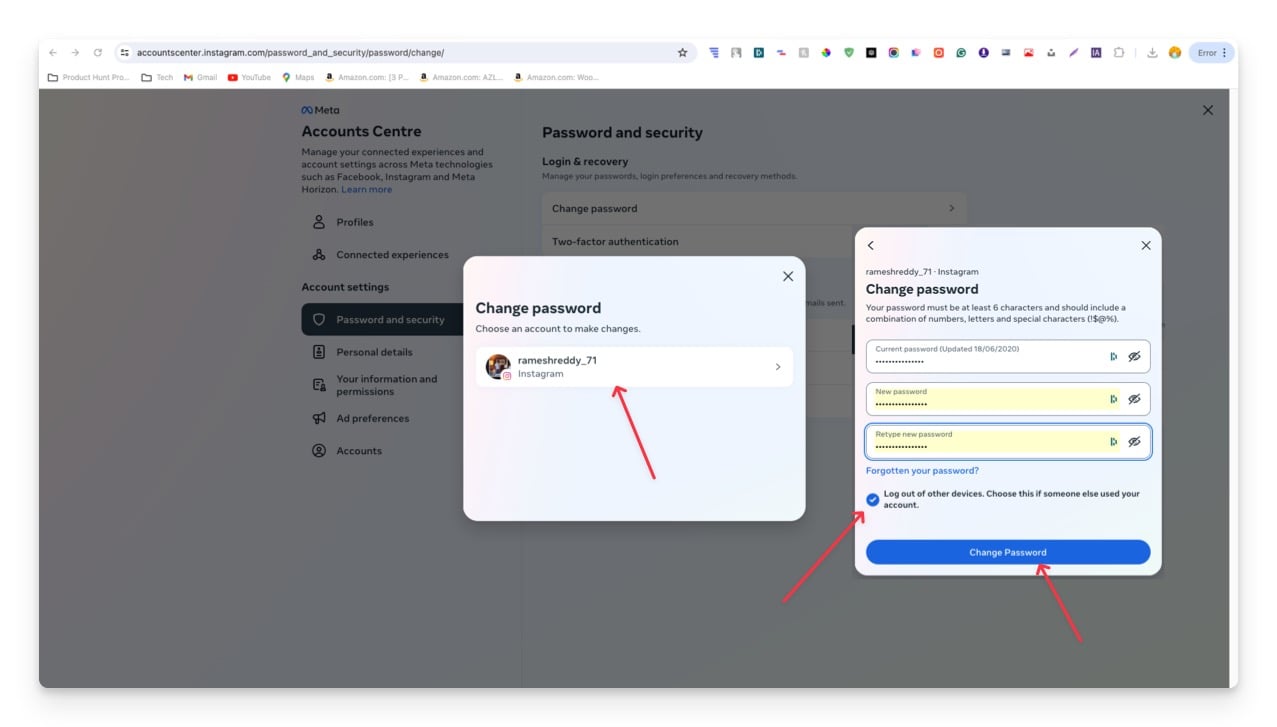
Changing Password on Desktop | 1. Visit Instagram.com > More > Settings. 2. See more in Account Center. 3. Password and Security > Change password. 4. Select account > Enter current and new passwords > Select "Log out of all devices" > Change password. |
Logout Instagram From Account Center
The Account Center lets you view all the devices your account is signed in to and sign out of them. You can access the Meta account center from a mobile or desktop site.
Using the Instagram App
- Step 1: Open the Instagram app on your smartphone and go to Settings.
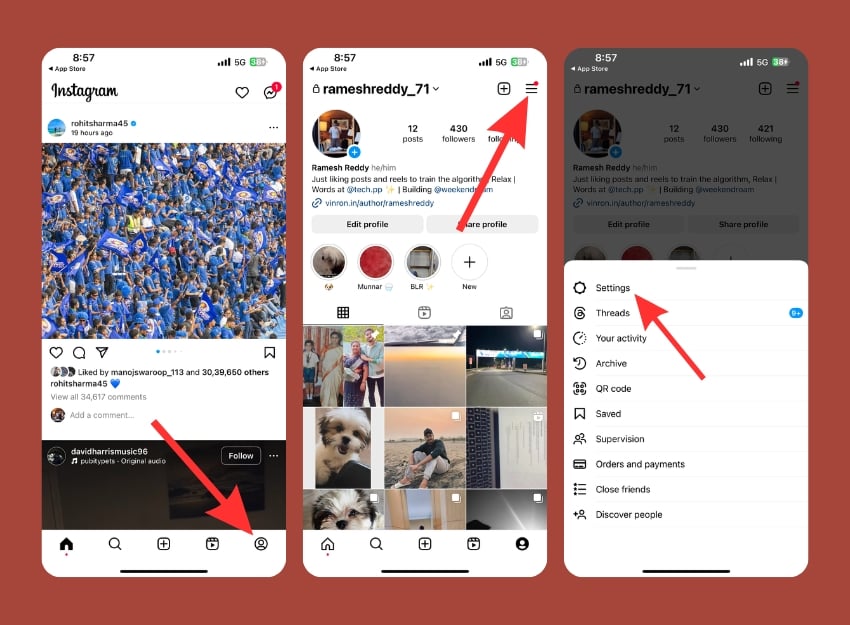
- Step 2: Click on the Account Centre.
- Step 3: Under Account Settings, Click on Password and Security.
- Step 4: Under the section security checks, tap on Where you’re logged in.
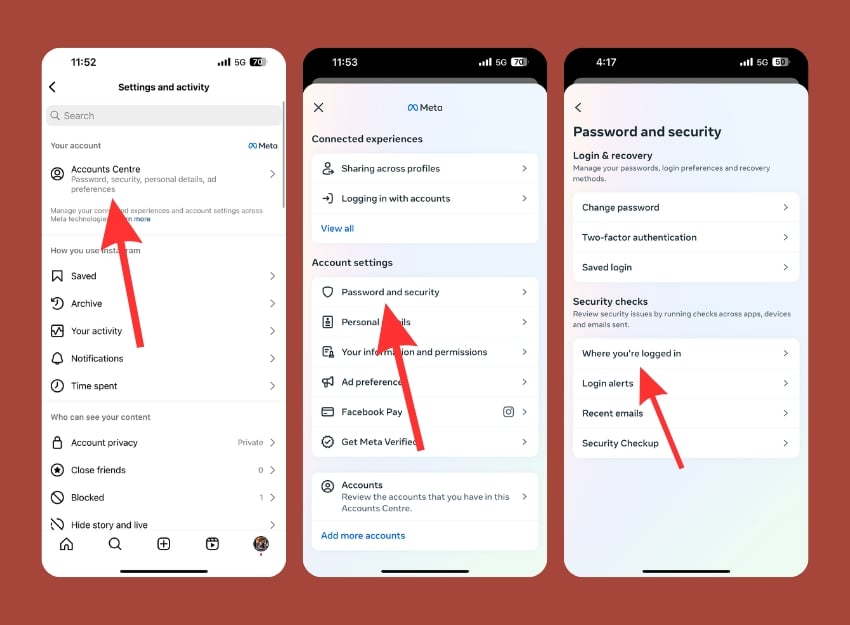
- Step 5: Select the Instagram account you want to log out from other devices
- Step 6: Select the devices and click on the Logout. To select all, click on the Select devices to log out and Select all

Using the Desktop Site
- Step 1: Visit the Instagram Account center (https://accountscenter.instagram.com/) on the desktop and go to Password and Security.

- Step 2: Under the security checks, tap on Where you’re logged in.
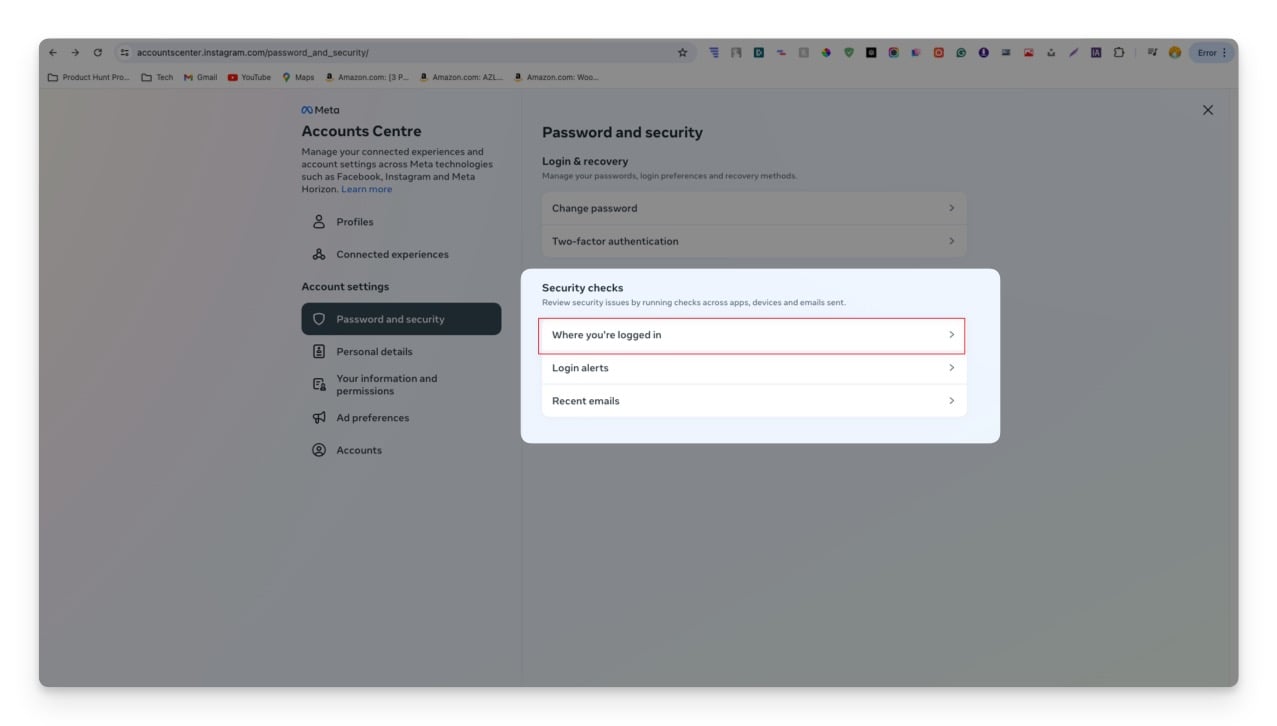
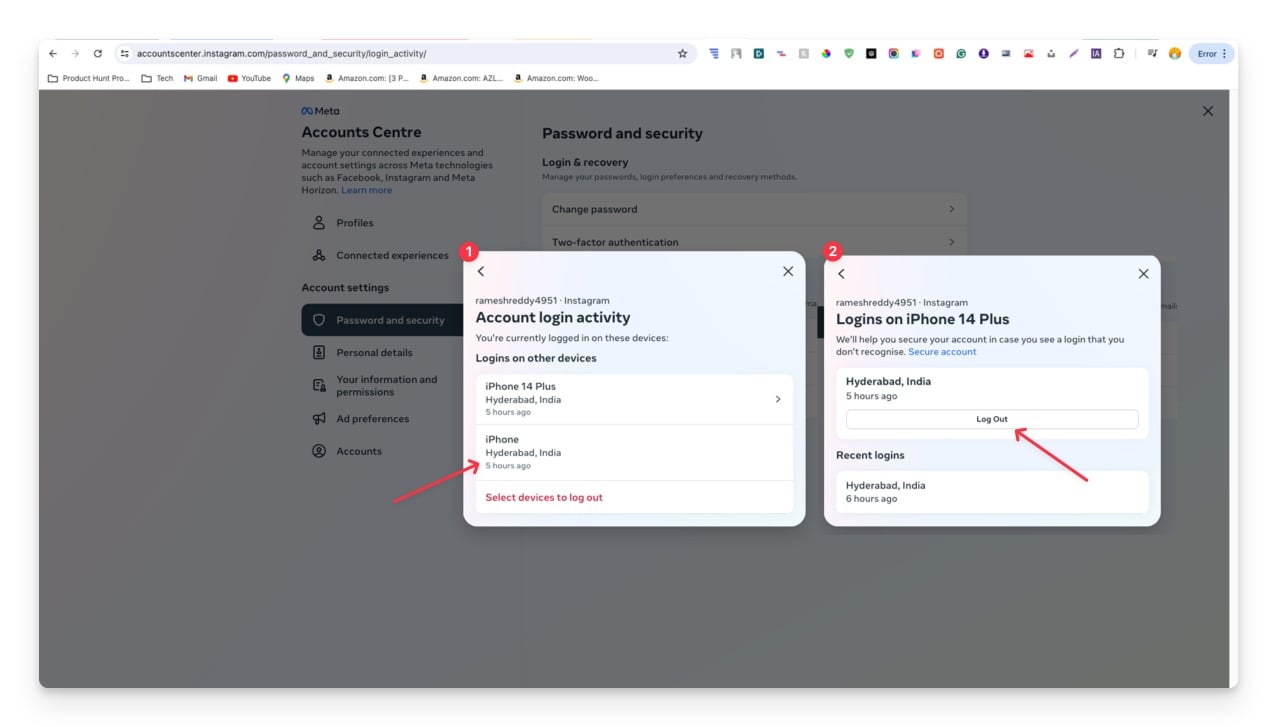
- Step 3: Select the Instagram account you want to log out from another device

- Step 4: Select the devices and click on the Log Out.
Change Your Instagram Account Password
Changing your Instagram password will automatically log you out of your Instagram account from other devices. While changing the password, select logout from other devices to activate this feature.
Changing Password on Instagram App
- Open the Instagram app, go to your profile screen, and go to Settings.
- Click on the Account Centre in the settings and click on Password and Security.
- Now tap on the Change password.

- Select your Instagram account.
- Enter old and new passwords, check the box Log out of all devices, and click on Change password.

Changing Password on Desktop
- Visit Instagram.com, click on More on the sidebar, and tap on Settings
- Click on See more in the Account center
- Click on the Password and security and then Change password.
- Now, select your Instagram account, enter your password, check the box that says Logout of other devices, and click Change password. This will automatically log out of your Instagram account on other devices and change your password.
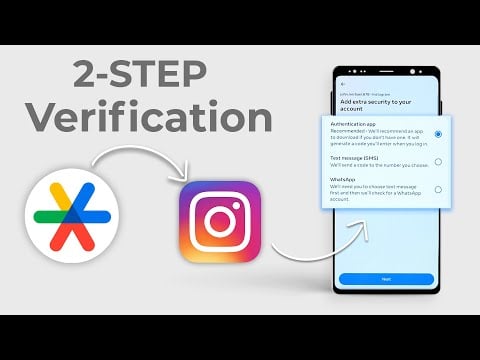
- Set up two-factor authentication to prevent others from logging into your account, even if they have access to the new password.
FAQs on Logging Out of Instagram Everywhere
Can I Log Out Without Deleting the App?
Yes, you can log out of Instagram without deleting the app. Visit the account center from the app and follow the method we discussed in the video.
How Do I Know if I Am Logged Out From Other Devices?
You will see a popup saying your account is logged out. You will see a login page asking for your username and password whenever you open the app or the website. You can also review current active sessions from Settings>Account Center>Password and Security>Where You're Logged In
What Should I Do if I Can’t Log Out?
If you cannot log out of Instagram using the traditional methods, you can try changing your account password. This will reset all current active sessions.
Is Logging Out the Same as Deactivating My Account?
Logging out and deactivating your Instagram account are two different actions. When you log out, your current session ends. You can log back in anytime, and all your data will be stored securely.
On the other hand, when you deactivate your account, it will be temporarily disabled. Your Instagram activity, including your profile, photos, comments, and likes, will be hidden from other users. You can log back into your account to reactivate it at any time.

