

Quick Answer
On the web, go to Settings > Security > Log out of all devices. The logout of all devices feature is currently only available on the web. If you use the ChatGPT mobile app, log in with your account on the web to access this feature.
Several users have reported seeing unfamiliar conversations in ChatGPT. This may be due to someone else accidentally using your account or a bug in ChatGPT. It is always a good practice to check the devices you are signed in and sign out of unknown devices to keep your account secure. Addressing this issue, OpenAI has added a ‘Log out of all devices’ feature to remove all active sessions across all devices, including your current session. According to OpenAI, It may take up to 30 minutes for other devices to be logged out.

Table of Contents
How to Sign Out of ChatGPT on All Devices
Log Out of All Devices Using Web
ChatGPT now officially has support for logging out of all devices on the Web. Using this feature, you can remove active sessions on ChatGPT across all devices including your current session. It may take up to 30 minutes to log out on other devices. The feature is currently only available on the web. If you are using the ChatGPT app, log in with your same account on the web and follow the steps.
- Step 1: Visit chatgpt.com and sign in with your account.

- Step 2: Click on your account icon and then select “Settings.”
- Step 3: Click on the “Security” tab on the sidebar.
- Step 4: Now click on “Log out of all devices. ”

Change Your ChatGPT Account Password
Resetting your password is one of the easiest ways to sign out of all devices. When you reset a password, anyone who signed in with the old password will be automatically signed out and will require the new password to sign in. If you are using an email and password to log in to ChatGPT, follow the steps to reset your password.
- Step 1: Visit chatgpt.com and click on Login. If you already logged into your account, Log out of your account, or open an incognito browser window and click on Login.

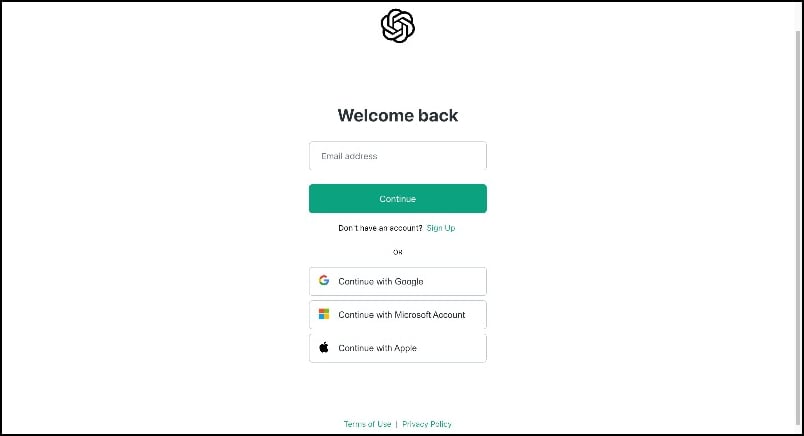
- Step 2: Go to the login page and enter your email and click ‘Continue‘.
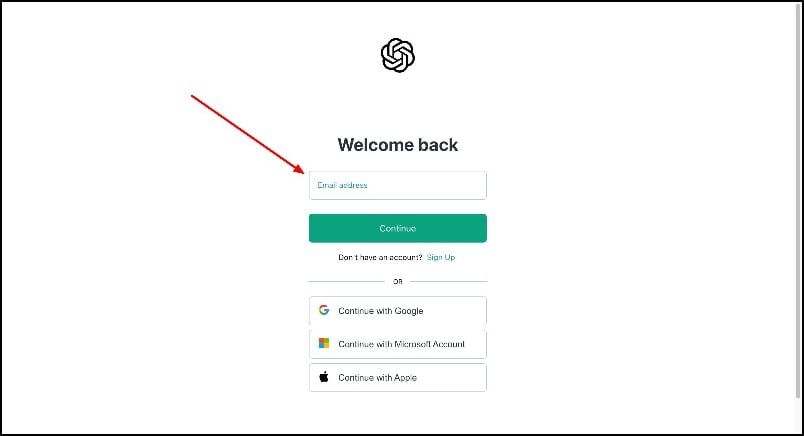
- Step 4: Click on ‘Forgot password?‘.

- Step 5: Enter your registered email
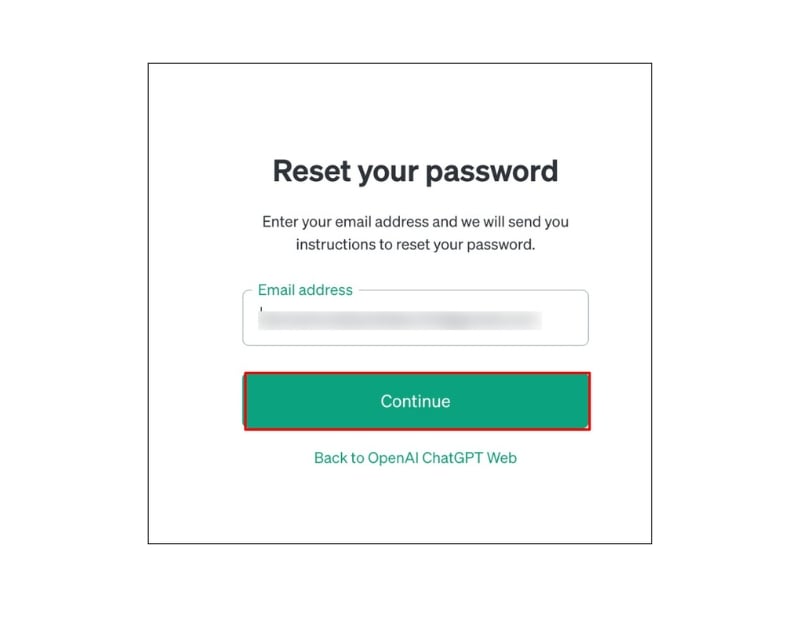
- Step 6: Open the email received from Open AI click the Reset password and enter the new password.

Reset Your Google Account Password
If you use Google sign-in, you can easily change your password and revoke OpenAI’s access. Here’s how:
- Step 1: Visit https://myaccount.google.com/security, then scroll down and click on “Password. ”
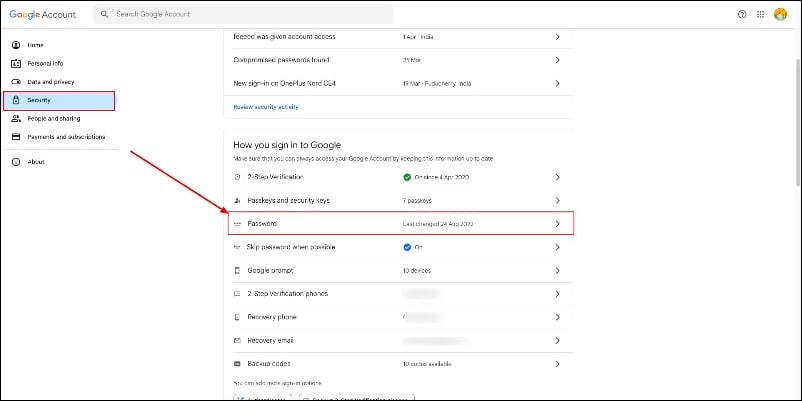
- Step 2: Sign in to your Google account and set a new password.
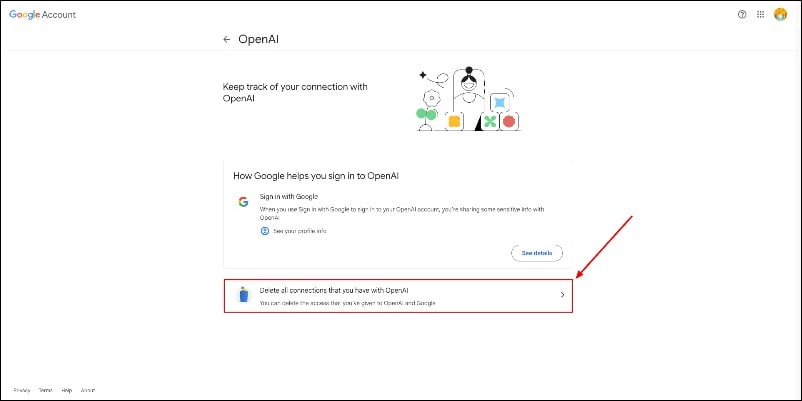
- Step 3: To unlink OpenAI from your Google account, visit https://myaccount. google. com/connections (Remember once you unlink your account you will not be able to sign in with your Google. However you can link back again in the future).
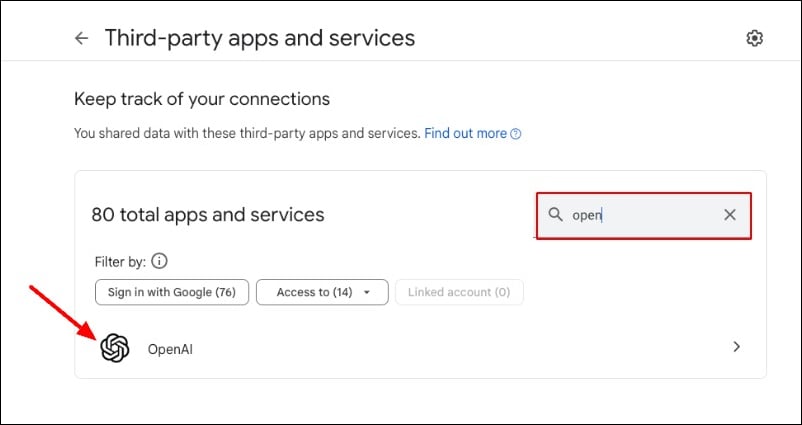
- Step 4: Search for “OpenAI,” scroll down, and click “Delete all connections that you have with OpenAI.”
How To Enable Multi-Factor Authentication on ChatGPT
After changing your password, it is highly recommended to set up two-factor authentication (2FA) to further secure your account. This will prevent unauthorized access even if someone gains access to your new password. Please note that 2FA can only be set up when logging in without using social sign-up and by using email and password.
- Step 1: Log into your OpenAI account on chat.openai.com.
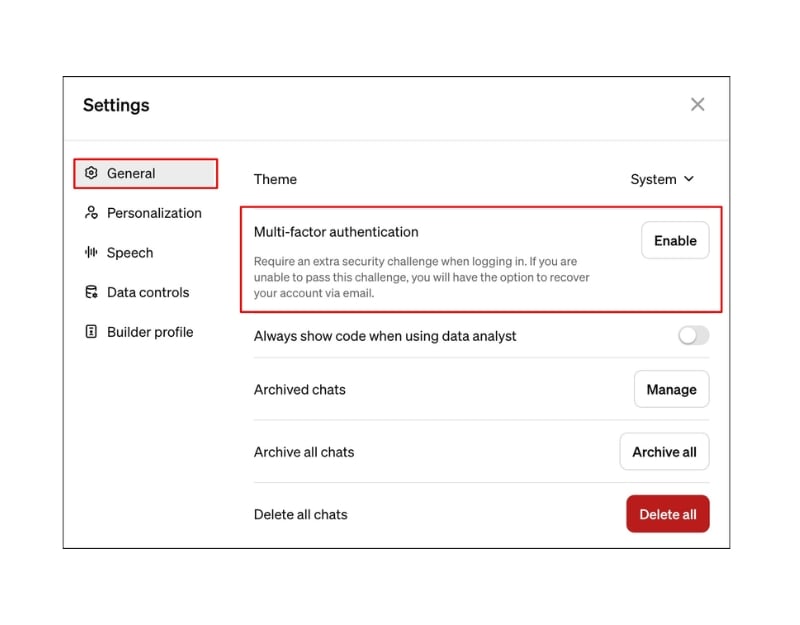
- Step 2: Click on your name and click on the Settings

- Step 3: Under General, click “Enable” to turn on Multi-Factor Authentication and log into the account again.
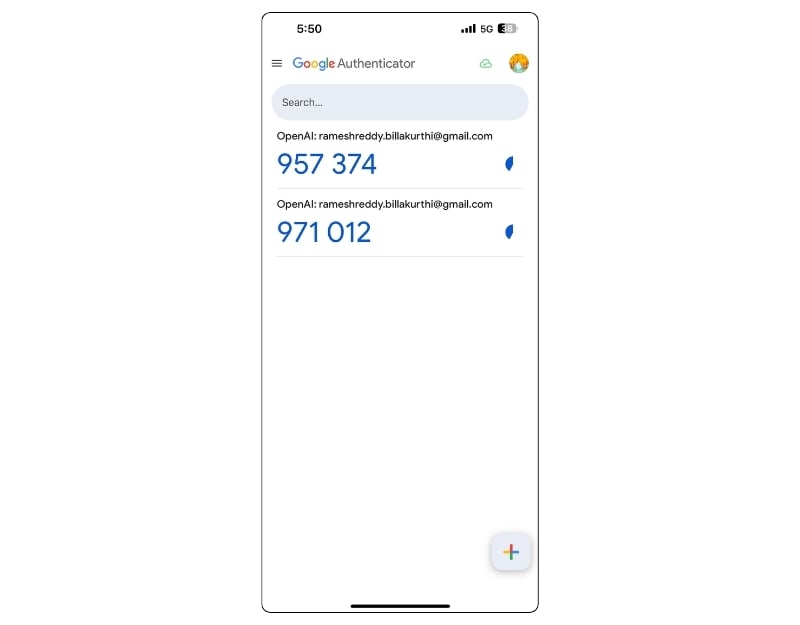
- Step 4: Now, Scan the provided QR code with your authenticator app and enter the one-time code. You can use Google Authenticator (Android, iPhone) or Microsoft Authenticator (Android, iPhone). You can install them for free on the Play Store or App Store.

- Step 5: Open the app scan the QR code and enter the generated code.
- Step 6: Save the recovery code provided for future use in case you lose access to your authenticator app.
- Now, every time you log in, you will need to use the code generated by your authenticator app.
Stop Unwanted Access in Your ChatGPT Account
The “Sign Out of All Accounts” allows you to sign out of devices with a single click. However, ChatGPT currently doesn’t come with this feature, making it hard for someone who wants to remove their account from unknown devices.
To secure your account, you can try resetting your password or adding two-factor authentication. If you are signed in with your Google account, you can change the password for your Google account. However, in most cases, ChatGPT keeps the current session active and these steps might not work. In that case, you can delete your account.
Remember, if you subscribed to the premium, you might lose access to your premium subscription linked to the account when you delete it. To avoid this, you can delete your account at the end of the subscription plan or if you are using a free version you can back up your chats and delete your account.

