

Quick Answer
- On the Facebook app, click Settings > Account Center > Password and Security> Where You’re Logged In, and select the devices you want to sign out of. Follow the same process on the web.
- You can also change your password to log out of your Facebook account from other devices automatically.
- Remember your account password and make sure you have valid linked mobile number or email incase if you want to recover your account.
Table of Contents
How To Log Out of Facebook on All Devices
Sl No | Method | Steps |
|---|---|---|
1 | Logging Out on Mobile | 1. Open Facebook > Profile. 2. Settings & Privacy > Settings. 3. Account Center > Password and Security > Where you're logged in. 4. Select account > Select devices > Log out. |
2 | Logging Out on Desktop | 1. Visit Facebook.com > Profile picture (top right). 2. Settings & Privacy > Settings. 3. See more in Accounts Center (left sidebar). 4. Password and Security > Where you're logged in. 5. Select account > Select devices > Log out. |
3 | Changing Password on Mobile | 1. Open Facebook > Profile. 2. Settings & Privacy > Settings. 3. See more in Accounts Center. 4. Password and Security > Change password. 5. Select account > Enter current and new passwords > Select "Log out of all devices" > Change password. |
4 | Changing Password on Desktop | 1. Visit Facebook.com > Profile picture (top right). 2. Settings & Privacy > Settings. 3. Password and Security > Change password. 4. Select account > Enter current and new passwords > Select "Log out of all devices" > Change password. |
Logout Facebook From the Account Centre (Mobile)
You can use the Meta account center to log out of Facebook from all devices. You can review the devices your account logged in and sign out of them in just one click.
- Open the Facebook app and click on your profile in the bottom right corner.
- Click on Settings & Privacy and then click Settings

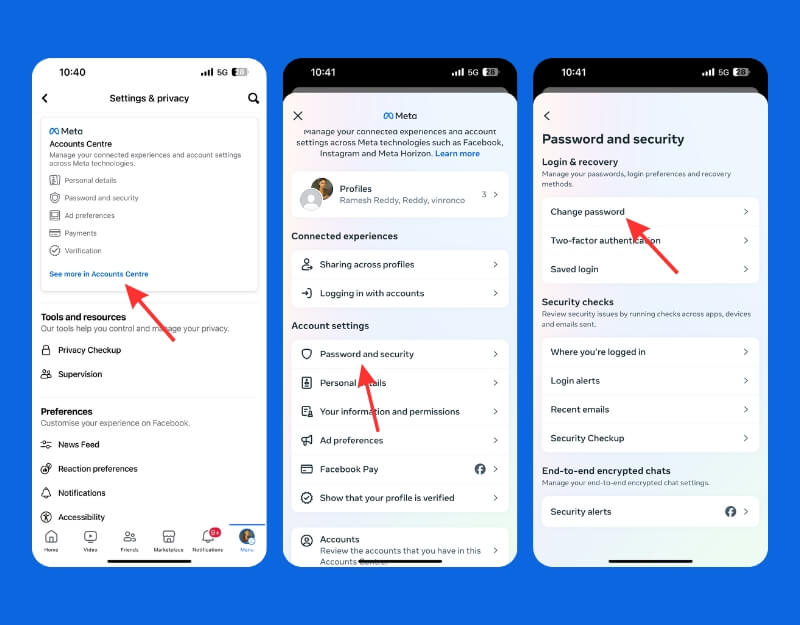
- In the settings, click on See more in the Accounts center.
- Under the Account settings, click on the Password and security
- Now click on the Where you’re logged in

- Select the account you want to logout
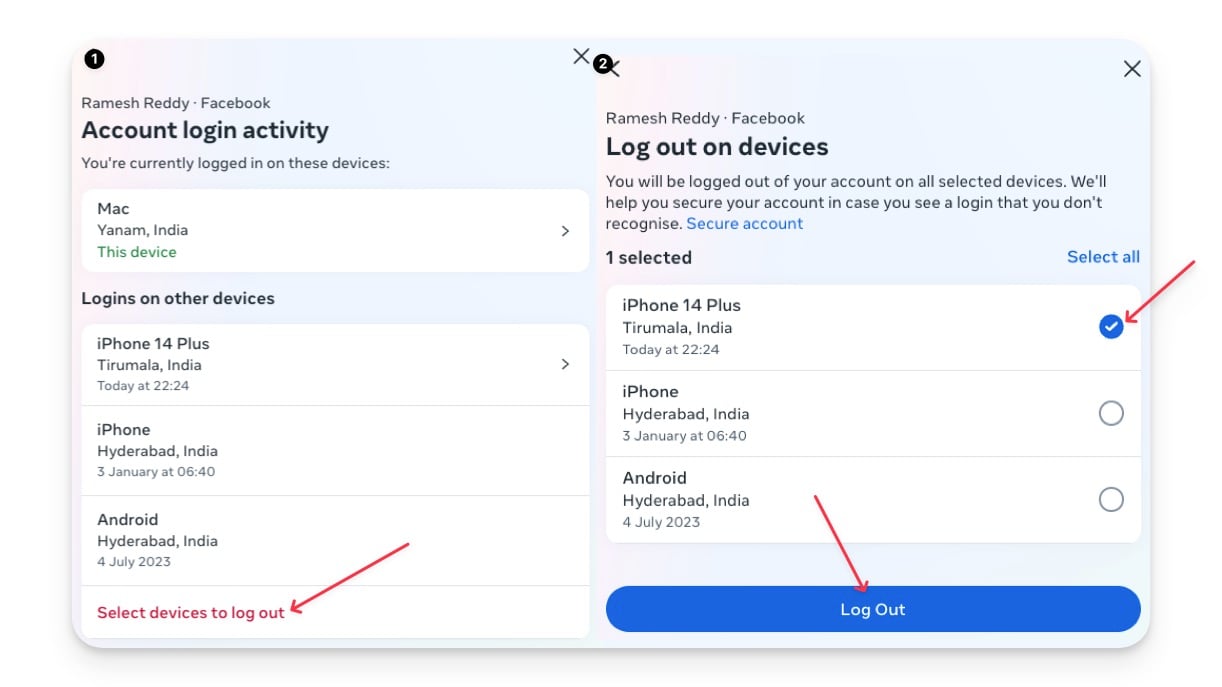
- Now select the devices you want to log out. To log out of all devices, click on Select devices to log out and then click on Select All and Log Out.

Log Out of Facebook From Account Centre (Desktop)
You can log out of Facebook from other devices using the Meta account center on desktop. Here is how:
- Visit Facebook.com and click on your profile picture in the top right corner of the screen.

- Click on the Settings & privacy and then click on the Settings.

- Now, click See more in the Accounts Centre on the left sidebar.

- Now click on the Password and Security under account settings.
- Click on Where you’re logged in and select the account you want to remove

- Now, select the devices you want to remove the account from

- To log out of all devices, click Select Devices, tap Select devices to logout, and click Log Out.
Change Your Facebook Account Password (Mobile)
Changing your Facebook account password also logs your Facebook account out from other devices. Facebook offers an option to logout of others when you change your account password. Remember to select “Log out of other devices” option when during the process.
- Open the Facebook app and click on your profile.
- Click on Settings and privacy and then Settings.
- Click on See more from the Account Centre in the settings.
- Click on the Password and Security.
- Click on the Change password.
- Now select the account to which you want to change the password.
- Enter the current and new passwords, select the log out of other devices check box under the password, and then click the Change password button. This will automatically log you out of your account from other devices.

Change Your Facebook Account Password (Desktop)
Similar to the mobile app, You can use a desktop version to change password for your Facebook account, here is how:
- Visit Facebook.com and click on your profile picture in the top right corner of the screen.
- Click on the Settings & privacy and then click on the Settings.
- Click See more in the Accounts Centre on the left sidebar.

- Click on Password and Security and then click on Change Password.

- Now select the account to which you want to change the password.
- Now enter the current and new passwords, and make sure you select the log out of all devices check box under the password and then click on the Change password. This will automatically log out of your account from other devices.

- Enable two-factor authentication on your account to prevent others from accessing it even if they have your new password.

FAQs on How To Sign Out of a Facebook Account
Can I log out of Facebook remotely?
Yes, from the Meta Account Center, you can remotely log out of other devices and remove access by changing your password.
How can I improve my Facebook account security?
After logging out, enable two-factor authentication for your account. This way, even if someone gains access to your new password, they will still need a secondary code to log in.
What should I do if I forget to log out on a public computer?
If you forget to log out, visit the Account Center and find the public computer. Remove your account from it. For best practices, change your account password.
Is there a way to automatically log out of Facebook after a certain period?
No, Facebook doesn't offer an option to log out automatically after certain periods. However, you can run this script on your browser to automatically log out of Facebook after a certain period. First, install the Tampermonkey extension for Google Chrome, click the plus icon, and add this script.

