

Quick Answer
Google’s Warranty Helper is an online tool that lets you easily check the warranty status of your Google devices. All you need to do is sign in with the Google account linked to the device whose warranty status you want to check. You can initiate a repair or replacement for your product or seek assistance fixing an issue yourself.
Are you experiencing issues with your Pixel device? Do you want to get it repaired or replaced? Either way, you’ll want to know its warranty status to decide accordingly. Thankfully, Google has a tool—aptly called Warranty Helper—to help you check your device’s warranty status, among other things.

Let’s dive in to learn more about Warranty Helper, find out what information it offers, and see how to use it.
What Is Warranty Helper?
Warranty Helper is a free online tool from Google that simplifies checking the warranty status of your Pixel devices.
Unlike the earlier solution, which required you to know your device’s serial number (or IMEI, in the case of a phone) to learn about its warranty information, Warranty Helper requires none. It’s easy to use and requires simply signing in with your Google account, after which it shows you all the warranty-related information about your device.
Besides, Warranty Helper also serves a few other purposes. For one, it lets you directly initiate a return and get a refund for your device if it’s within the standard return period. Then, if there’s a problem with the device, it allows you to start a repair or replacement process, saving you the hassle of contacting customer support. Last but not least, Warranty Helper also helps you find solutions to issues you’re experiencing on your device to fix them yourself.
Which Device Information Does Warranty Helper Offer?
As of the time of writing, Warranty Helper gives you warranty status-related information for the following devices as long as they’re bought from the Google Store:
- Pixel Phone
- Pixel Tablet
- Pixel Watch
- Pixel Buds
- Google Nest accessories
What Information Does Google’s Warranty Helper Show?
Google’s Warranty Helper tool shows you a bunch of information about your devices.
To begin with, you get the warranty status information, which contains information such as the warranty start date and expiration date. Then, there’s information about the return policy that tells you whether the return policy window for your device is open or closed.
If your device is under warranty and has issues, the Warranty Helper tool gives you a link to initiate the repair process. You can also track the repair status using the tool and check the status of your return or replacement order if you’ve raised one.
Finally, in case you bought your Google device from a different store and are experiencing issues with it, Warranty Helper offers solutions to help you identify and fix them yourself.
Related Read: Best Warranty Tracker Apps and Tools
How to Use Warranty Helper to Check a Google Device’s Warranty Status
Warranty Helper is easy to use. All you need to do is sign in with the Google account linked to the device whose warranty status you want to check. Here’s what the process looks like:
- Open Google’s Warranty Helper in a browser.
- Hit the Sign In button under Ready to Get Started? and sign in to your Google account linked or connected to the Pixel or Nest device.

- Warranty Helper will now ask you to confirm if the account you’re signed in is the one linked to your device. Hit the Confirm button to proceed.

- Now, select the type of product whose warranty status you want to check and hit Continue.

- Select what kind of help you need on the subsequent page. Choose Warranty Status and Options first to check your product’s warranty information.

- Warranty Helper will now show you a list of all the eligible devices linked to your Google account. Select the device you need help with and hit Continue to see all the warranty information for your Pixel or Nest device, along with its return policy status.
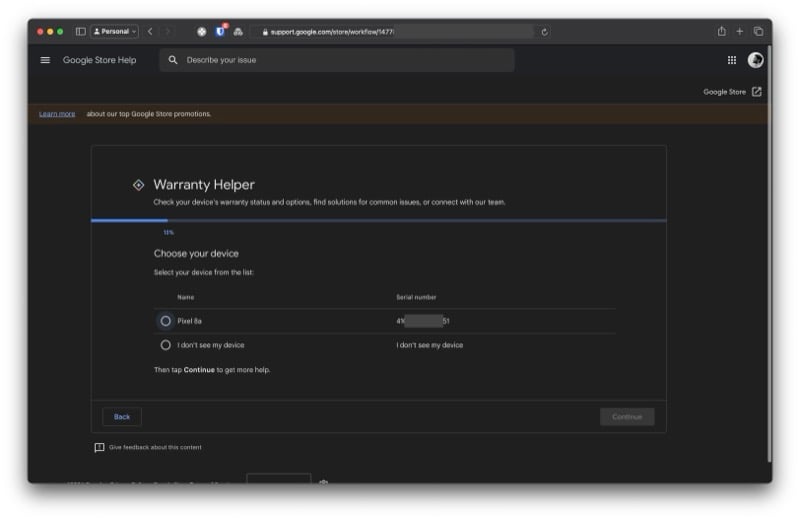
- If you need further help, be it to fix an issue or get help repairing your device, select the appropriate option under What’s Next, hit Continue, and select the relevant responses to the subsequent questionnaires to get the desired information or fixes to troubleshoot the issues yourself.

A Valuable Tool for Google Device Owners
Checking warranty coverage and initiating claims for your Pixel and Nest devices has never been easy. But thanks to Warranty Helper, which streamlines checking if your device is under warranty and initiating a return, repair, or replacement request, you can easily seek assistance for your Pixel or Nest device by answering a few questions.
Google’s Warranty Helper tool is available in all regions where Google officially sells its devices. However, your warranty coverage and repair/replacement process may vary depending on your country of purchase; the tool should provide this information accordingly.

