

Quick Answer
Math Notes is introduced in the latest version of iOS and iPadOS 18. It automatically calculates math equations and displays the results as you write. You can use it to solve various math problems and also save time when dealing with numbers in real life. Maths Notes is free and available on iOS and iPad within the Calculator app.
After years of anticipation, Apple has finally added the calculator app to the iPad. I was very excited about the new calculator app. It eliminates the need for a third-party calculator app for iPad and brings exciting features like scientific calculator support and math notes.

The scientific calculator is useful, but I was more excited about the Math Notes feature. I have been testing the Math Notes feature in real-life scenarios, such as taking math notes, calculating my monthly budget, and taking notes that involve calculation in my daily use.
I must admit that the Math Notes feature is very useful and one of the best use cases of AI in our daily lives. If you want to learn how to use Apple Math Notes, I will explain how to set up Apple Notes and maximize its potential. Before, please note that Apple Math Notes is available for iOS 18, iPadOS 18, and later devices. Your device should be running on iOS 18 and iPadOS 18 to use Maths Notes.
Table of Contents
What is Math Notes on iPadOS and iOS?
Apple Math Notes feature was introduced in iOS 18 and iPadOS 18. It lets you write, solve, and graph mathematical equations in real time. It also supports writing with Apple Pencil.
Features of Maths Solver:
- Automatically calculates and shows results as you write equations.
- Supports basic arithmetic, advanced calculus trigonometry, and graph plotting.
- Notes automatically sync with Apple Notes.
- Lets you edit values, change font colours, and adjust equations dynamically.
Using AI to help solve math equations isn’t new; Microsoft’s note-taking app, OneNote, has had this feature for years. There are also plenty of third-party apps like Mathway and WolframAlpha that offer similar functionality.
Apple Math Notes excels in many categories, such as inserting results directly into the Note as you write, auto-syncing between devices and advanced graph detection. On top of that, Maths Notes is available directly inside the calculator app; you don’t need to install any third-party app, and it is free to use.
How to use Math Notes on iPad Calculator App
You can use Math Notes in the Apple Notes or calculator apps. I prefer using it in the calculator app as it is more straightforward and offers clutter-free experience. Maths Notes is enabled by default on iPadOS 18. You can manually turn it off from the Note settings if it is turned off.
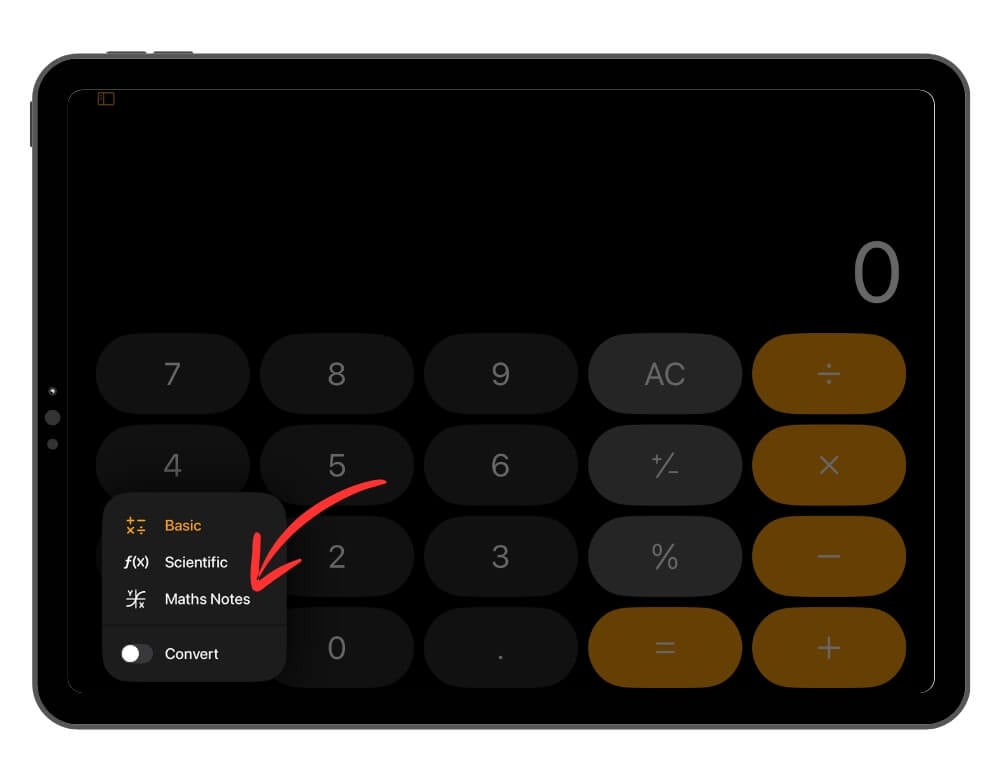
- Open the calculator app and click on the calculator icon. Alternatively, Open the Notes app, use or create a new note, click on the three-dot menu from the toolbar on the top, Select Maths Results and select Insert or Suggest results.

- Select Math Notes.
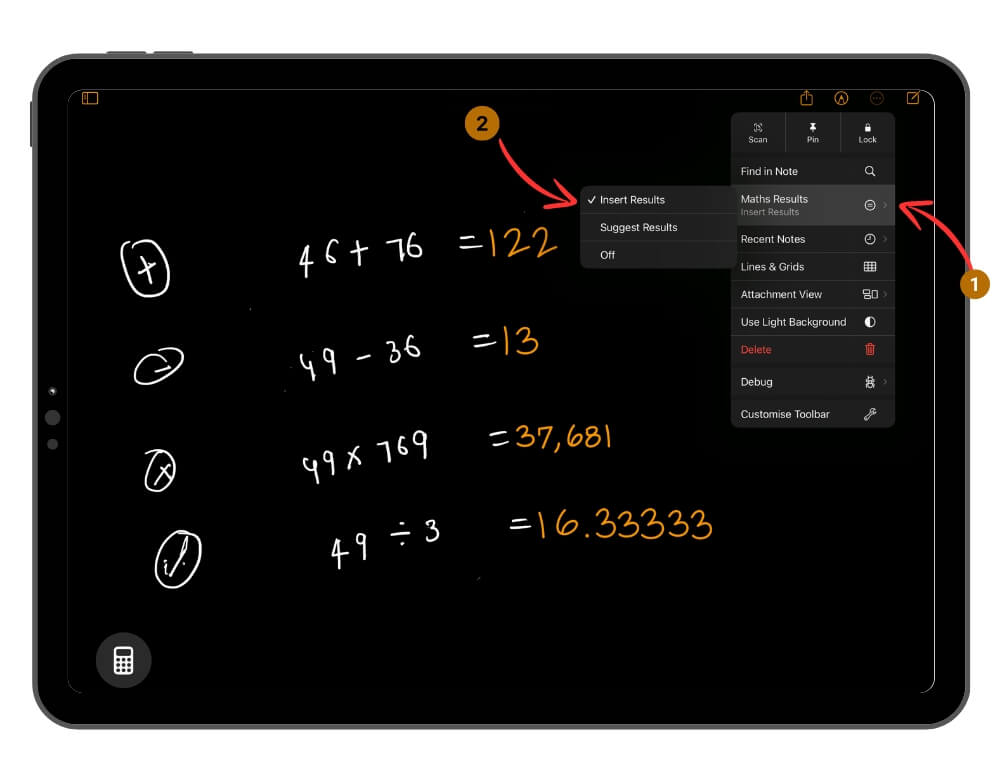
- Click on the three-dot menu on the top and select Maths Results.

- Select Insert Results or Suggestion Results to recommend suggestions instead of inserting the results.
How To Use Maths Notes for Solving Math Problems
After enabling the math notes, You can start writing the equations and get suggestions. Math Notes only supports limited math equations. I don’t have the entire list of supported types of questions, but here are the most common ones it supports: Basic Operations, Algebra, Geometry, Trigonometry, Calculus and more.
You can use your Apple pencil or keyboard to write equations. If you use Apple Pencil, ensure your writing is clear so the AI understands your questions and suggests the results.
Solving Basic Equations

Math Notes works great for basic math calculations. It is quick and accurate and shows instant results. To solve:
- Open Math Notes on your iPad and start writing the question. You can use the Apple Pencil or the keyboard to insert the equation.
- Make sure you input ‘=’ to get the results.
Solving Intermediate Equations

Apple Math Notes solver also lets you solve intermediate math problems such as basic trigonometric calculations, Logarithmic and Exponential Functions, Basic calculus, and more. Like the basic operations, you can enter the math equation and math notes and get suggestions.
Inserting and Interpreting Graphs

You can also insert graphics and perform graphical calculations in Math Notes. You can plot graphs for equations, visualize the data, and also interact with individual variables.
- Enter the Quadratic Equation, and you will see an option to insert the graph.
- Click on the Insert graph and place the graph anywhere on the screen. You can drag and drop, resize the graph, and more.
Customise the Math Notes
You can also customize the Notes. The best part is you can also cauterise the handwritten equation with your Apple pencil. Adjust values, customize the results, and more. Here is how:
- To change value: Tap on the number and use the slider to increase or decrease the value.
- To copy the equation, Tap on the equation and select copy. In the same way, you can copy the answer.
- Translate and straighten the number: Long press the value and select the options from the menu.
Effortless Math Problem Solving on iPad
Finally, an AI feature that isn’t a gimmick but is useful in real-time. Apple Math Solver is a handy feature, especially on iPad with Apple Pencil support. Students who regularly take math notes on the iPad will find this feature useful. Along with solving math equations, you can use it in other scenarios like summarizing your last month’s grocery bill, estimating travel time and fuel, and solving physics problems.
FAQs about Math Notes on iPad
Where can I find my saved Math Notes?
Math Notes are automatically saved into your Apple Notes. You can view them on Apple Notes or Open them in the Math Notes in the calculator app.
Can I use Math Notes offline?
Yes, Math Notes works offline as well.
Can I integrate Math Notes with other apps?
You can also enable Maths suggestions in the Apple Notes app. Integration with third-party apps is limited.
Can I share my Math Notes with others?
Open the Maths Notes in the calculator or the Notes app on your iPad, click the share icon at the top, and share your notes. You can copy the notes, send it via Airdrop, or share them with other third-party apps.

