

Quick Answer
Apple Notes doesn’t natively support templates. You can manually create a note with the desired format, duplicate it and use it as a template, or use Shortcuts to create a Template. Alternatively, you can switch to Apple Pages, the best free alternative to Apple Notes, with support for templates.
Apple Notes is the preferred notes app for many users. It is free to use, simple, and seamlessly integrates into the Apple ecosystem. However, it doesn’t support templates natively, and there is no sign of template support coming to Apple Notes anytime soon, as the latest versions of iOS and iPadOS are out and still don’t have support for templates.

Templates are very useful, especially for the Notes app. They can help you quickly structure your Notes, keep notes consistent, and save time. Fortunately, you can still get all those benefits using manual methods, shortcuts, and an alternative app like Apple Pages. Let’s look at each method, how to create templates using them, and which is best for you.
How To Use Templates in Apple Notes
Sl No | Method | Benefits | Limitations |
|---|---|---|---|
1 | Create Note Templates Manually | Simple, Saves time and maintains consistency. | You have to create templates manually and duplicate. |
2 | Using alternative apps like Apple Pages | Apple Notes comes with native template support and advanced text formating options. | Shift to the Apple pages and transfer your notes. |
3 | Using Shortcuts | Automates repetitive tasks and saves time. | Requires to create and setup short and technical knowledge. |
Create Templates Manually
You can manually create a note, duplicate it, and use it as a template. This is the easiest method and best suited for casual users who want a simple approach to creating structured notes and saving time. You can create multiple templates manually duplicate them, and replace the text with your text similar to templates.
Create a Folder for Templates:

- Open the Apple Notes app on your device.
- Go to the Folders tab, click the Folder plus sign, and add a new Templates folder. If you already have a templates folder, skip this step.
Create a New Note Template:

- Create a new note template. You can create any template. Example: Grocery template.
- You can structure the templates based on your needs. You can copy my template below if you want a grocery notes template.
Copy the Grocery Templates link.
Copy the content and add new Notes:
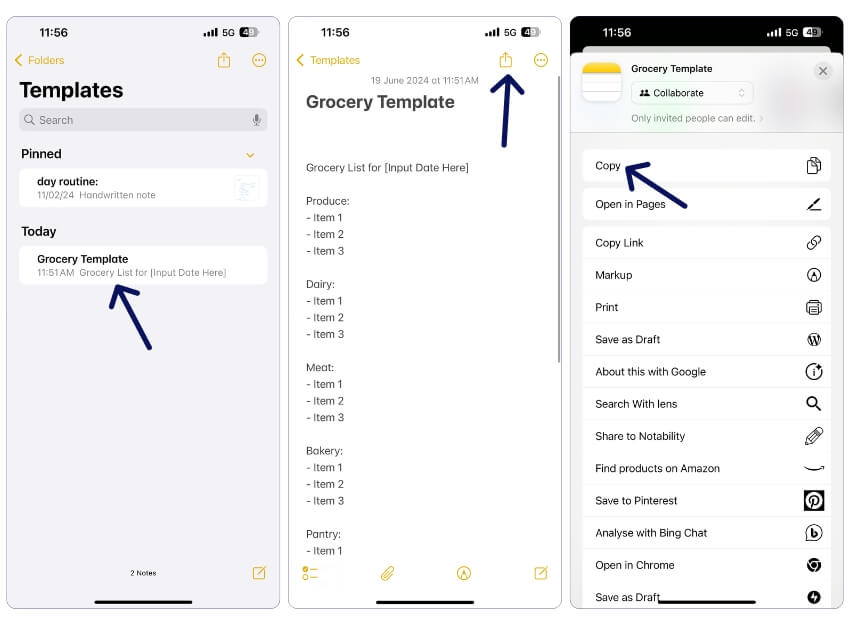
- To use this template, Go to the Templates folder, open the Template (Note) you want to use, click the share icon at the top, and select Copy from the menu.
- Now, Create a new note and paste the note. Replace the template text with your text.
Similarly, following the same method, you can create notes for to-do lists, budgeting, and more.
Use Apple Pages – Best Alternative to Apple Notes With Template Support
Apple Pages is a word processor for Apple devices, similar to Microsoft Word and Google Docs. It comes with advanced text formatting features and support for templates. Like the Notes app, Apple Pages is free to use and available for all Apple devices. I shifted to the Apple pages from the Notes a few months back. The experience isn’t very different from the Notes app.
It comes with a similar interface, is free to use, and the best thing is that it comes with support for templates, so you can also create your template and use it later. I also tried Goodreads and Notability, but Apple Pages remains my best option.
Here is a comparison between Apple Notes and Apple Pages for creating notes:
Feature | Apple Notes | Apple Pages |
|---|---|---|
Cost | Free | Free |
Template Support | No | Yes |
Customization | Limited customization | High customization with advanced design tools |
Ease of Use | Simple and easy to use | Complex compare to Notes app |
Text Formatting Options | Basic text formatting | Rich text and layout formatting options |
Multimedia Support | Embed photos, videos, and sketches | Supports images, videos, audio, and charts |
Lock Notes | Yes | You can hide with app lock |
How to use Apple Pages:
Install the Apple Pages App:
- Download and install the Apple Pages app from the App Store on your device.
Using Existing Templates:

- Open Apple Pages and click on the plus icon at the top.
- Tap on Choose a Template.
- Choose the template you want to use.
Creating Your Templates:

- Create a new page or open an existing document in Apple Pages you want to use as a template.
- Click on the three-dot menu and Select Export.
- Choose Pages Template.
- Click on Add to Template Chooser.
Exporting Notes from Apple Notes to Apple Pages:
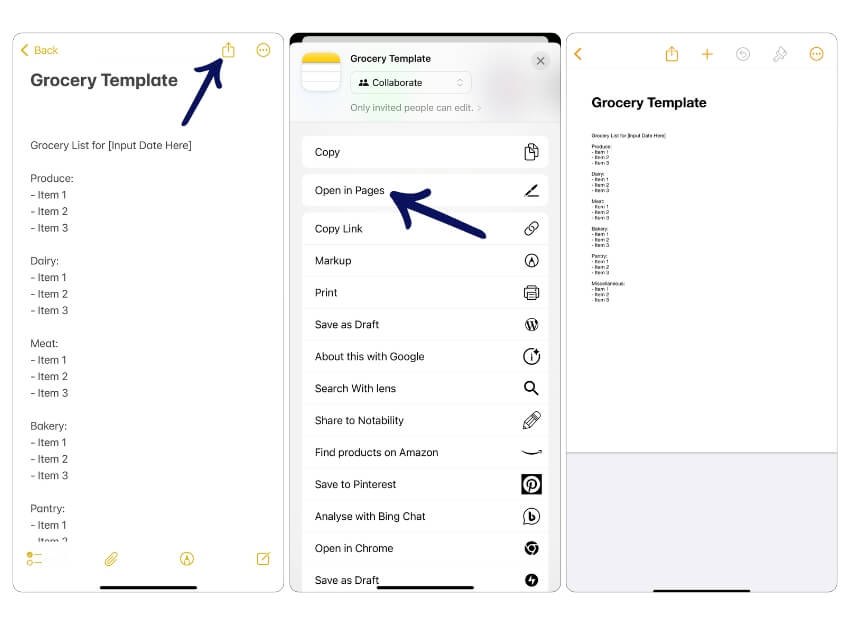
- If you want to export your existing notes to Apple Pages, open the notes you want to export in Apple Notes.
- Click on the share icon on the top and select Open in Pages.
- Your notes will be exported to Apple pages. You can start editing your notes or creating a Note template from there.
Use Shortcuts and Automation
You can also use shortcuts and automation to create templates in Apple Notes. However, this process requires several steps and technical knowledge to set up to automate shortcuts. If you are familiar with shortcuts, this is the best method I would recommend.
You must create a new shortcut for every note template you want to use in Apple Notes. You can edit the template and change future templates, but these changes will not be applied to the previous notes created with the older shortcuts. Let’s create a Budget template using the Shortcuts app on iOS. Alternatively, you can create class notes, recipe templates, weekly planners, and budget tracker templates.
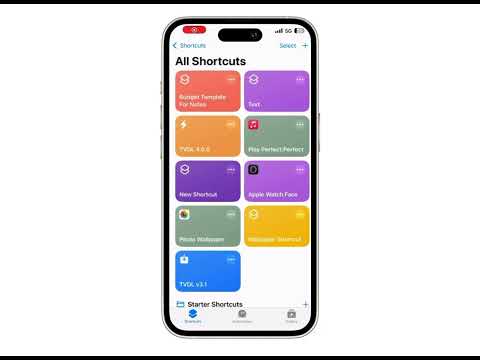
You can edit the text body of the notes and rename the shortcut. Download the shortcut and add it to your shortcuts app. Click on the three-dot menu, click on the drop-down menu, and rename. To edit the notes template, Click on the text and add your template. You can also duplicate the shortcut and create multiple Apple Notes.
How to create a Note template using Shortcuts
1. Open the Shortcuts App
2. Create a New Shortcut
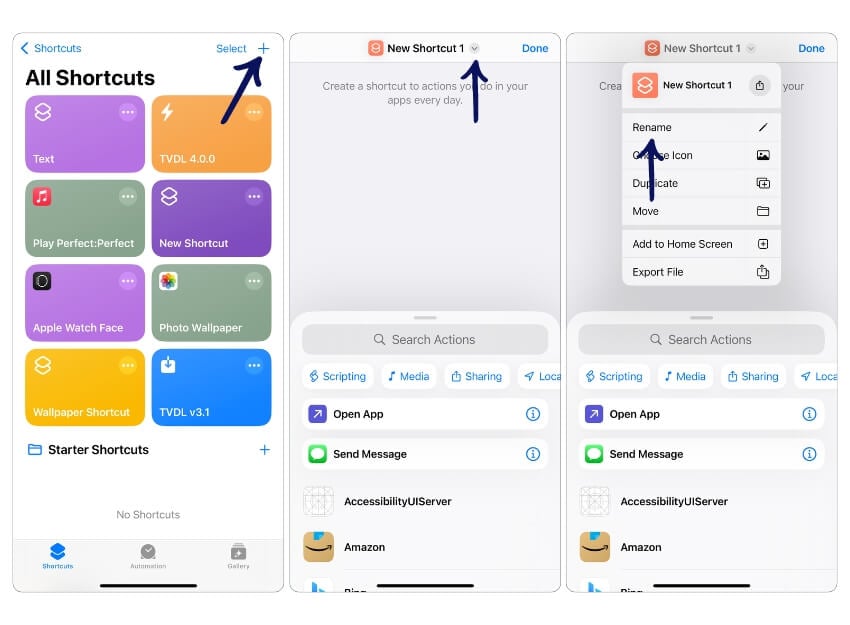
- Tap on the + icon to create a new shortcut.
- Tap on the Shortcut and click on Rename the shortcut.
3. Add actions to the shortcut.

- Click on the search action bar at the bottom and type text. This is the body of the text of your note. You can create your template Note template here. I am creating the budgeting template with income, expenses, and savings text in this case.

Image: Add the Create Note action in the Shortcuts app, set the note’s body to the budget template text, and select the Notes folder to save it. - Now, click on the search bar again, search for the Create Note action, and select the Create Note action. Tap on the body, select the text and folder, and choose the Notes folder to save your notes to the notes folder. You can also create a separate folder and add the notes to the folder.
- Click on Done to save your shortcut.
- Tip: Test the shortcut to ensure it creates the note correctly. Click on the Done and tap on the shortcut to run.
4. Add to Home Screen for Easy Access.

- Click on the drop-down menu and select Add to Home Screen to add a shortcut to the home screen.
- To create a template, tap on the shortcut from the home screen to run.
Wrap-Up: Simplify Your Note-Taking with Templates
You can use those three methods to create templates in Apple Notes. Using shortcuts is the best way to create templates; however, it might be complex for a regular user and involves going through multiple steps. If you prefer a simple process, consider manually creating templates and duplicating them as needed.
If you don’t want to go through these processes and are fine with switching to another app, Apple Pages is the best option and best alternative to Apple Notes, with support for templates and rich text editing options. You can also create your templates in Apple Pages.

