

Quick Answer
To use the iPhone Vehicle Motion Cues feature in iOS 18, swipe from the top-right corner to open Control Center, tap Add a Control, select Vehicle Motion Cues, and set it to On or Only in Vehicle. Small roving dots will appear on the screen edges to help reduce motion sickness by mimicking vehicle movements.
Apple announced the new iOS 18 at the WWDC 2024 event. The iOS 18 update is currently in developed beta, and recently the iOS 18 Beta 4 started rolling out to the developers. Apple introduced quite a lot of new features (Android users laughing in the corner!) such as home screen customization, light and dark icons, the ability to place the icons anywhere on the home screen, redesigned Control Center, a dedicated power button in the Control Center, ability to lock apps using Face ID, etc.

Among all of these novelty features, Apple also introduced a bunch of accessibility features with iOS 18, which makes using a pretty sweet experience. One of the accessibility features that would help users with motion sickness is Vehicle Motion Cues. This is one feature that would have a widespread appeal among car passengers, especially with motion sickness.
In this guide, we will discuss what Vehicle Motion Cues are and how you can enable the feature. Let’s dive into it.
What are Vehicle Motion Cues in iOS 18?
Apple’s research team found out that motion sickness occurs in a person when there is a sensory mismatch between visual input and physical feedback. And because of motion sickness, users aren’t able to use their iPhones or iPads when they are inside a moving car. To solve this problem, Apple introduced the Vehicle Motion Cues feature.
The Vehicle Motion Cues feature in iOS 18 is known to work with dots on your home screen. As you sit inside a car and your iPhone starts moving, you will see dots on the screen. The dots offer visual indications that correspond to the car’s motion. The moving dots on the screen showcase shifts in the direction, minimizing sensory conflicts without obstructing the content on your iPhone.
Apple explains, “With Vehicle Motion Cues, animated dots on the edges of the screen represent changes in vehicle motion to help reduce sensory conflict without interfering with the main content. Using sensors built into iPhone and iPad, Vehicle Motion Cues recognizes when a user is in a moving vehicle and responds accordingly. The feature can be set to show automatically on iPhone, or can be turned on and off in Control Center.”
How to use the iPhone Vehicle Motion Cues feature?
Download iOS 18 Beta
Notably, the Vehicle Motion Cues feature is introduced with iOS 18 and will only be available on iPhones running iOS 18. Since the iOS 18 update is currently in its developer beta stage, you need to enroll in the beta program. Here’s how you can do that.
- Visit beta.apple.com website.
- Click the Sign up button.
- Enter your Apple ID or phone number and register yourself for the beta program.
- Once registered, head over to Settings.
- Then tap on General.

- Select Software Update.
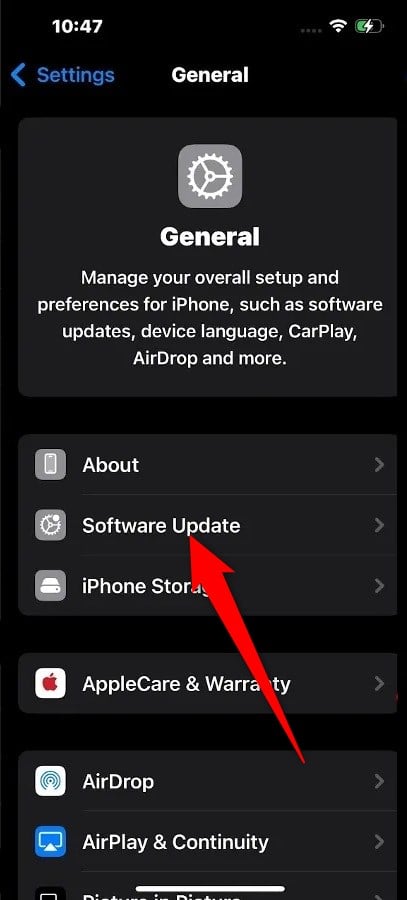
- Choose Beta Updates.

- Select iOS 18 Developer Beta.
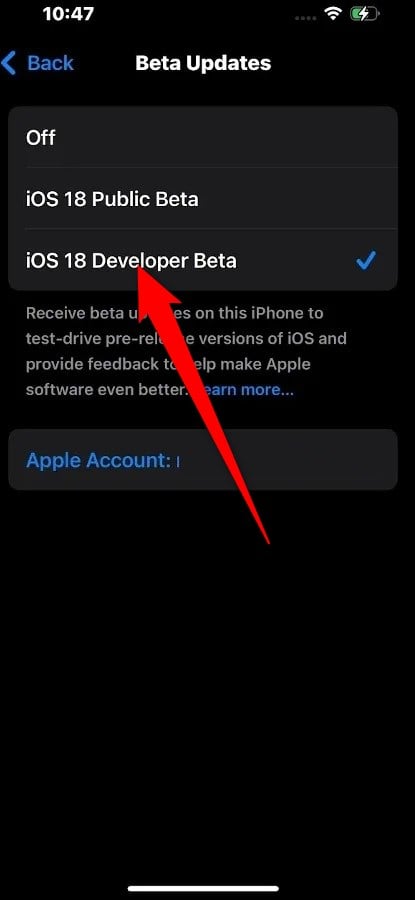
After you have installed the latest iOS 18 developer beta update on your iPhone, then you can proceed to turn on the Vehicle Motion Cues feature. However, do note that for some users the feature isn’t working from the Settings > Accessibility > Motion, likely due to a bug. However, you can give it a try by following the steps mentioned in the next section.
Enable Vehicle Motion Cues
Since the feature isn’t working for some when going via the Settings > Accessibility > Motion steps, you can try out the alternate way from the Contro Center. Here’s how you can do it:
- Swipe from the top-right corner of the screen.
- Press and hold the space in the Control Center to enter the customization mode.
- Tap the Add a Control button.
- Swipe up to the Vision Accessibility controls and select Vehicle Motion Cues.
- Press and hold a space in the Control Center to exit the customization mode.
- Tap the Vehicle Motion Cues button. You can choose between On or Only in Vehicle options.
If you have selected On, then you will see small roving dots around the edges of your iPhone’s display. If you have opted for automatic activation, then as soon as you are in a moving vehicle, the cues will appear. You will notice that the dots move side to side when your car takes a turn and move forward or backward when it changes speed. This accessibility feature takes the help of all the sensors on your iPhone to figure out you are inside a moving vehicle.
Mitigate your motion sickness
Apart from this, iOS 18 also brings a lot of great accessibility features, including the eye tracking feature, vocal shortcuts, etc. There are some other great features included in the iOS 18 update, which have already been enjoyed by Android users. Moreover, you can read our dedicated guide to using the iOS 18 feature to elevate your iPhone experience. Read our dedicated guide to learn how you can adjust the focus of the flashlight in iOS 18, which could come in handy in some situations.

