

Quick Answer
You can share your YouTube TV account across different houses by setting up a family group. This allows up to five family members to access content independently under one subscription, even in different locations, making it easier to enjoy streaming from multiple places.
When we talk about streaming video, ahead of Netflix or Amazon Prime Video, the first name that pops up in our heads is YouTube. YouTube has been our go-to video streaming platform that lets you access videos for free, with some ads (although the number of ads has now gone up). You can get rid of the ads on YouTube by paying a subscription fee for the YouTube Premium plan. The best part is that you can share your YouTube TV account with your family across different locations.

Family members will have the ability to independently access YouTube services without the need to share what they are viewing. This helps people view their local content from the comfort of their homes with just one subscription. Moreover, if everyone agrees, you can split the subscription cost among family members, making it easier on everyone’s wallet. In this guide, we will share with you the steps you need to follow to share YouTube TV account in different houses. Let us jump right into it.
Table of Contents
Rules and pre-requisites for sharing YouTube TV account
To share YouTube account with your family members, YouTube has set out some rules that you must adhere to. Below, we have listed all the pre-requisites required to start sharing a YouTube TV account with your family members at different houses.
- Sign up and get a membership: If you are using YouTube TV for the first time, then you need to sign up and purchase a YouTube TV subscription. For new users, YouTube TV offers the option of a trial, which can be perfect for testing the waters if you are unsure. During this trial, you will have access to 100+ channels.
- Create a family group: After getting YouTube TV membership, you can go ahead and create a family group. You can share a YouTube TV account with up to five members at no extra cost. You have to assign a family manager to oversee things. The family manager has a few perks:
- You can invite members to the family group. They should be 13 years or above.
- If you have purchased some extra add-ons, then family members can view these add-ons from their accounts.
- Location requirements: The family member needs to set a home area under which each family member must reside. Moreover, family members need to use YouTube TV in their home location to keep having access. But this guide will tell you a workaround!
- Simultaneous sharing: Family group members can use YouTube TV on up to three separate devices at the same time. However, do note that if a member watches YouTube TV on a smartphone and TV, then it counts as two devices.
- Account management: Each family member has to use their personal Google account to access YouTube TV, which ensures that the personalized settings remain private for each family member. Each family member can create their own library on YouTube TV, with their own viewing preferences and a DVR library.
- Device compatibility: You can use YouTube TV across a slew of devices and almost on every device, be it a smartphone, smart TV, tablet, computer, or gaming console.
How to share YouTube TV account in different houses?
Create a family group
- Sign in to YouTube TV.
- Click on your profile picture, and select Settings.
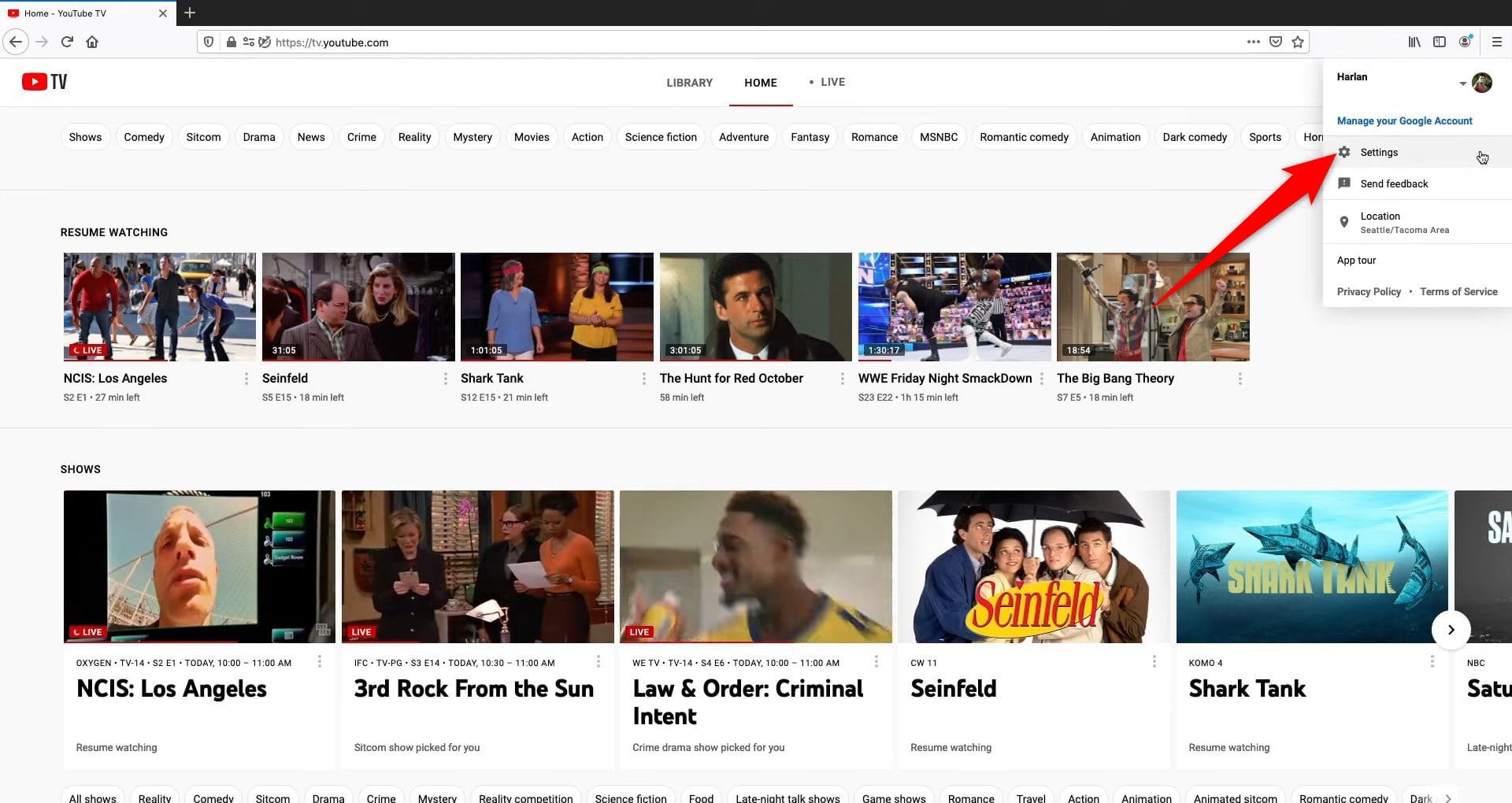
- Choose Family Sharing.
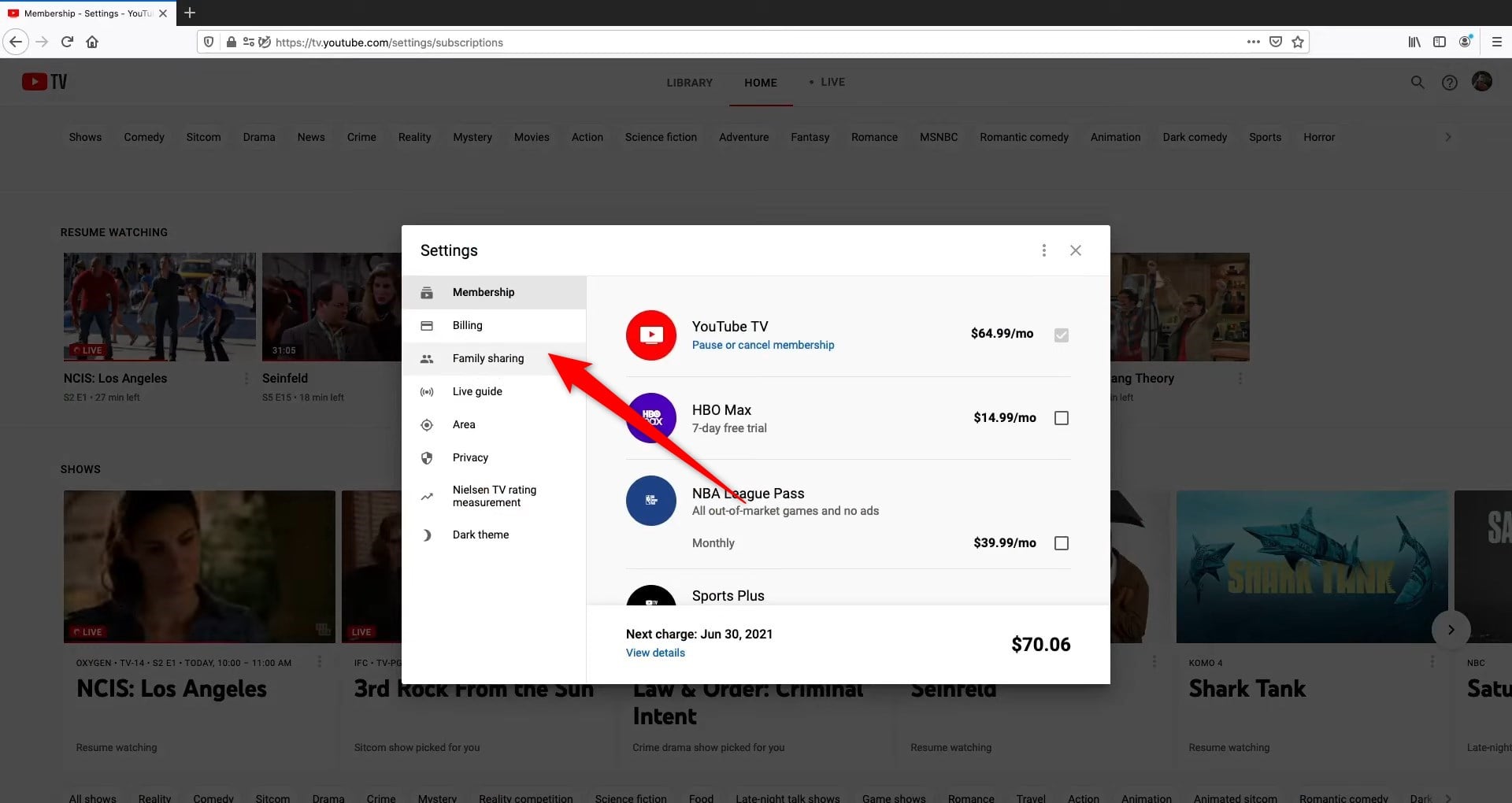
- Choose Manage.

- Create a Google family group.
- Accept the YouTube Paid Terms of Service and Google Privacy Policy.
- Choose Next.
Add family members
- Sign in to YouTube TV.
- Click on your profile picture and select Settings.
- Choose Family Sharing.
- Choose Manage.
- Enter the email address or phone numbers of members that you wish to add to the Family Group.
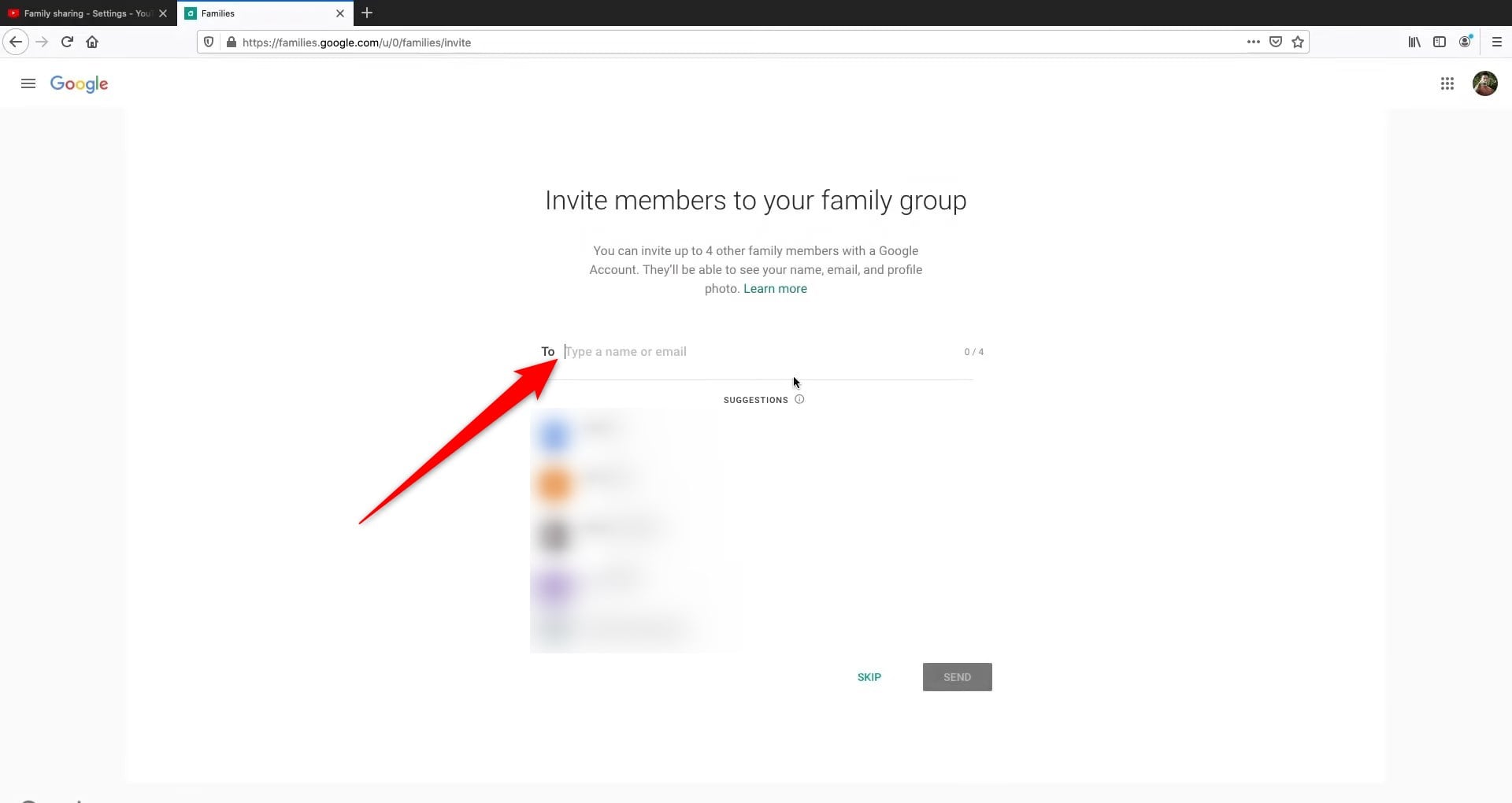
- Hit Send, and the invitation will be sent to the members.
- You will receive a notification whenever a member joins your Family Group.
After the family members have accepted the invitation, then they will be able to enjoy the perks of YouTube TV from various locations and different houses for at least 3 months beyond which they get locked out. In such cases, we have a workaround fix that we will explain later in this article.
Remove family members
Being a family manager, you have the power to remove members from your group. Here’s what you need to do:
- Sign in to YouTube TV.
- Click on your profile picture and select Settings.
- Choose Family Sharing.
- Choose Manage.
- Click on the family member that you wish to remove and select Remove member.

Once the member is removed, they will lose access to YouTube TV perks and will be notified via email. All other family group members will also get a notification about the removal of the member.
What should you do if YouTube TV family sharing is not working?
Many users have pointed out that the YouTube TV family sharing isn’t working for them despite following each of the above-mentioned steps. Here are a few things that you should keep in mind to fix the YouTube TV family sharing isn’t working problem.
- Ensure that the YouTube TV family requirements are met.
- Check the location of your intended members.
- Make sure that you are not a part of another YouTube TV family group.
- Check if an update is pending for the YouTube TV app or not.
- Restart the device and check if this fixes any underlying bug.
What does YouTube TV have in store to offer?
YouTube TV is like your regular cable TV but with many more features. Currently, it has over 200 channels to offer, including four major broadcasters: ABC, NBC, CBS, and Fox. YouTube TV costs $49.99/month for your first 2 months (Save $46), then $72.99/month thereafter for the YouTube TV Base Plan.
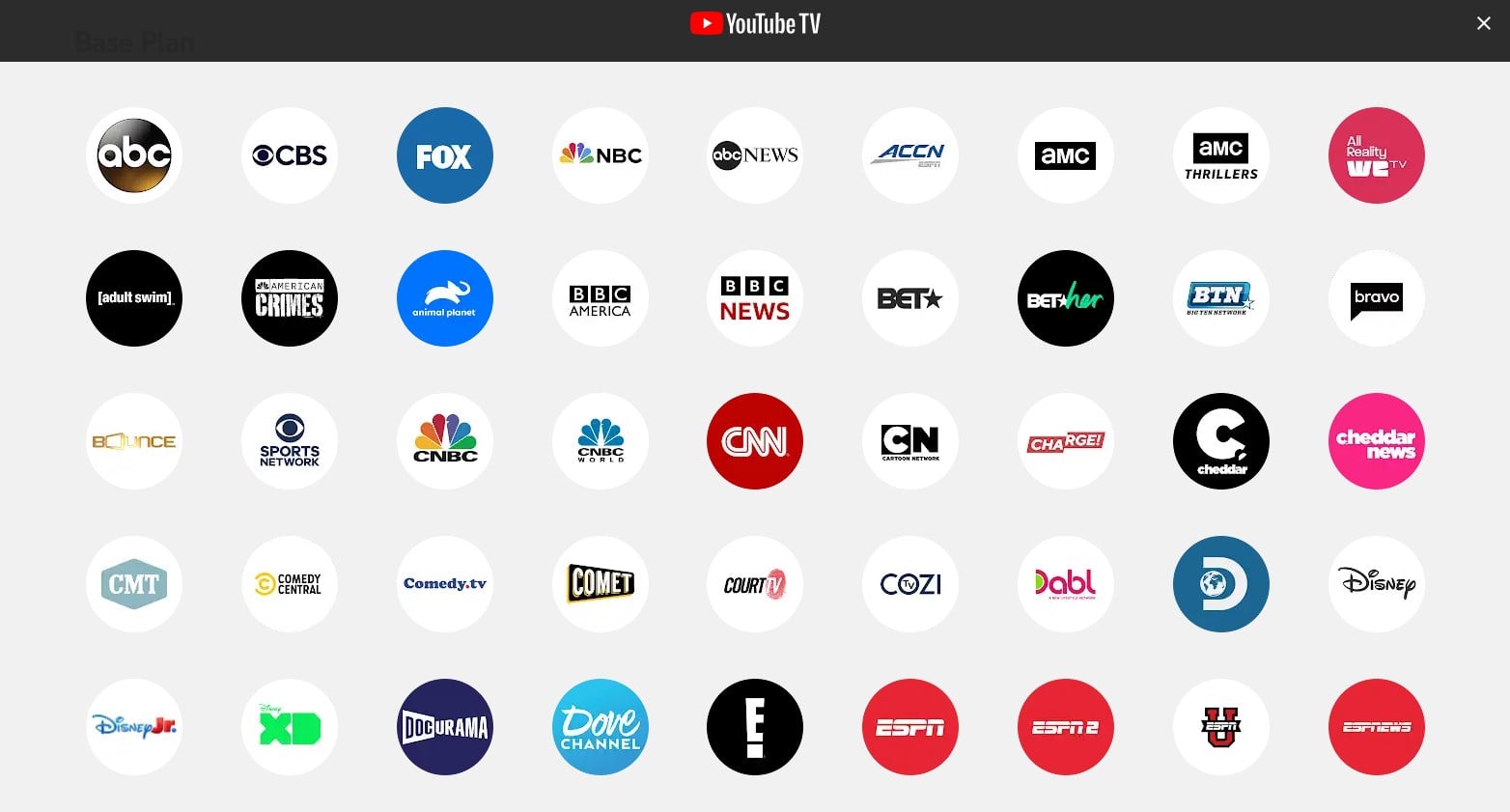
You get the option to view some of the shows, sports, and movies in 4K for an extra price. If you want Spanish content, then YouTube TV offers a dedicated Spanish plan for $35/month. It includes channels such as beIN ñ, beIN Xtra en Español, Antena 3, NTN 24, Nuestra Tele, TyC Sports, Discovery en Espanol, Discovery Familia, Baby TV Espanol, ESPN Deportes, Nat Geo Mundo, Estrella TV, Fox Deportes, Cine Latino, Pasiones, WAPA América, Cine Mexicano, Sony Cine, Tastemade, CNN Espanol, Bandamax, De Pelicula, De Pelicula Classico, FOROtv, Telehit, Telehit Urbano, and Tlnovelas.
Enjoy content from different locations under the same membership
YouTube TV family sharing gives a lot of benefits to users, one of which is the low cost of using across households. Members can watch live TV, recordings, and on-demand content from multiple places, which adds more flexibility. Let us know in the comments below if you use YouTube TV family sharing or not.

