

Quick Tips
- To keep Gmail from running out of storage space, delete spam and unread emails. Similarly, delete unwanted files from Google Drive and Photos to save cloud storage.
- If you don’t want to lose your data, you can create a new free Google account and forward existing emails to the new account. You can also store emails locally using third-party email clients.
- Lastly, for a hassle-free solution, you can subscribe to Google One. The basic plan costs $1.99 and gives you 100GB of storage and other benefits.
When you create a Gmail account, you get 15GB of free cloud storage. However, this storage is shared across all Google services, such as Photos, Drive, and others. If you use these other Google apps and services, there is a high chance you might run out of storage easily. Recently, I received a notification that my Gmail storage space was running out on the primary email account.

You can no longer send or receive emails when your storage space is full, which can be a serious concern, especially if Gmail is your primary account. I recently fixed the Gmail out-of-storage issue on my smartphone. After going through the steps, you have plenty of ways to fix the problem.
The most common and easiest method is to delete existing files in your cloud storage to free up space and increase your storage limit. You can also create a new free Gmail account and transfer or store emails locally on your device without any storage limitations. This guide will explain all these methods in detail and help you fix the “running out of storage” issue.
Table of Contents
Is Your Gmail Storage Full? 7 ways to Fix!
S.No | Method | Steps |
|---|---|---|
1 | Delete Old or Unread Emails | Open Gmail, Filter unwanted emails and delete them |
2 | Unsubscribe from Marketing Emails | Search unsubscribe in Gmail. Use filter delete spam |
3 | Use Google Storage Manager | Delete large files from Drive and Photos. |
4 | Compress and Re-upload Files to Google Drive | Compress and re-upload files to Google drive to save some space |
5 | Forward Emails to a New Account | Create a new free gmail account and forward emails to the new account. |
6 | Store Emails Locally | Store emails locally on yoru device using third-party email clients. |
7 | Subscribe to Google One | If you want to hassle free expericne, subcribe to Google one which cost $1.99 per month. For India you can subscibe to cheaper plan (59/- per month) |
Delete Your Old or Unread Emails
Unread or unwanted emails don’t take up much storage compared to other Google apps, but most of us have hundreds, if not thousands, of emails, just sitting in our inboxes, many of which are spam, marketing emails, or unread.
Deleting these emails might save you some storage. There are many ways to delete your emails, but be careful not to delete important ones, as it can be difficult to recover an email once it has been deleted from the trash.
Deleting emails on Gmail is pretty easy. You can select all emails and click the trash icon to delete them. However, this is not recommended since it could also delete important emails.
To help you, you can delete emails from specific senders, which is the most efficient method since most spam or marketing emails come from specific email addresses. We have a detailed guide on how to delete emails from specific senders. Follow the guide to learn more. Before deleting your emails, you can download a copy using the Google Takeout service. Visit Google Takeout, select Gmail, and export the data.
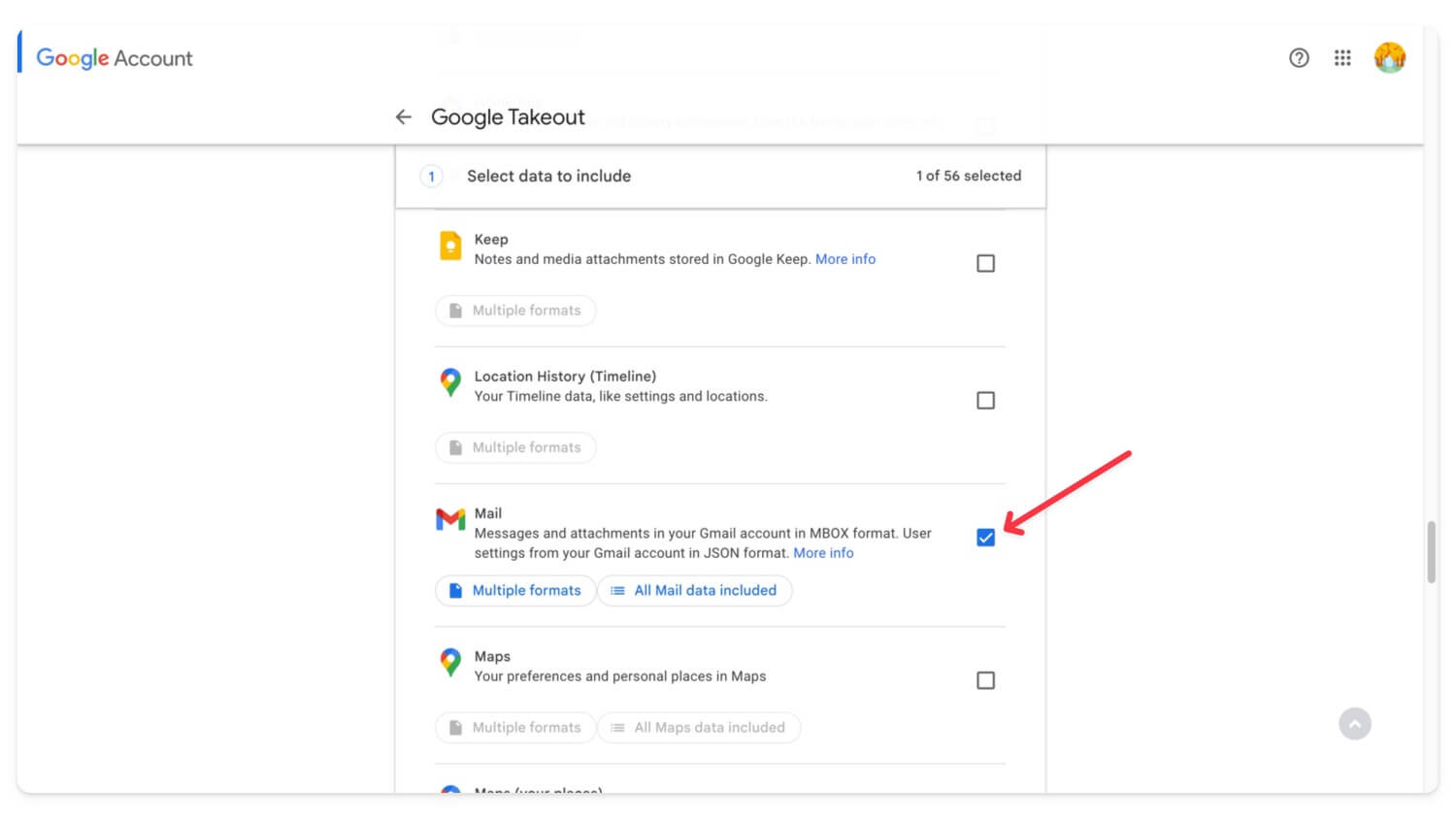
How To Bulk Delete Emails From Gmail
Desktop
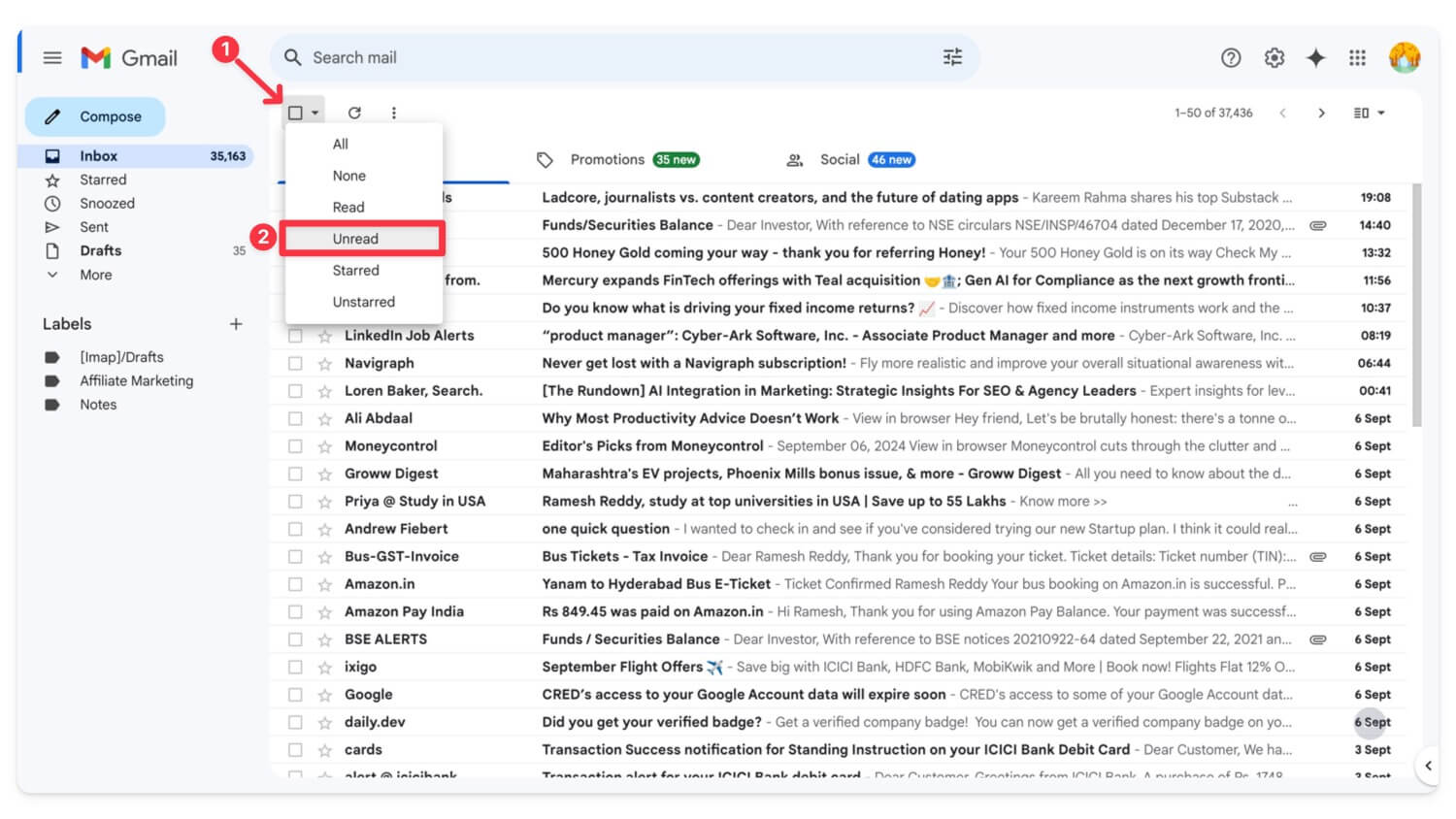
- Go to Gmail.com and sign in with your Google account.
- Click on the Select box and filter the email based on your preference.
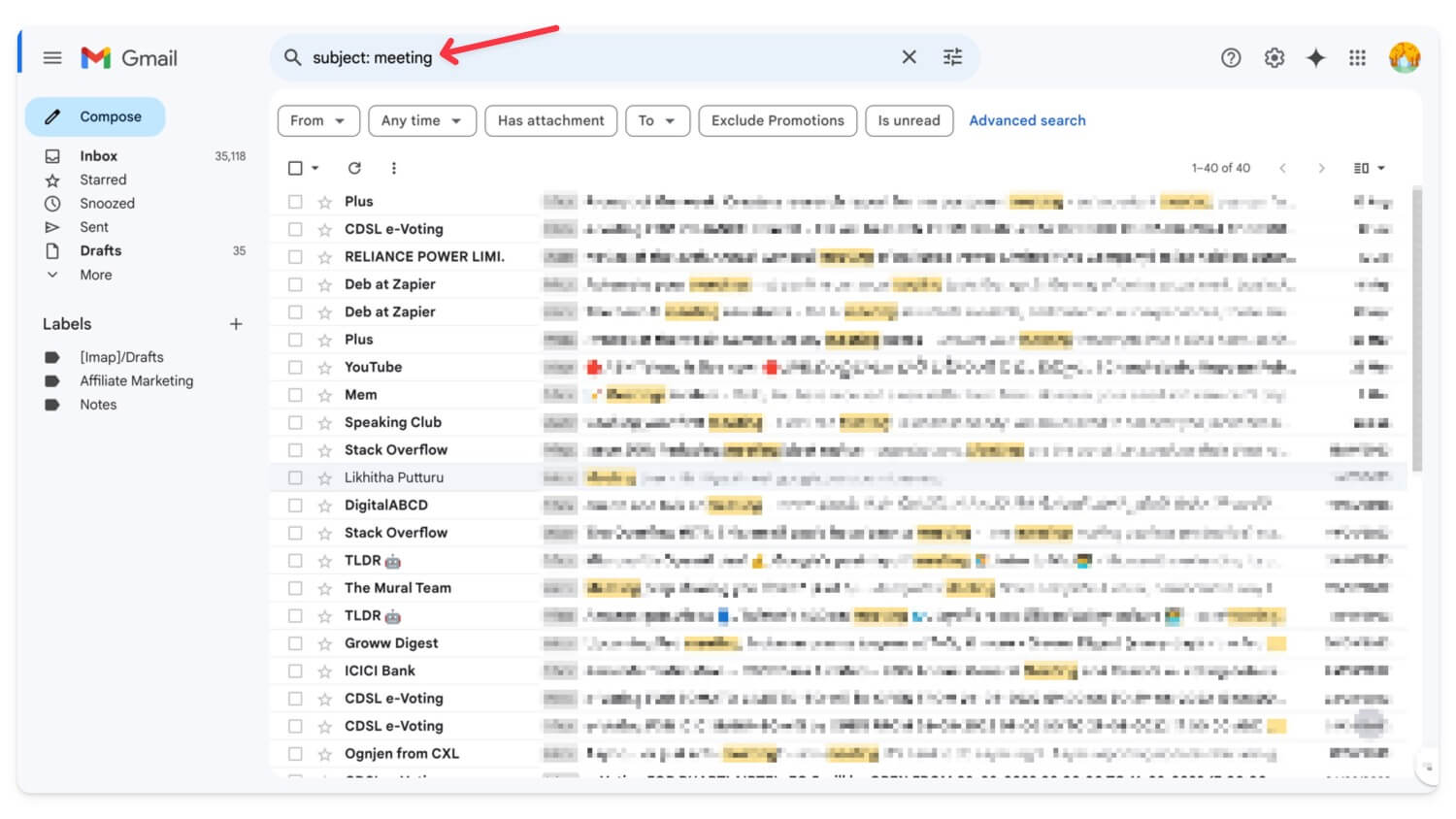
- You can also sort emails using different keywords. Like from:,to:,subject:,has: ,is: and more
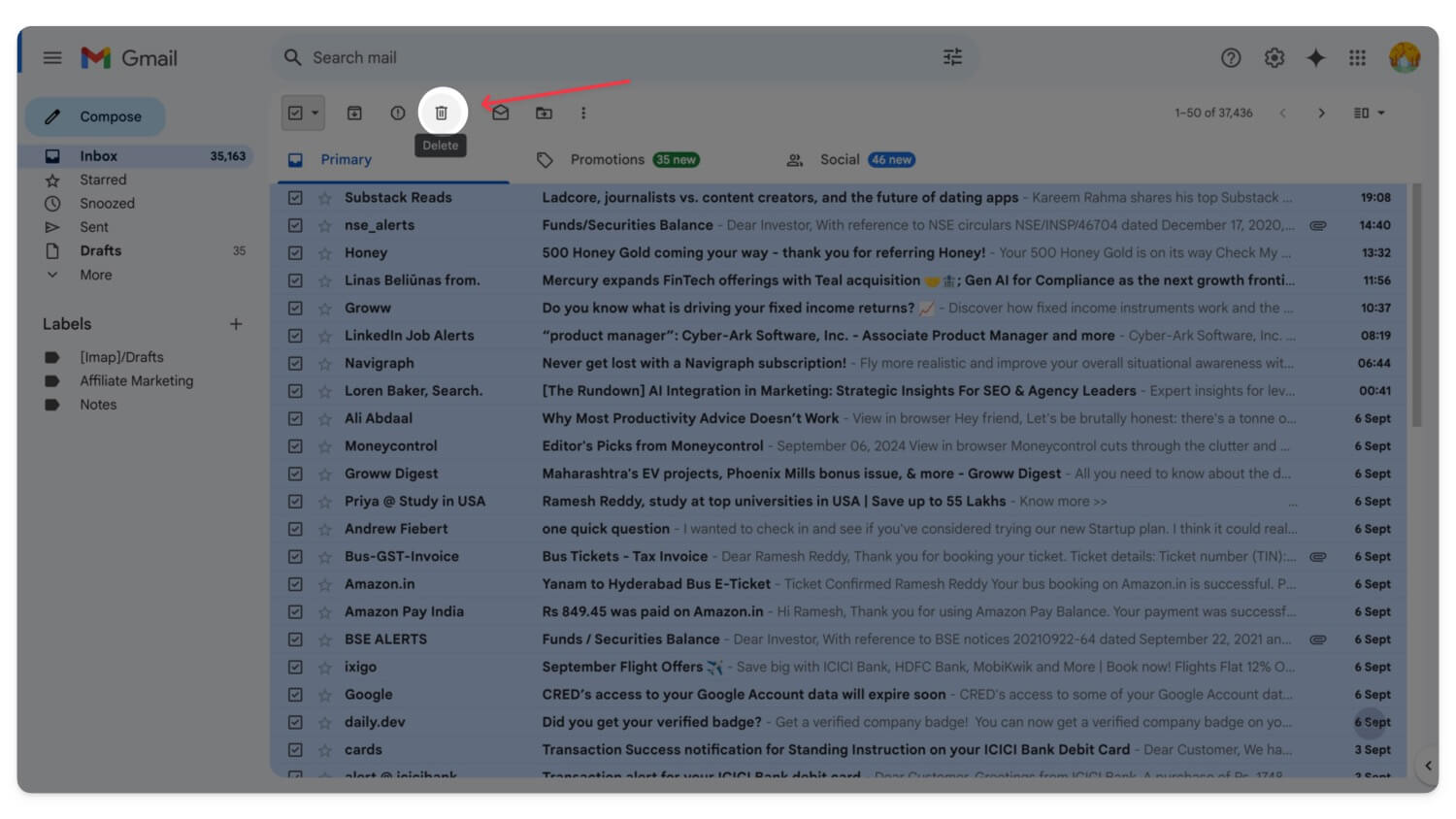
- Now, click the Delete icon (There will be no confirmation), and your emails will be moved to the bin. Do this for all unwanted emails.
- To save storage and remove the emails completely, Click on more in the Sidebar, Select Bin

- Again, Select all emails and click on Delete Forever. All your emails from the bin will be deleted.
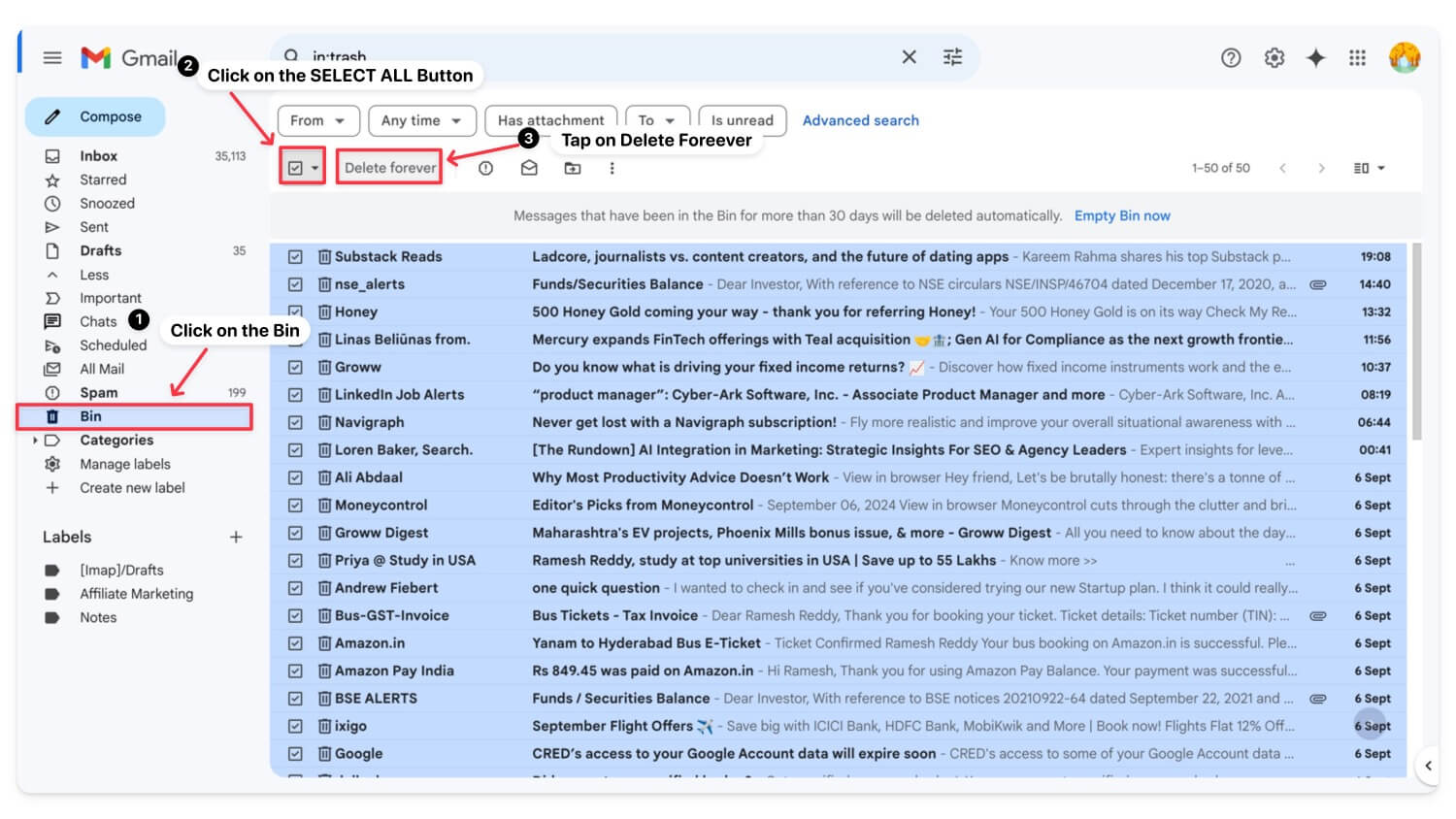
How To Delete Emails From Gmail App

- Unlike the desktop, the Gmail app doesn’t support filters. However, you can use specific keywords to filter emails.
- To filter unread emails, you can use is:unread. Similarly, if you want to filter from a specific source, you can use sender: from email@example.com, by subject: subject: meeting, Emails with attachments, has: attachment, by date: before:2024/09/01 or after:2024/01/01, and more.
- Once you have filtered the email, long press on any email and top click on the Select all
- Click on the Delete icon on the top to delete emails.
| Pros | Cons |
| Frees up space quickly | Risk of deleting important emails |
| Easy to use with filters | Time-consuming if the inbox is large |
Unsubscribe From Unwanted Marketing Emails
The biggest storage issue in Gmail is often caused by spam and unwanted marketing emails that have piled up over the years. You can easily unsubscribe from marketing emails, free up storage space on your Gmail account, and prevent the filing up of your storage again.
How to mass unsubscribe to emails on Gmail
- Go to Gmail.com. Using the search bar, search unsubscribe. Here, you can see all the marketing emails on Gmail
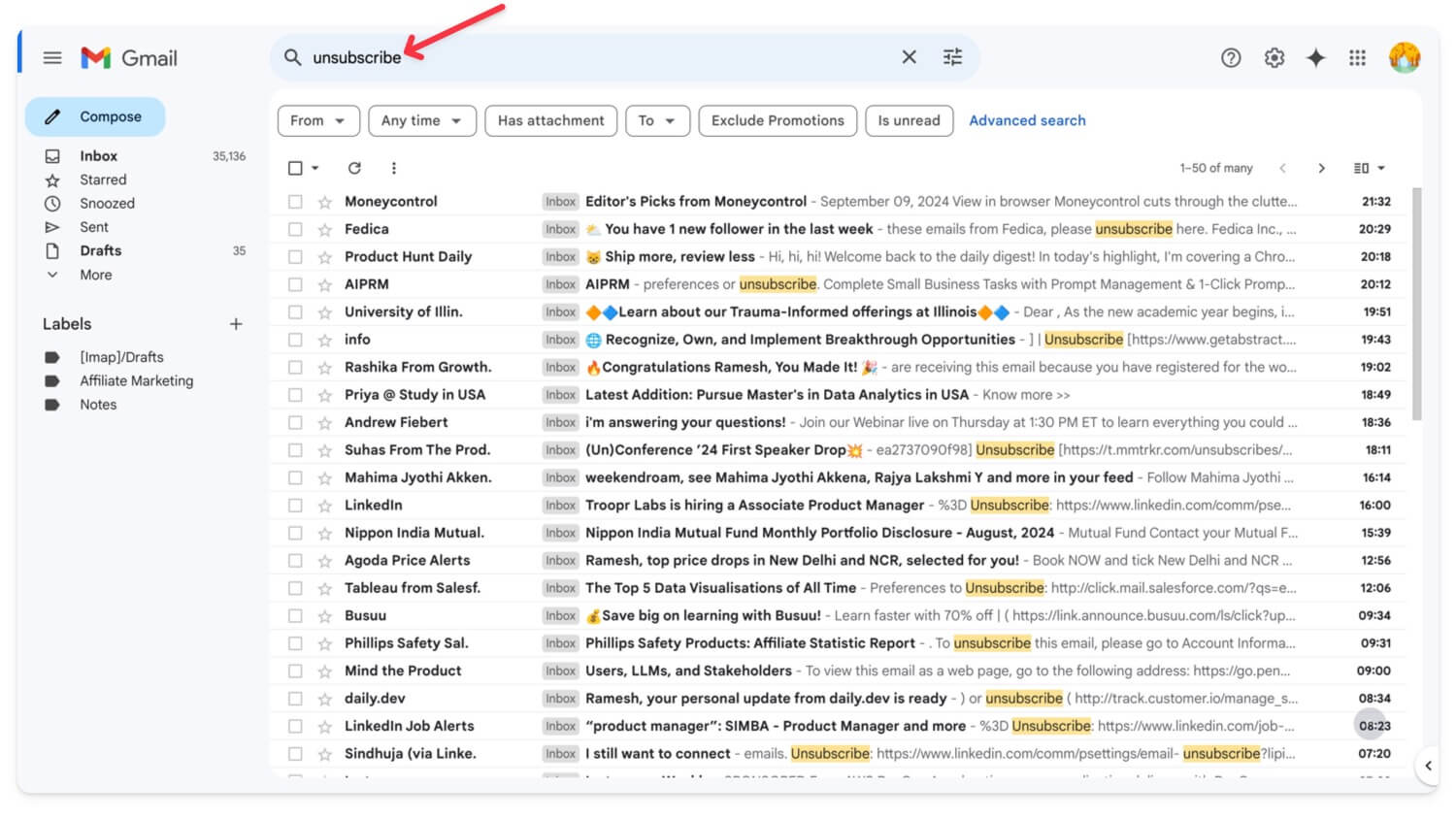
- Click on the filter icon
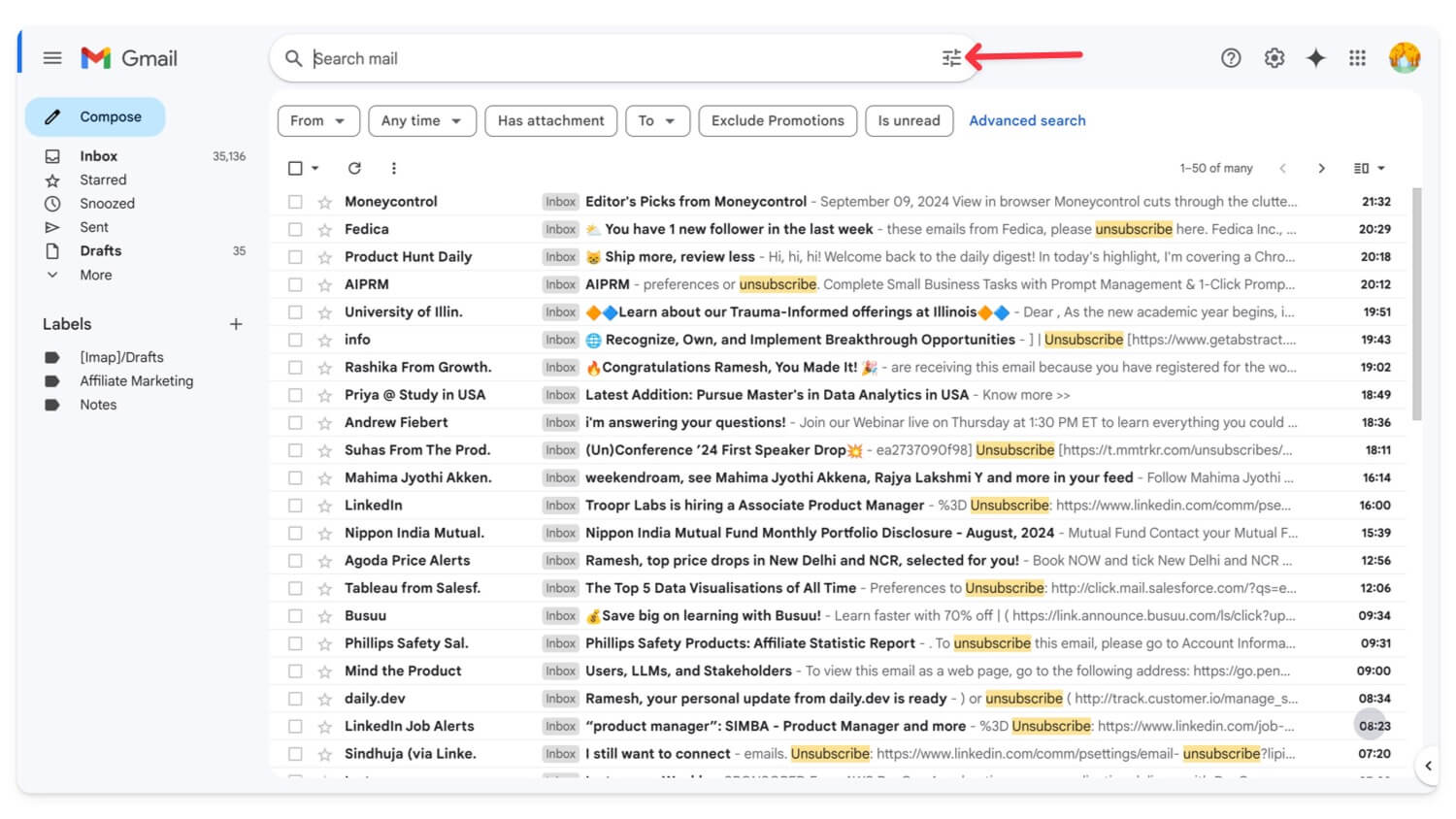
- Click on the Create filter
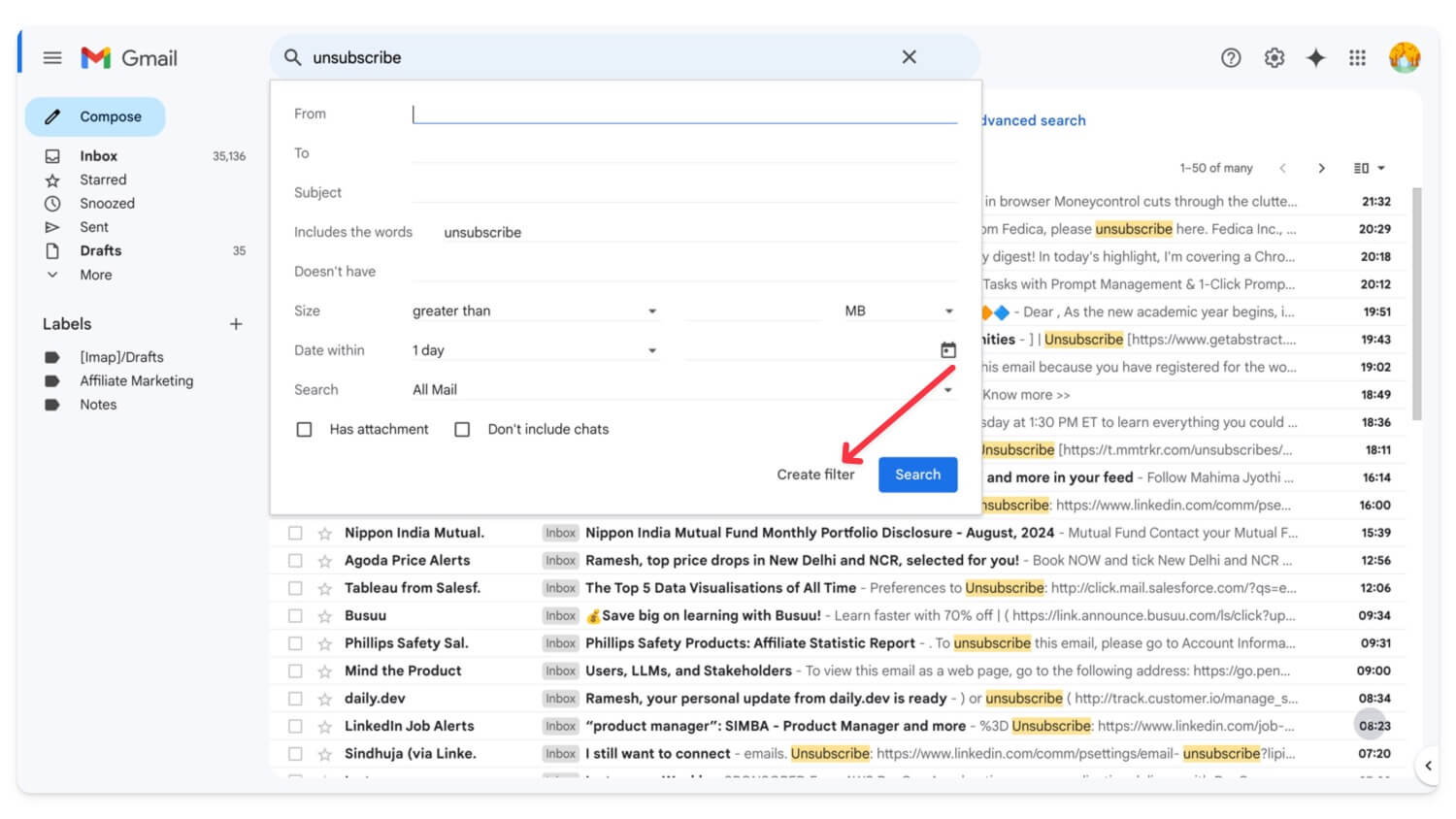
- Select Delete it. That’s it. You will automatically be unsubscribed from all the emails.

| Pros | Cons |
| Prevents future inbox clutter | May unsubscribe from useful promotional emails |
| Quick with Gmail filters | It is still a manual process |
Use Google Storage Manager To Clean Up Large Files
Out of all Google services, Google Photos and Google Drive are the two biggest storage consumers. While photos can be important, many stored files in Google Drive may be unwanted, such as old documents and other files that can take up a significant amount of storage.
You can review your Google Drive storage and select unwanted files to delete and free up space. This can be done on both the app and the website. You can easily manage your cloud storage using Google Storage Manager. It lets you see which files take up the most space and easily delete them. If you don’t want to delete your data to reduce storage usage, you can compress the files and re-upload them to Google Drive.
How to reduce Google Drive Storage
- Visit https://one.google.com/storage/management on your browser and sign in with your Google account.
- Scroll down and go to Clean up suggested items. Click on each suggestion, review it, and delete it to save space.
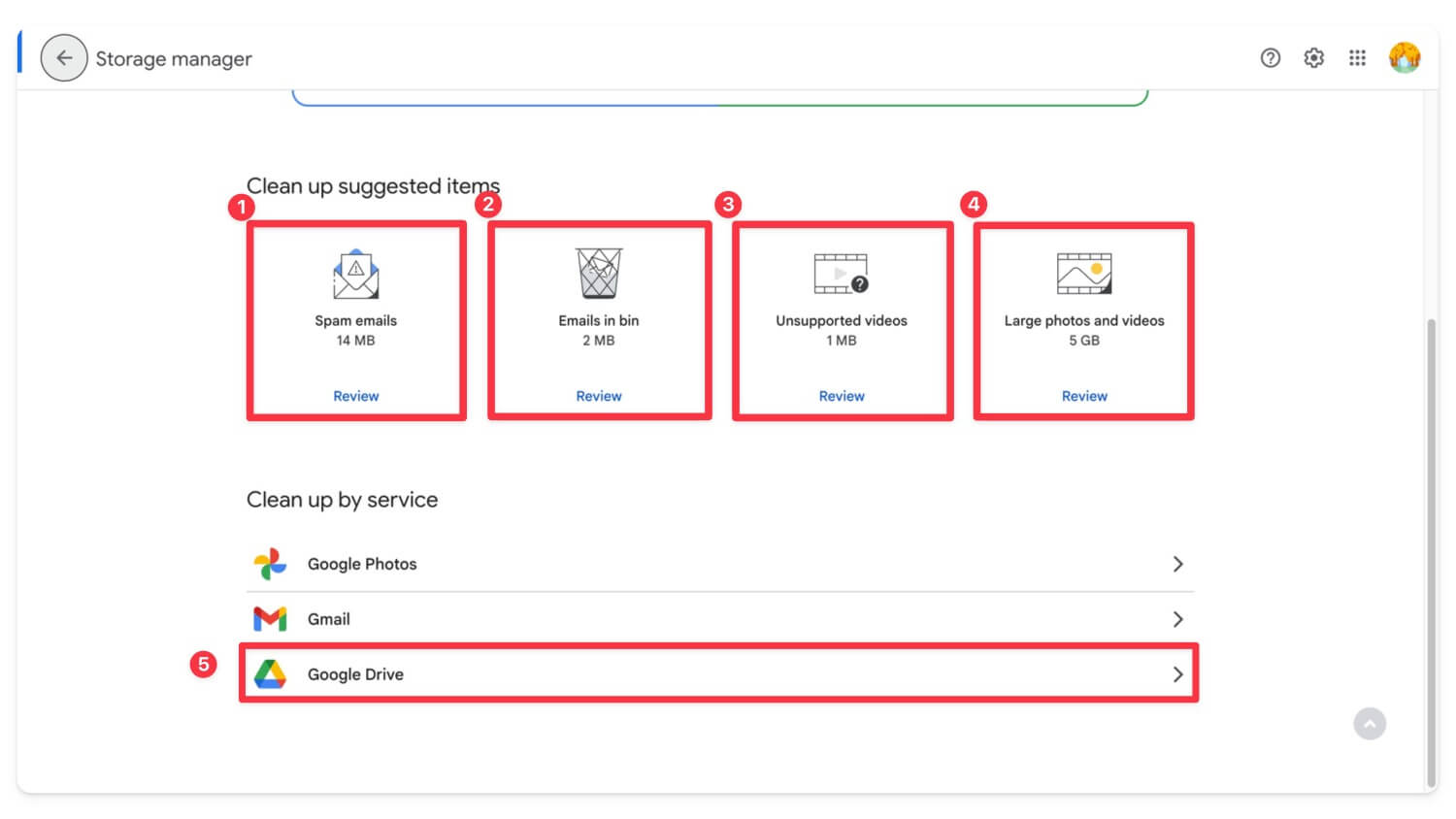
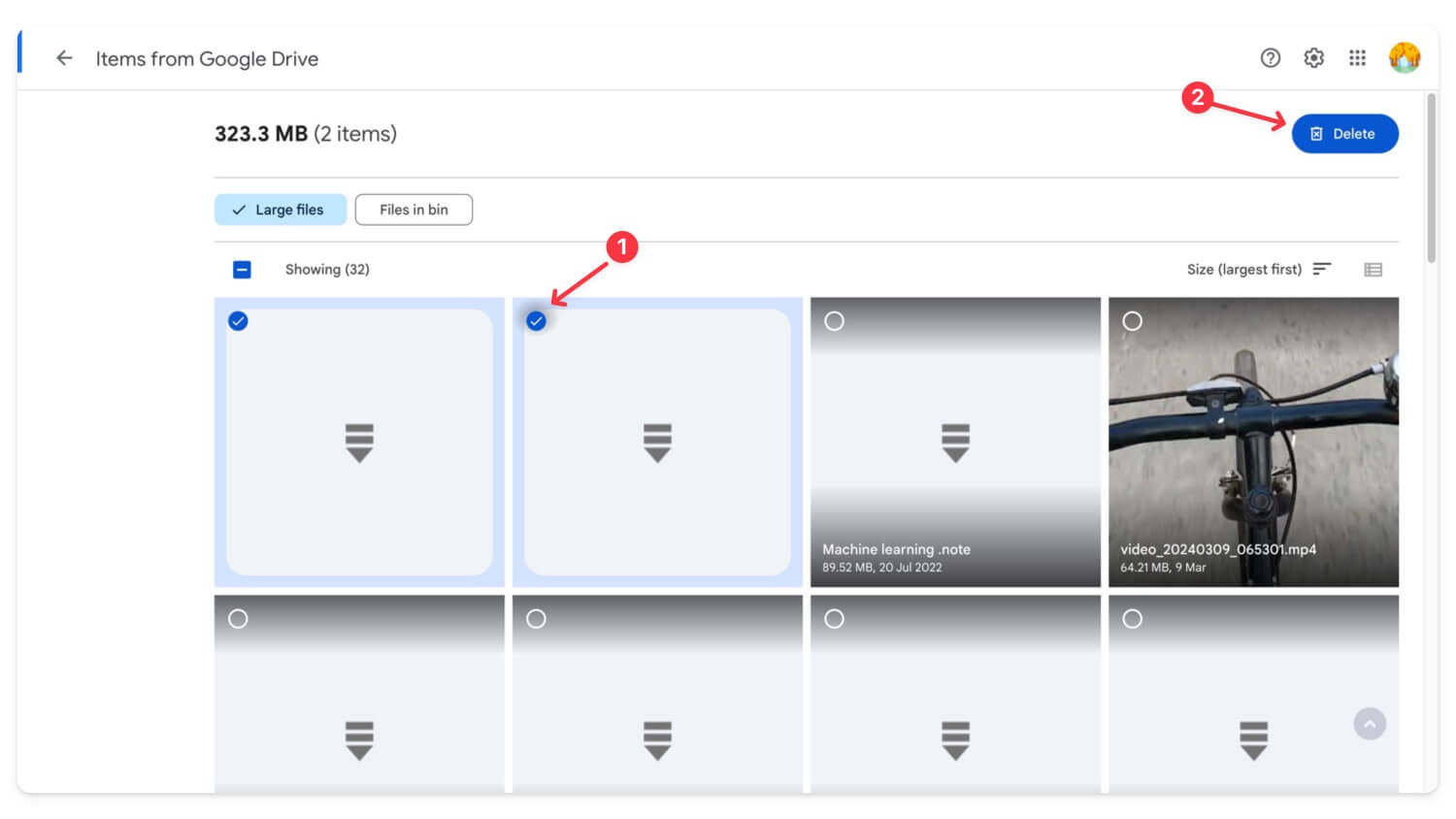
- Now, Scroll down, click on Google Drive, review large files, and delete them if needed. Alternatively, you can download them to your local device, compress them, and upload them again to the drive to save storage.
How to save storage space using Google Photos
After Google Drive, Google Photos is another major service that takes up significant storage in your Google Cloud. You can manage Google Photos by deleting them from the Photos app or using the Storage Manager to view and manage larger files. You can also visit the Google Photos website to manage all your photos. The app categorizes photos into different sections, making it easier to delete unwanted ones, such as screenshots.
How to Manage Photos in the Google Photos App:
- Visit photos.Google.Com or open the Google Photos app on your mobile device.
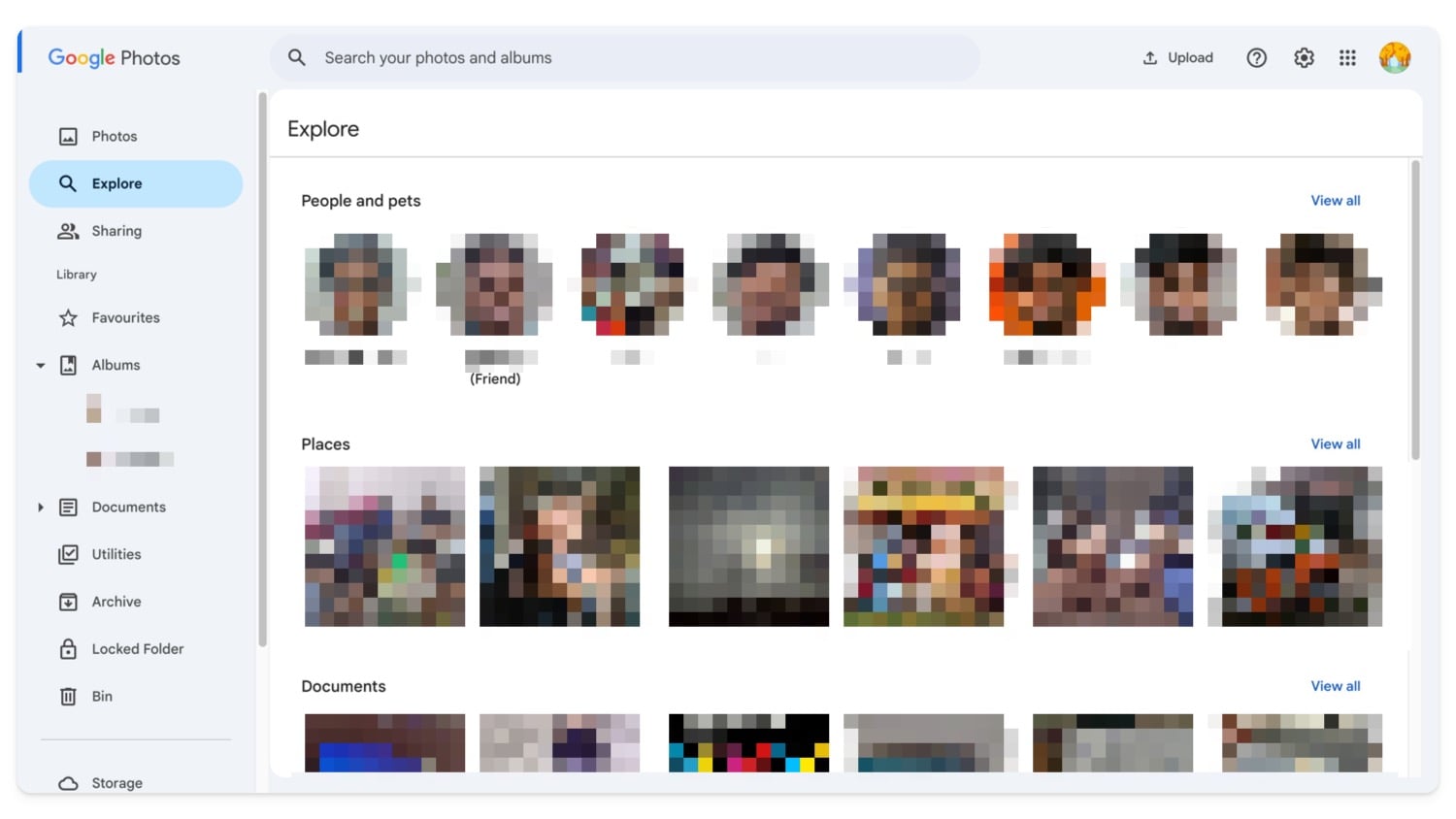
- Click on Explore or visit each photo to delete larger files.
- Alternatively, you can manage your Google Photos storage using the Storage Manager.
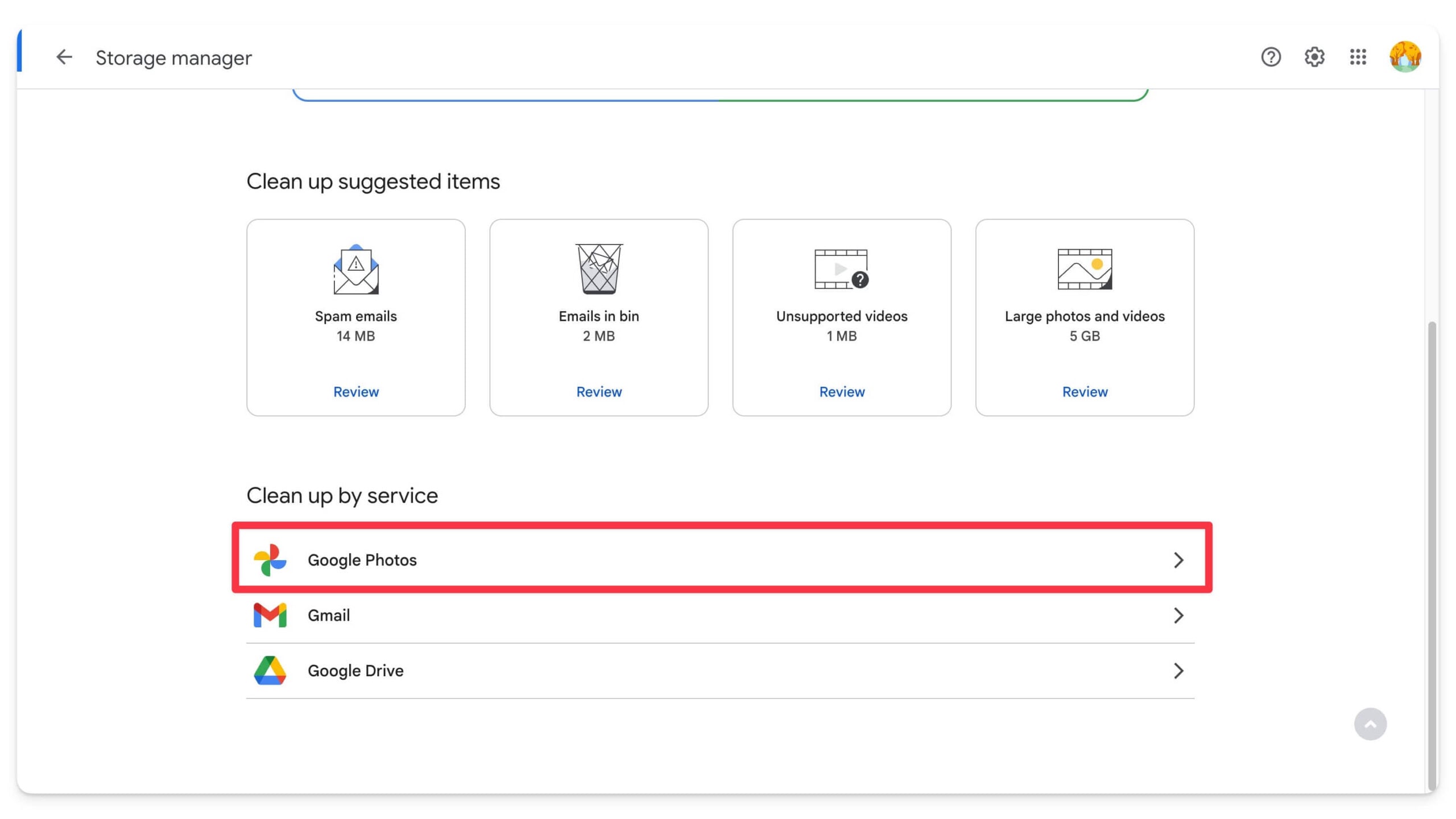
- Visit one.google.com/storage/management, look for large files, and delete them. If you don’t want to delete them, you can save them locally on your device, export them to an external device, or compress them and re-upload them to Google Drive.
| Pros | Cons |
| Easy to review and delete large files | Risk of deleting important files |
| Shows largest files quickly | Requires manual review and deletion |
Compress Files in Drive and Re-Upload Them To Save Space
If the storage manager doesn’t help you clean storage and your drive is still full, you can compress the files and re-upload them back to Google Drive. Google Drive has a built-in zip file viewer, so you don’t have to decompress them separately.
How to compress files on Google Drive
Google Drive does not offer an option to compress files directly. You must download them manually, convert them into ZIP or RAR files, and then re-upload them to Google Drive. Here’s how:
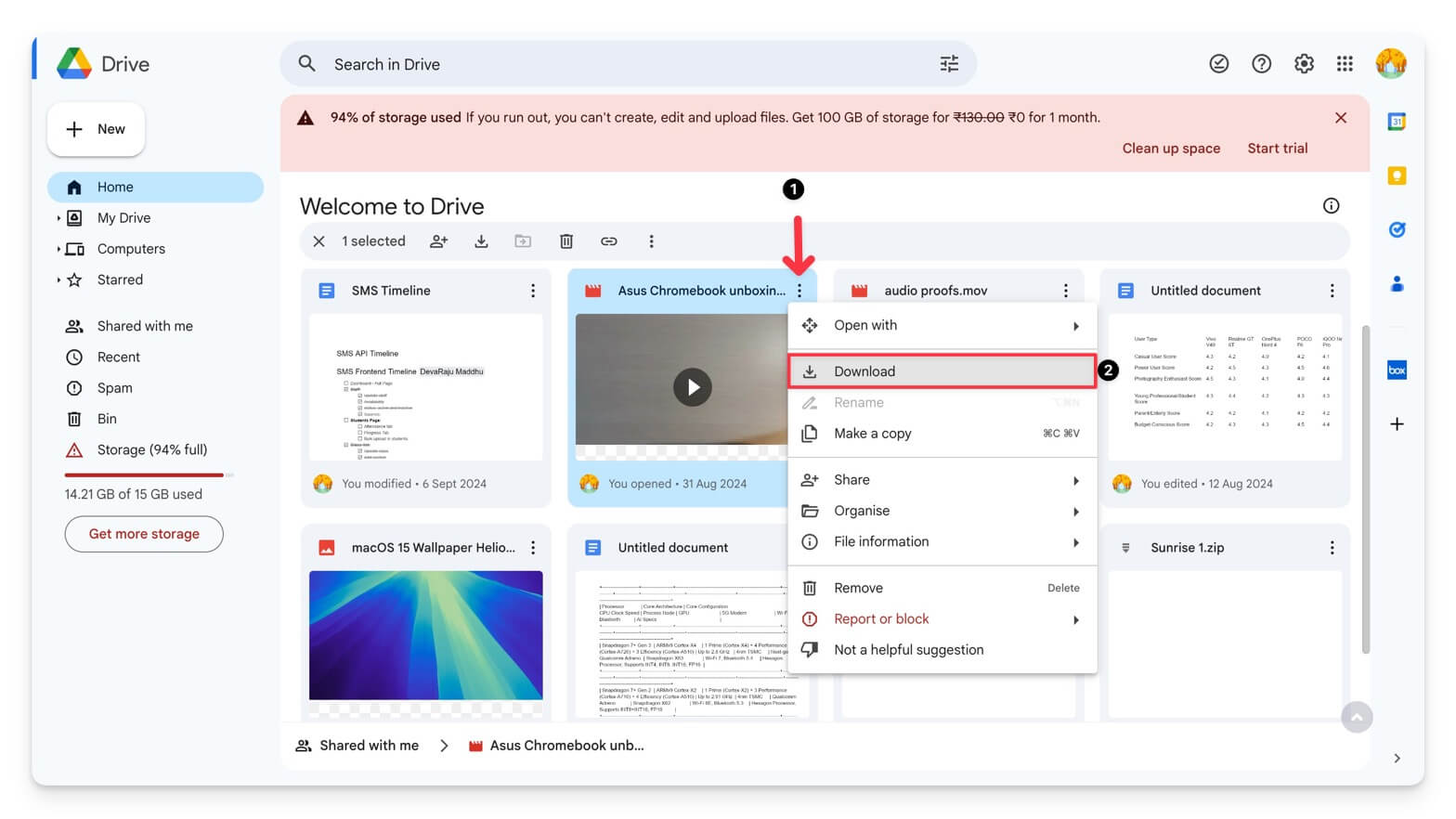
- Visit Google Drive on your mobile or PC. To download a file, click on the three-dot menu and select Download.
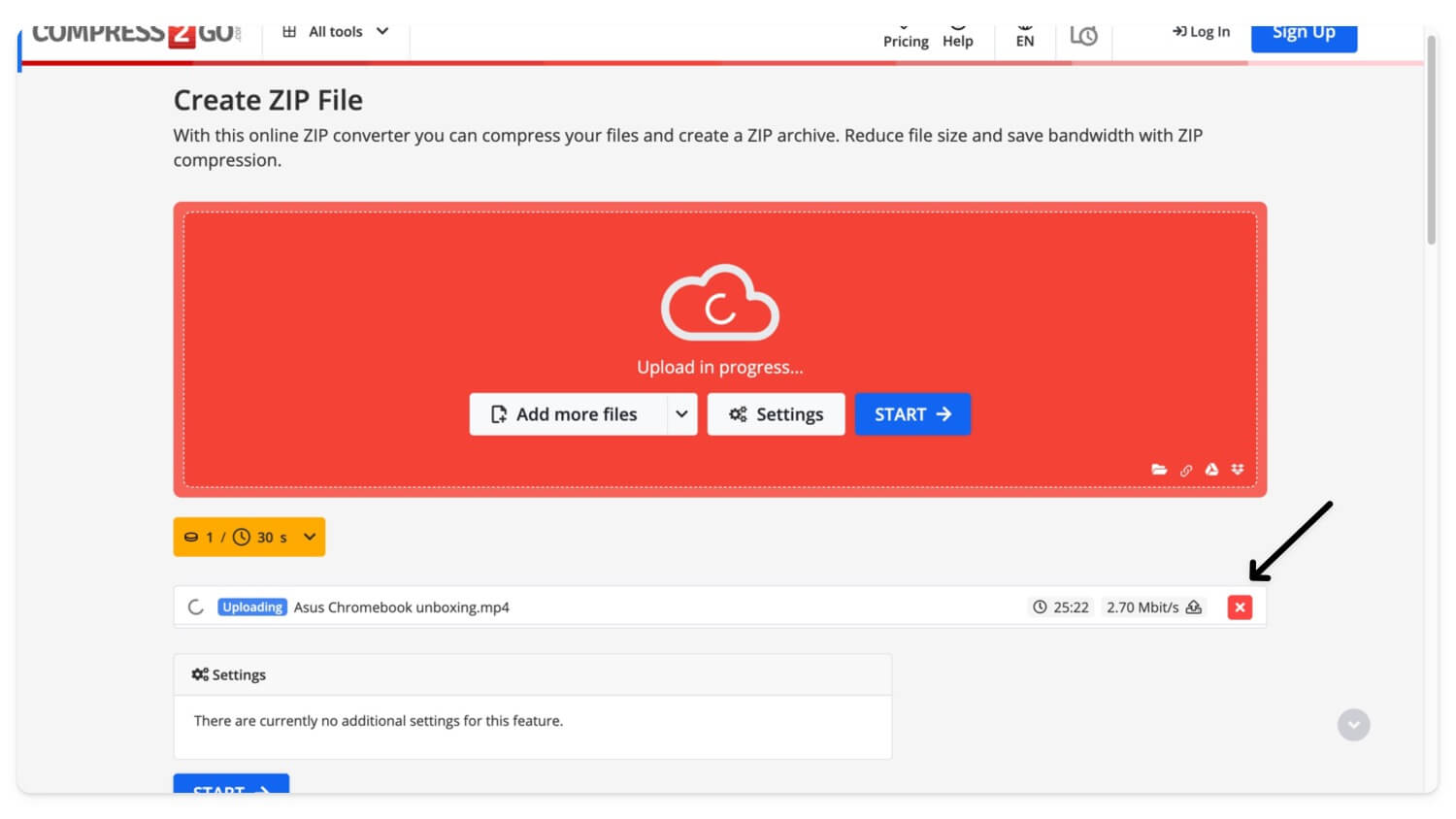
- Use a third-party compression website. If the file is large, use a PC to compress it into ZIP or RAR format. You can also use tools like WinRAR or 7-Zip to compress files into a smaller format.
- After compression, re-upload the files to Google Drive.
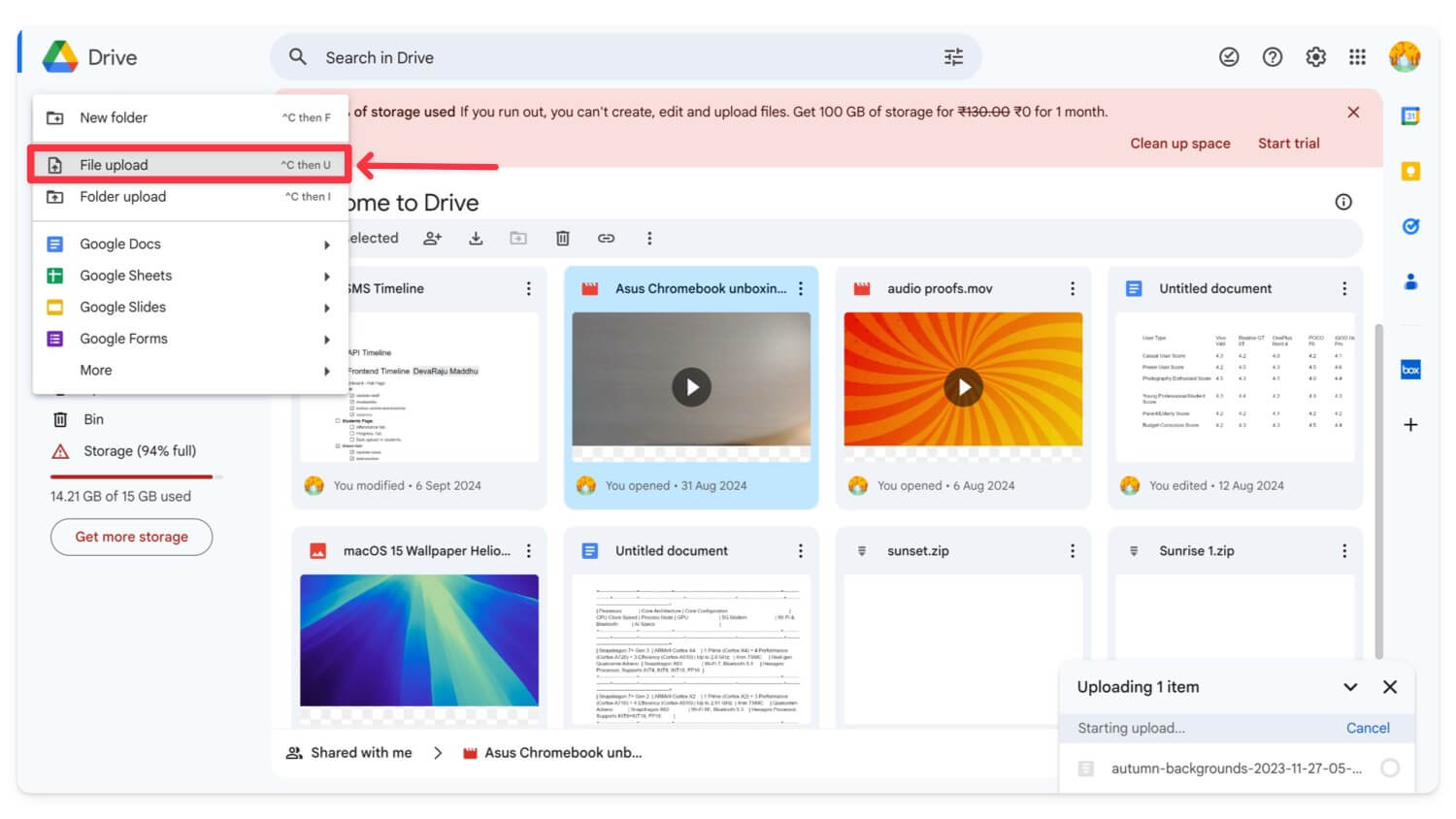
- Click on Create, Click on File Upload, select the file, and upload it to the drive.
| Pros | Cons |
| Reduces file size, saving storage | Time-consuming |
| Works for all types of large files | Might have issues while accessing files |
Forward Emails to a New Account
If you don’t want to compress or delete existing data on your Google account and want emails to arrive as they did before without any limits, you can set up email forwarding to a new Gmail account. What happens is that all incoming emails will be forwarded to your new Gmail account. However, here are a few things you should know:
- When you set up a new account, Gmail will only forward new incoming emails to the new account. It will not move existing emails.
- You can transfer and import old emails into your new account.
- You can also continue replying from your old account even though you are using the new account.
How to Create a new Gmail account
You can create a new Gmail account for free if you don’t have one. With the new account, you can get 15 gn of free storage for all your emails. Use this link to create a new Gmail account.
How to forward your old Gmail account to the new account
- Open your Gmail account (the old one).
- Click the Gear Icon in the top-right corner and select See all settings.
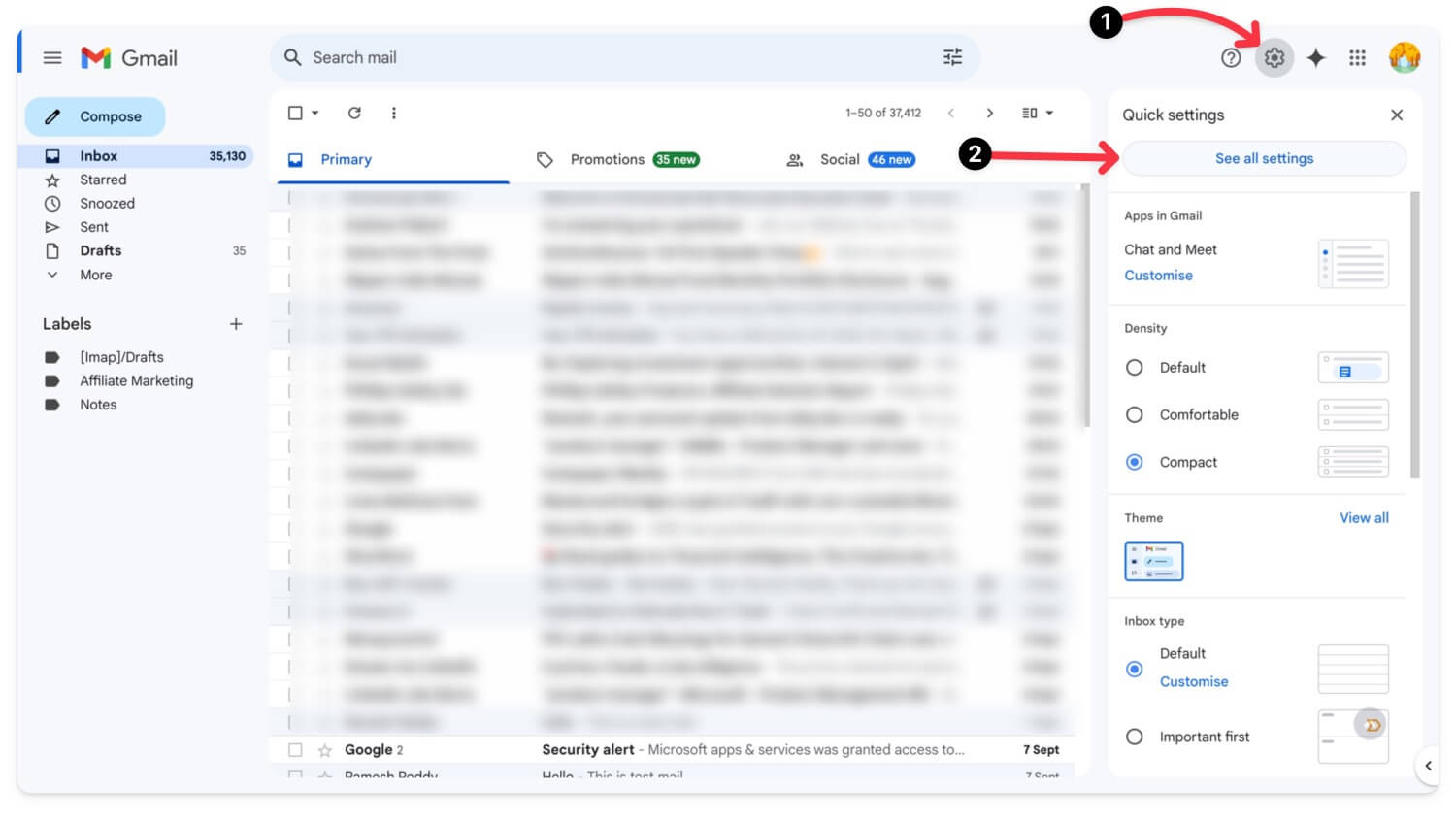
- Go to the Forwarding and POP/IMAP tab. Under the Forwarding section, click Add a forwarding address.
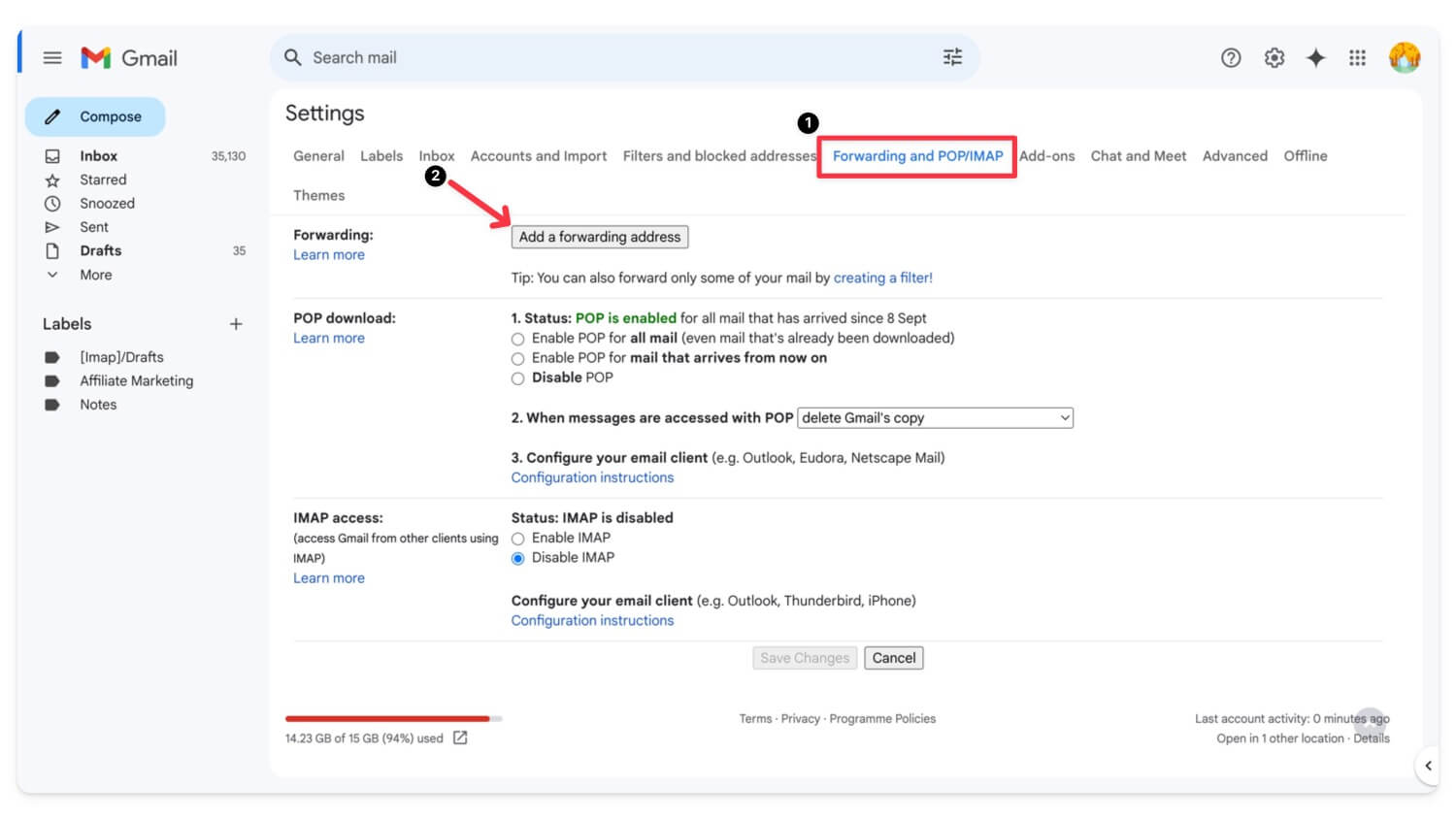
- Enter the new email address where you want to forward emails and click on the next.

- Gmail will send a confirmation code to the new email address. Open the email in the new account, find the email from Gmail, click the confirmation link, and enter the code.
- After, return to the old account’s Forwarding and POP/IMAP tab and select Forward a copy of incoming mail to [your new email address].
- You can keep a copy of Gmail in your inbox (if you don’t want to delete the email from the old account). Since your old Gmail account is already full, you can select to delete Gmail’s copy.
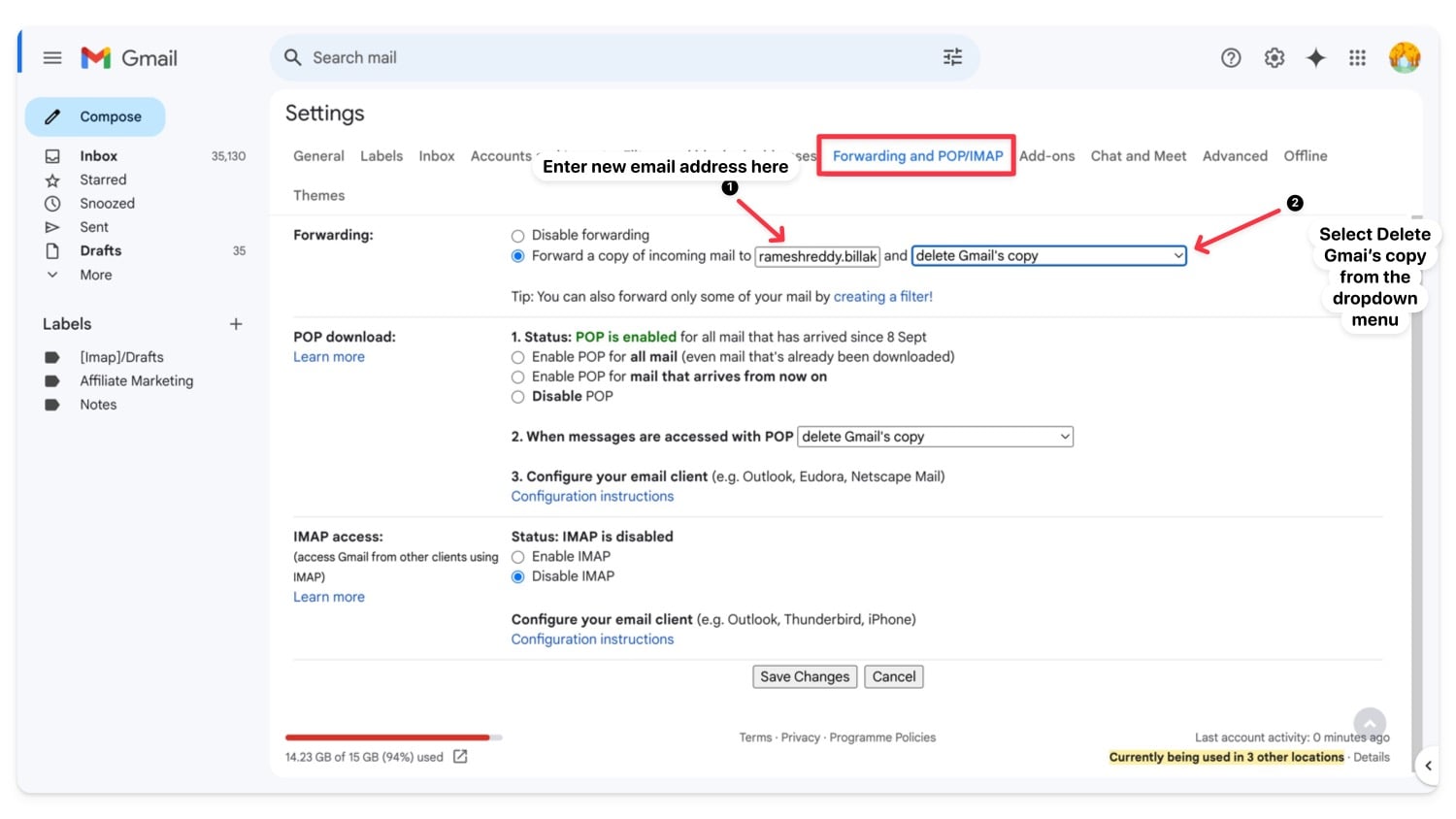
- Click Save Changes
How to Reply From a New Account via the Old Account
- Open your new Gmail account.
- Click on the Gear icon and select See all settings.
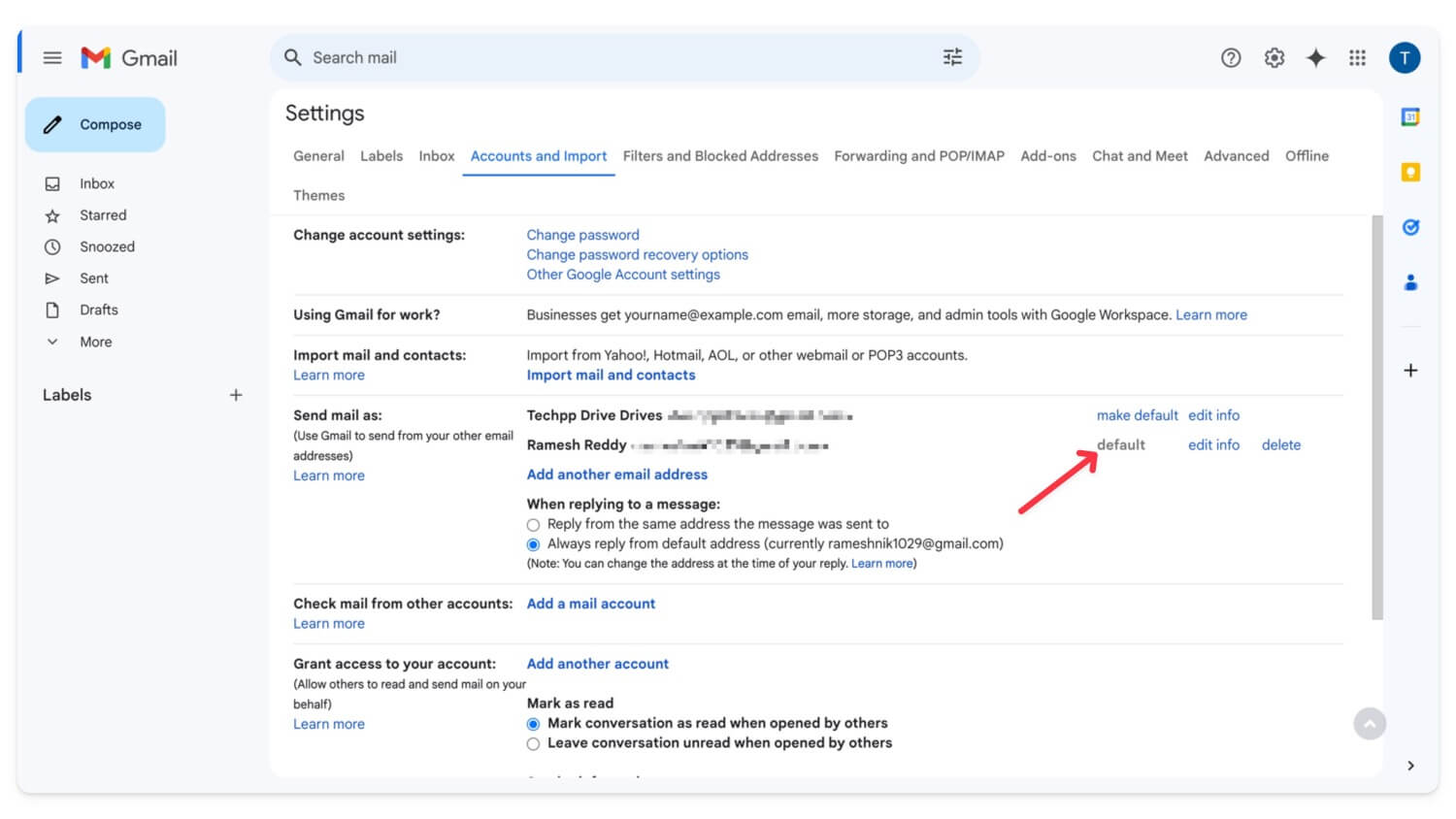
- Go to the Accounts and Import tab. Click Add another email address in the Send mail as section.
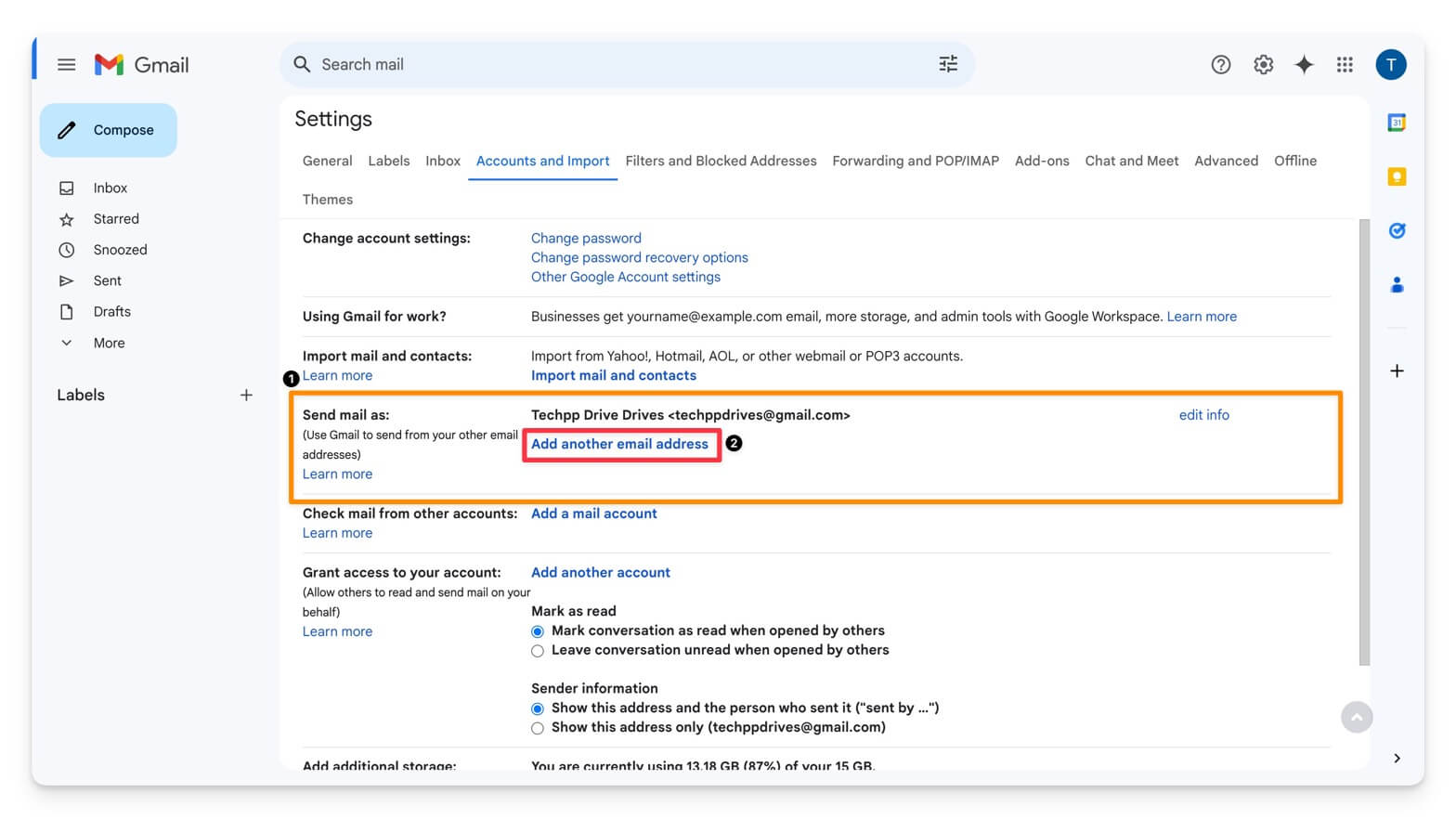
- Enter your old email address. Gmail will send a verification code to your old email.
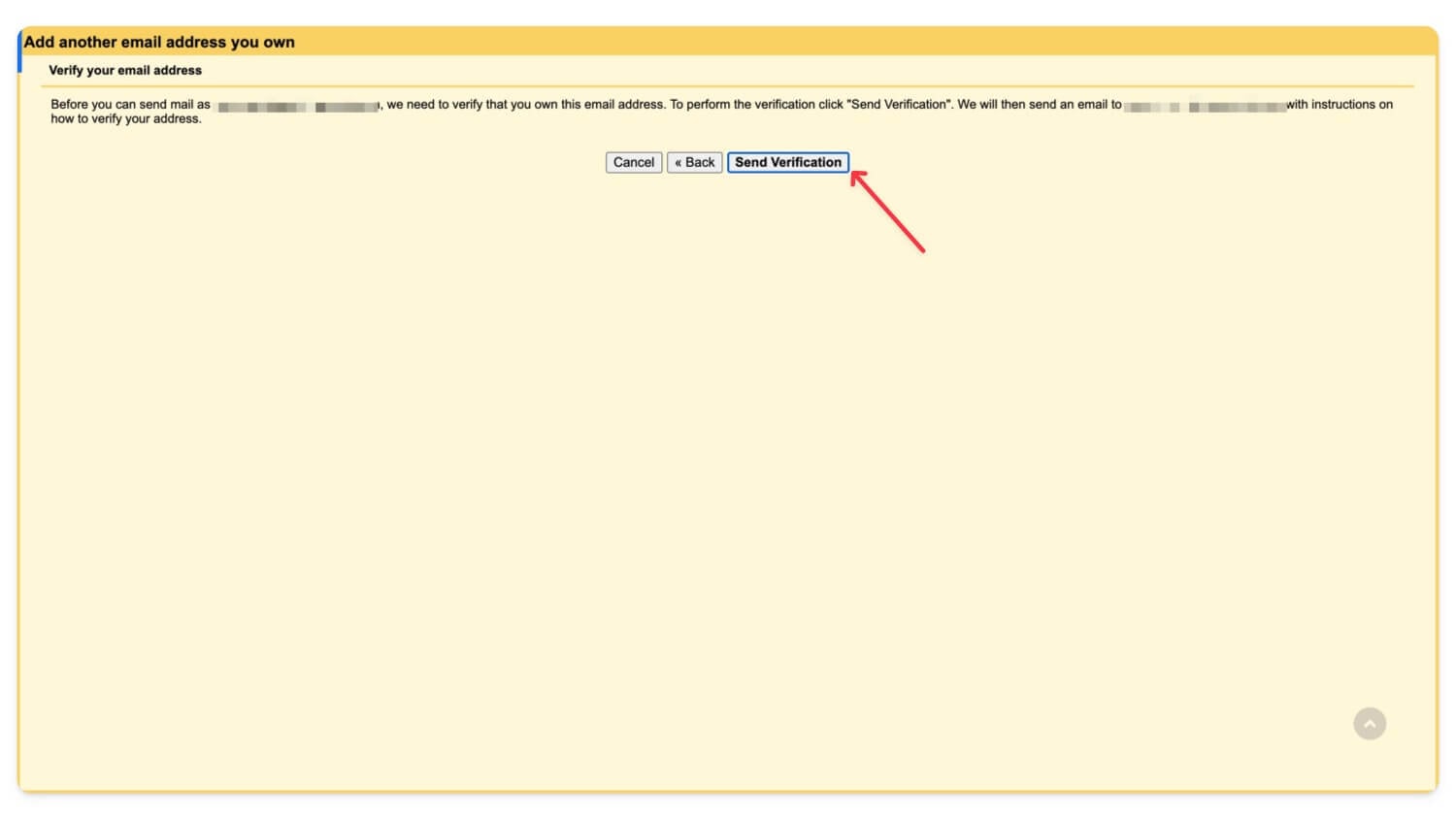
- Enter the verification code in your new account.
- Now go back to the Account and Import tab and set the new email address as the default. Your emails will be forwarded to the new email address, and you can reply from the new email address as you did with the old email.
| Pros | Cons |
| Keeps your main inbox clean | Create and manage new account |
| There is no need to worry about storage on the primary account | Manual process for transferring old emails |
Store Emails Locally on Your Device
Perhaps this is the most recommended method if you don’t want to face future storage issues. Using an email client, you can store all your emails locally on your device without any storage limitations.
How to set up an email client on your device:
Before changing pop settings in Gmail, you must enable two-factor authentication and create a new app password for your email client. To do this
- Visit account.google.com and enable two-factor authentication. If you have already enabled two-factor authentication, go to step 2.
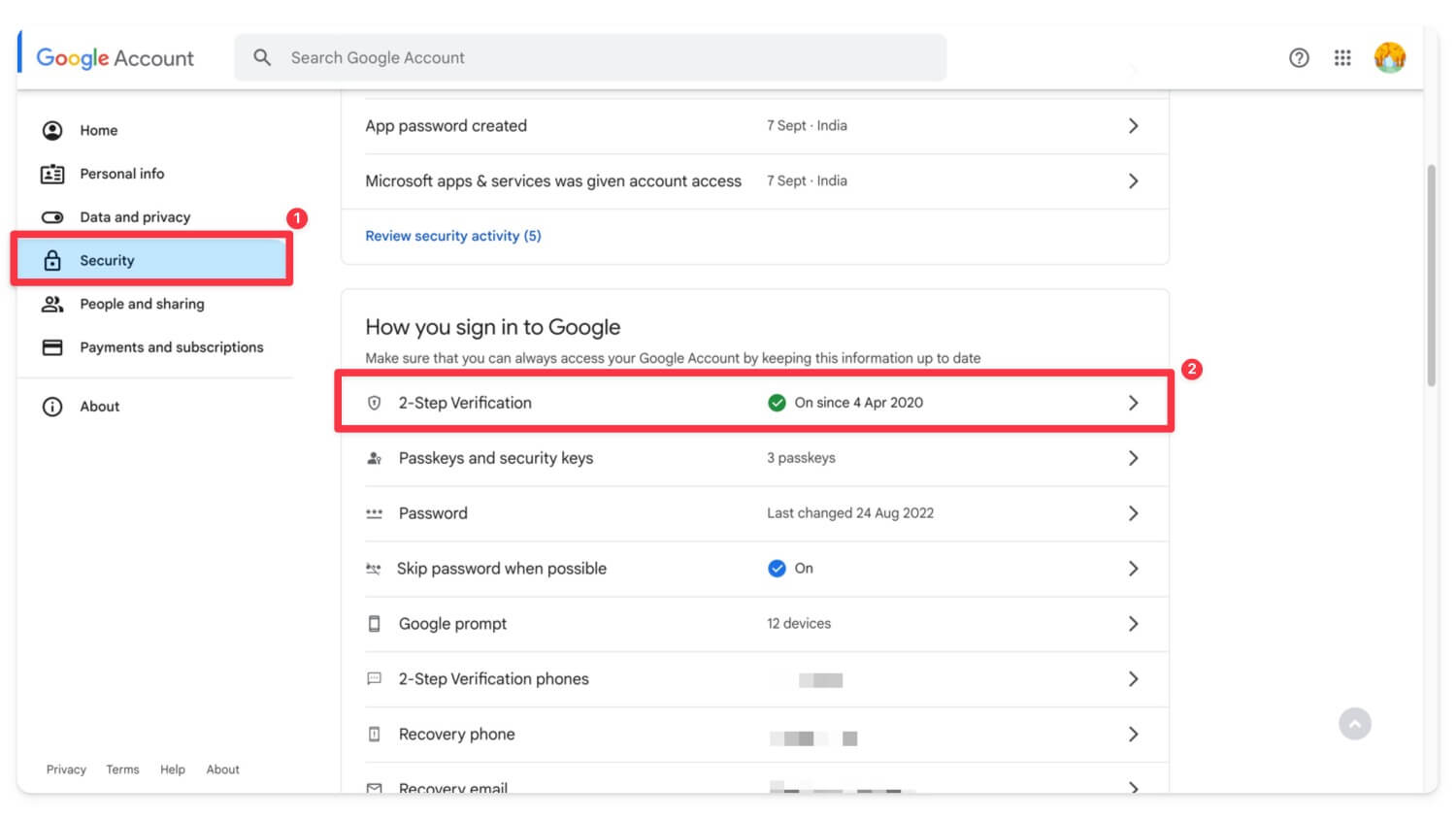
- Now, using the search bar, search for the App passwords.

- Verify your Google account. Create a new one, select type outlook, and generate the password.
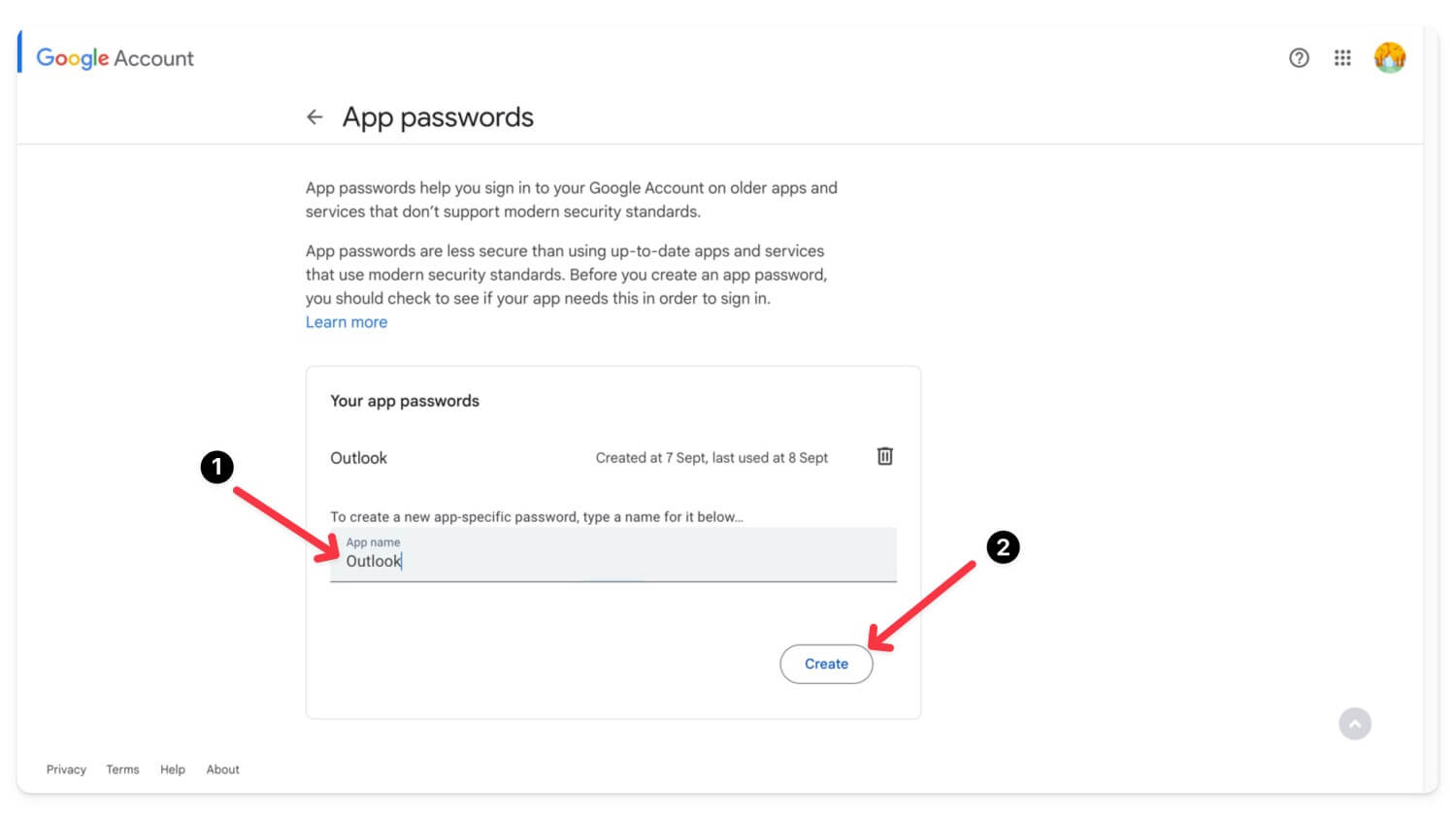
- Copy and save the password.

How to enable pop in Gmail
- Go to Gmail.com and sign in with your Google account. Click the Gear icon and select See all settings.
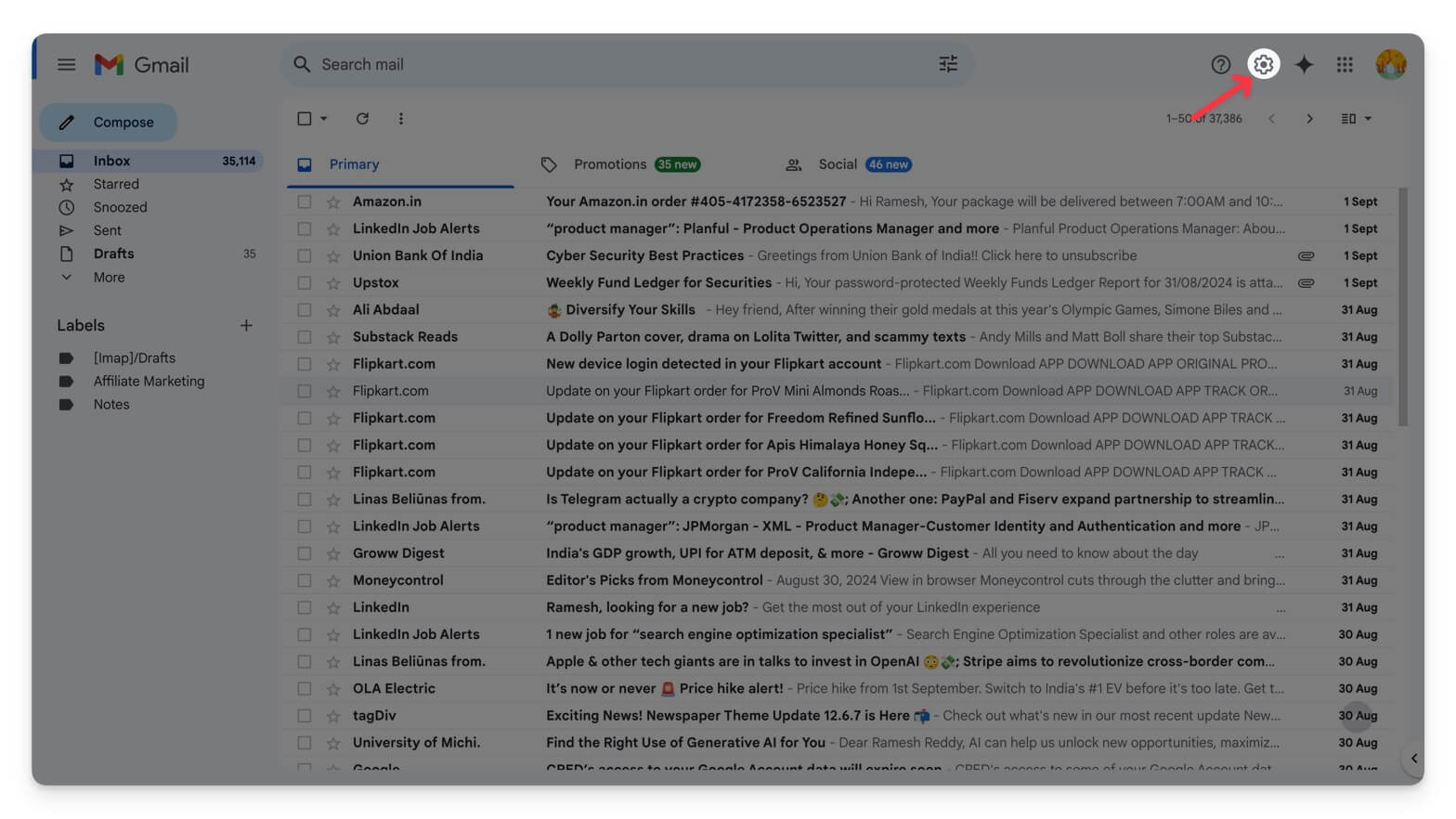
- Go to the Forwarding and POP/IMAP tab. In the POP Download section, select Enable POP for all mail or Enable POP for mail that arrives from now on.
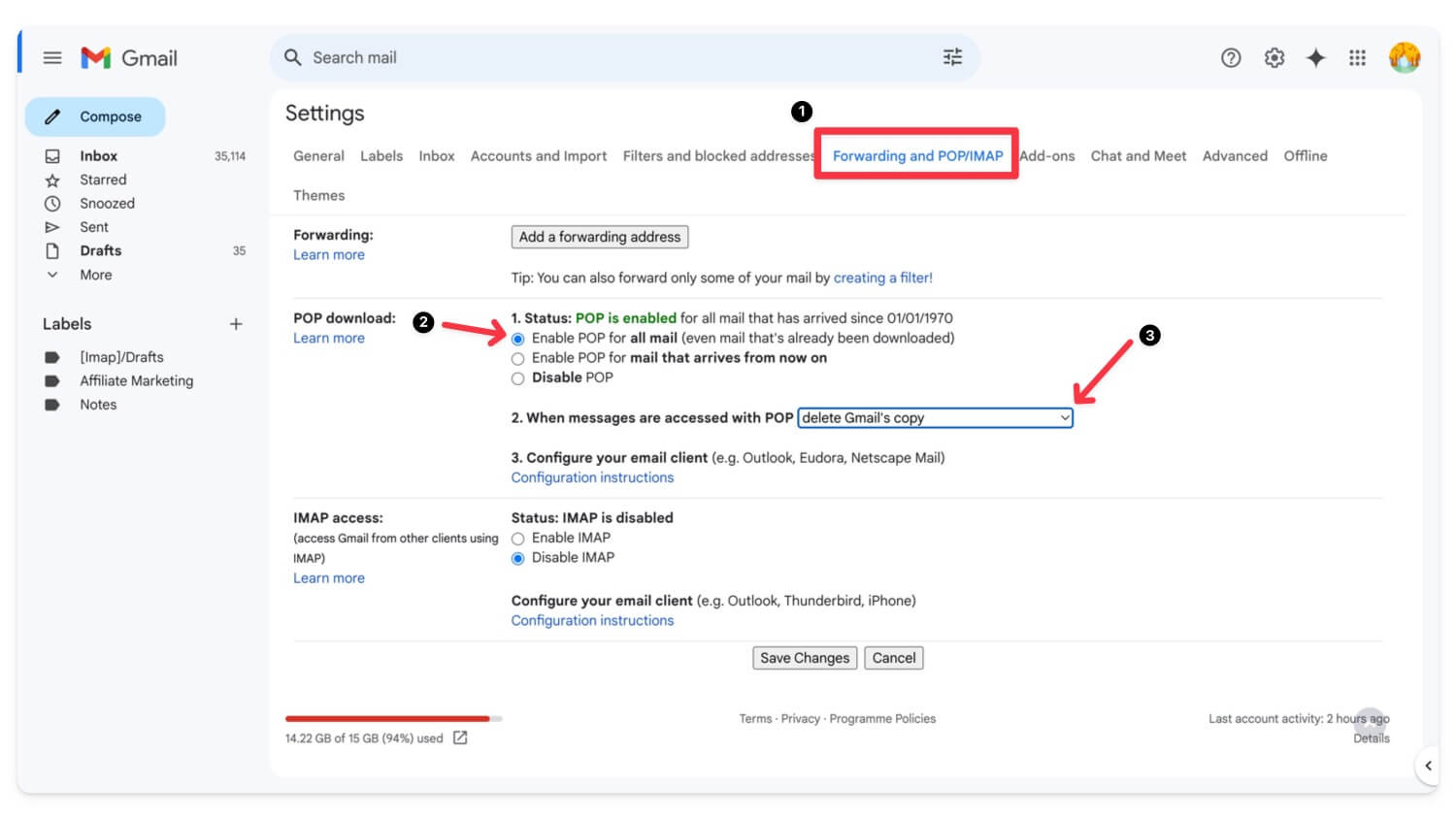
- Below, choose the option Delete Gmail’s copy after the messages are downloaded.
- Click Save Changes.
How to setup email client for your emails
- Download and install any email client of your choice. The most popular ones are Outlook and Mozilla Thunderbird. I am using Thunderbird.
- Visit the Thunderbird website and download and install it on your device.

- Enter your Gmail and password and click on Continue. Wait for Thunderbird until it fetches your details.
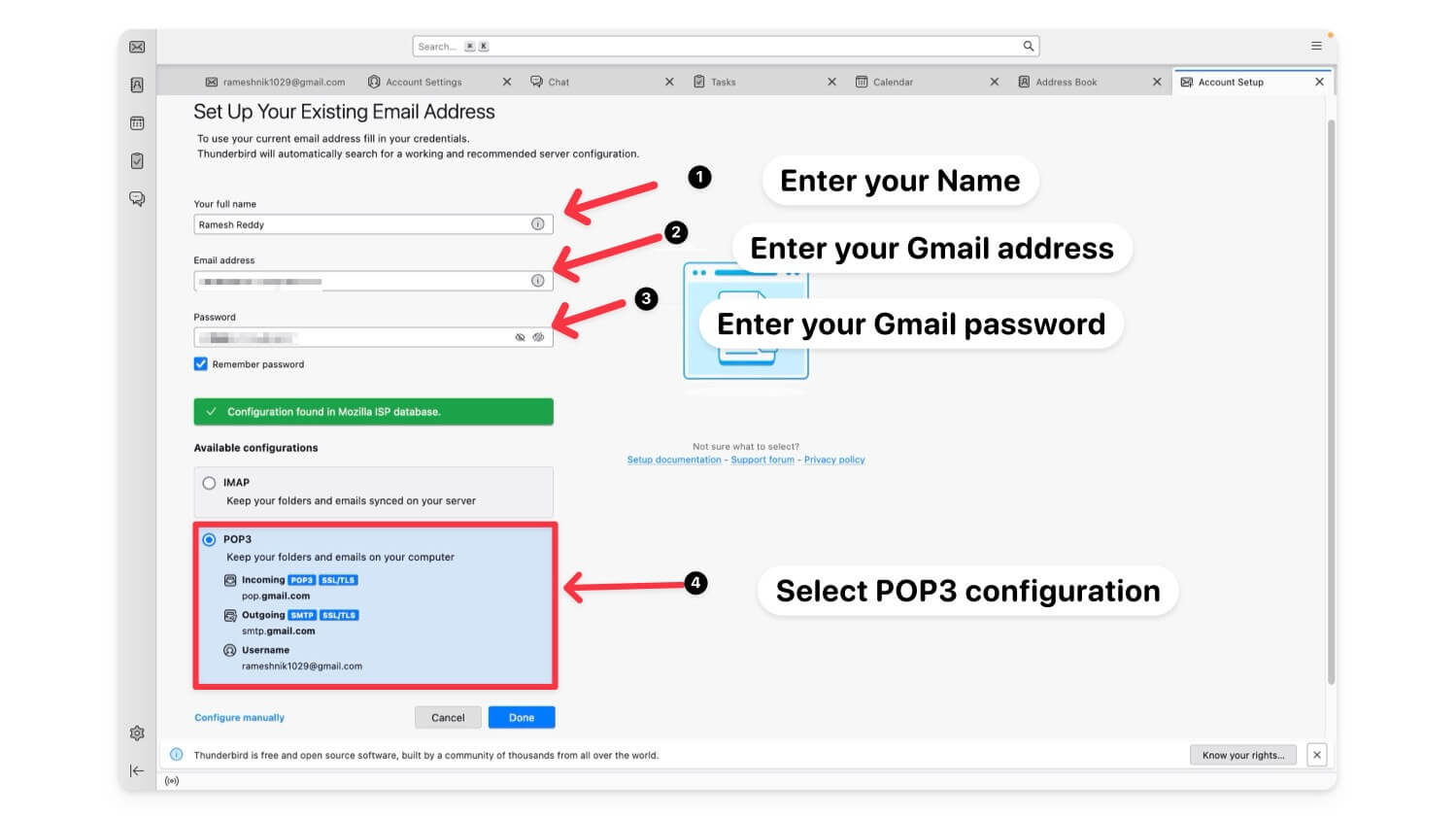
- Under configurations, select POP configuration and click on the Done.
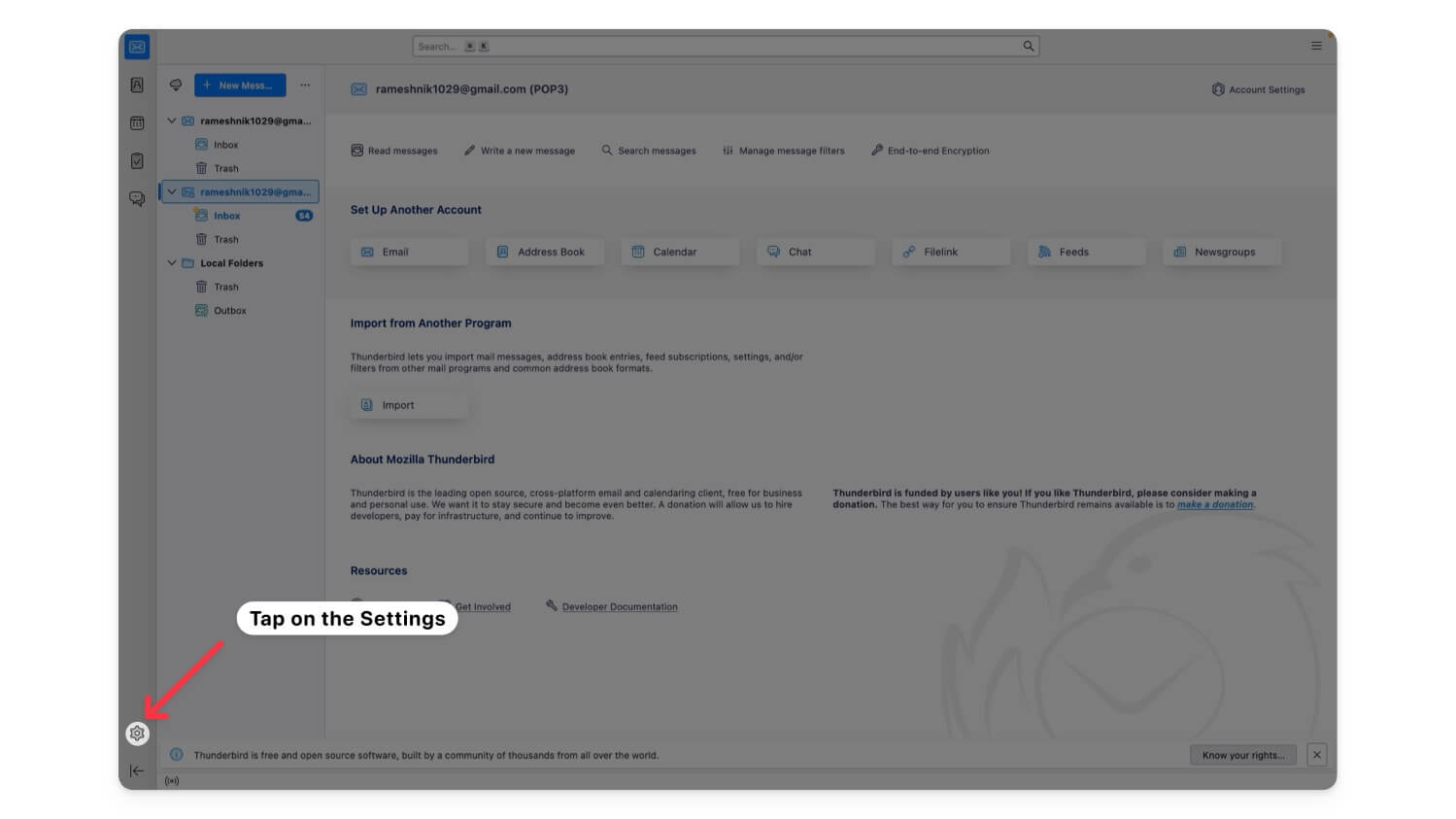
- Select Email and click the Settings gear icon in the screen’s bottom left corner.
- Now, click on the Account Settings.
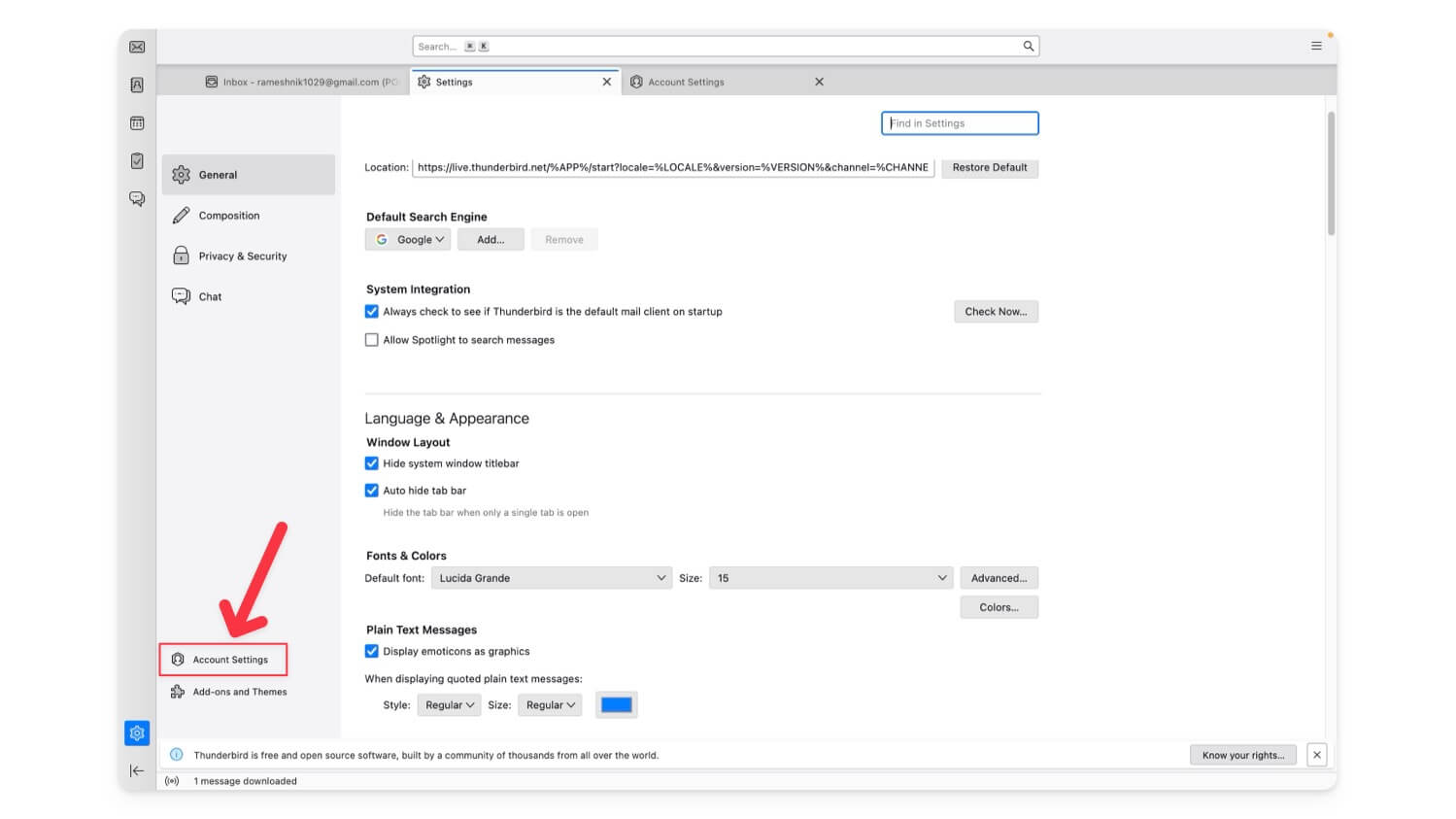
- Now go to Server settings and make the following changes.
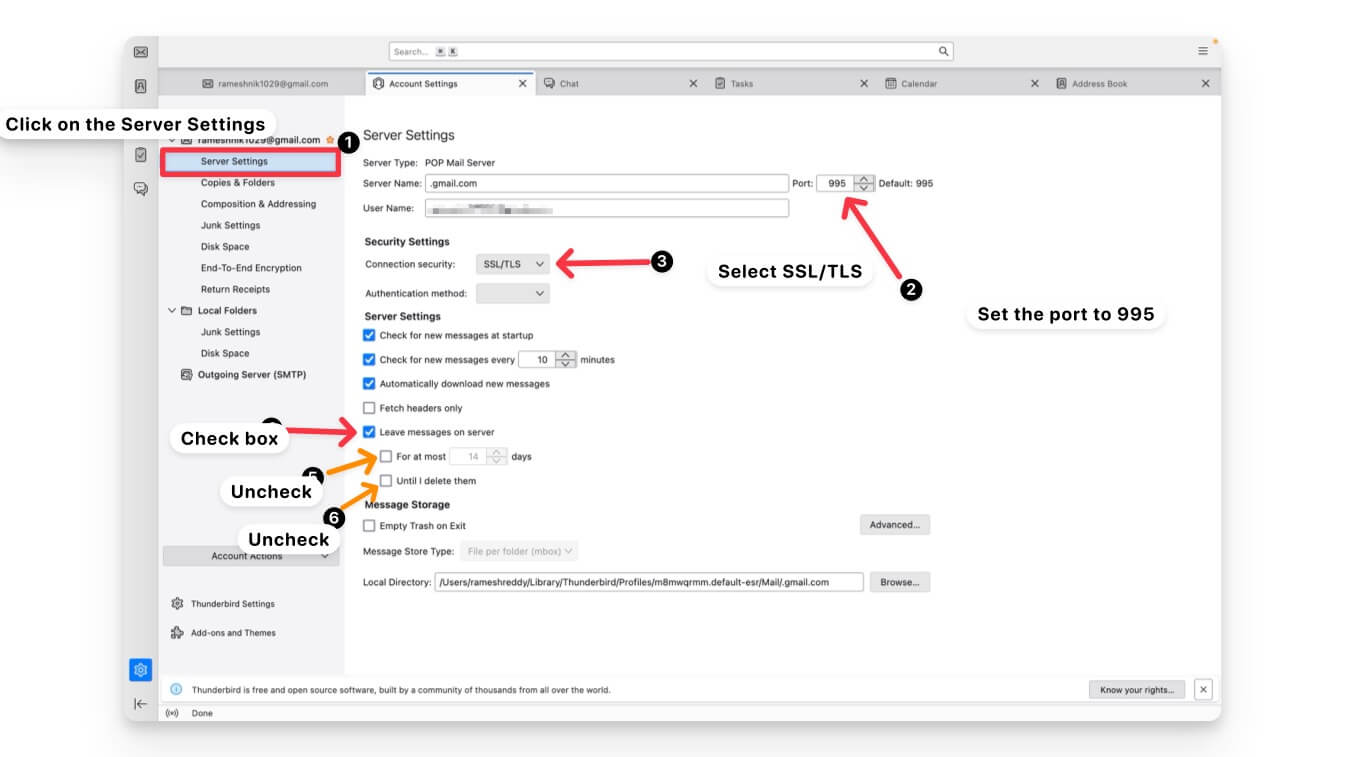
- Change the Incoming server settings to POP3 and ensure the port is set to 995 with SSL/TLS enabled.
- Click on the outgoing server. Set the port to 465 and enable SSL/TLS.
- Under Server Settings, check the option Leave messages on the server and uncheck For at most [X] days and Until I delete them options.
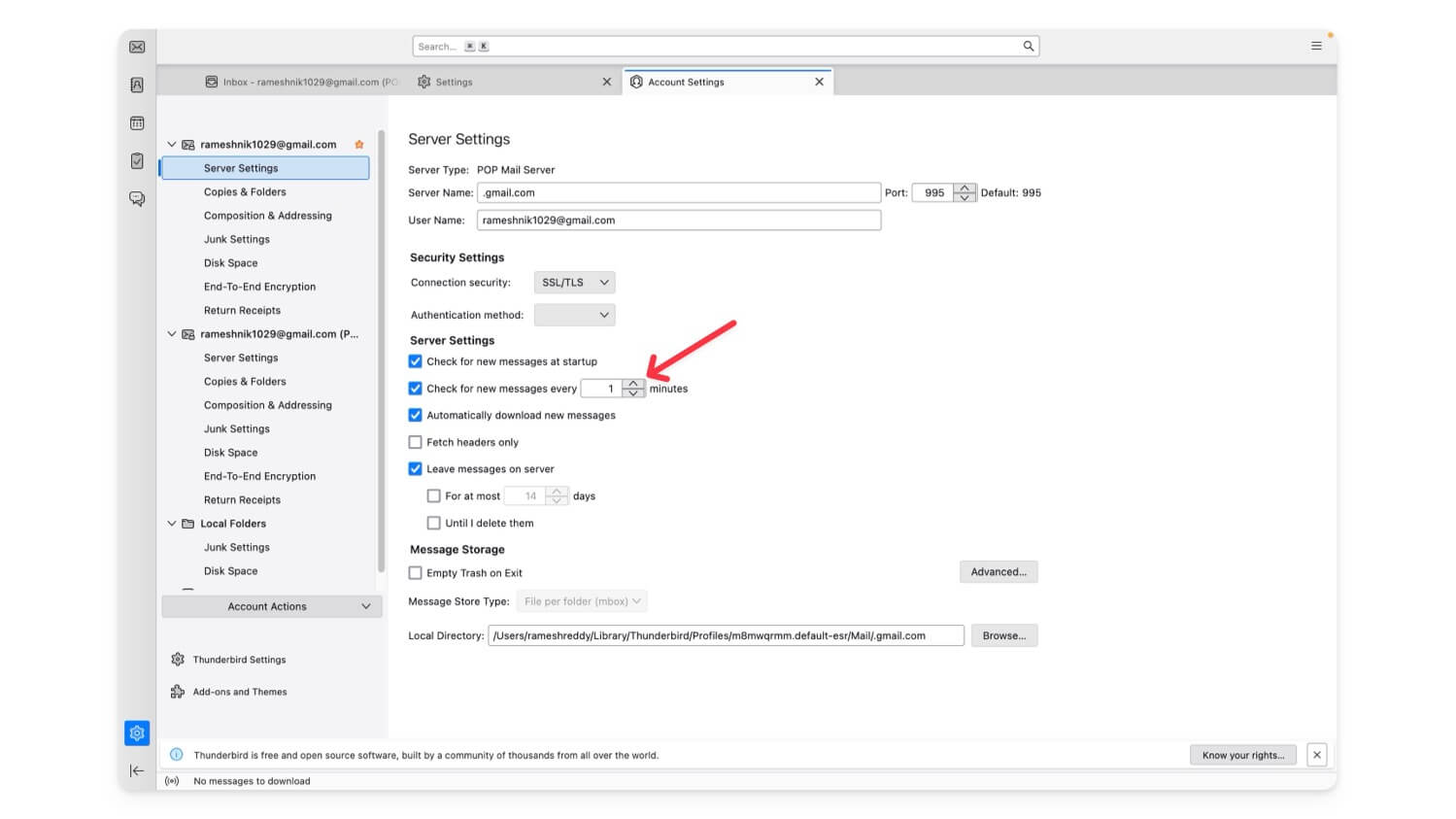
- Also, if you want to receive the latest messages faster in your inbox, reduce the time to 1 minute while in the server settings.
| Pros | Cons |
| Unlimited local storage | Requires setup and maintenance of a local client |
| Emails available offline | Emails are no longer in the cloud |
Subscribe to Google One
If you want to go through all the steps and want a hassle-free experience, subscribing to Google One is the best option. The basic plan starts at $1.99/month for 100GB, which is ideal for expanding Gmail storage.
Plan | Storage | Price in the U.S. | Price in India |
|---|---|---|---|
Free Plan | 15 GB | Free | Free |
Lite Plan | 30 GB | - | 59/Month |
Basic Plan | 100 GB | $1.99/month or $19.99/year | ₹130/Month or ₹1,300/year |
Standard Plan | 200 GB | $2.99/month or $29.99/year | ₹210/Month or ₹2,100/year |
Premium Plan | 2 TB | $9.99/month or $99.99/year | ₹650/Month or ₹6,500/year |
5TB Plan | 5 TB | $24.99/month or $249.99/year | ₹1,649/Month or ₹15,900/year |
10TB Plan | 10 TB | $49.99/month | ₹3,250/Month |
20TB Plan | 20 TB | $99.99/month | ₹6,500/Month |
30TB Plan | 30 TB | $149.99/month | ₹9,750/Month |
Along with more storage, you get family sharing (up to 5 members), access to Google’s AI-powered tools, a VPN, enhanced Google Photos editing features, and more. This subscription offers flexibility and extra benefits to optimize your Google services usage. Google also recently introduced a new cheaper storage plan, Google One Lite for India, Brazil, Indonesia and few other countries, which gives you 30 GB of storage for less than dollar per month.
| Pros | Cons |
| It is the easiest solution, with no data loss | Requires monthly fee |
| Provides extra features like VPN | Still need to manage storage in the long run |
Gmail is Full? No Problem!
Those are the six easy methods to fix the Gmail out-of-storage issue. The best and most reliable method is to clean out unwanted files on your Google account. Alternatively, you can set up a local email client or create a new Google account if you want an advanced setup. I hope you find this list helpful. Before deleting emails, you back up your emails using Google Takeout. Let me know in the comments below if you are still facing issues.
FAQs about Gmail Storage Issues
What happens with Gmail if the Storage limit is reached?
Once your data usage reaches a certain threshold, Gmail displays a warning in your inbox. When you have exceeded your storage quota for three months, Gmail will display a message that says, "You are out of space to send or receive emails."
The only thing you can do at this point is view all messages in your account but not send or receive new emails. Your account must be downsized to below the storage quota in order to resume normal operation.
What happens to your files when you breach the limit?
In the event you exceed the storage limit on Google Drive for two years, Google may delete all your content, including your photos, Gmail messages, and files, in Google Drive. You will be notified multiple times if your content is at risk of being removed, so you will have plenty of time to take action.
Will deleting emails free up Gmail storage?
Of course, it does. But you need to be smart when deleting emails. As we have explained above, you need to search for big emails with large attachments and bulk delete those unnecessary emails. You can also search for useless subscription emails and bulk delete them all to save up some space.

