

Quick Answer
My Google Drive was almost full, so instead of deleting files, I saved space by converting PDFs to Google Docs, compressing large files, transferring file ownership, and cleaning hidden junk like backups and old email attachments. These simple tweaks freed up significant storage fast.
Google offers free 15 GB cloud storage for every Gmail address. However, it can quickly get filled with data from Google services, especially if you also store files in Google Drive and have cloud backups for Google Photos.
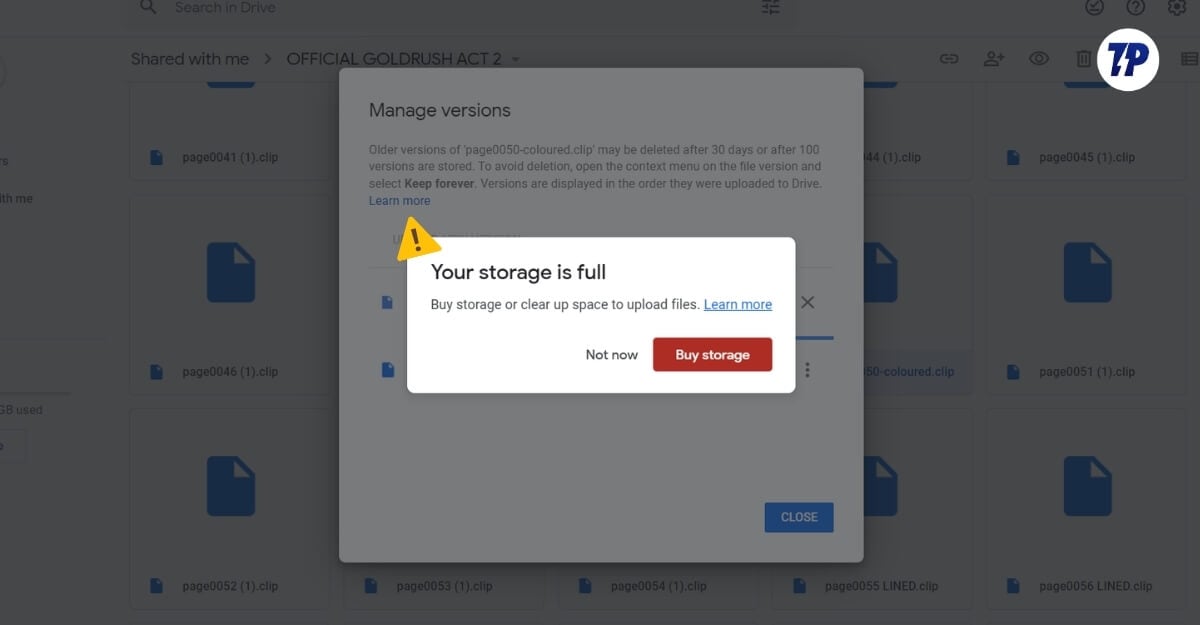
Over the years, due to poor storage management, my Google Drive space is almost full to the point where I cannot upload new files, photos, or even receive new emails. I was able to clean a lot of old, unwanted backup files, unused documents, and forgotten email attachments; however, without a proper strategy, my storage is almost full again.
So, instead of deleting and moving the files, I started compressing files, changing file formats, reviewing file ownerships, removing hidden junk data, and saved a significant amount of storage.
If your Google Drive storage is full, here are all the best ways you can use to help save Google Drive space on your phone. So, if you are ready, let’s get started
Table of Contents
How to Save Google Drive Storage Space Using Simple and Smart Methods
Method | What It Does | Pros | Cons / Limitations |
|---|---|---|---|
Format Conversion | Converts PDFs, DOCX, and XLSX into Google Docs or Sheets | Saves a large amount of space. Native Google files use minimal storage compared to others. | Formatting may break. Manual review needed for important files Mo native file conversion option |
File Compression | Compresses PDFs, images, and large files | Frees space quickly. Works well for large files | Quality can reduce for some files. No option to revert to original quality |
Ownership Review | Transfers ownership of large files | Instantly frees storage. No file deletion | Risk of losing access if owner removes you |
Hidden Storage Cleanup | Removes backups, app data, and trash files | Frees hidden storage. One-time big cleanup | Deleted backups cannot be restored. Have to maually find and remove the file |
Format Conversion Strategy
I don’t know about you, but my Google Drive is filled with hundreds of PDF files, including articles, my resumes, and other documents. If you are like me, you can convert all PDF files into Google Docs, which can free up a significant amount of space if your Google Drive is filled with PDFs. This is because native Google Docs and Sheets take less storage than external upload files like PDF, DOC, and XLSX.
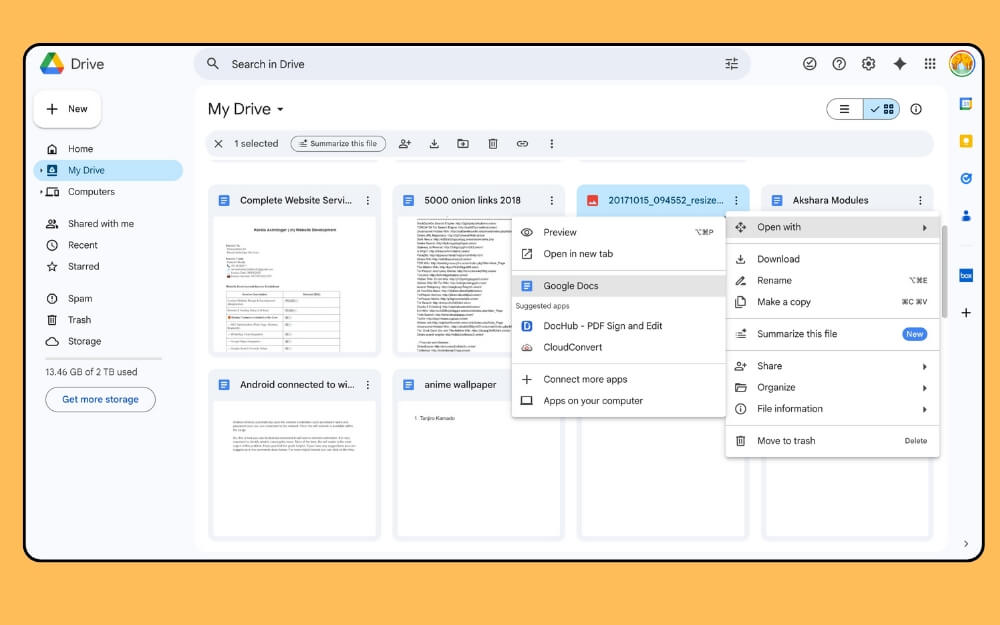
While those methods can free up storage for you, the only downside is that you have to do it manually for every file. For now, Google doesn’t allow converting all files at once into Google Docs or Sheets; however, don’t worry, you can use free extensions to bulk convert files, and here are some tips to help you get started.
Find all the important files. You can use the sorting option and also sort by file. Open each file and select Google Docs or Sheets, and then delete the original file. This way, you can easily discover your files, change their format, and delete old files.
Next, if you don’t want to convert files, you can use the free PDF to Docs Google Marketplace add-on to convert all PDF files in Google Drive to Docs. However, I wouldn’t recommend this for important files since this bulk file conversion can break your PDF files. So, follow the manual conversion method for important files and use this bulk converter for the rest of the files.
- PDF – docs
- docx – docs
- xlsx – sheets
- doc – docs
- image PDFs – docs
Download free extension
- PDF to Docs – Download Now
- Bulk Convert PDF to Google Docs: Download Now
- Converter for Google Drive: Download Now
Compress and Store Files
Most of the files uploaded to Google Drive are raw files without compression, which takes up more storage. Many people believe that compressing files may reduce their quality; however, in most cases, when you use lossless compression, you won’t find much of a quality reduction in files.
Since most large files on the Google Drive consume a lot of space, even a small reduction in file size can free up a lot of space.
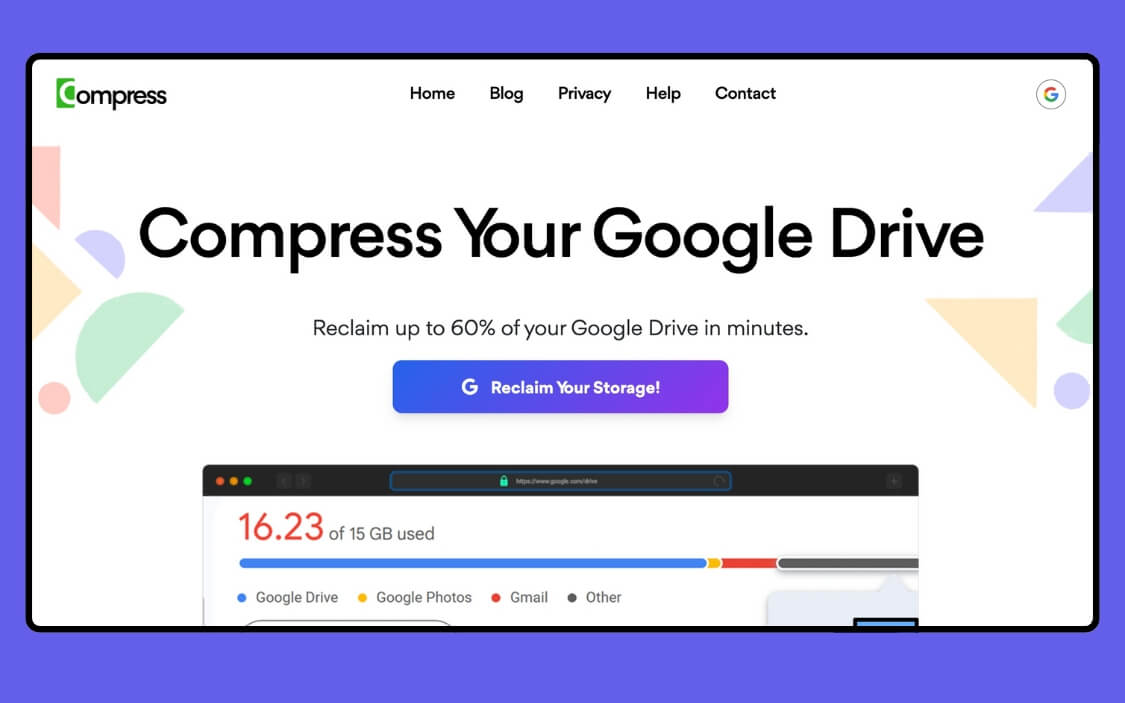
There are different methods you can use for file compression. Also, there are several best automation tools like Compress.my tool is specifically designed for Google Drive, which can directly compress files in your Google Drive without downloading them manually to your local drive.
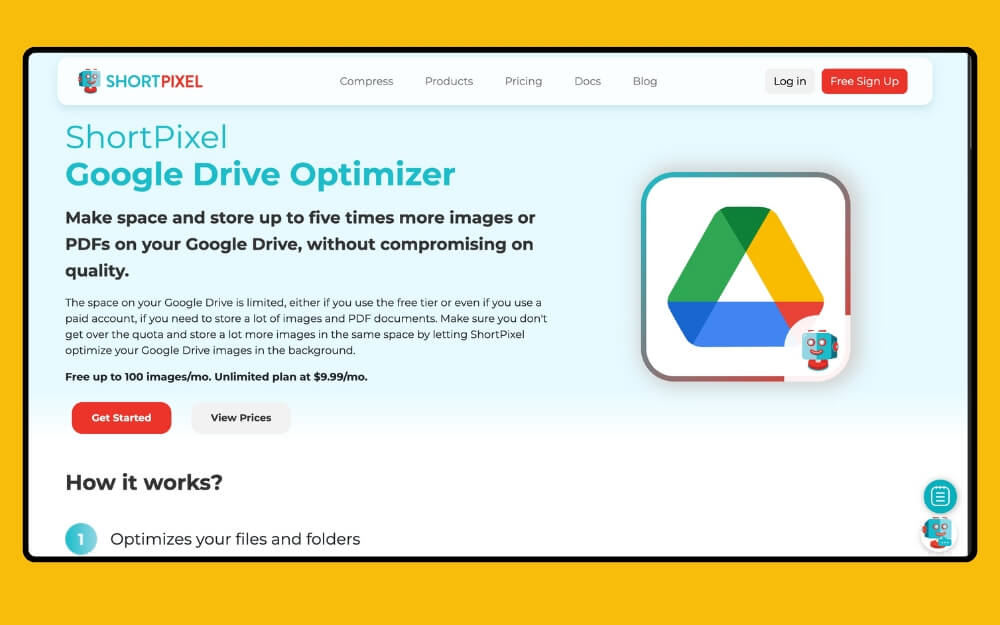
ShortPixel Google Drive optimizer is a great option for compressing images and PDF files. However, most of these files are paid and require a premium subscription.
If you are looking for a free version, you can try Google Colab, which lets you compress the files using Python for free. However, you don’t need technical knowledge to use it. Here are the simple steps you can follow:
Step 1: Go to https://colab.research.google.com and sign in with your Google account
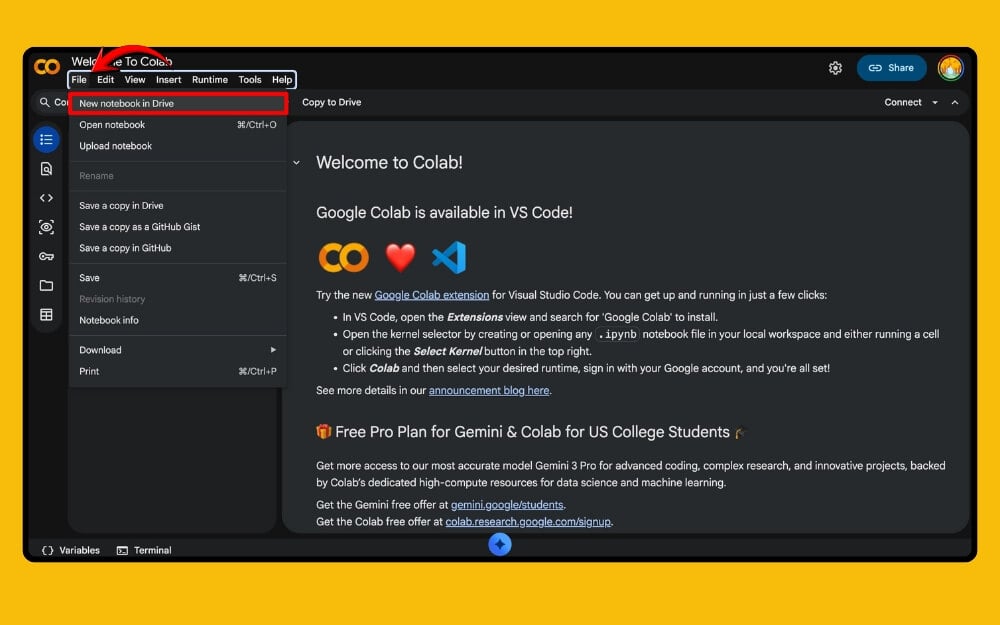
Step 2: Once opened, in the right sidebar, enter this code in the first box
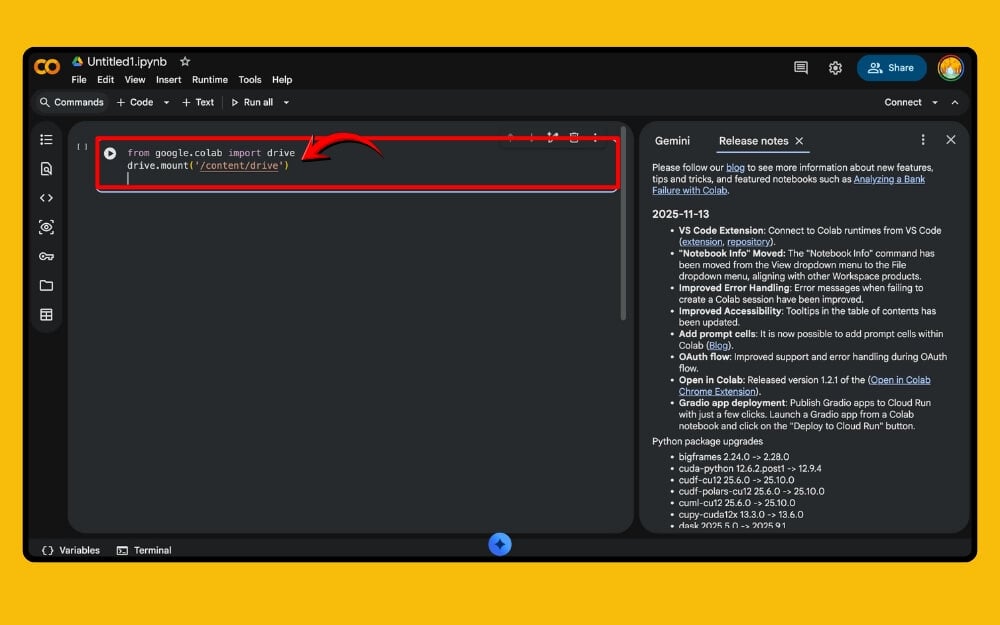
Step 3: Once you have entered the code, click on the play button and press Shift + Enter.

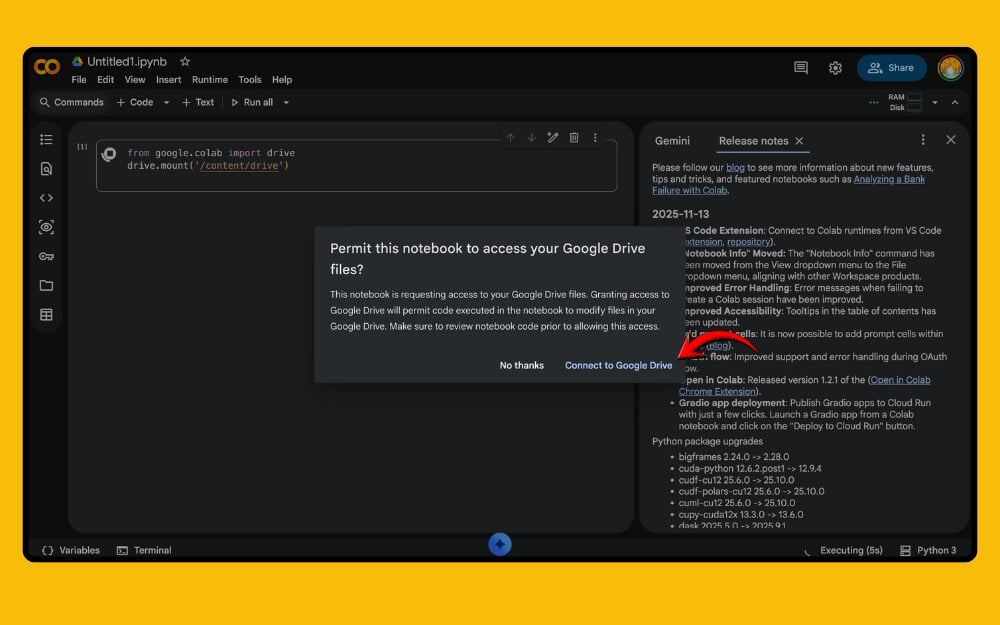
Step 4: Now, wait for a few seconds, and a pop-up will appear asking permission to connect to Google Drive. Click on the Connect to Google Drive option and then enter your password and complete verification.
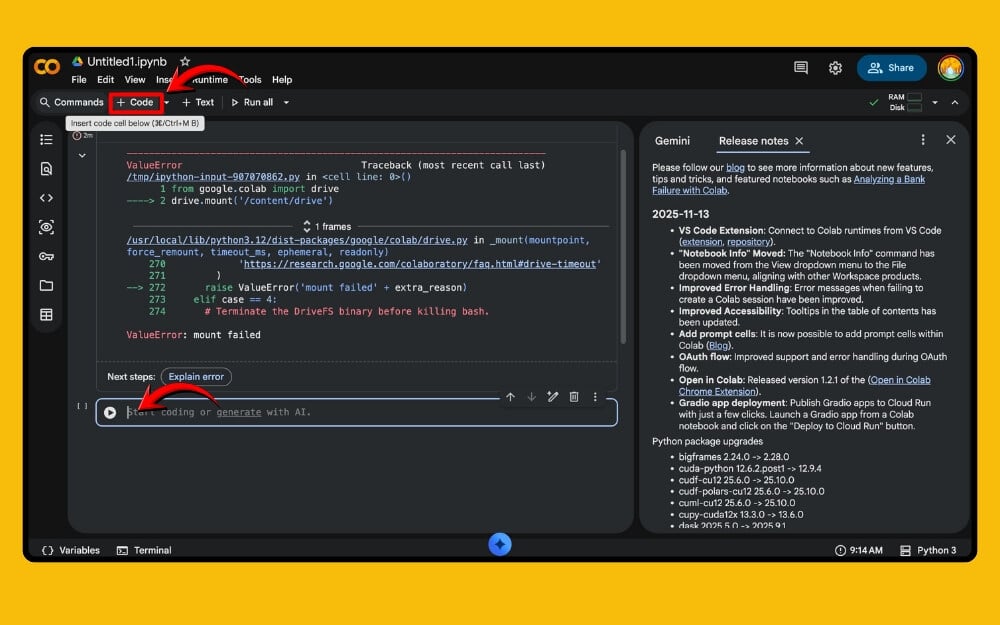
Step 5: Now, click on the plus new code in the top toolbar and add a new code box. Once added, enter this code and press enter or tap on the play button. Code: !pip install Pillow PyMuPDF
Step 6: Move all your PDF files into one folder.
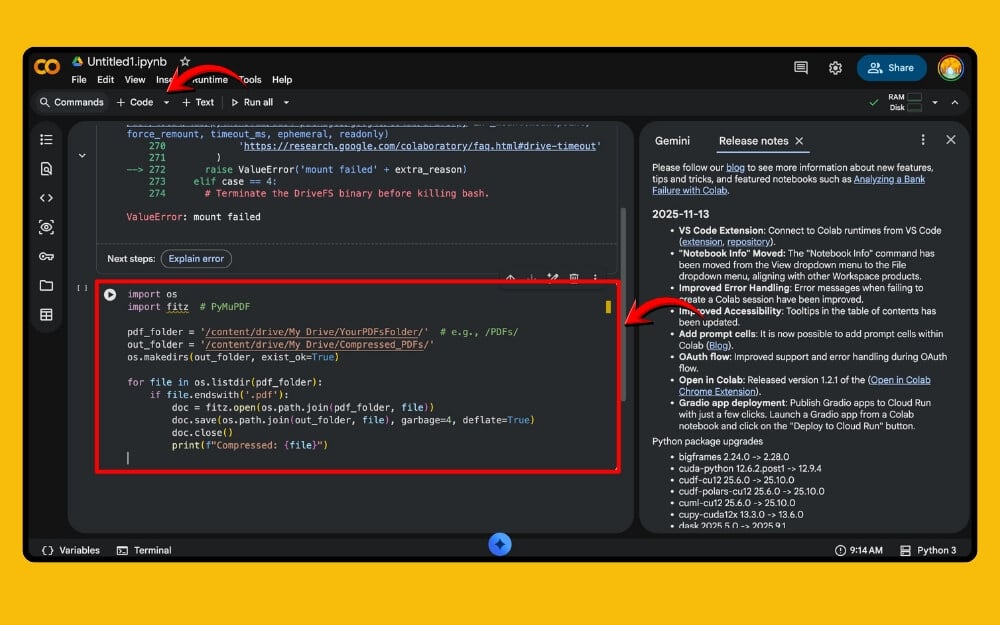
Step 7: Next, click on the plus code and paste this code, and tap on the play button. Wait for a few seconds and check back after some time; you will see a new compressed PDF folder.
Note: Rename the YourPDFsFolder to the name of the folder you used to store all PDFs in one place.
import os
import fitz # PyMuPDF
pdf_folder = ‘/content/drive/My Drive/YourPDFsFolder/’ # e.g., /PDFs/
out_folder = ‘/content/drive/My Drive/Compressed_PDFs/’
os.makedirs(out_folder, exist_ok=True)
for file in os.listdir(pdf_folder):
if file.endswith(‘.pdf’):
doc = fitz.open(os.path.join(pdf_folder, file))
doc.save(os.path.join(out_folder, file), garbage=4, deflate=True)
doc.close()
print(f”Compressed: {file}”)
Step 7: To compress images, click on the + code, paste the code, and press the play button. Before that, store all your images into one folder and give it a name, and update the Yourfolder text with your image folder name to compress the images.
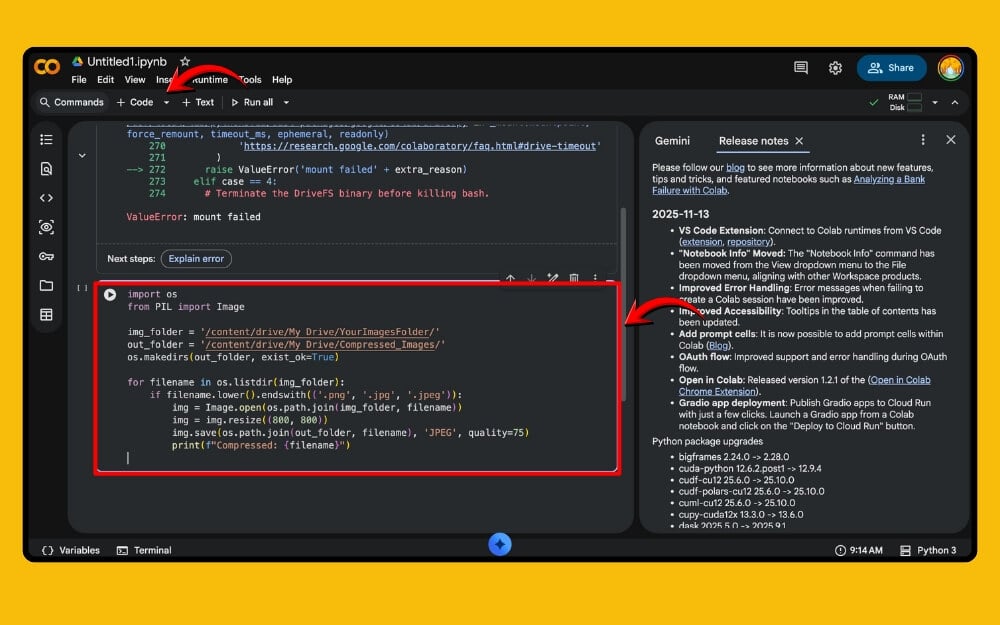
import os
from PIL import Image
img_folder = ‘/content/drive/My Drive/YourImagesFolder/’
out_folder = ‘/content/drive/My Drive/Compressed_Images/’
os.makedirs(out_folder, exist_ok=True)
for filename in os.listdir(img_folder):
if filename.lower().endswith((‘.png’, ‘.jpg’, ‘.jpeg’)):
img = Image.open(os.path.join(img_folder, filename))
img = img.resize((800, 800))
img.save(os.path.join(out_folder, filename), ‘JPEG’, quality=75)
print(f”Compressed: {filename}”)
If you have linked files and if you can do it manually, you can download them into your local storage, use the best compression tools, compress files, and upload them to the Google Drive. I have tested hundreds of file compression tools over the years, and here are the top picks depending on file type
- JPG/PNG: tinypng.com
- PDF: smallpdf.com/compress-pdf
- Video: youcompress.com
- Documents: wecompress.com
- All Files: compress2go.com
- PDF Alt: ilovepdf.com/compress_pdf
Remove File Ownership Transfers
Google Drive storage depends on the ownership. If you are the owner, all the files will use your cloud data. So, to save some space, check and transfer ownership of files to others.
If you no longer want to be the owner, you can also transfer the ownership to others if you are getting out of free storage. Here is how to manage your Google Drive files’ ownership details, and also how to transfer Google Drive files’ ownership to others.
How to view Google Drive files’ ownership
Step 1: Open Google Drive on your web browser
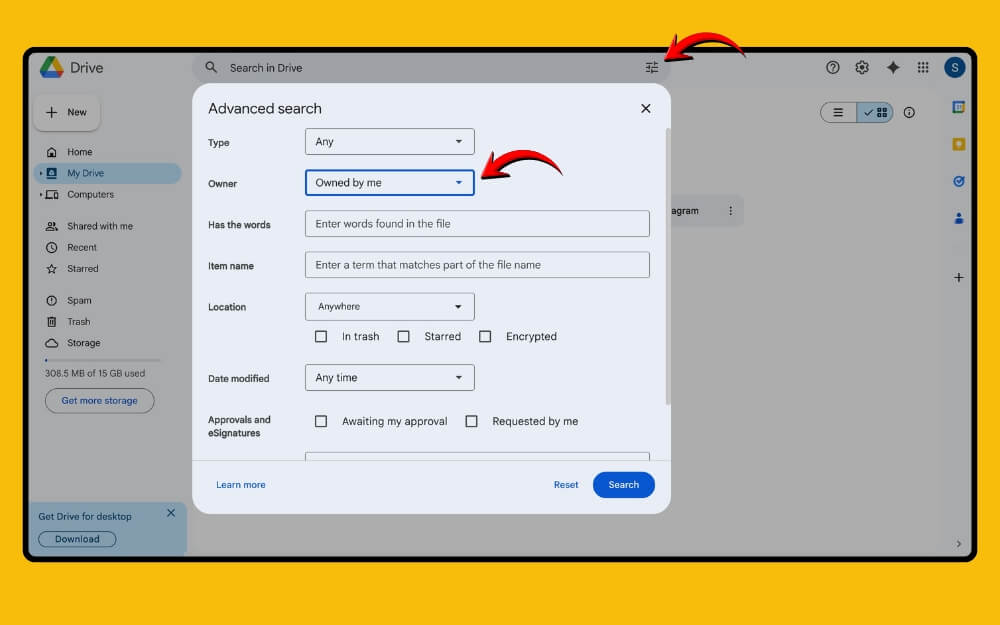
Step 2: In the top, click on the filter icon right next to the side bar, and in the file type, select owned by me. Here, it shows all the files that you need and the owners of the files
Step 3: From here, you can sort based on the file size and size type and manage your ownership. You can delete the file or change the ownership by following the next steps
How to add ownership to files
Step 1: Open Google Drive in your browser. Right-click on the file or click on the three-dot menu at the top of the file card and click on the share option
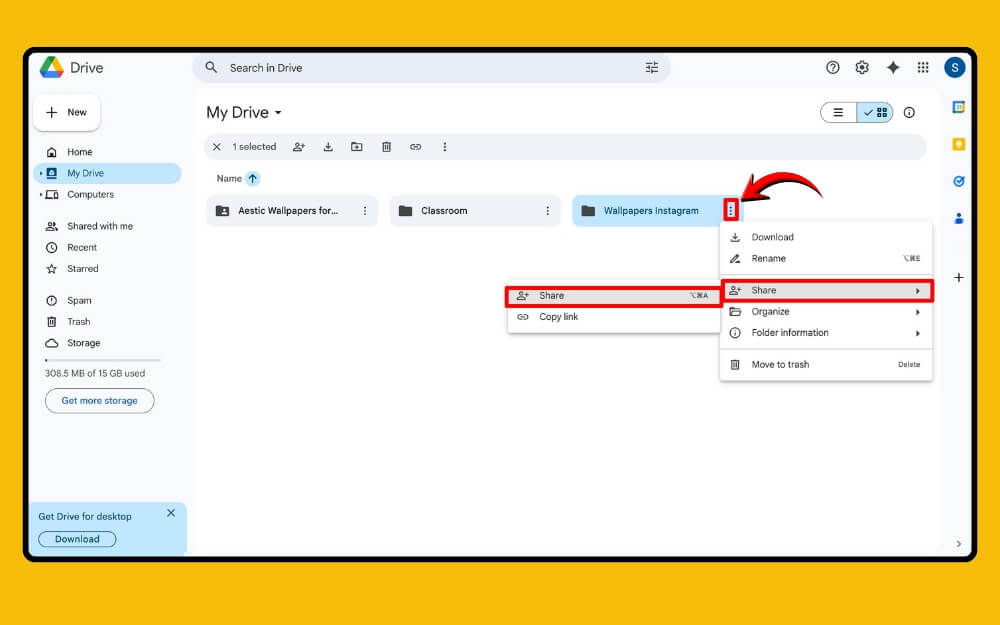
Step 2: Select the user you want to share the ownership with. You can also add new users from here. Add the new user and select the editor option from the drop-down, and click on send.
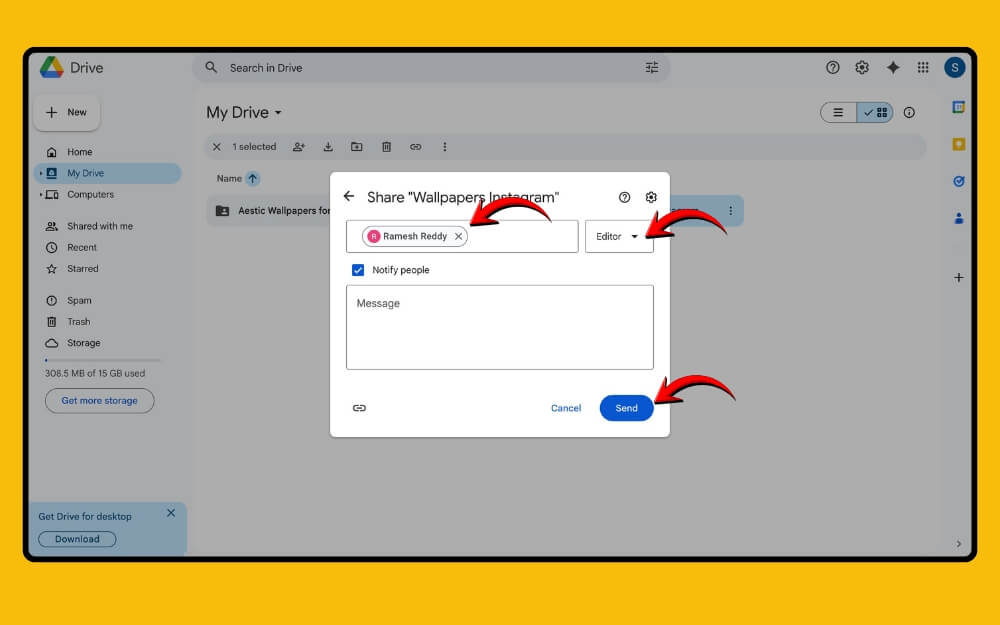
Step 3: Once added, now again open the share option and from here select the role drop-down and select transfer ownership.
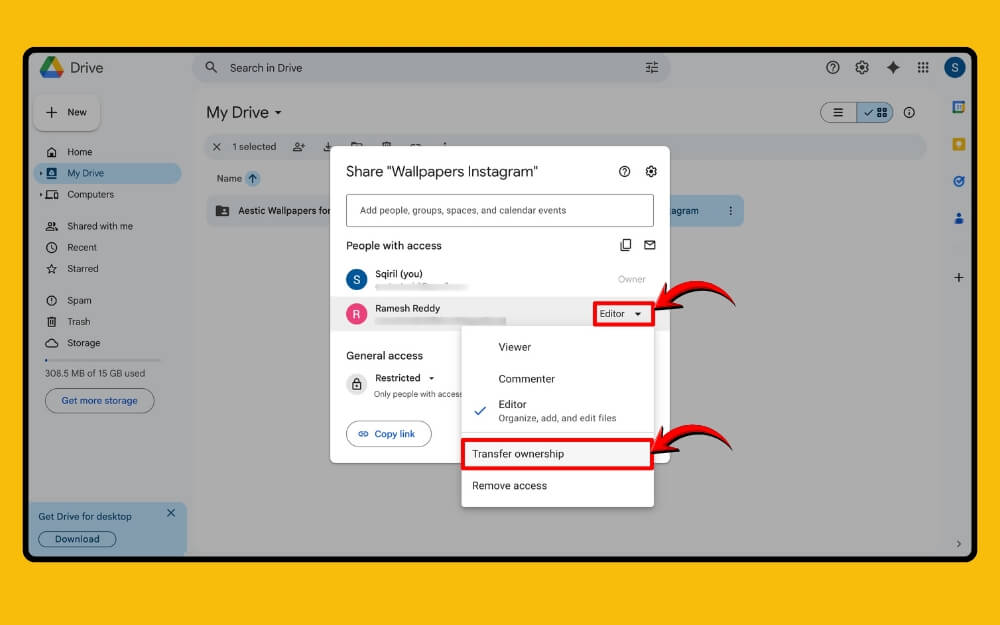
Step 4: The other user receives a notification, and if they approve it, the files will be transferred to their owner, and it stops counting against your storage immediately. Remember, you can still access the files without any issues as an editor, but the new owner can remove you from the list and make you lose access to the file permanently.
So, as a best tip, you can create a new gmail account for free and transfer your file ownership to the new files and access the file without any restrictions in the future since you have total control.
Hidden Storage Clean
Not just the files on your drive, Google Drive data also comes with time. It includes device backups from Google Backup and Sync, hidden app data, WhatsApp backup, Gmail trash and downloaded messages stored temporarily in your Google Drive account, which can significantly impact your storage. Fortunately, there is an easy way to get rid of this data using Google’s own storage cleanup tool
How to clean hidden files in your Google Drive Storage
Step 1: Go to storage options in your Google Drive. From here, you can see all the apps and files using your Google storage.
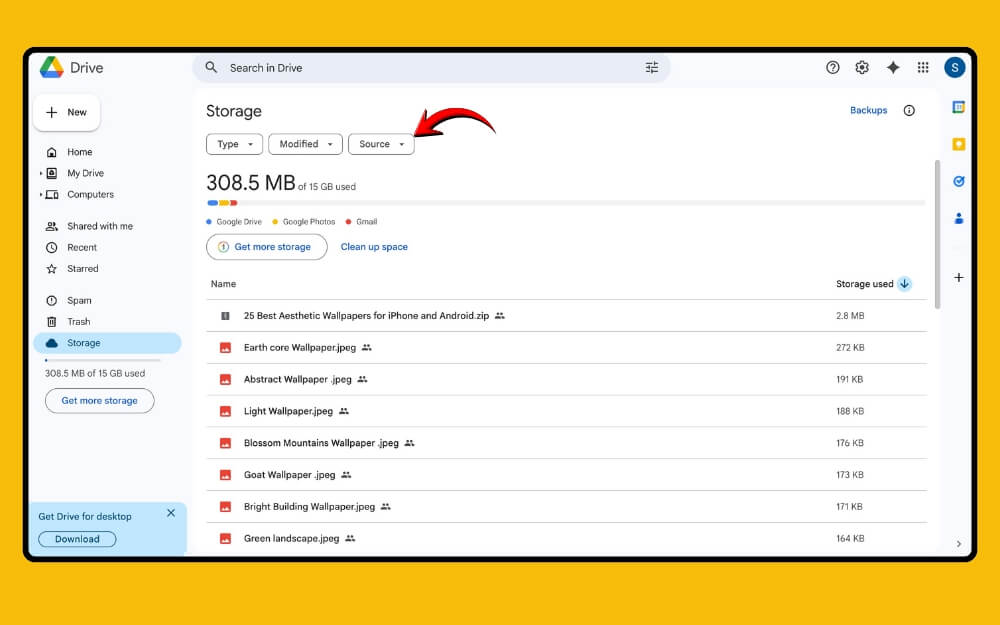
Step 2: You can check the file type and also ensure the data is coming from, and delete unwanted data
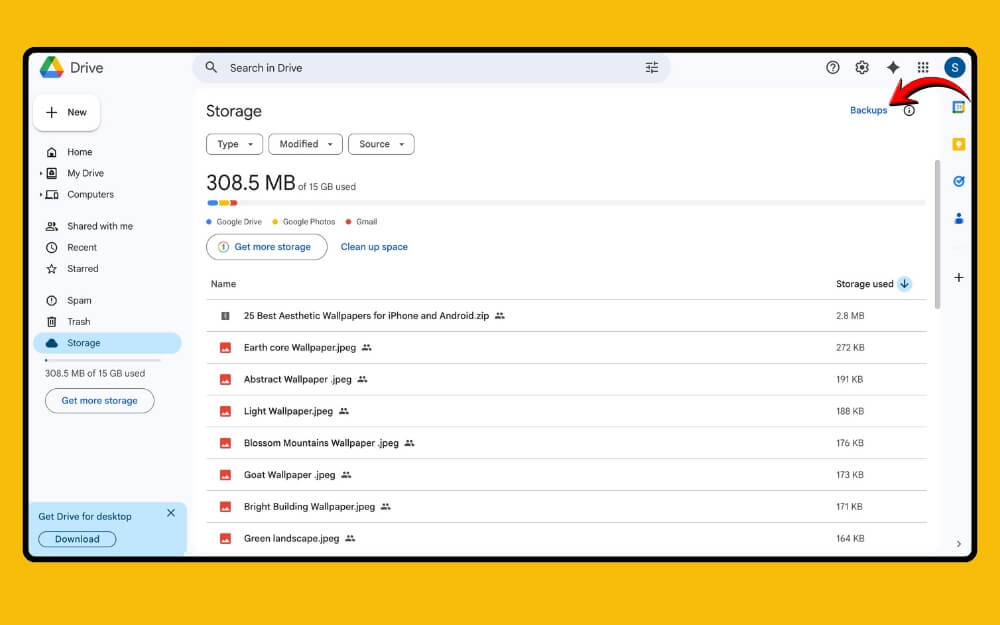
Step 3: To remove backups, click on the backup option in the top right corner of the screen, and from here, delete your own drive backup.
Not just that, you can also remove duplicates from the Google Drive and release them completely. Here is a simple guide on how you can find duplicate files on Google Drive and delete them.
And in the same way, you can find the large gmail attachments and delete them to save some space on your Google Drive.
Settings that you need to change to prevent Google Drive storage from filling up
- Remove offline access to Google Drive files:
- Use Google Photos’ default compression option
- Frequently remove files from the trash.
So, those are the four simple methods you can use to save space on your Google Drive Storage. Changing file format and compressing files can save you a significant amount of storage. You can use the Google Collab free tool to bulk compress files on your Google Drive. Finally, clean all unwanted and duplicate files on your Google Drive to save space.
FAQs on Saving Space on Google Drive
1. Will converting PDFs to Google Docs affect formatting like fonts, tables, or layout?
Yes, in some cases, converting PDFs to Google Docs can affect the formatting, like fonts, tables, and layout, if Google Docs supports those elements. Always store a backup for important files before accessing them in the docs.
2. Can compressed files be reverted to their original quality later?
No, compressed files cannot be reverted to the original quality later. To get the original quality back, you need to store the original file. Before compressing, ensure you store a backup of your important files.
3. Are there risks in using third-party Google Drive extensions?
Yes, only trust extensions from reliable sources like Google Workspace. Third-party extensions can risk your Google Drive storage.
4. Does sharing files with many users increase storage usage?
No, sharing a file with many users doesn’t increase the size. If the user has transferred the file ownership to you, Google uses your storage to store the file. You can also check the files you own using the simple methods I shared above.
5. Are there alerts before Google Drive storage becomes full?
Yes, Google often sends notifications before Google Drive storage becomes full.

