

Quick Answer
Ublock Origin for blocking ads, Bitwarden password manager for storing and securing passwords, Sponsored Block and Dim Lights to enhance your YouTube experience, HTTPS everywhere and VPN extension to increase your network security, and 10 more are the top extensions you can install on your mobile browser that supports extensions.
Browser extensions are a handy way to add features your browser might not have. From blocking unwanted ads to increasing download speeds, extensions can make the browsing experience much better for free.
Browser extensions are only popular on desktop PCs and are less known to be useful on mobile devices. Take Google Chrome, for example. It is the most popular browser, with more than 60% market share as of Jan 2025, but it still doesn’t support mobile extensions. Fortunately, other Chromium-based browsers support extensions on mobiles.
In this guide, you will learn about the 15 best browser extensions for mobile phones to enhance the browser experience on mobile. These extensions are great for casual users, power users, programmers, and users who prefer more privacy and want to enhance their daily browser experience.
If you use an iPhone, Safari has some great extensions, too. We have covered that in a separate guide, but for now, let’s focus on Android and how these extensions can enhance your browsing experience on your mobile.
Table of Contents
uBlock Origin: Blocks Unwanted Ads on Your Browser

Highlights:
- What it does: Blocks unwanted ads, trackers, and malware.
- Price: Free.
- Customization: Use custom filter lists and rules.
- Compatibility: Works on Android and desktop browsers.
No extension list is complete without an ad-blocker extension. Most sites use ads as their primary revenue source. However, a few websites take advantage of this and bombard users with unwanted ads and pop-ups and redirect them to unwanted and harmful websites.
In this case, ad blockers can come in handy and help you to remove ads and enhance user experience. There are plenty of ad blocker extensions, but uBlock Origin is one of my favorites since it is free and open-source.
As the name suggests, it lets you block trackers and ads on your mobile, and it is lightweight and doesn’t use excessive memory. In addition to blocking ads, uBlock Origin can help you reduce website load time, especially since mobile phones have less bandwidth and might take time to load websites.
You can also select filters. You can also customize filters by allowing and disabling specific ad types to help websites.
Download Links:
- Chrome: uBlock Origin – Chrome Web Store
- Microsoft Edge: uBlock Origin
- Firefox: uBlock Origin for Firefox
Bitwarden Password Manager: Store Your Passwords Securely

Highlights:
- What it does: Securely Store your password storage and autofill
- Price: Free (Premium available)
- Customization: Custom vault organization and security settings.
- Compatibility: Works on Android, desktop, and multiple browsers
While we are on the path to passwordless authentication, in 2025, More than 95% of web authentication is done using passwords.
Since you are not using Google Chrome as a default browser, you might also miss Google Chrome’s built-in password manager, which is free and best for most people for securing your passwords.
However, there are plenty of free password managers that offer better features, integration, and security, and they help you store and organize your passwords. Out of all, Bitwarden is the best option. I recently shifted from Dashlane to Bitwarden because of the price increase, and I am happy with the decision. The free version of Bitwarden allows you to store unlimited passwords, and if you are already using any password manager, it lets you easily import without any issues.
Using a password manager can come in handy, and in fact, it is one of our recommended methods to help you secure your account with better authentication.
Password managers let you store a wide variety of passwords, including secure 16-character ones, and help you to log in easily. You can sign in with your email and create your vault to store all your passwords.
In addition to this, password managers also let you store secure notes, cards, payment methods, and other information. For Bitwarden, storing images requires a premium account; however, storing unlimited passwords is free.
Download Links:
- Chrome: Bitwarden Password Manager
- Microsoft Edge: Bitwarden for Microsoft Edge
- Firefox: Bitwarden for Firefox
Sponsored Block for YouTube: Skip Sponsered Content From YouTube Videos

Highlights:
- What it does: Skips sponsored segments in YouTube videos.
- Price: Free
- Customization: Choose categories to skip (sponsors, intros, outros, etc. )
- Compatibility: Works on Android and desktop Chrome
While YouTube is a great app for video consumption and comes preinstalled on Android smartphones, using YouTube on a web browser has its benefits.
Using the Adblocker extensions, you can block ads on YouTube. With a Sponsored block browser extension, you can block sponsored content within the video with the community’s help. It works for almost all videos.
In addition to blocking sponsored content, you can apply filters to skip intros and sponsor blocks, label them, and filter out parts of the video.
Download Links:
- Chrome: SponserBlock for Youtube
- Microsoft Edge: SponsorBlock for YouTube
- Firefox: SponsorBlock for Firefox
HTTPS Everywhere: Force Secure Connection on All Websites

Highlights:
- What it does: Forces websites to use a secure HTTPS connection.
- Price: Free
- Customization: You can disable HTTPS for specific sites (not recommended)
- Compatibility: Works on Android and desktop browsers
HTTPS Everywhere extension forces web browsers to use the HTTPS secure protocol to transfer your data between the web server and your device.
This is very important, especially if you use public Wi-Fi to transfer sensitive information to the web server.
The standard HTTP connection transfers the data in just regular text, meaning any middleman or hacker accessing your internet connection can intercept and view the data.
However, HTTPS adds a secure SSL connection to the browser, increasing the security of your data transferred between you and the web, making it hard for any hijacker or middleman to hack and view your data.
Almost all websites now use HTTPS by default. However, a few websites still rely on standard connections, exposing user data to hijacking. The HTTPS Everywhere extension forces HTTPS connections to websites even if they don’t support it by default. It also lets you disable HTTPS for specific websites
However, I still recommend you view the HTTPS connection symbol if you transfer data like your payment details, messaging, and other sensitive information through the web browser on public Wi-Fi.
Download Links:
- Chrome: HTTPS Everywhere
Price Tracker: Track Product Prices and Get Notified About Piece Drops
Highlights:
- What it does: Tracks price history and sends price drop alerts.
- Price: Free (Premium available)
- Customization: You can set price alerts and view detailed price graphs.
- Compatibility: Works on Android and desktop browsers.
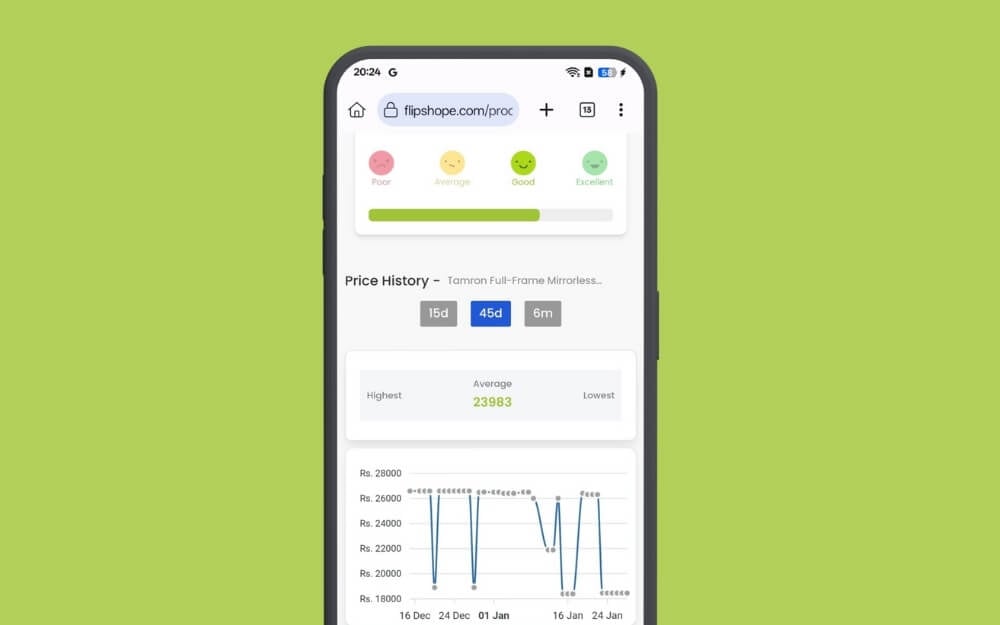
If you shop Online, Price Striker can come in handy to track the price history and buy at the right time to save your hard-earned money.
There are plenty of price striker extensions available for browsers like Keepa. Most of them didn’t work for mobile. After testing, I found that the Flip Shop extension is the best option, and it works on mobile.
Using the product link, you can get a detailed price history of the product, including the lowest and highest prices and purchase meter to help you find the right time to buy the product.
It also comes with features like automatically applying coupons, price tracking, and a detailed product price history. It works for almost all popular websites, including Amazon, eBay, e-commerce, and others I have tested.
Download Links:
- Chrome: Flipshope – Chrome Web Store
- Microsoft Edge: Flipshope for Microsoft Edge
Turn Off the Lights Feature for YouTube Videos

Highlights:
- What it does: Dims the background while watching YouTube videos for a theater-like experience.
- Price: Free
- Customization: You can adjust the opacity, colors, and auto-dimming settings.
- Compatibility: Works on Android and desktop Chrome
If you watch YouTube videos often, like movies, the Turn Off the Lights extension can come in handy to enhance your YouTube viewing experience.
I often use this on my PC, especially when watching long videos, to avoid distractions and bring the feel of a theatrical experience. You can get a similar experience on your mobile.
If you’re someone who doesn’t watch videos on full screen and wants that cinematic viewing experience by darkening the lights surrounding you, this is exactly what the extension does. As its name suggests, it turns off the lights, dimming the brightness around the YouTube video while keeping the YouTube video in bright focus, bringing you the feel of being in a movie theatre.
If you use YouTube often to watch videos, this can be handy to enhance your viewing experience. It works on mobile, too.
Download Links:
- Chrome: Turn Off the Lights
- Microsoft Edge: Turn Off the Lights
- Firefox: Turn Off the Lights for Firefox
VPN: Encrypt Your Connection, Access Restricted Websites

Highlights:
- What it does: Use a VPN on your browser.
- Price: Free (Premium available)
- Customization: Server selection, kill switch.
- Compatibility: Works on Android and desktop browsers.
A browser VPN can come in handy if you want to access and unblock websites and want you to encrypt your work Internet connection. There are plenty of browsers that have built-in VPNs; if you don’t want to install a browser only for the VPN, you can try installing free VPN extensions to get the same functionalities on your browser.
After testing, I found Proton VPN, which is free and unlimited to use, and TurboVPN, which is also great but has limits. Both VPNs offer good speed and allow you to connect to free locations.
Download Links:
- Chrome: Turbo VPN
- Microsoft Edge: Turbo VPN
- Firefox: Proton VPN Add-ons for Firefox
Get Material U on Your Browser

Highlights:
- What it does: Brings Material You design to your browser
- Price: Free
- Customization: Adjust colors to match your system theme
- Compatibility: Works on Android and desktop Chrome
If you are a fan of Google Material You Design, there is a way you can get Material UI design on your browser. It looks great on your browser. If you are missing it on your Android smartphone, you can use the same extension to get a similar experience on your Mobile.
However, the UI seems to be only optimized for desktops; on mobile, the UI is a little inconsistent, resulting in a desktop-like experience. Also, the developer has to remove the multi-search engine feature due to issues with Google Chrome policy.
However, you can use the address bar right on the top to find what you’re looking for. It has a clock that displays time, and there are also weather updates, and in the end, there is a quotation. In addition to that, you can also customize the home screen experience by adding all your tools for extension shortcuts, bookmarks, AI tools, and also other Google apps, to-do list apps, and more, and also customize your look and translate the webpage completely.
Download Links:
- Chrome: Material You Theme
Use a Temporary Email Address for Website Signups

Highlights:
- What it does: Generates disposable emails for temporary use.
- Price: Free
- Customization: You can also choose domain or email duration.
- Compatibility: Works on Android and desktop browsers.
Almost every website these days requires you to create an account to use the services; some of them might use your email address to send unwanted emails, marketing mail, and spam emails that might quickly flood your inbox.
In the majority of cases, I avoid giving my primary email address and use it as a temporary email to avoid this inconvenience. However, things are different on the desktop. Using temporary mail extensions, you can use temporary mail instead of giving original mail along with the inbox, letting me use it for a while, and also getting OTP or any two-factor authentication mail from the website.
With similar extensions, you can get these functionalities now on mobile, too. I have tested Temp Mail, a popular temporary email extension, on the browser, but it doesn’t work on the Kiwi browser.
You can use the Temporary Email extension for mobile, which gives you temporary mail and a new inbox and lets you view the mail. Similar to the desktop, you can use the temporary mail for sign-ups. It is free to use and lets you generate a new temporary mail for each website you visit.
Download Links:
- Chrome: Temporary Email
- Microsoft Edge: Temp Mail
- Firefox: Temporary Email Address for Firefox
Dark Reader: Customise Dark Mode Filters for Each Website

Highlights:
- What it does: Enables dark mode on all websites
- Price: Free
- Customization: Adjust brightness, contrast, and dark mode levels
- Compatibility: Works on Android and desktop browsers.
The dark mode used to be the fan feature on websites and apps before it started rolling out system-wide on all operating systems.
Today, you can force dark mode on any website or app that doesn’t support dark mode natively. However, because of its system limitations, varied implementation, and not being personalized, most of the forced dark mode filters on these websites are inconsistent and don’t appeal to all users.
This is where a custom dark mode for each website can come in handy. Free Dark Reader browser extension lets you customize the dark mode for each website, adjust the contrast, dark mode level, text size, and more to help you personalize the dark mode for each site.
It is a handy feature, and even if the website doesn’t support dark mode or if you have set the system theme to light mode, you can force dark mode on all the websites in the browser.
Download Links:
- Chrome: Dark Reader – Chrome Web Store
- Microsoft Edge: Dark Reader for Microsoft Edge
- Firefox: Dark Reader for Firefox
Use Teleparty on Your Mobile

Highlights:
- What it does: Create a free streaming watch party from mobile
- Price: Free
- Customization: Choose usernames and chat settings
- Compatibility: Works on Android (via browser) and desktop browsers
TeleParty is a popular Chrome extension that lets anyone host a watch party. However, it currently only works on desktop browsers. To join a watch party, you have to use the browser on your desktop, which often limits its portability.
However, with the Kiwi browser extension, you can enjoy or host a watch party from your mobile. If you haven’t heard about the Teleparty Party extension before, it is a popular Chrome extension that lets you host a watch party by sharing your stream with others through their accounts.
With this extension, all the participants watch the content simultaneously with synchronized playback. It also supports multiple platforms, including Netflix, Prime, and YouTube. It also comes with a group chat that lets you chat with friends in real time. All friends can join the party with a shared group link from their account. Thanks to this extension, you can create or join a watch party on your mobile.
Download Links:
- Chrome: Teleparty on Chrome Web store.
- Microsoft Edge: Teleparty for Microsoft Edge
- Firefox: Teleparty for Firefox
Any Edit: Edit Website Content Seamlessly

Highlights:
- What it does: Edit content on web pages temporarily.
- Price: Free
- Customization: No permanent changes
- Compatibility: Works on Android and desktop browsers.
Any Edit is a handy extension that allows developers and designers to edit any element on your web instantly. This is so seamless that you can edit any element text element in the render phase without even going to the inspecting page.
It works on all websites that I have tested, and it’s so seamless. Even though you’re not a developer or a designer, it can come in handy if you want to edit some elements before saving a webpage as a PDF or if you want to prank your friend by inserting his name on a website. It’s simple and easy to use, but use it the right way. Remember these are empty changes, and it resets once the page refreshes.
Download Links:
- Chrome: Any Edit Chrome Web Store
- Microsoft Edge: Web Edit for Microsoft Edge
- Firefox: Page Edit for Firefox
Text Blaze: Create and Use Text Snippets

Highlights:
- What it does: Create and insert text snippets on any website.
- Price: Free (Premium available)
- Customization: Create templates with placeholders and dynamic fields.
- Compatibility: Works on Android (via browser) and desktop browsers.
Text Blaze is another useful browser extension that lets you store text snippets and use them with shortcuts.
You can add different text snippets such as your full address, your phone number, or your social media link, add a shortcut to the snippet, and insert the snippet on any webpage using the shortcut. This helps you save time without entering all of your information on frequent websites again. It also works flawlessly on your mobile.
You can install a Text Blaze extension on your mobile device, sign in with your account, and then create a shortcut. To use it, you can use a forward slash (/) on the shortcut and press enter, and the snippet is automatically applied to your input field.
Download Links:
- Chrome: Text Blaze – Chrome Web Store
- Microsoft Edge: Text Blaze for Microsoft Edge
Block Youtube Shorts

Highlights:
- What it does: Hides YouTube Shorts from your Home feed and converts shorts into full-screen videos.
- Price: Free
- Customization: Option to block specific sections or formats
- Compatibility: Works on Android and desktop Chrome
A short video format might be the next thing. However, I still get messages from my friends asking how to disable YouTube Shorts on the YouTube app.
Because of this, we have a detailed guide on how to disable YouTube shorts on mobile. However, On the browser, you can easily disable Shorts using a simple action without using third-party apps.
There are plenty of extensions, but in my test, the YouTube Shorts Block Shorts app worked, and as the name suggests, it removes Shorts videos from your home feed recommendations. Also, when you visit the Shorts tab, it automatically converts the Shorts videos into full videos in the form of a full-length video experience.
However, once you install the extension, clear all the tabs and reload YouTube. If it doesn’t work, try disabling and enabling the extension and then reloading the YouTube app.
Download Links:
- Chrome: Block YouTube Shorts – Chrome Web Store
- Firefox: YouTube Shorts Block for Firefox
Restrict websites

Highlights:
- What it does: Blocks access to specific websites.
- Price: Free
- Customization: Add websites to blocklists with scheduling options
- Compatibility: Works on Android and desktop Chrome
I have been using social media sites in a browser to increase friction. Compared to apps, Using social media on a browser experience is underwhelming, which is a primary reason I might not use social media sites as often as I use them on the app.
However, there are times I often navigate to these sites unconsciously and spend all my valuable time scrolling, but without doing anything. This is where extensions like Restrict websites can come in handy. The block site extension helps me block specific social media sites. However, in your case, you can use it for other purposes, like blocking your work-related sites so that your children or others might not be able to access them.
The free version allows you to block up to 3 sites for free, which is a limitation but is enough for most people. If you upgrade, you can block unlimited sites and also get access to password protection, which lets you password-protect your websites.
Download Links:
- Chrome: BlockSite for Chrome Web Store
- Microsoft Edge: BlockSite for Microsoft Edge
- Firefox: Block Site for Firefox
Best Browser Extensions for Android You Need
These are the list of 15 best browser extensions for your mobile phone. Using these, you can enhance your browser experience by eliminating distracting elements, blocking ads, enhancing your YouTube viewing experience, securing your passwords, and more.
Installing these extensions on your browser is very similar to that on a PC. On most mobile browsers, you can visit the extension tab, click install extensions from the store, visit the extension page, and click on add to Chrome or add to the browser. Some extensions work by default, while others you have to invoke them to work manually. You can click on the three-dot menu and tap on the extension to make it work. If you have any issues, you can comment below, and I am happy to help.

