

Quick Answer
To set up ChatGPT with Apple Intelligence on Mac, ensure your Mac has an M1 chip or newer and macOS 15.2 Sequoia. Go to System Settings > Apple Intelligence & Siri > ChatGPT, then enable the ChatGPT extension. Optionally, sign in to a ChatGPT account for enhanced features. Use Siri for advanced tasks like generating text or fixing writing errors.
This has happened to me many times when I asked Siri some basic questions or requested that Siri do something very basic, but Siri couldn’t answer them. Often, Siri would say or prompt, ‘Sorry, I don’t understand,’ to my commands. Many times, instead of giving me an answer, Siri would just show web search results on my screen, and I swear to God, it is so annoying! I’m sure you feel the same way.

However, with the release of macOS 15.2 Sequoia, Apple has integrated ChatGPT with Apple Intelligence & Siri, making it a smarter and more capable virtual assistant that can even answer complex questions. However, to use ChatGPT with Apple Intelligence, you need to set up the ChatGPT extension integrated with Apple Intelligence & Siri, and in this article, I will guide you through the steps to set up and use ChatGPT with Apple Intelligence on Mac.
Table of Contents
Benefits of Using ChatGPT With Apple Intelligence & Siri
Let’s explore how beneficial it is to use ChatGPT With Apple Intelligence & Siri on your Mac.
- Using ChatGPT with Apple Intelligence & Siri makes Siri smarter and more efficient, allowing it to handle even complex commands with ease.
- With ChatGPT built into Apple Intelligence, you can quickly generate text, summarize information, or find answers without opening the ChatGPT app or website. Simply give a voice command to Siri, and it will fetch the information from ChatGPT and display it on your screen. You don’t even need a ChatGPT account or to be logged in to use these features.
- While working or feeling bored, you can ask Siri for jokes or poems.
- If you’ve already written a text, email, or letter, Siri can help improve its writing style or fix grammatical errors.
- If you’ve logged into your ChatGPT account after setting it up with Apple Intelligence, all your commands and Siri’s responses will be saved in your account. This allows you to access them anytime, from any device, whenever you need them in the future.
Requirements to Set up ChatGPT With Apple Intelligence & Siri
Before setting up the ChatGPT extension with Apple Intelligence & Siri on Mac, it’s important to know that Apple requires at least an M1 or newer chip on your Mac device and ensures your Mac is updated to macOS 15.2 Sequoia or later; after updating, you need to set your Mac’s primary language to either English (US) or localized English in Australia, Canada, Ireland, New Zealand, South Africa, or the United Kingdom. Apple also recommends setting your region to the United States, Australia, Canada, Ireland, New Zealand, South Africa, and the United Kingdom. It may roll out in more countries around mid of 2025.
How to Set Up and Use ChatGPT With Apple Intelligence on Mac
By now, you’ve likely reviewed the checklist for setting up ChatGPT with Apple Intelligence. If yes, then let’s dive into setting up ChatGPT with Apple Intelligence and Siri on your Mac.
1. Click the Apple logo at the top left corner of your screen.
2. Now choose System Settings when the pop-up prompt.
3. After that, go to Apple Intelligence & Siri.
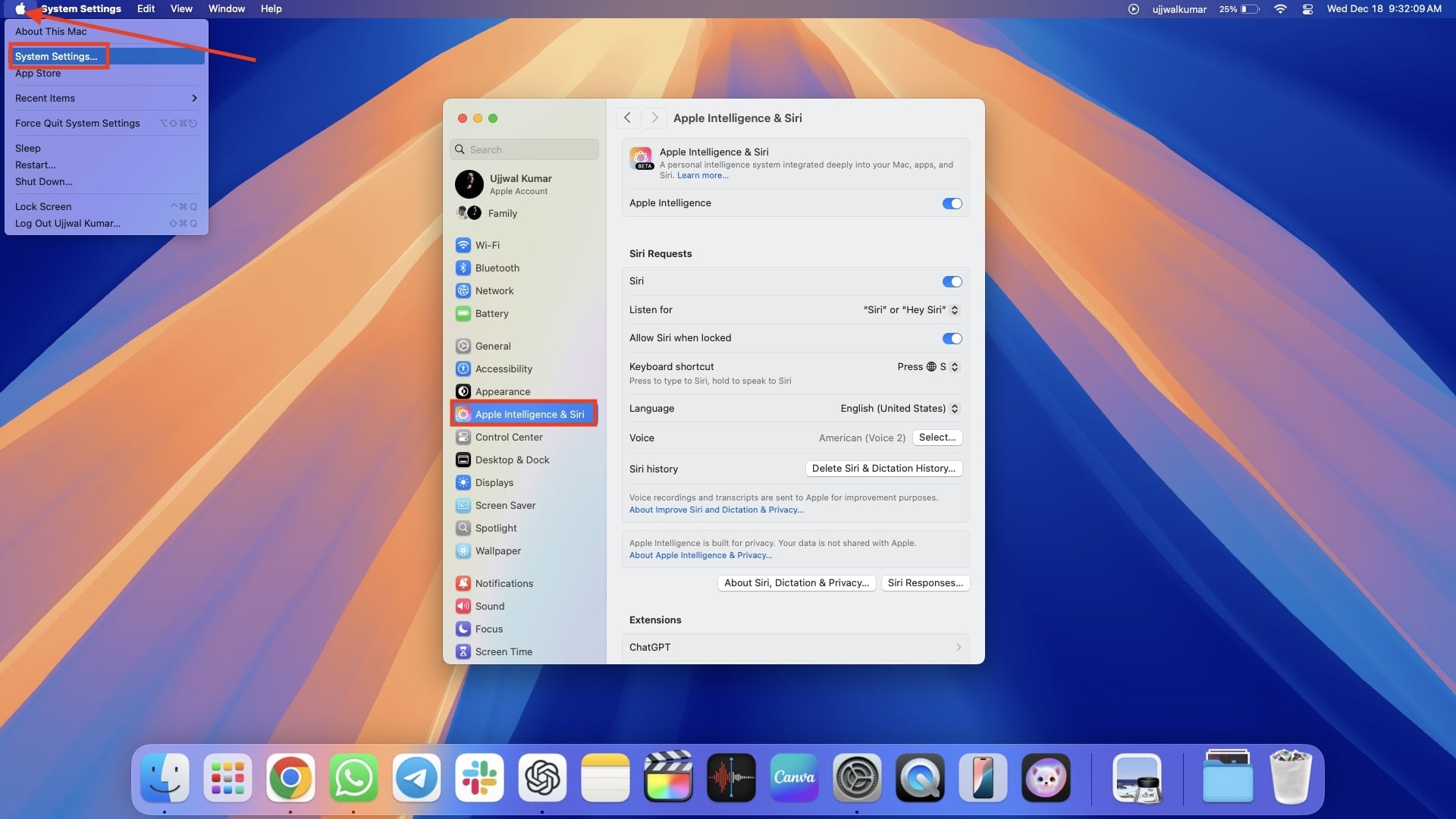
Note: Make sure you have turned on the toggle next to Apple Intelligence. If Apple Intelligence is not showing on your Mac, here’s how to fix it.

4. Scroll down in the right side pane and hit ChatGPT under extensions.

5. Under ChatGPT Extensions, click on Set Up right to Use ChatGPT.

6. As soon as you click on Set Up, you will be prompted by a pop-up window; hit Next.

7. After that hit Enable ChatGPT, you’ll also see an option to Use ChatGPT with an Account, but I’ll set up my ChatGPT account later.

How to Sign In to ChatGPT Account With Apple Intelligence and Siri
If you have set up ChatGPT with Apple Intelligence & Siri on your Mac but haven’t signed in to your ChatGPT account yet, it’s a good idea to do so. Signing in allows ChatGPT to keep a record of all your commands and their responses in your ChatGPT account. The benefit of this is that if you ever need those responses in the future, you can easily access and check them by logging into your ChatGPT account.
- Click Apple Logo > System Settings > Apple Intelligence & Siri > ChatGPT.

- Hit the Sign In button under ChatGPT Account.

- It will redirect you to the login window of OpenAI.

- Follow the on-screen instructions to log in to your ChatGPT account.
How to Turn Off ChatGPT Confirmation Requests with Apple Intelligence & Siri
By now, you’ve likely set up ChatGPT with Apple Intelligence, making Siri smarter and more efficient. However, there’s a drawback—each time Siri consults ChatGPT, it prompts a confirmation request asking for permission to use ChatGPT to answer your question. You need to confirm that request every single time when Siri asks, which can be pretty annoying, right?
So, in this part of the article, I will show you how to disable that confirmation pop-up so Siri can seamlessly use ChatGPT without interruptions.
- Click the Apple Logo and choose System Settings.
- Go to Apple Intelligence & Siri, and then hit ChatGPT in the right side pane.
- Finally, turn off the toggle right to Confirm ChatGPT Requests.

How to Sign Out of ChatGPT Account With Apple Intelligence and Siri
If you’ve set up ChatGPT with Apple Intelligence & Siri on your Mac and signed in to your account, but you’re sharing private commands with Siri and want to ensure they aren’t stored anywhere or accessed by others, it’s best to sign out of ChatGPT. This is especially important if your Mac is used by others and you’re concerned about privacy. Follow the below steps to sign out of ChatGPT with Apple Intelligence & Siri.
- Click Apple Logo > System Settings > Apple Intelligence & Siri > ChatGPT.
- Hit the Sign Out button right to ChatGPT Free or Paid, whatever account you have.

- As soon as you click on Sign Out, a confirmation pop-up will appear. Click Sign Out again.

How to Force Queries to ChatGPT Instead of Siri on Mac
It’s pretty disappointing when you ask Siri a question or give it a task, and expect it to fetch the answer from ChatGPT but instead of giving the response, Siri says, ‘Sorry, I don’t understand,’. That’s not what you’d expect, right?
No worries! If that happens, you can still force ChatGPT to respond to your query. All you need do is to type ChatGPT first, and then just paste the same thing you have asked before to Siri. This way, ChatGPT will take over and give you the answer. You’ll see ‘Working with ChatGPT’ on the screen.

You can do this with your voice commands too. Just make sure to say “ChatGPT” before your query, and you’ll be good to go!
How to Turn Off ChatGPT With Apple Intelligence & Siri
If, after using ChatGPT with Apple Intelligence & Siri for a while, you feel that your virtual assistant Siri without GPT is more effective and useful for you, it might be better to turn off ChatGPT with Apple Intelligence & Siri on your Mac. Here’s how you can do that.
- Hit the Apple logo, and choose System Settings > Apple Intelligence & Siri > ChatGPT.
- Turn off the toggle right to use ChatGPT.

Conclusion
I personally find this feature useful, but whether you choose to set up and use ChatGPT with Apple Intelligence & Siri is entirely up to you. However, I would suggest giving it a try by setting it up at least once. If you find that Siri’s responses without ChatGPT work better for you, I’ve also included steps to turn it off. So, if you don’t find it useful, you can always disable it later and continue using Siri the way you did before.
FAQs about Using ChatGPT with Siri on Mac
Do I Need to Pay to set up ChatGPT with Apple Intelligence & Siri on my Mac?
Currently, you won’t need to pay any amount to set up ChatGPT with Apple Intelligence & Siri on your Mac. However, reports suggest that Apple may launch subscription plans in the future, which could include more advanced features for this integration.
What kind of advanced features might be available in future subscription plans for ChatGPT with Apple Intelligence & Siri?
Future subscription plans may include enhanced features like more accurate Siri responses and many more. However, Apple has not confirmed this anywhere, so it's inaccurate to make a concrete guess about the subscription plans.

