

Quick Answer
To generate images on iPhone using Image Playground, ensure you have iOS 18.2 on a compatible device (iPhone 15 Pro or newer). Open the Playground app, enter a description for your image, and customize with themes and styles. Adjust prompts to refine results, and once satisfied, tap “Done” to save the image to your library.
With iOS 18.2, Apple has introduced a host of Apple Intelligence features. Two of the most popular ones are Genmoji and Image Playground. Using Genmoji, users can make use of AI to generate emojis with whatever prompt they want. They can even turn their friends and family member’s photos into emojis. Image Playground is similar, but it lets you create a large photo instead of an emoji. The feature is not only available for iPhone or iPad with iOS 18 but also available for macOS Sequoia 15.2.

A new “Playground” app gets added to the macOS desktop that lets you access the new Apple Intelligence feature. In this guide, we will share with you what is Image Playground and how you can create an image using this new Apple Intelligence feature. Let us jump right into it.
Table of Contents
What is Image Playground on iPhone?
Image Playground is similar to how the Genmoji on iOS 18 works. If you wish to create an image, all you need to do is enter a text prompt or a description of an image. You can type in anything and be creative to generate almost anything, such as a person, object, landscape, etc. Do note that you can go NSFW and ask the AI to generate something inappropriate. You also cannot use any protected images. The results, for now, are a mixed bag, and you will see some hit-and-miss output generated by Image Playground.
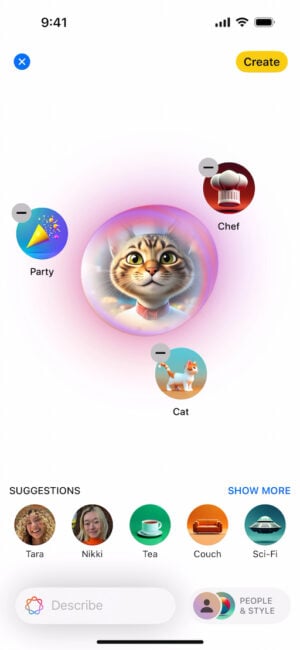
You can continue to modify the image by adding word descriptions, such as adding a hat or making the object wear a tutu. You can then swipe through the generated results and download the one that you like. Image Playground lets you add or remove words from your description until you get the desired result. When you hit the “Done” button, the image gets saved in the Playground library, which can be edited later, deleted, or shared through different social media platforms.
Pre-requisites to use Image Playground on iPhone
There are a few things that you need to meet to be able to use Image Playground on an iPhone, which are listed below:
- It requires iOS 18.2 installed on an Apple Intelligence-supported device, i.e., iPhone 15 Pro or above.
- You can send Image Playground images to non-Apple Intelligence iPhones, and they will be able to view them. They are only restricted from creating them.
- Non-Apple Intelligence iPhones or older iPhone models can save and share the images created using Image Playground on their devices and also use them with no issues.
How to use Image Playground on iPhone?
- After installing iOS 18.2 on a supported iPhone, you will see a splash screen asking if you would like early access to the Image Creation features. You need to tap on the “Request Early Access” button. In case you don’t get this splash screen, then you can skip this step.
- Open the Messages app.
- Tap the “+” (Plus) icon next to the text field. You can also launch the feature using the dedicated Image Playground app, labeled “Playground” on the last page of your home screen.
- Enter the description for your image. You can also choose among the handy theme shortcut icons to build an image upon them. Tap “Show More” then swipe or use the arrows to view all themes.
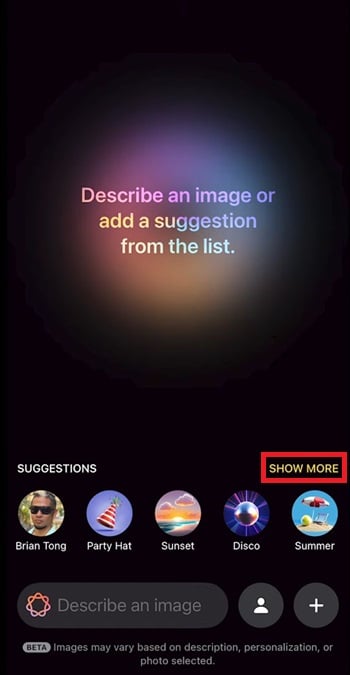
- You can tap the plus sign at the bottom of Image Playground to change the style from Animation to Illustration or vice versa.
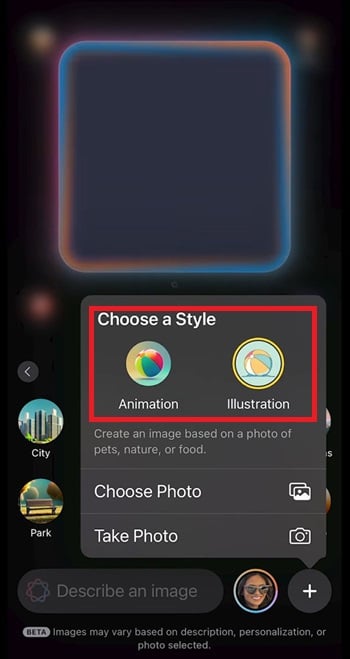
- You also have the option to use an existing photo or take a new photo to create a new image.
- In the “Choose a Person” menu, you can also select a different person or customize their appearance.
- Once you are okay with the image, you need to tap “Done” to save the image to your library.
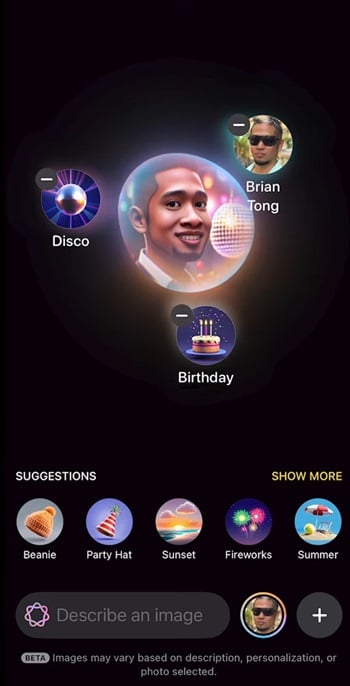
- Do note that for now, there is a limitation with Image Playground that you can only include one person per image.
FAQs about Image Playground
Is there a waitlist for Apple Intelligence features?
After months of beta testing and revealing the Apple Intelligence features at WWDC 2024, this month Apple started rolling out the iOS 18.2 beta update that bundles Apple Intelligence features. However, if you are a bit late in installing the new update, then don't expect Apple Intelligence features to be available right away, as there is a waitlist. For some, the features are unlocked after a few minutes of joining the waitlist, while for others it may take a day or two.
How can I access Image Playground?
You can use Image Playground features by opening the Messages app and tapping the "+" button beside the text field. Moreover, you can also launch it using the icon on the last page of your home screen.

