

Quick Answer
To use a Pixel phone as a webcam on a Windows or Mac computer, ensure your phone runs Android 14 (Pixel 4a 5G or later). Connect it to the computer using a data-capable USB-C cable. In the USB preferences on the phone, select “Webcam” under “Use USB For.” Configure settings like camera type, zoom, and quality, then set your video call app to use the “Android Webcam” source.
All laptops today feature a built-in webcam. However, not all offer good picture quality. Luckily, if you have a Pixel phone running Android 14, you can turn it into a webcam for your laptop. In fact, not just your laptop, you can also use your Pixel phone as a webcam for your desktop when its external webcam goes kaput.
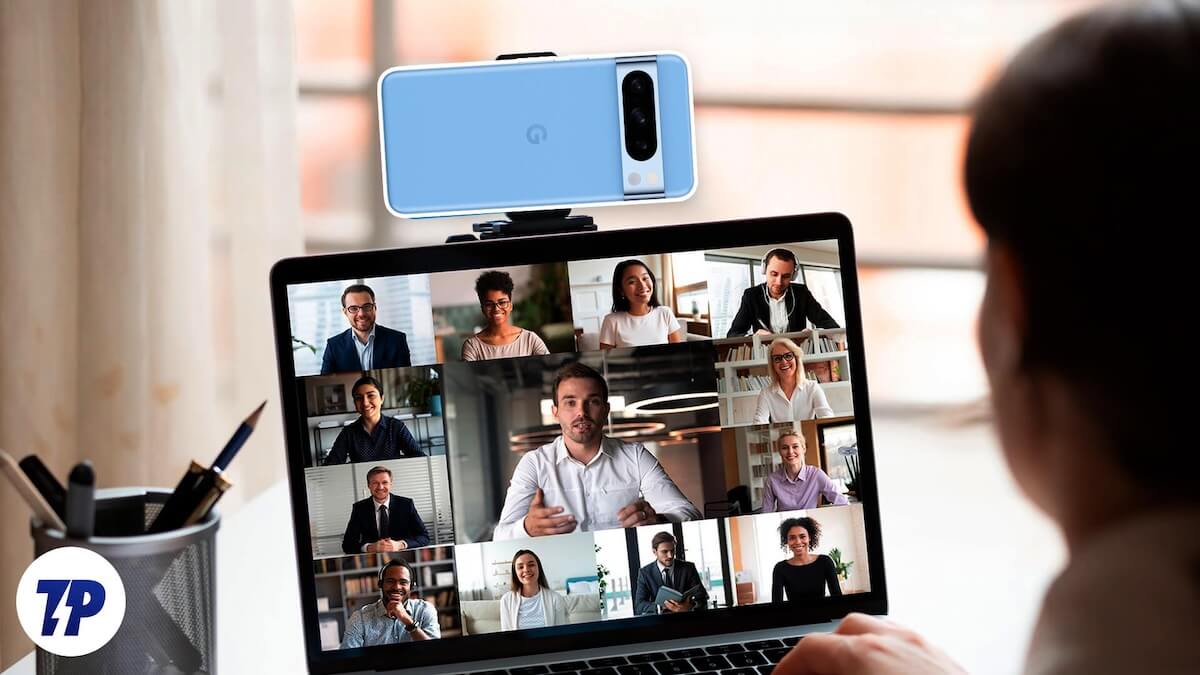
Keep reading to learn how to use a Pixel phone as a webcam on Windows and macOS.
Table of Contents
What Do You Need to Use Your Pixel Phone as a Webcam?
You just need three things to turn your Pixel phone into a webcam for your Mac or Windows PC:
- A Pixel phone compatible with Android 14 (i.e., Pixel 4a (5G) or later models)
- Android 14 (December 2023 feature drop) installed on your Pixel phone
- A USB-C cable capable of carrying data (I had an uninterrupted experience only with the original cable that came with my Pixel phone)
How to Use a Pixel Phone as a Webcam on a Mac or Windows PC
With the basics out of the way, using your Pixel phone as a webcam for your Mac or Windows PC is straightforward, and the steps you need to follow are mostly the same, irrespective of the operating system. Here’s what the process looks like.
Step 1. Enable Webcam Mode on Your Pixel Phone
First, you need to enable the Webcam mode on your Pixel phone:
- Connect your Pixel phone to your Mac or Windows PC using a USB-C cable.
- Once connected, swipe down from the top of the screen on your Pixel phone to access the notification panel and tap the Charging This Device Through USB notification. Tap it again to access USB Preferences.
- Finally, select Webcam under the Use USB For section and authenticate yourself using your biometrics or PIN.

After you do this, verify if your Pixel phone has entered Webcam mode. To do this, bring down the notification panel on your phone, and you’ll see a notification for Webcam Service, indicating that the Pixel phone is functioning as a webcam for the connected device. You can tap this notification to preview and configure the webcam output.
Step 2. Set Up the Webcam Output on Your Pixel Phone
With your Pixel phone in Webcam mode, you must preview the output and check (and configure) its settings before hopping onto a video call to ensure you get the best results. To do this, tap the Webcam Service notification on your device, and it’ll bring up the preview screen, where you can see what (and how) your phone outputs.

From this screen, you can also configure the webcam output. This includes switching between rear and front cameras, choosing outputs from different lenses (depending on your phone’s model), and switching output quality.
By default, your Pixel phone will show you the feed from its front camera. However, if you want better quality, switching to the rear camera is a good idea. To do this, tap the camera icon with arrows, and you’ll see the feed from the rear camera. When using the rear camera, you can also switch between lenses. Just tap the 0.5, 1.0, and 2.0 buttons on the screen. You can also adjust the zoom by hitting the volume keys on your phone.
Lastly, you can also change the output quality for the webcam feed to high quality.
By default, your Pixel phone will output feed in standard quality to conserve battery, but if you want the best experience, you must turn on high-quality mode. To do this, tap the crossed-out HQ icon in the top-left corner (with the phone held in portrait orientation), and when this brings up the High Quality Mode prompt, check off the Don’t Show Again checkbox and tap Acknowledge.
Step 3. Set the Webcam in Apps to Use Your Pixel Phone’s Feed
With the Webcam mode set up on your Pixel phone, using its feed is easy. I’ll demonstrate how to do this in Zoom, but the process should be similar on other apps, too; you just need to change the source for the feed in the app’s settings.
- Open Zoom on your Mac or Windows PC and log in to your account.
- Click the profile icon in the top-right corner of the screen and select Settings.

- Choose Video from the left sidebar.
- Click the drop-down button below Camera and select Android Webcam.

You should now see the feed from your Pixel phone. Adjust the camera and lens settings to ensure you’re well-framed in the feed. In addition, if you’re using the feed from the rear camera, be sure to position the device and set the frame properly beforehand for the best video conferencing experience.
Things to Know About Using a Pixel Phone as a Webcam
You should be mindful of a few things about using a Pixel phone as a webcam:
- You can use your Pixel as a webcam on devices that support the USB video class or UVC. This includes almost all laptops as well as many TVs and tablets.
- The laptop or PC you connect your Pixel phone to will continue charging it while it’s being used as a webcam.
- You can continue using your Pixel phone normally when it’s in the Webcam mode. This includes everything from using apps to turning off / locking the screen.
- Whenever there’s an incoming video call on your Pixel phone, or you’re trying to use an app that requires the camera, it’ll stop the webcam stream from your phone on your connected computer. You’ll see a message that reads “Camera Access Blocked,” informing the same. The feed resumes after you hang up or end the call on your device.
A High-Quality Webcam in Your Pocket
The Webcam mode is an incredibly useful feature in Android 14 that lets you turn the Pixel phone in your pocket into a high-quality webcam for your Mac or Windows PC when you need it. Not only is it ideal for situations when you don’t have a good webcam with you, but it’s also a great way to elevate the quality of your video calls or other video interactions on your computer.

