

Quick Answer
The S Pen lets you navigate with Air Actions, capture photos, control media, annotate PDFs, take partial screenshots, multitask with Glance, and jot notes with Screen Off Memos. It also translates text, unlocks your phone, and zooms in on content with Magnify, making it a versatile tool for productivity and creativity.
Introduced first on the Note line, the S Pen has been integral to many Samsung devices since. It’s available as an integrated attachment on the Galaxy S Ultra models, whereas you get it as a bundled accessory with foldables and tablets.
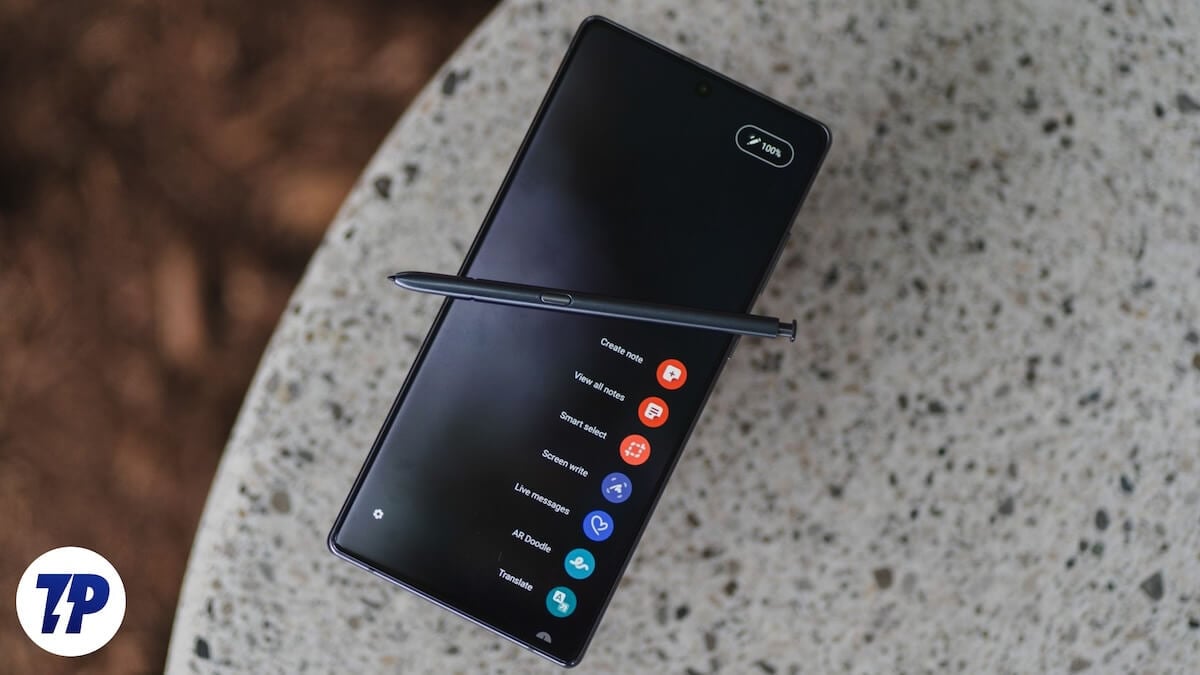
If you own any of these devices, you’d be already familiar with some of S Pen’s capabilities. But there’s a lot more to it that you’re probably unaware of. Let’s explore all the interesting things you can do with an S Pen on your Galaxy phone.
Table of Contents
Navigate Your Phone Easily With Air Actions
Being a stylus, the S Pen helps you with different actions on your Galaxy phone, including navigating it. This is possible thanks to the Air Actions feature, which lets you perform gestures in the air with your S Pen to control the device.
S Pen has Air Actions for general navigation, which work anywhere on the device, irrespective of the app. Then, there are app-specific Air Actions, like those for Camera, Samsung Notes, and Gallery. Finally, you have Air Actions to control media playback.
Performing an Air Action is easy. Hold the S Pen parallel to the ground, press the button, and perform a gesture based on what you want to do. You can learn Air Actions to perform for what action on the Air Actions settings page. Open Settings and navigate to Advanced Features > S Pen. Tap Air Actions, and you’ll see all the information you need. You can even customize the gestures and turn off Air Actions for specific apps.

Capture Photos and Videos
One of the best use cases of the S Pen on a Galaxy phone is as a remote shutter. It’s a handy functionality that’s useful in scenarios where you need to take hands-free photos or videos, be it to shoot yourself or a group of people. You need Air Actions turned on for this to work.
Eject the S Pen from its slot, then press and hold the button to launch the Camera app. Press the button once to take a photo or perform a long press for burst shots. Double-press the button to switch between the front and rear cameras.
To record a video, you’ve to switch to Video mode. You can either do this manually in the Camera app or by holding down the button and flicking the S Pen to the left or right, depending on which mode you’re in. Once done, tap the button on the S Pen to start recording. Long-press it when you want to pause (and resume recording) and press again to stop.
Control Media from a Distance
Besides acting as a remote shutter, the S Pen also functions as a remote controller for controlling media playback on your Galaxy phone from a distance. This is possible with Air Actions, and you can learn what actions do what by heading to Settings > Advanced Features > S Pen and tapping Air Actions.
Many popular apps, like Spotify and YouTube, support media playback Air Actions. On these apps, here’s how you control playback:
- Play/pause: Single press
- Skip: Double press
- Next: Press and flick right
- Previous: Press and flick left
- Increase volume: Press and flick up
- Decrease volume: Press and flick down
That said, not all apps support these media playback control actions. Apple Music is one such app.
Annotate PDFs More Precisely
A superpower of having a Galaxy phone with an S Pen is that you can annotate PDFs on the go. You can do this across various apps, ranging from the built-in Samsung Notes app to third-party ones like Google Drive and Adobe Acrobat, among others, depending on whose markup tools you like better.
Simply open the document you want to fill or edit in your preferred app on your Galaxy phone. Then, pull out the S Pen and enter edit mode by tapping the appropriate button on the screen. Make changes and tap Save (or an equivalent option) to save the document.

Capture Partial Screenshots
Taking a screenshot on a Galaxy phone is easy. However, oftentimes, you’d have to crop it to remove distracting details before sharing or posting it somewhere. This process can quickly become tedious when you need to repeat it for multiple screenshots. Thankfully, with the S Pen on your Galaxy phone, you can take partial screenshots of the screen to eliminate the need to crop them later.
To do this, with the page you want to capture open, pull out the S Pen to bring up the Air Command menu. If it doesn’t, tap the pen icon on the screen. Next, choose Smart Select (blue icon with disjointed square) and select the part you want to capture by tapping on it or drawing a rectangle/square around it.
You’ll now see a bunch of options. Tap Save (icon with a download-pointing arrow in a box) to save the screenshot to Gallery. Alternatively, you can hit Edit to edit the screenshot or tap the share icon to share it with someone using your preferred app.

Turn Apps into Thumbnails for Easy Multitasking
You can multitask on a Galaxy phone in various ways, depending on your requirements. However, on phones with an S Pen, you get an additional option, Glance.
Glance reduces an app into a tiny floating thumbnail on your screen. You can then use your S Pen to quickly peek into it when required. This way, you won’t have to it in full view and compromise your screen estate. Glance is useful when you want to say, reference a document while preparing an email response or check ingredients while watching a recipe video.
To multitask with Glance, open the app you want to turn into a floating thumbnail and eject the S Pen. On the Air Command menu, tap the Glance option (green icon with an eye). (If it’s unavailable, add it by tapping +.) Glance will now create a floating thumbnail for the app. Go ahead and open the other app you want to use.
You’ll continue to see the first app in a tiny thumbnail on the screen. Use the S Pen to move it anywhere you want. When you want to peek in, simply hover over the thumbnail with your S Pen. Point it away from the screen to exit. If you no longer need it, drag the thumbnail to the top of the screen and drop it onto the Remove button.

Take Screen Off Memos
Samsung offers a really convenient feature on its Galaxy phones with S Pen for taking notes. It’s called Screen Off Memos, and you can use it to quickly jot down notes without unlocking the device.
Screen Off Memos is enabled by default. To use it, pull out the S Pen from its slot. If the S Pen is already out, press the button while simultaneously tapping on the screen.
As soon as you do this, it’ll bring up a new handwritten note screen. Use your S Pen to handwrite the note. Hit Save when you’re done. You can find the note under the Screen Off Memos folder in the Samsung Notes app.

Translate Text
Translating text in most apps typically requires copying the text and pasting it in a translator, like Google Translate. However, thanks to the built-in Translate feature, you can use the S Pen on your Galaxy phone to do it efficiently without needing to jump in and out of apps.
To do this, with the word or sentence you want to translate on the screen, eject the S Pen and hit the Translate icon in the Air Command panel. If you don’t see it, tap the + button at the bottom of the panel and add the Translate shortcut from the following screen.
Now, hover over the word or sentence you want to translate. Depending on which mode is selected—you can switch between word and sentence mode by tapping the icon to the left of Auto in the Translate toolbar—Translate will detect the language and give you its translation in your native language on a pop-up card. From here, you can play the original word or sentence or copy the translated text.

If you’re using the feature for the first time, you’ll need to download the language pack for the language you’re translating the text into. Simply hit Download when prompted, and Translate will take care of it.
Unlock Your Phone
As you begin to use the S Pen more and more, you should consider enabling the S Pen Unlock feature on your Galaxy phone. Doing so will let you quickly unlock your phone whenever the screen gets locked by simply pressing the pen button. That way, you won’t have to unlock it manually, which can be a hassle when, for instance, you have your phone on a tripod.
To enable S Pen Unlock, head to Settings > Advanced Features > S Pen > More S Pen Settings. Then, toggle on the S Pen Unlock option. Once done, simply tap the pen button, and it’ll unlock the screen.

Keep in mind that for this feature to work, you want your S Pen outside your phone before the screen locks. In addition, you need to manually unlock your phone after you enable the feature and press the button the first time.
Zoom In On the Screen
Last but definitely not least, you can use the S Pen to zoom on the screen. You may find this useful in various scenarios, like when you want to read tiny text in a document, analyze a spreadsheet, or examine a photo (perhaps of a menu) closely for intricate details. The best part is that the feature works even in apps that don’t support pinch-to-zoom.
Using magnification is easy. Pull up the S Pen and tap Magnify on the Air Command panel. If you don’t see it, tap + and find and add Magnify. Once selected, hover the S Pen over the area you want to zoom in, and you’ll see an enlarged view in a tiny window.

The default magnification is 150%, but you can adjust it by tapping the percentage in the toolbar and selecting your preferred zoom level.
There’s Even More You Can Do With S Pen
S Pen is an incredibly versatile tool on Galaxy phones. And now that you know what it’s capable of, you must start using it to enhance your creativity and productivity, if you aren’t already.
Aside from what we’ve discussed above, the S Pen can help with several other operations, too. This includes everything from using it for precise photo and video editing and sketching to running presentations and quickly looking up what’s on the screen with Circle to Search on devices that support Galaxy AI.

