

Quick Answer
To use the Image Wand on iPhone or iPad, ensure your device supports Apple Intelligence and runs on iOS 18.2 or iPadOS 18.2 later version. The feature is currently in beta. Once you can access it, Open the Notes app and the toolbar and select the new Magic Pencil (Image Wand). Select the sketches, circle the sketch using the Apple Pencil or your finger, and then enter the prompt. To generate images from scratch, circle in the empty space and enter the prompt. To edit, tap on the image and click the edit icon.
Image Wand is an Apple Intelligence feature that lets you translate rough sketches into images and customize them in the Notes app on iPhone and iPad. You can use Image Wand to generate images from descriptions, customize them in different styles, and make your notes visually appealing and engaging. Image Wand is currently available for iPhone and iPad. In this guide, you will learn how to use Image Wand to generate images.

Table of Contents
How to Get Image Wand on Your iPhone or iPad
To access this feature, ensure your iPhone or iPad supports Apple intelligence and is updated to iOS 18.2 and your iPad to iPadOS 18.2. The image Wand feature is in beta and is available only to US English users. You can set the default language to US English on your iPad and iPhone to get access. (When you read this, it might be available for all countries, and you can leave your language as default).
Once there, you will see a new Image Play Ground app on your iPad and iPhone. Click on this and Enroll into Beta if prompted, or Open the Notes app and open the toolbar. Click on the new Magic Pencil and tap on the Request early access.
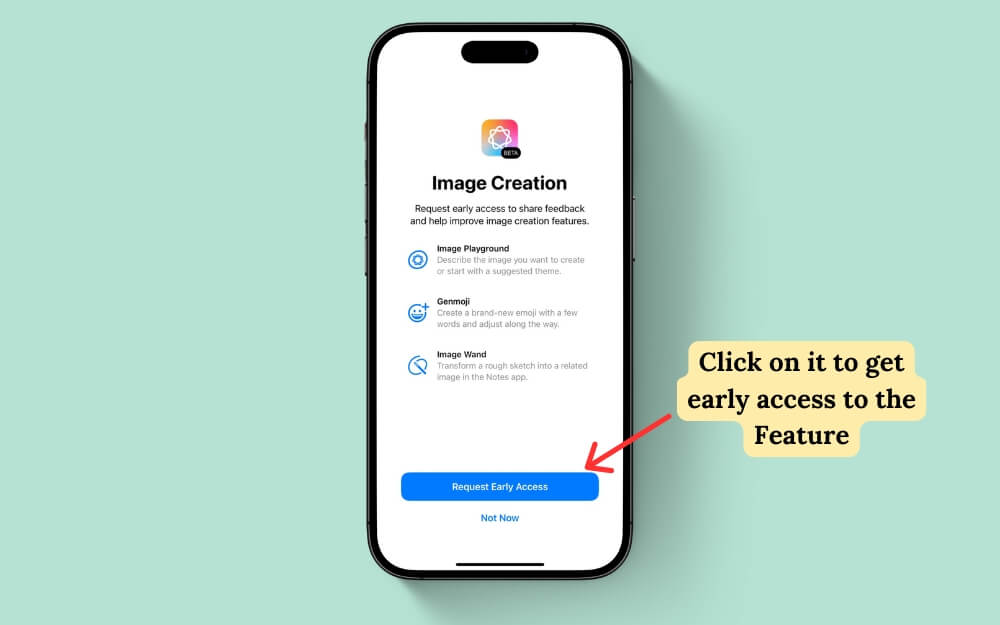
Once you get access to the Image Wand feature on your iPhone and iPad, here is what it can do:
- You can use Image Wand to transform your drawings in the Notes app into AI-generated images.
- Next, even without drawings or rough sketches, you can generate and insert AI images from scratch using simple image descriptions of what you want.
- Finally, you can customize the generated images with prompts to adjust the style and choose different options such as sketch, illustration, and even animate the image. Let’s look at each feature in detail and how to use it.
How to Use Image Wand on iPad
You can transform the drawings into images in the Notes app using Image Wand. To use these features, Ensure your note has at least one sketch. If you want images from scratch, follow the method below to generate images from scratch.
- Open the Notes app on your iPad or iPhone and select the sketch you want to convert into images.

- On iPad, click on the pencil icon at the top to open the toolbar and click on the new rainbow-coloured Pencil, which looks like a magic eraser on top of the pencil. If you don’t see this, Image Wand is not supported or not enabled on your device. Follow the previous steps to enable it.

- Once there, select that tool and circle the image you want to convert into an AI-generated image. Describe the changes and click on the upper enter or enter.
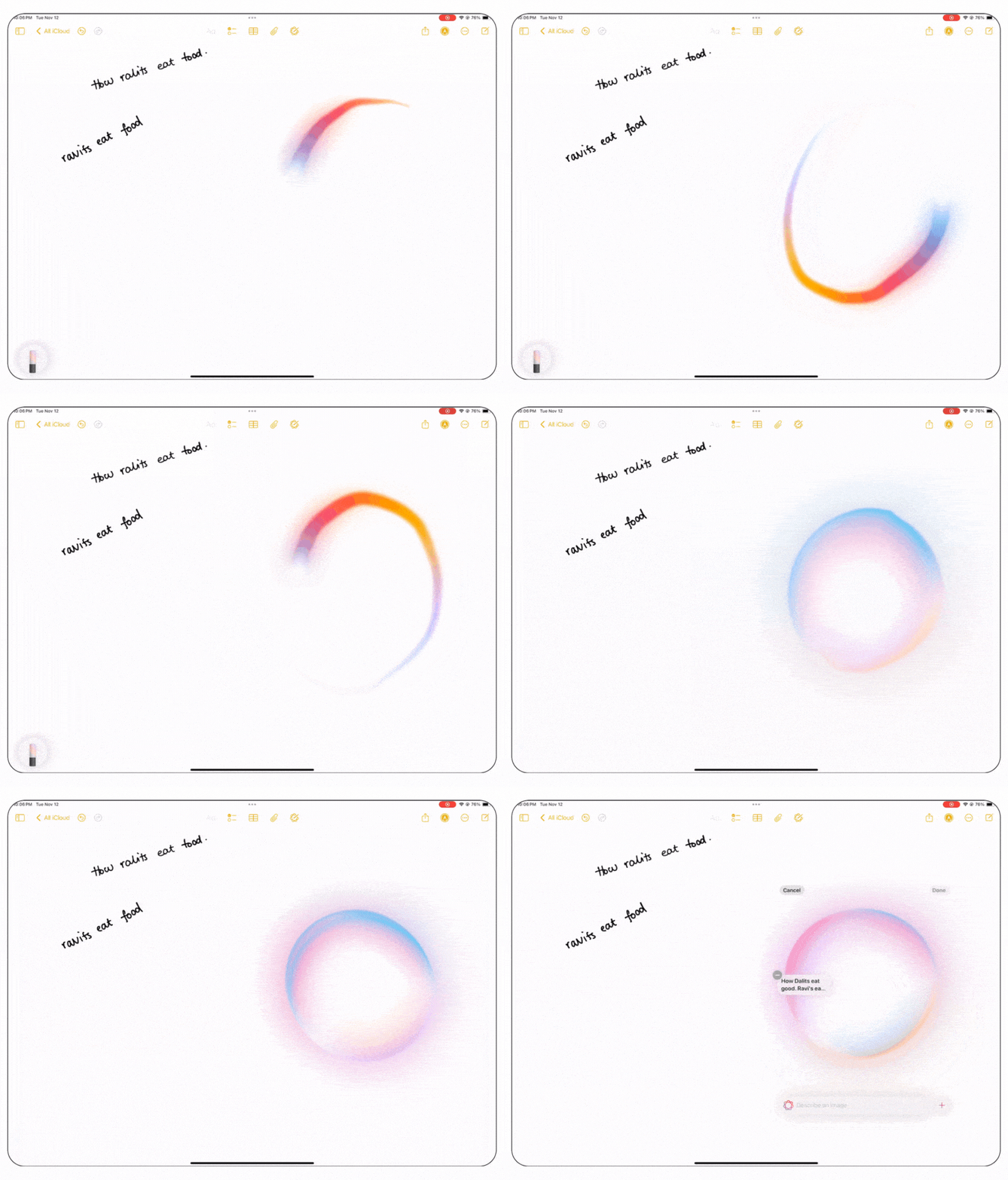
If you don’t have a rough sketch and want to create an image from scratch, open the note, use the Apple Pencil in the empty space, and make a circle like the image below. Then, enter the description you want to generate for the image.
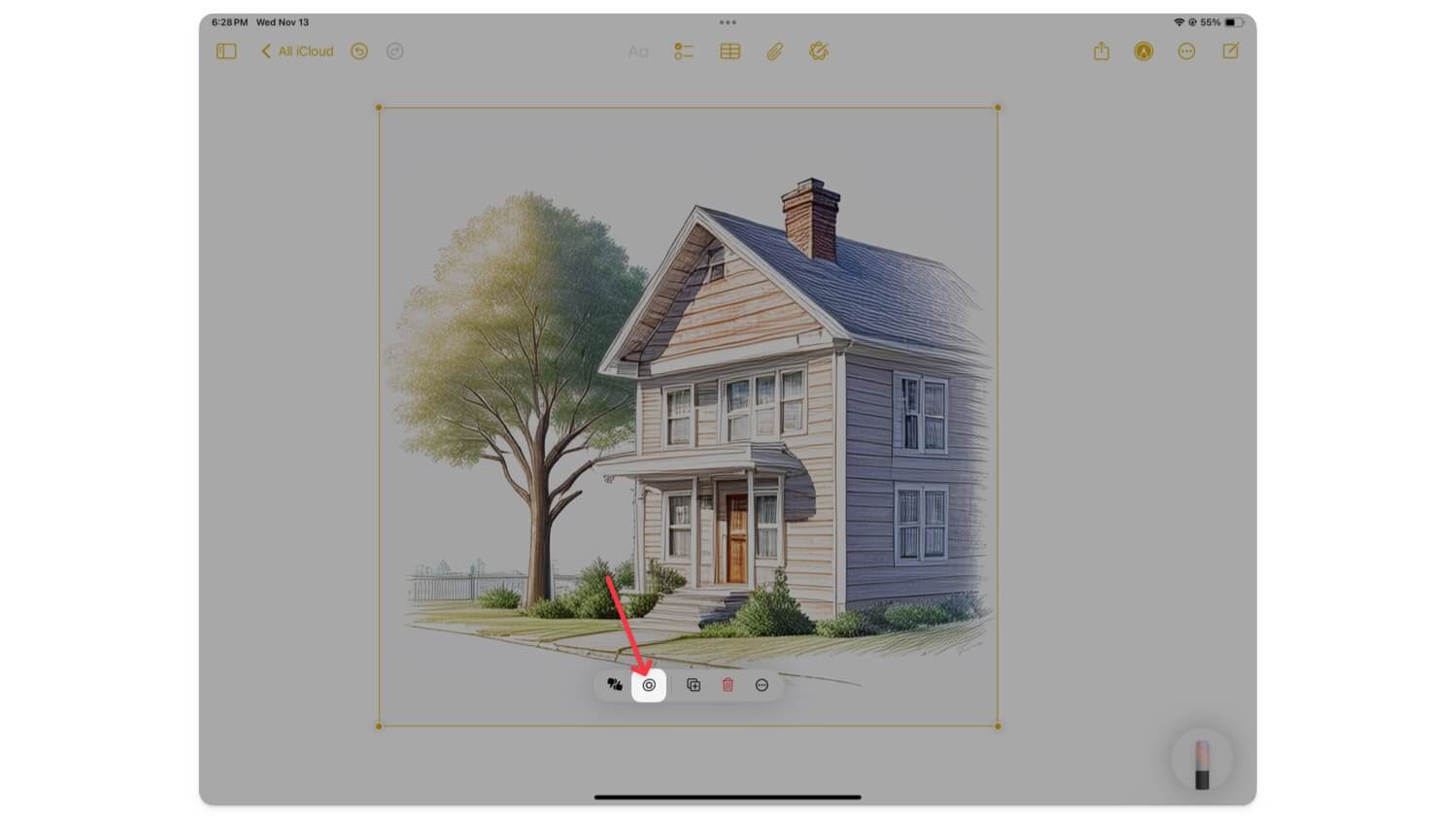
To customize your generated image, tap on the image and click the edit button. Now, describe the changes you want in your text prompt. Please note that you might encounter some errors initially.
If you do, keep trying and remove the previous prompt you used to create the first image, then generate a new one with a more detailed prompt, which usually works. It also depends on the complexity of the image you are generating; it might take a couple of prompts to get the desired output.
How to Use Image Wand on iPhone
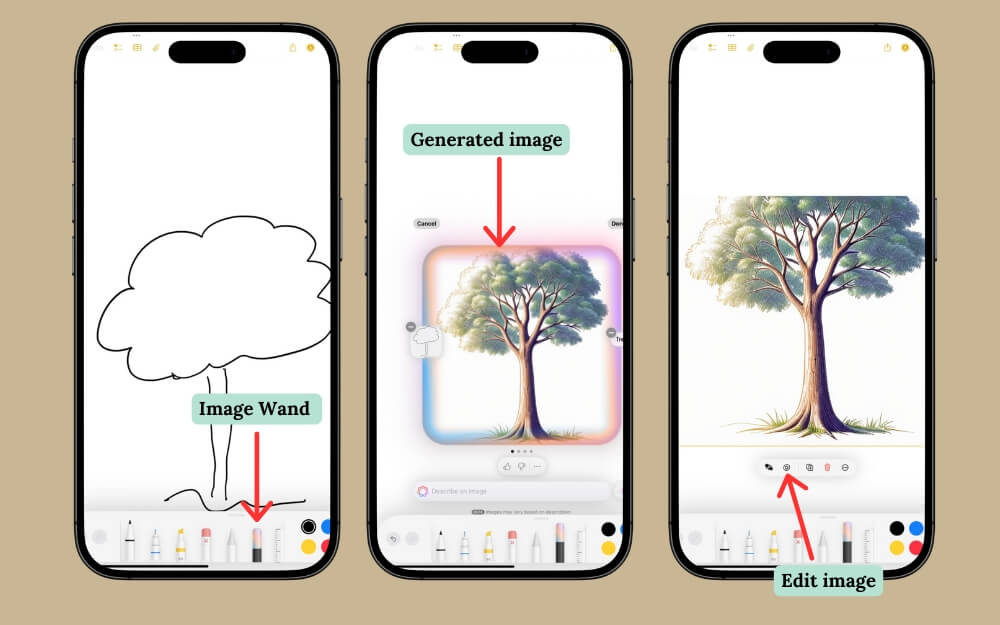
If you use iPhone 15 Pro or later, ensure your device runs the latest iOS 18.2 upgrade. You will see a new Image Wand app on the phone; tap on it. Once you have done this, follow the steps below to use Image Wand on your iPhone.
Open the Notes app on your iPhone. If you want to turn the rough sketch into an AI-generated image, select the note, open the toolbar, select the Image Wand tool, and circle the sketch using your finger.
Describe the prompt you want to generate, and it generates an image in a few seconds. If you encounter any errors, delete the image and retry. The generated image will be automatically inserted into your Notes app and replaced with the existing sketch or drawing.
If you want to generate an image from scratch, select the empty space, circle it, and then enter the description you want to generate for the image, which will automatically appear in your note.
To customize your generated image, tap on the generated image, click the edit icon, and enter a new description. Here, you can suggest the changes you want in the image, then click on the right arrow to apply the changes. If you face any errors, remove the previous prompt and generate a new image with a more detailed description.
Making Your Notes Better and More Visual
Those are the simple steps to use the Image Wand feature on your iPhone and iPad. I always use Apple Notes to take notes and images. The wand can be a game changer, especially since it brings a lot of colour and creativity to Notes, making them easy and more engaging to read. However, this feature is in beta, only available for a few devices, and has minor issues.
If the image wand is not working properly, ensure you have a clear sketch and use the detailed text prompt to describe your desired image. I hope you find this guide helpful. If you have any suggestions, comment below.
FAQs on Using Image Wand on iPhone
How can I troubleshoot frequent errors while generating images with Image Wand?
Image Wand is currently in beta. Since it is an AI feature, you might not always get the desired results when generating images. In my experience, I have faced errors when customizing images and generating images from scratch. You can retry to fix these errors until it gets it right. It is still in beta, so there is no guaranteed way to fix it for better image generation.
What happens to the original sketch after transforming it into an AI-generated image? Can I revert it?
You can revert to the original sketch by clicking the undo button, which will return your sketch but keep the AI image in place. To completely remove the AI image, tap on it and select the delete icon.
Are there any specific guidelines for using descriptive prompts to get better image results?
Apple doesn't have any guidelines for using prompts. I often recommend staying precise when prompting so the AI can understand exactly what you want. In this case, use a clear and comprehensive prompt when describing the image you want. For better prompts, you can use tools like ChatGPT.
Can the Image Wand feature be used in other apps besides Notes and Messages, like Keynote or Pages?
To use the Image Wand feature in other apps like Messages, you can use the Image Playground to generate images. We have a detailed guide on how to use Image Playground on iPhone. Image Wand is not available on Apple pages yet. You can use the playground or save the images generated using the Image Wand and add them manually to the Apple pages.

