

Quick Answer
To link your Microsoft account using a link code, click the Use another device option on the account sign-in page to get the code. Visit Microsoft.com/link and enter the code. Sign into your Microsoft account and follow the on-screen instructions. After a successful attempt, your Microsoft account will be successfully linked with your new device.
Have you ever gone through the TV setup and Xbox setup process? If you do, you already know how difficult it is to set up these devices using the remote or the controller. It gets even more difficult and sometimes even frustrating when you want to enter your account details manually.

Thankfully, Microsoft has considered this problem and offered an easy solution. You can now link your devices and apps with your Microsoft account using the link code without requiring you to enter your account details manually. This guide will teach you how to use this feature to easily sign in to your Microsoft account on your future devices.
Table of Contents
What is Microsoft.com/Link?
Microsoft Link feature was introduced in 2019 to make signing in with your Microsoft account on other devices easier. Instead of manually entering your Microsoft account details to sign in, Microsoft generates a unique temporary code to link your Microsoft account to that device.
You can use the code on a secondary device like a phone or laptop; visit Microsoft.com/sync and enter the unique code. It uses the OAuth 2.0 protocol to authenticate your account with the device you are setting up. Once the code is approved, your Microsoft account will be automatically linked with the new device, and all your account settings preferences will also be linked to the new device.
Prerequisites for Using Microsoft.com/link
Microsoft Link feature currently works on Xbox consoles, limited Windows PCs, Microsoft 365 apps, smart TVs, and other Microsoft apps and services. Here are the prerequisites to using the microsoft.com/link feature.
- A valid Microsoft account to link to your new device. You can create a new Microsoft account from here.
- Secondary device that you will be using to enter and link the code. It would be even better if the Microsoft account is signed in on the secondary device you use to link the code.
- Internet connection. The device you are setting up and the secondary device you use to link the code should be connected to the network.
- Finally, a code will appear during setup; you can use this code to link your Microsoft account with the device.
How To Use a Microsoft Link Account
S.no | Step | Instructions |
|---|---|---|
1 | Requirements | Microsoft account, secondary device (phone or PC), and internet connection on both devices. |
2 | Hoe to get the Code | On the new device in the account sign in page, tap on "Use another device" to get the code. |
3 | How to use the code and sign-in | Go to microsoft.com/link on your secondary device, enter the code, and sign in with your Microsoft account if you haven't. |
I am using an Xbox as an example to sign in with your Microsoft account link code. You can use any other device or app. The process is very similar once you obtain the code. Follow the steps below.

- Follow the setup screen. Once on the account sign-up page, look for the option to Use code instead or Use another device and tap on it.
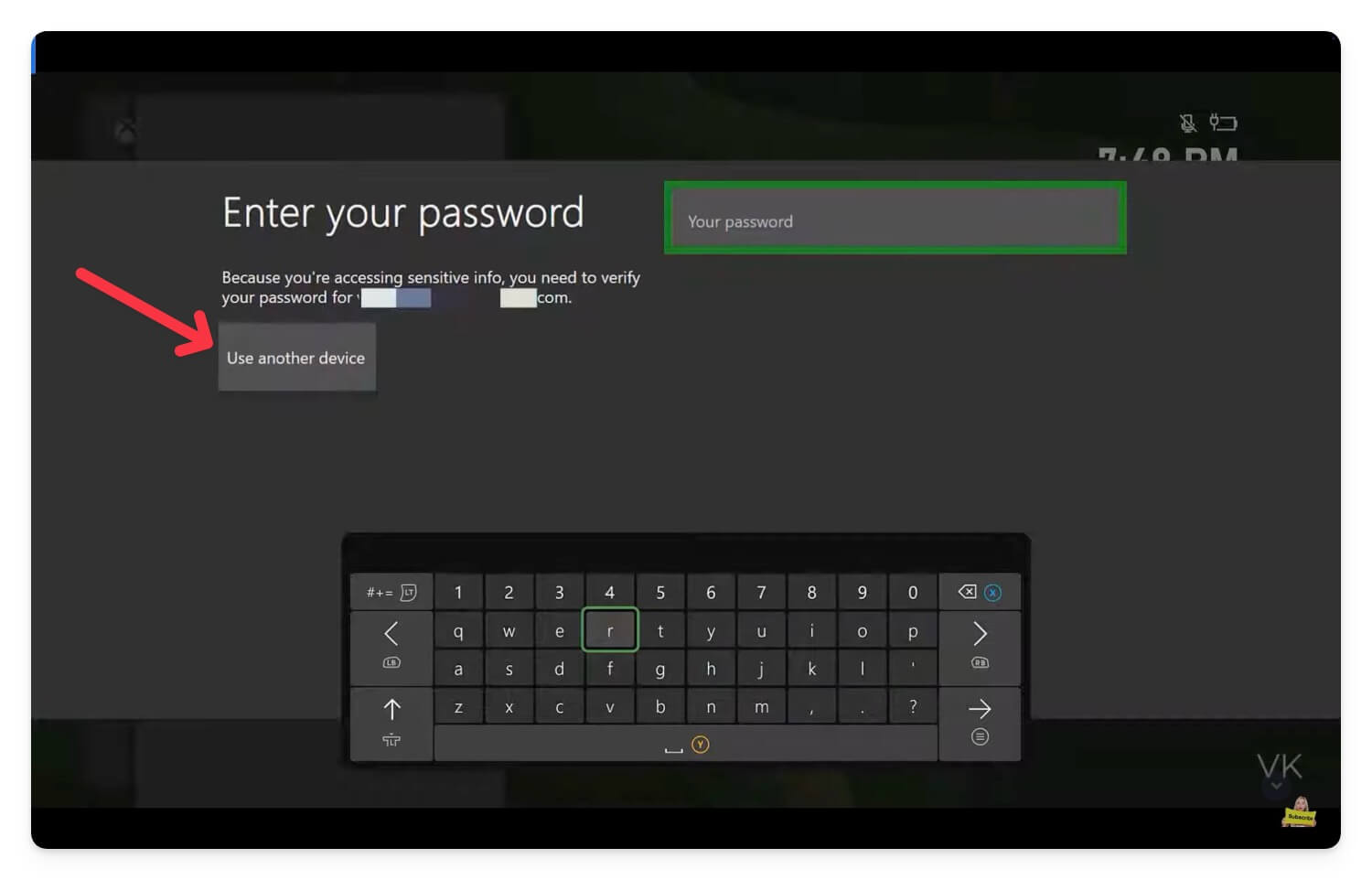
- Remember the code.

- Now, visit Microsoft.com/link on another device. You can use a PC or phone. Enter the code on the website and click on Allow access.

- You will be prompted to sign in with your Microsoft account if you haven’t signed in. Sign in with your email and password, and if you have enabled two-factor authentication, enter the code and sign in with your Microsoft account.
- That’s it. After successful authentication, you will be signed in with your Microsoft account on your new device.
The process is very similar for all devices if you have the code. However, accessing the code might differ on different devices.
Alternative Ways to Sign in to Your Microsoft Account
If the link code is unavailable for you to sign in, you can use alternative methods like using passkeys to sign into your Microsoft account without entering your details. However, passkeys are only supported on the Windows 1o or later versions. (View the full list of passkey-supported devices here)
I have a detailed guide on passkeys; you can view the link for more details. In simple words, Passkeys are an alternative method to log in with your account using local biometrics. For instance, instead of using an email and password to sign in, the device uses your local device security, like your fingerprint or facial scan, to authenticate with your account. Before that, you must set up a passkey and store it on the device linked to your account.
Similarly, you can set passkeys for your Microsoft account and sign in whenever needed without requiring you to enter an email and password. Passkeys are free to use and easily set to your Microsoft account.
To sign into a Microsft account using passkeys, You can create a passkey and store it locally on your device or use a secondary device to store your passkey, which you can use to authenticate in the future. In this case, you can use passkeys on your mobile device, which makes it easy to scan and sign in with the Microsoft account on any device. It works both on Android and iPhone.
How to create passkeys for your Microsoft account:
- Visit go.microsoft.com (Click this link) and sign in to your Microsoft account.

- Next, select the option fingerprint, face, or security pin.

- Now, select where you want to store your Microsoft account passkeys.

- You can store these passkeys in third-party password managers like 1Password or Dashlane or use free options like Apple Passwords on iPhone and Google Password Manager for Android.
- Once you set the option, click Continue, and your passkey will be created.
To use this passkey when signing into your Microsoft account:
- Click on the sign-in options on the account sign-up page.

- Select the option that says face, fingerprint, or security key.
- Now select iPhone, iPad, or Android device and click on Next.
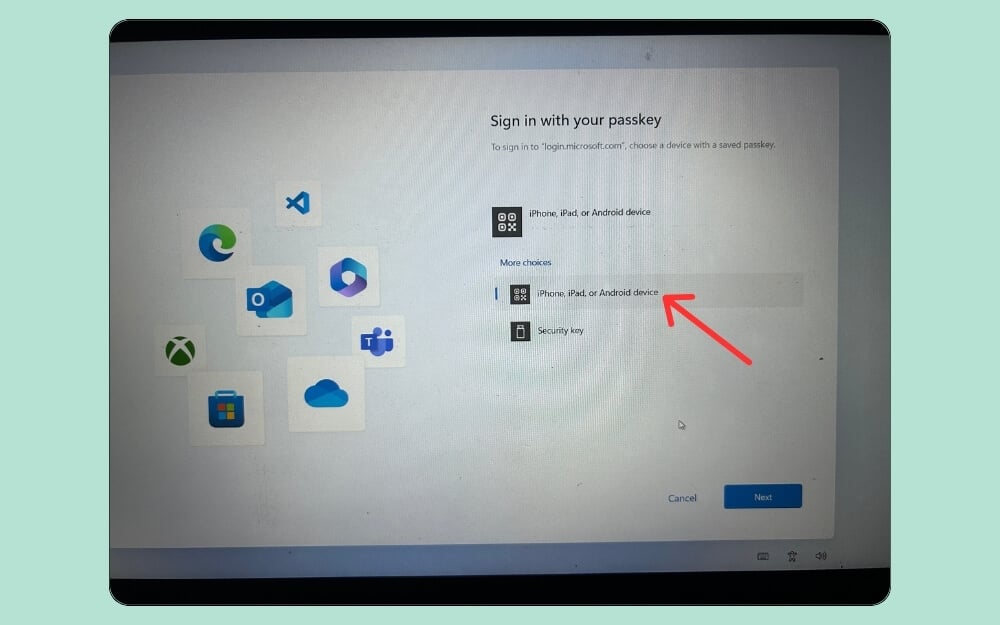
- Now scan the QR code with the device where you have stored passkeys. In this case, I am using an Android smartphone.
- That’s it! You will be successfully logged into your Microsoft account. Once passkeys have been set up, you can use the same process to sign in to your Microsoft account on other apps and devices.

To manage your keys, go to account.microsoft.com, sign in with your account, click the Security tab and tap on Manage how I sign in. Then, at the bottom, click on Passkeys, and you can rename, delete, or add your Passkeys whenever needed.

How to unlink a Microsoft account from the device
If you no longer want to use your Microsoft account on your device, you can sign out of your account locally on the device or app or use your Microsoft account to log out and remove any device remotely. Let’s look at each process in detail.
To Remove Your Microsoft Account Locally on the Device

The steps to remove your Microsoft account locally vary depending on your device. For Windows, go to Settings > Accounts and Account settings and sign in with your local account instead to remove your current Microsoft account from the device. For individual Microsoft apps, click on the three dots in the top corner of the screen to see an option that says Sign out. Click on Sign out to sign off from all devices. Similarly, on Xbox, go to Settings, navigate to your account and sign out.
Sign Out Remotely Using Your Microsoft Account
If you do not want to follow all these steps, you can sign out of your Microsoft account on the device remotely from your smartphone or laptop. To do this
- Go to account.microsoft.com and sign in with your Microsoft account, which is also linked to the other device.
- Click on the Devices option in the sidebar.

- You can see a list of devices where your account is currently signed in.
- To remove a device, click on the info and support.
- Click on Remove from the device. Your device will be automatically removed and signed out of your Microsoft account on the device.

FAQs on Linking Microsoft Account
Can I link multiple devices to my Microsoft account at the same time?
Yes, you can link multiple devices to your Microsoft account; however, you can only sign in to one account at a time. You can follow a similar process to link multiple devices.
What should I do if the code doesn’t work?
If the code doesn't work, you can try alternative methods like signing in with your passkey password and the security key. If those don't work, you can use your account email and password to sign in to your Microsoft account directly.
Is two-factor authentication (2FA) required to use Microsoft.com/link?
Yes, two-factor authentication is required if you enable it for your Microsoft account. You can also sign in with your Microsoft account without 2FA.
How do I re-link a device if I accidentally unlink it?
If you have accidentally linked your device from your Microsoft account, you can manually sign in with your account details and use the same Microsoft link code generator to sign in with your Microsoft account on that new device.

