

Quick Answer
To permanently remove Windows Security, use Local Group Policy Editor, Windows Registry tweaks, or the Windows Defender Remover tool. Be cautious— removal can leave your PC vulnerable. Always back up data, create a restore point, and install reliable third-party antivirus software to ensure protection.
Microsoft offers an in-built security system called Windows Security on Windows 11 and Windows Defender on Windows 10. Both security systems are the same, and the main job of Windows Security is to offer virus detection capabilities, malware, phishing, and ransomware attack mitigation features. It is one of the best antivirus tools and is available for free, but there are plenty of third-party antivirus software that you can opt for on your Windows 11 PC to get advanced protection from viruses.

For instance, Windows Security can often raise a false alarm about a legit application, claiming that it is a virus, and sometimes remove the file itself. Also, the Windows Security software is known as a resource-hogging application that runs in the background. In such cases, the best option is to remove Windows Security permanently. However, you should understand the consequences before taking such a step.
In this guide, we will walk you through all the details on how you can remove Windows Security permanently. Let’s jump right into it.
Table of Contents
Why would anyone want to remove Windows Security permanently?
There are a lot of reasons that can tempt you to permanently remove Windows Security from Windows 11. Some of the common reasons are listed below:
- Opting for third-party antivirus software: There is no hidden fact that Windows Security doesn’t offer the many antivirus or virus-tackling capabilities that third-party antivirus tools offer. For example, you don’t get a password manager, phishing protection across different browsers, system optimization tools, dark web monitoring, advanced malware detection, parental controls, and security management for multiple devices, to name a few.
- Performance issues: If you are using an old or less powerful computer, then Windows Security can pose an issue for your device’s performance. There are multiple user reports on official support forums, which could be another reason for people opting to remove Windows Security permanently.
- False alarms: There are also reports from concerned users where Microsoft Windows Security raises false alarms, i.e., it detects legit apps as viruses. This can be an issue if the program is repeatedly detecting a program as a virus, which might be important to you.
Of course, reasons may vary, but the above three are some of the most common reasons that could push people from removing Windows Security permanently.
Know this before you remove Windows Security permanently
Before you go ahead and follow the steps to remove Microsoft Windows Security/Defender from your PC, here are a few things that you should keep in mind.
- Before removing Windows Security from your PC, you should ensure that you have narrowed down the antivirus software that you will be installing afterward. This would prevent your PC from being vulnerable for a long time without a security system in place.
- When you remove the program from your PC, you won’t receive automatic updates for the latest threats and virus definitions.
- Not following the correct methods to remove Windows Security can cause multiple issues on your PC, such as crashes, BSoD errors, etc.
3 Ways to remove Windows Security from your PC?
Here are the different methods that you can follow to remove Windows Security from your Windows PC.
Use Local Group Policy Editor
- Press the Win+R keys to open the Run dialogue.
- Type gpedit.msc and press Enter.

- Navigate to Computer configuration > Administrative templates > Windows Components > Microsoft Defender Antivirus.
- Double-click on Turn off Microsoft Defender Antivirus policy on the right side.

- Choose Enabled.

- Click Apply and OK to save changes.
- Restart your PC so the changes take effect.
After you have followed the above steps correctly, Windows Security will be permanently disabled from your PC. However, you will continue to see the “Shield” icon, which you usually see for Windows Security in the Taskbar, because it is notably a part of the Windows Security app.
Use Windows Registry
- Press the Win+R keys to open the Run dialogue.
- Type regedit and press Enter.
- In the search box, copy and paste the below path: HKEY_LOCAL_MACHINE\SOFTWARE\Policies\Microsoft\Windows Defender
- Right-click on a blank space on the right side and select DWORD (32-bit) Value.
- Name the new key DisableAntiSpyware.
- Set the Value to 1.
- Click OK and restart your PC to apply the changes.
Notably, the above method will disable Windows Security on your PC but won’t remove it.
Disable Tamper Protection
- Open the Start menu by pressing the Windows button on the Taskbar. You can also press the Win key on your keyboard to open the Start menu.
- Search for Windows Security and open it.
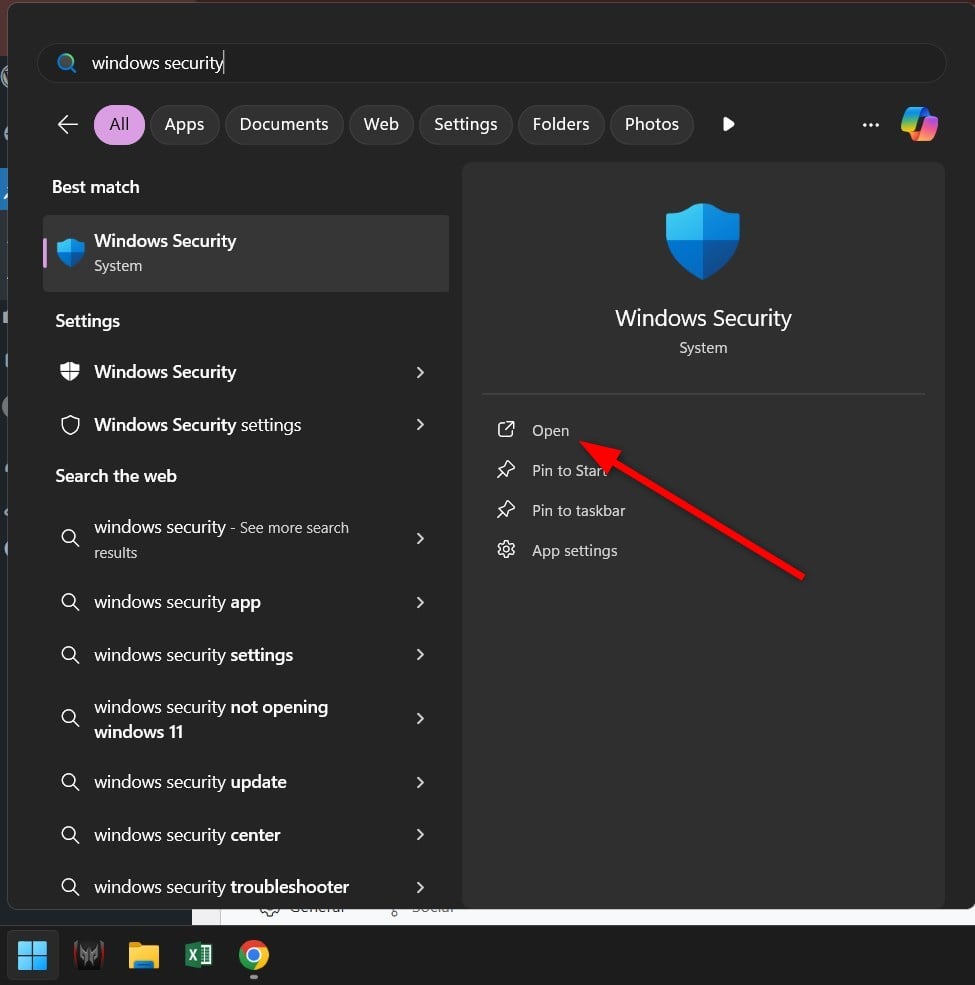
- Click on Virus & threat protection.

- Select Manage settings.

- Turn off the Tamper Protection toggle.

Use the Windows Defender Remover tool
GitHub has a dedicated tool available for those who are looking to remove Windows Security or Defender from their PCs. The tool is pretty easy to use if you follow the steps correctly.
- Visit the GitHub website and download the Windows Defender Remover tool.
- Open the EXE file as administrator.
- Follow the on-screen steps to remove Windows Security.
Alternatively;
- Copy the below code:
$remove_appx = @("SecHealthUI"); $provisioned = get-appxprovisionedpackage -online; $appxpackage = get-appxpackage -allusers; $eol = @()

$store = 'HKLM:\SOFTWARE\Microsoft\Windows\CurrentVersion\Appx\AppxAllUserStore'

$users = @('S-1-5-18'); if (test-path $store) {$users += $((dir $store -ea 0 |where {$_ -like '*S-1-5-21*'}).PSChildName)}

foreach ($choice in $remove_appx) { if ('' -eq $choice.Trim()) {continue}

foreach ($appx in $($provisioned |where {$_.PackageName -like "*$choice*"})) {

$next = !1; foreach ($no in $skip) {if ($appx.PackageName -like "*$no*") {$next = !0}} ; if ($next) {continue}

$PackageName = $appx.PackageName; $PackageFamilyName = ($appxpackage |where {$_.Name -eq $appx.DisplayName}).PackageFamilyName

ni "$store\Deprovisioned\$PackageFamilyName" -force >''; $PackageFamilyName

foreach ($sid in $users) {ni "$store\EndOfLife\$sid\$PackageName" -force >''} ; $eol += $PackageName

dism /online /set-nonremovableapppolicy /packagefamily:$PackageFamilyName /nonremovable:0 >''

remove-appxprovisionedpackage -packagename $PackageName -online -allusers >''

}

foreach ($appx in $($appxpackage |where {$_.PackageFullName -like "*$choice*"})) {

$next = !1; foreach ($no in $skip) {if ($appx.PackageFullName -like "*$no*") {$next = !0}} ; if ($next) {continue}

$PackageFullName = $appx.PackageFullName;

ni "$store\Deprovisioned\$appx.PackageFamilyName" -force >''; $PackageFullName

foreach ($sid in $users) {ni "$store\EndOfLife\$sid\$PackageFullName" -force >''} ; $eol += $PackageFullName

dism /online /set-nonremovableapppolicy /packagefamily:$PackageFamilyName /nonremovable:0 >''

remove-appxpackage -package $PackageFullName -allusers >''

}

} - Open PowerShell as administrator from the Start menu.
- Paste the above command.
This will help remove Windows Security Center/Windows SecurityApp from your PC without downloading the script.
What other measures can I take instead of removing Windows Security?
Instead of permanently removing or disabling Windows Security from your PC, there are other options that you can take a look at:
- Add specific files or programs to the Windows Security exclusions list so that they are triggered as false alarms, and you can continue to do your work.
- Alternative to removing, you can toggle off the real-time protection feature in Windows Security. For that, head over to Windows Security > Virus & Threat Protection > Manage settings.
- Installing third-party antivirus software will automatically disable Windows Security.
Final thoughts
Disabling or removing Windows Security may seem necessary if you are facing multiple issues running your PC smoothly. However, it is recommended that you have an antivirus in place for Windows Security if you don’t want to use it as your primary security program. If your PC is infected with a deep-rooted virus, then you should check out our guide, which will help you fix the problem. We also have a list of some of the best online virus scanning tools that can help you perform a quick check of your PC’s health.

