

Quick Answer
To stop browser hijacking on your Google Chrome, First Reset all Google Chrome settings, Disable all extensions, Remove suspicious software from your device and Scan your device using free or paid antivirus apps. Finally, reinstall Google Chrome. As a last resort, Factory reset your device; this will remove everything, including malware, from your device. Follow the guide for a detailed step-by-step process and prevent browser hijacking in the future.
Despite numerous efforts by Google, browser hijacking in browsers, including Google Chrome, has remained the biggest security problem. Data shows over 32% of undetectable malware is spread through the browser. Fortunately, you don’t need to invest in high-quality software to prevent browser hijacking; there are simple troubleshooting methods to prevent it and a few simple methods to fix it if you are already affected by browser hijacking.

Table of Contents
What is Browser Hijacking?
Browser hijacking, or browser takeover, occurs when malicious code or scripts run on your browser change default browser settings and redirect you to malicious websites without your control. Browser hijackers are intended to show you unwanted ads, redirect you to malicious web pages and collect your personal information.
Browser hijackers (malicious software) are usually installed when you download and install malicious software on your devices or install an unknown browser extension. Most browser hijackers are used to show ads, often redirecting you to unwanted websites and showing unwanted popups. Some are more severe and can even collect sensitive information, like login credentials and financial information stored on your browser.
How to Detect Browser Hijacking
There are only a few ways to detect browser hijacking. Unfortunately, browser hijacking has evolved and is becoming harder to detect. Depending on the type of browser hijacking, detection can vary. Here are the most common ways to identify browser hijacking.
- Unwanted ads popping up on your browser: The most common way to detect browser hijacking is the frequency of unwanted ads displayed. Websites can have ads; however, if you find a sudden increase in the ad count and ads showing in unusual places, like your home screen or from an app, this can likely be caused by browser hijacking tools.
- Redirection tools: Another common way to detect it is through unwanted redirections, where you are frequently redirected to unknown websites. However, most third-party websites with non-professional content also do the same, but the frequency might be higher with browser hijacking.
- Homepage redirection: There are cases where your default homepage is replaced with another homepage, which often shows ads and links to unwanted articles and changes the default search engine to using an unknown search engine that navigates you to malicious sites. These are harder to detect, especially if you are unfamiliar with your previous process, and might lead to navigation to more malicious sites.
How to Recover from Browser Hijacking
If you have been affected by the browser hijacking, you can remove it easily if you follow the right process. Follow the methods to recover; these steps will work for almost any browser.
Reset Your Chrome Settings
If you detect any suspicious activity on your browser, immediately reset your browser settings. This will remove all the hijacking and malicious settings, and it is also a simple and quick process.
Remember that all your custom settings, bookmarks, and extensions will be removed. However, this will not remove the malware installed on your browser. Once you have reset your settings, follow the steps below to remove the malware.
How to Reset Google Chrome

To reset Google Chrome, open Google Chrome, click on the three-dot menu in the top right corner of the screen, and go to Settings. Scroll down to the bottom and click on the option Reset settings, then confirm the reset. This will reset all your Google Chrome settings.
Remove Suspicious Chrome Extensions
Resetting does not remove the extension entirely; it only disables the extensions. After resetting your settings, manually remove any unwanted extensions installed on your Chrome browser. There is no definitive guide to identify which extension is causing the issue. However, there are a few parameters you can consider.

- Check the source: See from which developer the extension is coming. The “Published by” developer name is in each extension’s details.
- Review permissions: Click on the 3-dot menu at the top of the extension details, go to permissions, and review them. For example, if the extension has permission like “Read and change all your data on websites, ” this might indicate it is a risk.
- Chrome Web Store verification: Ensure the extension is installed from the Chrome Web Store and not manually downloaded from a third-party source.
- Inspect update history: If available, search for the extension’s update history and any external reviews.
Following these parameters, you can determine which extension is causing the issue. Temporarily remove the suspicious extension and see if the issue is resolved. To view extension details, right-click the extension icon and tap the Manage extension.
How to remove extensions from Google Chrome:
- Open Google Chrome.
- Click on the three-dot menu or the extension icon from the toolbar.

- Manually disable suspicious extensions.

While there are ways to disable all extensions at once using Google Chrome commands, it is highly recommended to manually check and review the permissions, details, and everything about an extension. Uninstall or remove it if you find any suspicious extensions.
Remove Suspicious Software on Your Device
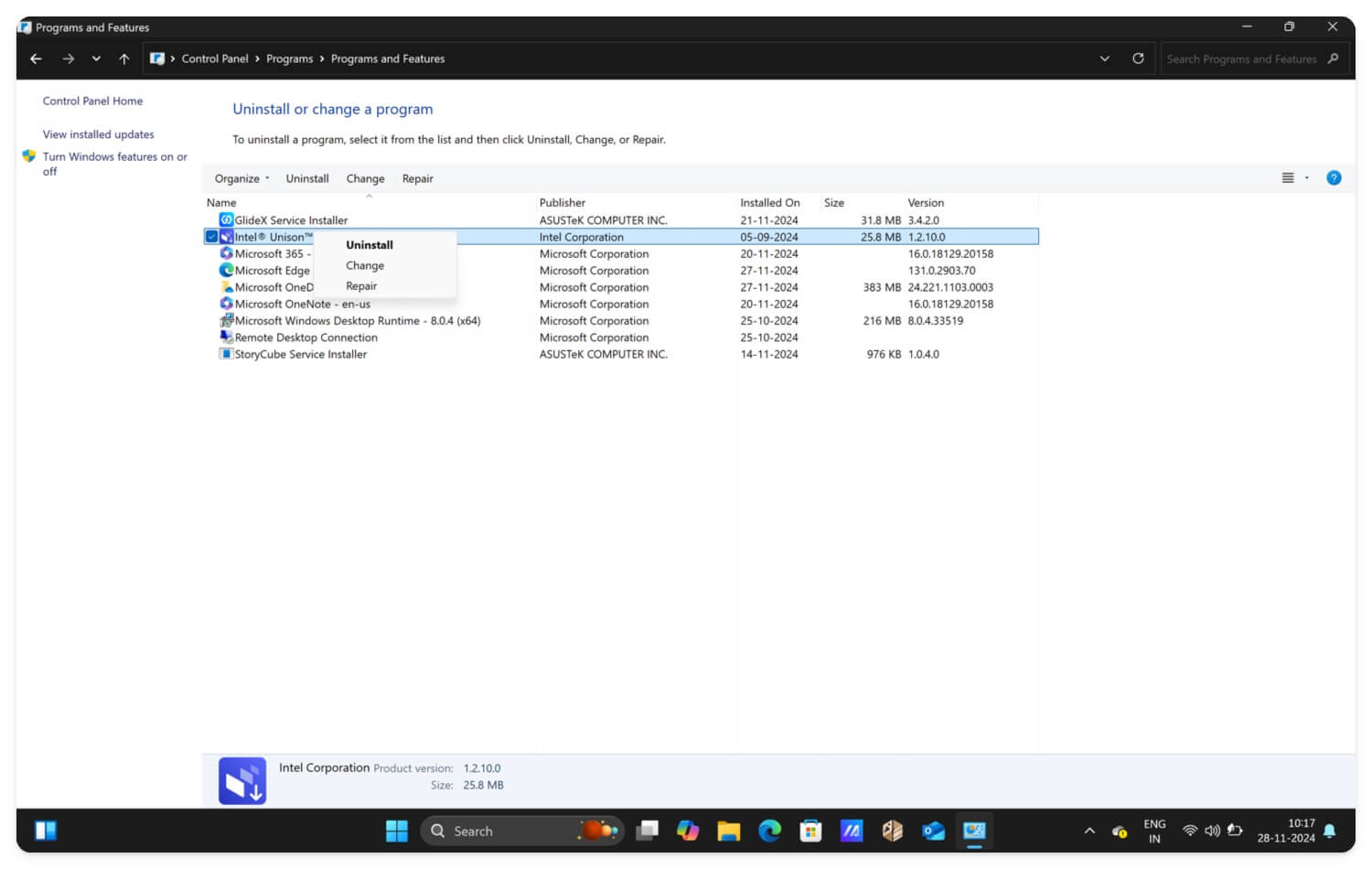
Not only through extensions, third-party, unknown software can also be responsible and can inject browser hijacking into your Chrome browser. If you recently downloaded any software from third-party sites or have any suspicious software installed on your device, either Windows or Mac, uninstall them quickly by following the steps below.
- Go to the Control Panel.

- Click on the Programs

- Tap on the Programs and features.
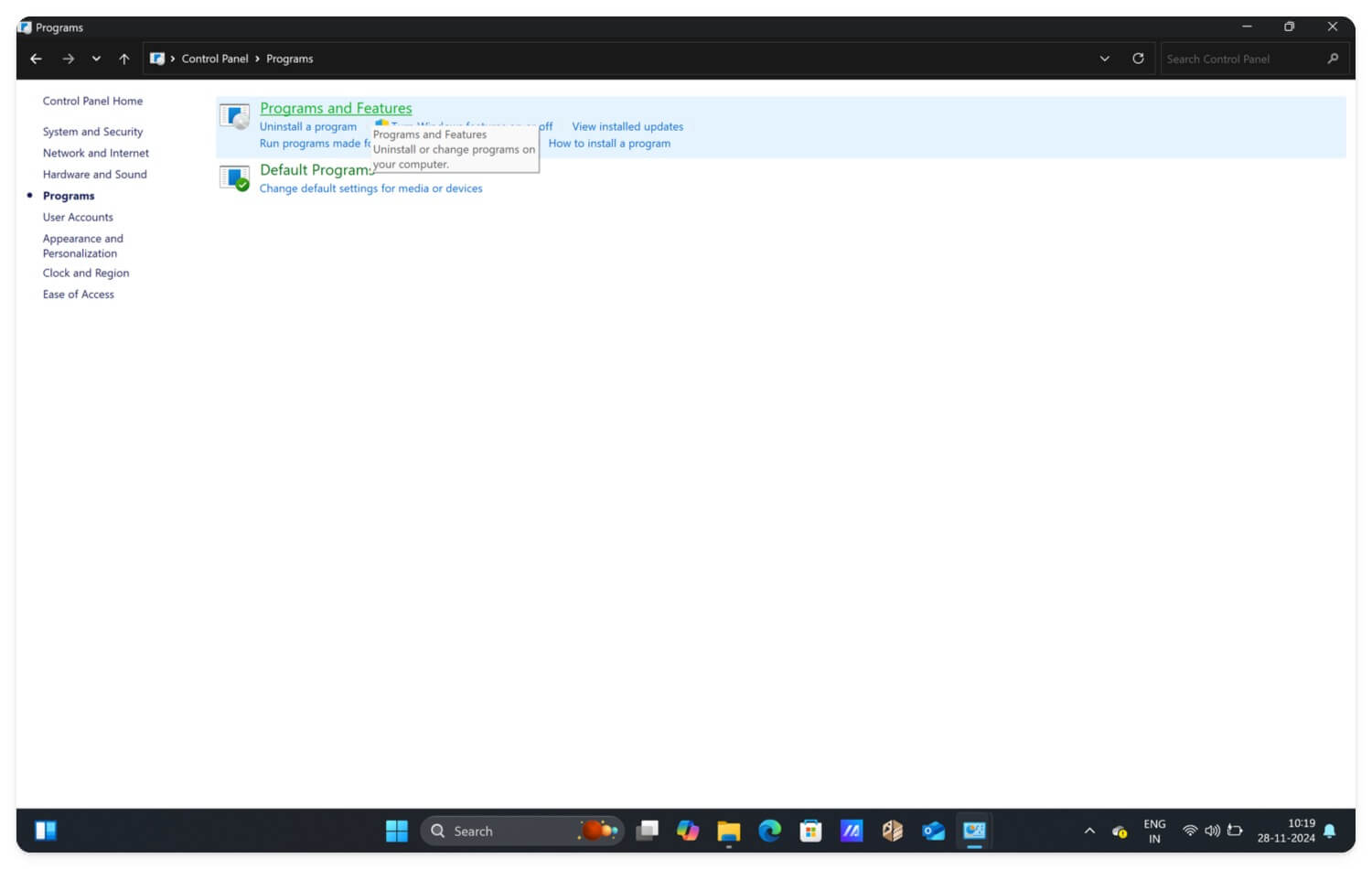
- Here, you can find the suspicious software. Right-click on the software and click on Uninstall.
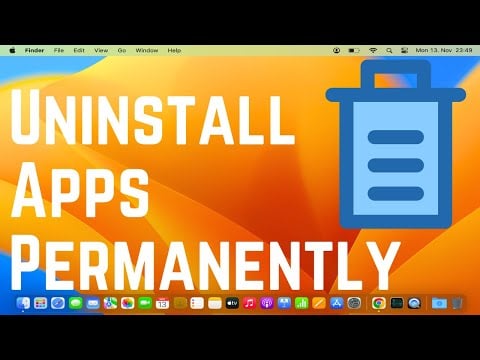
On macOS, go to the Applications folder and look for the suspicious apps or software, drag and move them into the Trash, and empty the Trash to delete the program from your device. If you are new to the Mac, follow the video below for a detailed step-by-step guide.
Check for browser hijackers under legitimate software. Alternatively, look for specific programs running in the background. On Windows, you can visit Task Manager; on macOS, you can see Activity Monitor and look for suspicious processes. Once you have uninstalled the program, follow the steps below.
Scan Your Device Using a Reputable Antivirus
After resetting the Chrome settings, removing extensions, and uninstalling suspicious apps, run a full device scan to detect any malware or virus installed on your system. You can use tools like Malwarebytes, specifically designed to remove browser hijackers. Similarly, you can use free antivirus or paid software like Bitdefender, Norton, and other reliable antivirus software that works great.
However, Avast One Basic is a good choice if you’re looking for free options with better virus detection than other free antivirus software. It works on multiple devices, including Windows and Mac. You can also try the free version of Bitdefender, which provides reliable and effective antivirus protection. If you find any suspicious activity, apps, or software during the scan, uninstall them immediately to secure your device.
Uninstall and Reinstall Google Chrome
After successfully scanning your device, it is recommended that you uninstall and reinstall Google Chrome. This will remove any existing viruses or malicious scripts that are still active on your Chrome browser. On Windows: go to Settings > Apps > Apps & Features > Select Google Chrome > Uninstall > Confirm. On Mac: Go to Finder > Applications > Drag Google Chrome to Trash > Empty Trash.
Factory Reset Your Device
Resetting your device removes everything from your computer, including viruses, software, and third-party apps. This is the most reliable method you can depend on as a last resort. However, factory resetting your device will remove everything from your device. Ensure you have backed up your device to save important files before factory resetting.
- To back up Windows files: You can move your files to OneDrive or save files to an external drive.
- For macOS: You can move important files to iCloud or download and save them to your local device.
How To Factory Reset Your Device:
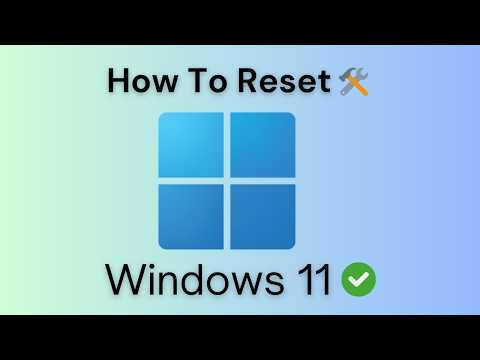
On Windows, you can go to Settings > System > Recovery > Reset this PC > Get started > Choose options > Confirm.
How To Factory Reset Your Mac:
- Go to Settings on your Mac

- Click on the General and Tap on Transfer or Reset.

- Select the option that says Erase All Content and Settings.
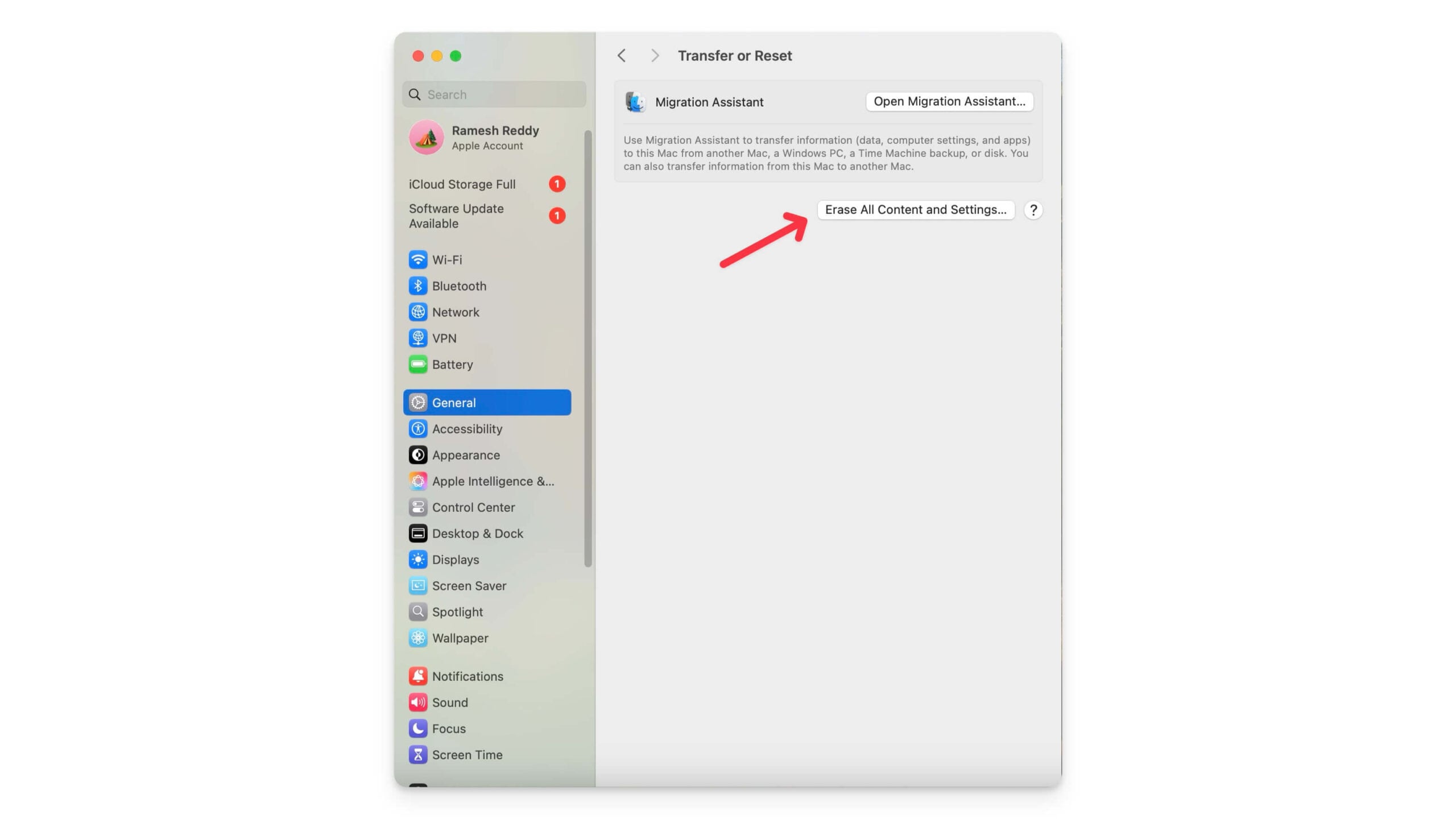
After the factory reset, copy the files back to your device. Also, ensure before copying that they are truly clean by scanning them with trusted antivirus software so that you won’t be affected by the virus again.
Those are the five steps to disable and remove browser hijacking on your Google Chrome. Factory resetting your device almost always works and fixes everything on your device, ensuring you create a fresh installation instead of updating your existing Windows or macOS.
How to Prevent Browser Hijacking on Your Device
As the saying goes, prevention is better than cure, and removing a virus is just the start. If you often visit third-party websites and download unknown software and extensions, your device can become infected again. The best and most reliable way to prevent browser hijacking is by following these simple methods while using Chrome.
1. Do Not Visit Malicious Websites or Download Files From Them
Most browser hijackers come from third-party or malicious sites that offer malware-infected software, which can be used for browser hijacking. To prevent this, do not install software from third-party websites, especially mods software. Also, carefully check the URL and ensure it is from a legal site. You can view the domain name or use the URL scanner tools to detect malicious websites. You can also consider a few parameters, like:
- The domain where the site is coming from.
- Whether the URL uses HTTPS for secure access.
- The presence of pop-ups and other suspicious activity when you visit a site.
- You can also use online URL scanners like Virus tools to check website safety.

2. Install Antivirus on Your Device
Install antivirus software (free or paid) for more security and turn on browser protection. This scans the website before you visit and prompts you if there is any issue or danger on the website. For best results, avoid visiting these websites entirely to prevent hijacking.
If you dont want third-party antivirus software, You can also use free online virus scanner tools to scan small files easily without installing any app on your device.
3. Update Google Chrome

Google often rolls out frequent updates to Chrome to fix security issues and add additional security features. Make sure that you update your Google Chrome frequently to avoid any issues in the future. To update, go to Settings, scroll down to the bottom, and click About Chrome. If a new version of Google Chrome is available, you can update Chrome, and the update will be automatically applied.
4. Scan Downloaded Files Using Online Virus Scanners
An online and local antivirus is highly recommended if you often download files or visit malicious websites. However, having an antivirus can also come with drawbacks, like using more system resources, and some antivirus constantly interrupts you with notifications and needs to be updated frequently.

However, if you are looking for a simple solution and only download small files from the internet, you can use free online file scanners. These offer a simple way to scan your files before opening them on your device. You can view our guide on the best online virus scanner tools that provide a simple, easy, and modern experience. You can also choose one based on your preferences for scanning files. Upload the file to the scanner to scan and display the results.
5. Install extensions from Chrome Webstore
While extensions are the best way to extend the functionalities of Google Chrome, they can also come at a cost. If you download them from third-party sources, some extensions ask for permissions that can modify your Google Chrome security settings, which can be a problem and insecure if you’re using sensitive information on the browser.
Downloading an extension from the Google Chrome Web Store is often recommended because it goes through several security checks. However, ensure your extension is safe to add, comes from a reputable developer, and asks for limited permissions.

Stop Browser Hijacking
Those five methods can help you fix browser hijacking and prevent it from happening in the future. You can follow these basic steps daily to protect sensitive information from third-party hackers. The steps mentioned in this guide are easy for beginners to follow. If you have any other questions, please comment below, and I’ll try to answer them.
FAQs on Fixing Browser Hijacking and Preventing It
What should I do if I keep encountering hijacking issues even after reinstalling Chrome?
If you are encountering hijacking issues, even after reinstalling Google Chrome, I highly recommend factory resetting your device. It is an effective and reliable method that mostly works and removes any existing malware or virus on your device.
Can I disable any specific Chrome flags or settings to prevent browser hijacking?
To enhance your Google Chrome's protection, enable a safe browsing feature. Google offers built-in safe browsing features for safe browsing on Google Chrome. You can go to Settings, then Privacy and Security, and look for the option that says safe browsing. From the selection page, select Enhanced browsing. Also, disable extensions in incognito mode if unnecessary, disable automatic downloads and prevent websites from downloading files automatically without your permission. You can change the privacy, security, and individual site settings.
What permissions are considered safe when adding a Chrome extension?
Extension permissions can depend on the type of extension you are installing. For instance, if you're installing a screenshot extension, it needs permissions like camera and microphone. To prevent browser tracking, ensure that the browser extension doesn't have permission to override or change the default settings. To manage extension permissions, go to any extension, right-click on the extension, and click on view web permissions. Alternatively, you can use Chrome settings and the privacy and security tab.
Can using a VPN help prevent browser hijacking?
A VPN can help encrypt your network but doesn't entirely prevent local browser hijacking. Even if the VPN is on, the locally run script on your device can change your Chrome settings and still access your personal information.

