

Quick Answer
If you want to enable extensions in incognito mode on your browser, go to the Extension settings page, find the extension you want, and toggle the option that says “Allow it incognito or in Private Mode”. These steps can vary depending on the browser.
By default, all the extensions installed on your browser are disabled in incognito mode (Private mode). However, you can manually enable extensions to work in incognito mode.

Almost all popular browsers, including Google Chrome, Firefox, Microsoft Edge, and Opera, allow you to use extensions in the browser’s incognito mode. In this guide, you will learn how to turn on extensions in incognito mode on all popular browsers.
Table of Contents
How to Enable Extensions in Incognito on Chrome, Firefox, Edge & More
Enabling extensions in the browser’s private incognito mode is very easy. You can go to the extension’s settings page and enable the option to use it in incognito or private mode. However, it is highly recommended that you understand what happens when an extension is enabled in incognito mode.
When you enable an extension in private, it has access to your data. Depending on the extension type, it may collect your data, track your browsing activity (even in incognito mode), and store it even after your incognito session ends.
This contradicts the primary function of incognito mode. It is advised to use only extensions from reputable developers to avoid any security risks while using incognito mode. Also, note that your extension will work the same as it does in normal mode. With that in mind, here is how to enable extensions on all popular browsers.
Enable Extensions in Incognito on Google Chrome:
- Step 1: Open Chrome and click the three dots (menu) in the top-right corner.
- Step 2: Click Extensions or click on the Extensions tab and then click on Manage Extensions.

- Step 3: Find the extension you want to use in Incognito and Click Details below the extension name.

- Step 4: Scroll down and switch on Allow in Incognito.

Enable Extensions in Incognito on Mozilla Firefox:
- Step 1: Open Firefox.
- Step 2: Click the three lines (menu) in the top-right corner and click Add-ons and Themes, or click on the extension icon and click on the Manage extensions.

- Step 3: Find the extension you want to enable for Private mode.
- Step 4: Click the three dots next to the extension, then choose Manage.

- Step 5: Scroll down to Run in Private Windows, then select Allow.

Enable Extensions in Incognito on Microsoft Edge:
- Step 1: Open Microsoft Edge.
- Step 2: Click the three dots (menu) in the top-right corner.
- Step 3: Click Extensions

- Step 4: Click on the Manage Extensions.
- Step 5: Find the extension you want to use in the Private mode.
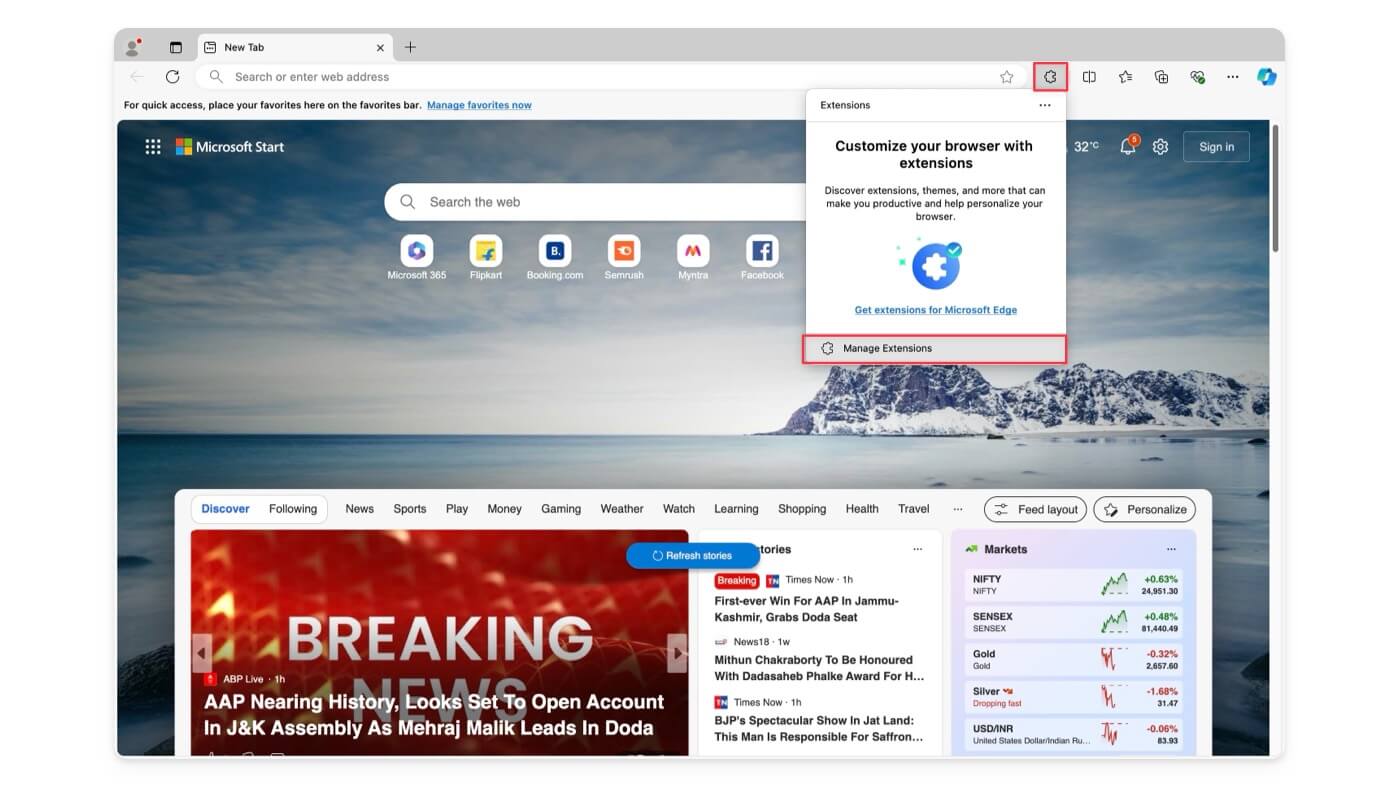
- Step 6: Click Details.

- Step 7: Toggle the option that says Allow in InPrivate.

Enable Extensions in Incognito on Opera:
- Step 1: Open Opera browser.
- Step 2: Click on the extensions icon and then Manage Extensions.

- Step 3: Find the extension you want to use.
- Step 4: Click Options under the extension.
- Step 5: Check the box that says allow in Incognito.

Enable Extensions in Incognito on Brave Browser:
- Step 1: Open Brave browser.
- Step 2: Click on the extension tab and then Manage Extensions.

- Step 3: Find the extension you want to use in private mode.
- Step 4: Click Details below the extension name.

- Step 5: Toggle the option Allow in Private.

Enable Extensions in Incognito on Safari (limited support):
Safari only allows limited extensions to run in private mode, unlike other browsers. To enable:
- Step 1: Open Safari browser.
- Step 2: Click Safari in the top-left corner of your screen and tap on Settings.

- Step 3: Go to the extensions tab.
- Step 4: Select the extension you want to use in private and click the Allow in Private Browsing. If you don’t see this option, the extension might not support private browsing on Safari.

You can follow similar steps to enable extension on any browser. Ensure the browser has extension support, and it allows the extension to run in private mode.
How to Protect Your Privacy in Incognito Mode
Most of us use incognito mode to browse the internet and keep trackers away privately. However, when you enable extensions, they can track your activity and store data. Manage each extension’s permissions to ensure safety and keep your important data private.
Go to Extensions> Manage extension permissions (this can vary depending on the browser) and disable unwanted permissions the extension has. You can also temporarily disable extensions when you want to browse privately.
To know if an extension is enabled in incognito mode, you can manually check the incognito permission settings for each extension or view enabled extensions in the incognito toolbar. I hope you find this guide helpful. For more useful tips, check out the additional guides below.

FAQs on How To Use the Extension in Incognito Browser Mode
Can I disable the extension in Incognito mode without affecting my normal browsing?
You can disable an extension in Incognito mode without affecting your normal browsing. To do this, go to the Manage Extensions page, select the extension you want to disable in Incognito mode, and then turn off the option that says "Allow in Incognito. "
Do I need to re-enable the extension in Incognito mode each time I open a new Incognito session?
No, once the extension is enabled in Incognito mode, it will stay enabled for future sessions until you manually disable it. You don't need to re-enable it when opening a new Incognito window.
How can I verify which extensions are safe to use in Incognito mode?
Check the extension developer and ensure you have installed it from the official Google Chrome website. Also, review the permissions and data the extension has access to. While there's no direct way to confirm an extension is safe, consider the factors above before using it in Incognito mode to stay secure.
Why are my extensions not working in Incognito mode?
Ensure that you have enabled the option to use the extension in Incognito mode. Go to the settings of each extension and manually enable the option that says "Allow in Incognito or Private mode." Additionally, check the extension's permissions and grant the required permission for the extension to run in private mode.

