

Quick Answer
To prevent Windows from automatically restarting after an update, you can temporarily disable updates by changing active hours and pausing Windows updates for up to 4 weeks. To prevent restarting after an update, you can use the Group Policy Editor to prevent automatic restarts after an update while keeping your updates on. Similarly, you can use registry settings or the Task Scheduler to prevent automatic restarts after an update. Finally, You can disable Windows update services using Service Manager to reduce background usage and automatic updates. For a detailed step-by-step process, you can follow the guide below.
One of the major problems with Windows is the inconsistent update cycle. You will never know when your device restarts after an update. This can happen during work while playing your favorite game or watching your favorite movie on a Sunday night. To make matters worse, Windows updates often take a long time to install, leaving you staring at the blue restart screen until the update is finished.

Fortunately, while we cannot fix the Windows update cycle, we can control when updates and restarts occur. You can apply more than ten methods depending on how much control you need over the update cycles. In this guide, you will learn about those methods and fix your Windows update cycle to stop unwanted Windows update restarts during your important work.
Table of Contents
How to Stop Windows From Auto-Restart After an Update
Sl No. | Method | How to Use It |
|---|---|---|
1. | Update Windows Settings | Go to Settings → Windows Update → Set Active Hours and enable Restart Notifications. |
2. | Edit Group Policy | Enable Group policy on your device, Press Win + R, type gpedit.msc → Computer Configuration → Administrative Templates → Windows Components → Windows Update → Manage end-user experience → Enable No auto-restart with logged-on users. |
3. | Disable Update Service | Press Win + R, type services.msc → Find Windows Update → Right-click → Stop → Set Startup Type to Disabled. |
4. | Modify Registry | Press Win + R, type regedit → Navigate to Windows update path and set NoAutoRebootWithLoggedOnUsers value to 1. |
5. | Use Task Scheduler | Open Task Scheduler → Go to Microsoft → Windows → UpdateOrchestrator → Right-click the Reboot task → Select Disable. |
6. | Pause Updates Temporarily | Go to Settings → Windows Update → Click Pause Updates for up to 4 weeks, |
7. | Set Metered Connection | Go to Settings → Network & Internet → Properties → Enable Set as Metered Connection. |
8. | Use Third-Party Tools | Download and run tools like StopUpdates10 or Windows Update Blocker to manage updates. |
Change Windows Update Active Hours
Windows 10 and 11 offer basic update controls in the settings to notify you before an update and control when you want to restart your device after an update. This straightforward method works for most people annoyed by automatic restarts after an update.
To modify Windows update settings:
- Go to Settings on your Windows laptop and go to the Windows Update tab.
- Enable ‘Notify me when a restart is required to finish updating’. Windows will notify you when your device requires a restart to finish updating.
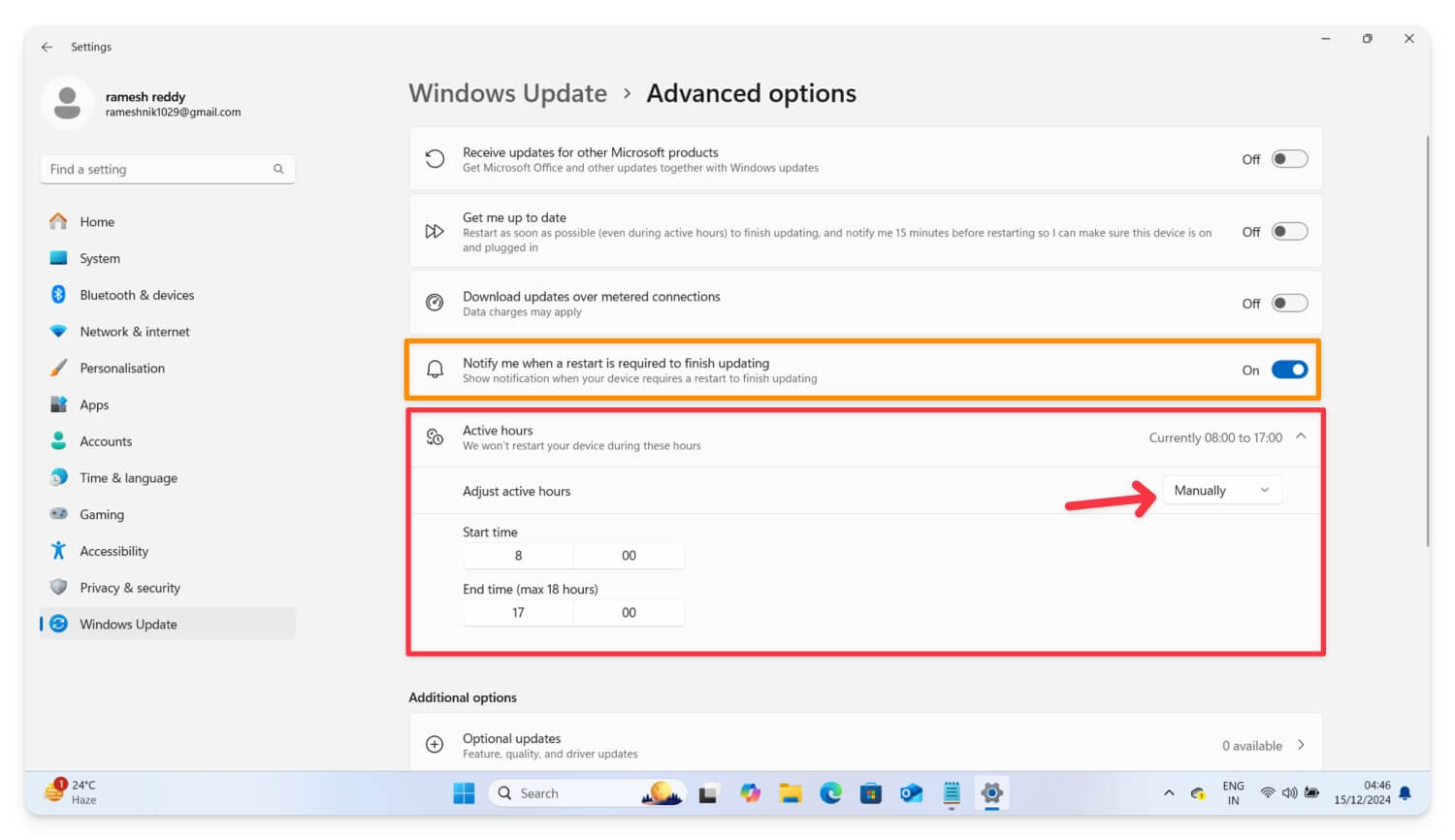
- Next, click Active hours, select Manually from the drop-down menu, and set the start and end times to ensure your device restarts during these active hours.
Windows does not have a direct option to disable restarting after an update is finished. You can only adjust the active hours and get notified before your device restarts. You can follow other methods to disable automatic restarts after an update.
Edit Group Policy Settings
You can use the Group Policy Editor to gain complete control over your Windows updates. For Windows Pro and Enterprise editions, Microsoft offers Group Policy settings, advanced Windows settings used mainly by IT admins and administrators to control various aspects of the device.
The user-friendly interface allows anyone, including non-technical users, to customize and edit Windows update settings and gain granular control over Windows updates. However, Group Policy Settings come built-in for Pro and Enterprise Windows 10 and 11 editions. Windows Home users can side-load Group policy settings and control Windows updates or use alternative methods, like disabling automatic updates through system services, to disable Windows updates permanently.
For Windows Pro and Enterprise users, follow the steps below. For Windows Home users, follow the method to enable Group Policy on your PC.
How to Control Windows Settings in Group Policy Editor
- Press Win+R to open the Run dialogue.
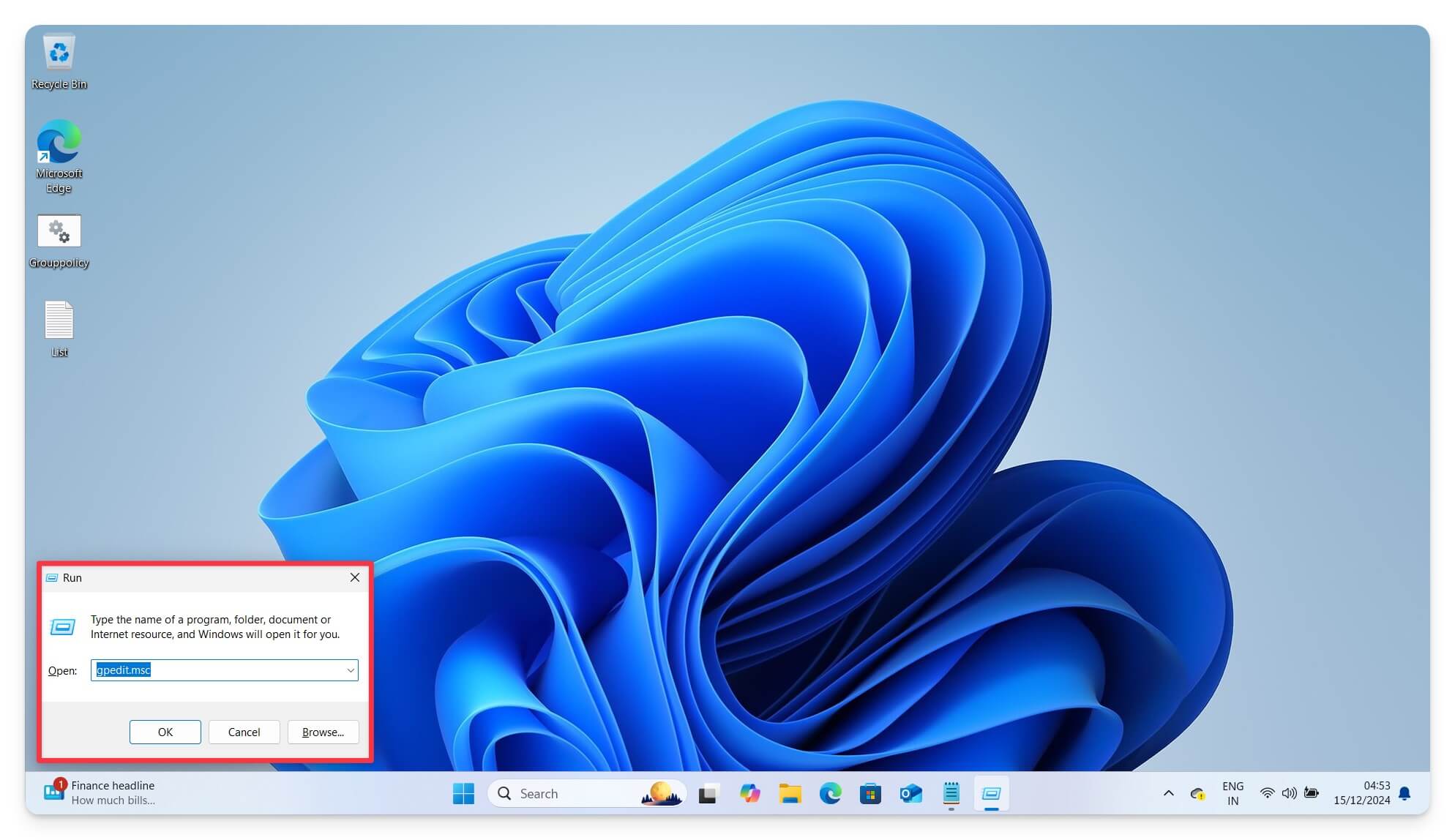
- Type gpedit.msc and press Enter.
- This will open the Windows Group Policy Editor on your device. If it doesn’t, you can manually add it to your device. Follow the steps below.

- Next, navigate to Computer Configuration and then tap on Administrative Templates. Go to Windows Components.
- Scroll down, click on Windows Update, and Manage end-user experience.

- Here, you enable the option that says No auto-restart with logged-on users for scheduled update installations.

- Double-click on this option and select Disable.
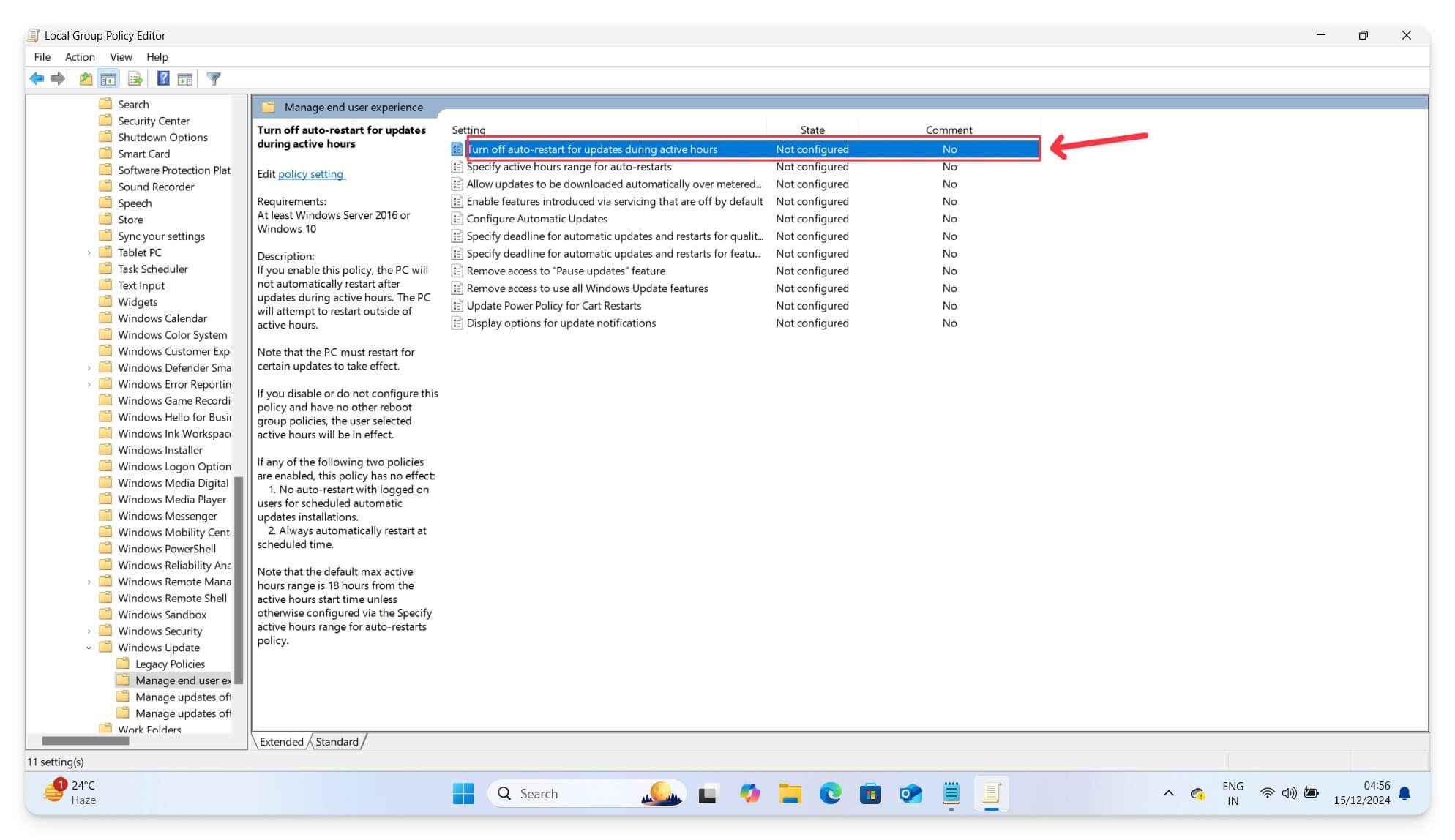
Using this Group Policy advanced setting, you can control granular Windows updates and prevent it from restarting your device after an update. However, Group Policy Editor is only available for Windows Pro, Enterprise, and Educational editions. However, you can still try it on your Windows 10 or 11 Home devices.
How To Get a Group Policy Editor on the Windows Home Version:
You can manually add Windows Group Policy settings to your Windows device. Follow the steps below.
- Open Notepad and paste the below code.

@echo off

pushd "%~dp0"
dir /b %SystemRoot%\servicing\Packages\Microsoft-Windows-GroupPolicy-ClientExtensions-Package~3*. mum >List. txt
dir /b %SystemRoot%\servicing\Packages\Microsoft-Windows-GroupPolicy-ClientTools-Package~3. mum >>List. txt
for /f %%i in ('findstr /i . List. txt 2^>nul') do dism /online /norestart /add-package: "%SystemRoot%\servicing\Packages\%%i"
pause
- Click on the File menu at the top, select Save As, and save the file with any name using the .bat file extension. Save the file on your desktop for easy access.
- Now go to the file, right-click, and run it as an administrator. It will open the Command Prompt and download all required files to load Group Policy Editor on your device. Once you see Press any key to continue, click any key, and that’s it.
- Windows Group Policy Editor is successfully installed on your device. Follow the same approach above and disable Windows restart after an update.
Modify Windows Registry Values
The simple user interface of Group Policy makes it easy for Pro and Enterprise users to disable Windows updates and restart. Fortunately, Windows Home users can also disable restart after an update by modifying Windows Registry.
Windows Registry is a hierarchical database. It stores low-level system settings that you can modify to control your system behavior. In this case, you can modify Windows updates to prevent your Windows device from restarting automatically.
However, the only downside of this method compared to the Group Policy is that it requires technical knowledge, and most settings are in a hierarchical order with keys and values. Below, I have listed a guide for both beginners and technical users who want to use it to disable Windows updates.
Ensure you don’t modify any other values while following these steps, as incorrect changes can lead to critical system errors on your Windows laptop. So, follow the steps carefully before applying any registry modifications.
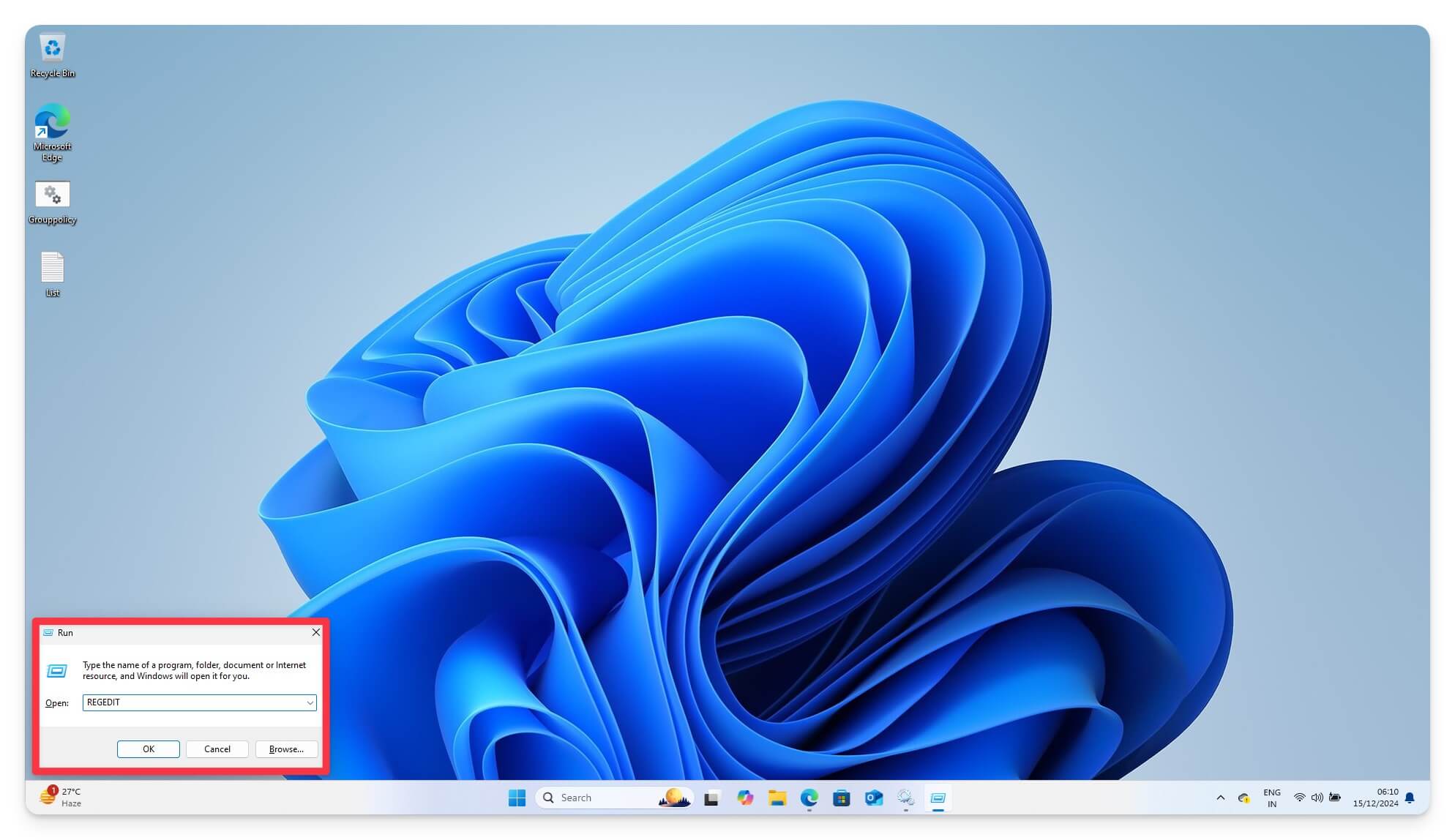
- To modify the registry, use your keyboard: press Windows + R, type the REGEDIT command, and then hit Enter.
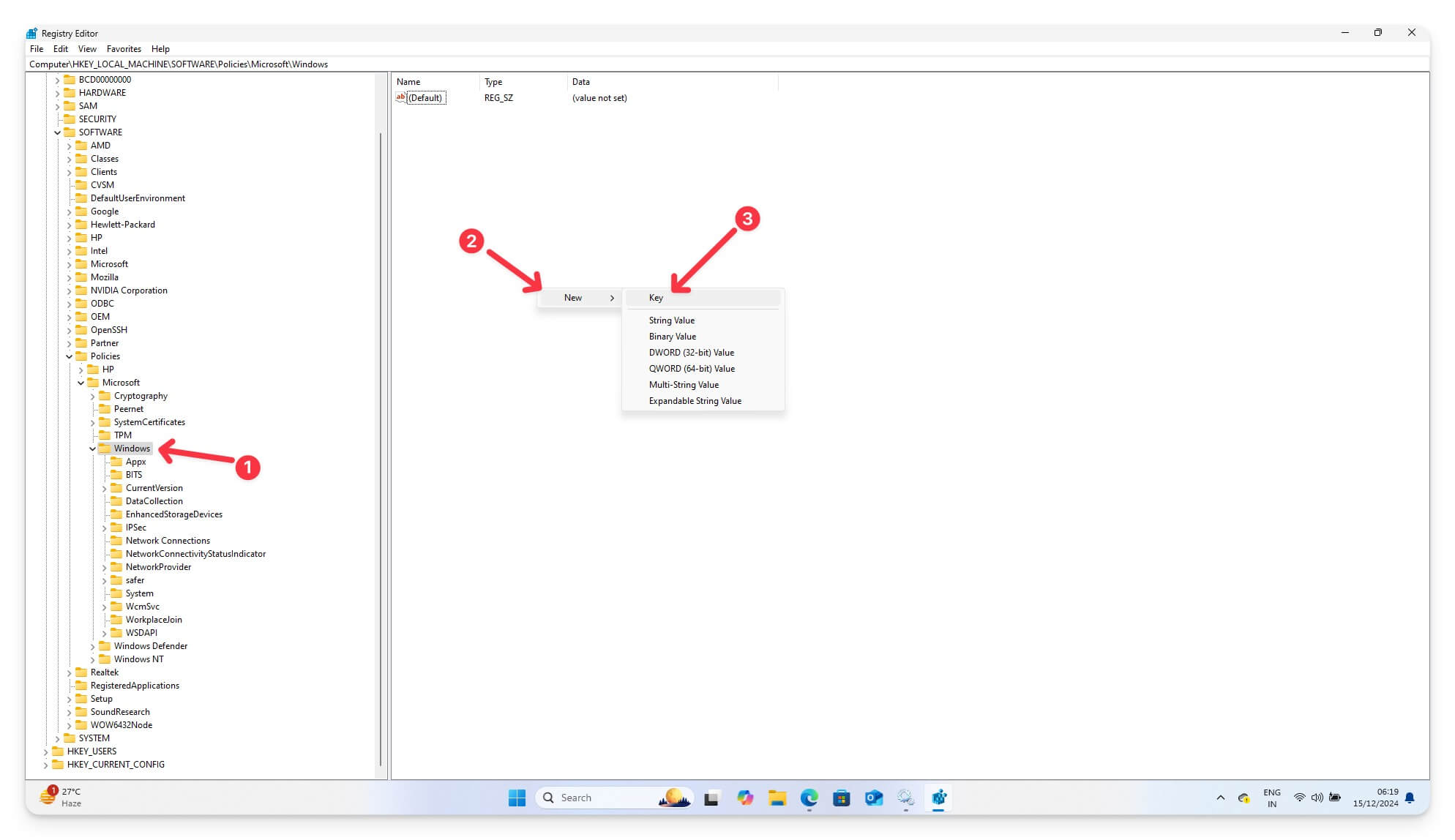
- Using the path URL, Now, navigate to the following path. HKEY_LOCAL_MACHINE\SOFTWARE\Policies\Microsoft\Windows\WindowsUpdate\AU. Here, you can create or modify existing values. Look for the option that says AU key.
- If it doesn’t exist, go to the Windows tab, Right-click on it, select New Key, and name it AU.
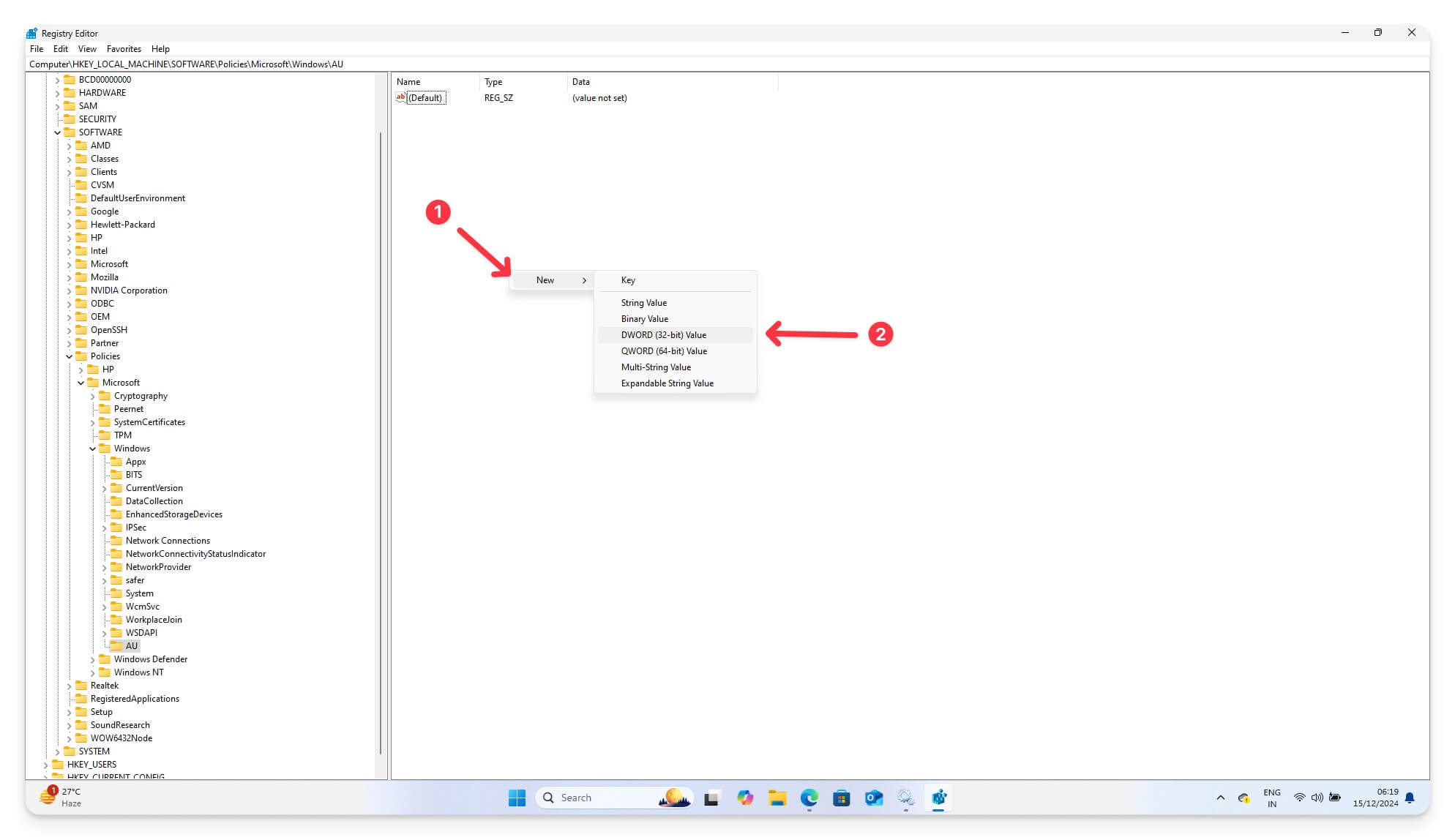
- Now, inside the AU key, select Select New, select DWORD (32-bit) Value, and name it as NoAutoRebootWithLoggedOnUsers
- Now, double-click on the NoAutoRebootWithLoggedOnUsers value and set it to 1. Restart your device to apply all the changes. You can set the base to 1 and 0x1 if it’s hexadecimal.

After modifying your Windows Registry settings, you have set your system to ensure it should not reboot after an update. To confirm this works, follow the same steps and ensure that NoAutoRebootWithLoggedOnUsers is set to 1. Check by updating your Windows updates and ensure the system doesn’t restart automatically.
Disable Automatic Windows Updates
Since Windows Updates are the primary reason your device restarts, you can disable Windows updates completely to prevent Windows from starting automatically. You can disable Windows updates on all devices, including Enterprise Education and Home editions.
However, completely disabling Windows updates results in the system being unpatched, and you might not get the latest Windows features. To update, you must enable the service and update your device manually.
There are plenty of ways you can disable Windows updates. Choose the methods below that suit you and disable updates completely on your device.
1. Pause Updates Temporarily
While Windows doesn’t offer to disable automatic Windows updates completely, it does offer the flexibility to pause Windows Update for up to 4 weeks. I highly recommend utilizing this setting if you want a temporary solution to pause automatic restarts.

Completely disabling Windows updates can affect your performance and prevent your device from getting the latest security patches. I highly recommend a solution if you’re looking for a temporary fix. To pause updates, Go to Windows Update Settings on your device and look for the option to pause updates. Select the drop-down menu next to it and select when you want to stop Windows update. You can pause Windows for up to four weeks.
2. Disable Updates Using Windows Service Manager
The Windows Service Manager app, available for Windows 10 and 11, lets you control all the services running on your OS, including Windows Update services, which are essential for downloading, installing, and updating your Windows. You can stop Windows Update services from automatically downloading and updating your device using this service.
To disable Windows automatic updates using Service Manager:
- From your keyboard, press Windows + R to run the dialogue box.
- Now type services.msc and press Enter. Alternatively, click the search bar, type Services, and press Enter.

- In the Services Manager window, scroll down and find Windows Update in the list of services.
- Now, double-click on Windows Update.

- In the Service Status section, click on Stop.
- Under the Startup Type section, select Disabled from the dropdown menu.
- Click on Apply and then press OK to save the changes.
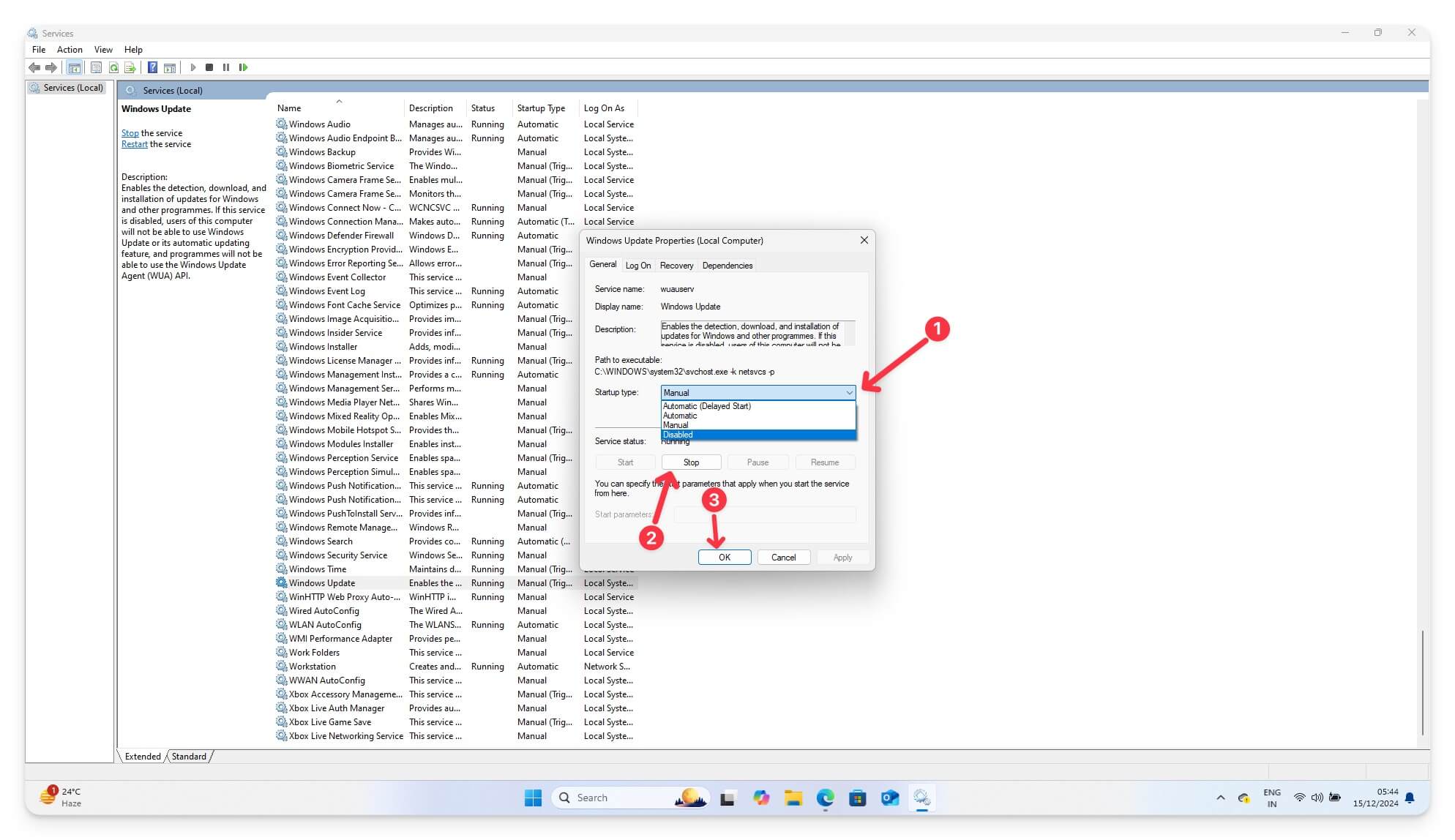
- You will now need to restart your PC to make the changes take effect.
Disabling the Windows Update service will stop your system from checking and installing updates automatically. This also disables automatic restarts after a Windows update. This way, you can prevent interruptions caused by updates and save system resources and bandwidth by stopping updates from running in the background.
3. Using Task Scheduler To Disable Automatic Windows Update
You can also prevent your device from automatically updating after Windows updates using Task Scheduler.
Windows uses Update Orchestrator tasks in Task Scheduler to schedule and restart after installing an update. Using Task Scheduler, you can disable specific tasks and prevent Windows from automatically restarting. This works for both Windows 11 and Windows 10 and includes Windows editions, including Home and Enterprise versions.
However, this method does not stop all Windows updates. If a new Windows update is available, it can still be downloaded and installed in the background. For some critical high-priority updates, Windows might override the Task Scheduler settings, which might result in restarting your device.
The Task Scheduler settings might reset after a Windows update or if other updates are installed. However, this method offers flexibility to control certain updates and works for all Windows editions.
To prevent automatic updates using Task Scheduler, follow these steps:
- Using your keyboard, press Windows + S (or open the search bar) and search for Task Scheduler. Open it on your device.

- On the left-hand panel, expand Task Scheduler Library, then navigate to Microsoft > Windows > UpdateOrchestrator.
- In the UpdateOrchestrator folder, look for the task named Reboot.
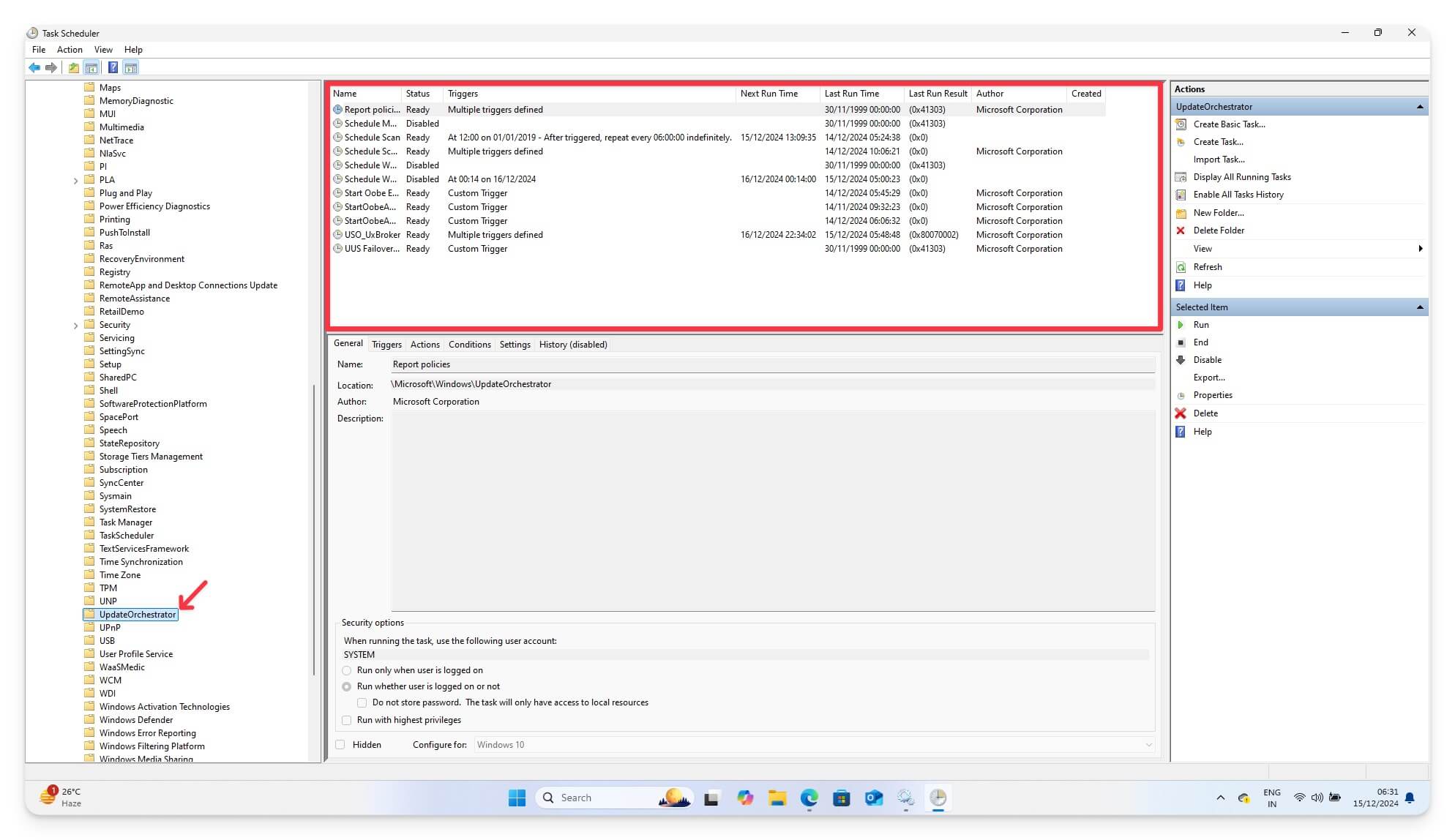
- Right-click on the Reboot task and select Disable. If you don’t find Reboot, look for the option with Reboot or schedule.

- Again, right-click on the Reboot task and select Properties.
- Go to the Triggers tab and remove or modify the triggers (e.g., set it to manual or login-based).

- Click OK to save the changes.
By disabling the task, check to ensure that the Reboot task is deactivated. This should prevent the system from restarting automatically after updates. However, always confirm whether the system prompts for a restart instead of performing it automatically.
4. Use Terminal Commands To Disable Updates
Using the Command Prompt or PowerShell on your Windows laptop, you can directly configure the Windows Update service by using commands. Both methods are direct, simple, and very easy to implement.
For PowerShell, use the following code:
Set-ItemProperty -Path “HKLM: \SOFTWARE\Policies\Microsoft\Windows\WindowsUpdate\AU” -Name “NoAutoRebootWithLoggedOnUsers” -Type DWord -Value 1
Get-ItemProperty -Path “HKLM: \SOFTWARE\Policies\Microsoft\Windows\WindowsUpdate\AU”
For Command Prompt, use the following code:
reg add “HKEY_LOCAL_MACHINE\SOFTWARE\Policies\Microsoft\Windows\WindowsUpdate\AU” /v NoAutoRebootWithLoggedOnUsers /t REG_DWORD /d 1 /f
Avoid Unwanted Restarts
Those are the seven easy methods to disable automatic restart after a Windows update. While most of these methods allow you to disable restart, they each have limitations.
Alternatively, you can automatically disable Windows updates to prevent restarts. Another option is To set a metered connection to prevent Windows from downloading updates and restarting your device. To do this, go to Settings > Network & Internet and select the option that says Metered Connection.
Additionally, you can use third-party applications like StopUpdates10 or Windows Update Blocker (Scan these files using a free online virus scanner tool before installing them on your device) to disable automatic Windows updates and configure restarts. If you have any suggestions, please comment below. Also, check out our FAQ section for more information and to resolve any doubts.
FAQs on Stopping Windows Automatic Restart
If I disable updates for several weeks, will I miss any critical features or improvements?
Yes, Windows is known for pushing software updates often. If you completely disable updates for several weeks, there might be a chance you might miss critical features or security fixes in the latest updates. To avoid this, you can only disable auto restarts or manually update your Windows every week to stay updated with the latest features and security fixes.
How can I schedule updates and restarts instead of stopping them?
You can use the active hour feature built into Windows settings for both Windows 10 and 11 to schedule updates outside of your work hours. To do this, go to Settings on your Windows, then Windows Update, and at the bottom, set active hours to update your Windows when convenient. If any update is available, Windows will automatically update and schedule a restart to upgrade your system to the latest version. You should update your system before night and ensure that your automatic updates don't affect your ongoing process.
Can I prevent Windows Defender updates while keeping other updates enabled?
Windows Defender is part of the Windows Update system, so there is no option to update Windows Defender manually. You can use Group Policy if you use a Pro version or the Windows registry settings to disable updates for Windows Defender. You can also completely disable Windows Defender on your Windows device to prevent updates; however, it is necessary to use alternative antivirus software to secure your device and protect it from viruses.
Why do my update settings get reset after major Windows updates?
Windows updates can reset the settings to the default to ensure safety on your device. After an update, you can review the settings and ensure all your settings are configured according to your preferences.

