

If you own an iPhone X or a later model, unlocking your iPhone is secure, easy, and super fast using Face ID, even in low light conditions. One of the advantages of Face ID, especially in iPhones, is its accuracy in unlocking your iPhone in any situation and from any angle.

Last evening, iOS 17.4 was released while I was at work. I thought I would update my iPhone before bed, and I assumed it would be ready to use with the latest software by morning. I followed through with my plan, and when I woke up, my iPhone 14 had already been updated. However, to my surprise, Face ID was not working on my iPhone when I tried to unlock it. Although I didn’t pay attention at that time, I unlocked it using my password and carried on. Later, when I needed to make a call, Face ID failed again, and I had to unlock it using my password once more. This happened repeatedly throughout the day, and after the third or fourth time, I began to suspect that there might be an issue with Face ID not working on my iPhone properly ever since I updated to iOS 17.4.
After researching a bit, I found I wasn’t alone. Many people were facing similar problems. If you’re among those experiencing the Face ID not working after updating to iOS 17.4, you’ve come to the right place. In this article, I’ll explain why Face ID not working on iPhones after the iOS update and provide fifteen working fixes, along with a bonus fix. Additionally, if, despite following all troubleshooting steps, your iPhone’s Face ID still isn’t working, I’ll also share alternative methods for unlocking your iPhone.
Table of Contents
Why Face ID Not Working on iPhone After iOS Update
Before trying to fix Face ID not working on iPhone after iOS update, it’s important to figure out why it’s not working. Knowing why will help us find out what exactly is wrong with Face ID and why your iPhone isn’t unlocking with it. Once we know the problem, we can find the right solution to fix it.
1. If you’ve recently installed a new iOS update on your iPhone, it will restart immediately after the update. Then if you try to unlock your iPhone using Face ID and it doesn’t open, leading you to believe that Face ID is not working just after the iOS update, let me clarify: you will need to enter your passcode to unlock your iPhone because Face ID may not work initially. Once you enter the passcode and unlock the iPhone, you will be able to use Face ID for subsequent unlocks until you restart your iPhone again.
And yes, if the problem persists, you should look at the next cause.
2. The TrueDepth camera is dirty, covered, or malfunctioning, causing Face ID not to work on the iPhone.
3. It’s possible that your camera angle might not be right, or you may not have held your phone properly, causing your face to move out of the frame, thus stopping your iPhone from unlocking with Face ID.
4. You may not have unlocked your iPhone for 48 hours.
5. You may have passed five unsuccessful attempts to unlock your iPhone five times with Face ID or Passcode.
6. Maximal lighting conditions, such as very bright sunlight directly hitting the TrueDepth camera (you are standing opposite to the sun) can affect Face ID’s not to work. Additionally, wearing sunglasses, hats, or other accessories that make your face unclear can also interfere with Face ID.
7. It is less likely that the iOS update itself directly physically damages your iPhone’s TrueDepth camera. You may have accidentally bumped the camera part of your iPhone against a hard object, dropped it in water, or experienced any other physical damage either caused by you or someone else before, during, or after the update.
8. Significant changes in your appearance (beard or a new hairstyle) can confuse Face ID and cause you not to unlock your iPhone.
9. You probably toggle off the Face ID, or the update might have changed any Face ID settings.
Fix Face ID Not Working on iPhone After iOS Update
By now, you probably have a clear idea of what the issue is that’s causing Face ID not to work on iPhones after the update. Now, you can easily find the most exact solution for the problem from the fifteen working solutions listed below, or you can follow all fixes to correct your Face ID. So, without any further ado, let’s get started!
Check if Face ID is Set Up
You must set up Face ID on your iPhone if you want to unlock it simply by looking at it. If you’re unsure whether you’ve set up Face ID on your iPhone or not, follow the below steps.
- Go to Settings.
- Scroll down and tap on Face ID & Passcode.
- Enter the Passcode if prompted.
- If Face ID is enabled, you’ll find many options under ‘USE FACE ID FOR,’ like iPhone Unlock, iTunes & App Store, Password Autofill, and more. However, if Face ID isn’t enabled yet, you won’t be able to enable any of these options.

If you’ve just checked and found that you have yet to enable Face ID on your iPhone, follow the steps below to do so.
- Go to Settings > Face ID & Passcode.
- Choose Set Up Face ID.
- Tap on Get Started.

- Hold your iPhone and position your face within the frame. Also, keep your eyes directly in front of the TrueDepth camera.
- Move your head slowly to complete the circle.
- If you wear glasses all the time, you can set up Face ID with them also to improve the accuracy. During the setup process, you’ll see an option to Add Glasses.
- Tap on it and follow the on-screen instructions to scan your face while wearing your glasses.
- Finally, tap Done.

Do Not Cover Your Face or TrueDepth Camera
Covering the TrueDepth camera can indeed be the culprit behind Face ID not working on iPhones after an iOS update. Your iPhone’s TrueDepth camera is a set of sensors located in the notch or dynamic island of your iPhone, depending on the model you own. Blocking the camera while unlocking your iPhone can disrupt Face ID to scan your face, leading to imperfect functionality accurately. Therefore, it’s essential to ensure that the area around the TrueDepth camera is clean.
Moreover, an iOS update might not directly cause the camera to be covered, but if you’ve recently updated your iOS and then experienced difficulties unlocking your iPhone with Face ID, you might suspect the update as the cause. In such cases, there are two potential scenarios: either the issue lies elsewhere, requiring troubleshooting, or secondly, the TrueDepth camera might be blocked up by something, such as tiny dust particles, a cracked or scratched screen protector, or stains. In these situations, it’s recommended to remove the screen protector and clean the screen above the sensors with a microfiber cloth to restore Face ID functionality.
It’s important to note that any object that blocks the TrueDepth camera, whether it’s a damaged screen protector or anything else, is not the sole reason Face ID might not work. Your facial appearance, such as wearing or not wearing glasses, wearing a face mask, or covering your face with anything, could also cause Face ID to function properly.
Hold Your iPhone Correctly
Holding your iPhone at the right angle is crucial for accurate face recognition. Holding it too far away or too close can cause the camera to struggle to capture your face properly. To unlock your iPhone, hold it either in portrait or landscape orientation. However, this feature is only supported on iPhone 13 and newer models with iOS 16 or later. If you’re using an iPhone model older than iPhone 13, stick to portrait mode. Also, ensure your iPhone is within arm’s length, ideally between 10 to 20 inches or 25 to 50 cm.
Turn Off and On Face ID
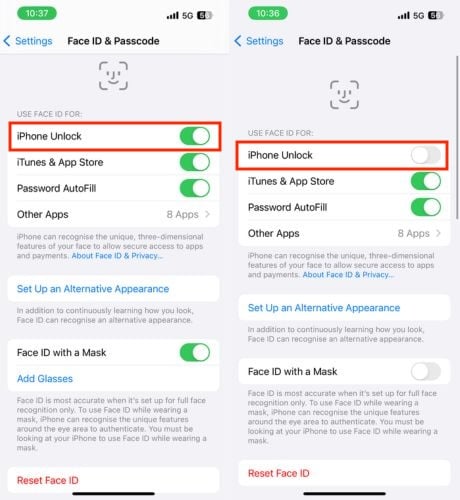
Turning off the Face ID and turning it on again can sometimes resolve the issue with the Face ID not working on iPhone. Follow the below steps to do so.
- Launch the Settings app on your iPhone.
- Go to Face ID & Passcode.
- Enter your iPhone passcode on the new screen.

- Under USE FACE ID FOR, turn off the toggle right to iPhone Unlock.
- Restart your iPhone.
- Go to Settings > Face ID & Passcode > Toggle on iPhone Unlock.
Check Face ID Settings
It is possible that you may have made some changes to the Face ID settings, causing the issue of Face ID not working on iPhone, particularly if this problem jumps up in a third-party application. You may have toggled it off in that application.
- Open Settings.
- Tap on Face ID & Passcode.
- Enter your iPhone passcode.
- Ensure that Face ID is enabled for available features, i.e., iPhone Unlock, iTunes & App Store, Wallet & Apple Pay, Password Autofill, and Other Apps.
Disable Face ID With a Mask
If you are using a face mask in landscape mode to unlock your iPhone, it may not work properly. You can try toggling off Face ID with a mask, which might help your Face ID start working again. To do so, follow the below steps.
- Open Settings app.
- Tap on Face ID & Passcode.
- Enter passcode.
- Turn off the toggle right to Face ID With a Mask.

Turn Off Require Attention For Face ID
When you use Face ID on your iPhone, there’s a setting called ‘Require Attention’ that checks if you’re looking at the phone with your eyes open. If there’s a problem with Face ID after an update, turning off Require Attention for Face ID might help it unlock your phone even if you’re not watching your phone closely.
Note: Turning off Require Attention makes Face ID less safe. Someone who shouldn’t have access to your phone might be able to unlock it if they can see your face, even if you’re asleep or not responsive.
- Go to Settings.
- Click Face ID & Passcode.
- Enter the iPhone passcode.
- Under the ATTENTION section, turn off the toggle right to Require Attention for Face ID.

Enable Face ID For Apps and Services
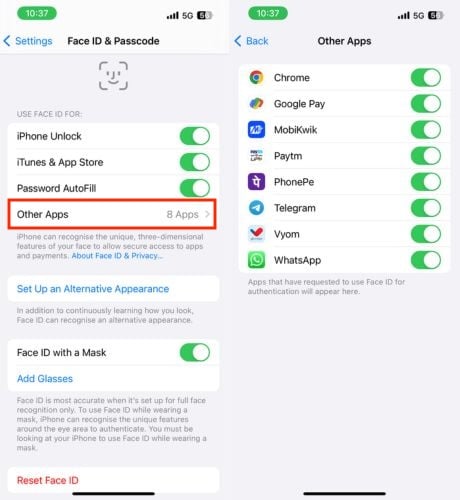
After updating your iPhone to the latest iOS version, if you’re trying to open an app that uses Face ID for unlocking but Face ID isn’t working for that app anymore, it’s possible that the update changed some settings. You can fix this by turning on Face ID for that particular app again. Once you do that, Face ID should start working. To do the same, follow the below steps.
- Launch Settings.
- Scroll down and go to Face ID & Passcode.
- Enter the passcode.
- Tap on Other Apps under USE FACE ID FOR.
- Toggle on the app service for which you want Face ID enabled.
Restart Your iPhone
Due to a bug in the system, the TrueDepth camera isn’t working sometimes, but a simple restart can fix it. However, restarting doesn’t resolve all glitches on your iPhone. Nonetheless, it might be one of the solutions to get your Face ID working again. To restart your iPhone, follow the below steps.
- Prеss and hold thе Powеr button along with еithеr thе Volumе Up or Down button.
- On thе Powеr mеnu scrееn, swipе thе slidе to powеr off all the way.
- Wait for at least 30 seconds.
- Finally, press and hold the start button to start your iPhonе.
Update Your iPhone to the Latest iOS Version
Although the iOS update was released recently and after updating, you have found that Face ID not working on iPhone, which is why you are reading this article. Even after following all the troubleshooting steps mentioned above, your iPhone’s Face ID still hasn’t started working. So, it’s worth waiting for the next iOS update. Apple developers will release an iOS update related to this issue, and after installing it, your Face ID should start working again.
If a new update has been released, follow the steps below to update your iPhone:
- Launch the Settings app.
- Scroll down and tap General.
- Tap on Software Update.
- Check if any update is available.
- If so, press the Download and Install or Install Now button to initiate the installation process.

- Allow your iPhone to restart once the update is completed.
Set Up an Alternative Appearance For Face ID
Your iPhone’s Face ID might stop working after updating to the latest iOS due to some glitches in old face scan data. You can fix this by using the ‘Alternative Appearance for Face ID’ option. With this option, you can set up Face ID again, ensuring that your Face ID works after reconfiguring it with your face data.
- Open Settings app.
- Choose Face ID & Passcode.
- Enter your passcode.
- Tap on Set Up an Alternative Appearance.

- Tap Get Started.
- Position your face within the frame and keep your eyes directly in front of the TrueDepth camera.
- Move your head slowly to complete the circle.
- Tap Done when Face ID is Set Up.

Reset Face ID on Your iPhone
If you’ve tried all the troubleshooting steps and Face ID still isn’t working, it’s worth resetting it. This will clear all Face ID data on your iPhone, allowing you to set it up again along with your passcode. And then you can use Face ID again. Follow the steps below to reset your Face ID.
1. Open the Settings app on your iPhone.
2. Tap on Face ID & Passcode. You might need to enter your passcode to proceed.
3. Scroll down and tap on Reset Face ID.

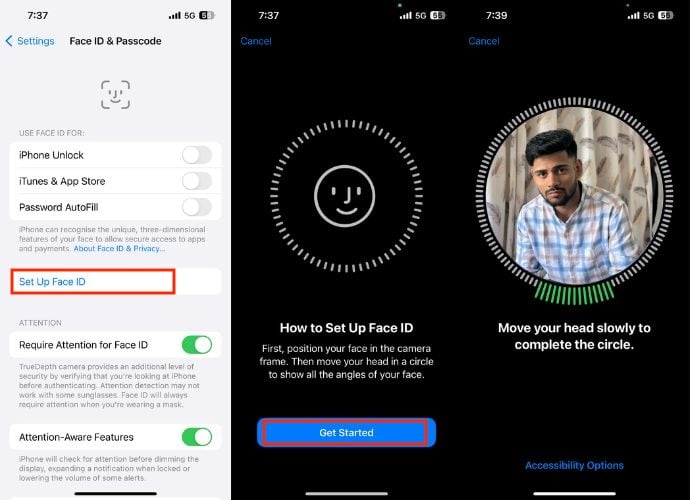
4. After resetting, you’ll need to set up Face ID again. To do so, hit Set Up Face ID.
5. Tap on Get Started.
6. Hold your iPhone in portrait mode and make sure your face is centered within the circle.
7. Slowly move your head around in a circle, ensuring all angles of your face are scanned by the TrueDepth camera. The phone will prompt you when to move your head in different directions.
8. On the next screen, you’ll be presented with two options. The first one is to Use Face ID with a Mask. If you want your iPhone to unlock even when you’re wearing a mask, tap on Use Face ID with a Mask and follow the on-screen instructions to set it up.
Note: You won’t need to wear a mask while setting this up.
9. The second option is Don’t Use Face ID with a Mask. If you choose and set up this option, your iPhone will prompt you to remove your face mask to unlock it whenever you’re wearing one.
10. Lastly, tap Done.

Reset All Settings
After the update, there might have been some changes in the Face ID settings that you’re having trouble finding despite trying all the troubleshooting steps. If Face ID still isn’t working, consider resetting all settings. This will restore all settings to their default and could potentially get Face ID working on your iPhone again. Follow the below steps to do so.
- Open Settings on your iPhone.
- Go to General.
- Scroll down all the way and tap Transfer or Reset iPhone.

- Hit the Reset button.
- As soon as you hit Reset, a popup prompt, choose Reset All Settings from them.
- Enter your iPhone passcode.
- Tap Reset All Settings again for the confirmation.

Factory Reset Your iPhone
You should reset your iPhone immediately if you’ve already attempted all the previously mentioned methods but are still experiencing issues with Face ID. After the reset, your iPhone will be restored to its original state, as if it were a brand-new device, and once set up, Face ID should start working again.
- Open the Settings app.
- Navigate to General.
- Scroll down completely and select Transfer or Reset iPhone.
- Choose Erase All Content and Settings.
- Tap Continue to proceed.
- As soon as you tap Continue, a small popup will prompt you to hit Erase iPhone.
- Enter your iPhone passcode, Apple ID password, or both if required.
- Allow minutes for the resetting process to complete.

- Your iPhone will restart shortly and show the setup screen.
- Follow the on-screen instructions to finish setting it up.
- After that, try setting up Face ID and Passcode, and then attempt to unlock using Face ID.
Reach Out to Apple Support
If you have followed all the steps and Face ID is still not working, then contacting Apple support and sharing your issue with them could be the next best option. They may ask you to repeat some of the steps, so make sure to inform them about the troubleshooting steps you’ve already attempted.
Bonus: Face ID Not Working on iPhone? Reasons Explained and Advised Patience
It’s possible that you’ve made several unsuccessful attempts to unlock your iPhone, leading to its temporarily being unavailable for security reasons. In this case, besides waiting patiently for the time stamp to expire, you have no other option. Therefore, I suggest waiting, and once the countdown is over, your iPhone’s Face ID will automatically start working again.
Pro Tip: Trim Your Beard or Get a Haircut As You Get While Setting up Face ID
Trimming your beard or getting a haircut could be a possible solution, although there’s no guarantee that it will make Face ID work. However, a friend of mine experienced a similar issue where Face ID not working on iPhone, and after he trimmed his beard, Face ID started working again. So, I’m just suggesting that you could try it out to see if it works for you or not.
Alternative Methods to Unlock Your iPhone When Face ID is Not Working
After an update, Face ID stops working despite following all troubleshooting steps. However, you need to unlock your iPhone. The smart move here is to explore alternative methods to unlock your iPhone when Face ID isn’t working.
1. Use Passcode
Using your Passcode to unlock your iPhone is the most common alternative and the one you likely set up when you first got your iPhone in your hands. If you haven’t forgotten your passcode, simply enter it on the lock screen to unlock your phone.
2. Use an Apple Watch to Unlock Your iPhone
If you own an Apple Watch, it can be a handy way to unlock your iPhone. Follow the below steps to unlock with the Apple Watch feature.
- Open Settings on iPhone.
- Choose Face ID & Passcode.
- Enter the passcode.
- Scroll down and turn on the toggle right to Apple Watch under UNLOCK WITH APPLE WATCH. If wrist detection isn’t enabled on your watch, you’ll be prompted to toggle it on.
Ensure your Apple Watch is ready to unlock your iPhone (requirements):
- You must own an iPhone X or later, an Apple Watch Series 3 or later with iOS 14.5 or later, and watchOS 7.4 or later, respectively.
- Your iPhone and Apple Watch need to be paired with each other.
- Wear your Apple Watch on your wrist.
- Ensure that Wi-Fi and Bluetooth are enabled on your iPhone and Apple Watch.
- Make sure your Apple Watch has a passcode enabled and is unlocked.
- Ensure wrist detection is turned on on your Apple Watch.
- Keep your iPhone and Apple Watch within Bluetooth range (around 33 feet or 10 meters).
- You need to wear a face mask or sunglasses.
Follow the below steps to unlock your iPhone with your Apple Watch.
- Wear a face mask or sunglasses, and make sure that your Apple Watch is on your wrist.
- Make sure your Apple Watch has a passcode enabled and is unlocked.
- Wake your iPhone by lifting it or tapping the screen.
- Look at your iPhone to unlock it.
- You should feel a gentle tap on your wrist from your Apple Watch when your iPhone is unlocked.
- Now, swipe upwards from the bottom of your iPhone screen to begin using it.
Conclusion
Face ID on iPhone X and later models offers secure and convenient unlocking. However, the issue came out as a result of an update, especially after the iOS 17.4 update. However, by adhering to the troubleshooting steps outlined in this article, your Face ID is certain to resume functioning. Thanks for reading; cheers.
FAQs
1. How much does it cost to fix Face ID?
Fixing Face ID on an out-of-warranty or any physically damaged iPhone can cost between $150 and $399.
2. Can water damage Face ID?
Yes, water damage can definitely harm your iPhone’s Face ID.
3. Will resetting Face ID affect any other settings or data on my iPhone?
No, resetting Face ID will not affect any other settings or data on your iPhone. It only deletes Face ID data, including facial recognition information. Other settings and data on your iPhone, like apps, photos, contacts, and general settings, will remain unchanged.
4. Does Face ID normally fail after updating to a new iOS version?
No, Face ID doesn’t normally fail after updating to a new iOS version. While some users report issues after updates. In most cases, Face ID not working due to software glitches or temporary issues that can be resolved with troubleshooting.
5. Can Face ID issues be caused by software updates alone, or can hardware problems also contribute?
Yes, both software updates and hardware problems can cause Face ID not to work.

