

Quick Answer
Extract text from images on Android using 7 methods: Google Lens (real-time or from your gallery), Keep Notes (grab image text), Microsoft Lens (OCR extraction), Google Photos’ copy text, Samsung’s built-in T icon, Chrome’s image search with Lens, and Adobe Scan for document scans.
We all know how to copy text from chats and websites where the text is available in its form. What if you want to copy text from an image? If you are looking for ways to extract and copy text from images on your Android device, follow this guide to know how to do it.

Table of Contents
How to Extract Text From Image on Android
Text from images is extracted using Optical Character Recognition (OCR) tools. These tools have become popular recently with the latest advancements in phone features. Below are some of the best ways you can use to extract and copy text from images right from your smartphone.
Sl. No. | Method | Description | Notable Features | Availability |
|---|---|---|---|---|
1 | Google Lens | Uses AI-powered OCR to extract text from images in real-time or from the gallery. | Copy, translate, listen, search text; recognizes links & products. | Available via the Google Lens app or Google Assistant. |
2 | Keep Notes | Google’s notes app allows text extraction from images added to notes. | Saves extracted text in notes; syncs across devices. | Pre-installed on many Android phones or downloadable from Play Store. |
3 | Microsoft Lens | A dedicated scanning app that extracts text from photos. | Offers text scanning, sharing, and document processing. | Available on Play Store. |
4 | Google Photos | Recognizes text in stored images using built-in OCR. | Lets users selectively copy specific parts of text. | Pre-installed on most Android devices. |
5 | Samsung T Icon | Samsung’s built-in OCR tool for text extraction. | Works directly in Camera & Gallery apps without extra apps. | Exclusive to Samsung phones. |
6 | Google Chrome | Uses Google Lens for extracting text from online images. | Works without installing Google Lens separately. | Available in Chrome browser. |
7 | Adobe Scan | A document scanner with OCR functionality. | Extracts text from documents & images, recognizes URLs. | Requires Adobe account login. |
Google Lens
Google Lens is one of the best ways to extract and copy text from images. You can use an existing image to extract text or the camera option to get the text from the image in real time. If your text has any links or products, Google Lens automatically shows the search results at the bottom of the screen. You can even translate and copy the extracted text to the clipboard.

Google Lens app is available to install on the Play Store. Download and install it. To use Google Lens to extract text from images,
- Open the Google Lens app on your Android phone.
- On the home screen, you will see Search with camera or existing images on your phone under Images.
- To extract text from existing images, select the image. If not, use the Search with camera options and click the image.
- If you have used an image from the gallery, you will see the Select text option at the top of the screen. Tap on it.
- Then, you will see options to Copy, Listen, Translate, and Search. Tap on Copy to copy the text.
- If you have used the Search with camera option, point at the object with the text you want to copy and click the Shutter icon. This will highlight the text on the image. Select the text manually and copy it.
Keep Notes
Keep Notes is a notes app from Google. It is also available on Google Play Store to download and install. From a simple notes app, Google has developed it with some of the best features. One of the best features of the Keep Notes app is its ability to extract text from an image. Like Google Lens, you can click and extract text using the camera or from an image in the gallery.
To extract text from an image on the Keep Notes app,
- Open the Keep Notes app, tap on the + icon at the bottom, and select Image.

- It will show options to Add image using the camera or from the gallery. If you want to use an existing image from your phone, tap on Choose an image. If you’re going to click a photo and add, then tap on Take a photo. The process is the same for both instances.

- Select the image and click Add. It will be added to the note on the Keep Notes app. Tap on the image to see image options. Then, click on the three-dot icon at the top of the screen and select Grab image text.

- The text will be added to the note below the image on the Keep Notes app. You can copy or save the note as it is. You can use the same text across devices with the Google account signed in with the Keep Notes app.
Microsoft Lens
Microsoft Lens is another feature-rich app available on the Google Play Store that is similar to Google Lens. It also has OCR features that can let you extract text from images. Install Microsoft Lens from the Google Play Store and follow the below steps to extract text.
- Open the Microsoft Lens app and give the necessary permissions if you are using it for the first time.
- Then, tap on the Actions button at the bottom and select image from the gallery or click an image using the camera.

- Once you are done with the selection, tap Continue. If not, tap Retake to get another picture. When you tap on Continue, it will start extracting the text.

- It will extract all the available text from the image in a few seconds and show it to you. You can copy by tapping Copy or share it using the Share button.
Google Photos

If you are a regular Google Photos app user and do not want to install any other app to extract text from images, you can do it, too. Open the image from which you want to extract text on the Google Photos app.
The app will automatically detect the text in the image you have opened. Among the options it shows, tap on Copy text. It will highlight the text now. Select the text you want to extract and copy it.
Unlike other apps where all the text is copied, you can select the text that you want to copy at the extraction stage itself on the Google Photos app.
Using T Icon on Samsung Phones

If you are a Samsung phone user, you do not need any app to extract text from images. Whenever you try to click images of a text-rich object using the Camera app, the app will automatically show the T icon at the bottom. Tap on it to scan and extract the text.
Similarly, if there is a text-rich image in the Gallery, open the image, tap, and hold the text on the image to enable the T icon to extract and copy the text.
Google Chrome

If you have found an image online and want to extract text from it, you can do it easily with Google Chrome. Tap and hold the image on Google Chrome and select Search image with Google Lens. It will take you to Google Lens, even if you have not installed the Google Lens app. Tap on Select text.
It will select the available text on the image and show you options to Copy, Listen, etc. Tap Copy to save the text to the clipboard and paste it somewhere.
Adobe Scan
If your work demands regular document scans on your phone and you want to extract text from images, then Adobe Scan will do the job. You need to sign in with your Google account or Adobe account to start using the app.
Install Adobe Scan from the Google Play store and sign in with a Google or Adobe account. Then, capture the image or open an image from which you want to extract text. Then, tap on the glittery document icon at the top of the page. It will extract the text and show you options to copy. Tap Copy to copy the extracted text.
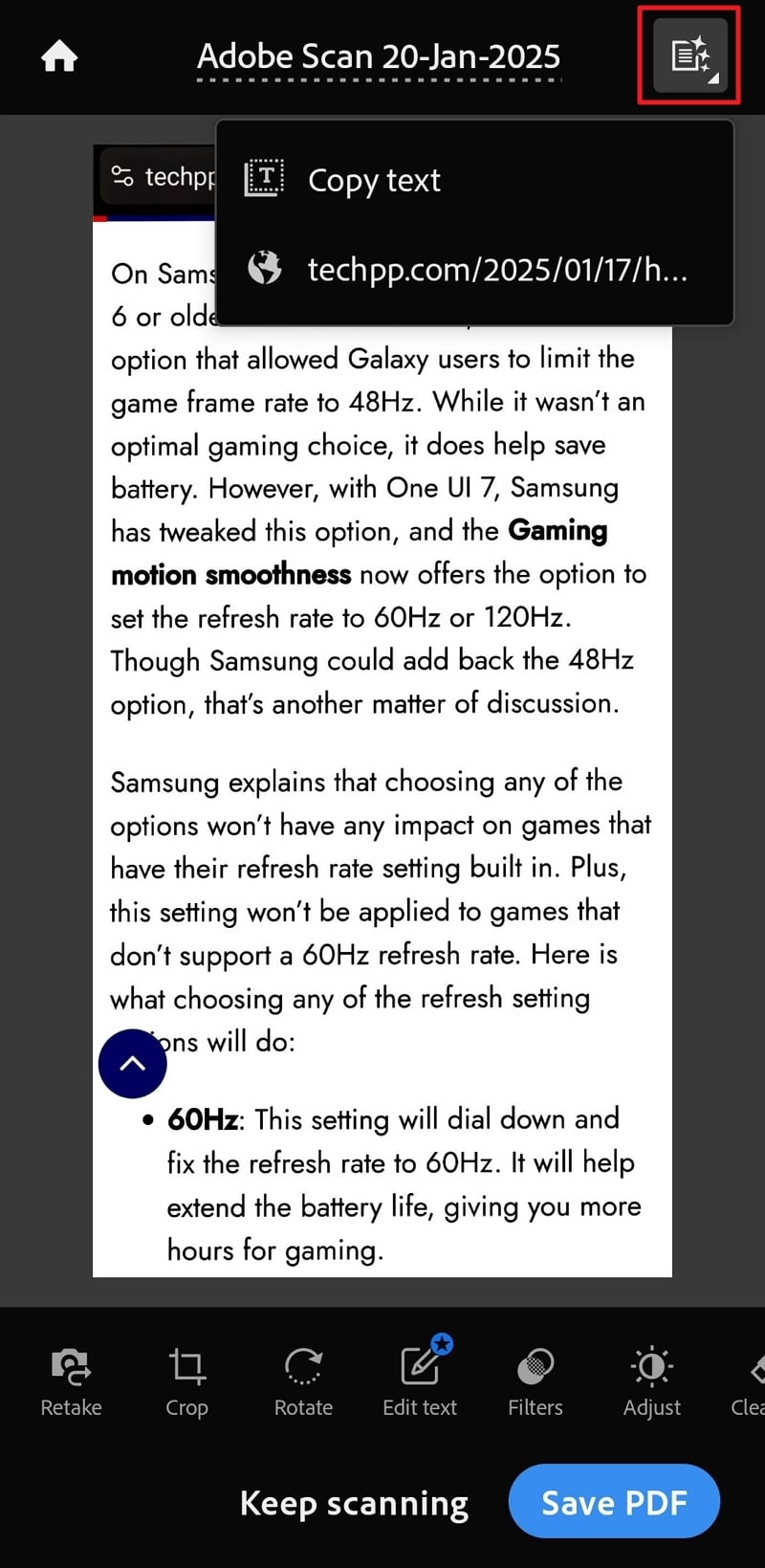
If you want to visit a website written on the image, click on the links shown by Adobe Scan.
That’s it. These are some of the ways in which you can extract text from images on Android devices. The apps we mentioned are all from trusted companies with their own data and privacy policies.
Copy Text From Images on Android Phones
Copying text from images on Android phones does not require any additional OCR apps. You can do just fine with Google Chrome and Google Photos apps installed by default on Android. Just use them following our guide and get the most out of them. If you want some additional capabilities, you can use other apps mentioned above.
FAQs on Extracting Text From Image on Android
Can Chrome do OCR?
Yes, Chrome can do OCR on Android phones. Chrome gets the OCR features from Google Lens. Tap and hold the image on a website to see options. Then, select Search image with Google Lens. It will select the text on the image and show you options to copy, listen, translate, or search.

