

Quick Answer
To save disappearing media on Instagram, you can take a screenshot (though the sender will be notified), use your phone’s screen recording feature, capture the content using a second phone, or try the Instagram web version. Each method has its pros and cons, and it’s always best to seek permission before saving media to respect the sender’s privacy.
Like WhatsApp, Instagram also lets you send a photo or video that, when viewed once, will vanish. You will have to ask the other person to send the image or video again so you can view it. Moreover, this time, one-off content cannot be saved in your gallery. But what if you want to save those disappearing photos or videos? Well, fortunately, there are a bunch of ways that can help you save disappearing media on Instagram.
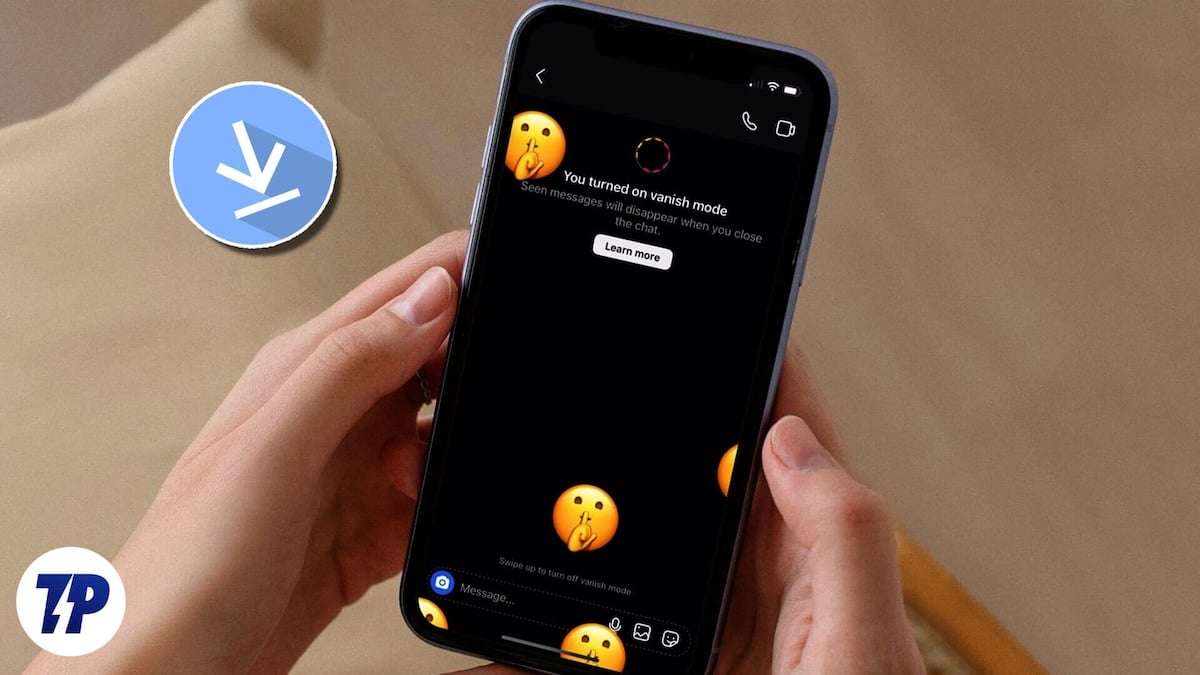
In this guide, we will cover how you can save disappearing media with or without notifying the sender. The best part about the methods in this guide is they work with both Android and iOS. However, before we look at the solutions to save disappearing media on Instagram, it is a gentle reminder that “view once” messages are private. The idea behind them is for the receiver just to have one look at the content. Such messages shouldn’t be saved, screenshot, or shared. With that out of the way, let us jump right into it.
Table of Contents
How to Save Disappearing Media on Instagram
Take a screenshot
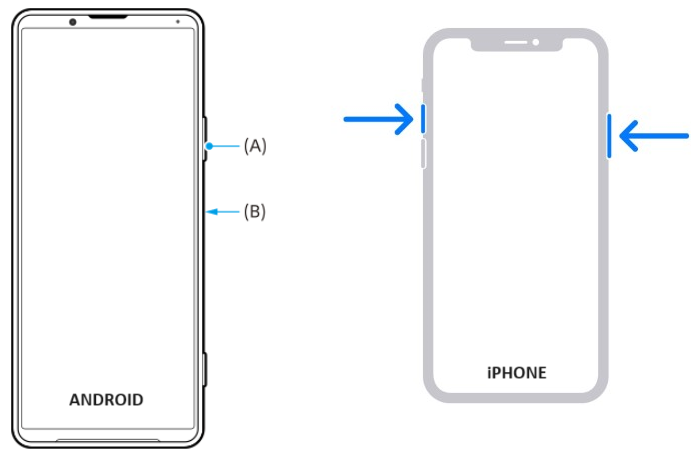
WhatsApp doesn’t let you take a screenshot of the “view once” media. However, Instagram lets you take a screenshot of the “view once” content and save it to your gallery for future purposes. To take a screenshot on your iPhone, you need to press the Volume Up + Side button, whereas on Android, you need to press the Volume Down + Power keys.
Do note that when you take a screenshot, a small burst icon will appear next to the photo of the sender and will also notify the sender that the receiver has taken a screenshot of the “view once” media sent via direct message, with the prompt reading, “ABC took a screenshot of the photo you sent.”
On the other hand, if you are using Vanish Mode to chat, the messages disappear when you close the chat. Taking a screenshot in the Vanish Mode also notifies the sender that the receiver has taken a screenshot of the “view once” media.
Take a screen recording
A screenshot is a good way to save disappearing media on Instagram, especially photos. But if you want to save “view once” videos, you can use your phone’s screen recording feature. However, note that you should turn on screen recording before you open the “view once” media. The best part about screen recording is that you can also use it for photos alongside videos.
The screen recording option is available on both Android and iOS devices in the quick settings and control center, respectively. A better way to save the photo using screen recording is to start the screen recording, open the disappearing photo, and take a screenshot of the photo or extract the frame from the video. You can also trim the video to the exact time you opened the photo.
I tested this method on both Android and iOS. Interestingly, using the screen recording method on an iPhone notified the sender of the photo. But on my Samsung Galaxy S22 Ultra, turning on screen recording didn’t notify the sender of the photo. Android has its ways, you know!
Capture the media using another phone
If you have two phones at your disposal, then you can use the second phone to take a photo or video to save the disappearing media on Instagram. This is a smart way to take a photo or video recording; it never notifies the sender of the photo or video on Instagram. We would advise you to turn off the flashlight on your secondary phone and take the image in a dim light area to avoid reflections.
Use the Instagram web version
Did you know that Instagram offers a fully functional web version of its platform? If you don’t know, don’t worry because many don’t even care about the web version since the Android and iOS apps provide a better interface. However, over the years, Instagram has added multiple new features and now has a full-fledged interface that lets you do everything you can on its app.
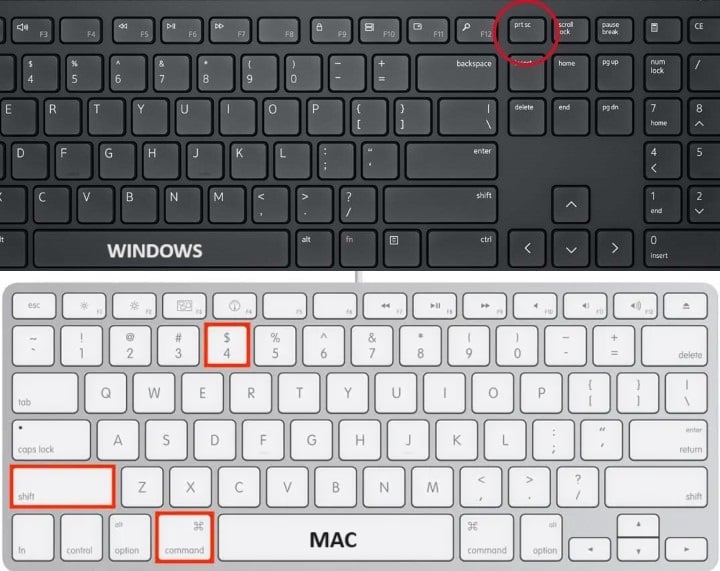
While you may not use the Instagram web version, it is a nice way to save disappearing media on Instagram through its website. Because it doesn’t notify the sender of the “view once” media. If you use a Mac, then you need to press Shift+Command+4 to capture a screenshot, and the image gets saved to your desktop by default. However, if you are a Windows user, you simply need to hit the PrintScr button to take a screenshot of the entire screen, and it will get saved to your clipboard. You need to paste it into Paint or Photoshop to get the screenshot.
Windows also has multiple screen-grabbing tools. We have dedicated guides that list down the best screenshot apps for Windows as well as the best screen recording apps for Windows.
Always seek permission before you save view-once media
The above list of solutions is more than sufficient for you to save disappearing media on Instagram to your PC or mobile. While we have provided you with the solutions, we would still recommend you seek due permission from the sender of the “view once” media before you apply the above tricks. It is not only ethical but also respects the sender’s privacy and the trust they have in you.
To take your Instagram game to the next level, we would suggest you read our guide on how you can use Meta AI on Instagram. This will help you create images within the app itself. Meta AI can also be used to create backgrounds for Instagram Stories. If you want to play a prank on your friend on Instagram, then you can check out the tips to send a blank message.
FAQs about saving disappearing media on Instagram
Can you replay a disappearing photo on Instagram?
You can play the disappearing media right after you have received it. If you press back or get out of the app, then it will no longer be playable or viewable.
How to open disappearing photos on Instagram without them knowing?
You can use a secondary photo to take a photo or video recording of the disappearing photo, or else, you can apply the solutions mentioned above, such as using the Instagram web version or screen recording on your phone, best to use Android as it didn't notify the sender as per our testing.

