

Quick Answer
There is no automated way to add animated profile picture on Gmail. You’d first need to create the GIF by using online tools like remove.bg and Canva, and then upload that GIF as your profile picture on Gmail. This can be done on any platform – Android, iOS, Windows or Mac. The process remains the same.
A great way to stand out as a company, individual, marketer or small business owner is to use the technology around you to develop good marketing strategies. Sending emails is an important part of running a business and attracting customers. However, it’s important to make a good first impression with the emails you send.

A great technique to make a good and lasting first impression is an animated profile picture with your company/brand logo as your Gmail profile picture. They are easy to create, and anyone can create them using a platform of their choice. You just need access to two free tools: Canva and Remove BG.
Table of Contents
How to Create GIF to Set as Profile Picture in Gmail
We start by selecting two images to merge into a live video effect. You can take more than two images, but we believe that with two images you can create a short gif or video file that is immediately visible to everyone. If you choose more than two images, you will create a longer animation, but we only want to create a short animation as it will be visible to everyone as a profile picture.
Step 1: Select the Right Images
The selection of images is an important part of creating a good profile photo. If you work in an organization or have a business, it is always better to use the first image as your photo and the second image as the company logo or business logo. If you are someone who heads an organization, you can do the same. If you want to update your profile on a social media platform, you can also be creative and design your profile however you want.
We also need to choose a background photo, especially if you have a brand logo. Please remember to choose a background image that matches the main foreground image. You don’t need to choose anything flashy or something that conflicts with the foreground image. Please select all images in at least HD quality, otherwise the profile photo will be too pixelated or it could go bad.
Step 2: Remove the background of images
Let’s start by removing the background from images. Removing the background helps to distinguish the image in the foreground from the background. This makes the animated profile picture more visible. There are several ways to remove the background and separate it from the foreground. Most Android phones such as the Pixel and Samsung devices have such a function, and all iPhones with Android 15 or later can also do this. But for those who don’t have access to this feature, we’ll use Remove.bg. It’s a free tool that can remove the background from almost any image.
- Just visit the website and click on Upload Image button.

- Select the first image from which you want to remove the background.
- The website will start analyzing the image.

- Sometimes it comes out with a flawless image, sometimes not.
- As you can see in our case, it also removed part of my PC.

- To restore the image, click on Erase/Restore.
- Now, we will click on Restore and select all the parts of the image that we want to restore.
- It will analyze the image once more.

- Once the image is restored, we need to click on Done.
- Then hit the Download button to download the image.

We’ll take the same steps to remove the background of the second image as well. If the second image is perfect from the beginning, we don’t need to perform the restoration or erasing process. Removing the background of the image is a crucial step; we only need to remove the background of the foreground images, not the background image. Now it’s time to focus on the most important part of creating an animated profile picture.
Step 3: Create the Animated Profile Picture
This is the most important step in creating an animated profile picture. We will use Canva’s animation tool to create the image.
- Start by opening Canva and clicking on the Projects tab.

- Click on Add New and select the folder option.
- We have named the folder Animated Profile Picture; you can name it anything.
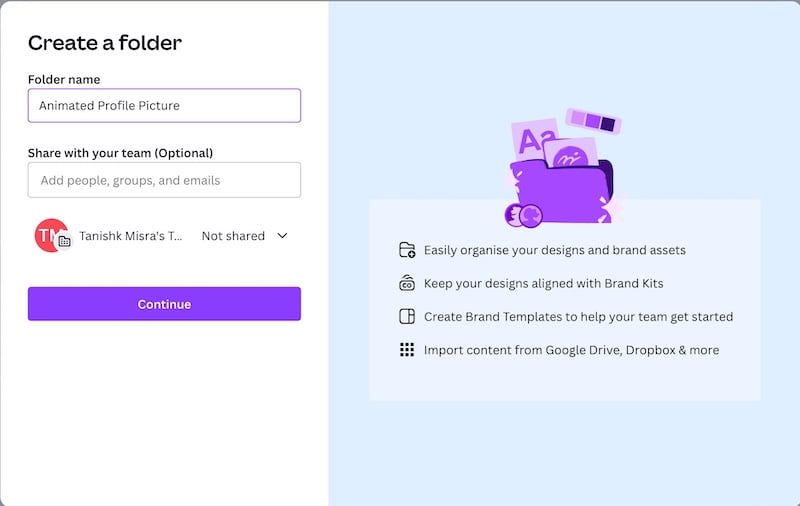
- You will see the folder that you have created under the Folders section.
- Click on it and click on Create Design.

- Now, select the logo option, and it will create a canvas of 500×500 pixels (it’s the perfect size for the profile picture.).

- Hit the Uploads tab and click on Upload files option.
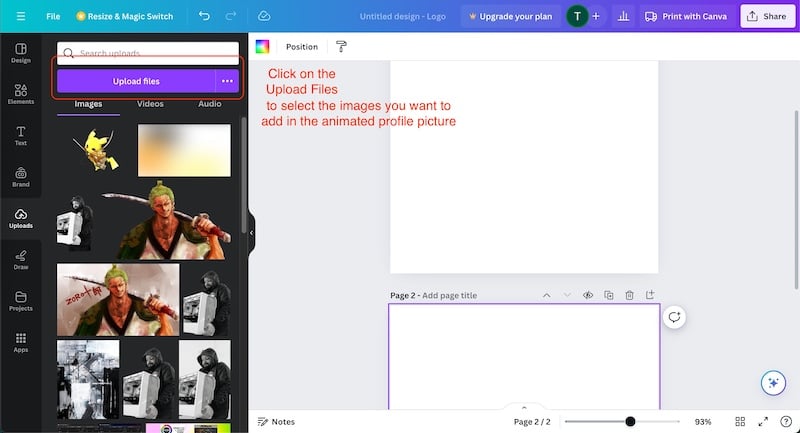
- Select all three images, both the foreground image and the background image.
Now we need to add all our images to create the animated profile picture. For that:
- Click on the upper right corner and another page.

- Give titles to both pages. (Image 1 for page 1 and Image 2 for page 2).
- Now, add the background image to both pages.
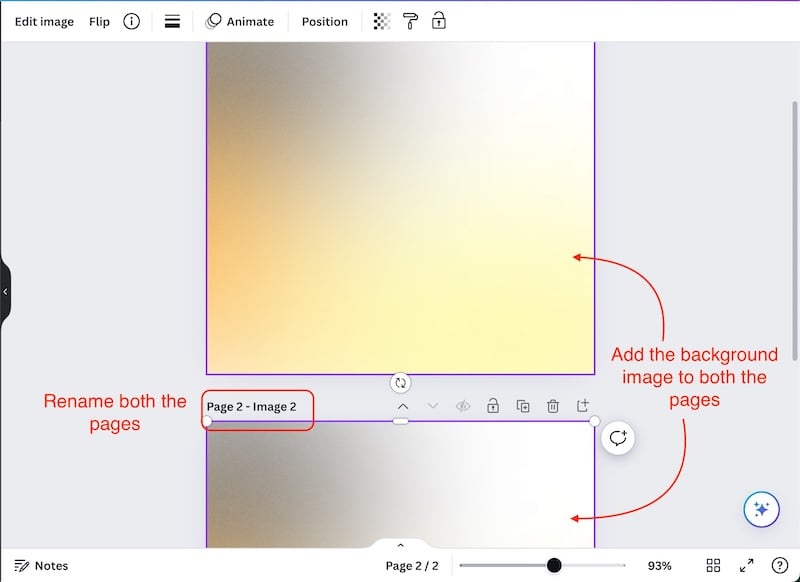
- Adjust the background image so that it fits the page perfectly.
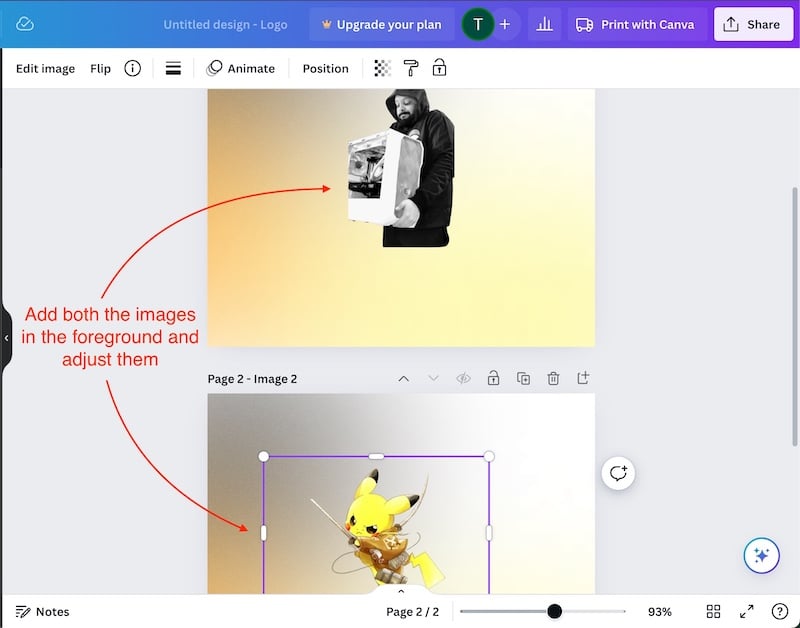
- Drop the first image on page 1 and the second image on page 2.
- Now adjust both images so that they fit in the background perfectly.
Let’s start by animating both images so that we can create a GIF file. That GIF file will be used as our animated profile picture on Gmail. It is a fairly easy process; just follow all the steps properly.
- Select the first image and tap Animate.

- We will be performing photo animation instead of page animation.
- Select the basic animation that you want to apply to the first image.

- Now select the second image and select the same animation as the first image.

- Click on the small show pages arrow at the bottom and select the first image.
- Now click on the timing button and drag the slider to 1.5 seconds.
- Also, click on Apply on all pages.

This will reduce the timing of the animation, and both images will be shown for exactly 3 seconds.
- Now, click on the Play button to see the project that you have created.

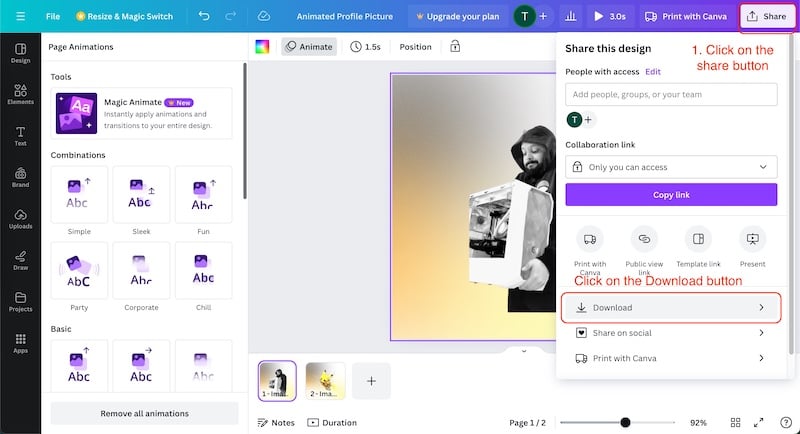
- Click on the Share button and hit the Download option.
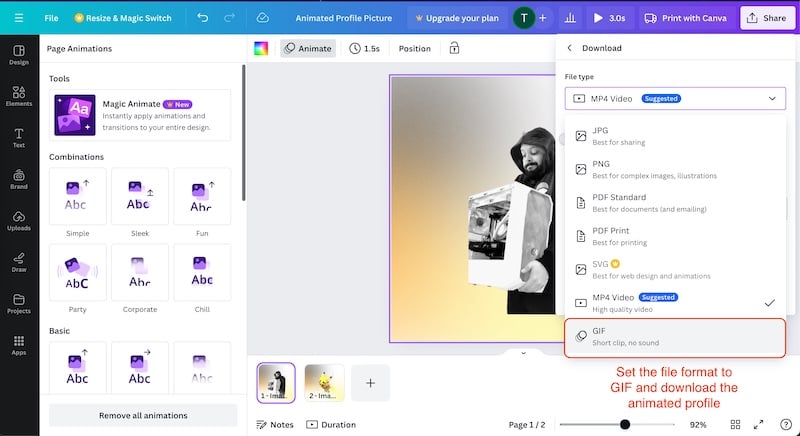
- Here, select the file type as GIF and click on download.
- This will take a couple of seconds, depending on your internet speed.
This is how we create an animated profile picture with Remove.Bg and Canva. The creation is very simple and only takes a few minutes. You can create as many animated profile pictures as you want with this method and it works very well. You don’t need a Canva subscription or a complicated AI tool to create this stunning looking animated profile picture. You can use it anywhere you want. You don’t need a PC or laptop, you can do it all with a smartphone.
Let’s see how can apply this image to Gmail and our Google workspace accounts.
Step 4: Set the GIF as Gmail Profile Picture
Applying the animated profile picture to your Gmail account is very easy. You can use any phone, tablet, laptop or PC to apply the profile picture to your Gmail account. For demonstration purposes, we will use a Mac, but the process is more or less the same everywhere. Here’s how it works.
- Log in to the Gmail account whose profile picture you want to change.
- Click on the profile photo in the top right corner, and click on Manage Google Account.

- On the next page, you will see your profile photo at the top.
- Click on the profile photo and select the Change button.

- Now select From Computer, and hit on Upload from computer.

- Select the animated profile picture that you have created.
- Click on the Next button on the bottom, and then on Save as profile picture.

- Voila! Your profile picture is updated.

Benefits of Animated Profile Picture
An animated profile photo can be a great asset to your brand or organization. If you don’t have a brand or are just a student or professional, animated profiles are still a great help, especially if you are someone who sends and receives emails on a daily basis.
- An animated profile picture can be a big plus in the offline and everyday world. You can use them in your PowerPoint presentations and meetings. They help you to always convey clear and precise information.
- A regular profile picture can be boring because it doesn’t have much substance, but an animated profile picture can be useful because it helps you convey your story better. It can help you to clearly and concisely portray your mission or goal.
- You can easily attract attention with animated logos. An animated logo is always clearly distinguishable because it is dynamic and the elements change. As a brand, it can help you stand out from your competitors. You will be quickly recognized by others.
- An animated profile will help you grow on social media. Even though we are only talking about an animated Gmail profile here, an animated profile on various social media accounts can help you gain engagement quickly as it is very popular with young people.
FAQs on Using GIF as Gmail Profile Picture
Can we use animated profile pictures on all platforms?
Some of the major social media platforms do not support animated profile pictures. But animated profiles are great, and people should use them, as having an animated profile on different social media accounts could help you gain engagement quickly, as it is quite popular among the youth.
Can we use any animated profiles in our Google Workspace account?
Yes, we can use animated profile pictures in Google Workspace without any problems, but Google does not support videos as profile pictures; it should be a GIF file. It is also important that the GIF file has a small animation; otherwise longer animations take too much time.
Can we use a cartoon as a profile picture?
Yes, we can use cartoon images as profile pictures. Tons of AI tools will let you create your own photo as a cartoon character. They also look funny, but we don't recommend using cartoons or cartoon-looking pictures in your work profile.

