

In Summary
- After merging OxygenOS with the ColorOS code base, OxygenOS has many features and customization options.
- With the recent OxygenOS 15 update, OnePlus has added plenty of features. If you own a OnePlus smartphone or recently bought a OnePlus device, here are 20 settings you should change on your OnePlus smartphone for a better experience.
- From customization to productivity, enhancing privacy and security, performance, and enabling useful AI features, here are 20+ settings you should change on OnePlus smartphones.
OnePlus shift to ColorOS has been very disappointing. I am a big fan of Oxygen OS on my OnePlus 9 Pro before shifting to the iPhone after the OnePlus decision to shift to the ColorOS code base. However, per the company, the most significant advantage of this move is faster update rollout; OnePlus is good at rolling faster updates to its devices and also brings plenty of features that were initially not part of Oxygen OS.
Since the OG OnePlus’ primary goal is to make it close to the stock Android experience, Merging with ColorOS code brings a lot of features that some people like. These features are very handy and can be helpful in our daily lives. I have been using the OxygenOS 15 on the OnePlus 13 and 13R for over a month, and if your device is running on OxygenOS 15, here are a few settings that you should change to enhance your experience.
Table of Contents
Settings You Need To Change on Your OnePlus Smartphone
Split Notification
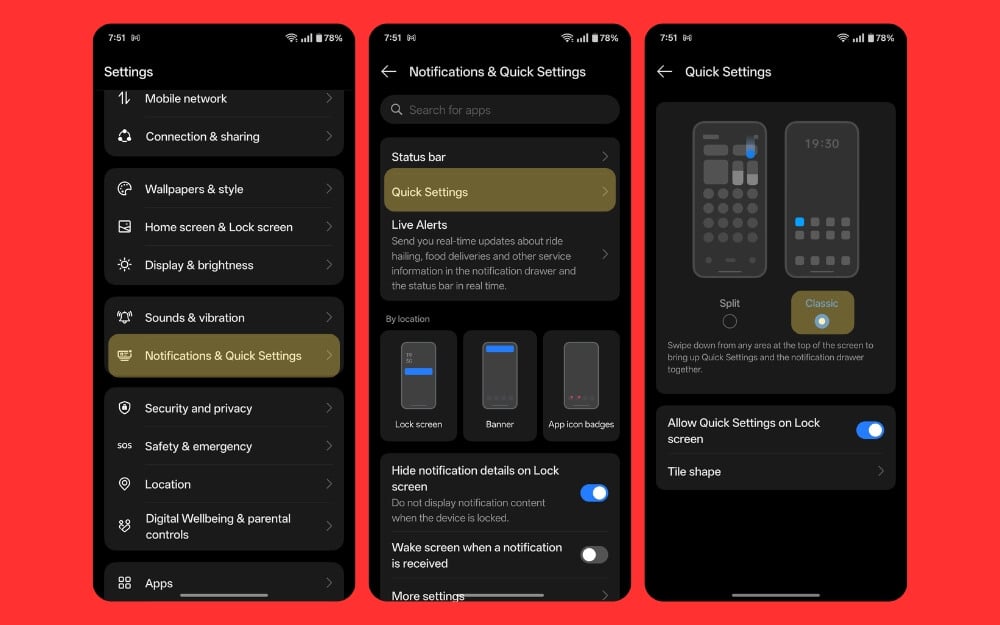
One of the major changes introduced in OxygenOS 15 on the upcoming Android 16 is the split in the notification panel and quick settings, where notifications and the quick settings are now divided into two different screens, similar to iOS. This new interface might help you declutter your experience; however, for years, Android has had the flexibility to keep track of notifications easily without much hassle.
By default, OxygenOS 15 settings will ask you to set up whether you prefer notifications and quick settings in split mode or classic mode. You can change the settings if you accidentally selected split mode and vice versa. This works for all OnePlus smartphones running on OxygenOS 15 or later.
To do this, go to Settings, tap on Notification and Quick Settings, tap on Quick Settings, and select Classic Mode.
Declutter Status Bar
One of the annoying features of Android is the status bar being filled with unwanted icons, cluttering the experience. Some Android custom OS versions, like ColorOS, allow you to disable unwanted status icons and remove them completely from the status bar, and this is now possible with OxygenOS. The feature was already available in previous OxygenOS versions and the budget ColorOS.

To turn off unwanted icons on the status bar, you can go to Settings, Notifications & Quick Settings, and Status Bar and disable the unwanted icons from the status bar.
Share with iPhone
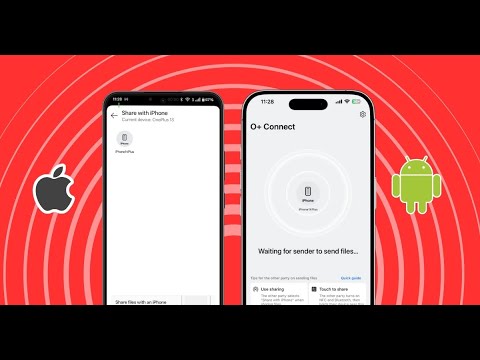
You can easily share any file with an iPhone user without installing a separate third-party app (on your OnePlus mobile). No, this method is not revolutionary, and it doesn’t fix the long-standing problem of file sharing between Android and iOS, but it does eliminate the need to install apps on your OnePlus device. The share with iPhone feature is directly baked into your system and accessible in the global share menu. I have a detailed guide on using this feature.

If you have a friend who owns an iPhone, we have a solution you can depend on instead of wondering how to send files to your iPhone. This feature also works, and vice versa. Your iPhone friends need an app O+ connect app installed on their iPhones.
Repair Mode
OnePlus phones have Green Lines issues. Hopefully, they fix this with the upcoming models and implement plenty of measures to combat this issue. But if you ever need to visit a service center and are worried about data privacy, you don’t need to reset or wipe your device or worry about the data being wiped from the support repair shop.
OnePlus has added a new Repair Mode to OxygenOS, which allows you to hide your personal information, including photos, various accounts, SMS messages, and chats. When you turn on Repair Mode, only the repair person can use the basic functions necessary for repair. However, a note reminds you to back up your device, turn on Repair Mode, and ensure the device has at least 10% free space as recommended.
Also, you need to set a lock screen passcode when you turn it on, and all Bluetooth, Wi-Fi, and mobile data functions will be disabled When this mode is turned on. You must exit Repair Mode to use other functions, so use it only when necessary while repairing your smartphone.
How to turn on Repair Mode on OnePlus Smartphones:
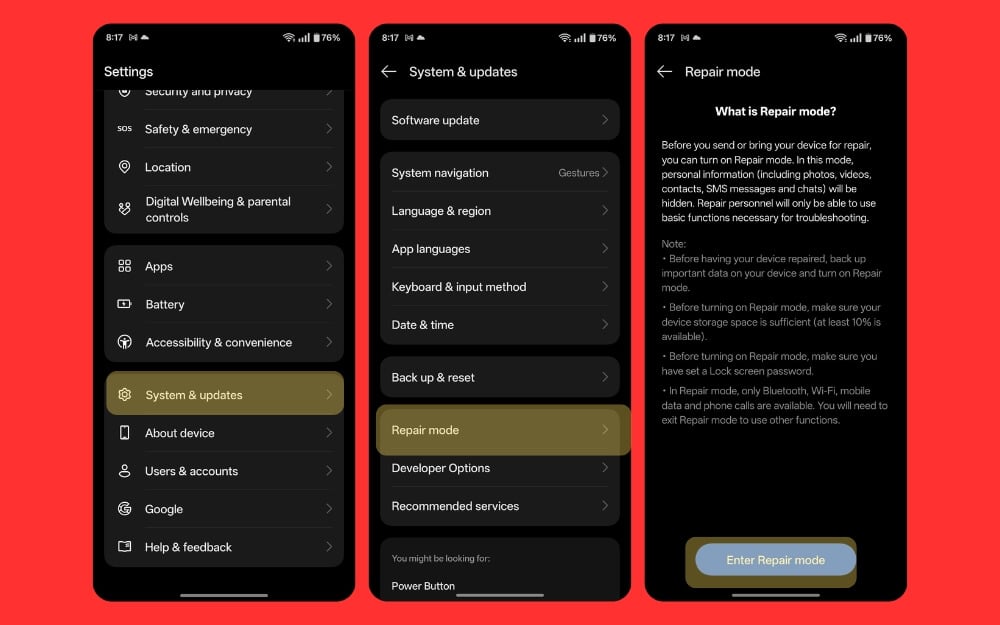
- Go to Settings on your phone.
- Go to System & updates and tap on the Repair mode.
- Click on the Enter repair and enter your password.
Enable Smart Side Bar
I like to keep my smartphones as minimal as possible, trying to avoid all the extra nice-to-have features wherever possible, and one of them is the smart slider on the OnePlus smartphone that allows you to access apps quickly and also custom functions. However, this smart sidebar has recently been updated with plenty of features, including plenty of AI features, such as a screen recognition feature that brings functions based on what is on your screen.
For instance, in the recent AI reply, if you use any messaging apps like WhatsApp, you can use the smart slider AI reply to screen and reply to any conversation automatically. You can also enable custom options, and there is also a screen translate feature, a screenshot option, screen recording options, and the ability to disable unwanted apps to keep the smart sidebar as minimal as possible.
How to turn on the Smart sidebar on OnePlus Devices:
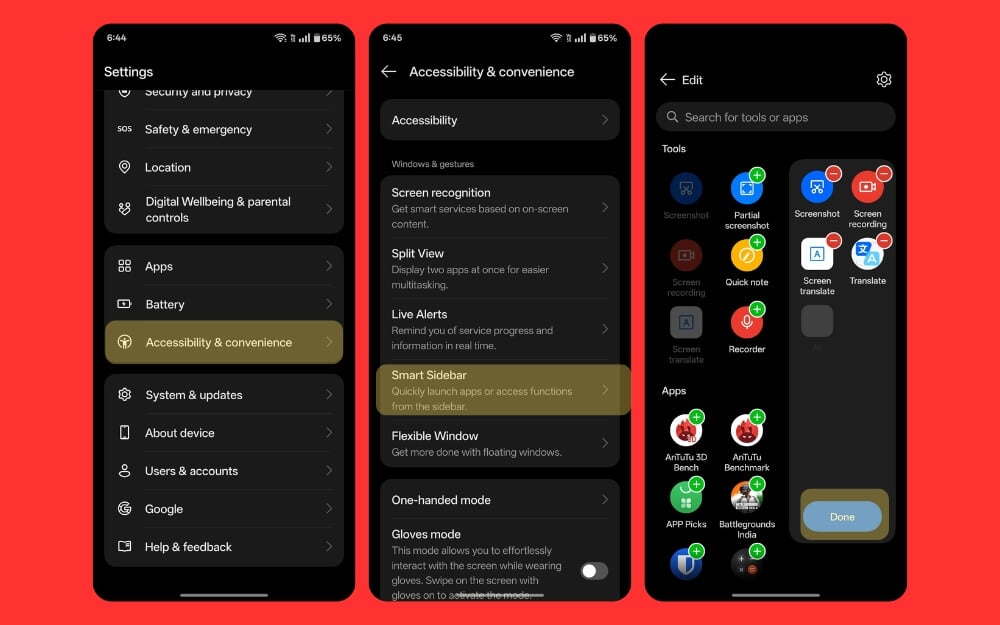
- Open system settings and then go to Accessibility & Convenience
- Select the smart sidebar and enable the option
- To use, click on the sidebar and then access the sidebar and click on the Edit button
- Here, add all the necessary features you would like to add. AI features are automatically enabled based on your screen content; you can tap on the sidebar to access those features.
Useful AI Feature Settings
OnePlus added a couple of AI features to the OxygenOs 15 that can be handy for everyday usage. First, screen summaries generate the summary of what is on your screen; based on the screen, it automatically suggests the AI features; for instance, if you are reading a blog post, you can see the AI summary in the sidebar, which you can enable it from the settings you can select page summary. It generated a summary of the page and what it sees on the screen.
Also, a screen translate feature automatically translates the text on your screen to your desired format. In addition to this, there is also easy access to Circle to Search, which allows you to search for any content on the home screen.
Use screen recognition to copy any text on the screen. Copying text from an image is helpful in many ways. With the OxygenOs 15 in the OnePlus devices, you can now copy any text on the screen using the screen recognition feature. It works very similarly to the OCR text capabilities of an image; to copy, you need to take a screenshot of the screen, select the text on the screen copy, and share it with others. You can enable a smart sidebar to get all these AI features on your device
Remap the power button to boot the power menu
How convenient is it to hold the power button and power up reboot options? However, modern smartphones, including OnePlus devices, are set to launch digital assistants by default when you press and hold the power button. Thankfully, you can easily change this default option to bring a useful power menu that we all lived for years.

To do this, go to Settings, accessibility, and convenience settings, click the power button, tap the option, and select the power menu. From now on, when you long press the power button, the good old power button boots up instead of the annoying virtual assistant.
Quick Launch Apps and Functions
One of the most useful and my favorite features on OnePlus devices (also available on other BBK devices like Realme, Vivo, and more) is quick launch functions from the lock screen. It lets you quickly launch any app of your choice or the action from the gesture on the home screen. This has been incredibly useful for me in scanning and quickly paying UPI payments on the apps.
You can also set it to other functions, including support for app functions. You can add up to five quick-launch shortcuts. My settings include a camera, a UPI payment scanner from Cred, and PhonePe. You can also set it to launch dedicated apps.
How to use Quick Launch Apps on OnePlus device:
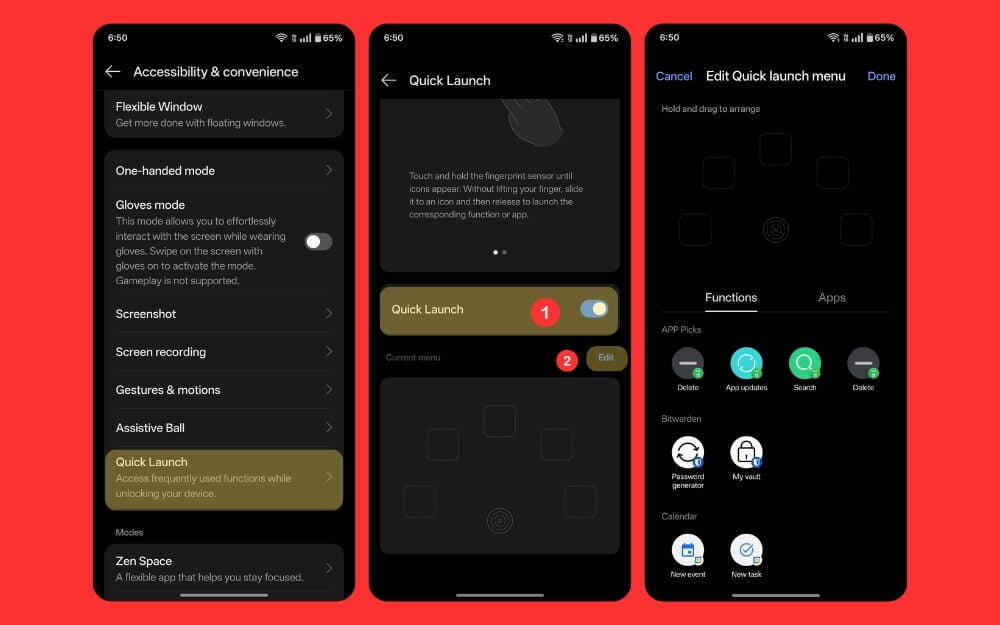
- Open Settings on your mobile and go to Accessibility & convenience settings.
- Scroll down and tap on the Quick Launch
- Now, turn on Quick Launch and click Edit on the Quick Launch settings screen.
- Now, Select five functions based on your preference and click on the done in the top right corner of the screen to save the changes.
Hide notification content automatically
If you want better privacy to hide sensitive notifications, hiding smart notifications can be handy. The feature automatically hides the content in the notifications when you are not looking at the screen. It uses the front camera to detect your face. You must enroll in the front camera setting once you enable this feature.
Once you are done, the app automatically hides the notification when another person looks at your screen. However, this feature might drain your battery since it constantly has to access the camera and might not work as intended. However, it works great when it automatically hides the content from the notifications. This way, you can stay alert and receive critical notifications without revealing sensitive information to the other user.
How to hide notifications content automatically on OnePlus Devices

- Open Settings and go to Notifications & Quick Settings
- Scroll down and click on the More Settings
- Scroll down, click the Smart Notifications hiding feature, and turn it on.
Turn On Rapid Charging for Faster Charging Speeds
The best thing about Android smartphones is their rapid charging speeds. You can charge a 6000 mAh phone in less than one hour, and that’s the beauty of fast charging. However, it also impacts the battery’s health. Fast charging generally impacts battery life and reduces its span. For this reason, companies have implemented features such as slow charging speeds and limiting the charging percentage to 80% to preserve battery health.
However, these options are optional. On the OnePlus smartphone, rapid charging speeds were turned off by default. If you have a quick meeting or want to go out quickly, this can be handy occasionally.
How to turn on Rapid Charging on a OnePlus device:

- Go to Settings and tap on the Battery.
- Tap on Charging Settings
- Now, enable Rapid Charging to charge your device faster.
Block Ads Using Private DNS
If you hate ads and block ads using ad blockers, extensions, or any third-party apps, You can block network-level ads using private DNS. This method works on any smartphone with private DNS support, including OnePlus running on OxygenOS 15.
You can use the private ad guard DNS to block ads on your OnePlus phone at the network level. You don’t need to install any third-party app or extension. This works at the system level with network-level blocking. It also blocks trackers if there are any ads by default, ads within the apps, and more.
However, I have been using this method for over four years. Ad guard DNS might sometimes experience issues and shut down, leading to websites not loading and slow-loading sites. In that case, you can temporarily turn it off, switch to auto DNS, and enable it once everything gets normal.
How to block ads on one plus devices at the network level:
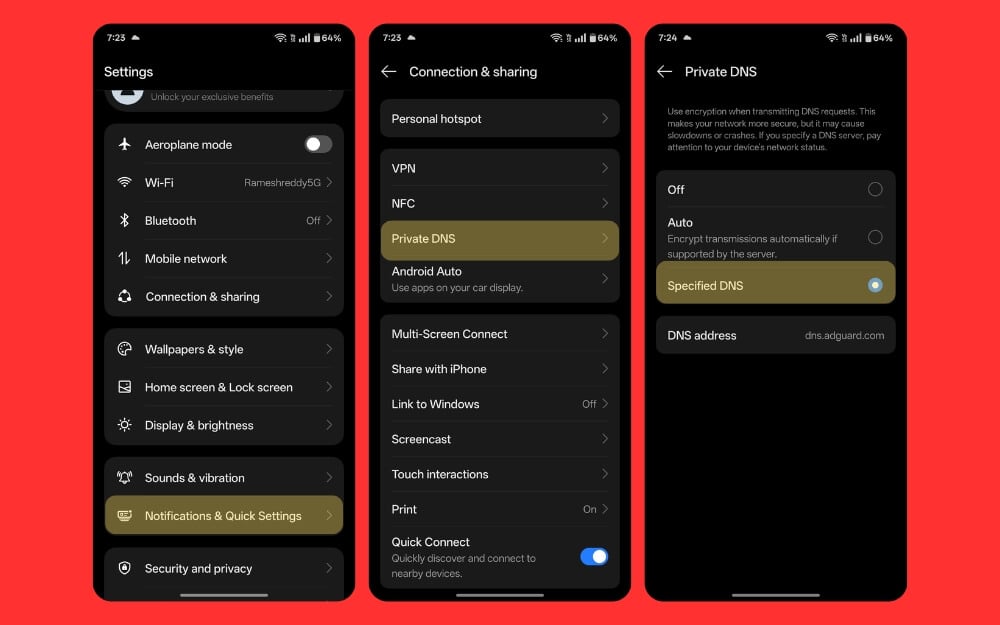
- Go to Settings and then Connections and Sharing
- Click on the Private DNS, tap on the Specified DNS, and enter the following address: dns.adguard.com
Quickly Access Apps Located at the Top of Your Screen
Phones are getting taller and wider; it has increasingly become a challenge to use with your single hand. That’s why we have a collection of compact phones coming in 2025. You can check out if you prefer a small and compact smartphone, but if you use your OnePlus smartphone, a larger screen and it can be hard to quickly access the notification panel with a single hand. Also, make it simple by swiping down. However, accessing apps at the top of the list can still be difficult.
So now, using a simple app pull-down gesture on the OxygenOS on the OnePlus device, you can access any app using a swipe gesture, head over to Settings > System Settings > Home Screen and Lock Screen Settings, and then enable the pull-down app. Now, swipe your finger. You can use a single hand from the bottom to the center, and all the apps in the top corner of the screen will pull down without lifting your finger. Select and open the app, which is very handy, especially if you want to use your mobile in a single hand and access apps at the top of your screen.
How to set Quick functions on the OnePlus smartphone:
- Go to Settings and then tap on the Home screen and Lock screen
- Tap on the icon pull-down gesture
- Now turn on the icon pull-down gesture

Turn On the Clipboard Feature on Keyboard Settings
Like most Android smartphones, OnePlus uses Gboard as a default keyboard. Gboard has many features, such as text editing, real-time solutions, keyboard resizing options, and more. In addition, one of the most useful features for many people is the useful clipboard feature, which stores the content you copy on your smartphone. You can view all your previously copied content. It supports up to 10 copied contents and allows you to paste instantly and pin important messages.
You can go to Settings > System and Updates > Keyboard and Input and set up Google Keyboard as the default keyboard app to enable it.

Now, open the keyboard, click on the four windows icon, select the clipboard option, and turn on the clipboard. You can also pin messages and permanently store the clipboard on your keyboard, such as your frequently used clipboard contents, like your address, phone numbers, or any form data you often fill in using your keyboard.

Utilize New Wallpaper Customizations
OxygenOS 15 brings plenty of customization features to the home and lock screen on top of highly customizable existing options. Like Apple, you can preset and change different wallpaper combinations whenever required. On top of that, you can also select different colors for the look of your smartphone. I like the monochrome colors that bring the old OnePlus OxygenOS nostalgic feel by introducing the Black and white icons.
In addition to all of those, you can also turn on and customize the Always-On Display, change the fingerprint animation, and enable edge lighting if you want to quickly be reminded of your notifications.
Furthermore, you can customize each wallpaper with different options, such as a step-back effect, similar to the iPhone and Apple lock screen customization options. All in all, you will have complete control of customization on OxygenOS 15, which you should take some time to explore to personalize your device better.
How to customize lock screen of OnePlus devices
- Go to settings and click on wallpaper and style
- Here, you can see all the wallpapers and prebuilt ones by OnePlus. You can scroll through the wallpapers and site as wallpaper and create new wallpaper. Scroll down, click on the always-on display, and turn it on; you can also easily change the font and new icons built-in on OnePlus smartphones.
- Scroll down or adjust the system Culla for minimal effect. I prefer black and white and you can also change the fingerprint animation

Enable the Touch and Hold Shutter Buttons To Record Videos
How do you record videos on your OnePlus smartphone or Android smartphone? Go to the Photos app, switch to video mode, or either tap and hold the shutter button to record a quick video. However, OnePlus has changed this default option to the burst photos mode, meaning that when you tap and don’t press the shutter button, it takes a burst of photos instead of recording a video.

This is a good feature, but it is not accessed often and as frequently. You can reset it to record a video when you press the shutter button. To do this, go to Camera Settings > Touch, hold the shutter button, and then change it to record video instead of burst images.
Enable Notification History
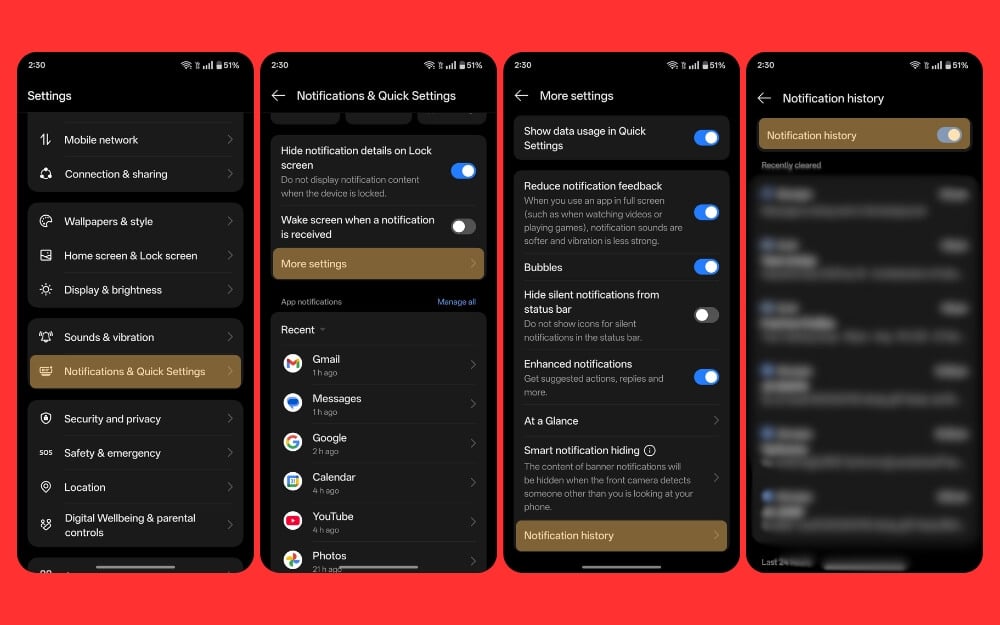
If you accidentally swipe away the notifications and completely miss them, there is a quick way to fix this using the Notification History feature on OnePlus devices. It keeps track of all the notifications, and you can revisit them later and see all the messages you received in the last 24 hours. This is a handy feature, especially since I’m the kind of person who always clears my notification panel and wants to keep it simple and clean. By the way, I don’t want to miss important updates on the app.
Every day, I go to the Notification History and see what I missed when I get free time before bed to track my day. You can also do this on your new OnePlus smartphone. You can go to Settings and enable Notification History. From then on, all the notifications you receive or clear will be visible under the Notification History tab in your settings.
How to turn on Notification Settings on OnePlus devices:
- Go to Settings and then tap on Notifications and Quick settings
- Scroll down and click on More Settings
- Scroll down to the bottom and click on the option that says Notification history
- Now turn on notifications history and see all your notifications in one place.
Opt out of Oneplus’ dark patterns
Not all OnePlus smartphones do this, but some budget ones do. If you use a budget OnePlus device, it may now come with ads, which contradicts what OxygenOS is meant for. This happens with most budget devices for cost-cutting. However, fortunately, you can disable them easily and opt out of these settings while setting up the smartphone for the first time.
Most smartphones, while setting up, include a few screens asking whether to show ads and lock screen glance to show ads on your lock screen and automatically install apps if you leave it as default. That’s why paying attention while setting up your smartphone is important. If you don’t get it and later want to opt out of the setup and stop getting unwanted app suggestions and notifications on your OnePlus device, you can disable it from the settings.
Require a Password To Turn Off Your Device
Android 15 also has theft protection, which automatically locks your device when your smartphone detects any theft detection. In our testing, we noticed it doesn’t work as expected, so turning it on by default might be a helpful bot that doesn’t offer full protection. We have a detailed guide on turning it on for Android 15 devices.
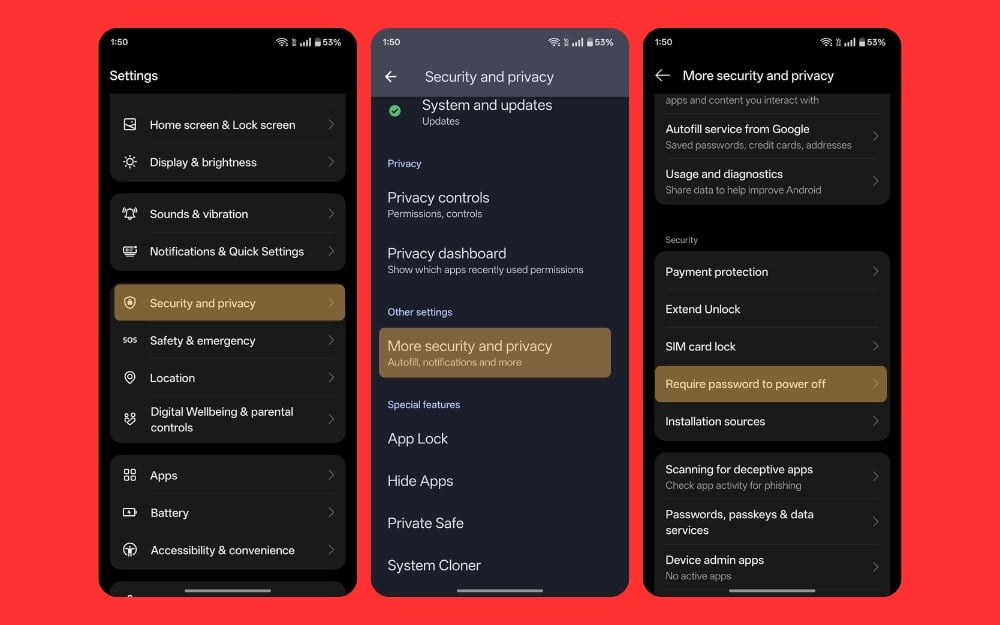
It also works for Android 15, but another feature you should enable is to turn on the required password to turn off your device. This will ensure that when someone tries to turn off your smartphone, they need to enter your screen lock, preventing them from shutting down your smartphone when you lose it. This will keep your device active, which might also help you track your device using Find My Smartphone.
How to enable the required password feature to turn off devices on Oneplus
- Go to Settings and click on security and privacy
- Now, under other settings, click on More Security and privacy
- No, tap on the required password to turn it off feature under the security section settings and turn on this future.
- Now, enter your screen password, and this feature will be enabled.
Remote location in the offline mode
While Android 15 also has theft protection, which automatically locks your device when your smartphone detects any theft and when someone else follows your smartphone, many people have complained about it. Even in our testing, we noticed that it doesn’t work as expected, so turning it on by default is good. We have a detailed, separate guide on how to turn it on for Android 15 devices.
It also works for Android 15, but another feature you should enable is the requirement of a password to turn off your device. This will ensure that when someone tries to turn off your smartphone, they need to enter your screen lock, preventing them from shutting down your smartphone when you lose it. This will keep your device active, which might help track your device using Find My Smartphone.
How to enable remote lock feature in offline Mode
- Go to Settings and click on Google
- Now, click on Find My Device and click on Find your off-line devices
- Scroll down and unable option with network in all areas, you can also enable without network if you wish you do not share your smartphone or include your smartphone in the open network to detect other device devices.

Handy Lock Screen Settings You Should Change
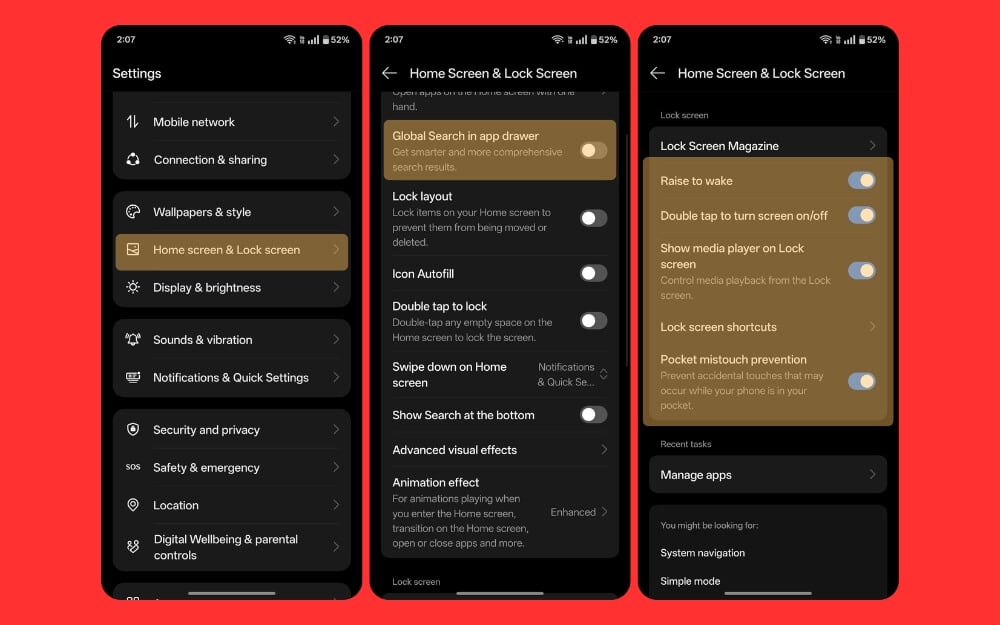
Finally, changes should be made to the lock and home screen settings to provide a better OnePlus phone experience. First, disable global search if it is enabled by default. Many users have complained that global search shows ads or suggestions, which can ruin the experience. You can go to Settings and disable global search.
Next, while you are at the Lock Screen settings, enable the ‘Raise to Wake’ feature, which makes your smartphone wake up when you raise it. This can be handy for quickly glancing at your time or any notification panel without pressing the power button.
Also, while you are there, enable ‘Double Tap to Turn the Screen On and Off’ to quickly turn the screen on and off without raising your smartphone. The most important feature is to set ‘Swipe Down on Home Screen’ to view notifications and quick settings instead of the Shelf, which brings up the OnePlus Shelf. You can also set it to global search if you want an iPhone-like experience to find apps quickly. These are some other simple, minimal lock settings you can change to get a better experience on your OnePlus smartphone.
How to change these lock screen settings on OnePlus devices:
- Open Settings and click on the Home screen and lock screen
- No, scroll down and turn off global search in the app dryer
- You can also enable Rise to wake up, double tap the screen, and turn it off, as well as pocket mistouch prevention options.
Instantly Improve Your Phone Performance
Those are the settings and changes you should enable if you bought a new OnePlus smartphone. Based on your preferences, turn on and off the settings to enhance your experience while using this smartphone.
Remember, you can always revert to these changes whenever you want by following similar steps. I hope you find this guide helpful. Also, remember that these steps might not be available in your mode. Some features are exclusive to flagship smartphones, while some are still available on older OnePlus devices. If you have any issues while using the settings, you can comment below, and I am happy to help you.

