

Quick Answer
To enable theft protection on your Android: Go to Settings> Google > All services tab, Scroll down and tap on Theft Protection. Turn on the following features: Theft Detection lock, Offline device lock, and Remote lock to secure your data. Ensure Use Find My Device is also turned on by going to the Find and Erase your device option under the Remotely Secure device section to remotely wipe your data on your device if it’s stolen.
With the latest Android theft protection security features, you can prevent access to the data on your smartphone if it’s stolen. You can enable your smartphone to lock itself automatically when suspicious threat activity is detected and go into lock mode if the thief puts your device offline. You also can remotely lock your device to protect sensitive information for better safety and data security.

While you can’t control when your device is stolen, you can prevent the thief from accessing your sensitive information. This guide will teach you how to enable these new theft-detection features on your Android smartphone.
Table of Contents
How to Enable Theft Protection on Your Android Smartphone
The new theft detection features are available for all Android devices running on Android 10 or later. To use this feature, your device should be protected with a screen lock. Since theft detection relies on Google service, You need to have a Google account signed in to the device. To enable theft protection on Android:
- Go to Settings on your Android smartphone. Scroll down and tap on Google.
- Now tap on the All Services tab, go to the Personal and Device Safety section, and click on the Theft Protection.
If you don’t see this feature, ensure your device uses the latest version of Android. Go to Settings > System > Software Update and update Google Play services. After following the steps, restart your smartphone and check if the feature is enabled. If you still don’t see this option, wait a few days and try again since the feature is rolling out gradually for all users.

- Here, Turn on Theft protection to automatically lock your device if theft activity is detected.
- For better security, also enable Offline device lock, which automatically locks the device if your device is put offline.
Since theft protection is not guaranteed to work always, turn on the Remote Lock to lock your device using your phone number remotely.
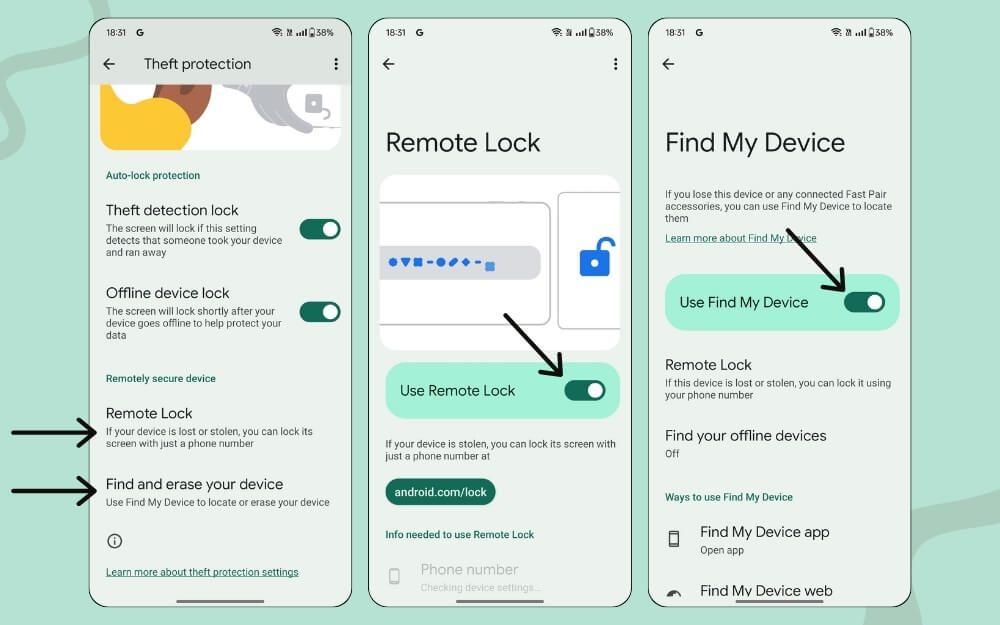
- Under Remote secure device, Click on the Remote Lock and then turn on the Remote Lock Feature. While there, click on the option that says Find and erase your device and ensure Use Find My Device is turned on to locate your device or erase the data if needed.
To remotely lock your stolen device, Visit android.com/lock, enter the device’s phone number, and click on the Lock device. Google says it takes up to 1 minute to lock your device, and you can only lock it twice daily. I tested this feature, but it didn’t usually work for me.

How to Use Find My Device to Erase Data on a Stolen Smartphone
Given that Google’s theft protection tools are hit or miss sometimes, if your device is stolen, it is recommended that you wipe your data using the Find My Device network.
This feature works on all Android devices that have a signed-in Google account. You need the credentials for the same Google account on the lost Android to use Find My Device. It also lets you locate the device, lock it, and display a custom message on your lost mobile. To use it:
- Using a PC or another phone, open a web browser and visit Android.com/find/
- Select the device you want to wipe.

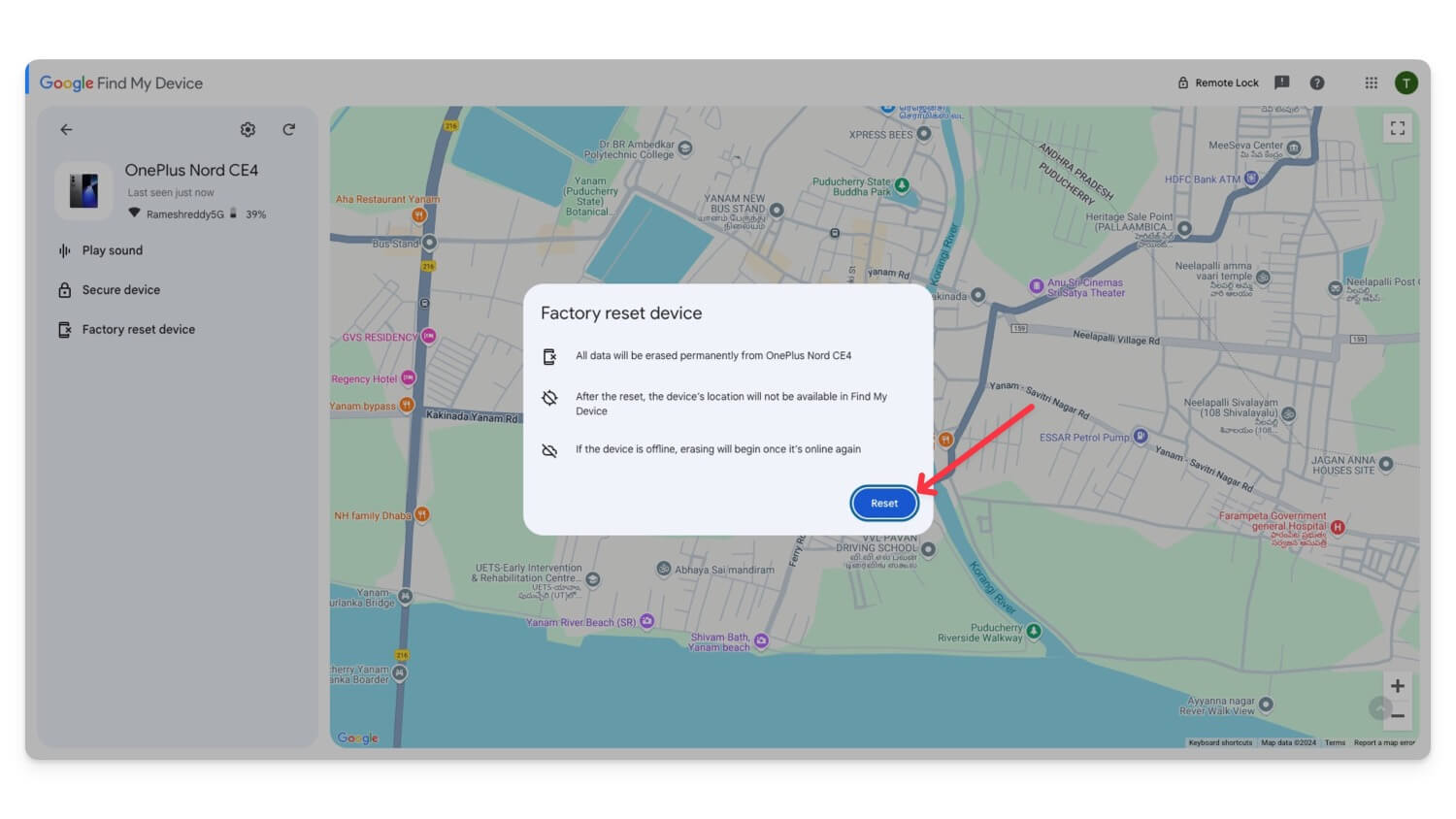
- Click on the Factory reset device and click on the Next

- Now, sign into your Google account, enter your password, and click Next.
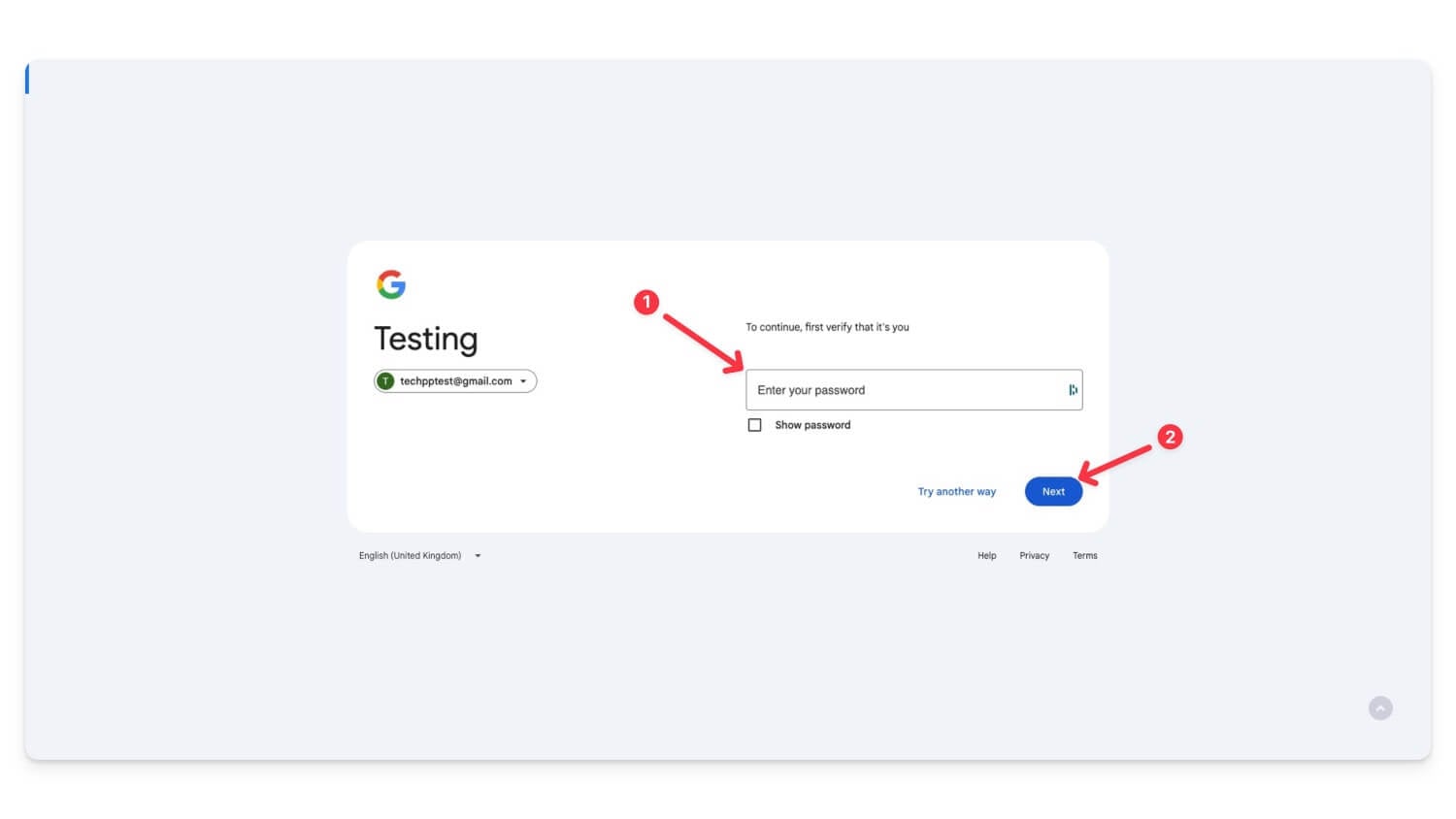
- Next, Click on the Reset.
Protect Your Phone from Thieves
Since smartphones have become the center of our lives by storing all our important information, they are at risk of exposing personal data if stolen. Addressing the concern of rising smartphone thefts, Google has rolled out new security features to protect your data if your device is stolen. However, theft protection is not guaranteed to work if your device is stolen; you can use Find My Device to locate your device, lock it, and remove your data remotely.
FAQs on Android Theft Protection Feature
Can I still use these theft protection features if my phone is rooted or running a custom ROM?
Google Theft Protection features may not work properly on rooted devices or devices with custom ROMs. However, if it has Google Play services, Features like Find My Device can still work.
Will Theft Detection and Offline Device Lock still work if my phone runs out of battery or is turned off?
Theft Detection and Offline Device Lock require your phone to be online. They won't work if your device runs out of battery or is turned off. However, your device is automatically locked and requires the screen lock to open after a restart or reboot.
What happens if I reach the limit of locking my phone twice daily? Are there other ways to secure my device?
You can use Find My Device to secure your device. Using the Secure Device feature on Find My Device, you can lock the device remotely and sign out of your Google account on the device. However, you can still locate the device using Find My Device.
What should I do if I accidentally trigger the Theft Detection Lock on my phone?
You can simply unlock your smartphone and use your device. That will automatically disable the theft detection feature.

