

Quick Answer
From corrupted system files and outdated drivers to too many startup programs and slow hardware, various factors can cause your computer to take longer to start up. Aside from getting an SSD, enabling the Fast Startup feature, removing unnecessary startup programs, fixing corrupted system files, and defragmenting your HDD are some effective solutions to make your Windows 11 PC boot faster.
It’s not uncommon to experience slow boot times on your Windows PC. From corrupted system files and outdated drivers to too many startup programs and slow hardware, various factors can cause your computer to take longer to start up.

Thankfully, there are several solutions you can try to make your Windows 11 PC boot faster. Let’s check them out.
Table of Contents
Turn On Fast Startup
One of the easiest and most effective ways to improve boot times on a Windows PC is to turn on the Fast Startup feature. This will be especially helpful if you’re using an HDD-powered computer and can help bring down the startup time by several seconds.
Although the feature is enabled by default, if you have previously disabled it for some reason, you can enable it from the Control Panel. Here’s how:
- Access the Windows Search by pressing the Windows key on your keyboard or clicking the Windows icon in the Taskbar.
- Look up Control Panel and open it.
- Click the drop-down next to View By in the top-right corner and select Large Icons or Small Icons.
- Go to Power Options and select Choose What the Power Buttons Do or Choose What Closing the Lid Does in the left sidebar.
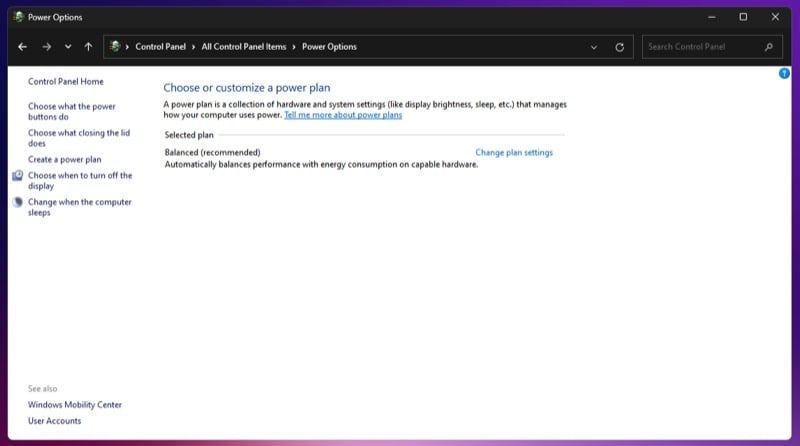
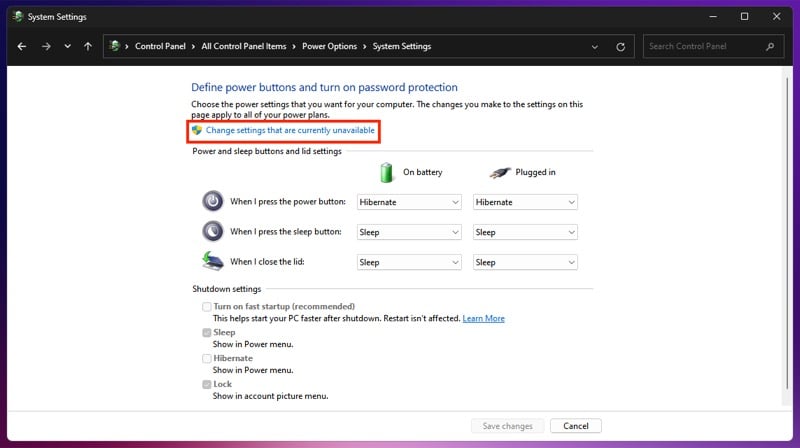
- Click the Change Settings That Are Currently Unavailable option at the top. You may need to provide administrator permission to proceed.
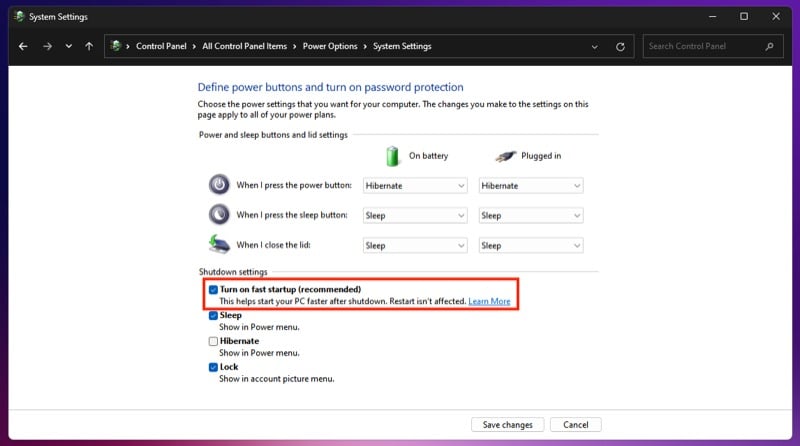
- Finally, check off the Turn on Fast Startup (Recommended) option and hit Save Changes at the bottom.
Remove Unnecessary Programs From Startup
A lot of the time, having too many programs running at startup can cause your computer to take longer to boot up. While it’s possible that you may not have set up programs to run at startup, certain programs do this automatically upon installation.
As such, it’s best to check your startup programs and disable the ones you don’t need. Here’s how you do it using the Task Manager:
- From the Windows Search, look up Task Manager and launch it. Alternatively, you can open Task Manager by right-clicking the Taskbar and selecting Task Manager.
- Select Startup Apps from the left sidebar.
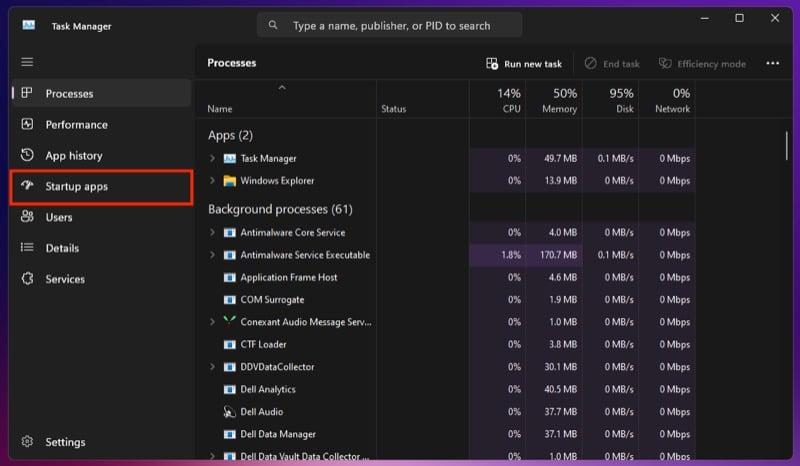
- You’ll now see a list of all the apps and services that can run at startup, with an Enabled status next to the ones that currently run at startup. Right-click on the program you want to disable and select Disable from the context menu.
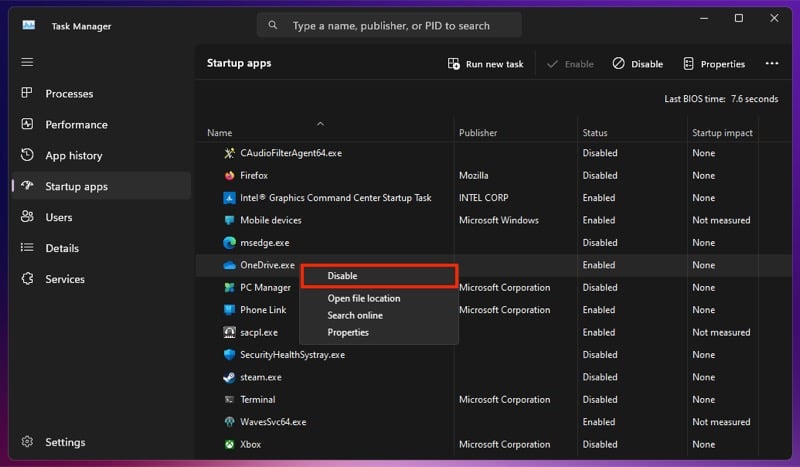
Besides using the Task Manager, there are a few other ways to disable startup programs on your Windows PC. Some of these may come in handy when certain services don’t appear under Startup Apps in the Task Manager.
Run an SFC Scan to Fix Corrupted System Files
Your computer’s system files can get corrupted due to several reasons. It could happen due to malware, unexpected system shutdown, driver conflicts, incorrect edits to Windows Registry, or improper use of tools to configure or modify system files. Performing an SFC (System File Checker) scan can help identify and fix such corrupted system files on your PC. Here’s what you need to do:
- From the Windows Search, look up Command Prompt or CMD.
- Click on the Run as Administrator option or press Ctrl+Shift+Enter.
- Hit Yes in the User Account Control prompt to run Command Prompt as an administrator.
- Type the following command in the Command Prompt window and hit Enter:
sfc /scannow
Wait for the SFC command to scan the system. Once it finishes, you should have the corrupted system files fixed.
Defragment Your Drive (if It’s an HDD)
If your computer is using an HDD, it may get fragmented over time, which can slow down read times and, in turn, increase the boot-up times. SSDs, on the other hand, don’t suffer from this problem.
Fragmentation, in simple terms, means that the data could get broken into smaller pieces (fragments) and get scattered across the hard drive. Performing a quick defragmentation can help resolve it. Although Windows automatically does this based on the set schedule, you must verify that the option is enabled. Here’s how you do it:
- From Windows Search, look up Defragment and Optimize Drives and open the appropriate match.
- Look for the status under the Scheduled Optimization section.
If it reads On, then your hard drive most likely doesn’t suffer from fragmentation. The Status tab in the table above should also reflect this. However, if it says Off, you can manually analyze and defragment your drive like this:
- Select the drive you want to analyze and hit Analyze. Once the program has finished analyzing it, you’ll see the amount of fragmentation it suffers from.
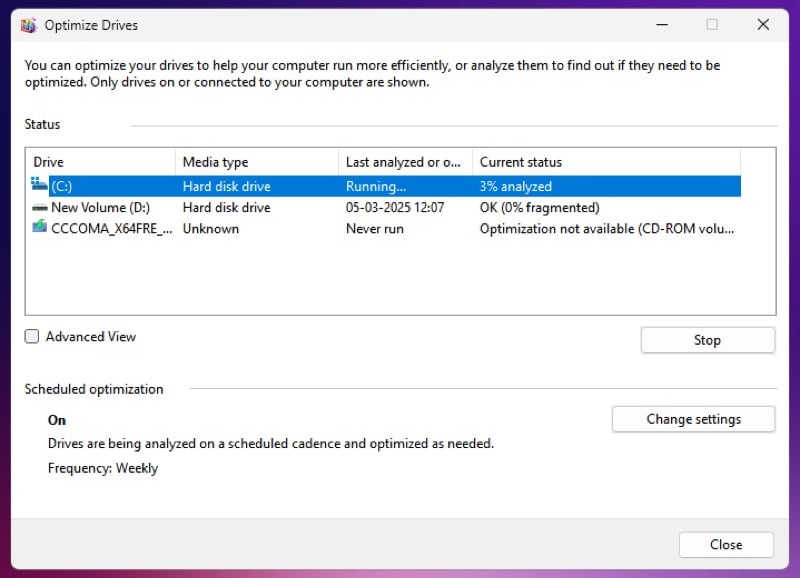
- Click the Optimize button to begin defragmenting the drive.

The amount of time you need to wait depends on how much your drive is fragmented. Repeat the above steps for all the partitions.
What Else Can You Do to Fix Slow Boot Time Up Your Windows 11 PC?
The solutions listed above should help reduce the boot times for most people. However, if they fail to offer a significant improvement in your case, there are a couple of things you can try.
Upgrade Your PC to SSD
An SSD (Solid State Drive) is a type of storage that uses flash memory to store data. Unlike a traditional HDD, it doesn’t have any moving parts, which makes it faster and more efficient. Not only does an SSD make the computer start up significantly faster, but it also loads programs quicker, allowing for a more responsive experience.
So, if your desktop or laptop supports it, swap out its HDD with an SSD. You’ll first need to identify the interface, followed by your storage and speed requirements, to get the right drive.
Put Your Computer to Sleep Instead of Shutting Down
Technically, this isn’t a way to speed up your PC’s boot times. But if none of the solutions above work and you don’t want to upgrade to an SSD, you should put your PC to sleep instead of shutting it down during down hours. Doing so will help reduce the time your PC would otherwise take to be ready to use.
To put your Windows PC to sleep, go to the Start Menu by clicking the Windows icon in the Taskbar, click the power icon in the bottom-right corner, and select Sleep.
Alternatively, if you use a laptop, you can put it to sleep by pressing the power button or closing the lid. You’ll need to configure the action for this first. Follow these steps to do this:
- Open the Control Panel and select Power Options.
- Select Choose What the Power Buttons Do or Choose What Closing the Lid Does from the left sidebar.
- Now, depending on your preference, click the drop-down next to When I Press the Power Button or When I Close the Lid under On Battery or Plugged In and select Sleep.
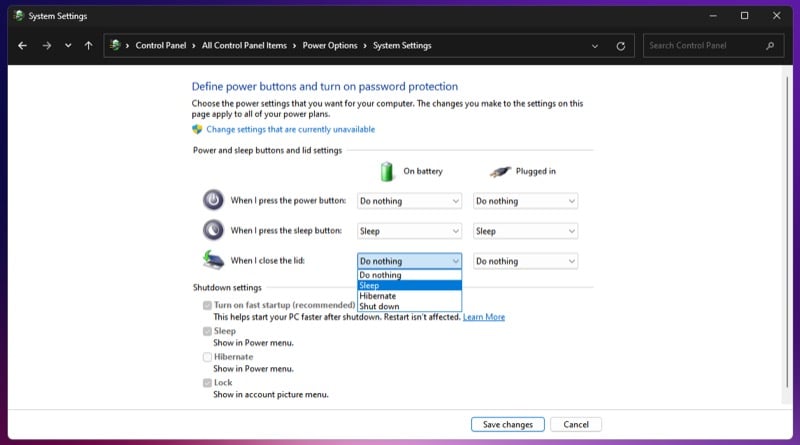
- Hit Save Changes at the bottom to save.
Now, whenever you need a break or want to wrap up work for the day, you can press the power button or close the laptop’s lid—depending on which action you’ve assigned the sleep function to—and it will put the system to sleep.
To wake it up, simply press the power button or open the lid.
Beware of the Solutions You Try
There isn’t much you can do—aside from the actions listed above—to improve the startup times of your Windows PC. While replacing the HDD with an SSD is the most effective way, if you aren’t willing to invest, the other solutions can help shave off a few seconds from the boot time.
That said, you’ll find several solutions on the internet that claim to improve the boot speed on Windows PCs. However, most of the time, these solutions are more detrimental than beneficial, and even if they do help bring down the boot times, the difference is hardly noticeable. As such, beware of the solutions you try on your PC and always take a backup to avoid losing important data.
Fixing slow startup times is one thing, but if you’re experiencing a slow-down in the overall performance, there are solutions for that, too. Check out our guide on how to speed up your slow laptop to learn about the various solutions you can try.

