

Quick Answer
Forgot your Android password? Use Google’s Find My Device to reset it remotely, or try a factory reset via the volume and power buttons. Samsung users can unlock their phones using Find My Mobile if enabled. Note that these methods may erase your data unless it’s backed up or synced to your Google account.
We all have passwords for our phones. Those passwords protect the phone and its data from others. For convenience, we all use face or fingerprint unlocks, which makes password usage rare. But some instances require a password to get access to our phones. For example, when we restart it, use it after a long time, fail recognition of face or fingerprints, etc.
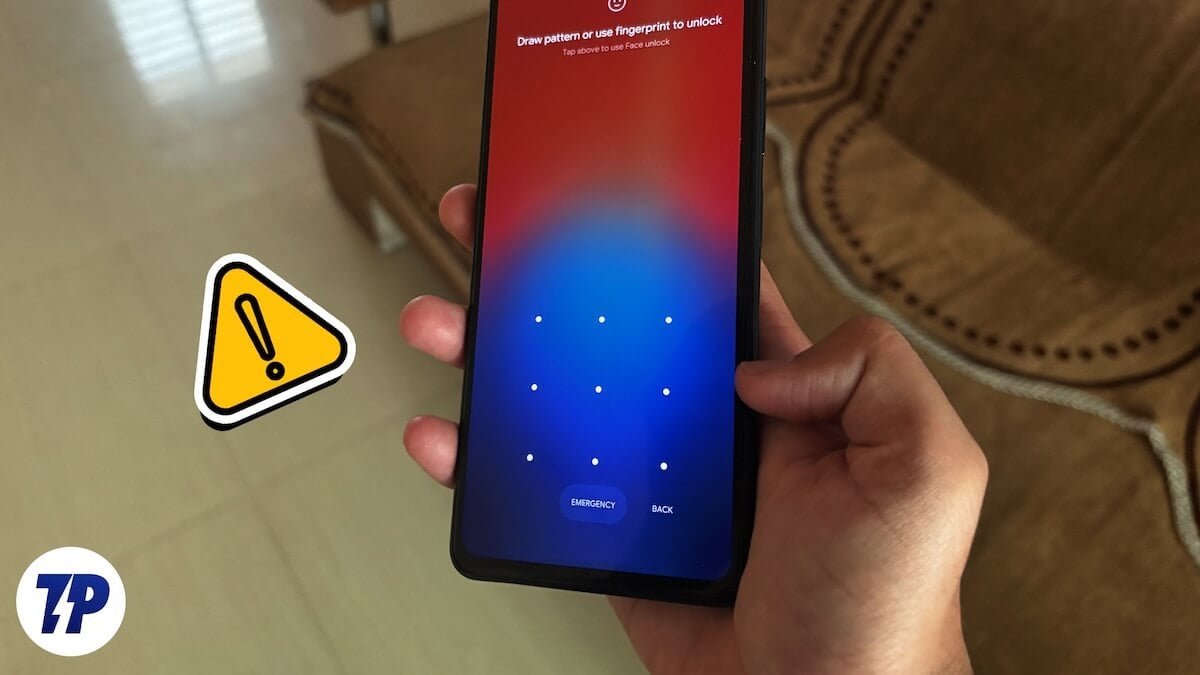
To use the phone, we must enter the password. It is very common to forget passwords, as everything nowadays requires a PIN or password. If you fail to remember your password and want to access your phone, follow this guide.
Table of Contents
3 Ways to Unlock Android Phone Without Password
The most important function of a password is to protect the device from unauthorized access. It is the primary way of protecting your device and its data. Unfortunately, when you forget the password, you can either decide to lose data and get access to the phone or wait until you recollect the password. We all have a constant bunch of numbers that we use on multiple services. It would be easy to recollect them and try them on your device. If you are okay with losing data and just want to get access to your phone, follow the below methods.
Use the Find My Device
One of the easiest ways to get access to the device when you forget its password is to use the Find My Device feature. It is a security feature that can help you lock the device when you lose or find it. To use this, you must have enabled it on your phone already, and your device must be connected to the internet via mobile data or WiFi.
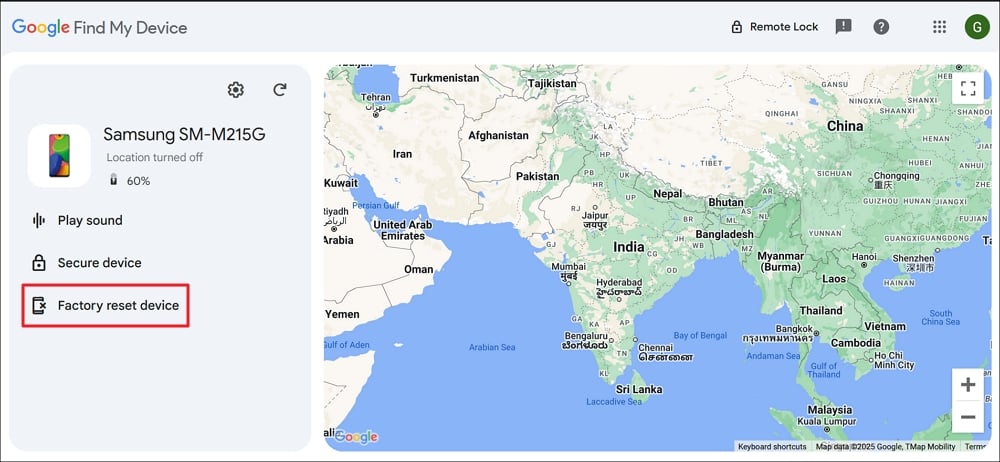
If you have enabled the Find My Device on your Android phone, visit Google Find My Device on a web browser on a PC and sign in with the Google account connected to your phone. When you log in successfully, you will find your device listed on the Find My Device page, along with other devices that you have connected. If you have connected multiple devices, select the device you want to unlock. Then, click the Factory reset device that you see under the device.
A Factory reset device popup will appear. Click Next.
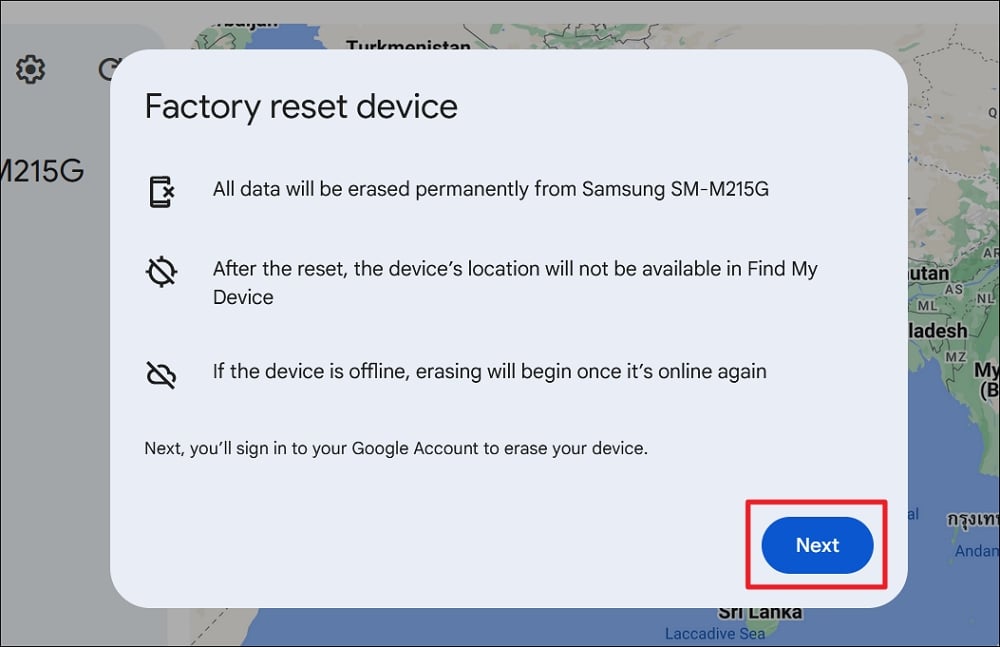
Follow the on-screen instructions and wait for it to reset your device completely. Once reset, you can set up your device again with the Google account you were using to get back all the contacts, synced photos and videos, etc.
Reset With Buttons on the Phone
If you have no access to your phone with Google Find My Device, the only option you have is to reset your phone with the volume and power buttons. When you press and hold the volume up or down button along with the power button (based on your manufacturer), it will enable the Android recovery menu, using which you can reset your PC. Release the buttons when you see the Android recovery menu and use the volume buttons to navigate and the power button to select.
You can use the following ways to enter the Android recovery menu on some of the major phone manufacturers:
| Manufacturer |
Buttons to reset |
| Samsung | Press and hold the Volume Up and Power buttons until the Android recovery menu appears |
| Google Pixel | Press and hold the Volume Down and Power buttons until the Android recovery menu appears |
| TCL | Press and hold the Volume Up and Power buttons until the Android recovery menu appears |
| Xiaomi | Press and hold the Volume Up and Power buttons until the Android recovery menu appears |
| Oppo | Press and hold the Volume Down and Power buttons until the Android recovery menu appears |
| Lenovo | Press and hold the Volume Up and Power buttons until the Android recovery menu appears |
| ZTE | Press and hold the Volume Up and Power buttons until the Android recovery menu appears |
| Asus | Press and hold the Volume Up and Power buttons until the Android recovery menu appears |
| Motorola | Press and hold the Volume Down and Power buttons until the Android recovery menu appears |
| Nokia | Press and hold the Volume Up and Power buttons until the Android recovery menu appears |
| Realme | Press and hold the Volume Down and Power buttons until the Android recovery menu appears |
| Vivo | Press and hold the Volume Up and Power buttons until the Android recovery menu appears |
| OnePlus | Press and hold the Volume Down and Power buttons until the Android recovery menu appears |
| IQOO | Press and hold the Volume Up and Power buttons until the Android recovery menu appears |
Remote Unlock Using Find My Mobile on Samsung Devices
Samsung provides a default way to remotely unlock or reset your device. While setting up your phone, if you have created a Samsung account and enabled all the settings it asks you to enable, you might have enabled the Find My Mobile feature, too. Your device must be connected to the internet for this to work.
Visit the SmartThings Find website on another device and log in with your Samsung account. Mostly, it would be your Google account. On the Find My Mobile page, select your device. Click Unlock and see if it works when unlocking your device.

If it doesn’t work, click Back up and then select Erase data. It will take some time to complete the process and wipe your phone to factory settings.
Is it possible to unlock Android without losing data?
If you use a Samsung phone and enable Find My Mobile features, including the Remote Unlock option, it is possible to unlock Android without losing data. Even then, your device must be connected to the internet to unlock. If not, it is impossible to unlock or get access to your phone without losing data. You will only get back the data that is synced to your Google account.
Unlock Your Android Phone Without a Password
It is almost impossible to unlock an Android phone without a password. If the device is not connected to the internet, it would be impossible even on the Samsung phones. You have to factory reset your phone to get access to your phone. Enable Find My Device on your Android phone to get a few options to locate or reset your device. If you use a Samsung phone, creating a Samsung account and enabling Find My Mobile works best.

