

Quick Answer
I fix shaky phone videos using built-in stabilization tools like Google Photos. I open the video, tap Edit, and select Stabilize to automatically reduce shakes. For better results, apps like InShot offer stronger stabilization options while preserving details, making the footage smooth and watchable in minutes.
Shaky videos can ruin even the best moments, especially when recorded while traveling, walking, or shooting on uneven roads. Even phones with OIS and EIS cannot always prevent unwanted shakes. The good news is you do not need expensive gear or professional skills to fix it.
Using simple built-in tools and free apps, you can stabilize shaky phone videos in minutes and make them look smooth and professional.
If the footage you have recorded on your Android phone is shaky and you want to make it watchable with straining eyes, you need to stabilize it. Professional videographers use gimbals to stabilize footage while shooting. When they fail to serve, they use software to stabilize the videos. Similarly, we can stabilize the shaky footage on Android phones and iPhones without any professional help. Let’s see how we can do it.
Table of Contents
How to Fix Shaky Phone Videos on Any Phone
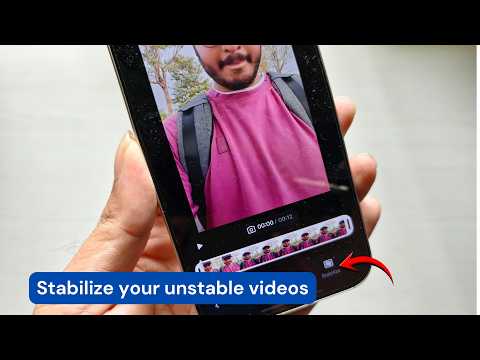
The simplest way to stabilize a shaky video clip on any Android phone is to use the Google Photos app. It has an in-built video stabilization feature that can stabilize most of the normal shakes in a video. It does a pretty good job at it.
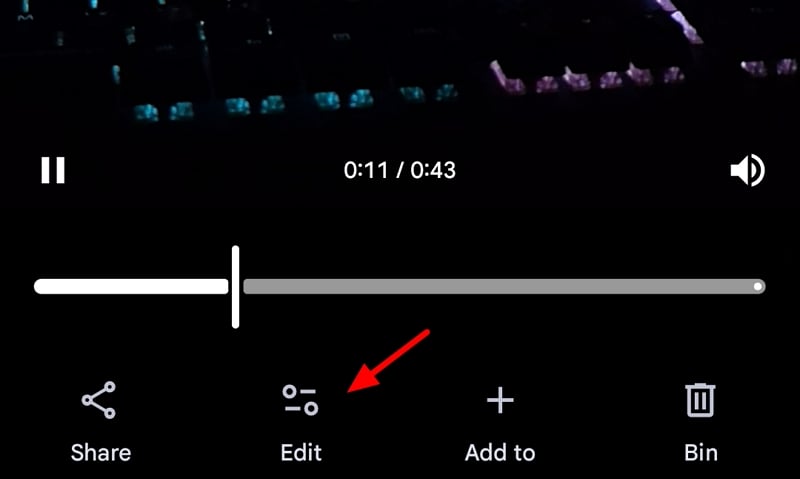
Open the Google Photos app, find the video you want to stabilize, and open it. Tap on Edit to get into editing mode.
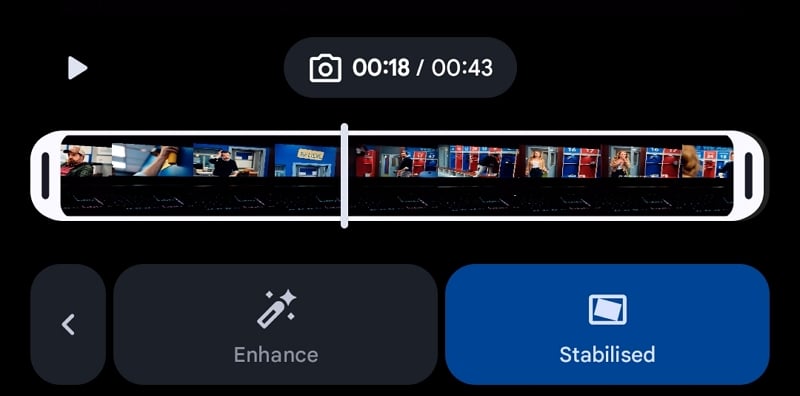
Then, select Auto to see options to stabilize the video.

Tap the Stabilise button to start stabilizing the shaky footage.

It will take a few seconds to a few minutes based on the length of the video and your Android phone’s performance. After the successful stabilization, you can watch the stabilized video. If you are not satisfied with the stabilization, you can remove the stabilization by tapping on the Stabilised button. If you like the output, you can save the stabilized video by tapping on the Save button at the top of the video.
That’s it. If the footage has extreme shakes, the stabilization offered on Google Photos can fail to preserve the details, and the output can be messy. You’ll need to use a professional video editor like Adobe Premiere Pro, where you can choose the stabilization methods and tweak them to get the output you want. The Google Photos app is a good option for beginner to intermediate stabilization tasks.
Which App Is Best for Stabilizing Video?
As discussed earlier, the Google Photos app is not great at preserving details while stabilizing extreme shakes. There are a few other options you can use to stabilize videos on Android.
InShot Video Editor (Free)
InShot video editor is a fine option to edit videos on an Android phone. It offers a lot of premium options for free. It does not restrict exporting video quality or resolution, unlike other video editors. It adds a watermark to the video by default. To remove it, you have to watch an advertisement.
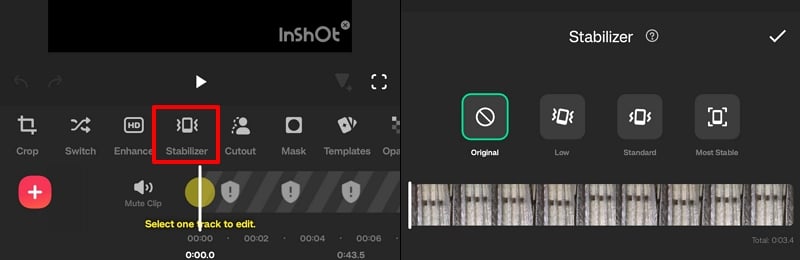
InShot video editor offers better features than the Google Photos app to stabilize and fix shakes in a video. To use the Stabilizer feature on InShot, you have to import the clip and open it to edit. Then, among the feature buttons above the timeline on the Inshot editor, you need to tap on Stabilizer. It shows you options to stabilize it in Low, Standard, or More Stable. Select it according to the video. If your video clip has extreme shakes, Standard would be a good option to preserve the details while fixing the shakes. More Stable makes the video details unreadable.
Stabilizo (Free)
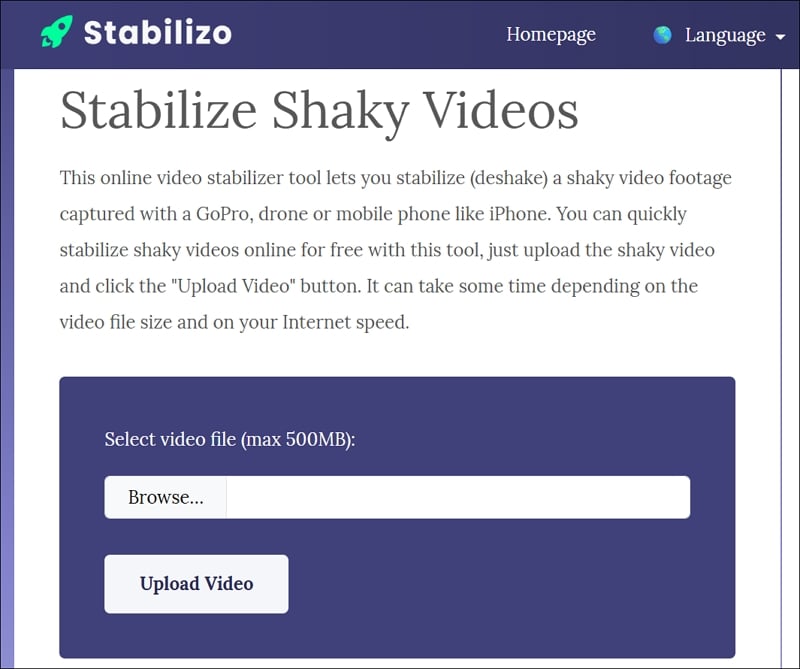
Stabilizo is a website dedicated to stabilizing shaky videos. You can open the Stabilizo website on the web browser on your Android phone, upload the video file (up to 500MB in size), and stabilize it. Since the process is done on the web without any control or performance on your phone, the speed depends on your internet speed. There are no specific data policies mentioned on the website. Uploading personal data onto this website to stabilize it would not be a wise decision. You can use it to stabilize videos from your trips, where you might have shot landscapes from a moving vehicle, or some other random videos. Avoid uploading videos that have your personal details, faces, etc.
OnlineConverter.com (Free)
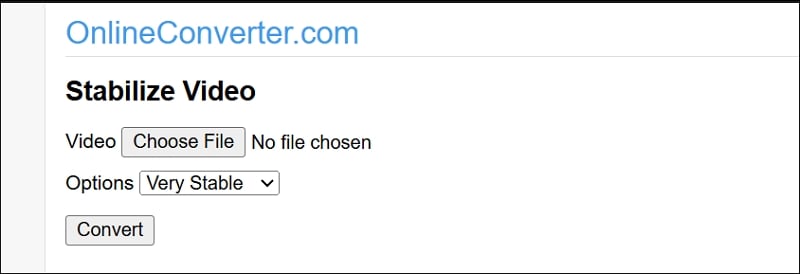
OnlineConverter is a great option to fix shaky footage on the web. It offers five options to stabilize your video: Stable, More Stable, Very Stable, Super Stable, and Most Stable. You need to select these options based on the level of shakes your footage has and the way you want to preserve the details in the video. Less stable options preserve most details. This website supports stabilizing videos up to 200MB in size. You might have to cut your videos into multiple 200MB files to stabilize a lengthy video. Do not upload any videos that have your identification details, as the data protection and privacy terms are not mentioned visibly on the website.
Ezgif (Free)
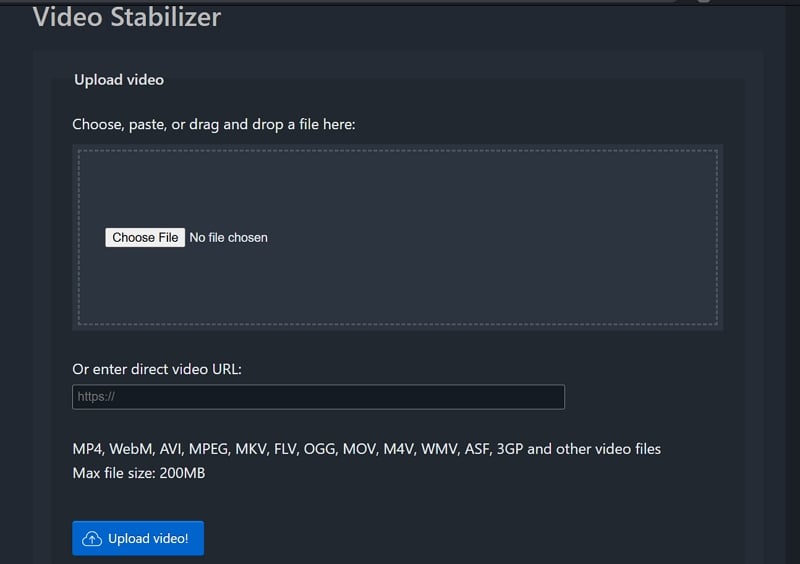
Ezgif, the most popular website that we use to create Gifs out videos, offers video stabilization features. You can upload a video from your device or just paste a public link to the video that you want to stabilize. It supports videos of size up to 200MB in multiple formats. The files you upload to Ezgif are deleted automatically after an hour (and that does not mean you can upload your personal videos).
PowerDirector Video Editor (Paid)
PowerDirector video editor is a premium option to fix shaky footage. You need to subscribe to its Pro version to use the feature. Like any other video editor, it also does not preserve the details in the video while fixing extreme shakes. To fix shaky footage on PowerDirector, import the video from your device into the app, and tap Edit. Then, select Enhance and tap on Fix Shake. It will ask you to subscribe to its Pro version. Subscribe to it to fix the shakes in your video.

Get Rid of Shakes in a Video
Shakes in a video ruin a video. To fix that, video editing apps provide features like Stabilizers, Fix Shake features on their apps. They study all the frames in a video with shakes and match them to the unshaky frame to remove the shakes. In the process, most of the details in the extremely shaky footage get lost. You need to use the feature wisely so as to get rid of the shakes while preserving the details.

