

Brave is a great Chromium-based browser for those who care about their online privacy. However, privacy isn’t the only notable aspect of Brave; the browser also packs several useful features that make it a solid option for just about everyone.

Below, we check out eight such Brave browser features you should start using right away to get more out of the browser.
Table of Contents
Brave Firewall + VPN
As a privacy-focused browser, Brave comes with a built-in firewall and VPN to protect you from online threats. If you work out of public places—and often need to use public Wi-Fi—this can be extremely useful, as turning it on will give you peace of mind so you can use the internet without any worries.
What’s more, it protects your online activities even outside the Brave browser. This means you could be using any app on your laptop or mobile phone, and the firewall and VPN will still protect you by blocking trackers and encrypting your connection to the internet.
Brave’s Firewall + VPN feature requires a subscription, which costs $9.99 per month. Once you’ve subscribed, click the VPN icon in the Brave toolbar, and it will automatically select a region and route your internet traffic through one of its servers.
To connect to a server in another region, click the button (with the name of the region you’re currently connected to), and on the next screen, select a region and hit the Connect button.
Brave Sync
If you use Brave on both your computer and mobile phone, Brave Sync can help you sync all your browsing data between them. That way, you can access things like your browsing history, bookmarks, open tabs, settings, and more on them at all times.
All you need to do to sync your devices is set up a Sync Chain. Start by signing into Brave on your devices with the same account. Then, on your desktop, go into Settings. Select Sync and click on Start Using Sync.

Click the Start a New Sync Chain button.

Choose your other device type in the following prompt. You’ll now see a QR code on your screen.

Go back to your mobile phone and navigate to Sync under Settings. Tap on Scan or Enter Sync Code and scan the code on your desktop. This will sync all your Brave data on the two devices.
You can control what data is synced via Brave Sync. For this, tap on Data Preferences and uncheck the checkbox next to items you don’t want to be synced between your devices.
Brave Talk
Brave Talk is a video conferencing tool built into the Brave browser. While there’s no shortage of video conferencing tools, what separates Brave from the rest is its no tracking and no data collection policies, which ensure your conversations remain private.

Another good thing about Talk is that it requires no extra apps, as everything works inside the Brave browser on both desktop and mobile. Plus, users can join Talk video calls even from other web browsers; initiating calls is only possible on Brave.
Brave Talk calls are free for up to four people. If you want to bring more people in, you’ll need to get the Brave Talk Premium, which costs $7.00 per month.
Brave News
Another great Brave browser feature is Brave News. It’s essentially a customizable news feed that helps you keep up with news and content from your favorite websites and blogs right inside the browser. Brave News is available on desktop and mobile, and you can access it in a new browser tab.
At the time of writing this, Brave News supports feeds from more than 300 media outlets and content sources across various categories like global news, finance, sports, and more. Besides, you can also add RSS feeds from your favorite blogs or local newspapers to view everything in one place.
Setting up your Brave News feed is easy. Open a new tab and hit the Customize button at the bottom of the page.

Select Brave News on the dashboard and then click the Follow button on top of the suggested feeds you want to subscribe to. You can also search for sites, topics, and feeds in the search box.

Just like other Brave browser features, News also promises to respect your privacy. As such, it collects no information about you, your searches, or the websites.
Force Paste
Certain websites on the internet block pasting text. You can notice this most commonly on sign-up or log-in pages of websites, and this can be quite annoying. However, if you use Brave, there’s an option called Force Paste that lets you get around this restriction.
After you’ve copied the text, visit the website and right-click the area where you want to paste it. Then, select Force Paste from the context menu, and your text should be copied successfully.
Copy Clean Link
Many websites use tracking URLs to track you online. When you copy such links, you’ll see tracking information—a mishmash of letters, numbers, and symbols—added automatically at their end.
Brave has a built-in feature, Copy Clean Link, which deletes tracking parameters from URLs when you copy them, so you don’t have to delete them manually. To use it, select the link, right-click on it, and select Copy Clean Link from the context menu.
Keep in mind that the feature can’t remove tracking parameters from shortened links.
Speedreader
Speedreader is a Brave browser feature that removes unnecessary elements from websites to make it easier to go through their content. It’s kind of similar to reading mode on other browsers, except that it’s faster and saves you data since it modifies the page content before it loads.
Brave gives you two ways to use Speedreader. You can either enable it yourself or set it to turn on automatically whenever you open an article.
To enable Speedreader manually, open the article on a website and click the Speedreader icon in the address bar.
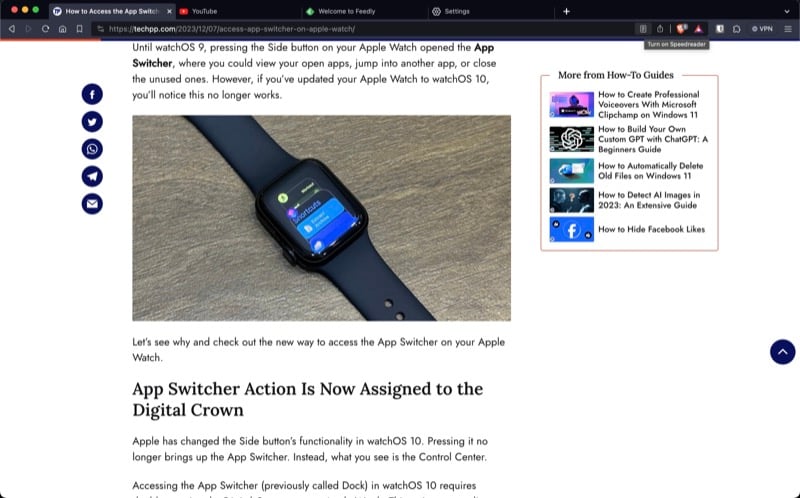
Brave will open the article Speedreader view. Here, you’ll find two buttons: Tune Speedreader and Appearance Settings. Clicking on these gives you a bunch of options to change the behavior and appearance of the mode. To exit, click the X icon in the right corner.

Alternatively, you can also set Brave to open articles in Speedreader mode automatically. Go to Brave Settings, search for Speedreader, and toggle on the button next to Speedreader.

Vertical Tabs
Having too many tabs open at once can be problematic. Not only does it clutter the browser, but it also slows you down. Brave has a nifty feature that saves you the trouble of having to deal with too many open tabs.
It’s called Vertical Tabs, and it stacks all your open tabs in Brave vertically. This makes it easy to identify the tabs and gives you more glanceable information upfront, so you don’t have to go into tabs to know what they contain.
Stacking tabs vertically is easy. With your tabs open, right-click on a tab and select Use Vertical Tabs.
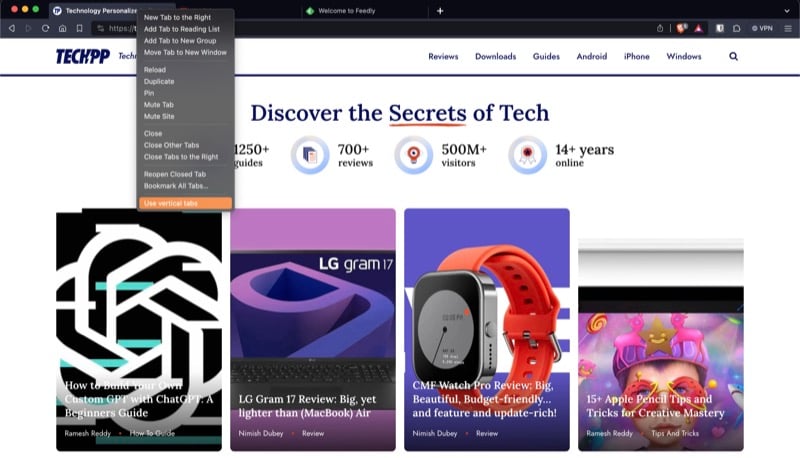
Your tabs will now be stacked vertically and moved to the left of your screen. Hover your mouse over this area to view the tabs.

Once you leave, the sidebar minimizes.
Unlock a Better Browsing Experience with these Brave Browser Features
A browser’s purpose isn’t just to help you access information on the web; it’s also to give you a better browsing experience. The Brave browser features we’ve listed earlier help you achieve this, all while protecting your privacy on the internet.

