

In Summary
Google Maps is the most popular app with more than a billion active users monthly. It uses various icons and symbols to represent various places. Every symbol and icon used on Google Maps and what they mean is here.
Thanks to its accurate directions and real-time traffic updates, Google Maps has been the default application for most people to reach their destinations.

Since Google Maps now offers more than just route navigation, such as discovering places, planning trips, and exploring local places, the app has become complicated and cluttered with different icons and symbols that might confuse the standard user.
Google is constantly trying to improve the experience by simplifying the app and making the app useful for beginners.
If you use Google Maps as your default navigation app and want to get better at navigating but are confused about specific icons in this guide. In that case, I will provide a complete guide on what the symbols and icons mean on Google Maps. By the end of the guide, you will be able to understand every icon on Google Maps and what it means so that you can feel in control and reduce and save time while using the map, especially in unfamiliar places.
Table of Contents
Google Maps Overview
Google Maps is available on all major platforms, including web, Android, and iPhone. I use Google Maps as my default navigation app on my iPhone because I am used to its interface, and it is easy to navigate. The best part of Google Maps is that it works similarly on Android and iPhone, with almost similar interfaces.
However, the map layout is different on the web. Still, the symbols and icons are the same on the web, making navigating easy even if unfamiliar with the Google Maps web interface.
I used OnePlus 13 for this guide, which runs on the latest Android. I have used the latest Google Maps app to represent the icons and symbols.
Google has made several changes to its app interface on iOS and Android, making the app more minimal yet less intrusive. For a better experience and understanding of Google Maps, I highly recommend you update to the latest version of Google Maps: for Android, you can update Google Maps using this Play Store link; for iPhone users, you can update the app using the App Store.
Once you have downloaded and installed the latest version, let’s get started and understand every symbol and icon on Google Maps.
Complete Guide to Symbols and Icons on Google Maps

Google Maps has multiple screens and unique icons for each screen. To help you navigate easily, I have included different Google Map app screens and what symbols and icons mean on each page.
Google Maps App – Home Screen Icons Explained
Home is the default screen that appears when you open Google Maps. In the latest version, Google simplified the navigation with just three options, making the app less cluttered and minimal. Here is what icons and symbols mean

- Search Bar: You can use the search bar and enter the name of a place, address, or landmark to find it on the map.
- Your Maps: Your Google Maps dashboard where you can access your saved places, custom maps, labeled items, work and office locations, and more. With the interactive timeline, you can create your list, view your recent visits, and detailed Google Maps location history.
- Explore tab: The default option if you open the Google Maps app on your Android or iPhone. It shows your current location and nearby places and displays local suggestions like restaurants, attractions, cafes, and activities.
- Mic: You can also use voice input to search hands-free (e.g., “restaurants nearby”) to find places without entering the text into the search bar.
- Map Types: You can select different views (default, satellite, terrain, etc., from this icon). You can also manage to set the default app view using this icon.
- Your Location: View your current location on the maps and re-center the map to your current GPS location.
- Directions: This will open the navigation panel to get directions to any place.
- Contribute Button: Using the contribute button, you can add reviews, photos, and new places. Google rewards you with local guide tags; you can also view all current views for your contributions and view and manage all your contributions, profiles, and more.
Google Maps Your Current Location Marker

- Blue dot with beam: This symbol indicates your GPS location on Google Maps. The shaded beam around the blue dot indicates the direction you are facing on the maps. If the circle is larger, it indicates the location accuracy is low; if the circle is solid, it indicates the accurate location with high GPS accuracy.
Google Maps – Search and History screen Symbols
The search screen is another popular and widely used screen in Google Maps; here is what symbols and icons mean on this screen.

- The back Button is a general navigation button on most apps and screens. It lets you return to the previous page if it closes the current screen and returns to the map view.
- History Icon: The icon left to the location name refers to your past search history.
- Mic Icon: Tap to search using voice input instead of typing.
- Edit Location: Tap the pencil/edit icon to rename, change, or delete saved locations like Home or Work and Parking. In my case, it is Parking; in your location, it might be your Home or Work office or anything. You can always edit your location using the pencil icon. It takes you to the map view, and you can click on it at the bottom screen.
- Info: Google tells you your web search is tracked and how results are displayed. Google says the results are based on your Google and web activity.
Google Maps Directions Input
Google Maps directions screen is another popular and widely used feature. Here is what the symbols and icons mean on this page.

- Your location: It indicates the starting point of your direction. By default, it is set to your location. You can always search and choose any starting location.
- Destination: It indicates the destination for your location. You can search and add your destination or choose the destination from the recent searches below.
- Transportation modes: You can choose your travel mode. The first one indicates the car, the default travel mode for Google Maps. Currently, Google Maps offers four different types of travel modes, including the bike (icon #5), walk (icon #6), and train (icon #7).
- Swap locations: Using this icon, you can quickly switch between your starting and destination points, which is very helpful without manually changing and setting your location and destination location.
Google Maps Route Preview Symbols Explained
The Google Maps route preview screen is the most complicated, with many options and icons. Here is what they mean.

- Your Location: This is the starting point of your journey.
- Destination: This is the place where you want to reach. Here, you can search for and select a specific address, such as places, businesses, and local businesses, or you can even drag and drop the destination pin manually to any part of the app.
- Bike Travel Mode: This is one of the travel modes Google Maps offers. By selecting the bike mode, Google Maps automatically values the route optimized for bikes.
- Add Stops: It lets you add stops in the middle of your destination. If your destination is too far, you can select stops in the middle and name them, like a petrol station, or you can find a shop near the hotel. You can also reorder the stop in the stops management section.
- Car Mode: Car mode is the default navigation mode set on Google Maps. It optimizes the routes for the cars.
- Start: You can start your journey to your destination. When you press on the start, it gives you turn-by-turn voice-guided navigation. You can customize it based on your needs, from settings like getting custom icons to turning voice-guided navigation on and off. You will get a preview location if you select a different location instead of starting.
- Menu (3 Dots): It opens extra options like editing stops, setting departure and arrival times, sharing directions, refreshing the map, and more.
- Swap Locations: Using this, you can easily swap the starting point and destination without manually re-entering them.
- Train Mode: Tap to see the train and public transport routes like buses, trains, metros, etc. If you are in a big city, Google Maps also displays schedules, platforms, and transfers, and it also gives you the main directions to and from the transit stop, improving public transport travel.
- Trip Options: You can further your route, including settings to avoid tolls, motorways, and ferries, and the ability to see the route efficiency counter and manage your vehicle fuel settings, such as diesel, electric EV, and more. In these settings, you can also change the vehicle icon based on your transport mode. It suggests the icons; for example, if you are currently in car mode, it lets you choose different car types and assign colors to them.
- Your Location: This shows your current real-time location. Even if you set a preferred starting option apart from your location, it allows you to view your current location on the map and doesn’t show the timing from the current location to the destination.
Tip: Tapping the current location icon again gives you a compass symbol. - Cancel (X Button): This exits the route preview and returns to the main map.
- Walk Mode: You can change the transit mode to walking to get walking directions to your destination, including step-by-step alley directions, stairs, shortcuts, and all.
- Share: You can send the trip or route to someone via apps or messages.
- Save: Using this icon, you can bookmark the route or location for later reference. You can customize the bookmarking details, such as favourites, or save them to your custom lists.
Google Maps Live Navigation Symbols Explained
Google Maps offers plenty of options on the live navigation page; here is what each icon on this screen means.

- Next Turn Direction: Shows the next move in your route (for example, Head south) and displays the next direction you want to take.
- Current Position: It indicates your real-time GPS location and the direction you are facing and ensures that you are on the current path.
- Re-centre: Sometimes, your current location might drift off the screen; you can tap on the re-center to re-center your position for accurate navigation and better understanding.
- Exit Navigation: Stops the current navigation and returns you to the standard map view with a single tap.
- Route Line: Displays the suggested route in blue and helps visually guide your journey. The blue line to your destination is a visual guide; sometimes, this blue line turns red/orange/green based on traffic.
- Compass Icon: The compass icon locks you to the map orientation since maps use north-to-south orientation. In Google Maps, the north stays on the map and rotates to match your direction.
- Voice Command: The voice button activates the Google Assistant. You can use Google Assistant to find your exact location, get your location details, and find nearby locations without manually interacting with your map on the touch screen.
- Search Along Route: If you have safely parked the car somewhere, you can easily interact with the touch screen instead of Google Assistant and find the stops like food, fuel, or restrooms along your current route. You can add stops and dismiss your journey and more safely while you are not driving.
- Sound Options: This icon lets you control voice guidance settings: Muted, Alerts Only, or Full Navigation Voice.
- Report: You can report and help others if there are any incidents, traffic incidents, road closures, speed traps, and more while you are passing the area.
- Route Overview: Using this icon, you can preview the route you are navigating to. It zooms out to give you a full view of the route and lets you choose alternate options.
More Google Maps Symbols While Navigating
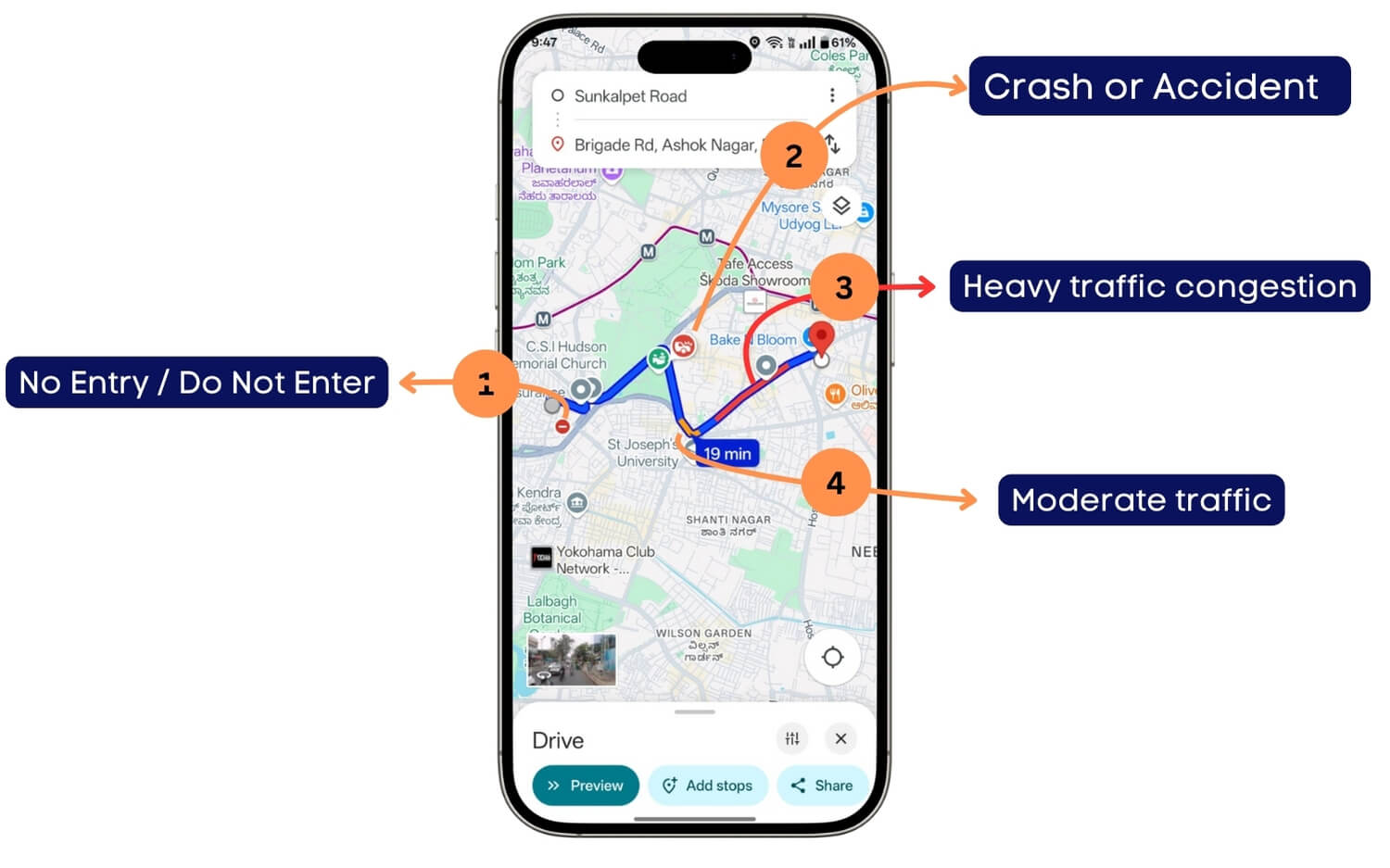
- No Entry / Road Closure: A red circle with a white horizontal line indicates the road is closed or not allowed from your direction. For better details, you can zoom in on the map.
- Crash or Accident: A red icon with a vehicle crash symbol indicates a user-reported accident or traffic incident at that location. Google Maps offers real-time crowd-sourced reports and traffic data for better navigation.
- Heavy Traffic Congestion: While navigating, the red line represents heavy traffic. Google uses crowd-sourced data from real-life Google Maps, which is often accurate.
- Moderate Traffic: The orange line indicates the traffic area is moderate.
Google Maps also offers green lines and combined red and black lines. While the green line represents no expected traffic for the delay while navigating, the red and black lines represent congested traffic. I highly recommend avoiding these traffic conditions; you can ask Google Maps for alternative routes to avoid this congested traffic.
Google Maps Public Transport Lines and City Limits Symbols
Along with the routers, Google Maps also displays public transport routes such as trains, subways, etc. Depending on your location, colors can vary.

- Metro or Train Route: A solid red/green/blue or any other line indicates a public transportation route (e.g., metro or suburban train). Depending on your region, the colour might vary.
- Boundaries (Red Dotted Lines): If you search for any city or location, round red lines indicate the boundaries surrounding the city or the location.
Your Places on Google Maps
You can add your associate places on the maps and your default address. This is one of the useful features, however the downside is it replaces the existing symbols for the business or any place that you have marked.
If you are marking multiple favorite places, it can be hard to find what the business is about, but it is still a very handy feature to keep all your favorite places in one place and navigate to them easily whenever you want to.

- Favourites Icon: The favorite icon indicates the location you have marked as a favorite on your Google Maps.
- Want to Go: The want-to-go icon is another default list that Google Maps offers, marking the location where you want to visit.
Google Maps also lets you create your favorite lists and add an icon for each place. Especially handy if you are a traveler. Further, Google Maps also offers lists, including starred, labeled, and more.
What does each icon mean in the Google Maps
To represent various places on Google Maps, Google users use different icons and symbols to help users identify. Currently, Google uses more than 100 symbols, which is what each symbol means.
1. Food and Drinks icons
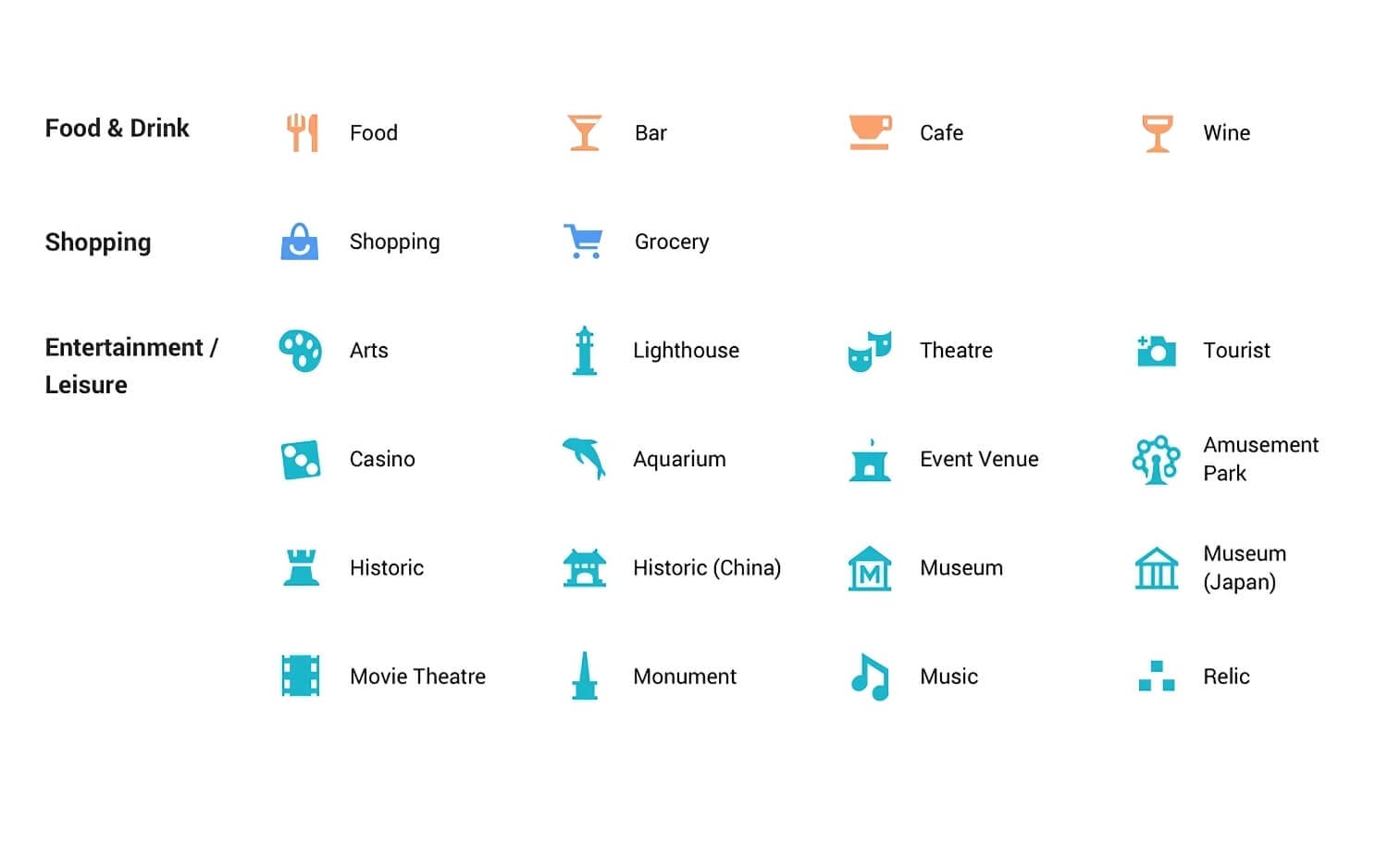
| Symbol Name | Meaning / What does it mean |
| Food | Restaurants or places to eat |
| Bar | Places serving alcoholic drinks |
| Cafe | Coffee shops and casual snack spots |
| Wine | Wine bars and locations focused on wine |
| Shopping | Shopping centres or retail outlets |
| Grocery | Supermarkets and grocery stores |
| Arts | Art galleries and related cultural locations |
| Lighthouse | Tourist spots with a lighthouse feature |
| Theatre | Drama theatres, live performance venues |
| Tourist | General tourist attractions |
| Casino | Gambling and entertainment establishments |
| Aquarium | Locations with aquatic animals and exhibits |
| Event Venue | Halls or grounds for public/private events |
| Amusement Park | Theme parks or large-scale recreational parks |
| Historic | General historic landmarks |
| Historic (China) | Culturally historic Chinese structures |
| Museum | General museums displaying exhibits |
| Museum (Japan) | Japanese-style museums or culturally specific museums |
| Movie Theatre | Cinemas or places screening movies |
| Monument | Notable monuments or large commemorative structures |
| Music | Music venues or concert-related locations |
| Relic | Archaeological or cultural relic sites |
Google Maps Service and Health Symbols and Their Meaning
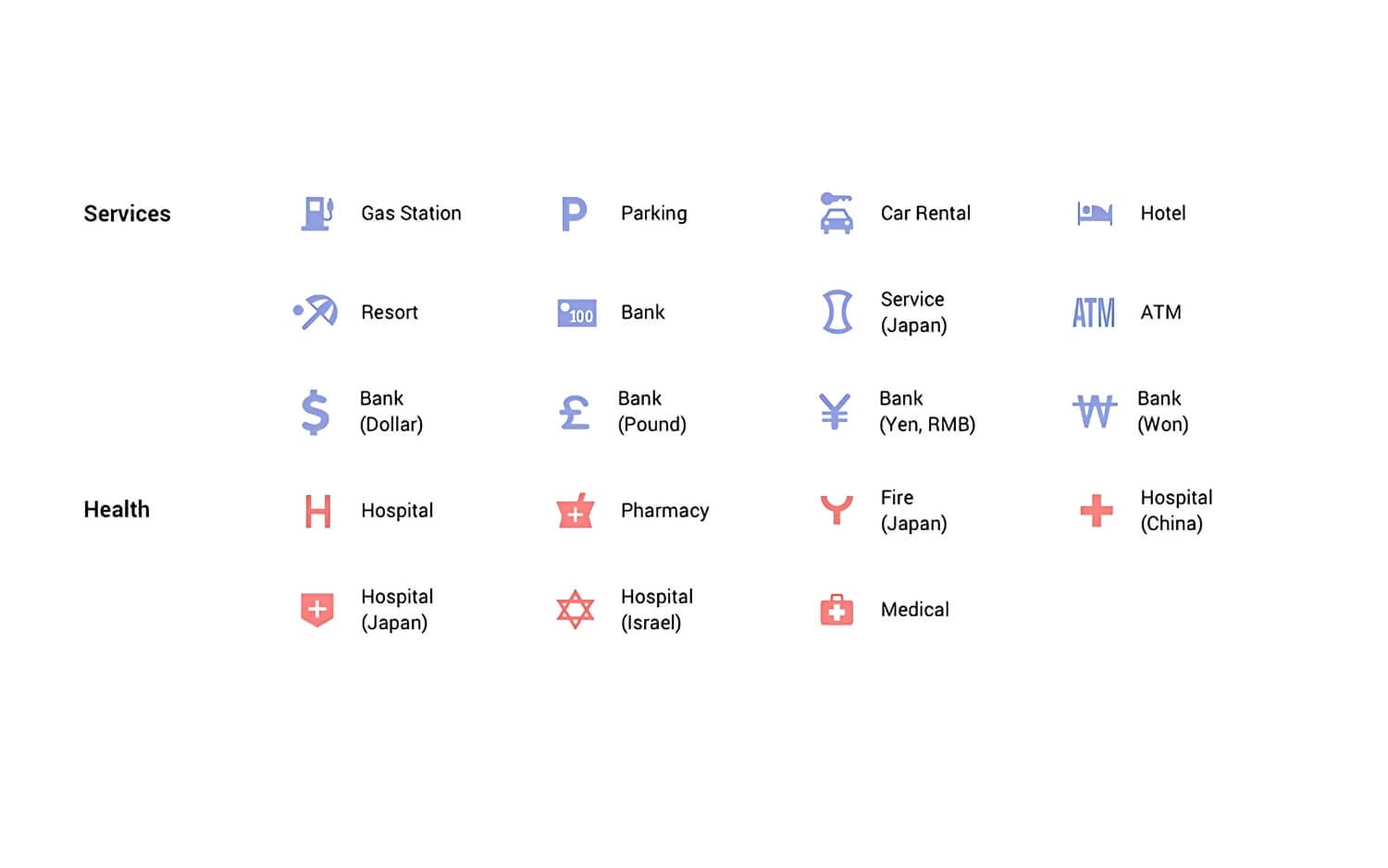
| Symbol Name | Meaning / What it Represents |
| Gas Station | Fuel stations and petrol pumps |
| Parking | Public or private parking lots or garages |
| Car Rental | Car rental services and agencies |
| Hotel | Hotels and accommodation options |
| Resort | Resort and leisure facilities |
| Bank | General bank locations |
| Service (Japan) | Japanese-style service centres |
| ATM | Cash withdrawal machines |
| Bank (Dollar) | Banks using Dollar currency ($) |
| Bank (Pound) | Banks using British Pound (£) |
| Bank (Yen, RMB) | Banks using Yen (¥) or Chinese RMB |
| Bank (Won) | Banks using Korean Won (₩) |
Health Symbols
| Symbol Name | Meaning / What it Represents |
| Hospital | General hospitals |
| Pharmacy | Medicine stores and pharmacies |
| Fire (Japan) | Fire stations in Japan |
| Hospital (China) | Hospitals in China |
| Hospital (Japan) | Japanese-style hospitals |
| Hospital (Israel) | Hospitals in Israel |
| Medical | General medical facilities and first aid |
Google Maps Outdoor Symbols Meaning

| Symbol Name | Meaning / What it Represents |
| Park | Public parks and recreation areas |
| Mountain | Mountain areas or climbing spots |
| Sports Stadium | Sports venues and stadiums |
| Zoo | Zoos and animal parks |
| Campground | Camping sites or grounds |
| Cemetery | General cemeteries |
| Cemetery (Japan) | Cemeteries in Japan |
| Golf Course | Golf playing areas |
| Garden | Botanical gardens or decorative parks |
| Hiking | Hiking trails and trekking paths |
| Boating | Boating or water activities |
| Fishing | Fishing spots |
| Hot Spring (Japan) | Japanese-style hot springs |
Google Maps Transport Symbols Meaning
| Symbol Name | Meaning / What it Represents |
| Airport | Airports and air travel hubs |
| Train | Local and regional train stations |
| Metro | Metro stations |
| Subway | Underground rail systems |
| Bus | Bus stations or stops |
| Rail | Light rail or trams |
| Ferry | Ferry services and boat transit locations |
Google Maps Civil Services Symbols Meaning

| Symbol Name | Meaning / What it Represents |
| Civic Building | Government or administrative buildings |
| Post Office | General post offices |
| Post Office (Japan) | Postal facilities in Japan |
| Library | Public or institutional libraries |
| Police | Police stations |
| Police (Japan) | Japanese police facilities |
| School | Educational institutions |
| School (Japan) | Japanese schools |
| Bridge | Notable bridges |
| Restroom | Public restrooms |
| City Office (Japan) | Japanese city government offices |
| Civil Office (Japan) | Japanese civil service buildings |
| Government (China) | Chinese government buildings |
| Miscellaneous | General or uncategorized public service areas |
Worship Symbols
| Symbol Name | Meaning / What it Represents |
| Church or Temple | Christian churches or generic temples |
| Synagogue | Jewish place of worship |
| Mormon Temple | LDS (Mormon) temples |
| Dharma Temple | Buddhist or dharma-related temples |
| Buddhist Temple | Specifically Buddhist temples |
| Hindu Temple | Hindu places of worship |
| Jain Temple | Jain religious temples |
| Shinto Temple | Shinto shrines in Japan |
| Gurdwara | Sikh places of worship |
| Mosque | Muslim places of worship |
Google Maps Personal and Road Conditions Icons

Personal Symbols
| Symbol Name | Meaning / What it Represents |
| Contact | A saved contact location |
| Home | Your home address |
| Work | Your workplace address |
| Appointment | A saved calendar appointment location |
| Nicknamed | Your nicknamed place |
| Favourite | A favorite place (heart icon) |
| Custom List | A place added to a custom list |
| Starred | Star-marked location saved by the user |
| Want-to-Go | Places you’ve marked as wanting to visit (green flag) |
Road Condition Symbols
| Symbol Name | Meaning / What it Represents |
| Road Closure | Indicates a road that is closed to traffic |
| Construction | Indicates ongoing roadwork or construction zone |
| Accident | Reports of a traffic accident |
Those symbols and icons remain on Google Maps, whether you are on Android or iPhone or a web version of Google Maps. After reading this, you can navigate and understand icons easily. Unfortunately, if you found Google Maps cluttered, you cannot remove or hide default icons on the maps. However, you can declutter the map view by searching for specific locations, filtering your places from the explore tab, or using satellite or terrain mode, which hides many default icons.
If you want advanced customization, you can also create your version of custom Google Maps and hide elements and other layers. You can do this using Google My Maps. I hope you find this guide helpful. If you have questions or find any new icons or confusion, you can comment below, and I will be happy to help you.

