

Quick Answer
To enhance your Android TV experience, consider these 9 must-have apps: LocalSend for easy file transfers, VLC for versatile media playback, Kodi for advanced media streaming, Jellyfin for managing personal media servers, AirScreenfor wireless streaming, tvQuickActions for remapping remote buttons, File Manager+ for managing files, Browser for web browsing, and Windscribe for secure, private browsing and unblocking content. These apps unlock your TV’s full potential!
Your Android TV most likely comes pre-installed with a bunch of apps across different categories, which should generally cover most of your basic needs. However, there are still some things you can’t do on your Android TV with just the default apps. Thankfully, you can easily install additional apps on your Android TV to extend its functionality and get more out of it. Let’s explore some of the best Android TV apps to get you started.
LocalSend
LocalSend is a popular cross-platform app for securely transferring files between various devices. It’s free, open-source, and ad-free. The best part? It involves no external servers—your devices need to be on the same local network (Wi-Fi) for the transfer to take place.
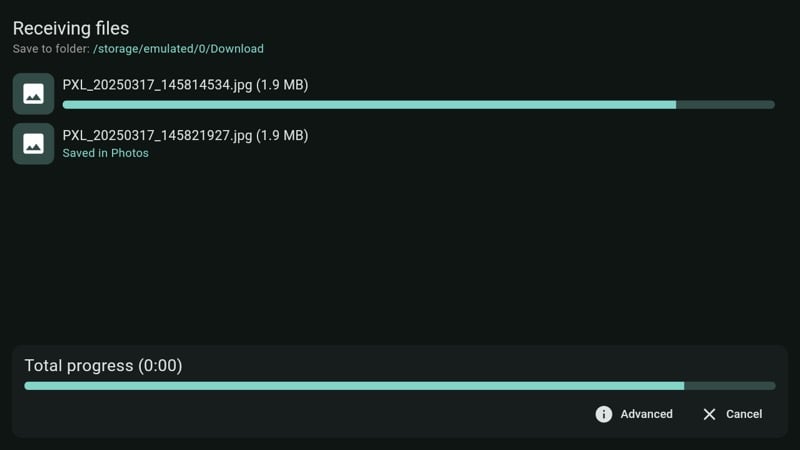
Installing LocalSend on your Android TV is helpful in situations where you want to view photos, videos, or documents present on your Android, iPhone, Mac, or Windows PC on a big screen. Just transfer them over and open them on your TV for the best viewing experience. You can also transfer APK files to your TV using LocalSend and install them.
VLC
If you play a lot of audio or video files stored locally on your Android TV, VLC Media Player is a must-have app for you. It’s completely free to use and supports a range of file formats, which enables you to play almost all kinds of media files, including MPEG-2, MPEG-4, and WMV.
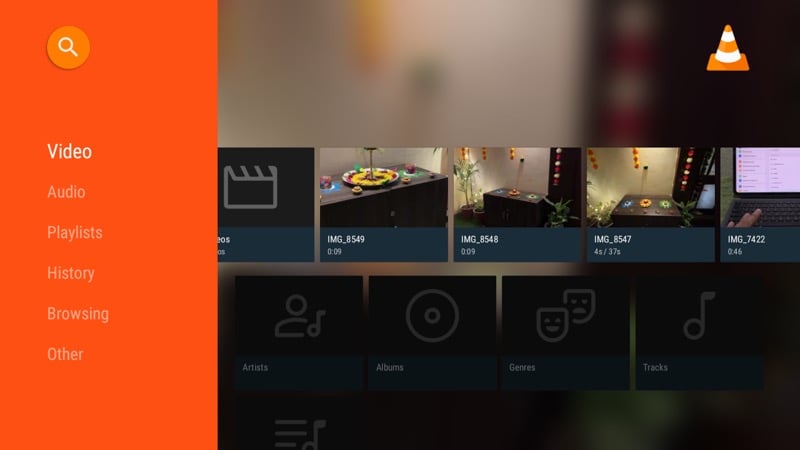
Besides, the VLC media player also supports streaming content over a network. This means you can use it to stream content present on your computer or another device (such as a home server) directly to your TV over a network, saving yourself the hassle of transferring it over first.
VLC is highly customizable and lets you tweak a bunch of settings per your preference. There are some advanced playback options available, too, which you generally don’t see on other media players.
Kodi
While VLC can play almost all kinds of audio and video files, if you want a more advanced media streamer and player, then Kodi is your best choice. For those unaware, Kodi is a free and open-source entertainment hub for all your media management and watching needs.

Out of the box, Kodi lets you play almost all kinds of audio, video, and image formats, be it those stored locally on your Android TV or the ones available on network storage. But by installing add-ons, you can use the app to access streaming services and content from the internet.
Kodi is also known for being highly customizable. It’s known for skins, which are essentially themes that change the look and feel of the media player and let you personalize the overall interface per your style. You may also opt for skins that add new functionalities or offer additional information right on the main screen.
Jellyfin
Jellyfin is a free and open-source media server app. It’s a popular alternative to Plex, which you may have heard about a fair bit if you’re into managing your media library. You can install it on your Android TV to access all your media files across different devices, such as your computer, NAS, or home server.
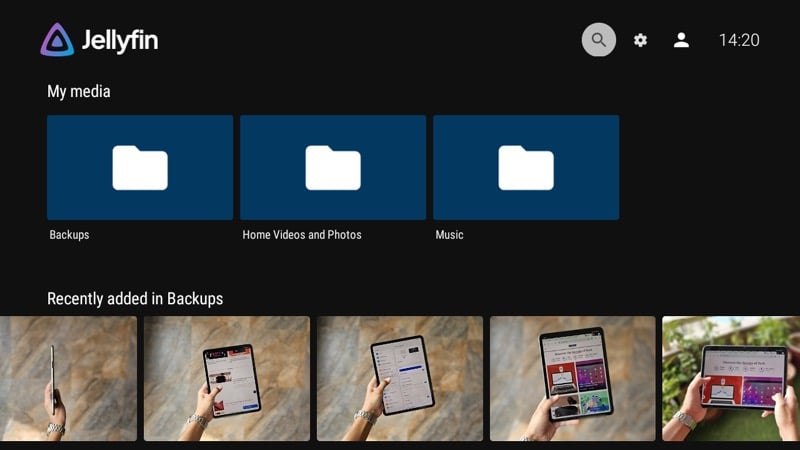
Setting up Jellyfin is easy. You start by installing the Jellyfin server on your main device that comprises all your media and go through the basic configuration. You may even set up remote access, which requires a little know-how, to access the media library from anywhere. After this, you can simply use the Jellyfin app on your Android TV to access your entire library.
While Plex generally offers the best experience, Jellyfin is a great starting point for those starting out with personal media servers. It’s also the best choice for those who care a little more about privacy, as it offers complete ownership over your data.
AirScreen
AirScreen is essentially a media streaming receiver app for your Android TV that allows you to stream content from various devices onto it wirelessly—without the hassle of getting a cable, Chromecast, or any other device. You can use it to stream everything from photos, slideshows, webpages, and videos (from different apps), as well as your device’s entire screen onto your TV.
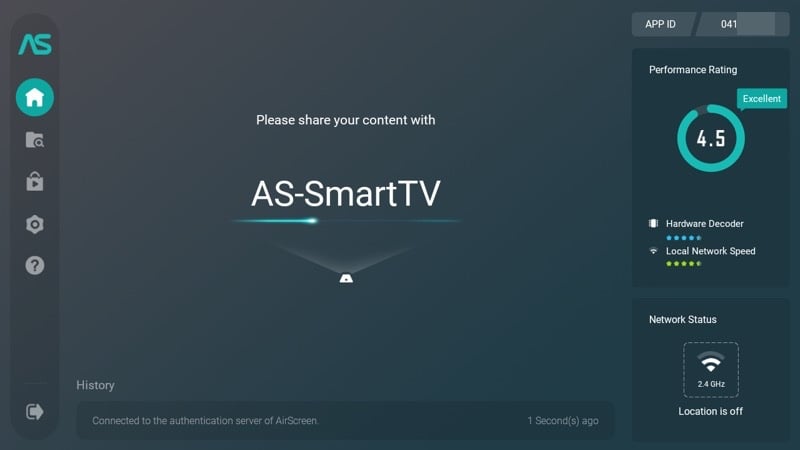
Since AirScreen supports multiple casting protocols, including AirPlay, Cast, Miracast, and DLNA, it’s quite versatile. As a result, you can stream content to your TV using it from all kinds of devices, be it your Android phone, iPhone, iPad, Mac, or Windows PC. All the content is transferred in an encrypted manner.
Setting up and using AirScreen is pretty easy. Simply open the receiver app on your TV and scan the QR code you see on the TV using the device from which you want to stream content. Once connected, you can start mirroring the screen or content as you normally do.
tvQuickActions – mapper for TV
tvQuickActions is a powerful tool that allows you to remap the buttons on your TV’s remote control. This may usually come in handy when a button on your remote—except for the Home or volume buttons—is broken. However, you may also use it to remap unused buttons on your remote and put them to some better use.
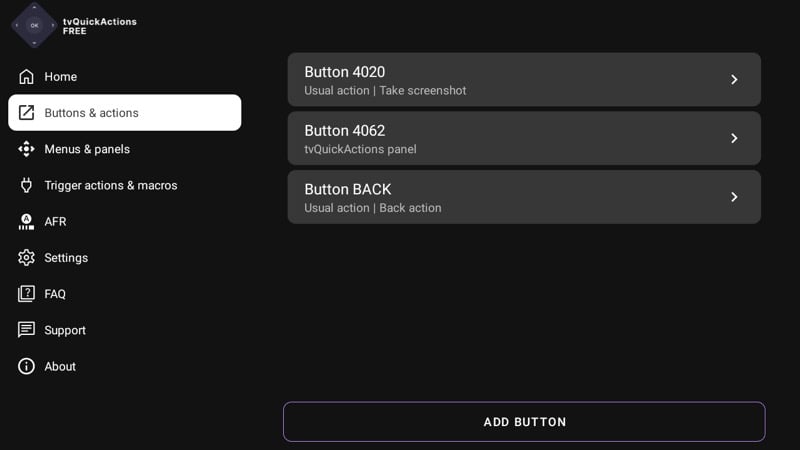
For example, if you don’t use the Netflix key on your button, you can map more useful actions to it. This can include toggling Bluetooth, taking a screenshot, opening the recents menu, or jumping back to the previous app, among other things. You can even assign it an app.
While similar tools exist, what’s nice about tvQuickActions is that it lets you map up to five actions to a single button. Basically, it allows you to create a quick actions panel that brings up an overlay on the screen with five navigation keys (left, right, up, down, and center). Alternatively, you can stick to standard mapping—single press, double press, and long press—and assign actions to them.
Note: The tvQuickActions app is known to stop working automatically after a reboot on some TVs. If this happens to you, too, you can head into your TV’s accessibility settings, then revoke its permission and grant it access again.
File Manager+
File Manager+ is another must-have app for your Android TV. It’s a full-fledged file manager with a simple UI and all the essential features you need to access and manage files stored on your TV or external devices, like SD cards or external storage drives.
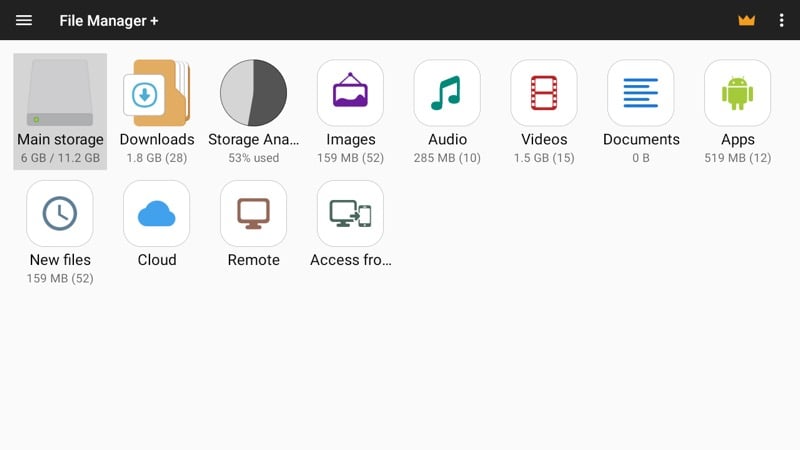
As a result, if you often transfer photos, videos, or other documents to your TV for viewing or playing them, this makes it easy to do so. Similarly, with File Manager+, you can also access files stored on your other devices, cloud storage service, or home server. Plus, it lets you install APK files, too, so you can easily sideload apps on your Android TV.
Lastly, File Manager+ supports file archiving and unarchiving. Thanks to this, you can easily compress and decompress archives in various formats right on your TV.
Browser
Browser is a full-fledged browser app for Android TV. You can use it anytime you want to access a website or look up something online on your TV.
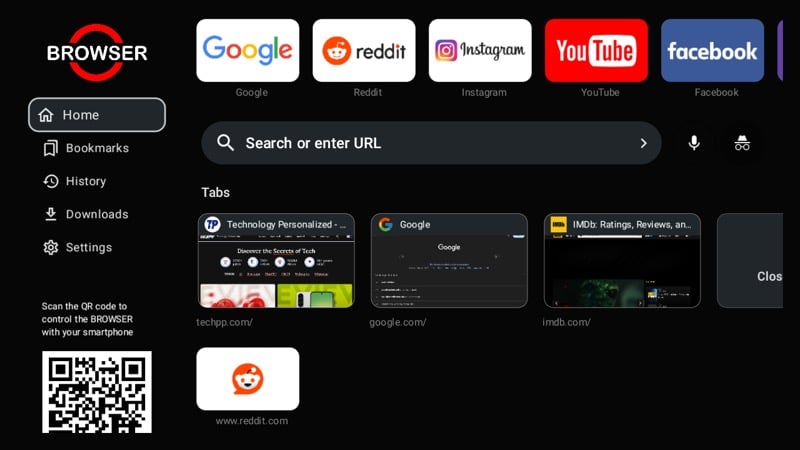
The interface is nicely laid out with shortcuts for the most popular websites at the top for easy access and your recently/frequently visited websites listed at the bottom. Below the quick access shortcuts, you get a search bar where you can type your query or website name to look it up. The app also supports private browsing for times when you don’t want it to keep a history of the sites you visited in a session.
Browser supports downloading, too, which can be useful when you want to download an image, video, or document directly on the TV. For an easier browsing experience, you can scan a QR code and control the Browser app on your Android TV using your smartphone.
Windscribe (Or Another VPN)
Windscribe is a popular VPN that helps you browse the internet privately and unblock geo-restricted content across various apps and websites on your Android TV. This means you can easily access content on websites or apps that aren’t available in your region without risking your privacy.
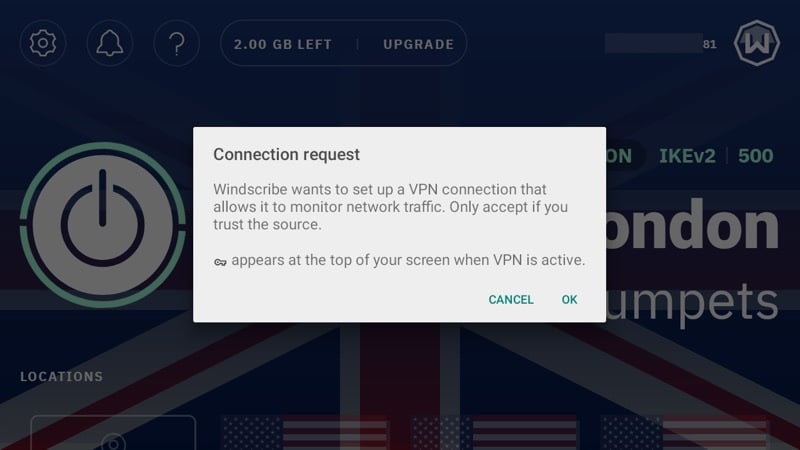
The app is easy to use and offers a pretty generous free plan: you get access to servers in 10 countries (including the US, Canada, and the UK) with a 10GB monthly limit, which is suitable for casual streaming or browsing. For heavier use, you can upgrade to Windscribe’s pro plan, which removes all the restrictions. Browsing and streaming speeds are generally pretty good, even on the free plan.
Although we’ve listed Windscribe here, there are several other good VPN apps for Android TV that you can check out on the Play Store app on your Android TV. Or, if you already use a VPN, you can look it up on the Play Store and download and use it instead.
Unlock Your Android TV’s Full Potential
Installing the apps we’ve discussed above will help unlock the full potential of your Android TV. All apps on the list are available on the Play Store, and you can download them easily—just like you do on an Android phone. While there, you can also explore, search, and install other apps as per your requirements. However, if you don’t see an app you want on the Play Store, you may sideload it on your Android TV.

