

In Summary
- Project Indigo is a free photography app developed by Adobe and is currently available for the iPhone.
- The app is designed to deliver photographs with DSLR-like reality and a ‘natural look’ on phones, instead of the highly processed output that one generally gets with oversaturated colors and high levels of exposure.
- One of those involved in the development of the app is Marc Levoy, famous for his role in Google Pixel’s photography. Not surprisingly, Project Indigo also comes with plenty of computational photography and AI muscle.
Smartphone cameras have come a long way, offering a level of image quality and control that is not too far from that of ‘proper’ cameras. That said, for many photographers, the quality of smartphone photographs even now is nowhere near that of DSLR cameras, which are considered the Holy Grail of photography.
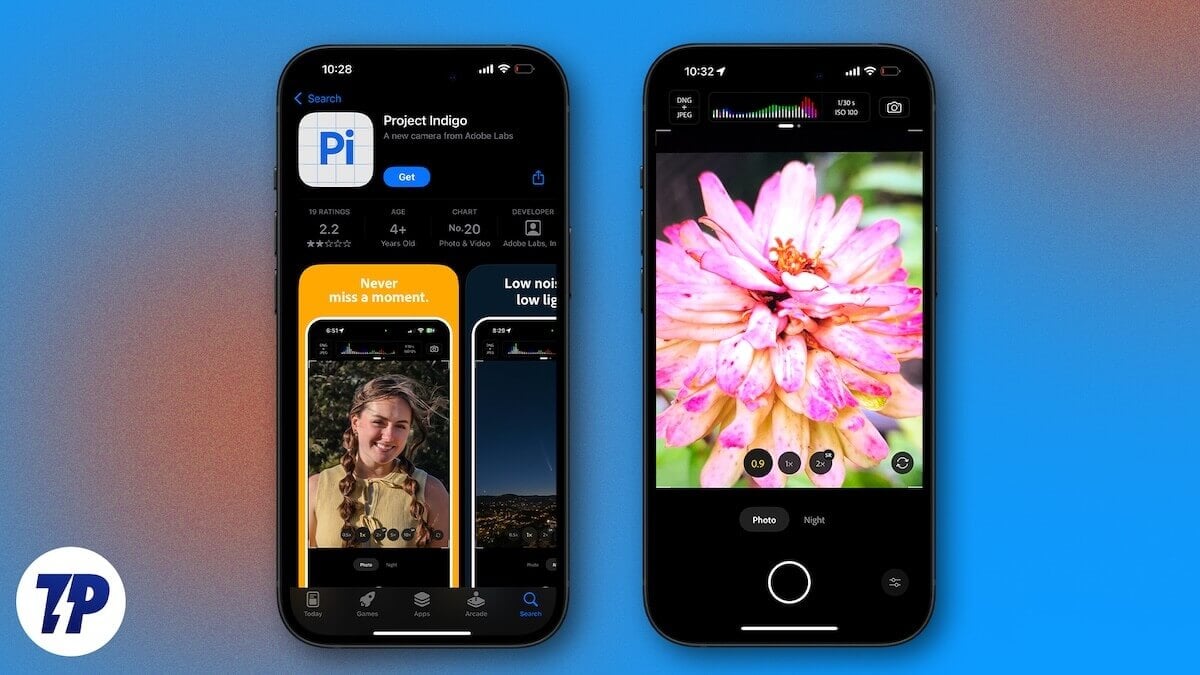
Smartphone photographs are considered too “artificial” and “not real enough,” because of their tendency to oversaturate colors and sharpen images, delivering pictures that are pleasing to the eye but far from reality. Adobe has taken it upon itself to bridge this gap and come out with a free, experimental camera app for iPhone to deal with the ‘processed, smartphone-ish’ look of photos. Called Project Indigo, the app basically uses tools like computational photography and AI to “fix” the issues that many face with general smartphone photography – oversaturation, incorrect contrast production, artificial sharpening, and others.
Interestingly, among those involved in the development of Project Indigo is former Googler Marc Levoy, famous for his role in Google Pixel’s famous computational photography. But does Project Indigo succeed in its objective of delivering images that are not just high in quality but, more importantly, are closer to reality?
How to Download Project Indigo and How it Works
Project Indigo is free to download from the iTunes App Store (link below). It is a 245 MB download and is compatible with iPhone 12 Pro and later, and iPhone 14 and later among the non-Pro versions of the iPhone. Adobe itself suggests using iPhone 15 Pro or later as the app uses a lot of resources because of the “heavy computing” involved in capturing and processing images. Using the app is simple – it does not require users to sign in or use an Adobe account and opens the camera when you launch it. No, there is no Android version at the moment of writing.
Project Indigo offers two shooting modes– Photo and Night. The UI is simple and uncomplicated. You get five zoom-in options as well as the option of pinching to zoom in, manual control over ISO, shutter speed, exposure, focus, tint, and temperature. You also get auto mode on the app, which decides all of these settings for you based on your subject. You can set the shutter speed from anywhere between 1/64000s to 1s in Photo mode and up to 32s in Night mode, while the ISO range goes from 20 to 12,500.
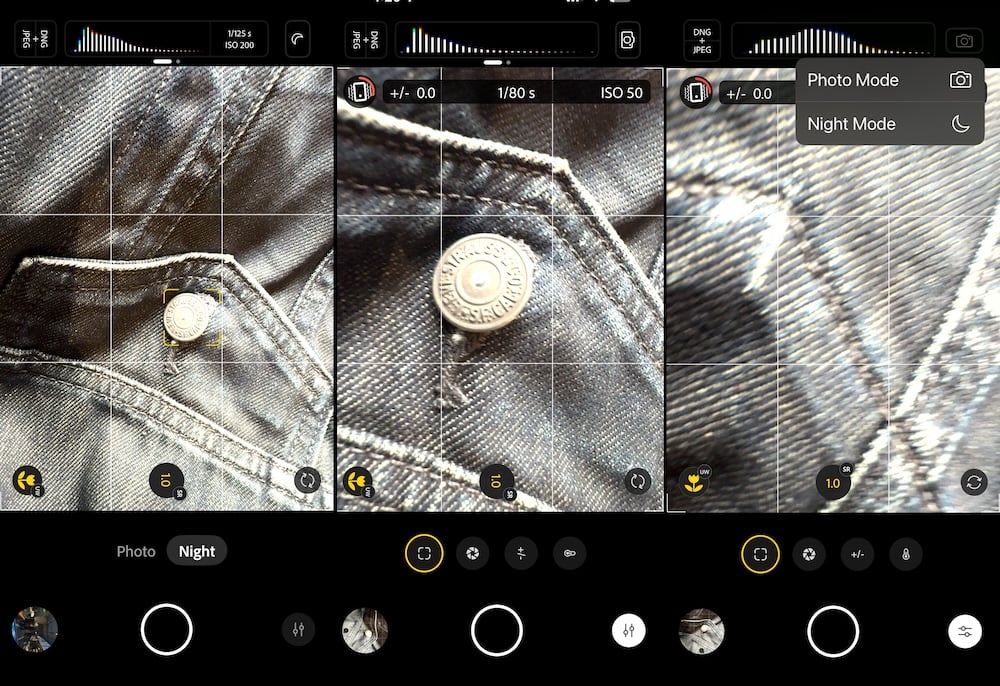
On top of the app, you can choose file type (DNG+ JPEG, in which DNG is a format that retains the image of RAW photography without making the files too heavy, or just plain old JPEG). It also has a histogram displaying shutter speed and ISO. Swiping left from the Histogram reveals a small deck of options like self-timer, grids, level, exposure, zebra stripes for exposure, and advanced settings. There are two ways of switching between Night mode and Photo mode – you can either tap the camera icon in the top right corner or simply choose between Photo and Night below the viewing area. At the base of the app is the shutter button, flanked by a link to the photo gallery and an option to switch from manual to auto mode and vice versa. Interestingly, there’s no video mode or even a portrait mode on the app.
Project Indigo works by capturing a burst of photos, as many as 32, to combine them into one high-quality image. This is paired with computational photography magic, which intentionally underexposes images more than a usual smartphone camera for better preservation of details. By doing this, Adobe claims you get a photograph that has better dynamic range and minimal noise, as compared to standard photograph snaps. The app also comes with AI features like AI Denoise and Remove Reflections, although both involve downloads and work only with shots taken in DNG+JPEG mode. All of this to deliver images that are more “DSLR-like.”
Very impressively realistic, but not the default camera app replacement…yet
We have barely scratched the surface of Project Indigo over the past couple of days, but it is apparent to us that if you are a photography purist, then Project Indigo is a big step forward when it comes to iPhone photography. The images captured by the app might appear a little darker and maybe even a little dull as compared to the snaps you generally get from your smartphone camera, but they have much less noise and offer better dynamic range. Most importantly, you quite often get what you shoot – colors do not seem exaggerated, and shadows do not get artificially brightened. Night mode is generally very impressive too, with the app refraining from trying to light up darker areas, and coming with significantly less noise and grains. Digital zoom is another highlight of the app as it dramatically reduces noise by using multi-frame super-resolution and actually turns in quite usable results even in 10x zoom.
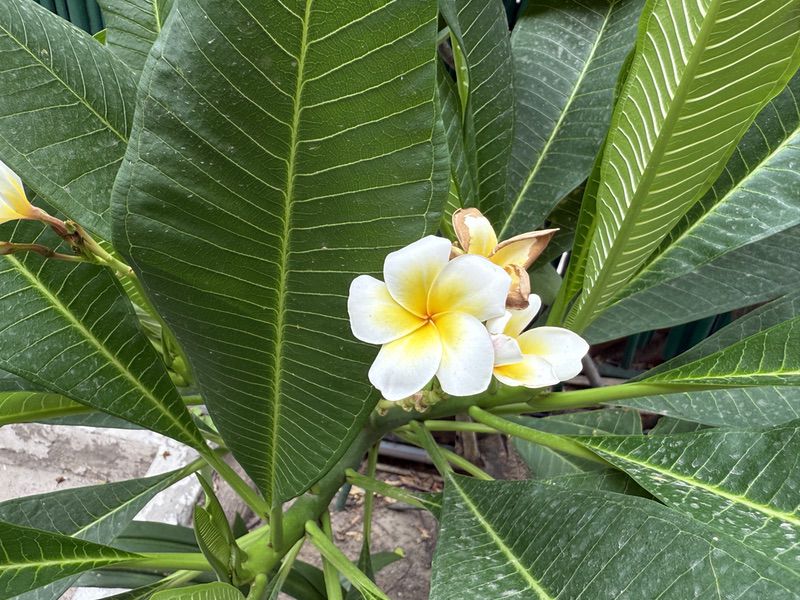

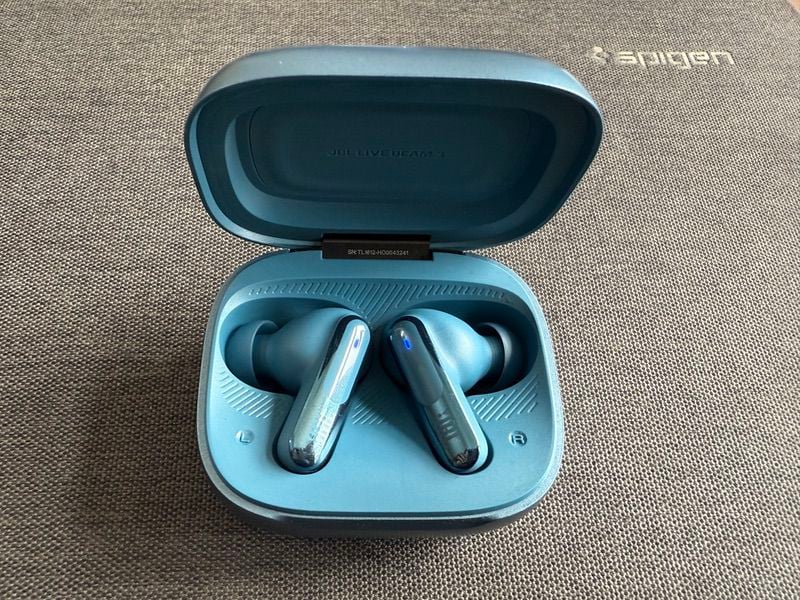

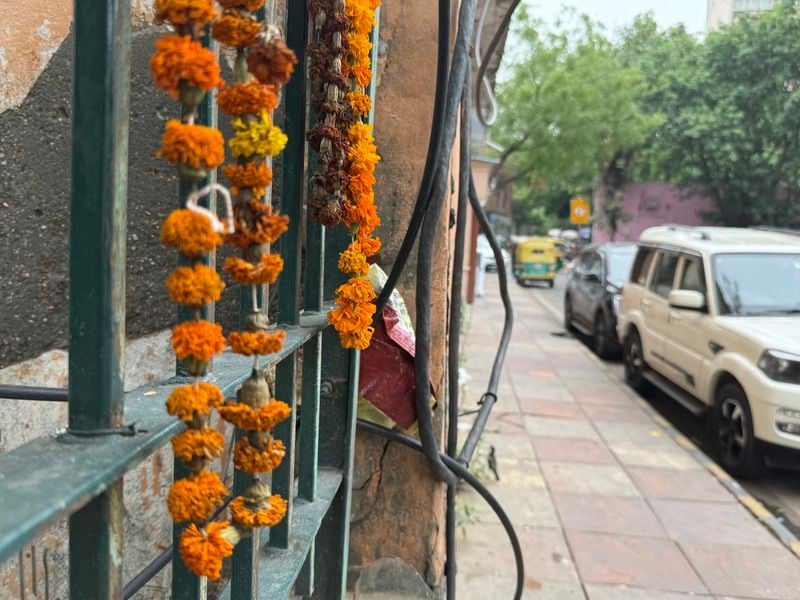
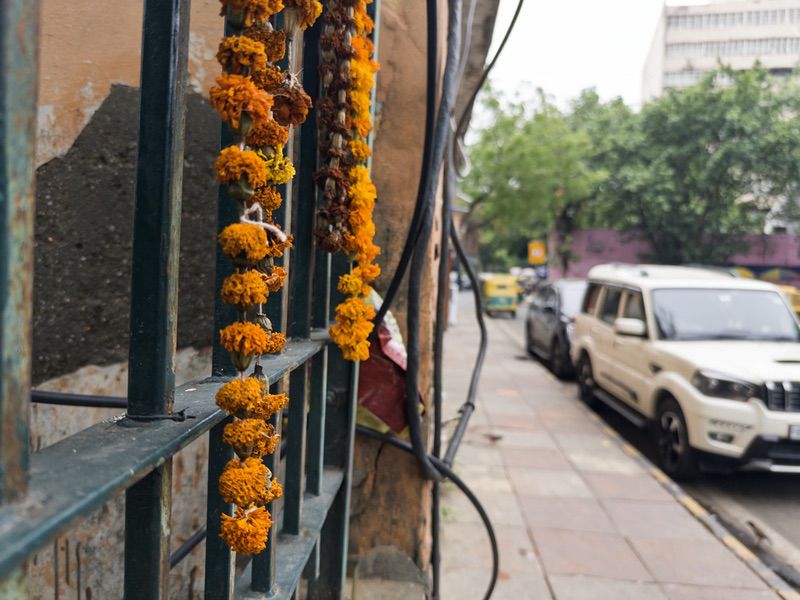

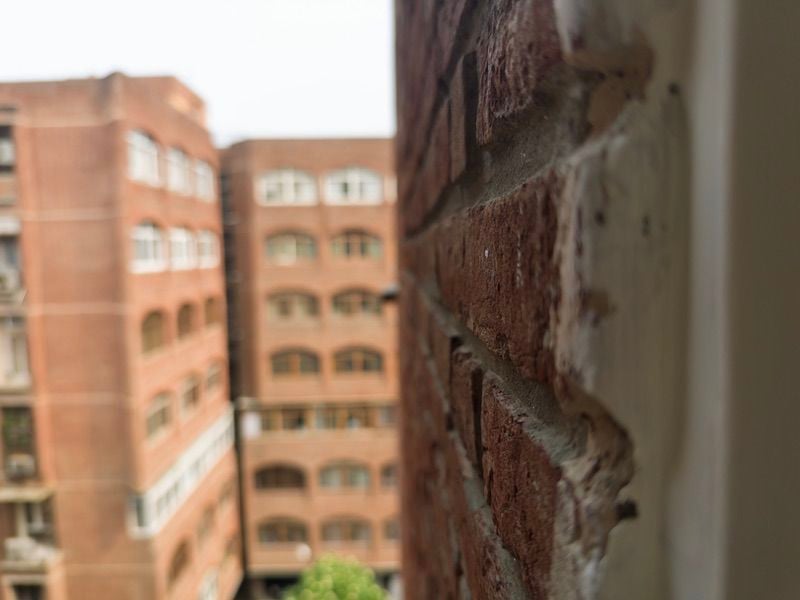
The manual controls are handy if you like to fiddle with settings. We must confess we did not use them much, as we have sort of forgotten our DSLR days, but we will be using them more extensively in the coming days. Another notable aspect of images taken with Project Indigo was that we often got very natural bokeh in close-ups when shots taken from the default camera app did not carry much bokeh. Just as in the main camera app, Project Indigo also advises you to switch to macro mode when it senses you are close to the subject, and yes, you can switch between the front and selfie sensors too.
Mind you, Project Indigo is not going to be everyone’s cup of tea. Some find its output a little dull, and well, the app does take time to capture images. You will hit the shutter, and depending on the light conditions (it takes longer when it is dark), you will find yourself waiting for a few seconds before you can see the image, as the app’s computational magic works away to combine images. Results can also be a little inconsistent, especially in night mode, where we found different levels of detail and even subtle changes of color in snaps taken in quick succession. A major issue with the app is that it tends to make the phone heat up – our iPhone 16 Pro Max and iPhone 13 Pro both got warm while taking a few shots and began displaying warning messages. The fact that the app depends on capturing multiple shots also limits its use when it comes to capturing fast-moving objects.
So, should you be using Project Indigo? It certainly cannot be a replacement for your default camera app as it does not have a video mode or portrait mode, and is slow in terms of processing images. However, if you love DSLR quality photography and are the type who has the time and inclination to set up shots, then this is definitely an app worth downloading and looking at.
For your everyday use, we suggest you stick to the default camera app. For the moment at least. Project Indigo is, after all, an Adobe app. It will only get better. DSLR fans will feel that it has already made a very good start. We hope it comes to Android soon.

