

Quick Answer
To enable the hidden OCR feature in Windows 11 Photos app, update the app, access the Registry Editor via regedit, load the Photos app settings file, and apply specific registry keys. Once enabled, you can extract text from images directly using the Photos app.
Extracting text from images has become much easier than before, thanks to the different third-party OCR software available on the internet. In fact, multiple online websites give you the option of the OCR (Optical Character Recognition) feature, where all you need to do is upload the image and let the image be processed to get your extracted text. Microsoft offers multiple image-related tools, such as the Snipping Tool screenshot app, then there is a Photos app for viewing images, and then you can download a host of other image-related apps from the Microsoft Store.

However, did you know that there is a hidden OCR feature in the Windows 11 Photos app that eliminates needing a third-party program or app for OCR features? For some reason, Microsoft hasn’t introduced the feature for all users, and it needs a bit of tinkering to enable and use. Luckily for you, we have prepared this guide that will walk you through all the steps you need to enable OCR in the Photos app. Let’s jump right into it.
What is OCR, and when can it be useful?
The full form of OCR is Optical Character Recognition, which does what it says. The technology lets users extract characters, most commonly texts, from an image. The best part is that the technology can extract texts from images of documents, screenshots, and even handwritten notes. OCR not only extracts texts or characters from an image but also gives you content in editable and searchable form. While the feature has countless applications, some of the most important ones are listed below:
- Fixing a scanned document: We often come across various documents that require fixes in multiple areas. In such cases, instead of following the tedious process of retyping text from images, users can make use of OCR and directly copy and paste the contents onto the document. Fast and easy!
- Makes data entry a breeze: If you are someone who has to deal with multiple bills and feed them into data entry software, then you will find OCR technology to be of great help. You can extract text or characters from receipts, invoices, business cards, or other documents.
- Translation becomes easier: For those who have received a note in a different language, you can use the OCR technology and copy and paste the text into a translation software for quick translation.
How to turn on the hidden OCR feature in the Windows 11 Photos app?
Do note that the OCR feature is hidden and is not available to the general public at the moment. Also, you need to ensure that you are running the latest version of the Photos app to make the below steps work. If you are not sure, then head over to the Microsoft Store, get the latest Photos app, and then get started.
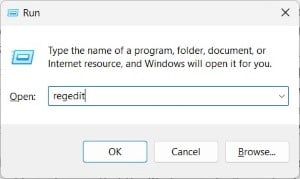
- Press the Win+R keys to open the Run dialogue.
- Type regedit and press Enter to open the Registry Editor.
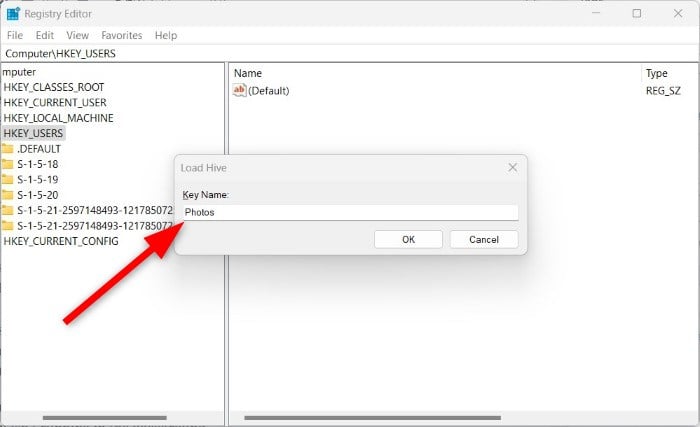
- Press the File option at the top menu and then select Load Hive from the drop-down menu. In case the Load Hive option is grayed out for you, you need to ensure that you have either HKEY_LOCAL_MACHINE or HKEY_USERS selected, then only the Load Hive option becomes available.

- Navigate to this location by copying and pasting it in the search box: %localappdata%\Packages\Microsoft.Windows.Photos_8wekyb3d8bbwe\Settings\settings.dat
- Select the .dat file.
- If prompted, type Photos as the Key Name and press Confirm.
- Now, you need to create a .reg file. Copy and paste the below text in the Notepad app and then save it with .reg extension.
Windows Registry Editor Version 5.00[HKEY_LOCAL_MACHINE\Photos\LocalState]
“ExperimentationOverrideEnabled”=hex(5f5e10b):01,41,3f,99,74,67,16,db,01
“ExperimentationOverride_ViewerOcr-IsEnabled”=hex(5f5e10b):01,9d,e2,9a,ee,81,3b,db,01
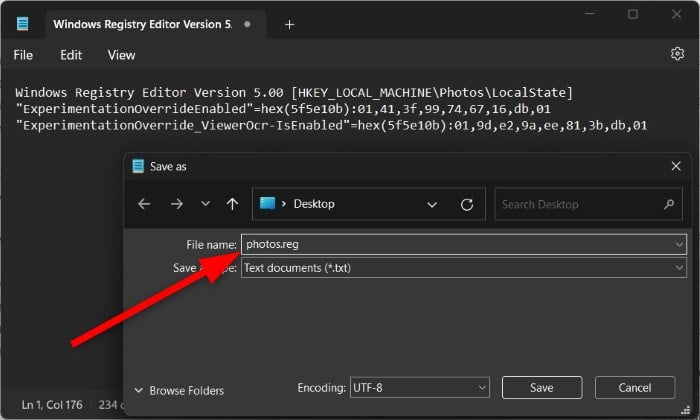
- After saving, double-click on the newly created .reg file to load it into the Registry.
- In the Registry Editor, head back to HKEY_LOCAL_MACHINE, select the Photos key, and then go to File > Unload Hive.
Once you do the above step, the OCR feature will be enabled for you in the Windows 11 Photos app. However, if you get into some issues, then you need to make sure that the Photos app isn’t running in the background.
The OCR feature in the Photos app is turned off by default. Speaking of how it works, it works similarly to other optical character recognition software. When you load an image with text in it, you will see a new Scan icon in the center of the bottom bar. Then, all you need to do is drag and select it to copy it. The feature works very well; it can even recognize stylized icons. Here’s an example, as spotted by eagle-eyed Windows users @phantomofearth on social media platform X.
Tips to get better OCR results
Although the OCR feature works well in the Photos app, there are a few things that, if kept in mind, can help produce better OCR results:
- Try always using high-quality images. Images with better resolution that read texts perfectly will help the feature extract contents easily.
- Ensure that the image doesn’t have a busy background, and the text should be clear.
- Align the image perfectly so that the OCR doesn’t have any issues with extracting contents.
Best online OCR websites for free
If you find the above steps a bit complicated for your taste, then don’t worry. Because multiple websites offer this service for free. While Microsoft Photos doesn’t offer the OCR feature yet, here are a few of the best online websites that can get the job done in the meantime for you:
Final thoughts
The hidden OCR feature in the Windows 11 Photos app could be a great tool for those who want built-in convenience, integrated workflow, offline capability, and improved productivity. However, the feature is still not available widely to anyone and is buried inside multiple steps. Let us know in the comments below if you have tried the above steps and were successful in enabling the hidden OCR feature in the Windows 11 Photos app or not. For other image-related tasks, we have compiled a list of the best screenshot apps that you can download for Windows.

