

The best thing about a MacBook is the incredible battery life you get compared to a Windows laptop, but Macs are notorious when it comes to charging. While they offer so many great features like optimized charging and battery saver mode, sometimes your MacBook may not charge, either due to system protections or other reasons.

If you, too, are facing the problem of your MacBook not charging and wondering what to do about it, you’ve come to the right place. In this article, we will introduce you to several ways to fix a MacBook that won’t charge.
We’ll start with the most basic steps you should take right away and then move on to more advanced solutions. By the end of this blog, you’ll be able to fix your MacBook when it stops charging. So, let’s take a look at the first step to fix the problem.
Table of Contents
Check the charging Cable and Adapter
In many cases, a bad charging cable or adapter can be the reason why your MacBook won’t charge. In this case, you should first check if your charger and cable show signs of wear and tear, and if there are cuts on the cable or your charger is broken, you should get a new one, as the old charging adapter and cable could be the cause.
You can check your charger and cable by charging another phone or USB-C device with it. If you’re charging your Mac with a MagSafe cable, you can try plugging it into another Mac that supports MagSafe charging.
Always remember to charge your Mac with either the original charger and cable or if you don’t have an original charger and cable or they are broken, use a high-quality charger and cable from a trusted brand. Our article on the best MacBook accessories will help you to get one.
If you charge your Mac with the Magsafe cable, use the cable that came with your MacBook or get one from Apple. There are a few more tips to keep in mind when buying a new cable and adapter for your Mac:
- Get a charging adapter that supports PD charging. Otherwise, your Mac will not be able to charge properly.
- Get a charging adapter that is capable of delivering appropriate wattage to your Mac. For example, a 30-watt charger is sufficient for a MacBook Air but is not capable of fast charging a MacBook Pro.
- Don’t get cables attached to chargers; if they break, you’ll have to get a whole new set again.
Try to clean the charging port and plug the cable properly
Every MacBook from 2012 to 2023 uses only two types of charging ports, either MagSafe or USB-C. If you’ve used a MacBook in the last few years, you can assume that a defective charging port on your device could be the reason your MacBook isn’t charging properly. A bad charging port doesn’t necessarily mean it’s broken. Sometimes, dust and dirt get into the port, making it less efficient to charge.
If you have a MacBook from 2012 to 2015 or a MacBook Pro from 2021 to 2023, you need to charge it with the MagSafe port. Try cleaning the port with 99% isopropyl alcohol and cotton swabs, but if you don’t know what to do, we recommend you visit your nearest Apple Store and ask them to check what’s wrong.
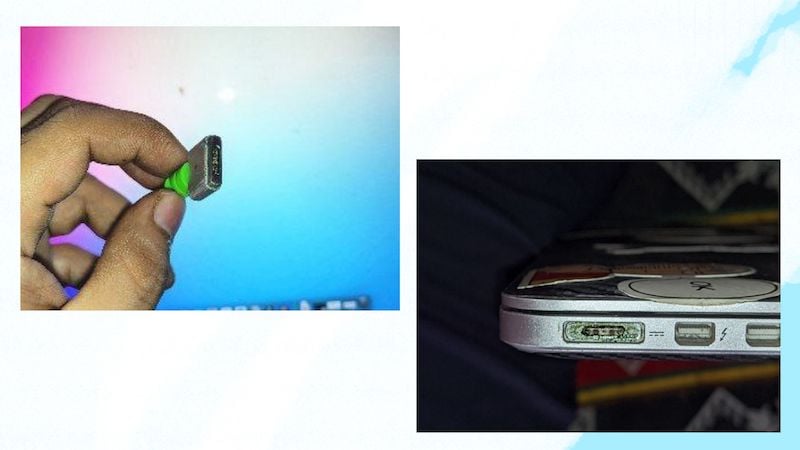
If you’re using a MacBook from 2016 to 2019, charge it with the USB-C port. There’s not much you can do with the USB cable, but remember that these Macs are notorious and plagued by all sorts of issues, like bad USB-C ports and bad keyboards – a bad USB-C port could be the reason your MacBook won’t charge. There are a few things to watch out for if your MacBook isn’t charging through the USB-C port:
- Check that the USB-C cable is properly plugged into your MacBook.
- Check if the USB-C port is damaged in any way (e.g., physically or by water).
- Check if your Mac is charging through another USB-C port. If it is charging through another port, the port into which you previously plugged the cable is damaged.
If you find that any of the above issues apply to your MacBook, it’s best to contact Apple support, and they will help you fix the problem.
Restart your MacBook
Sometimes, a quick restart is all you need to fix little problems like this. If your MacBook isn’t charging properly, you should try rebooting your machine, as a reboot can cool down your hardware and reduce overheating or even fix small logical errors in your operating system that are causing your Mac not to charge properly. Follow the steps below to restart your MacBook:
- Click on the Apple logo on the upper left-hand side corner of your MacBook.
- Then click on Restart.

- Then click the Restart button in the pop-up window.
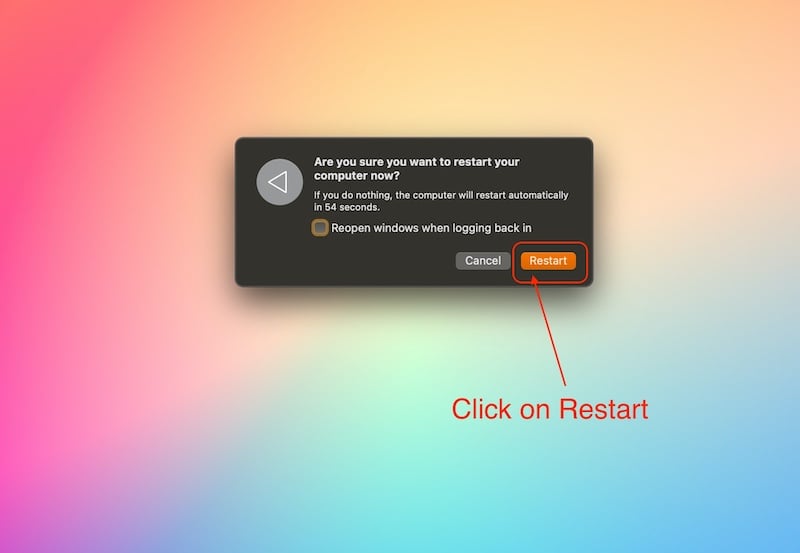
- Once the Mac has restarted, enter your password to log in.
Restarting your MacBook will cool down most of the components and resume charging, which will fix the problem of the MacBook not charging. However, if the problem still persists, you should follow the next step.
Check your MacBook’s Battery Health
The main reason your MacBook won’t charge properly is poor battery condition. Old MacBooks tend to lose their charging capacity after a few years, and no matter how often you charge your MacBook, you will always have to deal with some kind of problems. To find out the condition of your Mac’s battery, you need to follow the steps below:
1. How to check the battery level on newer Macs running Mac OS 10.14 or later:
- Click on the Apple logo on the upper left-hand side corner of your MacBook
- Open the System Preferences or Settings app.

- Then click on Battery settings.

- Click on Battery.
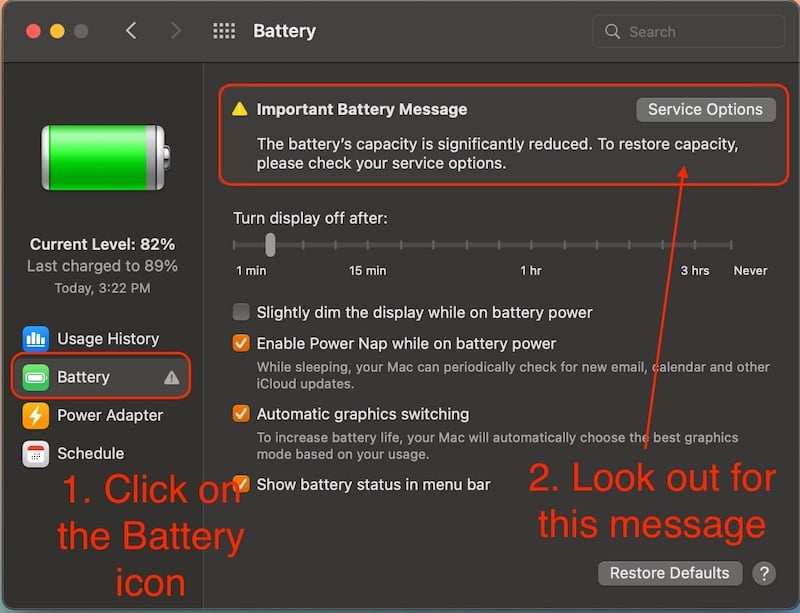
- If you get an Important Battery Message or your Mac displays the Service Recommended message, it’s time to replace the battery. A bad battery can not only reduce your Mac’s performance but also cause many problems, such as your MacBook not charging properly or turning off randomly.
2. Here’s how to check the battery condition on older Macs running an operating system under Mac OS 10.14 (Macs older than 2012).
- Click on the Apple logo on the upper left-hand side corner of your MacBook
- Click About this Mac.

- Click System Report.

- On the Hardware tab, click on Power Options.
- Under Battery Information, check the Health Information.
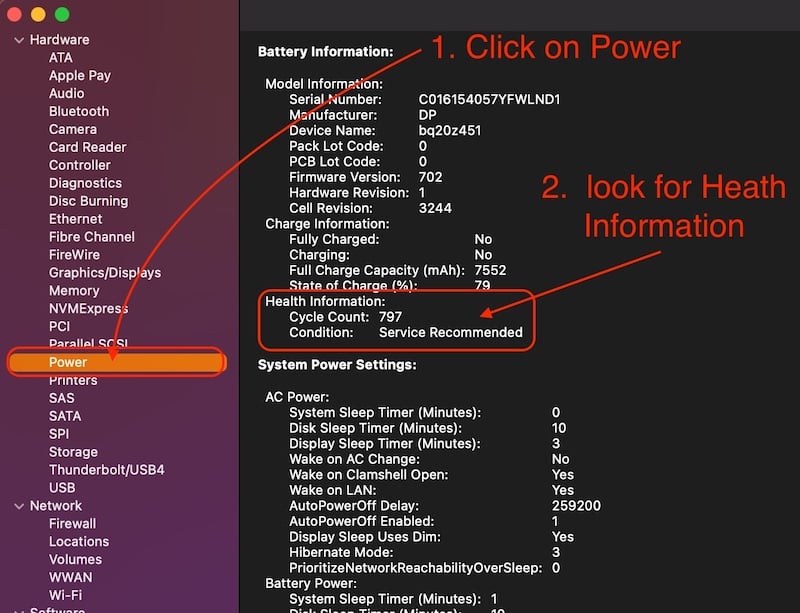
- If the condition reads ” Service Recommended,” it’s time to replace your MacBook’s battery.
If your MacBook’s battery health is fine, and you still have the problem that your MacBook is not charging. Then, you can follow the next step to fix this problem.
Disable MAC Battery Utilities
Mac battery utilities are apps designed to improve the battery health and battery life of your MacBook. These are great apps that can improve the condition of your Mac’s battery, but sometimes, these apps can cause problems and prevent your MacBook from charging properly.
There are many Mac battery help apps like Amphetamine and Al Dante. You should use them only when you think it is necessary and quit them immediately when your work with these apps is finished. This is how you terminate such apps:
- Just open these app preferences by clicking on the app icon in the menu bar.
- Then pressing CMD + Q to quit them.
Also, remove these apps from Mac Startup if you have added them before. If you don’t know how to remove apps from Mac Startup, you can find the full instructions here: How to add and remove apps from Startup.
After disabling these programs, you should no longer have the problem of your MacBook not loading. However, if for some reason you are still unable to charge your MacBook or are having trouble charging your MacBook, the next step will fix the problem.
Update your MacBook Pro
Software updates are an important part of macOS. Apple has provided important software updates for every MacBook for years and continues to do so to improve the Mac experience over time. These software updates can fix many issues, such as the MacBook not charging or running slowly.
You should update your MacBook’s software whenever Apple releases an update for your device. Here are the steps to update the software on your MacBook:
- Click on the Apple logo on the upper left-hand side corner of your MacBook
- Click on System Preferences/ Settings App.
- Click on Software Update, and click on Update now.

Once the software on your MacBook has been updated, you can try plugging your Mac into the charger again and see if the problem persists.
Reset the PRAM on your MacBook
PRAM stands for (Parameter Random Access Memory). PRAM plays an important role in the functioning of the operating system; it stores all the default values of things like volume, alarm, scaling startup disk, and much more; you can think of it as the memory responsible for restoring your Mac to the state you left it in before restarting.
When PRAM memory gets corrupted, it can lead to problems like Mac sound not working, or MacBook won’t charge. Here are the steps you need to follow to fix the problem:
- Turn off your MacBook.
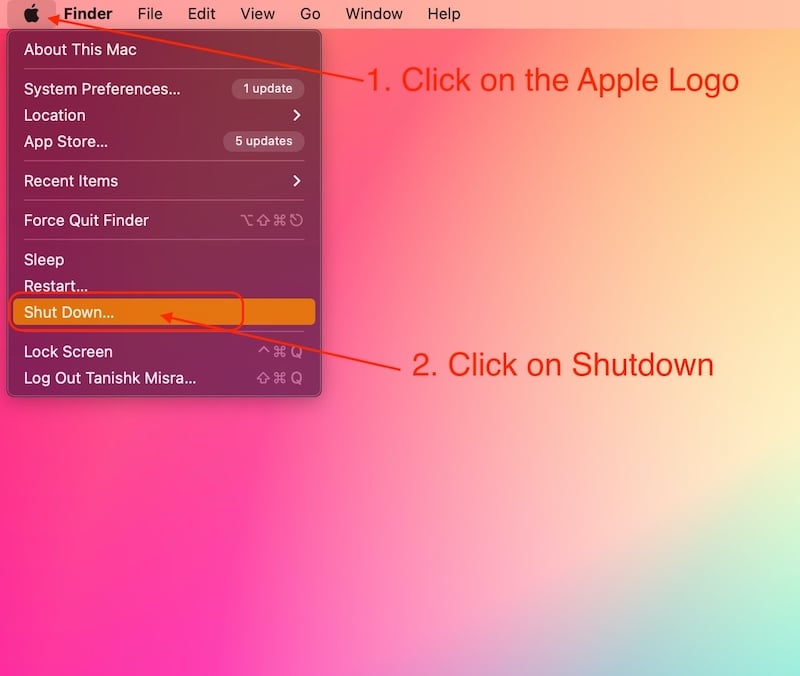
- Then, turn it back on by pressing the power button.
- As soon as you hear the startup sound or see a light on the display.
- press this button combination simultaneously, [Ctrl + Option + R + P].
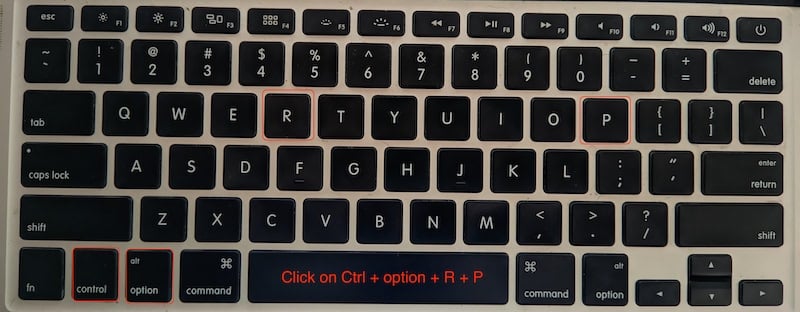
- Release all 4 keys once your Mac has restarted.
This will reset your MacBook’s PRAM, and you won’t have any more problems like your MacBook not charging.
Let your Mac cool down
If you have an Intel MacBook, this is a very important step for you. If you are performing any CPU or GPU-intensive task on your Mac, it is important to know that your Mac can suspend charging until your MacBook cools down to ensure that your hardware is not damaged by excessive heating.
This problem is most common with Intel Macs, but Macs with an M-series chipset can also be affected by this problem, although it is not as common with MacBooks with an M-series chipset. This could be the main cause of your MacBook not charging. Once you let it cool down for a while, the MacBook will charge again.
You can also follow these steps to stop your Mac from overheating :
- Try to use your MacBook in a place that has some kind of air ventilation.
- Don’t always use your MacBook when it’s plugged in. Unlike Windows laptops, Macs don’t lose performance when they’re not plugged in.
- If you’re using an old Mac, it also helps to replace the thermal paste.
Once your MacBook cools down, it will resume charging again, and you can use your MacBook normally.
Use all the tricks to fix the MacBook not Charging
If you follow all the steps correctly, your MacBook should charge again, and you should have no more problems. We’ve covered all the important steps from checking the power adapter and cable to resetting the PRAM, but if for some reason you’re still facing the problem of The MacBook not charging properly, it’s a good idea to contact Apple support or check if you have a problem with your Mac’s hardware. Sometimes, the best solution is to have Apple service your MacBook.
But if it’s a small problem on the software level or a broken plug, cable, or charger. These steps will fix the problem, and you can use your MacBook again without any issues.
FAQs about MacBook Not Charging
1. Why is my MacBook not charging even after it is plugged in?
There are many reasons why your MacBook won’t charge properly or at all, and you’ll have to check it yourself by following all the steps mentioned in the blog above, but the most common reasons for your MacBook not charging properly are overheating and a faulty power adapter and cable. Let your Mac cool down and check if the power cord and adapter are defective.
2. Is there any way to force-charge my MacBook Pro/ Air?
Yes, there is a way to force-charge your MacBook, but it may not be good for your Mac battery health. All new Macs have a feature called ” Optimized Battery Charging” that you can disable. You can disable this feature, but we don’t recommend it. Apple introduced it to extend your MacBook’s battery life.
3. What is SMC, and does it help with the issue of MacBook not charging?
All Intel MacBooks used to come with a special SMC chip. SMC stands for System Management Controller. All MacBooks equipped with an M-series chipset do not have an SMC controller, as all operations are handled by the SoC instead. Although resetting the SMC on Intel Macs can fix the problem of the MacBook not charging, all you have to do is turn off the Mac and restart it. Just press the following key combination during startup:
[Shift + Ctrl + Option]
Once the Mac is restarted, release all keys and check if the battery of your Intel MacBook is charging properly.
4. Is it better to charge my Mac with USB-C, or should I use Magsafe?
You can charge your Mac using any port. Just keep in mind that the newer MacBooks will charge faster with Magsafe than USB-C if you use the new 140-watt adapter. The Type-C port is limited to 100 watts of fast charging.

