

Quick Answer
Automatic Content Recognition lets smart TVs constantly scan what you watch to build viewing profiles and show targeted ads. It runs silently in the background but can be disabled from privacy settings on most TVs, helping reduce data collection and protect your personal information.
You have recently purchased a new TV and are all excited to deck it up with all of your favorite streaming apps, only to find that you have purchased another device with a screen that can track your activity. A smart TV’s screen is bigger, the colors are punchier, and everything looks big, but there lies a small detail that most manufacturers don’t screen on the box.
I’m talking about Automatic Content Recognition, aka ACR. Think of this as Shazam, but for your TV screen. It constantly scans your TV’s pixels to understand what content you are watching, be it shows, movies, or ads. The main purpose of this is to show you targeted ads. The good news is that you can turn it off, which we have explained in this guide.
Table of Contents
What actually is ACR?
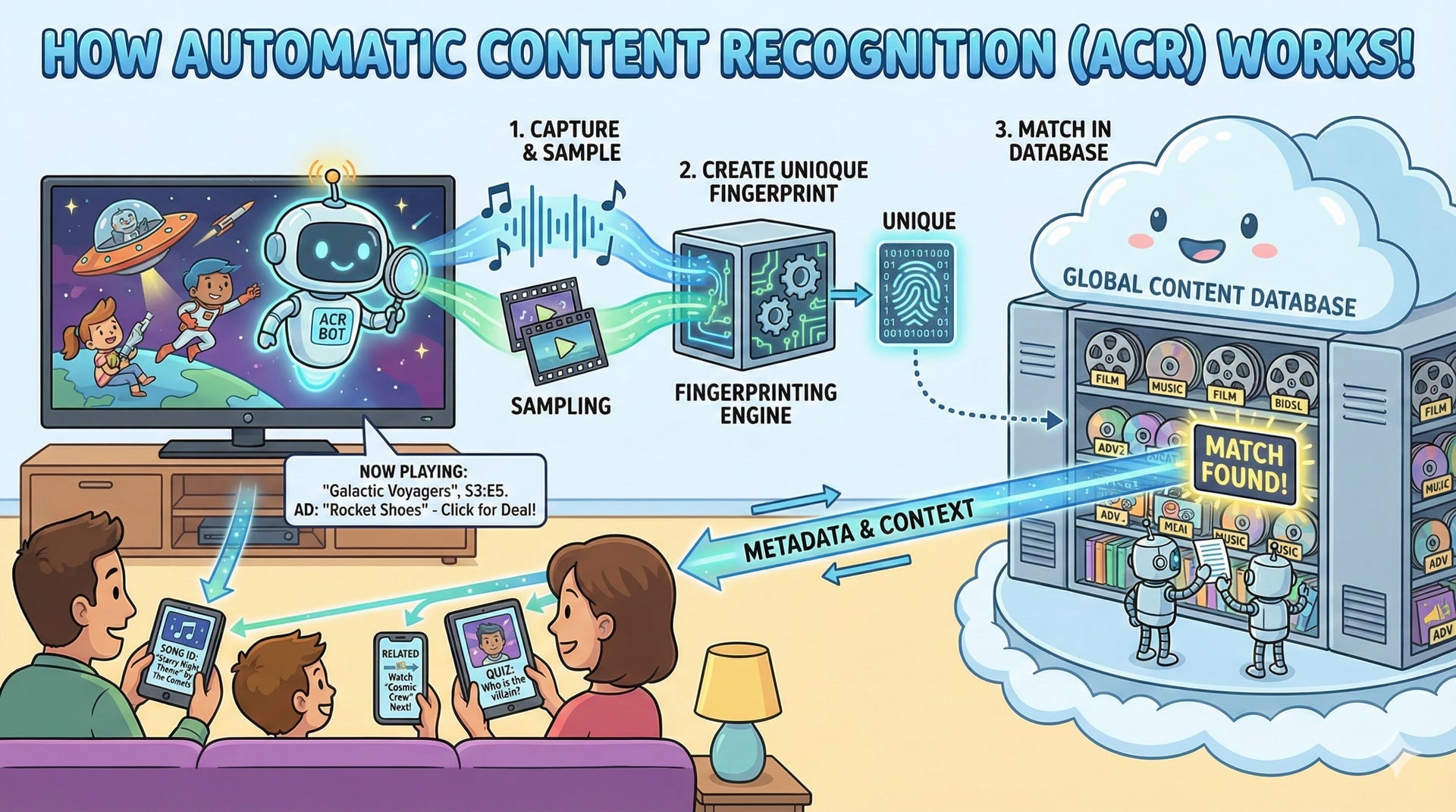
Aside from selling products, multiple brands also rely on advertising as a part of their revenue. And ACR is a feature that allows them to show you ads that may be of interest to you, instead of showing you random ads. ACR is a technology that snaps thousands of images while you watch content, no notification, no indication.
This helps brands to create a library of content for a particular viewer, which is later used to extract critical information such as metadata, what media is being played, and any other useful data. ACR also allows companies to know who has viewed their ads, thereby confirming their target audience.
ACR is also of two types: audio-based ACR and video-based ACR. However, in either case, the technology runs in the background and runs the process, which is known as pattern matching. The pattern captured from your TV is matched with a library of audio and visual signals from shows, movies, and ads to show you ads.
While seeing ads that may be of interest to you isn’t that bad, the problem is with your data that is being captured. If this data falls into the wrong hands, it can expose your personal details such as IP address, email address, and sometimes your personal details such as the home address or phone number.
How to turn off Automatic Content Recognition from a smart TV?
The good thing about this feature is that you can turn it off. Most brands give you the option to turn ACR off on your smart TV, but the option is buried under multiple layers of settings, which is why many just don’t care to turn it off. But as someone who wants to protect their privacy, you should disable this.
Here is how you can turn off Automatic Content Recognition from your TV. We have tried to include the steps for as many brands as possible.
Hisense
- Press the Home button on your Hisense TV remote.
- Head to the Main Menu.
- Select Privacy.
- Click on Ads.
- You will see a text-filled screen show up. Select Delete Advertising ID to stop ACR from tracking you.
Samsung
Samsung tucks the ACR settings under Terms & Privacy to give you a feeling that it is legal homework.
- Use your remote to head over to the Settings menu.
- Click on General & Privacy.
- Choose Terms & Privacy.
- Locate Viewing Information Services.
- Uncheck I Agree option. You may get a warning message that some services won’t work. Don’t worry, everything will work fine.
LG
LG calls its Automatic Content Recognition feature sound like a premium must-have feature, which in reality is just a data collection feature.
- Press the Home button on your LG TV remote.
- Choose Settings. If there is a dedicated button on your TV’s remote, then you can press it directly.
- Navigate to the General option.
- Select System.
- Choose Additional Settings.
- Turn off the Live Plus option.
- Under Additional Settings, you can also select Advertisement and toggle on the Limit Ad Tracking option to further restrict data tracking.
Sony
If you paid attention while setting up your Sony TV, the Samba TV is what Sony likes to call its ACR settings.
- Press the Home button on your remote.
- Select Settings.
- Choose Initial Setup.
- Find Samba Interactive TV. For some reason, Sony calls ACR with this name.
- Turn off Samba TV.
TCL/Hisense/Sharp (Roku-powered)
- Press the Home button.
- Head over to Settings > Privacy.
- Choose Advertising.
- Search for Limit Ad Tracking and click on it.
- Uncheck the Personalized Ads option.
You can also turn off an additional option mentioned below:
- Press the Home button and select Settings.
- Locate the Privacy menu.
- Find Smart TV Experience and open it.
- Uncheck the Use Info from TV Inputs option.
Vizio
- Press the Menu button.
- Head over to System > Reset & Admin.
- Turn off Viewing data.
Amazon Fire TV
- Go to Settings.
- Choose Preferences.
- Select Privacy Settings.
- Turn off Device Usage Data to limit data collection.
- Disable Collect App and Over-the-Air Usage to turn off content tracking for apps.
- Turn off Internet-Based Ads to limit ad personalization.
Xiaomi/Mi TV/OnePlus (Android TV)
- Android OS: Head over to Settings > Device Preferences > Usage & Diagnostics and turn it off.
- Xiaomi/Redmi: Go to Settings > Passwords & Security > Privacy and disable Enroll in User Experience Program.
- OnePlus: Head over to Settings > Privacy > User Agreements and uncheck the Viewing Information Agreement.
Stop your TV from tracking you
It is really frustrating that the devices that you use for your entertainment and convenience are on their toes to track you and steal data from you. What’s worse is that these settings or features are enabled by default, without user consent. There should be strict laws on providing users the ultimate control on whether they would like to see targeted ads, get tracked by unknown companies, or block them from all devices. Until that happens, you can protect yourself by disabling the ACR feature on your smart TV.

