

Quick Answer
To fix common iOS 26 issues like battery drain, lag, heating, crashes, or connectivity problems, update to the latest version, disable unused features like Apple Intelligence, Liquid Glass, 3D wallpapers, Adaptive Power Mode, reduce animations, limit background activity, reset network settings, and tweak keyboard and battery settings for smoother performance.
2025 was a rough year for Apple, from antitrust pressure to AI competition and backlash against its new Liquid Glass design introduced in iOS 26. Even though Apple fixed most of the bugs in iOS 26, there are still plenty of issues that users are complaining about every day.
If you are one of them and are on iOS 26 and noticing issues like battery drain, heating, lag, app crashes, Wi-Fi drops, or camera glitches, don’t worry, you are not alone. In this guide, I will help you fix most of the issues.
Table of Contents
iOS 26 Bug Fix Guide: Fix Performance, Battery, Keyboard, and Connectivity Issues
Update your iPhone first
Since the iOS 26 launch, Apple has released several new updates that fix lag, include the Liquid Glass design, new features, and more. These updates have also improved system stability and performance. So if you are on the old version and stuck on older iOS 26, update your iPhone to the latest version.
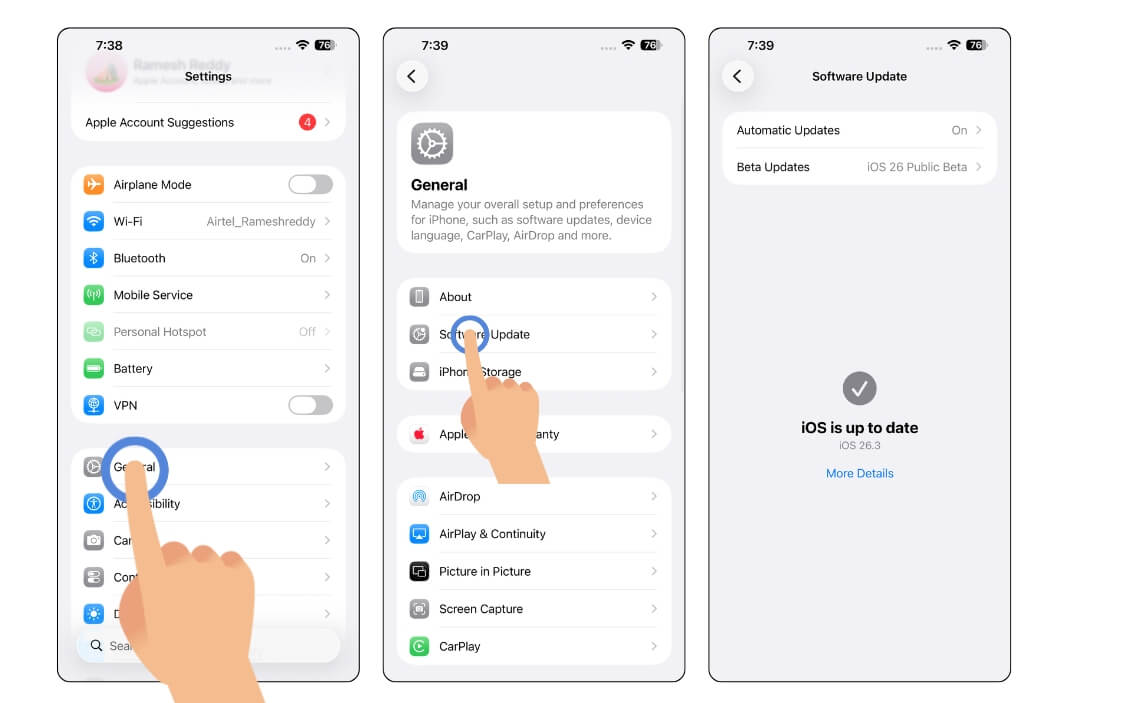
To update your iPhone to the latest version, go to Settings > General > Software Update, and then tap on Update.
Turn Off Features You Don’t Really Need
Another major problem that many users have noticed is the poor performance. While Apple has improved this with the latest updates, you can further enhance this by changing the following settings.
1. Turn off Apple Intelligence on your iPhone
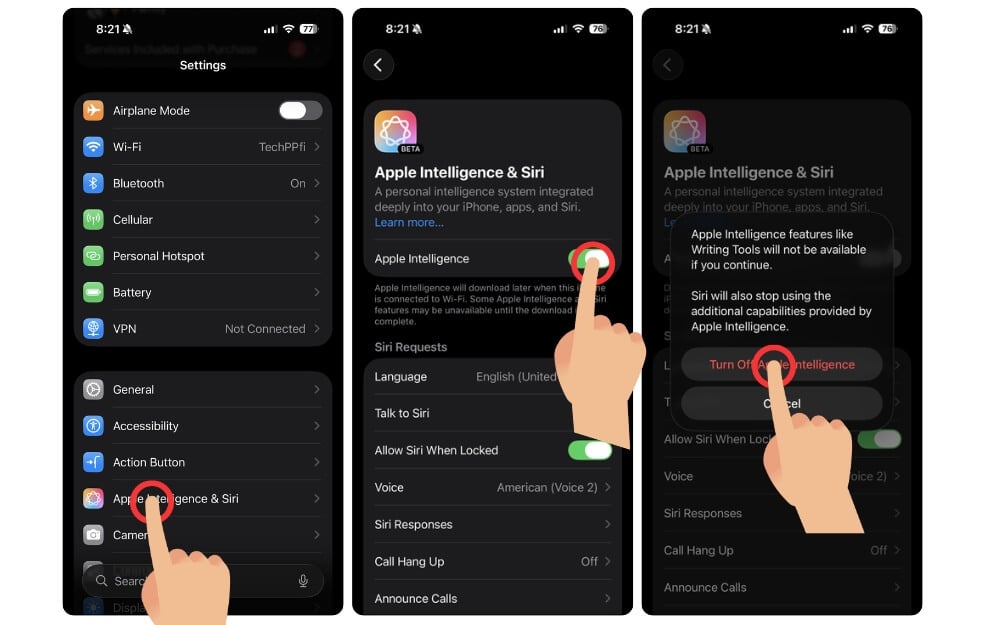
Turn off Apple Intelligence; you are not using it anyway. Apple Intelligence is Apple’s version of AI features, which are not as useful as Apple claims. If you are not using them, you can completely turn off Apple Intelligence to save system resources and enhance performance.
How to turn off the Apple Intelligence feature on your iPhone:
- Open Settings on your iPhone
- Scroll down and tap on Apple Intelligence and Siri option
- Now again, scroll down and find the option that says Apple Intelligence and toggle it off
- Now again, confirm the action, that’s it now. Apple Intelligence is disabled on your iPhone.
2. Turn off Liquid Glass Design
Liquid glass is another Apple power-hungry design that requires a lot of system resources to render. If you are not a fan of the Liquid design, you can completely get rid of that anyway. Here is how:
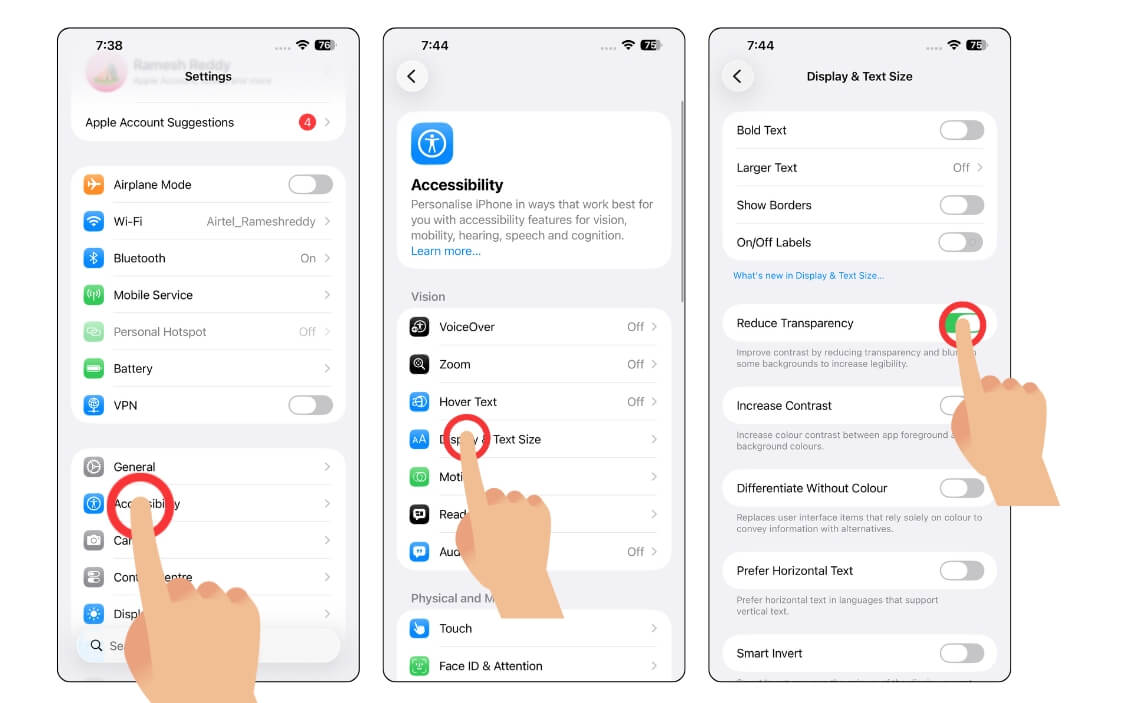
- Open Settings on your iPhone, scroll down, and tap on the Accessibility setting.
- Now tap on Display and Text size settings
- Now, scroll down and tap on the Reduce Transparency option.
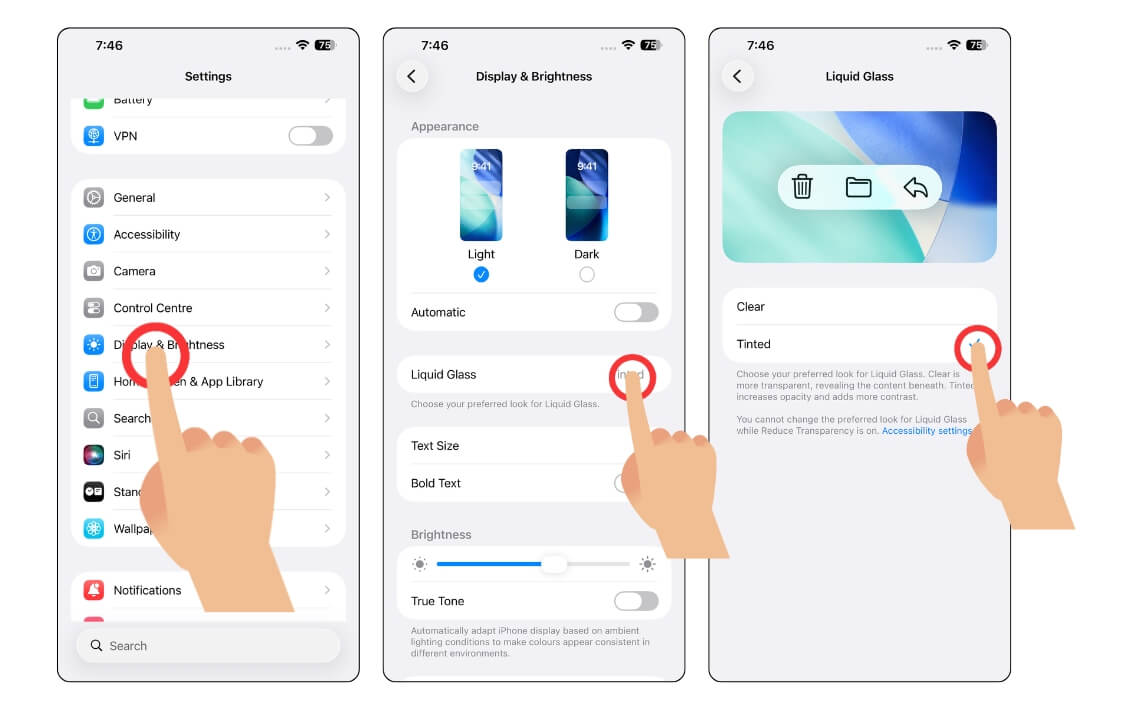
- Now go back to settings and tap on display and brightness settings
- From here, tap on the Liquid Glass and select the tinted option.
3. Turn off 3D Lock Screens
In iOS 26, you can convert 2D wallpapers into 3d using spatial scenes, so every time you unlock your iPhone, it uses 3D parallax effects to create a 3d effect. It uses GPU resources to render depth effects again, which can affect the performance on your iPhone.
This is the reason many people have also noticed the lag while unlocking their iPhone. If you’re not a fan of this, you can disable it from the settings and save system resources for other tasks. Here is how to disable
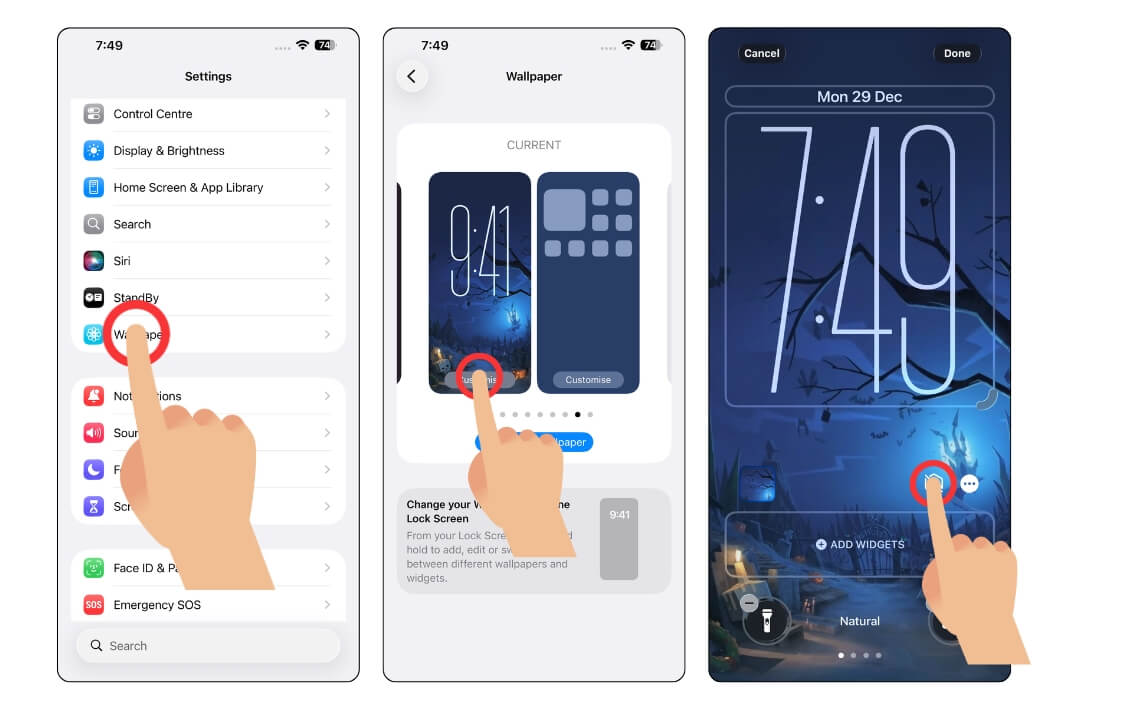
- Open Settings on your iPhone
- Scroll down Wallpaper and tap on the current wallpaper with the spatial screen
- Now, turn off the spatial scene option from the wallpaper options.
- Tap on the image icon to turn off the spatial screen.
4. Turn off the Adaptive power mode
Adoptive Power Mode is Apple’s latest solution to intelligently save battery life on your iPhone. Because of this, if your system is using resources for better performance, it can limit the performance of the device purposefully to enhance the battery life. So you can turn it off for better performance. Here is how
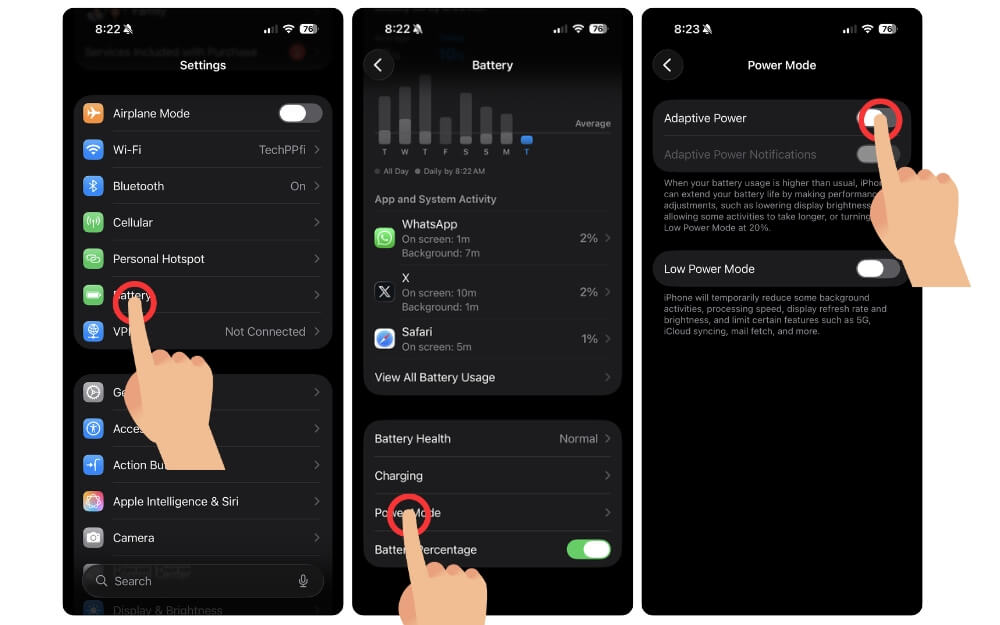
- Open Settings on your iPhone
- Scroll down and tap Battery
- Now tap on the Power Mode and from here toggle off the option that says Adaptive Power.
5. Reduce Animations for Smoother Use
iOS is meant for smooth transitions; even without the high refresh rate on my iPhone 14, it still feels way smoother than any Android phone with a 120 Hz refresh rate display.
However, if you can trade off animations for better performance, you can reduce Motion settings. This is an accessibility feature on iPhones to help you limit the visual animations and transitions, which can help improve performance. Here is how
How to reduce motion on your iPhone:
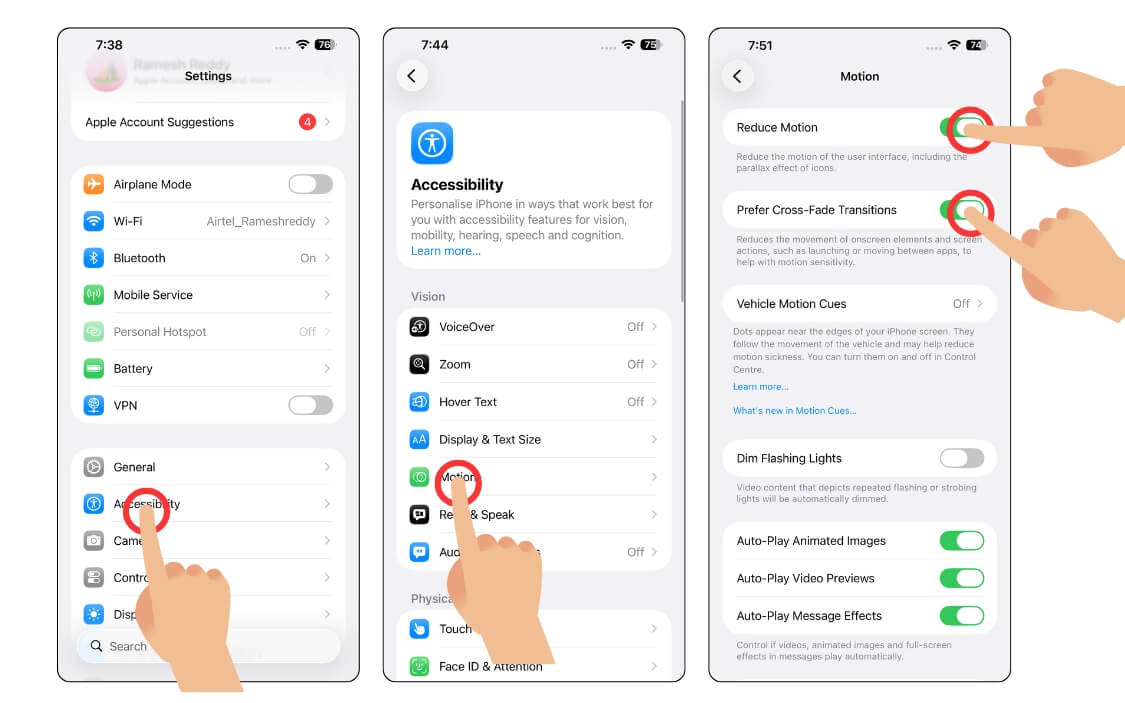
- Open Settings on your iPhone
- Scroll down and tap on the Accessibility setting
- Now again, scroll down and tap on the Motion
- From here, turn on the option that says Reduce Motion, and when you enable this feature, enable the option that says prefer cross-fade transitions
6. Other performance improvements
To further enhance performance, turn on Animated conversions on messages, which can help you speed up your messaging experience. Next, turn off notifications summaries to reduce background app usage and also ensure your device has free storage space for a smooth experience. All these settings can significantly enhance your experience on iOS 26.
Fix Keyboard Lag and Typing Delays
Another common issue in iOS 26 is the keyboard lag, and it fails to load properly in third-party apps. I have made a detailed video guide on how to fix keyboard lag in iOS 26, and to save you some time, here is how you can fix that.

Update your iPhone to the latest version. Initially, version 26 of iOS had many keyboard issues and also reported crashes. The latest version of iOS 26 has almost fixed these issues, and the keyboard is now more fluid and faster compared to previous versions
Disable unwanted keyboard features
Features like auto predictions and keyboard intelligence can degrade the performance. If you don’t use them often or if you don’t find them useful, you can turn them off to save some resources. Here is how:
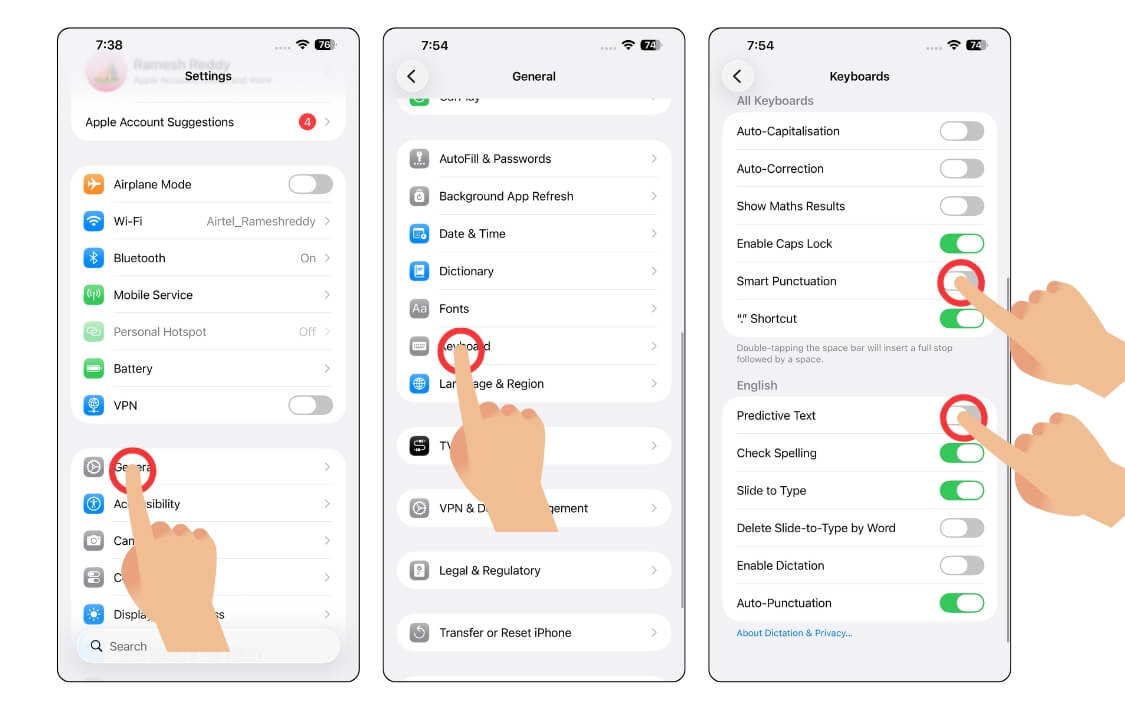
- Open Settings on your iPhone
- Tap on the General and scroll down, and tap on the Keyboard option
- From here, turn off all unwanted options. For example, you can turn off AutoCorrect and also smart punctuation settings. You can also turn off the predictive text option to reduce keyboard use.
Stop Battery Drain on iOS 26
Another common issue that many people face is the battery drain issue. Apple has issued an official statement claiming that this is common, especially after updating to a new device, where background resources can constantly download new data and adjust the latest settings.
However, this should be fixed within a week, and if you are still facing battery life issues even after all these days, you can fix it.
1. Disable Background app refresh
Background app refresh prevents apps from using iPhone resources when not in use. You can limit usage per app to completely turn it off to enhance battery life on your iPhone.
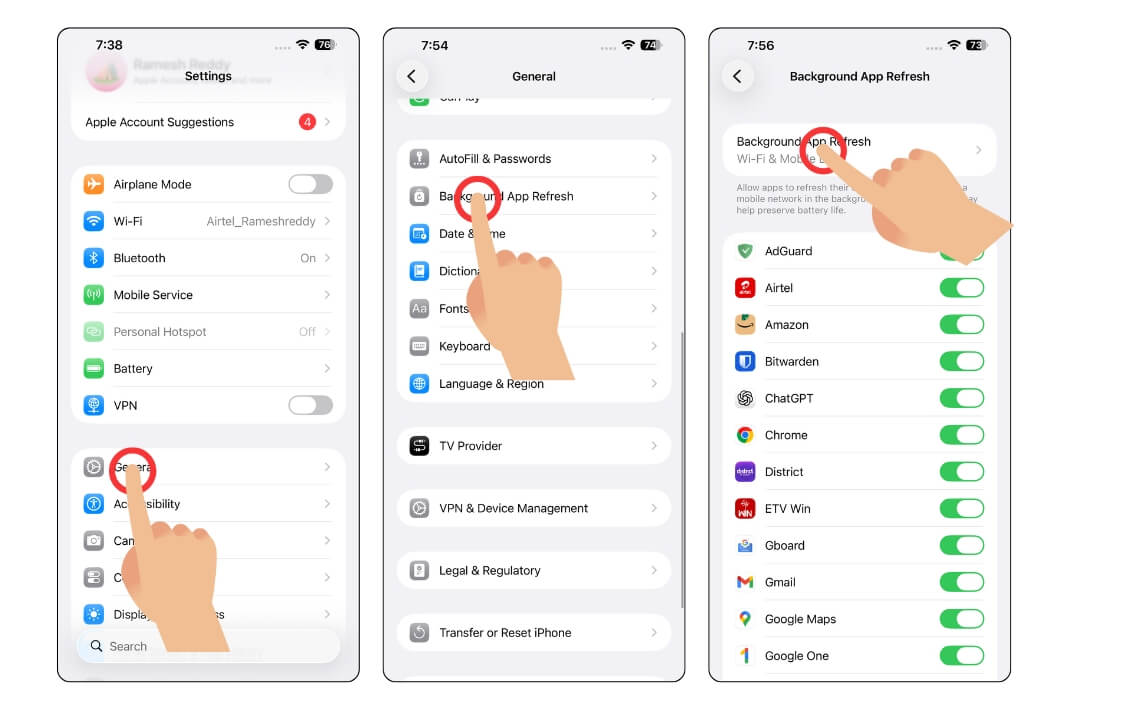
- Open Settings on your iPhone
- Tap on the General option
- From here, tap on the Background App Refresh option and turn off background app refresh for all the apps. Tap on background app refresh and select the off option.
2. Disable Share iPhone Analytics
Similar to Windows and other devices, Apple iOS also has a share iPhone analytics feature that sends usage and other system data back to Apple for better feedback.
Don’t worry, this data is private, and you can enable or disable it from the settings. Apple asks for permissions to enable this setting when you install settings on your smartphone, and when you enable this feature, it runs in the background and shares data with Apple.
How to turn off Share iPhone Analytics:

- Open Settings on your iPhone
- Scroll down and tap on Privacy & Security.
- Scroll down and tap on the Analytics and Improvements.
- From here, turn off the option Share iPhone & Watch Analytics.
3. Disable Location Services Product Improvements
Turning off location and GPS can significantly enhance the battery life on your iPhone, in addition to the other features. You can also turn off location sharing for Apple devices. To do this:
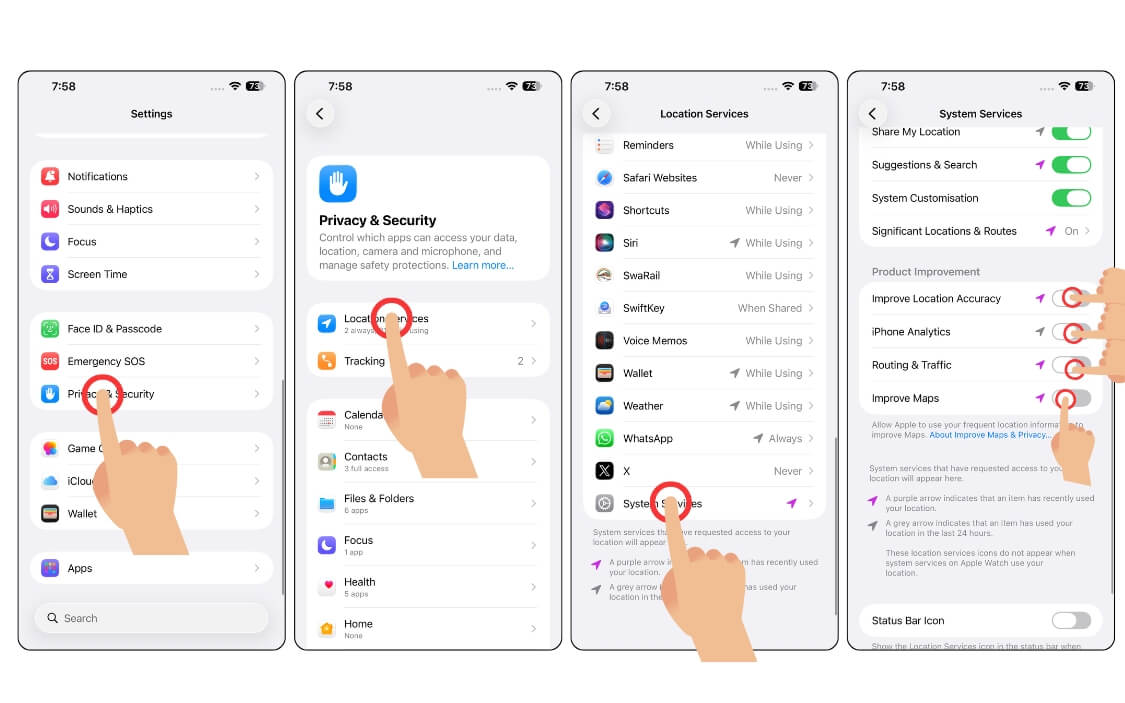
- Open Settings on your iPhone
- Scroll down and tap on the Privacy & Security settings
- Tap on Location Services
- Scroll down and tap on the System services
- Now scroll down again, from here, tap under the Product Improvement section, disable all toggles, including improve location accuracy, iPhone Analytics, Routing and traffic, improve maps, and much more.
Bring Back Older App Layouts

Apple also made several design changes to system apps. For example, the camera app now comes with a completely new interface; likewise, the Phone dialer and Safari browser also get a new makeover; however, many people have complained about the new designs. Here is how to get the old design back on your iPhone.
Safari

I have made a detailed video guide on how to get the old Safari address bar. You can view the video for step-by-step instructions or follow the steps below
- Open Settings on your iPhone
- Scroll down to the bottom and tap on Apps, then select Safari.
- Now go to the Tabs section
- From here, select the single tab option.
Phone app
Phone also gets a major design with iOS 26, now both recents and contacts are on one page; however, you can get back to the old layout using the steps below
- Open the Phone app on your iPhone
- At the top of the menu in the top right corner of the screen
- From here, select Classic for the old layout
Fix Wi-Fi, SIM, and Bluetooth Issues
Another major issue many people have faced in iOS 26 is connection issues, including no SIM card errors, Wi-Fi, Bluetooth, and more. Apple has already rolled out an update that fixed the majority of the issues; however, if the issue is still not fixed, here is how to fix all the connection issues.
1. Fix the “no SIM card” error on your iPhone
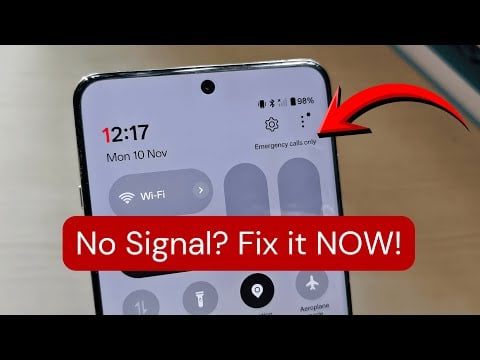
I have made a detailed video on how to fix no SIM card errors on your iPhone. This kind is still relevant and also works for the latest iOS 26. So you can watch the video and fix all the iOS 26 no SIM card errors on your iPhone.
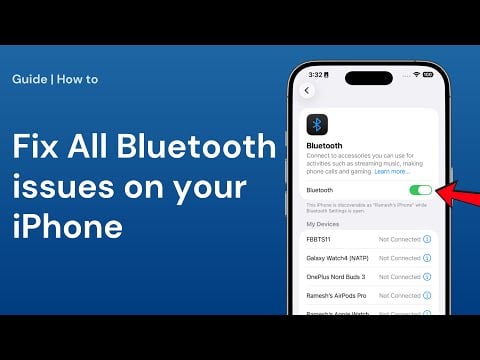
Fix all Bluetooth issues; I have also made a dedicated video on how to fix Bluetooth issues on your iPhone. You can watch the video below.
However, for all other network issues, the most common fix is updating to iOS 26.0.1. Apple rolled out a fix that fixes the majority of the connection issues.
2. Reset Network Settings on your iPhone
If you are still facing network issues on your iPhone, you can reset the Network settings.
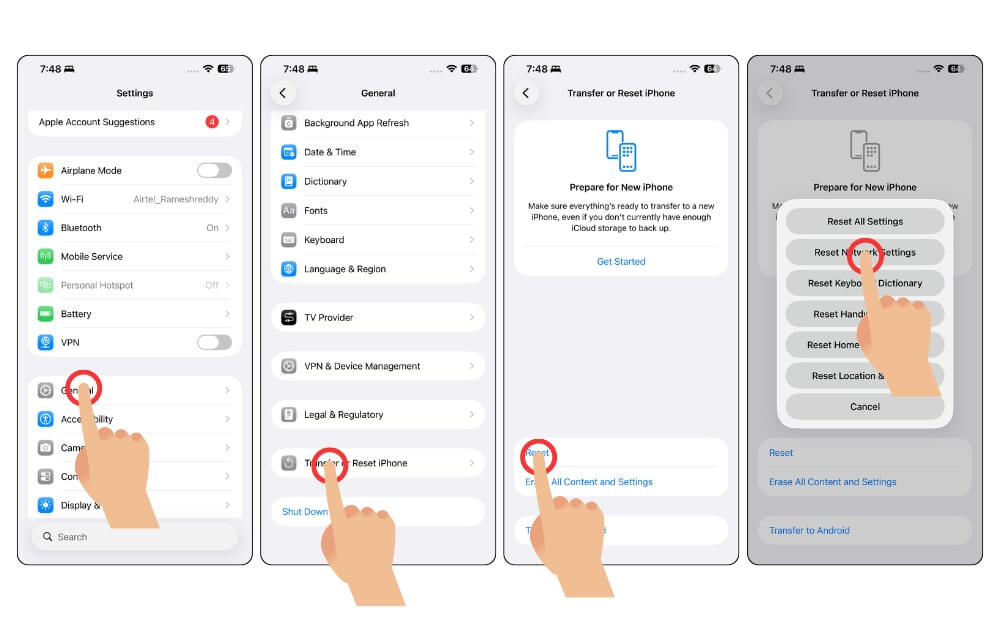
- Open Settings on your iPhone
- Tap on General
- Scroll down and tap on the Transfer or Reset iPhone option
- Now tap on the Reset option again.
- Now select Reset Network Settings
- Now, enter your device passcode
Keep iOS 26 Stable
So those are the most common issues and simple troubleshooting techniques to easily fix the issues on your iPhone, from draining your battery to overheating and performance issues, and also network issues. You can follow the method step by step and fix all the issues on your iPhone easily.

