

Quick Answer
To check if a screenshot is edited for free, first zoom in and inspect fonts, spacing, pixelation, and status bar details for inconsistencies. Then check the image metadata or run free tools like FotoForensics, ExifData, or TruthScan to detect edits, AI generation, or manipulation through Error Level Analysis.
A single screenshot can do a lot. It can save or ruin a person. Random screenshots of texts, apps, and communications are being posted on social media platforms to farm engagement. As long as they are done for engagement without involving a third person, they can be fine.
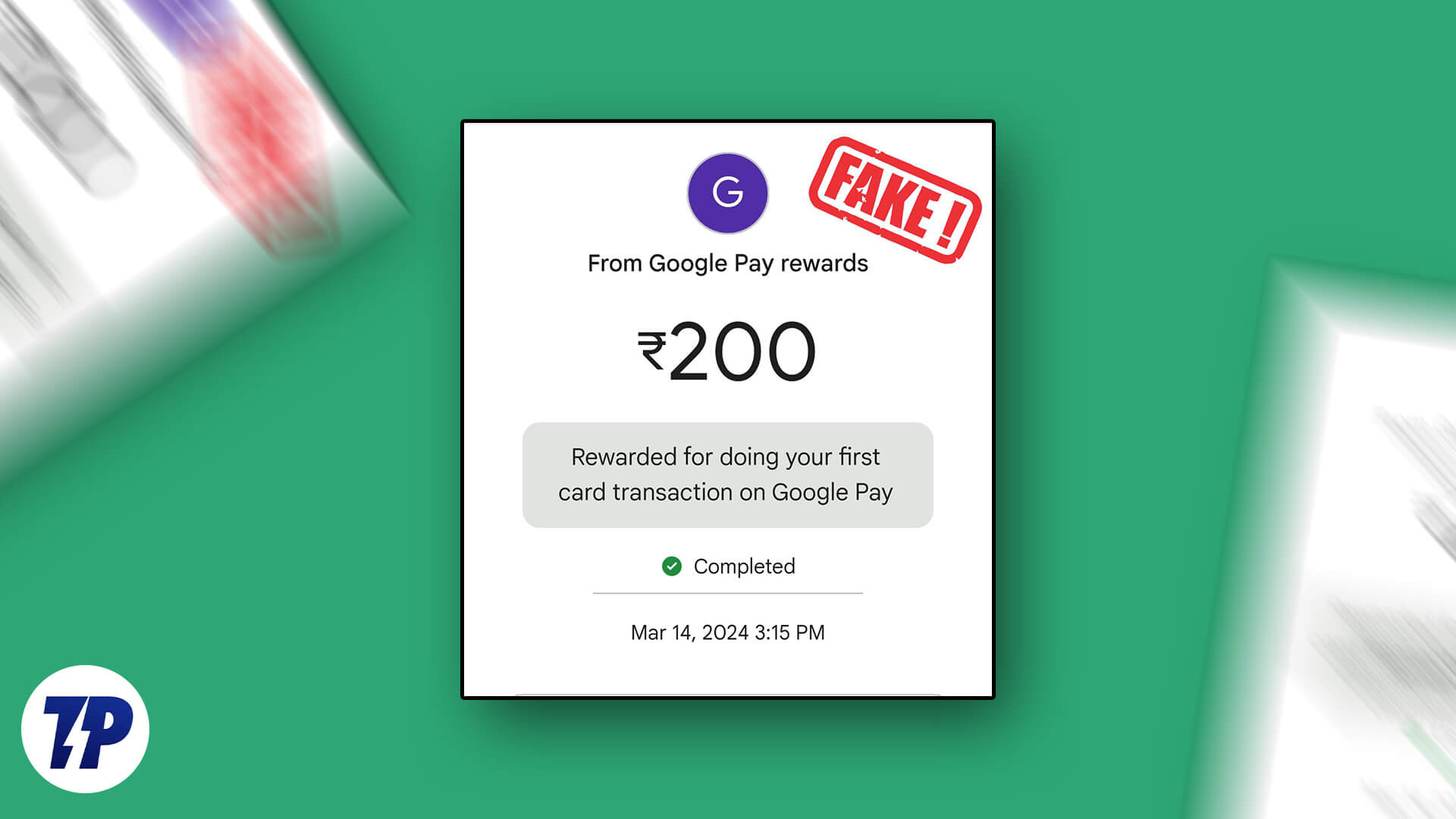
But a single screenshot can ruin a person, alter public opinion, damage a person mentally and financially, and induce self-harm. The anonymity on the internet makes it more dangerous.
When a single screenshot can be proof for many things, from bank transactions to agreements or disagreements over text, we have to be careful about the screenshots we come across. Knowing how to check if a screenshot is edited is no longer a skill only journalists or investigators need. Anyone who spends time online needs it.
It is a common human tendency to judge something before examining the details. A screenshot can be carefully manipulated or created from scratch to make something seem believable. If we come across a screenshot that sensationalizes someone, we jump to conclusions instead of examining it.
It is too easy to create a realistic screenshot with the free tools available. It is becoming too hard to detect fake or edited screenshots. In this guide, we show you different ways in which you can detect a fake, edited, or manipulated screenshot and not fall prey to misinformation.
Table of Contents
Dangers of Fake, Edited, or Manipulated Screenshots
Fake screenshots created with malicious intentions come with serious consequences. Here are the most common ways they cause harm.
- Emotional Manipulation: A carefully edited screenshot can shape a person’s perception of reality. Gullible people are put in the dark and later become victims of decisions they made based on fabricated conversations.
- Reputation Damage: Posting fake screenshots of chats or private accounts is one of the easiest ways to defame someone online. Even when proved false, the damage to reputation rarely undoes itself because negativity spreads faster and farther.
- Financial Fraud: Screenshots are widely used as payment proof on apps like Venmo, Zelle, PayPal, and UPI apps in India. Fraudsters reuse old screenshots or create new ones to fake a successful transaction. This is a criminal offense, but it still catches people off guard.
- Misinformation: Fake screenshots are used as fake “evidence” to back false claims. They are especially rampant on WhatsApp and in political circles, where they shape narratives and are forwarded without a second thought.
It is better to examine a screenshot before jumping to conclusions, forming an opinion, and acting on it. Let’s see how we can detect fake, manipulated, or edited screenshots.
How to Check if a Screenshot Is Edited for Free
Detecting a fake or edited screenshot requires the use of multiple techniques. From visual inspection to using free tools, we have many options.
Examine the Visual Elements of the Screenshots Carefully
Badly edited screenshots give away a lot of elements. All it needs is a careful examination of the following visual elements.
- Design: Check if the design in the screenshots matches the design of the app it claims to be. No two apps look the same. There will always be some distinguishing visual features. If the design in the screenshots matches the app, zoom in on the different design elements in the screenshot and see if they are the actual screenshots or just carefully created screenshots. In a real screenshot, all the design-related elements, including text, pixelate similarly when zoomed in. Only in a manipulated or edited screenshot do we find uneven pixelation.
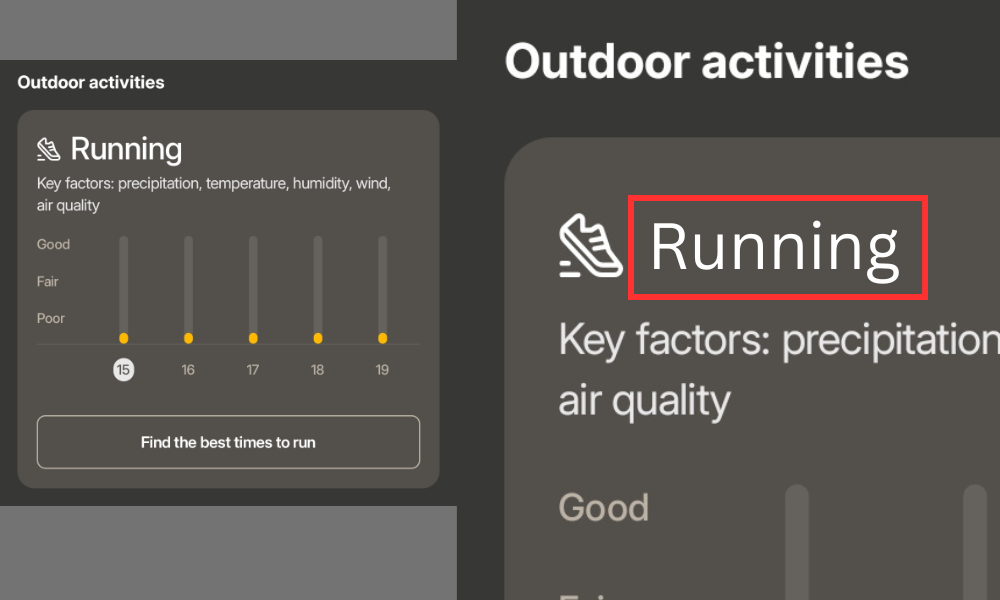
Unevenly pixelated image revealing edited or manipulated text. Similarly, every app follows design rules and uses grids to make the design appeal to a wide range of users. They cannot be created perfectly by an amateur editor in Photoshop or any other image manipulation tools. The even spacing between elements is hard to get while editing, unless the edited screenshot is created by a professional image editor.
- Font: The font of any app matches the device’s default font. That mostly does not give away anything. When someone adds new text over the existing text in a screenshot, the font may seem matched at a normal level. But, if we zoom the image to see the edges and sharpness of the text, it gives away the planted or edited text. Apps render the text using an anti-aliasing technique to smooth the edges of letters. The edited screenshot with newly added text cannot match it. It simply looks sharp or blurry. Even if the font and every text style are matched, it does not sync with the original.
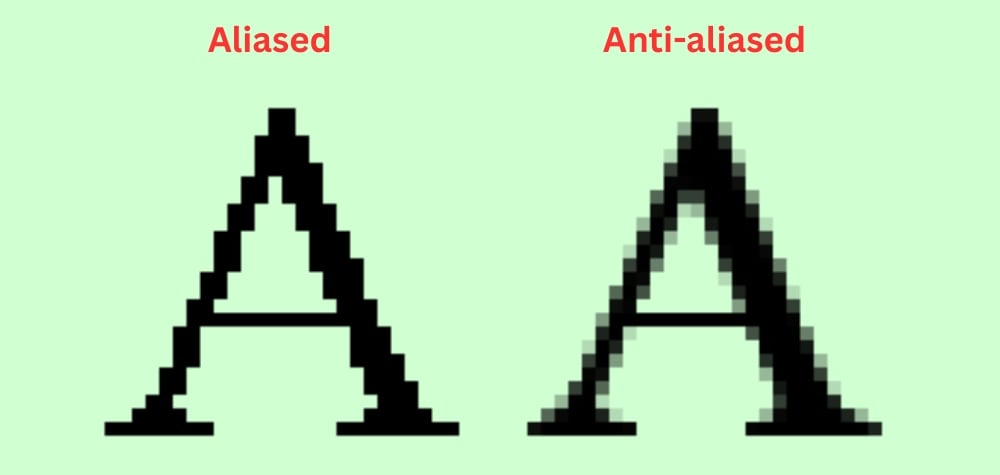
The text in the screenshot looks anti-aliased with smoothness. But the manipulated text does not render similarly and looks aliased.
- Status Bar: The status bar can help us find if a screenshot is edited or a real one. Only a few disable the status bar in screenshots. The time, network, charging bar, notification symbols, etc., can help us decide if it is real or edited. Some apps spread the app’s color to the status bar, irrespective of the mode we are in. It is not easy for an amateur to create a status bar realistically because of multiple dynamic elements.
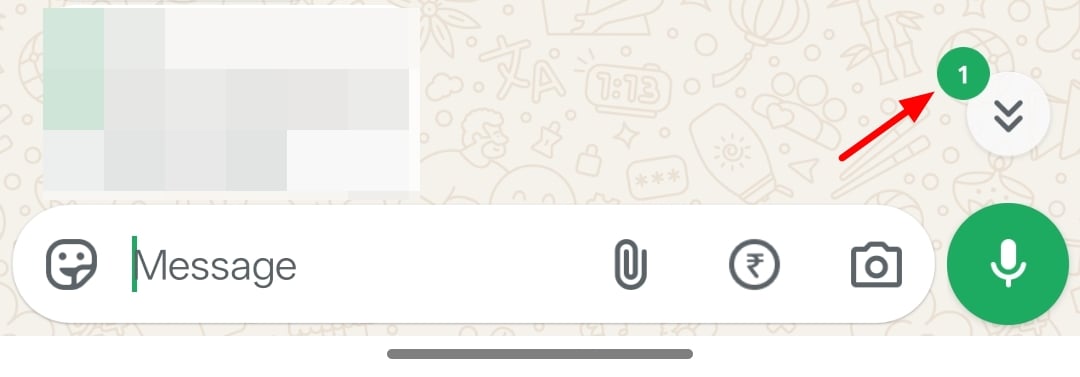
When we take multiple screenshots back to back, we can see the screenshot notification appear in the second and subsequent screenshots.
If a screenshot is taken while texting and receiving texts, the news messages are not notified in the notification area, but are notified in the chats if we are taking the screenshots of earlier texts.
Check metadata: The metadata of images gives away a lot of information. If a screenshot is edited, you can see the details of the software it was edited on. Though screenshots sent through messaging apps do not come with any metadata, you can see the metadata of a screenshot sent through email.
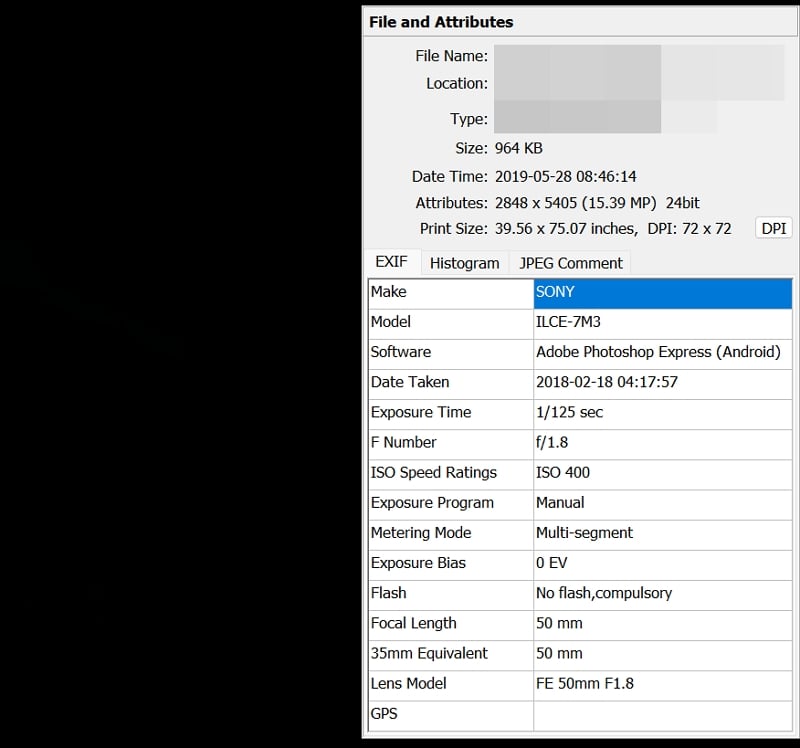
You can see the metadata details of an image using the details or properties options on the device you are using. If you are unable to see them, use image viewing apps like FastStone Image Viewer and see the image properties.
Alternatively, you can check the metadata or EXIF data of images using free websites that show you metadata. For example, you can visit ExifData.com and upload the screenshot to view its metadata.
Beyond basic metadata, a process called Error Level Analysis (ELA) can reveal whether parts of a screenshot were modified after it was saved. ELA works by resaving the image at a lower quality and comparing the compression differences. Areas that were edited stand out with a brighter color in the ELA output. FotoForensics uses this method automatically when you upload an image.
If visual inspection alone is not enough, there are free tools built specifically to help you check if a screenshot is edited or manipulated. They go deeper than the human eye can.
Tools to Detect Edited Screenshots or Images
If you are unsure of the screenshot even after examining it carefully, you can just use the free tools that automatically detect if an image is edited or not. They will show you if a screenshot or an image is manipulated, and also provide you with the reasons for their conclusion.
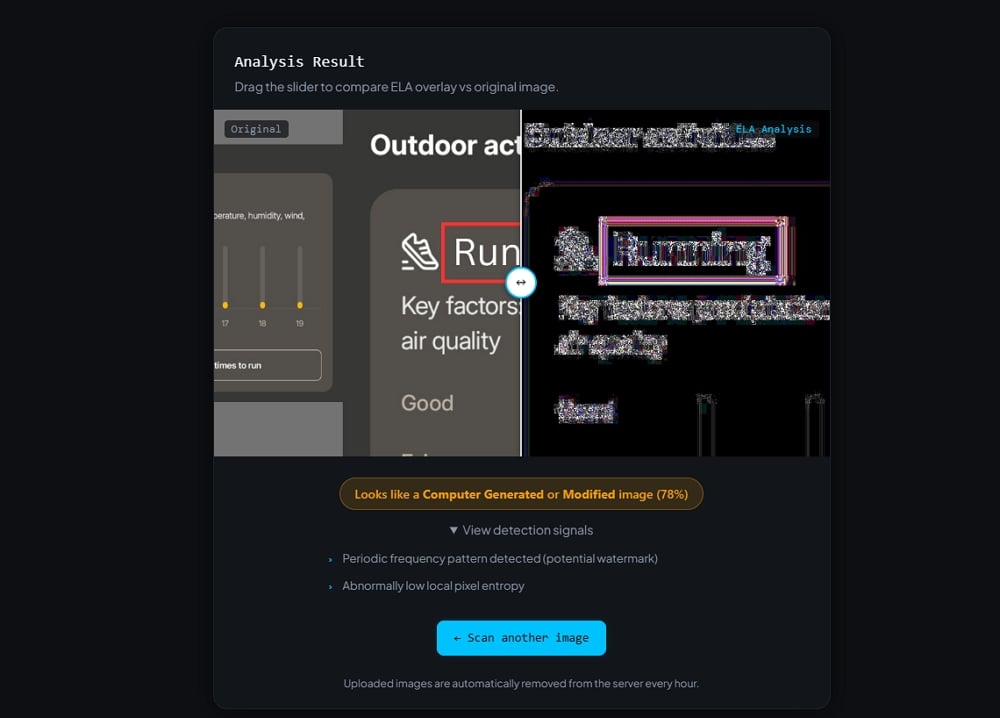
Visit any of the following websites, upload the screenshot that you doubt, and get a result. That can help you conclude the originality of the screenshot.
The websites that can help you detect edited screenshots for free are:
- Fake Image Detector – Free Online Image Authenticity Checker
- Fake Image Detector | Fake Image Detector Online | FotoForensics | Error Level Analysis
- AI Image Detector | Spot Fake & Manipulated Photos – TruthScan
Some of these tools also flag signs of image splicing, where two different images are merged, and copy-move tampering, where part of the screenshot is duplicated to conceal or replace content. Screenshot authenticity checking has become more reliable with AI, but free tools still do a solid job for most cases.
Ask for a Screen Recording
If you doubt the authenticity of a screenshot you have received, you can simply ask for a screen recording to show you the actual content. Faking a screen recording is extremely hard and time-consuming. It needs a lot of expertise. A demand for screen recording will show you the true nature of the screenshot you’ve received. It will avert a lot of damage.
Use Wayback Machine
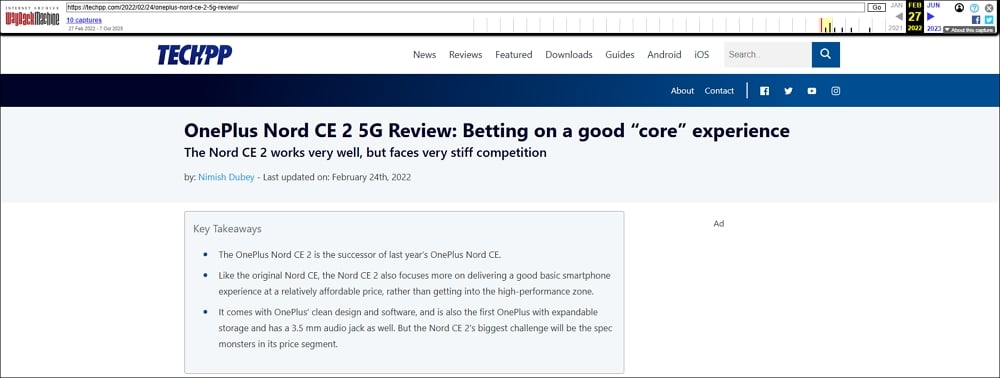
If you’ve received a screenshot of a news article from previous years, and you are not sure of its authenticity, you can use Wayback Machine to find out if the screenshot is original or not. Go to Wayback Machine, enter the website name you got the screenshot of, and then browse the particular data to see if the screenshot is real or not.
How to Detect AI-Generated Screenshots
AI tools have made it easier than ever to generate realistic-looking screenshots from scratch. Unlike edited screenshots, AI-generated ones do not have metadata or editing artifacts. They are built fresh and are harder to catch with traditional tools.
The best way to detect AI-generated screenshots is to look for irregularities that are hard for AI to get right. Profile pictures in the screenshot may look slightly distorted, especially around the edges of the face or hair. Text in the screenshot may have random characters, spacing errors, or fonts that do not match the actual app. UI elements like buttons, icons, and toggles may be slightly off in proportion or placement.

You can also upload the screenshot to an AI image detection tool like TruthScan or DeepAI’s AI Image Detector to see if the image was generated by an AI model.
How to Check a Screenshot on Mobile (iPhone and Android)
Checking screenshot authenticity is not limited to desktops. You can do a basic check on your phone as well.
On iPhone, open the Photos app, select the screenshot, and tap the info icon (i). This shows you the file details, including the date, time, and any editing history if the screenshot was modified using the Photos app. For a deeper EXIF data check, apps like Metapho let you see full image metadata.

On Android, open the screenshot in Google Photos and tap the three-dot menu, then “Details.” This shows you when it was taken, the resolution, and the file size. If the file size seems unusually large or small for its resolution, that is worth investigating further. You can also upload the screenshot directly to FotoForensics or ExifData.com from your mobile browser.
Easily Identify Fake Screenshots
It takes some time to check if a screenshot is edited or manipulated, but it is not impossible. Most people rely only on gut feeling when they come across a suspicious screenshot. That is not enough anymore.
With a careful look at the visual elements, a quick check of the metadata, and the help of free tools like FotoForensics, Forensically, and TruthScan, you can verify screenshot authenticity without any technical background. The freely available tools handle the heavy lifting, from Error Level Analysis to pixel-level analysis.
The next time a screenshot makes you angry, sad, or suspicious, pause before you react or share. Take a few minutes to verify it. That is worth more than any reaction.
FAQs about Checking if a Screenshot is Edited
What is the best free tool to detect a fake screenshot?
FotoForensics is one of the most reliable free tools for detecting edited screenshots. It uses Error Level Analysis (ELA) to highlight areas that were modified. TruthScan and Fake Image Detector are also good options.
Can metadata tell you if a screenshot is edited?
Yes, in many cases. If a screenshot was edited using software like Photoshop or GIMP, the software name often appears in the EXIF metadata. You can check this using ExifData.com. However, screenshots shared through messaging apps usually strip metadata, so it is not always reliable on its own.
Can a screen recording prove a screenshot is real?
It is the most practical way to verify a screenshot in everyday situations. Faking a screen recording requires a lot of effort and expertise. Asking for one is a reasonable and effective method when you genuinely doubt a screenshot.
How do I check a WhatsApp screenshot for authenticity?
Look at the font, timestamp format, status bar, and the blue tick positioning. Each version of WhatsApp has a consistent design. Any deviation is a red flag. You can also use FotoForensics to run ELA on the image and check for editing artifacts.

