Quick Answer
You can sync Notion with Google Calendar in two ways. Notion announced a dedicated Notion calendar app with Google integration. You can install the Notion calendar app to sync all your Google calendar events with the Notion. Alternatively, You can embed Google Calendar into notion pages using the public calendar link.
Do you use Google Calendar to set up events, schedule meetings, or organize project activities? Do you use Notion to take notes, create wikis, or manage tasks and projects?
Would you like to integrate the two services together to manage your projects and stay up-to-date with upcoming tasks or team meetings? If you do, here’s a guide to help you integrate Google Calendar with Notion to sync your updates from Google Calendar onto Notion.

How To Integrate Google Calendar With Notion?
Method | Benefits | Limitations |
|---|---|---|
1. Use the Notion Calendar App | - Sync two-way. - Add/edit eventsshare events, and switch views (daily, weekly, monthly) - Connect Notion databases to track projects, tasks, and deadlines - Supports third-party integrations. | - Requires installing a separate app - It might not appeal to users looking for in-page integration. |
2. Embedded Google Calendar Using Public Links | - Simple to set up and embed within Notion pages. | - You cannot create or edit events in Notion. - Outdated Interface |
Use Notion Calendar
Notion announced a dedicated calendar app that comes with Google Calendar integration and supports two-way syncing. All the events created in the Google Calendar sync back to Notion Calendar and vice versa with customizable intervals.
You can use all the basic features of a calendar: add or edit events, share events, switch between daily, weekly, and monthly views, switch between different calendars, and more.
On top of that, you get all the features you wanted in a Notion and Google Calendar integration. You can connect Notion databases to your calendar to keep track of your projects, events, and deadlines in one place. You can connect your tasks database, attach Notion pages directly to events, integrate with third-party tools like Zapier and Automate.io, and more.
Notion Calendar is free to use and available for all major platforms, including the web. It is a separate app, but you can easily access Notion Calendar by clicking the Notion Calendar button in the main Notion app.
How to sync the Notion app with the calendar app:
Setting up Notion Calendar is very simple; after installing the app, click on Connect with Google and grant the required permissions to sync Notion with Google Calendar. If you want to connect to another Google account.
- Download the Notion calendar for your device. Available for Mac, Windows, Android, and iPhone.
- Open the Notion calendar app and click on the add new calendar.
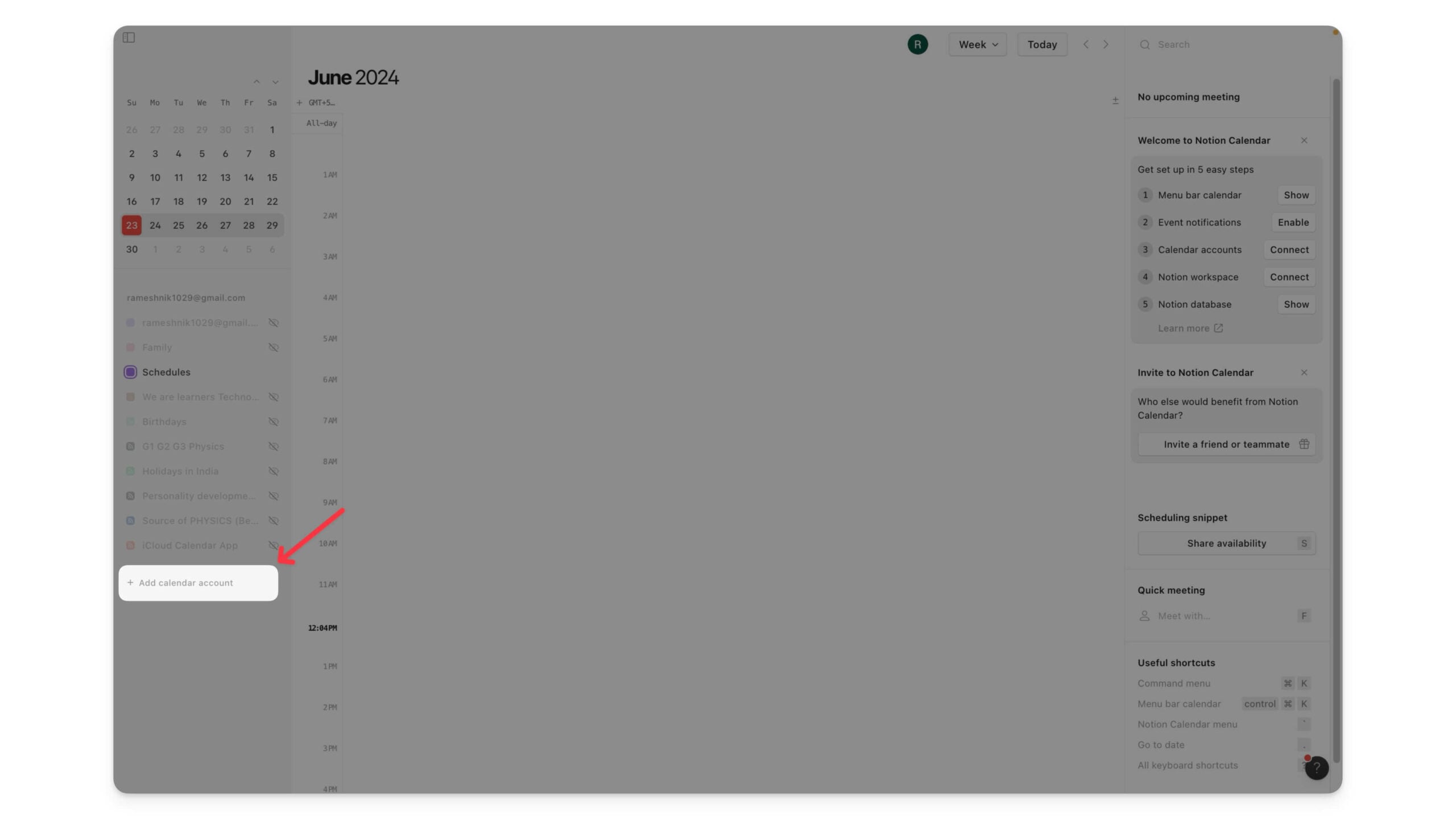
- Under calendar accounts, click on the connect next to add a Google account.

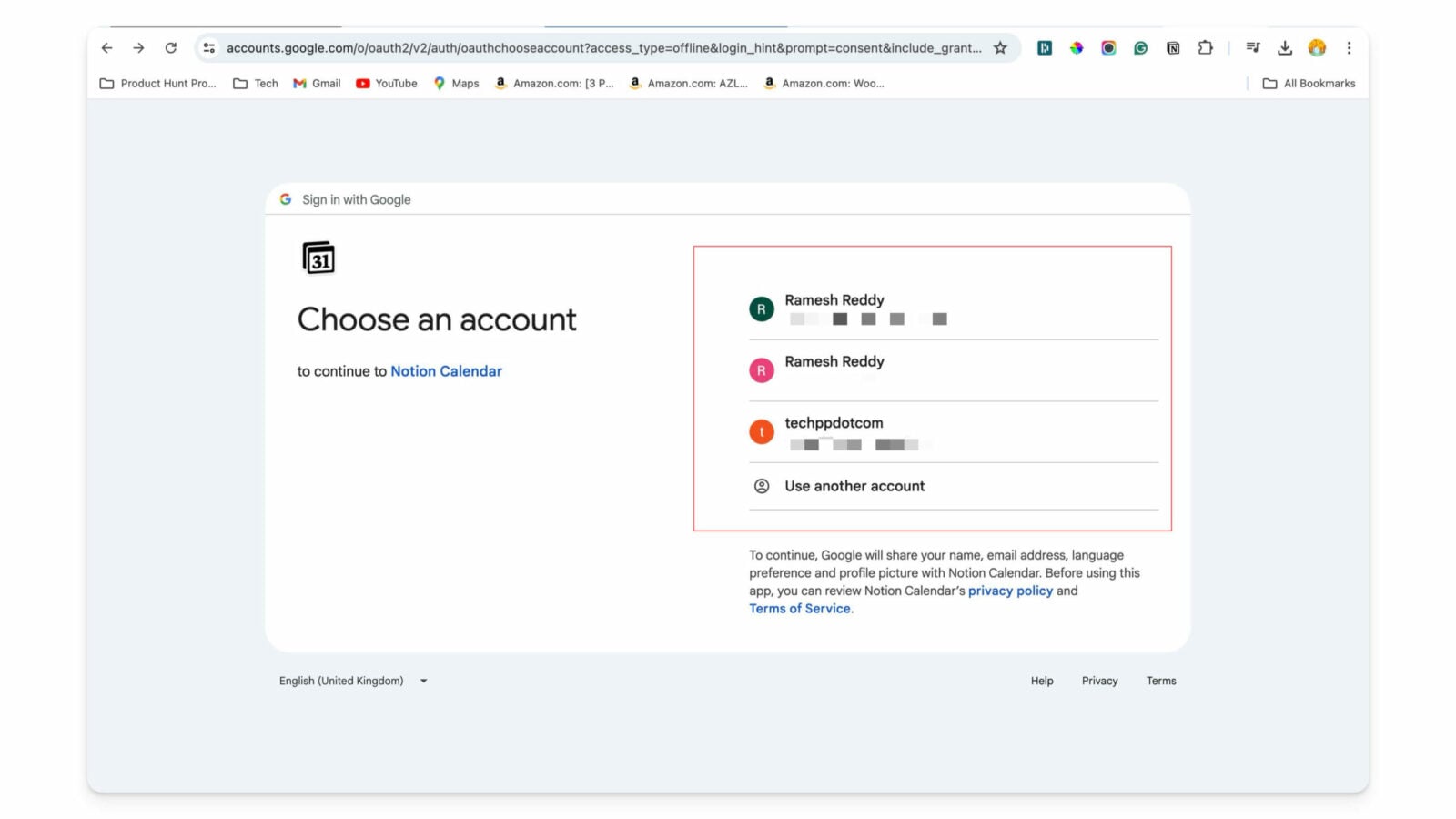
- Now, sign in with your Google account and grant permission to notion to access events from Google.
Related Read: 10 Best Free Notion Templates for Windows, Mac
Embedded Google Calendar Using Public Links
Using the Notion calendar might not appeal to users looking for an in-page integration. In this case, you can embed Google Calendar in the Notion page. However, it comes with limitations. You cannot create events or make changes to the existing events. The user interface is also outdated.
How to embed Google Calendar in Notion Page:
- Head over to Google Calendar and sign in with your account.
- Hover over the calendar you want to embed under My Calendars from the left section and click on the three-dot menu.
- You will see a few options when you click on the menu. Select Settings and Sharing from here.

- On the Calendar settings page, scroll down to the Access permissions section and check the checkbox next to Make available to public. And in the Warning popup, click OK.
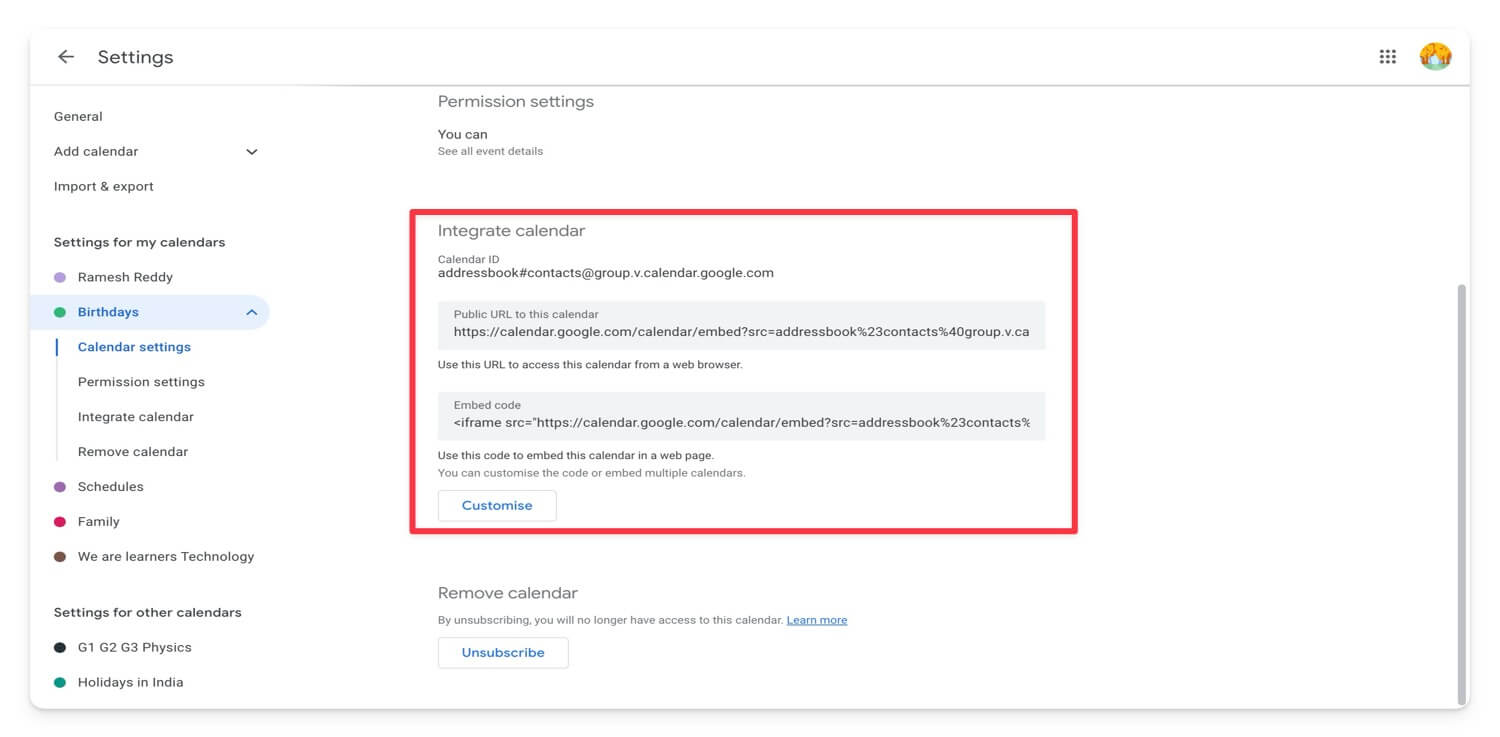
- Next, select Integrate Calendar from the left-hand menu under Settings for my calendars.
- Scroll down to the Integrate calendar section and copy the URL under Public URL to this calendar.
- Now, open Notion and sign in with your account.
- Head over to your workspace (and the page) you want to embed Google Calendar into.
- In the Notion editor, type in /embed. And in the popup, select the Embed link and paste the calendar link you just copied.

- Finally, hit the Embed link.
Once embedded, you can change a few visual settings about the calendar. You can drag the grey bars around the calendar to increase or decrease its size. And two, you can switch between the week and the month view to view the scheduled tasks. What’s more, you can click on the Agenda tab, next to the week and month view, to find all your upcoming calendar events listed in one place.

Integrate Google Calendar With Notion
You can finally sync Google Calendar with Notion using the dedicated Notion Calendar app. If you want to embed the Google Calendar into Notion pages you can share the create public of your Google calendar and embed into Notion pages.
You can also use automation tools to sync Notion with Google Calendar automatically. These tools allow you to sync Notion with Google Calendar automatically. But most of them are paid and complex to create. After searching through a few videos, I found a workaround to help you sync Notion with Google Calendar using automation. Finally, I suggest you first use the Notion Calendar app and try other methods if the Notion calendar doesn’t work.