

You’re connected to wifi, and no matter what website you visit and how many apps you open, nothing works. You try to figure out what’s going on and find that your Wi-Fi icon has an exclamation mark, which means that the Wi-Fi connection is restricted on Android. This means that your wifi is on but not receiving internet, which is why your Android phone is not receiving internet.

If you’re facing the same problem and don’t know how to fix it, you’ve come to the right place because, in this column, we’ll show you several ways to fix limited Wi-Fi connectivity on Android.
We’ll start with the basic steps and then slowly work our way to more advanced solutions so that by the end of the blog, you’ll have a solid solution for limited Wi-Fi connectivity on Android.
Table of Contents
Restart Wi-Fi to fix limited Wi-Fi connectivity on Android
Sometimes, big problems occur due to very small changes in the system. To fix such problems, it is always a good idea to start with the basics. In the case of a limited Wi-Fi connection on Android, we’ll start by restarting the Wi-Fi on your Android device. This is the first step you should take when you have a restricted Wi-Fi connection on your Android device. To restart the Wi-Fi on an Android device, follow these steps:
- Open your notification center by swiping down from the top of the screen.
- Click the Wi-Fi icon once to disable the Wi-Fi.
- Then click it again to enable it.

Now wait for your device to connect to the Wi-Fi. Once the connection is established, check if the Wi-Fi connection is still limited on Android. If so, follow the next step.
Restart the Router to fix the limited Wi-Fi connectivity on Android
Your Android device doesn’t have to be the cause of a limited Wi-Fi connection. The problem can also be your Wi-Fi router. To reboot your router, all you have to do is unplug it and plug it back in.
Once the router is restarted, you need to connect to the Wi-Fi again and check if the Wi-Fi connection is still limited on Android. If your answer is still yes, we need to proceed to the third step.
Restart the Phone to fix limited Wi-Fi connectivity on Android
Regardless of how your phone flips or folds, there can be minor bugs in any device, and limited Wi-Fi connectivity on Android could be one such bug. The best action you can take after following the above two steps is to restart your phone to restart your phone:
- Press and hold the power button.
- Click “Restart” in the power menu.

Once the device has restarted, connect it to the Wi-Fi and check if the limited Wi-Fi connection still exists. If so, you need to follow the next step.
Forget and connect to Wi-Fi again to fix limited Wi-Fi connectivity
Now, we’ll look at more advanced solutions if you’re struggling with a limited Wi-Fi connection on Android. You should forget the SSID (the Wi-Fi you are connected to) and reconnect to the same Wi-Fi network. This could solve the problem once and for all, but you have to keep in mind that after removing your Wi-Fi credentials, all your saved data (IP address) and other data will be lost, and you will have to connect to the Wi-Fi manually by entering the password.
To remove the Wi-Fi, you need to follow the steps below:
- Open your Wi-Fi settings by long-pressing the Wi-Fi switch.
- Click on the network you are currently connected to.
- Once you are on the Network Details page.
- Click on Forget.

If you are no longer connected to the Wi-Fi, follow these steps to reconnect to your Wi-Fi network.
- Click on the Wi-Fi network you need to connect.
- Enter your Wi-Fi password.
- Then click Connect.
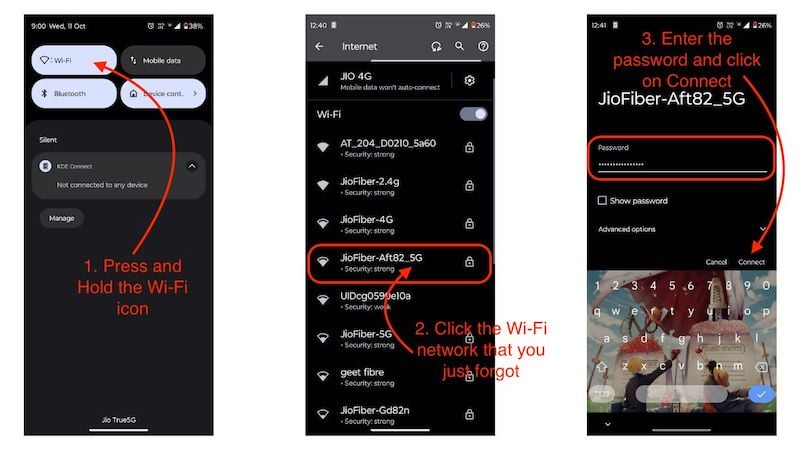
If you are doing this for the first time, you will need to wait a few seconds. Once you are connected to the Wi-Fi, check if the Wi-Fi connection is still limited on Android. If you are still facing the error, then following the next step might just fix it for you.
Change your IP from Dynamic to Static
Changing your IP from dynamic to static may not make you a hackerman, but it might help you fix the limited Wi-Fi connection on Android. Changing IP from Static to Dynamic means that you simply change the IP from dynamic, which may change from time to time and is assigned by your ISP (Internet Service Provider), to a static IP, which does not change. You just need to understand that this change will not affect your Wi-Fi performance in any way and should limit Wi-Fi connectivity on Android.
Here are the steps you need to follow to change your IP from static to dynamic:
- Open the Settings app, go to Wi-Fi settings, and click on the Wi-Fi you are connected with right now.
- Now, on the Network Details page, click on the pencil icon and click on Advance options.
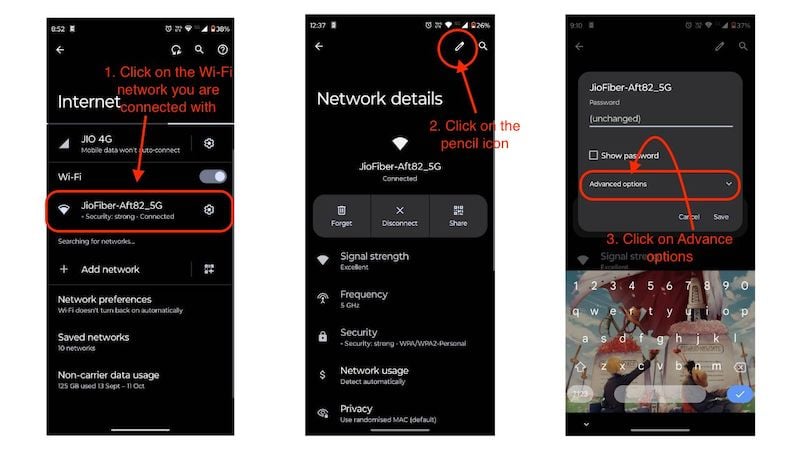
- Here, select your IP settings from DHCP to Static.
- Now, you will be able to see multiple empty fields that you need to fill.
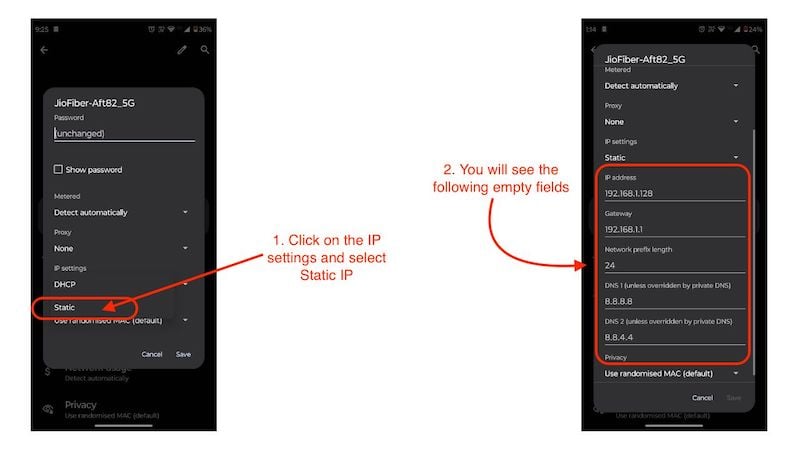
Now comes the tricky part: to fill in these details, you need to know that sometimes an IP address can conflict with other devices on the same Wi-Fi network, so you need to try multiple IP addresses and remember that you can only select IP addresses from a specific range of IP addresses, which is also based on region. You can visit the Wikipedia page to learn more about IP addresses and how they work. If you are unsure about this step, you can do exactly what we do.
- In the IP address field, you need to enter 192.168.1.251.Note: You may have to change the fourth value between 1 and 255 several times.
- The gateway remains the same as the IP address, and the last digit always ends with 1, i.e., 192.168.1.1
- Keep the length of the network prefix to 24.
- And use Google DNS for both DNS 1 and DNS 2.Note: DNS 1 should be 8.8.8.8 and DNS 2 should be 8.8.8.4
- When you are done, click Save.
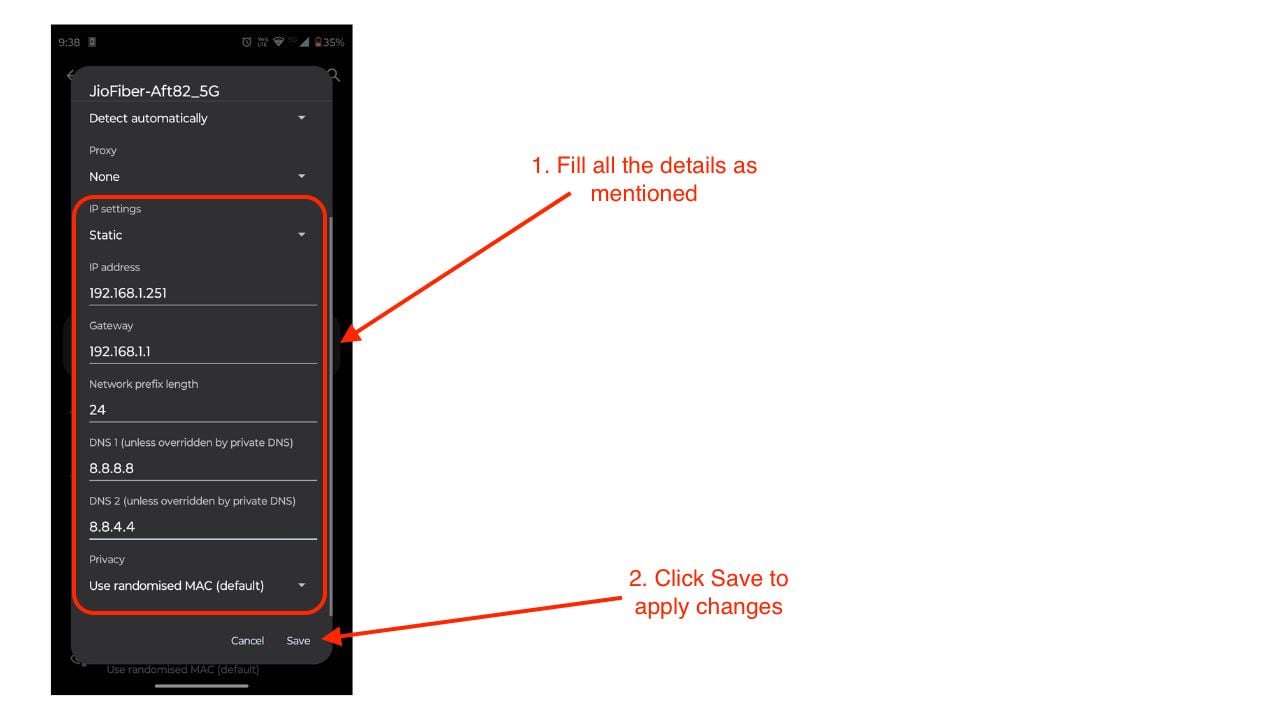
With this trick, you should be able to solve the limited Wi-Fi connection problem on Android because many people have already applied it, and after some trial and error, the problem is fixed. If, for some reason, you are still struggling with the problem of limited Wi-Fi connectivity on Android, we recommend you follow the next step.
Related Read: Mobile Data Not Working on Android? Here are 10+ Easy Fixes
Change the Network usage to fix limited Wi-Fi connectivity
Network usage can be a reason for limited Wi-Fi connection on Android because sometimes the Wi-Fi connection is set to a metered connection, which means you won’t get internet if you have a certain data limit for your Wi-Fi connection. To change the network usage, follow these steps:
- Open Wi-Fi settings and click on the Wi-Fi network you are connected to.
- When you get to the Network Details page, click Network Usage.
- Here, set it to Treat as unmetered.

When you’re done, restart your Wi-Fi again. This should fix the limited Wi-Fi connection on Android, and you should no longer see the exclamation mark and have full access to your Wi-Fi network. If, for some reason, you are still facing the limited Wi-Fi connection issue on Android, and this method did not work, you should follow the last step in our article, as it will fix the problem.
Reset the Network Settings
Resetting your Android device’s network settings might be your only option. Resetting the network settings will delete all your network configurations and credentials, including all saved Wi-Fi networks and their passwords, all Bluetooth settings, and all network settings for your sim card, but it will fix the problem of limited Wi-Fi connection on Android.
To reset the network settings on Android, you need to follow the steps below:
- Open the Settings app and search for Reset Wi-Fi, Mobile, and Bluetooth.
- Click on the following result.If you are using a device that is not stock Android, search for Reset Network Settings.
- And click Reset Network Settings or Reset Wi-Fi, mobile, and Bluetooth.
- Then click the Reset settings button.

Once you click the Reset Settings button, your device will prompt you to enter your PIN, password, or pattern to confirm the reset. The device will boot, and it may take a few minutes for it to reboot. Once the device has been booted up, you will need to re-enter your Wi-Fi credentials to connect to the Wi-Fi network.
Once connected, you should take a look at the Wi-Fi icon because, this time, the Wi-Fi connection on Android should no longer be restricted. If you ever face this issue again, keep in mind that you will need to follow these steps once more to fix the problem of limited Wi-Fi connectivity on Android.
Final Words
Are you still having problems with a limited Wi-Fi connection on Android after following all the steps from the article above?
If you have followed all the steps from the above article correctly and the problem of limited Wi-Fi connection on Android still persists, you should talk to your ISP and inform them about the problem and try to contact your phone’s authorized service center and tell them about the problem in detail. If the problem is with your ISP, they will fix it, and if it has something to do with your phone, the service center should tell you the right solution.
FAQs about Fixing Limited Wi-fi Connectivity Issues on Android
1. Will resetting Network settings also reset my device, and will I lose my data?
No, resetting your network settings will not completely reset your device, and you will not lose any data. However, when you reset your network settings, you need to keep in mind that all of your Wi-Fi credentials, all of your saved network details, your Bluetooth device credentials, and even the network configuration for your SIM card will be erased.
2. What is Google DNS?
Google DNS is a public domain name system that has been available since 2009. It offers no blocking or security and uses two IP addresses: 8.8.8.8 and 8.8.4.4. If you want to learn more about Google DNS, you can find the link to Google Public DNS here. On this page, you will find all the information about Google DNS in detail.
3. What should I do if changing my IP from static to dynamic does not solve my problem?
If changing your IP from static to dynamic does not solve the problem, you should follow other steps. In most cases, this should fix the problem, but you will need to use the hit-and-trial method for it to work successfully. However, if you don’t want to keep trying, you can use other steps to fix limited Wi-Fi connectivity on Android.
4. Will changing my Wi-Fi network usage to unmetered consume more data?
No. If you switch your Wi-Fi network usage to unmetered, you won’t consume more data, but if you’re on a limited data plan, you may exceed your data limit and have to pay additional charges. This is not always the case, but you should keep in mind that this can vary from provider to provider and also from data plan to data plan.
5. Instead of an exclamation mark, my Wi-Fi is showing a cross with the Wi-Fi symbol. What does that mean?
If your Wi-Fi displays an exclamation mark or a cross, it means the same thing: Your device has no Internet access, but it is connected to your WLAN, and you have limited Wi-Fi connectivity on Android. In both cases, following the above steps will solve the problem.

