

Quick Answer
Depending on your preference, you can use the Windows registry or built-in taskbar settings to move the taskbar in Windows 11. The registry method allows you to move the taskbar to your preferred location, while the built-in taskbar settings only allow you to set the taskbar to the center or to the left.
Unlike Windows 10, where you could click through a few settings to change the taskbar location, Windows 11 isn’t as straightforward. However, if you’re used to having your taskbar positioned on the top of the display and aren’t feeling at home with a bottom taskbar after upgrading your PC to Windows 11, there’s a handy registry hack that can help you out.

Follow along as we detail the steps in using this registry hack to relocate the taskbar from the bottom to the top of the screen in Windows 11.
How To Move Taskbar to Any Position on Windows 11
Method | Change Taskbar Position to | Steps |
|---|---|---|
1. Using Explorer Patcher App | Top, Left, Right, Bottom | Download Explore Patcher from GitHub > Install > Right-click Taskbar > Properties > Choose Taskbar Style & Location |
2.Using Windows Registry Hack (For Windows 11 21H2 or Earlier versions) | Top, Left, Right, Bottom | Open Run (Windows+R) > Type regedit > Navigate to StuckRects3 > Edit Binary Value > Restart Explorer |
3. Use Windows 11 Settings (Built-in) | Left, Center | Open Settings (Windows+I) > Personalization > Taskbar > Taskbar Behaviors > Set Taskbar Alignment |
1. Use the Explorer Patcher App
Using the Explore Pather app is one of the easiest methods to re-position the taskbar anywhere on the screen. It is an open-source project on GitHub that was made to bring back all the customization features to Windows 11, which is available for Windows 10.
You can use the app to move the taskbar to the screen’s top, left, right, or bottom and change the taskbar’s appearance and behavior. Along with the Windows 10 and Windows 11 start menu styles. Adjust the position of the start menu and more.
How to use the Windows Explorer Patcher app:
- Download the Windows Explorer Patcher app from GitHub and install it on your device.
- Open the .exe file, Click More info (if blocked by Windows Defender, Run Away), and click Yes to install the app.
- Now, Right-click on the taskbar and select properties.
- Click on the taskbar taskbar style and select Windows 10. Now select the primary taskbar location and select your desired location.
2. Move the Taskbar Using the Windows Registry (Works on Windows 11 21H2 or Earlier Versions)
A registry hack is an alternative method that involves changing the values of registry keys to customize the appearance and behavior of their associated system components when the operating system doesn’t explicitly provide an option.
So, to move your taskbar from the bottom to the top of the screen in Windows 11, you’ll need to modify the associated registry key on your PC using the following steps.
How to move the taskbar using the Windows registry:
- Use the Windows+R shortcut to launch Run, search regedit, and hit Enter. Alternatively, click on Start and look at Registry Editor. When prompted in the User Account Control screen, hit Yes.
- In the Registry Editor window, click on the search box/address bar right below the toolbar and enter the following key path:
HKEY_CURRENT_USER\Software\Microsoft\Windows\CurrentVersion\Explorer\StuckRects3

- Double-click on the Settings key in the right-hand pane. In the Edit Binary Value window, click on the 03 value under the FE column and change it to 01. You can also change the value to 00 or 02 to change the taskbar’s position to the left or right part of the screen, respectively. However, positioning the taskbar to the left or right is currently known to cause certain problems.

- Hit OK and close the Registry Editor.
- Now, Restart the Explorer service for the changes to take effect. To do this, you can either restart your PC or restart the process.
- To do the latter, press Ctrl+Shift+Esc to open Task Manager and click on the Processes tab. Here, right-click on Windows Explorer under Apps and select Restart from the context menu options.

- Alternatively, you can also do this via the command line. To do this, launch the Command Prompt in administrative mode by clicking Start, looking up cmd, and pressing the Ctrl+Shift+Enter shortcut.
- Once in the CMD windows, enter the following command and hit Enter to stop File Explorer (explorer.exe process):
taskkill /f /im explorer.exe - Finally, run
start explorer.exeTo start the service again.
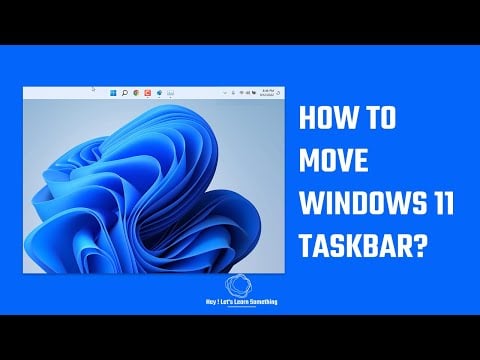
If you performed the steps correctly and all went well, you should see the taskbar relocated to the top of the screen. Subsequently, you should be able to use it to launch programs, view open apps, access taskbar icons (or other items), and perform other operations seamlessly.
However, when you click the Start button, you’ll notice that even though it is centered in the taskbar, its menu comes from the left-hand side. You can continue using it if you aren’t bothered by the layout. But if you are, you can change the Start menu alignment from the taskbar settings.
To do this, open Settings and navigate to Personalization > Taskbar > Taskbar Behaviors. Here, tap on the dropdown menu option next to Taskbar alignment and select Center to align its position with the centered Start button on your taskbar. You can use the same settings to change the taskbar’s position without using the Windows Registry. See Method 2.

3. Move the Taskbar Left or Center Using Windows Settings
The registry method requires numerous steps and might not appeal to all users. In this case, you can use the built-in taskbar settings on Windows 11 to reposition the taskbar. However, using this method, you can only set the taskbar position to the left or center.
How to change taskbar position using settings:

- Go Settings. Use the Windows key + I shortcut to open the settings.
- Click on the Personalisation tab from the sidebar and select Taskbar.
- Tap on the Taskbar behaviors, and next to Taskbar alignment, set the Taskbar alignment to the left or the center.
Relocating the Windows 11 Taskbar to Your Preferred Location
Changing the appearance or functionality of some system components is a useful functionality that lets you customize your system to your preference.
If you, too, are wired to work with your desktop setup in a particular way, wherein the taskbar is tiled to the top, right, or left of the screen, you can change the taskbar location in Windows 11 using this guide.
At any point in the future, if you feel like putting the taskbar back to its default location—at the bottom of the screen—change the value of the registry key (mentioned earlier in the post) back to 03.

